17. Interview Questions and Answers
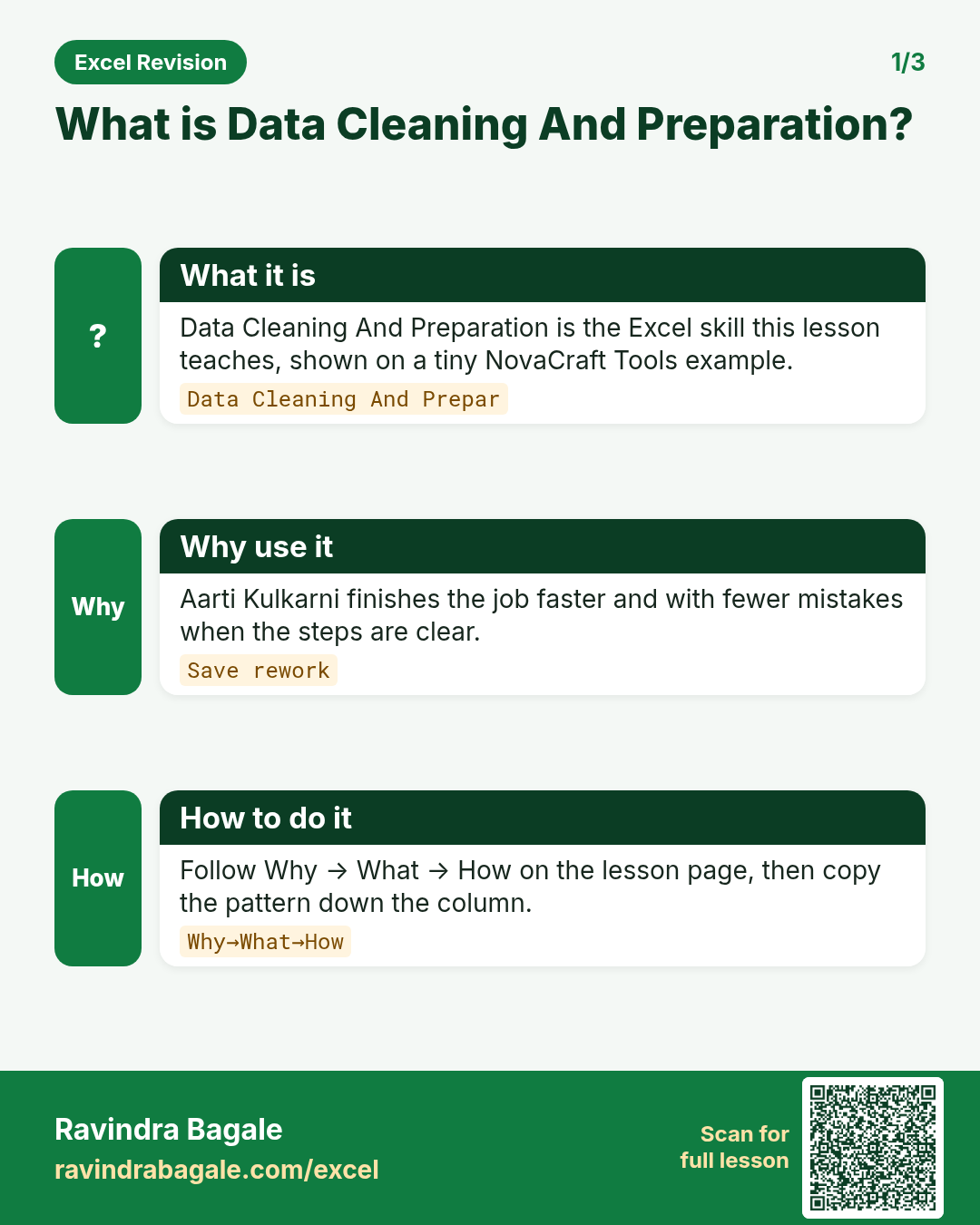
17.4 Data Cleaning and Preparation
Q29. How do you remove duplicates?
Data › Data Tools › Remove Duplicates, choosing the key columns; or first identify them with Conditional Formatting › Duplicate Values or =COUNTIF($A$2:A2,A2)>1; or =UNIQUE() in Microsoft 365; or Power Query › Remove Duplicates for repeatable cleaning. I always standardise values (TRIM/UPPER) first and keep the raw data untouched.
Q30. How do you handle missing values?
First find them (Go To Special › Blanks, COUNTBLANK, filters). Then decide by business meaning: leave blank and flag, fill down for repeated labels (Go To Special › Blanks, =A2, Ctrl + Enter), use a default like "Unknown" for text, or impute carefully (median) only when justified. I never replace missing numbers with 0 blindly because it distorts averages.
Q31. What is data cleansing and what steps do you follow?
Making data accurate, consistent and usable. My steps: keep a raw copy → check structure (headers, blank rows, merged cells) → fix types (text numbers, dates) → standardise text (trim, case, mapping) → remove duplicates → handle missing values and outliers → validate with counts and totals → document the steps (or record them in Power Query).
Q32. How do you standardise mixed date formats?
Identify which rows are text vs real dates (ISNUMBER). Use Text to Columns with the correct date order (DMY/MDY), DATE(RIGHT(),MID(),LEFT()) for text patterns, or Power Query › Change Type › Using Locale. Then apply dd-mm-yyyy formatting.
Q33. How do you split "Pune-411038" into city and pincode?
Text to Columns with - as delimiter; Flash Fill (Ctrl + E); =LEFT(A2,FIND("-",A2)-1) and =MID(A2,FIND("-",A2)+1,6); or TEXTBEFORE/TEXTAFTER in Microsoft 365.
Q34. What is Flash Fill and its limitation?
Flash Fill (Data › Data Tools › Flash Fill, Ctrl + E) fills values by recognising a pattern from examples. It is fast but static – it does not update when the source changes – and it can guess wrong on irregular data, so I verify results.
Q35. How do you find outliers in Excel?
Sort and inspect, use conditional formatting (top/bottom or above average), compute z-scores =(x-AVERAGE)/STDEV.S, or the IQR rule with QUARTILE.INC: outlier if below Q1 − 1.5×IQR or above Q3 + 1.5×IQR. Then verify with the business before removing anything.
Q36. How do you compare two lists or columns to find mismatches?
=COUNTIF(ListB,A2)=0 or =ISNA(MATCH(A2,ListB,0)) to find items missing from list B; =EXACT(A2,B2) for case-sensitive row-wise comparison; Conditional Formatting › Duplicate/Unique values; or Power Query anti-joins.
Ravindra Bagale's Tip
Many students answer a cleaning question with just "Remove Duplicates". Describe your full process – raw copy, types, text standardisation, duplicates, missing values, and finally reconciliation (row count, total). When you describe this process, the interviewer sees your experience.
Ravindra Bagale's Tip – मराठी
बरेच students cleaning च्या प्रश्नाला फक्त "Remove Duplicates" म्हणतात. तुमची पूर्ण प्रक्रिया (process) सांगा – raw copy, types, text standardisation, duplicates, missing values, आणि शेवटी reconciliation (row count, total). ही process सांगितली की interviewer ला तुमचा अनुभव दिसतो.
Ravindra Bagale's Tip – हिंदी
बहुत से students cleaning वाले सवाल पर सिर्फ़ "Remove Duplicates" कह देते हैं. अपनी पूरी प्रक्रिया (process) बताओ – raw copy, types, text standardisation, duplicates, missing values, और आख़िर में reconciliation (row count, total). यह process बताने पर interviewer को तुम्हारा अनुभव दिखता है.
Loading practice tasks...
- Total amount (Easy): Add up Amount (₹) in E2:E11 on sheet Data. (sheet "Data")
- Average qty (Easy): Average of Qty in D2:D11, rounded to 1 decimal. (sheet "Data")
- Active count (Easy): How many rows have Status "Active"? (sheet "Data")
- Max amount (Easy): Largest Amount (₹) in E2:E11. (sheet "Data")
- Pune count (Easy): How many rows have City "Pune"? (exact match — cleaning matters). (sheet "Data")
- Active amount (Medium): Total of Amount (₹) where Status is "Active". (sheet "Data")
- Mumbai qty (Medium): Total of Qty where City is "Mumbai". (sheet "Data")
- Active Pune amount (Medium): Amount where City is "Pune" and Status is "Active". (sheet "Data")
- Code of Priya (Medium): Code for Name "Priya Shah" on sheet Text. (sheet "Data")
- Share active amount (Hard): Active amount / all amount, 3 decimals. (sheet "Data")
- Hold count (Hard): How many rows have Status "Hold"? (sheet "Data")
- Above avg amount? (Hard): "High" if E2 > average amount else "Low". (sheet "Data")
Worked example — data cleaning and preparation
Why
Neha Shah in Pune and Sophie Martin abroad both need a clear, repeatable way to use data cleaning and preparation on a FreshGo Mart sheet without breaking totals.
What
Data Cleaning And Preparation is the Excel idea this page teaches. We will walk one tiny example end to end.
How
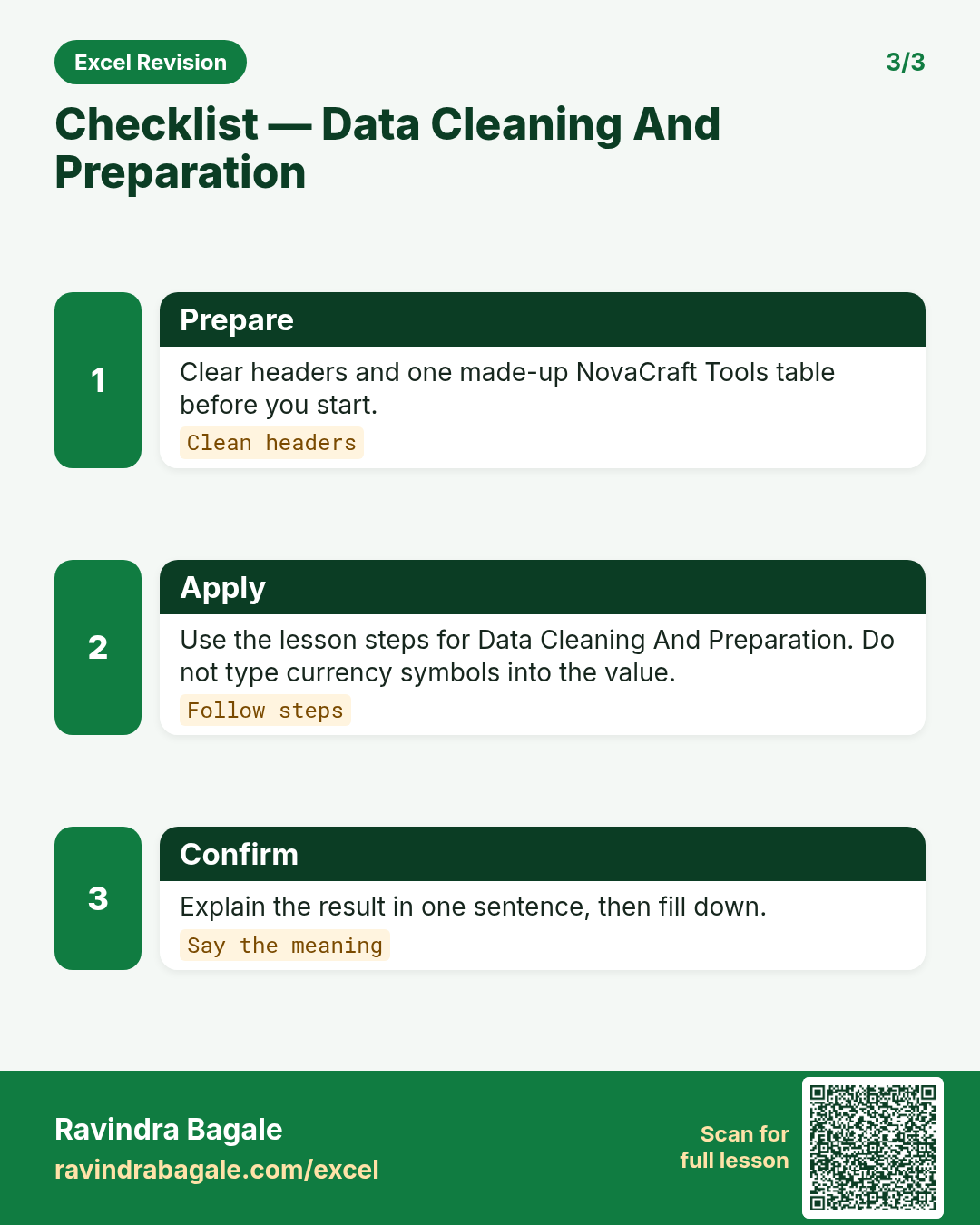
- Open a blank sheet. In A1 type a short label for data cleaning and preparation.
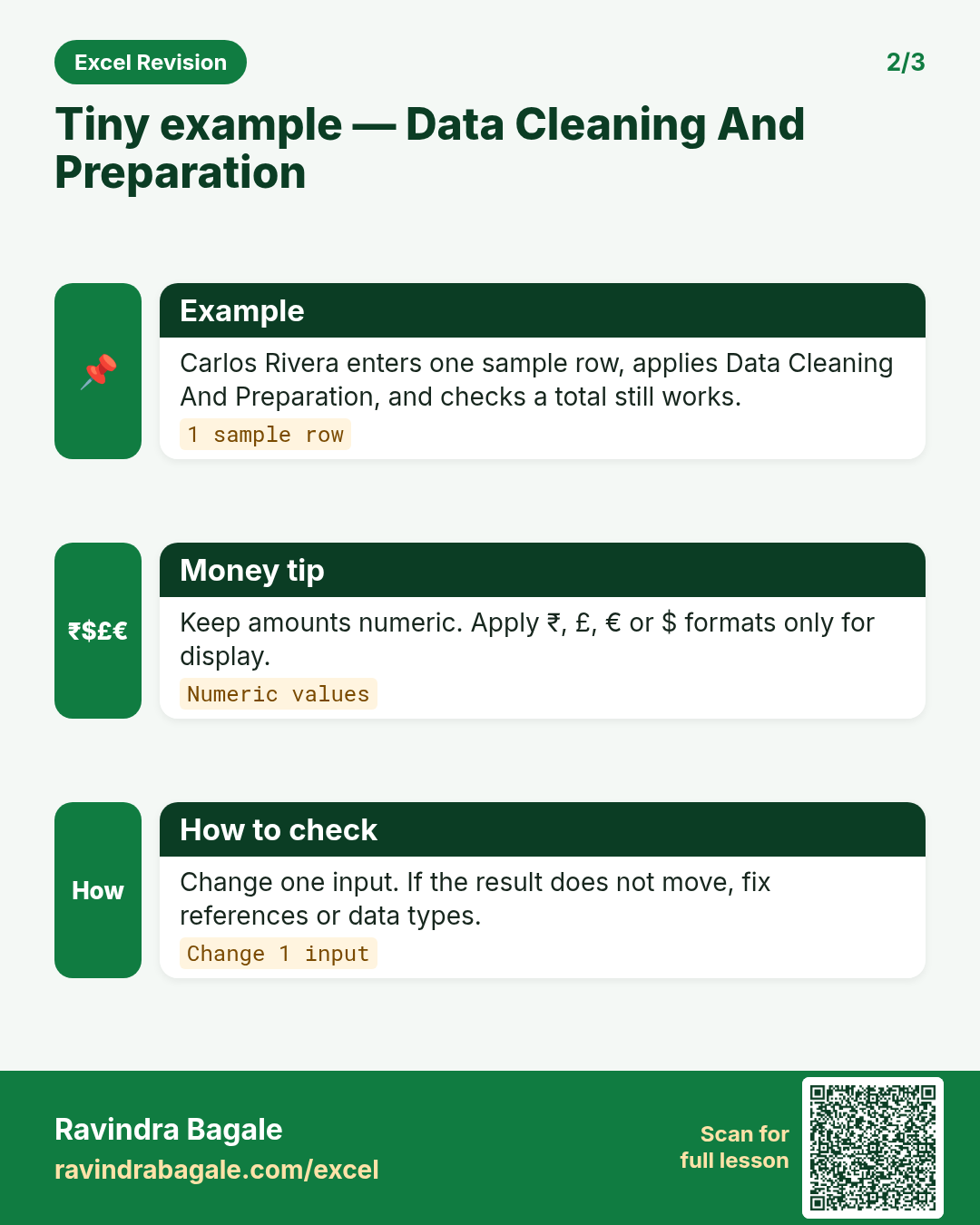
- Enter a small made-up value for Neha Shah using € where money appears.
- Add a second value for Sophie Martin using $ so you see mixed currencies stay numeric.
- Apply the method from this lesson step by step (menu or formula as shown above).
- Check the result still works inside SUM or a simple check cell.
Formula / action
Follow the formula or ribbon steps shown in this lesson (keep values numeric).Meaning: Once data cleaning and preparation is correct on one row, copy the same pattern down the column.
Quick revision cards
Three standalone cards. Each one explains the idea with its own example. Scan the QR to open this lesson.