Excel XLOOKUP Tutorial: Search Right to Left, Last Match, Not Found Message and Drop-Down List
VLOOKUP has three limits: it only looks to the right, it only returns the first match, and it shows #N/A when nothing is found. XLOOKUP removes all three. It searches in any direction, can start from the bottom to find the last match, and lets you write your own "Not found" message. In this chapter we use the same student table as the VLOOKUP chapter and finish with a drop-down list, so nobody ever has to type a name again.
What you'll learn in this chapter
- The six arguments of XLOOKUP
- A basic lookup with three arguments
- Lookup to the left (right to left)
- A custom message instead of #N/A
- First or last match with search_mode
- Who has the highest percentage
- Decimals: why an exact match fails, and match_mode 1 and -1
- Wildcards with match_mode 2
- A drop-down list with Data Validation
Practice file: excel-xlookup-practice.xlsx: every formula on the XLOOKUP sheet with its formula shown next to it, and a Your turn sheet.
Which Excel has XLOOKUP? Excel 2021, Excel 2024, Microsoft 365 and Excel for the web. In older versions use INDEX and MATCH, which does the same jobs.
1. The table
Eleven students in A5:H15: roll (A), name (B), maths, science, english (C:E), total (F), result (G), percentage (H). Two students are called Salman: roll 104 (195, Pass, 65.00) near the top and roll 111 (126, Fail, 42.00) at the bottom.
2. The six arguments
=XLOOKUP(lookup_value, lookup_array, return_array, [if_not_found], [match_mode], [search_mode])
- lookup_value: what you search for.
- lookup_array: the one column (or row) to search in.
- return_array: the column (or row) to return from. It can be anywhere: left, right, even on another sheet.
- if_not_found (optional): your message when nothing matches.
- match_mode (optional): 0 exact (default), -1 exact or next smaller, 1 exact or next larger, 2 wildcard.
- search_mode (optional): 1 first to last (default), -1 last to first.
Only the first three are required. Notice there is no column number to count and no FALSE to remember: exact match is the default.
Figure 1. XLOOKUP takes a search column and a return column separately, so there is no column number to count and exact match is the default.
3. A basic lookup
With Zoya in J5:
=XLOOKUP(J5,$B$5:$B$15,$F$5:$F$15)
→ 241. Change the return column to $G$5:$G$15 for Pass, or $H$5:$H$15 for 80.33.
Classroom line
XLOOKUP works both ways: left to right, right to left, top to bottom, bottom to top.
Class मधलं वाक्य
XLOOKUP दोन्ही बाजूंनी काम करेल: left to right, right to left, top to bottom, bottom to top.
Classroom line – हिंदी
"Xlookup dono way mein kaam karega... left to right, right to left, top to bottom, bottom to top."
4. Right to left: return a column on the left
The roll number is in column A, to the left of the names. VLOOKUP can't return it. XLOOKUP can:
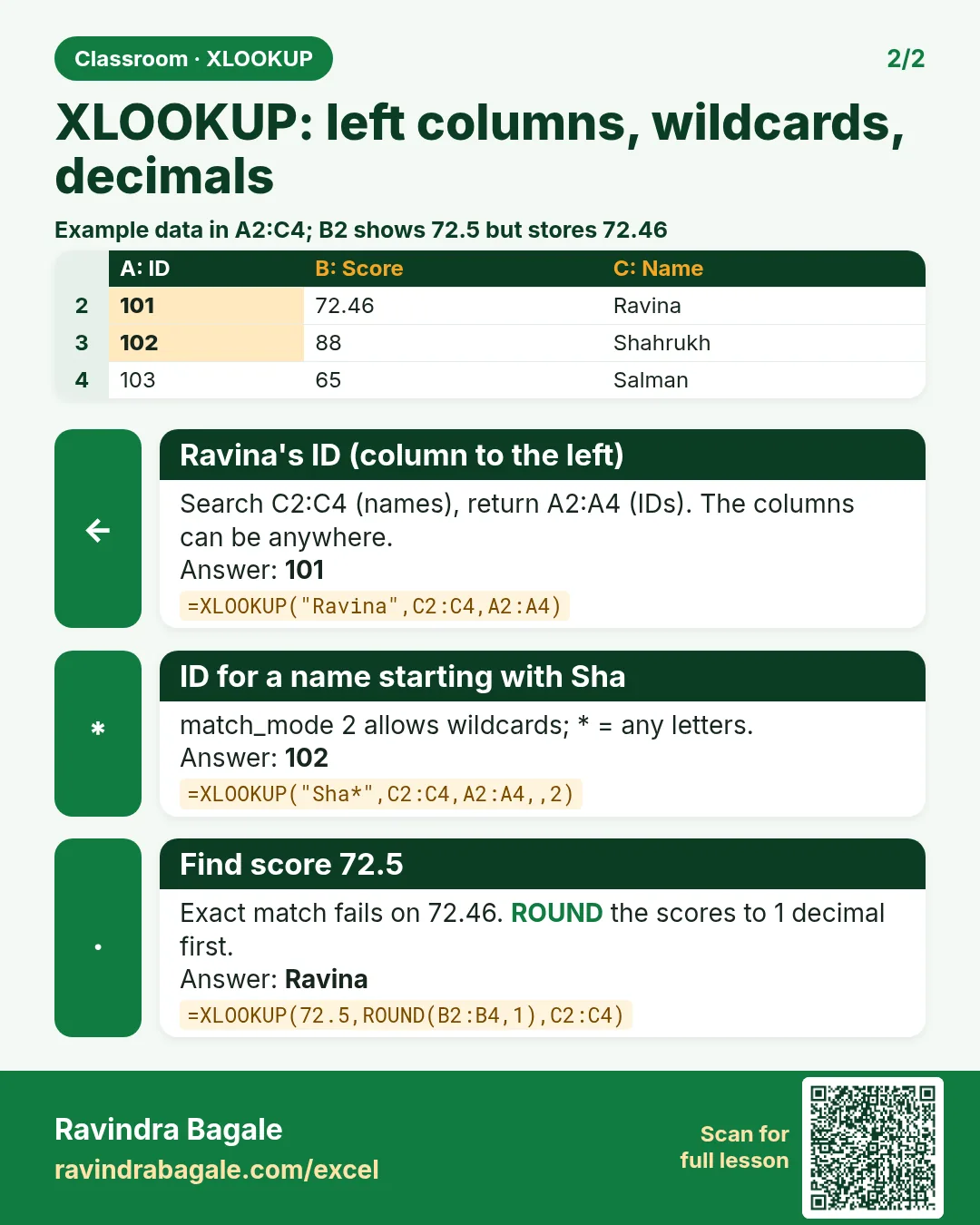
=XLOOKUP(J6,$B$5:$B$15,$A$5:$A$15)
Zoya → 106. The lookup and return columns are separate arguments, so their order on the sheet does not matter.
Figure 2. XLOOKUP searches the name column (B) and returns from the roll column (A), on its left. VLOOKUP cannot do this.
5. Your own "Not found" message
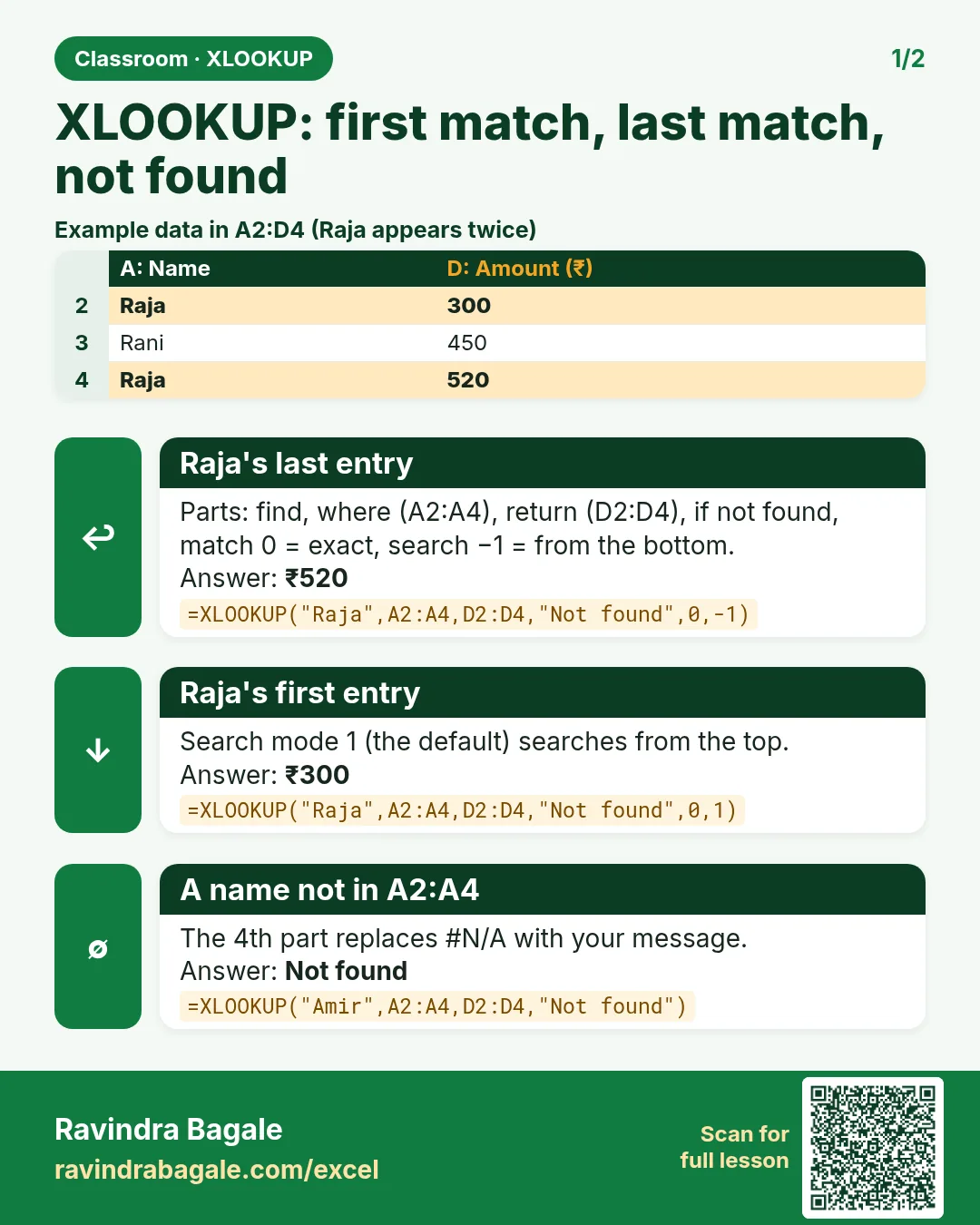
=XLOOKUP(J7,$B$5:$B$15,$G$5:$G$15,"Not found")
With the misspelt Shradha the cell shows Not found instead of #N/A. You can write any text: "Check the spelling", "No such student".
6. First or last match: search_mode
Two Salmans. By default XLOOKUP searches from the top (search_mode 1) and returns the first: Pass (roll 104). Set search_mode to -1 to search from the bottom:
=XLOOKUP(J9,$B$5:$B$15,$G$5:$G$15,"Not found",0,-1)
→ Fail (roll 111). The 0 before it is match_mode (exact); you have to fill it in to reach the sixth argument.
Classroom line
It shows one of the two, either the top one or the bottom one, but only one.
Class मधलं वाक्य
दोघांपैकी एकच data दाखवेल: एकतर वरचा किंवा खालचा. पण एकच दिसेल.
Classroom line – हिंदी
"Donon mein se koi ek data dikhayega, ya toh top wala ya bottom wala... lekin ek hi dikhega."
The last match is useful whenever newer rows are added at the bottom: the latest price of a product, the latest status of an order. To see all matches at once, use the FILTER function.
Figure 3. search_mode 1 searches from the top and finds Salman (104, Pass); -1 searches from the bottom and finds Salman (111, Fail).
7. Who has the highest percentage?
MAX gives the highest percentage; XLOOKUP turns it into a name:
=XLOOKUP(MAX($H$5:$H$15),$H$5:$H$15,$B$5:$B$15)
→ Shraddha. The lookup value can be a formula, not just a typed value.
8. Decimals: why an exact match says "Not found"
Ravindra's percentage shows 76.33, so you type 76.33 and search the percentage column:
=XLOOKUP(J11,$H$5:$H$15,$B$5:$B$15,"Not found")
→ Not found. The cell actually stores 76.333333…; the two decimals are only a display format (Ctrl+1). 76.33 is not equal to 76.3333…, so the exact match fails.
Classroom line
Not found. How can it be not found? It is right there!
Class मधलं वाक्य
"Nahi sapadla. Kasa kay nahi sapadla? Aahe pan tyat."
नाही सापडला. कसा काय नाही सापडला? आहे पण त्यात.
Classroom line
Not found. How can it be not found? It is right there!
Three ways to handle it:
- match_mode 1, exact or next larger:
=XLOOKUP(J12,$H$5:$H$15,$B$5:$B$15,"Not found",1). The smallest value that is 76.33 or more is 76.3333…, so you get Ravindra. - ROUND the column inside the formula:
=XLOOKUP(J14,ROUND($H$5:$H$15,2),$B$5:$B$15,"Not found")compares 76.33 with rounded values: Ravindra. - Round the stored value: write the percentage as
=ROUND(F5/300*100,2)so the cell really holds 76.33.
match_mode -1, exact or next smaller, answers a different question: "who is closest to 80% without going over?" =XLOOKUP(80,$H$5:$H$15,$B$5:$B$15,"Not found",-1) → Ravindra (76.33 is the largest percentage that is not above 80). Unlike VLOOKUP's TRUE, XLOOKUP's match modes -1 and 1 do not need the column to be sorted.
Figure 4. The cell shows 76.33 but stores 76.3333…, so an exact search for 76.33 fails. match_mode 1 (next larger) or ROUND finds Ravindra.
Ravindra Bagale's Tip
When a lookup says "not found" but you can see the value, click the cell and look at the Formula Bar. It shows what is really stored: extra decimals, a space at the end, or a number stored as text. The Formula Bar never lies; the cell display sometimes does.
Ravindra Bagale's Tip – मराठी
Value दिसत असूनही lookup "not found" म्हणत असेल तर cell वर click करा आणि Formula Bar पहा. तिथे खरं काय stored आहे ते दिसतं: जास्तीचे decimals, शेवटी एक space, किंवा text म्हणून stored number. Formula Bar कधी खोटं बोलत नाही; cell चं display कधी कधी बोलतं.
Ravindra Bagale's Tip – हिंदी
Value दिखने पर भी lookup "not found" कहे तो cell पर click करो और Formula Bar देखो. वहाँ असल में क्या stored है वह दिखता है: ज़्यादा decimals, आखिर में एक space, या text के रूप में stored number. Formula Bar कभी झूठ नहीं बोलता; cell का display कभी-कभी बोलता है.
9. Wildcards: match_mode 2
With match_mode 2, * means "any characters" and ? means "one character":
=XLOOKUP("Ra*",$B$5:$B$15,$B$5:$B$15,"Not found",2)
→ Ravindra, the first name that starts with "Ra". XLOOKUP still returns only one match; Ravina, Raja and Rani are ignored. For all of them, see FILTER with LEFT.
10. A drop-down list of names
Typing names leads to typos and #N/A. A drop-down list lets the user pick a name instead.
How:
- Select the input cell J5.
- Data › Data Tools › Data Validation.
- Allow: List.
- Source:
=$B$5:$B$15. - Click OK.
An arrow appears next to J5. Pick any name, and every XLOOKUP that reads J5 updates at once. Salman appears twice in the list because he is in the table twice; on real data, use a list of unique IDs.
Classroom line
Select the cell where you want the list, then Data menu, Data Tools, Data Validation.
Class मधलं वाक्य
"Jya cell madhe tumhala list pahije tya cell la select kara... Data menu... Data tools... Data Validation."
ज्या cell मध्ये तुम्हाला list पाहिजे त्या cell ला select करा. Data menu, Data Tools, Data Validation.
Classroom line
Select the cell where you want the list, then Data menu, Data Tools, Data Validation.
Figure 5. Data › Data Validation › Allow: List, Source =$B$5:$B$15 puts a drop-down arrow on J5. Pick a name and the lookups update.
Ravindra Bagale's Tip
Build every lookup sheet as a small "search box": one input cell with a drop-down list, and the answers next to it. It looks professional, prevents spelling mistakes, and is exactly the kind of thing interviewers ask you to build live.
Ravindra Bagale's Tip – मराठी
प्रत्येक lookup sheet एका छोट्या "search box" सारखी बनवा: drop-down list असलेली एक input cell, आणि शेजारी उत्तरं. ती professional दिसते, spelling च्या चुका टाळते, आणि interview मध्ये live बनवायला सांगतात ते नेमकं हेच.
Ravindra Bagale's Tip – हिंदी
हर lookup sheet को एक छोटे "search box" की तरह बनाओ: drop-down list वाली एक input cell, और बगल में जवाब. यह professional दिखती है, spelling की गलतियाँ रोकती है, और interview में live बनाने को यही कहा जाता है.
11. The whole chapter on one page
=XLOOKUP(value, search column, return column): exact match by default.- The return column can be on the left: right-to-left lookup.
- 4th argument: your own "Not found" text.
- 6th argument: 1 = first from the top, -1 = last from the bottom.
- Lookup value can be a formula:
MAX(H5:H15)→ who has the top percentage. - Displayed decimals ≠ stored decimals: use match_mode 1/-1 or ROUND.
- match_mode 2 = wildcards, still one result.
- Data › Data Validation › List gives a drop-down input.
- Excel 2021, 2024, Microsoft 365 and Excel for the web; INDEX+MATCH in older versions.
12. Try at home
Try at home
Task 1: search box
- Make a drop-down in J5 and XLOOKUPs for roll, total, result and percentage.
Task 2: both Salmans
- Show the first Salman's total and the last Salman's total side by side (195 and 126).
Task 3: lowest percentage
- Use MIN inside XLOOKUP to find who has the lowest percentage. (Ravina, 41.67.)
Task 4: decimals
- Search 80.33 with exact match, with match_mode 1 and with ROUND. Which ones find Zoya?
Recap
In short
- XLOOKUP = search column + return column, exact by default.
- It can return a column on the left.
- if_not_found replaces #N/A with your message.
- search_mode -1 gives the last match.
- Stored decimals can make an exact match fail.
- A drop-down list removes typing mistakes.
Quick revision cards
Quick revision
Revise this chapter in two minutes. Save the cards on your phone or download them as PNG files. All names and numbers are made up for practice.
झटपट उजळणी
हा chapter दोन मिनिटांत revise करा. Cards phone वर save करा किंवा PNG म्हणून download करा. सगळी नावं आणि आकडे सरावासाठी काल्पनिक आहेत.
झटपट दोहराई
यह chapter दो मिनट में revise करें. Cards phone पर save करें या PNG के रूप में download करें. सभी नाम और आंकड़े अभ्यास के लिए काल्पनिक हैं.


More cards for every chapter: Ravi Sir's Cards.
Loading practice tasks...
- VLOOKUP name (Easy): Name for ID "S103" with VLOOKUP. (sheet "Lookup")
- XLOOKUP value (Easy): The Monthly bill for ID "S103". (sheet "Lookup")
- Position (Easy): Position of "Neha Gupta" in B2:B9. (sheet "Lookup")
- Clean name (Easy): Trim A2. (sheet "Text")
- Proper case (Easy): A2 trimmed and in proper case. (sheet "Text")
- Code prefix (Easy): First 3 characters of B2. (sheet "Text")
- Code number (Easy): Last 4 characters of B3. (sheet "Text")
- INDEX and MATCH (Medium): ID for name "Neha Gupta" using INDEX and MATCH. (sheet "Lookup")
- Not found message (Medium): Data GB for ID "Z999", or "Not found". (sheet "Lookup")
- IFNA with VLOOKUP (Medium): VLOOKUP of "Z999" in A2:E9 column 4, or "Missing". (sheet "Lookup")
- City part (Medium): Characters 5 to 7 of B4. (sheet "Text")
- Name length (Medium): Length of A3. (sheet "Text")