Excel VLOOKUP Explained: Exact Match, Column Number, Duplicates and #N/A (with HLOOKUP and TRANSPOSE)
MAX tells you the highest percentage in the sheet is 90. It does not tell you who scored it. Every function so far worked on numbers; now we need to search: type a name and get that student's total and result, without scrolling through thousands of rows. That is what lookup functions do. This chapter covers the oldest and most-asked one, VLOOKUP, its rules and traps, plus its sideways twin HLOOKUP and the TRANSPOSE function that turns a table on its side.
What you'll learn in this chapter
- Why we need lookup functions
- The three rules of VLOOKUP
- The four arguments and how to count the column number
- FALSE for exact match, and what TRUE really does
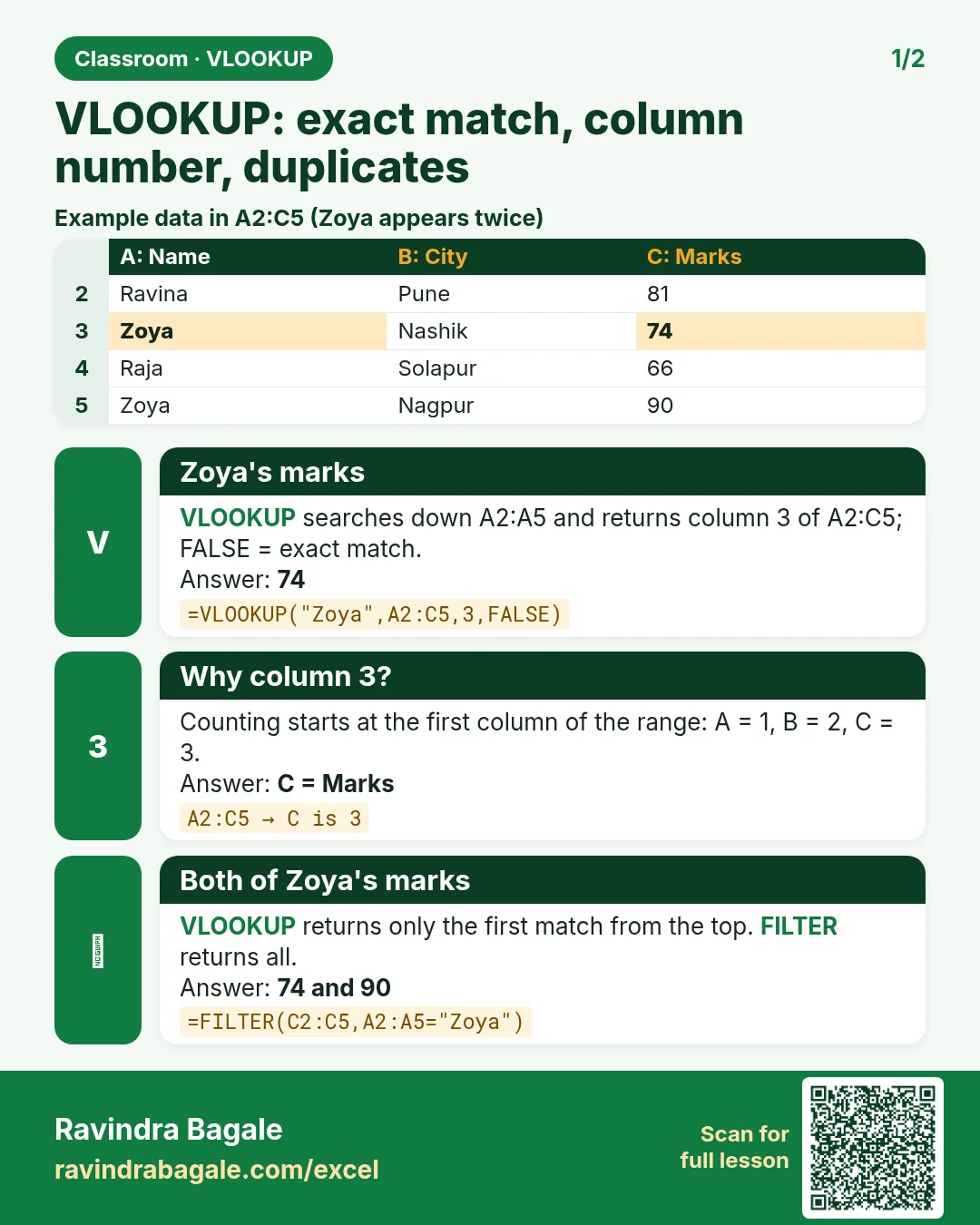
- Duplicates: VLOOKUP returns the first match from the top
-
N/A and how to show "Not found" instead
- Three columns with one VLOOKUP
- HLOOKUP and TRANSPOSE
Practice file: excel-vlookup-hlookup-practice.xlsx has the VLOOKUP sheet, the HLOOKUP sheet and a Your turn sheet.
1. The student table
The same eleven students as the IFS grades chapter, now with total, result and percentage already calculated. Data is in A5:H15, headers in row 4.
| roll | name | maths | science | english | total | result | percentage |
|---|---|---|---|---|---|---|---|
| 101 | Ravindra | 78 | 85 | 66 | 229 | Pass | 76.33 |
| 102 | Shraddha | 92 | 88 | 90 | 270 | Pass | 90.00 |
| 103 | Ruhi | 34 | 71 | 58 | 163 | Fail | 54.33 |
| 104 | Salman | 88 | 35 | 72 | 195 | Pass | 65.00 |
| 105 | Shahrukh | 56 | 49 | 30 | 135 | Fail | 45.00 |
| 106 | Zoya | 67 | 90 | 84 | 241 | Pass | 80.33 |
| 107 | Amir | 40 | 62 | 47 | 149 | Pass | 49.67 |
| 108 | Ravina | 45 | 28 | 52 | 125 | Fail | 41.67 |
| 109 | Raja | 60 | 40 | 38 | 138 | Pass | 46.00 |
| 110 | Rani | 81 | 76 | 89 | 246 | Pass | 82.00 |
| 111 | Salman | 30 | 55 | 41 | 126 | Fail | 42.00 |
Classroom line
All the functions we have seen so far worked on numbers.
Class मधलं वाक्य
"Aata paryant aapan jevade functions baghitlet sagale number varti baghitlet."
आत्तापर्यंत आपण जेवढे functions बघितले, ते सगळे numbers वरती बघितले.
Classroom line
All the functions we have seen so far worked on numbers.
The goal: a small search box. Type a name in J5, and K5 shows that student's total automatically.
2. The three rules of VLOOKUP
- The table is vertical: one record per row, headings across the top. ("V" is for vertical.)
- It searches only the first column of the range you select and returns a value from a column to its right. If you search by name, the name column must be the first column of your range, and VLOOKUP can never return the roll number that sits to the left of it.
- It returns the first match from the top. If a name appears twice, you get the upper one.
3. The four arguments
=VLOOKUP(lookup_value, table_array, col_index_num, range_lookup)
- lookup_value: what you search for, here the name in J5.
- table_array: the range, starting at the column you search in:
$B$5:$H$15(name to percentage). Lock it with $ so it does not move when you drag the formula. - col_index_num: which column of that range to return, counted from 1 = the first column of the range (not column A of the sheet). Name is 1, maths 2, science 3, english 4, total 5, result 6, percentage 7.
- range_lookup:
FALSE(or 0) for an exact match. Always use FALSE for names, IDs and codes.
How:
- Type
Zoyain J5. - In K5 type
=VLOOKUP(J5,$B$5:$H$15,5,FALSE)→ 241. - Column 6 gives Pass, column 7 gives 80.33.
Figure 1. VLOOKUP searches Zoya in the first column of B5:H15 and returns the 5th column of that range: total 241.
Count the column number carefully. With 4 instead of 5 you get 84, Zoya's English mark: no error, just a wrong answer that looks right. Put the column numbers above your headers once (1, 2, 3 …) while you learn; it removes the guesswork.
Ravindra Bagale's Tip
Change the name in J5 to two or three people whose totals you already know, and check that the answer changes correctly. A wrong column number never shows an error; only a test with known answers catches it.
Ravindra Bagale's Tip – मराठी
J5 मधलं नाव बदलून ज्यांचे totals तुम्हाला आधीच माहीत आहेत अशी दोन-तीन नावं टाका, आणि उत्तर बरोबर बदलतं का ते पहा. चुकीचा column number कधीच error दाखवत नाही; माहीत असलेल्या उत्तरांची test हीच ती चूक पकडते.
Ravindra Bagale's Tip – हिंदी
J5 का नाम बदलकर ऐसे दो-तीन लोगों के नाम डालो जिनके totals आपको पहले से पता हैं, और देखो कि जवाब सही बदलता है या नहीं. गलत column number कभी error नहीं दिखाता; पता जवाबों वाली test ही वह गलती पकड़ती है.
4. Duplicates: the first match from the top
Type Salman in J5. There are two Salmans: roll 104 (total 195, Pass) and roll 111 (total 126, Fail). VLOOKUP returns 195, from the upper row. It never looks further down.
Classroom line
It gives only that one's answer, not the one at the bottom.
Class मधलं वाक्य
"Tichach answer denar. Bottom side che nahi."
तिचाच answer देणार. Bottom side चे नाही.
Classroom line
It gives only that one's answer, not the one at the bottom.
This is why real tables search by a unique column: roll number, employee ID, order ID. Names repeat; IDs don't. To get the last match instead, use XLOOKUP with search_mode -1 (next chapter). To get every match, use FILTER.
5. #N/A: not found
Type Shradha (one d missing). VLOOKUP shows #N/A: "not available", the value is not in the first column. The usual causes:
- A spelling difference.
- An extra space before or after the name ("Zoya " is not "Zoya").
- The number is stored as text in one place and as a number in the other.
To show a message instead of the error, wrap it in IFNA:
=IFNA(VLOOKUP(J5,$B$5:$H$15,5,FALSE),"Not found")
Figure 2. Two Salmans: VLOOKUP returns the upper one (195). A misspelt name gives #N/A; IFNA turns it into "Not found".
6. Three columns with one VLOOKUP
Give the column numbers as a list in curly brackets:
=VLOOKUP(J15,$B$5:$H$15,{5,6,7},FALSE)
With Raja in J15 the formula spills into three cells: 138 | Pass | 46.00. Spilling needs Excel 2021, Excel 2024, Microsoft 365 or Excel for the web. In older versions write one VLOOKUP per column (5, 6 and 7).
7. TRUE: approximate match, for slabs only
TRUE is not "close spelling". It means: the first column is sorted from smallest to largest, find the largest value that is less than or equal to the lookup value. That is exactly what you need for slabs such as grades, commission or delivery fees:
| from % | grade |
|---|---|
| 0 | C |
| 60 | B |
| 75 | A |
| 90 | A+ |
=VLOOKUP(H5,$J$19:$K$22,2,TRUE) gives Ravindra (76.33) A: 75 is the largest band start that is not above 76.33. Shraddha (90.00) gets A+, Ruhi (54.33) C, Salman (65.00) B.
Two warnings: the slab table must be sorted ascending, and on an unsorted list of names TRUE returns wrong answers without any error. For names and IDs, always FALSE.
Figure 3. TRUE (approximate match) on a sorted slab table: 76.33 falls in the band that starts at 75, so the grade is A.
8. HLOOKUP and TRANSPOSE
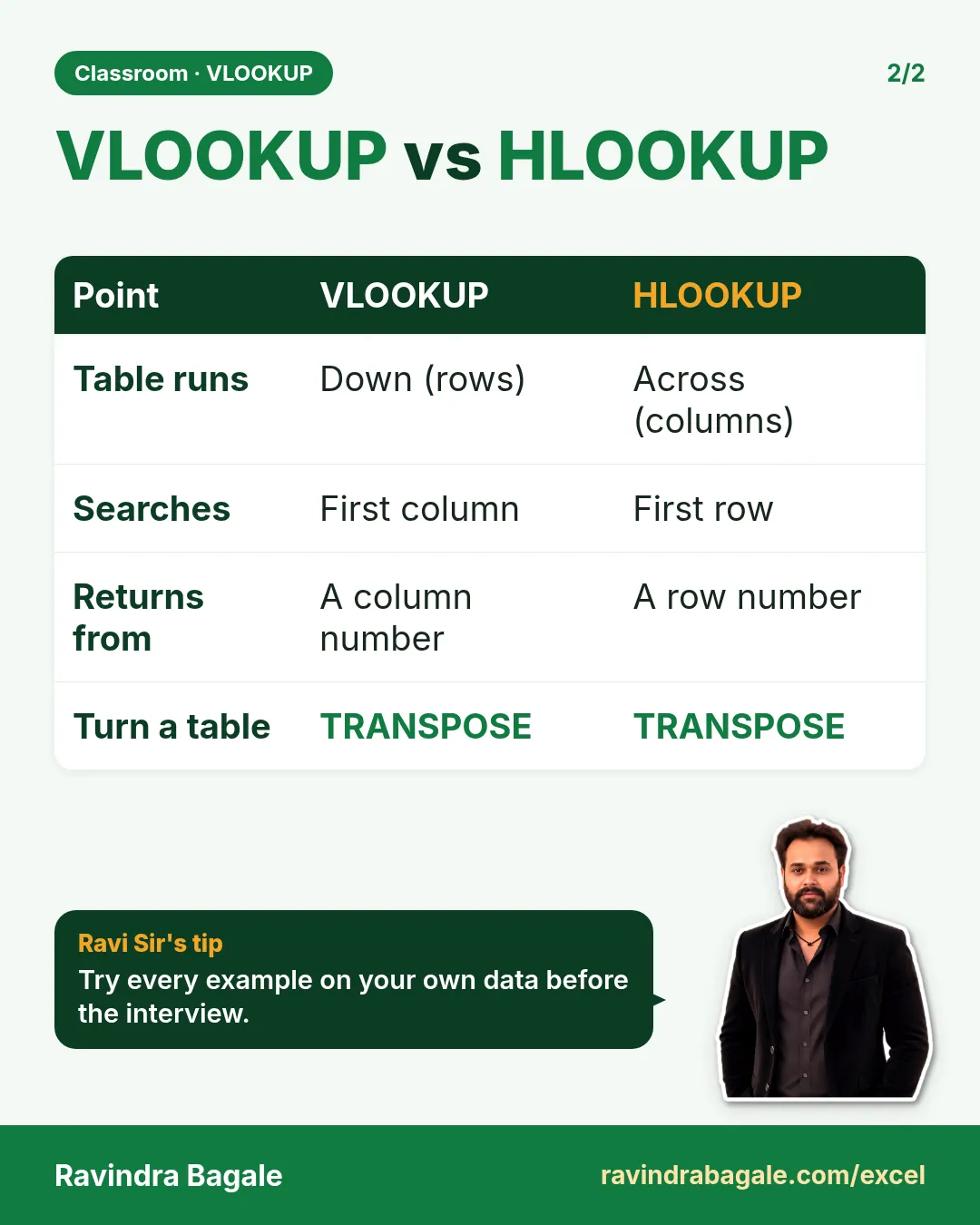
HLOOKUP is VLOOKUP for a table that lies on its side: records go across in columns, and the headings run down the first column. HLOOKUP searches the first row and returns a value from a row below it.
Turn the table sideways with TRANSPOSE:
- Select a blank area 8 rows tall and 12 columns wide (the table is 12 rows × 8 columns, so the two numbers swap).
- Type
=TRANSPOSE(A4:H15). - In Excel 2021, 2024, Microsoft 365 and Excel for the web just press Enter and it spills. In older versions press Ctrl+Shift+Enter. Or copy the table and use Paste Special › Transpose, which works in every version.
Now roll numbers run along the first row, and row 7 of the new block holds the result. On the HLOOKUP sheet of the practice file the block sits in A4:L11:
=HLOOKUP(A14,$A$4:$L$11,7,FALSE)
Roll 106 → Pass (Zoya). Roll 103 → Fail (Ruhi). Roll 120 does not exist → #N/A. Row 2 instead of 7 returns the name.
Figure 4. TRANSPOSE turns the 12 × 8 table into an 8 × 12 block. HLOOKUP finds roll 106 in the first row and returns row 7: Pass.
Ravindra Bagale's Tip
Use VLOOKUP when your data runs down the page (the usual case) and HLOOKUP only when it runs across. If you have a choice, keep data vertical: filters, sorting, PivotTables and every newer function work best on it.
Ravindra Bagale's Tip – मराठी
Data खाली-खाली जात असेल (नेहमीचं) तेव्हा VLOOKUP वापरा, आणि आडवा असेल तेव्हाच HLOOKUP. निवड तुमच्या हातात असेल तर data उभा ठेवा: filters, sorting, PivotTables आणि सगळी नवीन functions उभ्या data वर सर्वात चांगली चालतात.
Ravindra Bagale's Tip – हिंदी
Data नीचे की ओर चलता हो (आम तौर पर) तो VLOOKUP इस्तेमाल करो, और आड़ा हो तभी HLOOKUP. चुनाव आपके हाथ में हो तो data खड़ा रखो: filters, sorting, PivotTables और सारे नए functions खड़े data पर सबसे अच्छे चलते हैं.
9. The whole chapter on one page
- VLOOKUP searches the first column of the range and returns a column to its right.
=VLOOKUP(name,$B$5:$H$15,5,FALSE): range starts at the search column; 5 = 5th column of the range.- Always FALSE (exact) for names and IDs.
- Duplicates: the first match from the top.
-
N/A = not found; check spelling and spaces; IFNA shows a message.
{5,6,7}returns three columns (spills in Excel 2021 and later).- TRUE = largest value ≤ lookup value in a sorted first column: for slabs only.
- HLOOKUP searches the first row; TRANSPOSE turns a table sideways (Ctrl+Shift+Enter or Paste Special › Transpose in older Excel).
10. Try at home
Try at home
Task 1: search box
- Name in J5, then VLOOKUPs for maths, total, result and percentage.
- Test with Shraddha: 92, 270, Pass, 90.00.
Task 2: traps
- Type
Salman. Which Salman do you get? - Type
Zoyawith a space at the end. What do you see?
Task 3: slabs
- Build the grade slab table and give every student a grade with TRUE. Compare with the IFS grades: which students differ, and why? (Hint: the slab table has no Fail band.)
Task 4: sideways
- TRANSPOSE the table, then use HLOOKUP to get the total of roll 110.
Recap
In short
- VLOOKUP = search down the first column, return from a column on the right.
- Count the column number inside your selected range.
- FALSE = exact match. Use it for names and IDs.
- First match from the top; duplicates need XLOOKUP or FILTER.
-
N/A means not found.
- HLOOKUP = the same idea for tables that run across.
Quick revision cards
Quick revision
Revise this chapter in two minutes. Save the cards on your phone or download them as PNG files. All names and numbers are made up for practice.
झटपट उजळणी
हा chapter दोन मिनिटांत revise करा. Cards phone वर save करा किंवा PNG म्हणून download करा. सगळी नावं आणि आकडे सरावासाठी काल्पनिक आहेत.
झटपट दोहराई
यह chapter दो मिनट में revise करें. Cards phone पर save करें या PNG के रूप में download करें. सभी नाम और आंकड़े अभ्यास के लिए काल्पनिक हैं.

More cards for every chapter: Ravi Sir's Cards.
Loading practice tasks...
- VLOOKUP name (Easy): Name for ID "M103" with VLOOKUP.
- XLOOKUP value (Easy): The Unit cost for ID "M103".
- Position (Easy): Position of "Mateo Garcia" in B2:B9.
- INDEX and MATCH (Medium): ID for name "Mateo Garcia" using INDEX and MATCH.
- Not found message (Medium): Stock units for ID "Z999", or "Not found".
- IFNA with VLOOKUP (Medium): VLOOKUP of "Z999" in A2:E9 column 4, or "Missing".
- XMATCH (Medium): Position of ID "M103" in A2:A9.
- Slab rate (Hard): Rate for E2 from the slab table G2:H6.
- Slab amount (Hard): E3 times its slab rate.
- Two-way lookup (Hard): Value in A2:E9 at the row of "Mateo Garcia" and column "Stock units".
- Lookup the top (Hard): Name with the largest Stock units.