Excel SUMIF, SUMIFS, COUNTIFS, AVERAGEIF(S) and MAXIFS: Profit Analysis of Delivered Orders
"What is our total profit?" sounds like a one-word formula: SUM. On a real orders table it is the wrong answer, because some orders were cancelled or returned and their profit never reached the business. In this chapter you add, count, average and find the maximum and minimum only for the rows that matter, with SUMIF, SUMIFS, COUNTIFS, AVERAGEIF, AVERAGEIFS, MAXIFS and MINIFS. We use the same 24 made-up orders as the COUNTA, UNIQUE and COUNTIF chapter and the SORT, FILTER and TAKE chapter; the columns are explained in the dataset chapter.
What you'll learn in this chapter
- Why SUM of the Profit column over-counts
- SUMIF: profit of delivered orders only
- SUMIFS and COUNTIFS with two conditions
- MAXIFS and MINIFS: best order and biggest loss
- AVERAGEIF vs AVERAGEIFS, and their argument order
- Delivered profit per city in one small table
- Criteria in a cell, and the trailing-space trap
Practice file: blinkit-sumifs-averageifs-maxifs-practice.xlsx: the Orders sheet with every answer in column P and the formula as text in column Q, the delivered profit per city, a Read me sheet and a Your turn sheet.
Made-up data: all 24 orders, areas, products, prices and profits are made up for practice. No real customer, shop or order is used, and product names are generic.
1. The table
The orders table in A1:M25, data in rows 2 to 25. The columns used in this chapter: Product_Name (E), Status (J: Delivered, Returned or Cancelled), Delivery_Status (L: On Time or Late) and Profit (M). Profit is worked out on every row as Quantity × (Selling_Price − Cost_Price) − 20, even on orders that were cancelled or returned.
2. The wrong total: SUM
=SUM(M2:M25)
→ 327. It adds the profit of all 24 rows, including 3 cancelled and 3 returned orders. One cancelled order alone, ORD1006 (6 × Paneer), shows a profit of 100 that was never earned.
Classroom line
Only the orders that were successfully delivered count towards profit, right?
Class मधलं वाक्य
"Je order successfully deliver zhale ahet tech profit madhe yenar na."
जे order successfully deliver झाले आहेत तेच profit मध्ये येणार ना.
Classroom line
Only the orders that were successfully delivered count towards profit, right?
Classroom line
Not the formula; you have to understand the data.
Class मधलं वाक्य
"Formula nahi, data samjun ghyava lagnar."
Formula नाही, data समजून घ्यावा लागणार.
Classroom line
Not the formula; you have to understand the data.
3. SUMIF: profit of delivered orders
=SUMIF(range, criteria, [sum_range])
- range: where to check the condition (Status, J2:J25).
- criteria: the condition ("Delivered").
- sum_range: what to add (Profit, M2:M25).
=SUMIF(J2:J25,"Delivered",M2:M25)
→ 227, the real profit. Type the criteria as text in double quotes, exactly as it is written in the data.
The same formula with "Cancelled" gives 88 and with "Returned" 12. 227 + 88 + 12 = 327, the SUM from section 2, so nothing is missing.
Classroom line
The range that sits next to the criteria is the criteria range, remember.
Class मधलं वाक्य
"Range chya bajula criteria asel na, to criteria range asto barka."
Range च्या बाजूला criteria असेल ना, तो criteria range असतो बरं का.
Classroom line
The range that sits next to the criteria is the criteria range, remember.
Figure 1. SUM adds all 24 rows: 327. SUMIF with "Delivered" adds only the 18 delivered rows: 227. Cancelled (88) and Returned (12) make up the difference.
4. Two conditions: SUMIFS and COUNTIFS
Paneer looks like the star product. Its profit over all rows:
=SUMIF(E2:E25,"Paneer",M2:M25)
→ 300, but that includes the cancelled ORD1006. Paneer and Delivered needs two conditions, so SUMIFS:
=SUMIFS(M2:M25,J2:J25,"Delivered",E2:E25,"Paneer")
→ 200. In SUMIFS the sum_range comes first, then pairs of criteria_range and criteria, as many pairs as you need. (In SUMIF it comes last. Section 6 has a figure of both orders.)
How many orders is that? COUNTIFS takes the same pairs, without a sum_range:
=COUNTIFS(J2:J25,"Delivered",E2:E25,"Paneer")
→ 4 delivered Paneer orders. And =COUNTIFS(J2:J25,"Delivered",L2:L25,"Late") → 6 delivered orders arrived late.
COUNTIFS works with numbers too: =COUNTIFS(J2:J25,"Delivered",M2:M25,"<0") → 6 delivered orders made a loss.
5. MAXIFS and MINIFS: best order and biggest loss
Excel has SUMIF and AVERAGEIF for one condition, but the maximum and minimum come only in the IFS form: MAXIFS and MINIFS. They work with one condition or with many.
=MAXIFS(M2:M25,J2:J25,"Delivered")
→ 80, the best delivered order (ORD1007). The plain MAX of the column would say 100, the cancelled order again.
=MINIFS(M2:M25,J2:J25,"Delivered")
→ −15, the biggest loss on a delivered order (ORD1014, one packet of snacks).
Two conditions, delivered Fruits:
=MAXIFS(M2:M25,J2:J25,"Delivered",E2:E25,"Fruits")
→ 28. Like SUMIFS, the range to look at (max_range) comes first.
Classroom line
Because there is more than one condition, IFS; and we want the maximum, so MAX. So, MAXIFS.
Class मधलं वाक्य
"Karan eka peksha jaast conditions ahet tyamule IFS ani maximum pahije mhanun MAX, so MAXIFS."
कारण एकापेक्षा जास्त conditions आहेत त्यामुळे IFS आणि maximum पाहिजे म्हणून MAX, so MAXIFS.
Classroom line
Because there is more than one condition, IFS; and we want the maximum, so MAX. So, MAXIFS.
Which Excel has MAXIFS and MINIFS? Excel 2019, Excel 2021, Excel 2024, Microsoft 365 and Excel for the web. SUMIF, SUMIFS, COUNTIFS, AVERAGEIF and AVERAGEIFS work in every current version.
Figure 2. Among the 18 delivered orders, MAXIFS finds 80 (ORD1007) and MINIFS finds −15 (ORD1014). Plain MAX would pick the cancelled 100.
6. AVERAGEIF vs AVERAGEIFS
Average profit per delivered order:
=AVERAGEIF(J2:J25,"Delivered",M2:M25)
→ 12.61 (227 ÷ 18). Like SUMIF: range, criteria, and the average_range last.
Delivered and On Time is two conditions, so AVERAGEIFS, with the average_range first:
=AVERAGEIFS(M2:M25,J2:J25,"Delivered",L2:L25,"On Time")
→ 8.00 (12 orders, 96 profit). Change "On Time" to "Late" → 21.83 (6 orders, 131 profit).
So late orders earn more per order than on-time ones. Does being late make money? No: look at what the late orders are. ORD1007 (5 × Paneer) and ORD1011 (10 × Snacks) are big orders, which take longer to pack and deliver and also earn more. An average shows what is different; the rows show why.
Classroom line
With only one condition, AVERAGEIF. With two conditions, AVERAGEIFS.
Class मधलं वाक्य
"Ekach condition asel tar AVERAGEIF. Don condition asel tar AVERAGEIFS."
एकच condition असेल तर AVERAGEIF. दोन conditions असतील तर AVERAGEIFS.
Classroom line
With only one condition, AVERAGEIF. With two conditions, AVERAGEIFS.
Figure 3. SUMIF and AVERAGEIF put the range to add or average last. SUMIFS, AVERAGEIFS, MAXIFS and MINIFS put it first, followed by criteria_range and criteria pairs.
Ravindra Bagale's Tip
To remember the argument order: the -IFS functions can have many condition pairs, so the one thing they add, average or compare goes first, before the list of pairs starts. The single-condition SUMIF and AVERAGEIF were made earlier and keep it last. When in doubt, type =SUMIFS( and read the tooltip Excel shows under the cell.
Ravindra Bagale's Tip – मराठी
Argument order लक्षात ठेवण्यासाठी: -IFS functions मध्ये condition च्या अनेक pairs असू शकतात, म्हणून ज्याची बेरीज, सरासरी किंवा तुलना करायची ती range pairs सुरू होण्याआधी, पहिली येते. एका condition वाले SUMIF आणि AVERAGEIF आधी बनले आणि त्यात ती शेवटी राहिली. शंका असेल तर =SUMIFS( type करा आणि cell खाली Excel दाखवतो तो tooltip वाचा.
Ravindra Bagale's Tip – हिंदी
Argument order याद रखने के लिए: -IFS functions में condition के कई pairs हो सकते हैं, इसलिए जिसका जोड़, औसत या तुलना करनी है वह range pairs शुरू होने से पहले, सबसे पहले आती है. एक condition वाले SUMIF और AVERAGEIF पहले बने थे और उनमें वह आखिर में रही. शक हो तो =SUMIFS( type करो और cell के नीचे Excel जो tooltip दिखाता है उसे पढ़ो.
Figure 4. AVERAGEIFS with Delivered and On Time gives 8.00 per order (12 orders); with Delivered and Late, 21.83 (6 orders), because the late ones include the big Paneer and Snacks orders.
7. Delivered profit per city
Combine what you know. Let UNIQUE write the cities in O22 (=UNIQUE(C2:C25)), then in P22, dragged down:
=SUMIFS($M$2:$M$25,$C$2:$C$25,O22,$J$2:$J$25,"Delivered")
and the number of delivered orders in Q22: =COUNTIFS($C$2:$C$25,O22,$J$2:$J$25,"Delivered").
| City | Delivered profit | Delivered orders |
|---|---|---|
| Pune | 14 | 5 |
| Nashik | 20 | 3 |
| Solapur | 14 | 2 |
| Kolhapur | 60 | 3 |
| Nagpur | 54 | 3 |
| Sambhaji Nagar | 65 | 2 |
| Total | 227 | 18 |
Pune has the most delivered orders but the joint-lowest profit: small Milk, Eggs and Snacks orders where the 20 delivery cost eats the margin. Sambhaji Nagar earns the most from just 2 orders. The totals, 227 and 18, match the SUMIF and COUNTIF answers, which proves the table is complete.
Figure 5. Delivered profit per city with SUMIFS: Sambhaji Nagar 65, Kolhapur 60, Nagpur 54, Nashik 20, Pune 14, Solapur 14. Total 227.
8. Criteria in a cell, and a trailing space
Instead of typing "Delivered" into every formula, put it in a cell, say P30, and point to it: =SUMIF(J2:J25,P30,M2:M25). Type Returned in P30 and every answer changes.
One trap: if the criteria cell holds "Delivered " with a space at the end, SUMIF finds nothing and returns 0, without any error. Wrap the cell in TRIM, which removes extra spaces: =SUMIF(J2:J25,TRIM(O35),M2:M25) → 227 again. When a SUMIF returns 0 and you are sure there is data, look for spaces first.
Ravindra Bagale's Tip
Every time you answer a profit question, write next to it which rows it covers: "delivered only" or "all rows". The number 327 is not wrong in itself; it answers a different question. Labels like this stop a wrong number from travelling into someone's presentation.
Ravindra Bagale's Tip – मराठी
Profit चा प्रत्येक प्रश्न सोडवताना त्याच्या शेजारी लिहा की तो कोणत्या rows साठी आहे: "फक्त delivered" की "सगळ्या rows". 327 हा आकडा स्वतः चुकीचा नाही; तो वेगळ्याच प्रश्नाचं उत्तर आहे. अशा labels मुळे चुकीचा आकडा कोणाच्या presentation पर्यंत पोहोचत नाही.
Ravindra Bagale's Tip – हिंदी
Profit का हर सवाल हल करते समय उसके बगल में लिखो कि वह किन rows के लिए है: "सिर्फ़ delivered" या "सारी rows". 327 का आँकड़ा अपने आप में गलत नहीं है; वह किसी दूसरे सवाल का जवाब है. ऐसे labels से गलत आँकड़ा किसी के presentation तक नहीं पहुँचता.
9. The whole chapter on one page
| Question | Formula | Answer |
|---|---|---|
| Profit, all rows | =SUM(M2:M25) |
327 (wrong question) |
| Profit, delivered | =SUMIF(J2:J25,"Delivered",M2:M25) |
227 |
| Paneer, delivered | =SUMIFS(M2:M25,J2:J25,"Delivered",E2:E25,"Paneer") |
200 |
| Delivered Paneer orders | =COUNTIFS(J2:J25,"Delivered",E2:E25,"Paneer") |
4 |
| Best delivered order | =MAXIFS(M2:M25,J2:J25,"Delivered") |
80 |
| Biggest delivered loss | =MINIFS(M2:M25,J2:J25,"Delivered") |
−15 |
| Average, delivered | =AVERAGEIF(J2:J25,"Delivered",M2:M25) |
12.61 |
| Average, delivered and On Time | =AVERAGEIFS(M2:M25,J2:J25,"Delivered",L2:L25,"On Time") |
8.00 |
- Profit counts only delivered orders: filter with SUMIF, never plain SUM.
- One condition: SUMIF, COUNTIF, AVERAGEIF. More: SUMIFS, COUNTIFS, AVERAGEIFS.
- Maximum and minimum with conditions: MAXIFS and MINIFS, for one condition or many.
- SUMIF and AVERAGEIF: the range to add or average is last. All -IFS functions: first.
- Text criteria go in double quotes; a trailing space makes SUMIF return 0, so use TRIM.
10. Try at home
Try at home
Task 1
- Homework: the average profit of orders that are Delivered and On Time, with AVERAGEIFS. (8.00.)
Task 2
- Delivered profit per product. Which product loses money? (Milk, −16 over 5 delivered orders.)
Task 3
- The biggest delivered loss in Pune, with MINIFS and two conditions. (−12.)
Task 4
- Delivered profit of COD orders vs Online orders with SUMIFS. (COD 170, Online 57.)
Recap
In short
- SUM over all rows counts cancelled and returned orders too.
- SUMIF(range, criteria, sum_range) adds only matching rows.
- SUMIFS, COUNTIFS, AVERAGEIFS, MAXIFS and MINIFS take many condition pairs.
- In the -IFS functions the value range comes first.
- Totals by group must add up to the overall total.
Quick revision cards
Quick revision
Revise this chapter in two minutes. Save the cards on your phone or download them as PNG files. All names and numbers are made up for practice.
झटपट उजळणी
हा chapter दोन मिनिटांत revise करा. Cards phone वर save करा किंवा PNG म्हणून download करा. सगळी नावं आणि आकडे सरावासाठी काल्पनिक आहेत.
झटपट दोहराई
यह chapter दो मिनट में revise करें. Cards phone पर save करें या PNG के रूप में download करें. सभी नाम और आंकड़े अभ्यास के लिए काल्पनिक हैं.
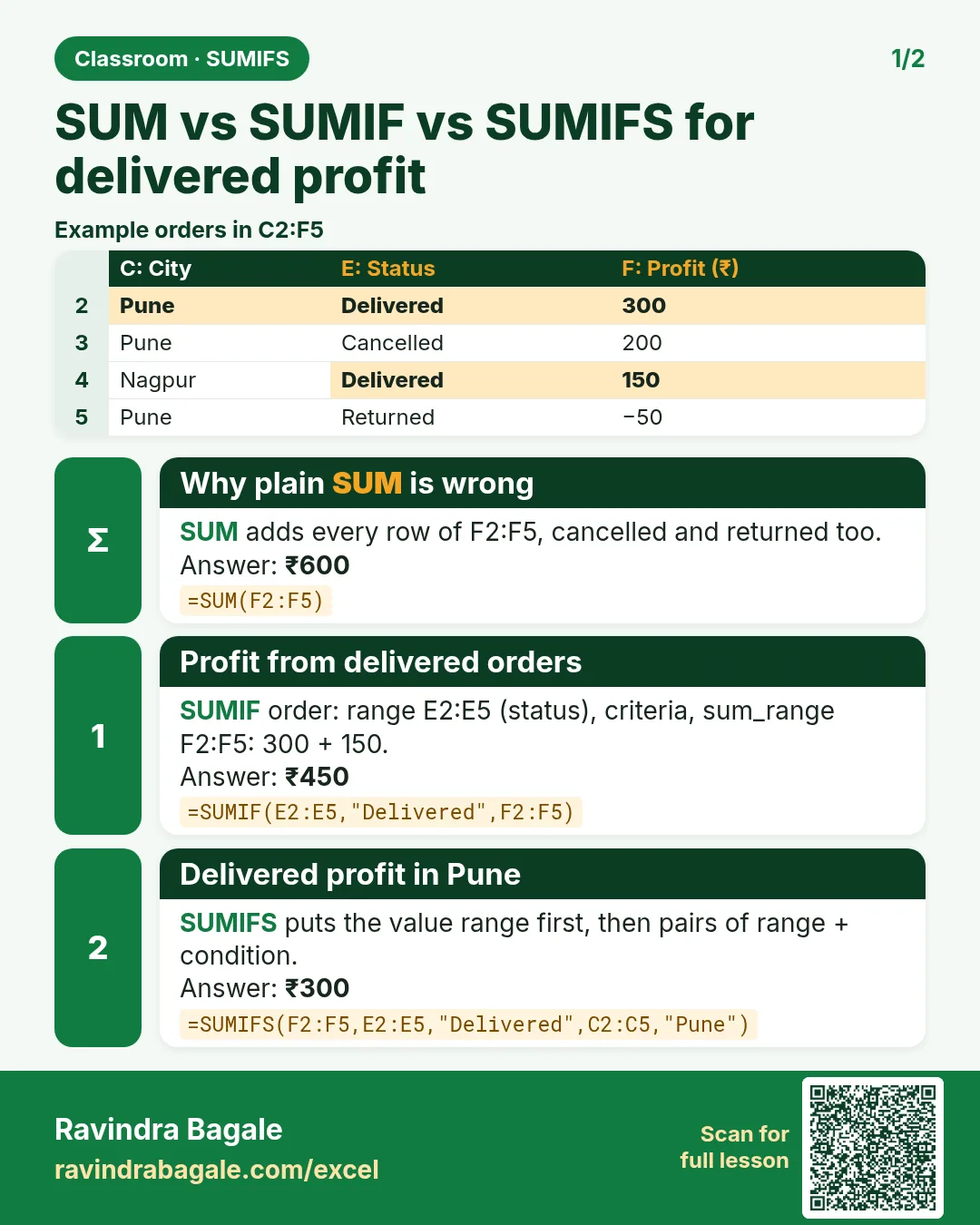

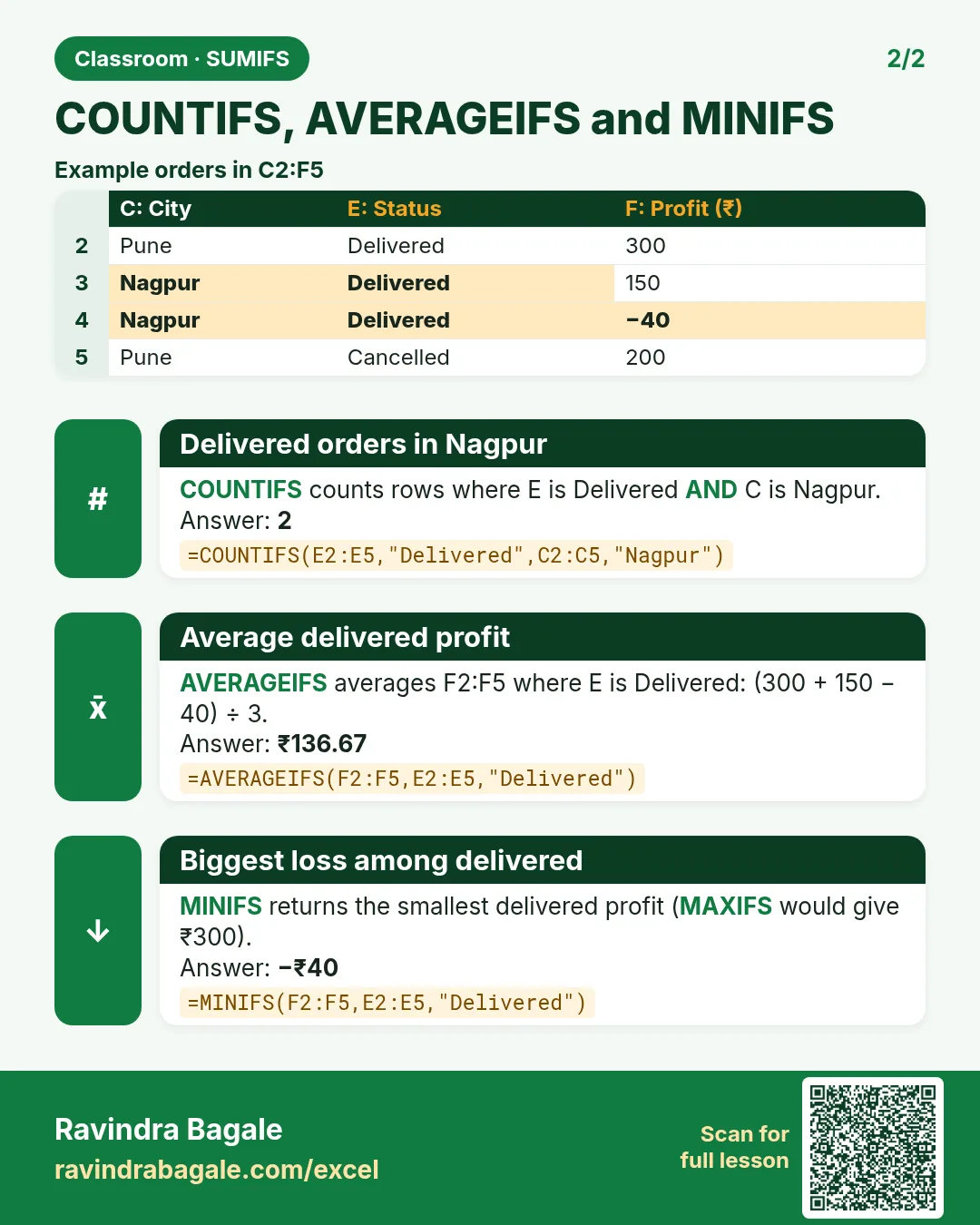

More cards for every chapter: Ravi Sir's Cards.
Loading practice tasks...
- Total parcels (Easy): Add up Parcels in D2:D11.
- Average cost (Easy): Average of E2:E11, rounded to 2 decimals.
- Rows in Royal Mail (Easy): How many rows have Carrier "Royal Mail"?
- Largest parcels (Easy): The largest value in D2:D11.
- Parcels for Royal Mail (Medium): Total of D2:D11 where B is "Royal Mail".
- Royal Mail in Leeds (Medium): Total of D2:D11 where B is "Royal Mail" and C is "Leeds".
- Best in Royal Mail (Medium): Largest E2:E11 value where B is "Royal Mail".
- Value of row 2 (Medium): D2 times E2.
- Look up Ananya Nair (Medium): The Parcels for "Ananya Nair" (use a lookup on column A).
- Total value (Hard): Sum of D times E for all rows.
- Share of Royal Mail (Hard): Share of D2:D11 that is "Royal Mail", rounded to 3 decimals.
- Rank of row 2 (Hard): Rank of D2 among D2:D11 (largest = 1).
- Above average? (Hard): "Above" if E2 is above the average of E2:E11, else "Below".