Excel IFS Function: Student Grades A+, A, B, C with Total and Percentage (IFS vs Nested IF)
Two schools both announce an 80% pass result. Which one did better? The pass percentage can't tell you. You need grades: how many students got A+, how many got A. In this chapter we take a marks sheet, add the total and percentage, and then give every student a grade with the IFS function. Along the way you will see the two mistakes almost everyone makes with IFS: conditions in the wrong order, and failed students getting a grade.
What you'll learn in this chapter
- Total with SUM and percentage with maximum marks in its own cell
- Show two decimals with Format Cells (Ctrl+1)
- IFS syntax and how Excel reads it: first TRUE wins
- Why the order of conditions matters
- Put the Fail check first
- Count each grade with COUNTIF
- IFS vs nested IF, with a price remarks example
- What to do if your Excel has no IFS
Practice file: excel-ifs-grades-practice.xlsx has the Grades sheet (all formulas), the Price remarks sheet and a Your turn sheet.
1. The marks sheet
Eleven students, three subjects, rows 5 to 15. Columns: A roll, B name, C maths, D science, E english. Two different students are both called Salman (rolls 104 and 111). The pass rule from the IF and AND chapter still applies: 35 or more in every subject.
| roll | name | maths | science | english |
|---|---|---|---|---|
| 101 | Ravindra | 78 | 85 | 66 |
| 102 | Shraddha | 92 | 88 | 90 |
| 103 | Ruhi | 34 | 71 | 58 |
| 104 | Salman | 88 | 35 | 72 |
| 105 | Shahrukh | 56 | 49 | 30 |
| 106 | Zoya | 67 | 90 | 84 |
| 107 | Amir | 40 | 62 | 47 |
| 108 | Ravina | 45 | 28 | 52 |
| 109 | Raja | 60 | 40 | 38 |
| 110 | Rani | 81 | 76 | 89 |
| 111 | Salman | 30 | 55 | 41 |
2. Total, result and percentage
- Total (F5):
=SUM(C5:E5)→ Ravindra 229. Drag down. - Result (G5):
=IF(AND(C5>=35,D5>=35,E5>=35),"Pass","Fail")→ Pass. Drag down. - Maximum marks: put the label in M4 and 300 in N4.
- Percentage (H5):
=F5/$N$4*100→ 76.3333… Drag down.
Why not just =F5/300*100? Because the day a fourth subject is added, the maximum becomes 400 and you would have to edit every formula. With the maximum in N4 you change one cell. The $ keeps N4 fixed while the formula is dragged; without it, H6 would divide by N5, an empty cell, and show #DIV/0!. The cell reference chapter explains this in detail.
Two decimals: select H5:H15, press Ctrl+1, choose Number, set Decimal places to 2. Ravindra now shows 76.33. Only the display changes; the cell still holds 76.3333…, which matters later when you search for a percentage.
Figure 1. Total with SUM, result with IF and AND, percentage divided by the maximum marks in N4 (locked with $).
3. Why grades?
A pass percentage only tells you how many crossed the line. Grades show how well they crossed it. Our grade bands:
| Percentage | Grade |
|---|---|
| 90 and above | A+ |
| 75 to below 90 | A |
| 60 to below 75 | B |
| below 60 | C |
| failed in any subject | Fail |
4. IFS: several conditions in one function
Syntax: =IFS(test1, value1, test2, value2, …)
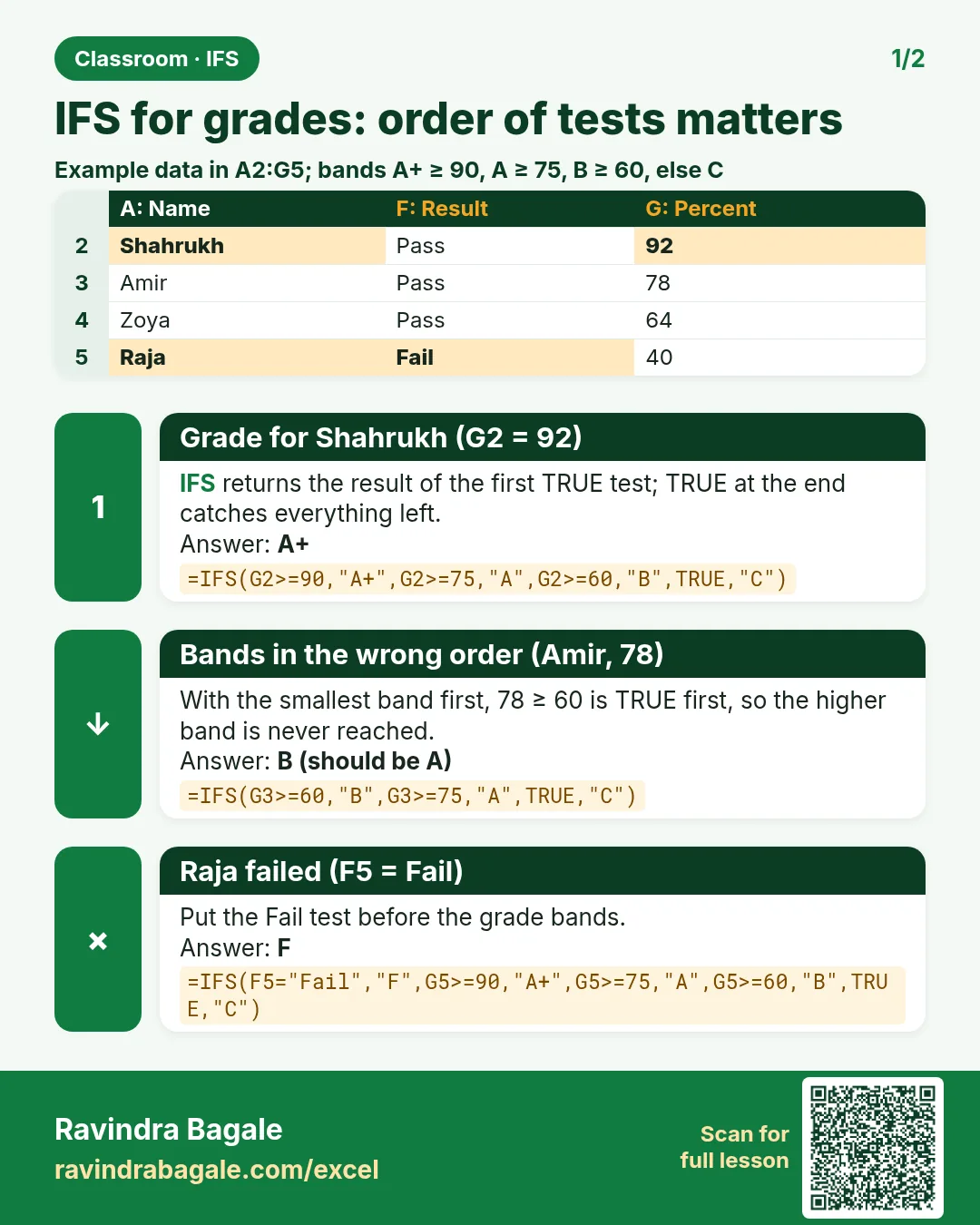
IFS checks the tests from left to right and returns the value of the first test that is TRUE. It stops there and never looks at the rest.
First attempt, in I5:
=IFS(H5>=90,"A+",H5>=75,"A",H5>=60,"B",H5<60,"C")
Ravindra (76.33): H5>=90 is false, H5>=75 is true → A. Drag down: Shraddha (exactly 90.00) gets A+, because >= includes 90 itself.
Figure 2. IFS reads the tests from left to right and stops at the first TRUE. For 76.33 the second test wins, so the answer is A.
5. Mistake 1: the order of conditions
Write the same tests starting from the smallest band:
=IFS(H5>=60,"B",H5>=75,"A",H5>=90,"A+",TRUE,"C")
Shraddha (90.00) now gets B. Her first test, H5>=60, is already TRUE, so IFS stops and never reaches >=90. Ravindra, Zoya and Rani also drop to B.
Rule: with >=, go from the biggest value to the smallest. With <, go from the smallest to the biggest. Either way, the narrowest test must come first.
6. Mistake 2: failed students get a grade
Look at column I again. Ruhi has 54.33% but failed maths (34). The formula only looks at the percentage, so she gets C. So do Shahrukh, Ravina and the second Salman: four failed students with a grade.
The fix: check the result column first.
=IFS(G5="Fail","Fail",H5>=90,"A+",H5>=75,"A",H5>=60,"B",TRUE,"C")
G5="Fail"is tested first. A failed student gets Fail and IFS stops.- Only students who passed reach the grade bands.
- The last pair
TRUE,"C"means "everything else". TRUE is always true, so it catches whatever is left. It does the same job asH5<60, and it is harder to get wrong.
Figure 3. Without the fail check (column I) four failed students get C. With G5="Fail" tested first (column J) they get Fail.
Final grades (J5:J15): A, A+, Fail, B, Fail, A, C, Fail, C, A, Fail.
Ravindra Bagale's Tip
Before you write any IFS, write the bands as a small table on paper, from the top band down, and put special cases (Fail, Absent) above all of them. Then type the IFS in the same order as your table. The order of your notes becomes the order of your formula, and the first-TRUE-wins rule can't trip you.
Ravindra Bagale's Tip – मराठी
कोणताही IFS लिहिण्याआधी bands कागदावर छोट्या table सारखे लिहा, वरच्या band पासून खाली, आणि special cases (Fail, Absent) सगळ्यांच्या वर ठेवा. मग IFS त्याच क्रमाने type करा. तुमच्या notes चा क्रम हाच formula चा क्रम होतो, आणि first-TRUE-wins चा नियम तुम्हाला फसवू शकत नाही.
Ravindra Bagale's Tip – हिंदी
कोई भी IFS लिखने से पहले bands को कागज़ पर छोटी table की तरह लिखो, ऊपर वाले band से नीचे तक, और special cases (Fail, Absent) सबसे ऊपर रखो. फिर IFS उसी क्रम में type करो. आपके notes का क्रम ही formula का क्रम बन जाता है, और first-TRUE-wins का नियम आपको फँसा नहीं सकता.
7. Count each grade
Put the grade names in M7:M11 (A+, A, B, C, Fail) and in N7:
=COUNTIF($J$5:$J$15,M7)
Drag down to N11:
| Grade | Students |
|---|---|
| A+ | 1 |
| A | 3 |
| B | 1 |
| C | 2 |
| Fail | 4 |
| Total | 11 |
The $ again keeps the grade column fixed while the formula moves down to the next grade name. The totals add up to 11, which is a quick check that every student got exactly one grade.
8. The same with nested IF
Every IFS can be written as IFs inside IFs:
=IF(G5="Fail","Fail",IF(H5>=90,"A+",IF(H5>=75,"A",IF(H5>=60,"B","C"))))
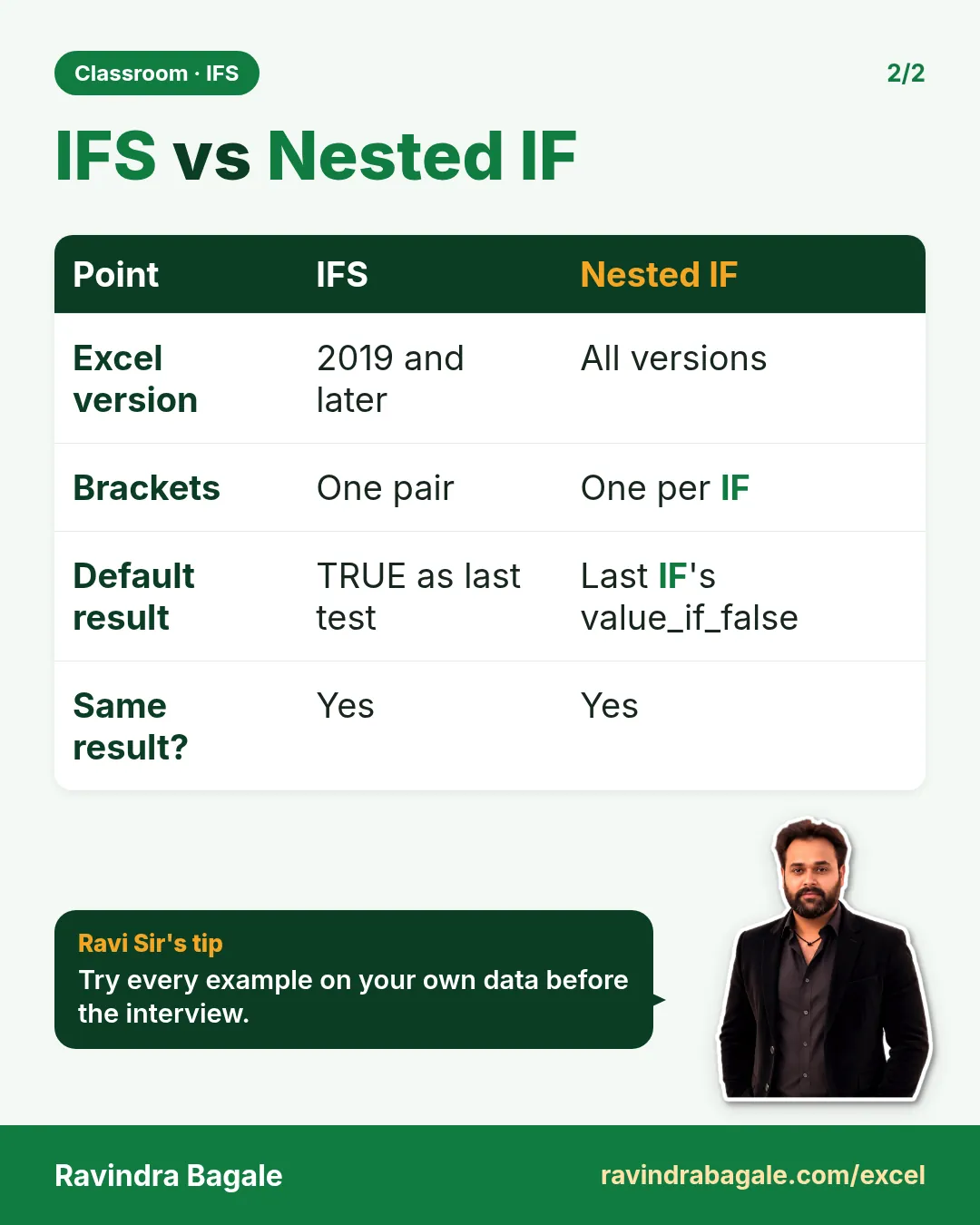
In the practice file column K holds this version, and all 11 results match column J. IFS is easier to read because there is no stack of closing brackets at the end, but both give the same answer.
Classroom line
When you type a function, a suggestion should appear below it automatically. If it doesn't, understand that this function is not in your Excel.
Class मधलं वाक्य
"Jyaveli function lihitana automatically khali suggestion yayla pahije... nahi aala tar samjun ghyacha te function tumchya Excel madhe nahiye."
Function लिहिताना खाली आपोआप suggestion यायला पाहिजे. नाही आलं तर समजून घ्यायचं की ते function तुमच्या Excel मध्ये नाहीये.
Classroom line
When you type a function, a suggestion should appear below it automatically. If it doesn't, understand that this function is not in your Excel.
Which Excel has IFS? Excel 2019, 2021, 2024, Microsoft 365 and Excel for the web. Excel 2016 and older do not. Type =IFS(: if Excel does not suggest the function, use the nested IF instead. It works in every version.
9. Practice: price remarks with IFS and nested IF
A shop wants a remark next to each price:
| Price | Remark |
|---|---|
| 1,00,000 or more | very expensive |
| 50,000 or more | expensive |
| 25,000 or more | ok |
| anything less | low |
With IFS (C5):
=IFS(B5>=100000,"very expensive",B5>=50000,"expensive",B5>=25000,"ok",TRUE,"low")
With nested IF (D5):
=IF(B5>=100000,"very expensive",IF(B5>=50000,"expensive",IF(B5>=25000,"ok","low")))
| Product | Price | Remark |
|---|---|---|
| Laptop | 1,00,000 | very expensive |
| Camera | 60,000 | expensive |
| Tablet | 30,000 | ok |
| Mobile | 25,000 | ok |
| Smartwatch | 20,000 | low |
| Earphones | 10,000 | low |
| Speaker | 8,000 | low |
Mobile is exactly 25,000, so >=25000 makes it ok. Column E in the practice file checks =C5=D5 and shows TRUE for every row.
Figure 4. The same four remarks with IFS and with nested IF. IFS lists test/value pairs; nested IF closes one bracket per IF.
Classroom line
I keep deleting things here, but don't you delete them. Keep and maintain your Excel file.
Class मधलं वाक्य
"Aata me asa delete karat jato, pan tumhi asa delete karat jau naka. Tumhi te excel file maintain kara."
आता मी असं delete करत जातो, पण तुम्ही असं delete करत जाऊ नका. तुम्ही ती Excel file maintain करा.
Classroom line
I keep deleting things here, but don't you delete them. Keep and maintain your Excel file.
Ravindra Bagale's Tip
Keep one practice workbook for all your Excel learning. Click + at the bottom to add a sheet for each topic and rename it (double-click the tab): "references", "ifs", "count". After a month you will have your own reference book of working formulas, which is far more useful than notes.
Ravindra Bagale's Tip – मराठी
Excel शिकण्यासाठी एकच practice workbook ठेवा. खाली + वर click करून प्रत्येक topic साठी sheet जोडा आणि तिचं नाव बदला (tab वर double-click): "references", "ifs", "count". महिन्याभरात चालणाऱ्या formulas चं तुमचं स्वतःचं reference book तयार होईल, जे notes पेक्षा खूप उपयोगी आहे.
Ravindra Bagale's Tip – हिंदी
Excel सीखने के लिए एक ही practice workbook रखो. नीचे + पर click करके हर topic के लिए sheet जोड़ो और उसका नाम बदलो (tab पर double-click): "references", "ifs", "count". एक महीने में चलने वाले formulas की आपकी अपनी reference book तैयार हो जाएगी, जो notes से कहीं ज़्यादा काम की है.
10. The whole chapter on one page
- Total
=SUM(C5:E5); percentage=F5/$N$4*100with the maximum marks in one locked cell. - Ctrl+1 › Number › 2 decimal places changes the look, not the stored value.
=IFS(test1,value1,test2,value2,…): first TRUE wins.- With
>=, test the biggest band first. - Put special cases first:
G5="Fail","Fail". TRUE,"C"at the end = everything else.=COUNTIF($J$5:$J$15,M7)counts each grade; the counts must add up to the number of students.- IFS is in Excel 2019 and later, Microsoft 365 and Excel for the web; nested IF works everywhere.
11. Try at home
Try at home
Task 1: grades
- On the Your turn sheet fill total, result and percentage.
- Write the IFS with the fail check and count each grade. Your counts should be 1, 3, 1, 2, 4.
Task 2: break the order
- Write the IFS starting with
H5>=60and compare it with column I. Who changes grade? (Shraddha, Ravindra, Zoya and Rani become B.)
Task 3: change the maximum
- Change N4 to 400. Which students' grades change, and why does nobody's result change?
Task 4: remarks
- Write the price remarks with IFS and with nested IF, then compare them with
=C5=D5.
Recap
In short
- Keep maximum marks in one cell and lock it with $.
- IFS returns the value of the first TRUE test.
- Biggest band first when you use >=.
- Fail (and any special case) goes before the grade bands.
- TRUE as the last test catches everything else.
- Nested IF gives the same result and works in older Excel.
Quick revision cards
Quick revision
Revise this chapter in two minutes. Save the cards on your phone or download them as PNG files. All names and numbers are made up for practice.
झटपट उजळणी
हा chapter दोन मिनिटांत revise करा. Cards phone वर save करा किंवा PNG म्हणून download करा. सगळी नावं आणि आकडे सरावासाठी काल्पनिक आहेत.
झटपट दोहराई
यह chapter दो मिनट में revise करें. Cards phone पर save करें या PNG के रूप में download करें. सभी नाम और आंकड़े अभ्यास के लिए काल्पनिक हैं.

More cards for every chapter: Ravi Sir's Cards.
Loading practice tasks...
- Pass or fail (Easy): "Pass" if B2 is at least 40, else "Fail".
- Total (Easy): B2 plus C2.
- Passed score 1 (Easy): How many in B2:B11 are 40 or more?
- Passed both (Medium): TRUE if B3 and C3 are both at least 40.
- Passed either (Medium): TRUE if B4 or C4 is at least 75.
- Grade (Medium): Grade for the average of B2:C2: "A" 75+, "B" 60+, "C" 40+, else "F".
- Eligible (Medium): "Eligible" if D5 is at least 75 and B5 at least 40, else "Not eligible".
- Count passed both (Hard): How many have both scores at least 40?
- Pass percentage (Hard): Share passing score 1, rounded to 2 decimals.
- Nested IF band (Hard): "High" if C6 ≥ 75, "Mid" if ≥ 50, else "Low", using nested IF.
- Top scorer (Hard): Name with the highest score 1.