How to Highlight an Entire Row in Excel with Conditional Formatting (Formula Rule)
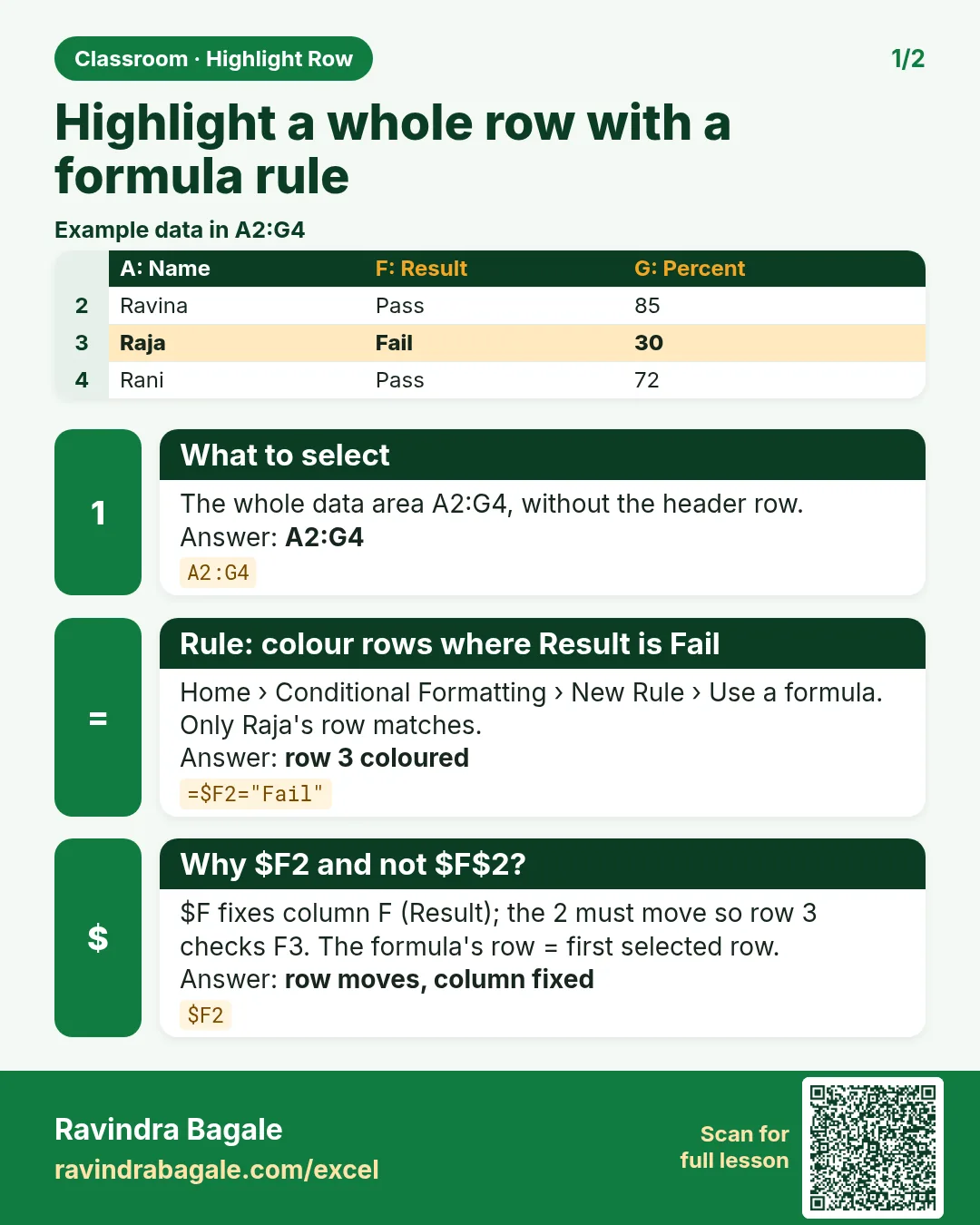
The built-in rules from the Conditional Formatting chapter colour only the cell that meets the rule. Very often you want more: if the Result is Fail, colour the whole row, name and marks included, so nobody can miss it. For that you write the rule yourself, as a small formula. It takes one line, but two details decide whether it works: where the dollar sign goes, and which row the formula talks about.
What you'll learn in this chapter
- New Rule > Use a formula to determine which cells to format
- Why =$F2="Fail" has a dollar on the column and not on the row
- The first-row rule: the formula must match the first row of the selection
- Fixing a rule that colours the row above
- A second rule for high percentages, and rule order
- Manage Rules, Edit Rule, Applies to and Clear Rules
Practice file: excel-highlight-entire-row-practice.xlsx: three sheets with the same marks: Right rule (the working rules plus TRUE/FALSE check columns), Shifted rule (the one-row-off mistake) and No dollar (the rule without $).
Made-up data: all names and marks are made up for practice.
1. The table
The same marks sheet as the Conditional Formatting chapter: headers in row 1, ten people in rows 2 to 11, columns A Name, B Science, C Maths, D English, E Total, F Result, G Percentage. Three results are Fail: Shahrukh (row 5), Salman (row 7) and Raja (row 10).
2. The formula rule, step by step
- Select the data rows A2:G11: start at A2 and drag to G11, so A2 is the active cell (the white one in the selection). Do not include the header row.
- Home > Conditional Formatting > New Rule.
- Choose Use a formula to determine which cells to format.
- In Format values where this formula is true, type:
=$F2="Fail"
- Click Format..., open the Fill tab, pick a light red, OK.
- Click OK again.
Rows 5, 7 and 10 turn red from column A to column G.
Classroom line
When you want to highlight the whole row, you have to select the whole table.
Class मधलं वाक्य
जेव्हा तुम्हाला पूर्ण row highlight करायचा असेल, तेव्हा पूर्ण table select करायचा.
Classroom line – हिंदी
"Jab aapko pura row highlight karna hai, pure table ko select karna hai."
3. How Excel reads the formula
Excel writes the formula for the first cell of the selection, A2, and then copies it to every other cell, exactly as if you had dragged it, with the usual relative and absolute reference rules:
- $F: the column is locked. Whether the cell is in column A, B or G, it always looks at column F, the Result.
- 2 without a dollar: the row moves. In row 3 the formula becomes
=$F3="Fail", in row 10=$F10="Fail".
So every cell of row 10 asks "is F10 Fail?", gets TRUE, and the whole row is coloured. In row 9, every cell asks about F9 (Pass) and gets FALSE.
The practice file shows these TRUE/FALSE answers in column I: =$F2="Fail" dragged down gives TRUE on exactly rows 5, 7 and 10.
Figure 1. The formula is written for A2 and copied: $F stays on column F, the row number follows the row. Rows 5, 7 and 10 give TRUE and turn red end to end.
4. The first-row rule, and the row-above mistake
The row number in the formula must be the first row of your selection. You selected from row 2, so the formula says F2.
A common slip: select A2:G11 but type =$F3="Fail". Excel now asks, for row 2, "is F3 Fail?". Every row looks one row down, so the colour appears one row above each Fail: rows 4, 6 and 9 (Ruhi Bagale, Amir and Ravina), and the real Fail rows stay white. The Shifted rule sheet shows this.
The same thing happens the other way round if you select from row 1 (the headers) and type F2: then every colour lands one row below. Two ways to fix it:
- Select the data rows starting at row 2 and use $F2, or
- If you selected from row 3, use $F3. Whatever the first row is, the formula uses that row.
Figure 2. Left: =$F2 with A2:G11 selected colours the Fail rows 5, 7 and 10. Right: =$F3 with the same selection colours rows 4, 6 and 9, one row above each Fail.
Classroom line
Let's see how to do it; pay attention.
Class मधलं वाक्य
"Baghuya kasa karaycha te laksha dya."
बघूया कसं करायचं ते लक्ष द्या.
Classroom line
Let's see how to do it; pay attention.
5. Without the dollar
What if you type =F2="Fail", without the dollar? Now the column moves too. A2 checks F2, but B2 checks G2, C2 checks H2, and so on. Only the cells in column A look at the Result column, so only the names turn red and the rest of the row stays white (see the No dollar sheet). Press F4 while the cursor is on F2 until it shows $F2.
6. A second rule: 80% and above in green
Rules can be stacked. With A2:G11 still selected:
- Home > Conditional Formatting > New Rule > Use a formula.
- Type
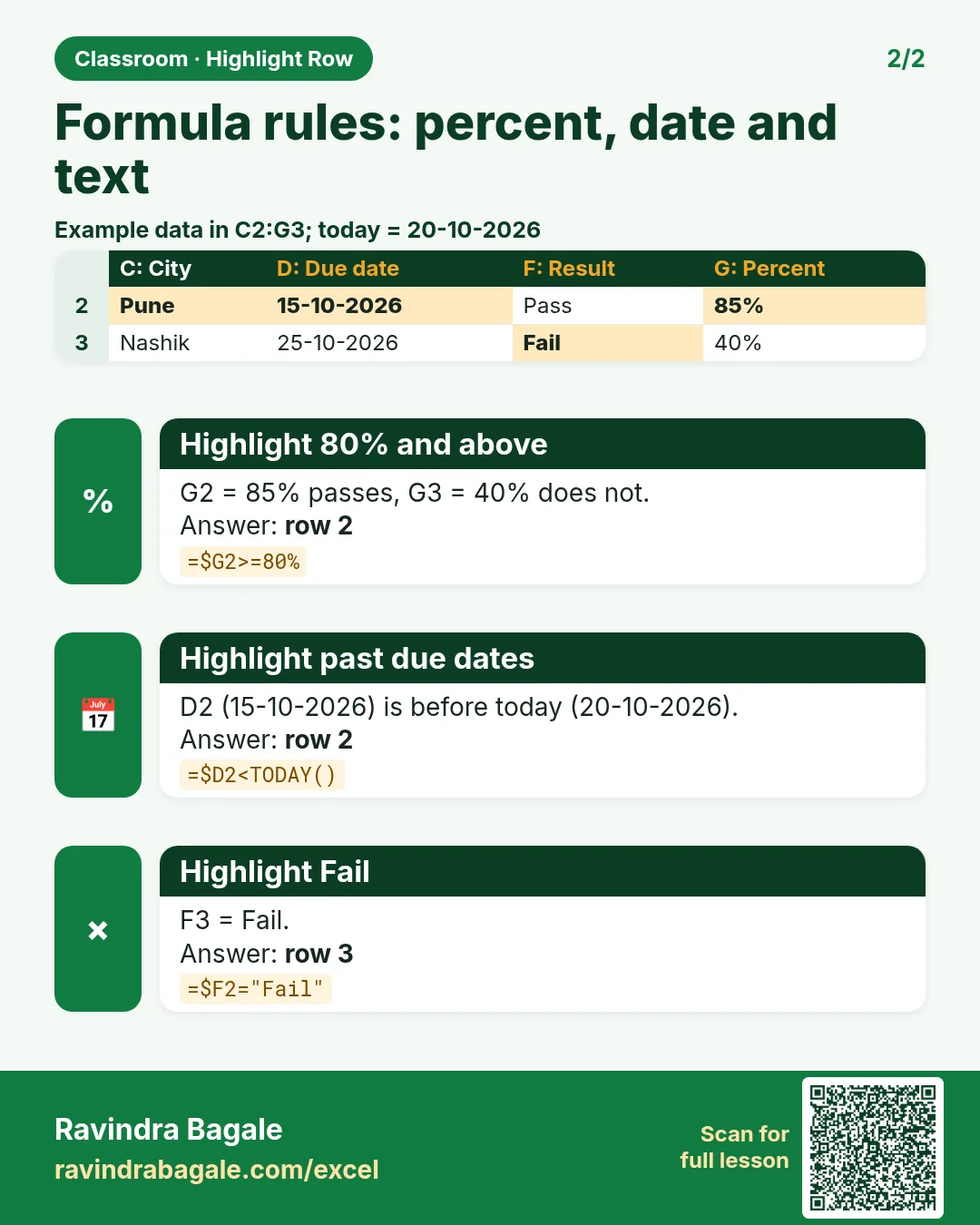
=$G2>=80. - Format... > Fill, light green, OK, OK.
Rows 2, 3 and 4 (86.33, 83.67 and 90.00) turn green. The formula can use any comparison: >=, <=, <> (not equal), or even functions, such as =AND($C2>=35,$D2>=35).
When two rules both try to set the same thing, such as the fill colour, the rule higher in the Manage Rules list wins. Use the up and down arrows in Manage Rules to change the order. Here no row is both Fail and above 80, so there is no conflict.
Ravindra Bagale's Tip
Not sure what your rule will colour? Type the same formula in an empty column, such as =$F2="Fail" in I2, and drag it down. Every TRUE is a row that will be coloured. When the TRUE rows are right, copy the formula into the rule.
Ravindra Bagale's Tip – मराठी
Rule काय colour करेल याची खात्री नसेल? तोच formula एका रिकाम्या column मध्ये type करा, उदा. I2 मध्ये =$F2="Fail", आणि खाली drag करा. प्रत्येक TRUE म्हणजे colour होणारी row. TRUE rows बरोबर आल्या की तो formula rule मध्ये copy करा.
Ravindra Bagale's Tip – हिंदी
Rule क्या colour करेगा, पक्का नहीं पता? वही formula एक खाली column में type करो, जैसे I2 में =$F2="Fail", और नीचे drag करो. हर TRUE वह row है जो colour होगी. TRUE rows सही आ जाएँ तो वह formula rule में copy करो.
7. Manage, edit and clear rules
- Home > Conditional Formatting > Manage Rules lists the rules. Choose This Worksheet at the top to see all of them.
- Edit Rule opens the formula and the format, so you can change "Fail" to "Pass" or the red to orange.
- Applies to shows the range, such as
=$A$2:$G$11. If you add rows 12 to 20, change it to=$A$2:$G$20. - Delete Rule removes one rule.
- Home > Conditional Formatting > Clear Rules > Clear Rules from Selected Cells or from Entire Sheet removes them all.
One trap: if your formula appears in Edit Rule as ="=$F2=""Fail""" with extra quotes around it, Excel has stored it as text, and it will never be TRUE. Delete the outer quotes so that it reads =$F2="Fail" and click OK.
8. The whole chapter on one page
| You want | Formula (A2:G11 selected) | Rows coloured |
|---|---|---|
| Fail rows red | =$F2="Fail" |
5, 7, 10 |
| 80% and above green | =$G2>=80 |
2, 3, 4 |
| Wrong: one row too far | =$F3="Fail" |
4, 6, 9 (above each Fail) |
| Wrong: no dollar | =F2="Fail" |
only column A of the Fail rows |
- Select the data rows (no header), with the first row's cell active.
- Use the formula option of New Rule.
- Dollar on the column, no dollar on the row:
$F2. - The row in the formula equals the first row of the selection.
- Higher rules win when two rules set the same format.
9. Try at home
Try at home
Task 1
- Colour the whole row orange where Maths is below 35. Which row? (Row 5, Shahrukh, Maths 30.)
Task 2
- Colour the whole row where Total is 250 or more. How many rows? (3: Ravindra Bagale, Shraddha Bagale and Ruhi Bagale.)
Task 3
- On the Shifted rule sheet, open Manage Rules and fix the formula so that the Fail rows turn red.
Recap
In short
- Built-in rules colour one cell; a formula rule can colour the whole row.
- Select A2:G11 and use =$F2="Fail".
- $F keeps the column fixed; the row number moves.
- The formula's row must be the selection's first row.
- Manage Rules edits, reorders and fixes the range.
Quick revision cards
Quick revision
Revise this chapter in two minutes. Save the cards on your phone or download them as PNG files. All names and numbers are made up for practice.
झटपट उजळणी
हा chapter दोन मिनिटांत revise करा. Cards phone वर save करा किंवा PNG म्हणून download करा. सगळी नावं आणि आकडे सरावासाठी काल्पनिक आहेत.
झटपट दोहराई
यह chapter दो मिनट में revise करें. Cards phone पर save करें या PNG के रूप में download करें. सभी नाम और आंकड़े अभ्यास के लिए काल्पनिक हैं.


More cards for every chapter: Ravi Sir's Cards.
Loading practice tasks...
- Pass or fail (Easy): "Pass" if B2 is at least 40, else "Fail".
- Total (Easy): B2 plus C2.
- Passed score 1 (Easy): How many in B2:B11 are 40 or more?
- Passed both (Medium): TRUE if B3 and C3 are both at least 40.
- Passed either (Medium): TRUE if B4 or C4 is at least 75.
- Grade (Medium): Grade for the average of B2:C2: "A" 75+, "B" 60+, "C" 40+, else "F".
- Eligible (Medium): "Eligible" if D5 is at least 75 and B5 at least 40, else "Not eligible".
- Count passed both (Hard): How many have both scores at least 40?
- Pass percentage (Hard): Share passing score 1, rounded to 2 decimals.
- Nested IF band (Hard): "High" if C6 ≥ 75, "Mid" if ≥ 50, else "Low", using nested IF.
- Top scorer (Hard): Name with the highest score 1.