Excel COUNT, COUNTA, COUNTBLANK and COUNTIF: Total Students, Absentees and Pass Percentage (with MAX and MIN)
Suppose you have to choose between two schools, and the first question is: which one has the better pass percentage? To answer it you need to count: how many students, how many were absent, how many passed. In this chapter we build a small marks sheet of 10 students and answer every one of those questions with a formula. These are your first real Excel functions, and you will use them in every analysis you ever do.
What you'll learn in this chapter
- The five functions every analyst uses
- Write a formula: = sign, function name, range
- Read the function tooltip: bold, [optional] and …
- COUNT counts numbers; COUNTA counts non-empty cells
- Show a formula with FORMULATEXT
- Make a Pass/Fail column with IF
- COUNTIF: count passes and fails
- Pass percentage, two ways
- COUNTBLANK: count absentees (blank is not 0)
- MAX and MIN: top and lowest marks
Practice file: excel-count-countif-practice.xlsx has the marks sheet with every formula (sheet Marks) and the same data without formulas (sheet Your turn).
1. Five functions that every tool uses
Why: whether you use Excel, SQL, Power BI, Tableau or Python, the first questions about any data are almost always the same: how many, how much in total, what is the highest, the lowest, the average. Five functions answer them:
| Function | Answers | Example question |
|---|---|---|
| COUNT | how many | How many students? |
| SUM | how much in total | Total marks in maths? |
| MAX | the highest | Top marks in science? |
| MIN | the lowest | Lowest marks in English? |
| AVERAGE | the typical value | Average maths marks? |
Learn them well in Excel and you will recognise them everywhere else. This chapter covers COUNT (and its family), MAX and MIN.
2. The marks sheet
Rows 5 to 14 hold 10 students. The pass mark is 35 in every subject.
| id | name | maths | science | english |
|---|---|---|---|---|
| 1 | Ravindra | 78 | 85 | 66 |
| 2 | Shraddha | 92 | 88 | 90 |
| 3 | Ruhi | 34 | 71 | 58 |
| 4 | Shahrukh | 56 | 49 | 30 |
| 5 | Amir | (blank) | 62 | 47 |
| 6 | Salman | 88 | 35 | 72 |
| 7 | Zoya | 67 | 90 | 84 |
| 8 | Ravina | 45 | 28 | 52 |
| 9 | Raja | 0 | 40 | 38 |
| 10 | Rani | 81 | 76 | 89 |
Two cells matter a lot in this chapter:
- Amir's maths cell is blank: he was absent for the maths exam.
- Raja's maths cell is 0: he appeared and scored zero.
Classroom line
Wherever you see a blank, that student is absent.
Class मधलं वाक्य
"Jithe blank distay to absent ahe."
जिथे blank दिसतंय तो absent आहे.
Classroom line
Wherever you see a blank, that student is absent.
Quick way to type it: type 1 and 2 in A5:A6 and drag down for the ids. If you made the name Custom List in the date formats chapter, type Ravindra and drag down for the names.
Figure 1. The marks sheet. Amir's blank maths cell means absent; Raja's 0 means he appeared and scored zero. Excel treats these two very differently.
3. Writing a formula
Rules:
- Every formula starts with
=. Without it, Excel treats what you type as plain text. - Then the function name, then brackets:
=COUNT(A5:A14). A5:A14is a range: the colon means "from A5 to A14", all ten cells.- A comma separates separate items:
=COUNT(A5,A6,A7)counts just those three cells.
Classroom line
Always type the equals sign first.
Class मधलं वाक्य
"Nehami pahilyanda is equal to liyacha."
नेहमी पहिल्यांदा is equal to लिहायचं.
Classroom line
Always type the equals sign first.
Read the tooltip. As soon as you type =COUNT(, Excel shows a small tooltip box: COUNT(value1, [value2], ...).
- The bold part is the argument you are typing right now.
- An argument in [square brackets] is optional.
- An argument without brackets is compulsory.
=COUNT()with nothing inside is not accepted. ...means you can give more of the same.
Classroom line
If it is written without square brackets, it means you must give that value.
Class मधलं वाक्य
Square bracket शिवाय लिहिलं आहे म्हणजे ती value द्यायलाच हवी.
Classroom line – हिंदी
"Bina square bracket likha hai iska matlab hai wo value compulsory likhna hai."
Figure 2. The tooltip that appears while you type a function: bold = the argument you are on, [ ] = optional, … = you may add more.
4. COUNT: how many numbers
What: COUNT counts the cells that contain numbers (dates are numbers too). It skips text and blank cells.
| Formula | Result | Why |
|---|---|---|
=COUNT(A5:A14) |
10 | ten ids, all numbers |
=COUNT(C5:C14) |
9 | Amir's blank maths cell is skipped |
=COUNT(B5:B14) |
0 | names are text, not numbers |
Total students: count the id column. A subject column misses absent students (9 instead of 10), and the name column contains text, which COUNT does not count at all.
Classroom line
The COUNT function counts only cells that contain numbers; it does not consider blanks.
Class मधलं वाक्य
COUNT function फक्त numbers असलेले cells count करतो, blank ला consider करत नाही.
Classroom line – हिंदी
"Count function sirf numbers wale cells count karta hai, blank ko consider nahi karta."
5. COUNTA: how many cells are not empty
What: COUNTA counts every cell that is not empty: numbers, text, anything. It does not count blank cells.
| Formula | Result | Why |
|---|---|---|
=COUNTA(B5:B14) |
10 | ten names (text) |
=COUNTA(C5:C14) |
9 | nine maths marks; the blank is not counted |
Use COUNT when the column holds numbers, and COUNTA when it holds text, such as names or cities.
Figure 3. On the same maths column: COUNT and COUNTA both give 9 (Raja's 0 is counted), COUNTBLANK gives 1 (Amir). On the name column COUNT gives 0 and COUNTA gives 10.
6. FORMULATEXT: show the formula next to its result
When you check your work, or explain it to someone, it helps to see the formula and the answer side by side.
- Your pass count is in I12 with
=COUNTIF(F5:F14,"Pass"). - In J12 type
=FORMULATEXT(I12). - J12 shows the text
=COUNTIF(F5:F14,"Pass").
FORMULATEXT works in Excel 2013 and later, including Microsoft 365. If the cell has no formula, it shows #N/A.
7. A Pass/Fail column with IF
To count passes we first need a column that says Pass or Fail. For now, maths only:
- In F4 type the header
maths result. - In F5 type
=IF(C5>=35,"Pass","Fail")and press Enter. Ravindra has 78, so F5 shows Pass. - Drag F5's fill handle down to F14.
IF checks a condition (C5>=35). If it is true you get the first value, otherwise the second. Text results go in "double quotes"; numbers and cell addresses do not.
When you drag the formula down, Excel changes the row number by itself: F6 has =IF(C6>=35,…), F7 has =IF(C7>=35,…). This is called a relative reference.
The results: Pass for Ravindra, Shraddha, Shahrukh, Salman, Zoya, Ravina and Rani; Fail for Ruhi (34), Amir (blank, which IF treats as 0) and Raja (0). The IF chapter goes deeper and checks all three subjects.
8. COUNTIF: count only what matches
What: COUNTIF(range, criteria) counts the cells in a range that match a condition.
| What we count | Formula | Result |
|---|---|---|
| Passed in maths | =COUNTIF(F5:F14,"Pass") |
7 |
| Failed in maths | =COUNTIF(F5:F14,"Fail") |
3 |
| Scored 80 or more in maths | =COUNTIF(C5:C14,">=80") |
3 |
- The condition goes in double quotes:
"Pass",">=80". - COUNTIF ignores capital and small letters:
"pass"and"Pass"give the same count. - Change a mark and the count updates at once: make Ruhi's maths 40 and the pass count becomes 8.
Classroom line
Check which cell YOUR pass count is in.
Class मधलं वाक्य
"Tumhi bagha tumche number of pass students kutlya cell madhe ahet."
तुम्ही बघा तुमचे number of pass students कुठल्या cell मध्ये आहेत.
Classroom line
Check which cell YOUR pass count is in.
Ravindra Bagale's Tip
Don't copy cell addresses from a book or video blindly. If your table starts in row 3 instead of row 5, every range moves. Click the cell you want to use while typing the formula, and Excel writes the correct address for you.
Ravindra Bagale's Tip – मराठी
पुस्तकातले किंवा video मधले cell addresses डोळे झाकून copy करू नका. तुमचा table row 5 ऐवजी row 3 पासून सुरू होत असेल तर सगळे ranges बदलतात. Formula type करताना हवी ती cell click करा, म्हणजे Excel बरोबर address स्वतः लिहितो.
Ravindra Bagale's Tip – हिंदी
किताब या video के cell addresses आँख बंद करके copy मत करो. आपकी table row 5 की जगह row 3 से शुरू होती है तो सारे ranges बदल जाते हैं. Formula type करते समय जो cell चाहिए उस पर click करो, Excel सही address खुद लिख देता है.
9. Pass percentage
Pass % = students who passed ÷ total students × 100
With the pass count in I12 and total students in I5:
- Way 1:
=I12/I5*100gives 70. Read it as 70%. - Way 2:
=I12/I5gives 0.7. Press Ctrl+1 › Percentage (or Home › % button) and it shows 70%.
Way 2 is better when the number feeds a chart or another formula, because the cell really holds a percentage.
Figure 4. From marks to pass percentage: IF makes the result column, COUNTIF counts Pass (7), COUNT counts students (10), and 7 ÷ 10 = 70%.
10. COUNTBLANK: count the absentees
What: COUNTBLANK counts empty cells only.
| Formula | Result | Why |
|---|---|---|
=COUNTBLANK(C5:C14) |
1 | Amir's maths cell is empty |
=COUNTBLANK(D5:D14) |
0 | every student has science marks |
0 is not blank. Raja's 0 is a number: COUNTBLANK does not count it, and COUNT does. Delete two more maths marks and COUNTBLANK becomes 3.
Classroom line
COUNTBLANK counts only the blanks.
Class मधलं वाक्य
"COUNTBLANK blankch count karto."
COUNTBLANK blankच count करतो.
Classroom line
COUNTBLANK counts only the blanks.
Ravindra Bagale's Tip
Never type 0 for an absent student "to fill the gap". A 0 is a real score: COUNTBLANK misses the absentee, MIN becomes 0 and AVERAGE goes down. Leave absent cells blank, or type a clear word such as AB and count it with =COUNTIF(C5:C14,"AB").
Ravindra Bagale's Tip – मराठी
Absent student साठी "जागा भरायला" कधीही 0 type करू नका. 0 हा खरा score आहे: COUNTBLANK ला absent student दिसत नाही, MIN 0 होतो आणि AVERAGE कमी होतो. Absent cells blank ठेवा, किंवा AB सारखा स्पष्ट शब्द type करून =COUNTIF(C5:C14,"AB") ने count करा.
Ravindra Bagale's Tip – हिंदी
Absent student के लिए "जगह भरने" को कभी 0 type मत करो. 0 असली score है: COUNTBLANK को absent student नहीं दिखता, MIN 0 हो जाता है और AVERAGE कम हो जाता है. Absent cells blank रखो, या AB जैसा साफ शब्द type करके =COUNTIF(C5:C14,"AB") से count करो.
11. MAX and MIN: top and lowest marks
| What | Formula | Result |
|---|---|---|
| Top maths | =MAX(C5:C14) |
92 (Shraddha) |
| Lowest maths | =MIN(C5:C14) |
0 (Raja) |
| Top science | =MAX(D5:D14) |
90 (Zoya) |
| Lowest science | =MIN(D5:D14) |
28 (Ravina) |
| Top English | =MAX(E5:E14) |
90 (Shraddha) |
| Lowest English | =MIN(E5:E14) |
30 (Shahrukh) |
MAX and MIN skip blank cells (Amir's blank is ignored) but include 0 (Raja's 0 is the lowest maths mark). The same is true for SUM and AVERAGE: =SUM(C5:C14) is 541 and =AVERAGE(C5:C14) is 60.11, an average over 9 marks, not 10.
Figure 5. MAX and MIN on each subject. The blank is ignored; the 0 is counted, so the lowest maths mark is 0.
12. The whole chapter on one page
- Five everyday functions: COUNT, SUM, MAX, MIN, AVERAGE.
- A formula starts with
=;A5:A14means A5 to A14. - Tooltip: bold = current argument, [ ] = optional, … = more allowed.
- COUNT counts numbers only; total students = COUNT of the id column.
- COUNTA counts non-empty cells (text too); blanks are not counted.
=FORMULATEXT(cell)shows a cell's formula as text.=IF(C5>=35,"Pass","Fail"), dragged down, makes the result column.=COUNTIF(F5:F14,"Pass")counts passes; criteria in quotes.- Pass % = passes ÷ total × 100, or passes ÷ total with % format.
- COUNTBLANK counts empty cells; 0 is not blank.
- MAX and MIN ignore blanks but include 0.
13. Try at home
Try at home
Task 1: build the sheet
- Type the 10-student marks sheet from section 2 (or open the Your turn sheet of the practice file).
- Find total students, maths marks entered and names entered.
Task 2: pass and fail
- Make the maths result column with IF.
- Count Pass and Fail, and work out the pass percentage both ways.
- Change Ruhi's maths mark to 40. Which numbers change?
Task 3: absent vs zero
- Count absentees in each subject with COUNTBLANK.
- Delete Raja's 0. What happens to COUNTBLANK, MIN and AVERAGE for maths?
Task 4: top and lowest
- Find the top and lowest marks in each subject.
- Count how many students scored 80 or more in science and in English.
Recap
In short
=first, then function, then range.- COUNT = numbers; COUNTA = not empty; COUNTBLANK = empty.
- Total students: COUNT the id column.
- IF makes Pass/Fail; COUNTIF counts them.
- Pass % = passes ÷ total (× 100, or % format).
- Blank = absent, 0 = scored zero; never mix them.
- MAX and MIN skip blanks but count zeros.
- FORMULATEXT shows the formula behind a result.
Quick revision cards
Quick revision
Revise this chapter in two minutes. Save the cards on your phone or download them as PNG files. All names and numbers are made up for practice.
झटपट उजळणी
हा chapter दोन मिनिटांत revise करा. Cards phone वर save करा किंवा PNG म्हणून download करा. सगळी नावं आणि आकडे सरावासाठी काल्पनिक आहेत.
झटपट दोहराई
यह chapter दो मिनट में revise करें. Cards phone पर save करें या PNG के रूप में download करें. सभी नाम और आंकड़े अभ्यास के लिए काल्पनिक हैं.
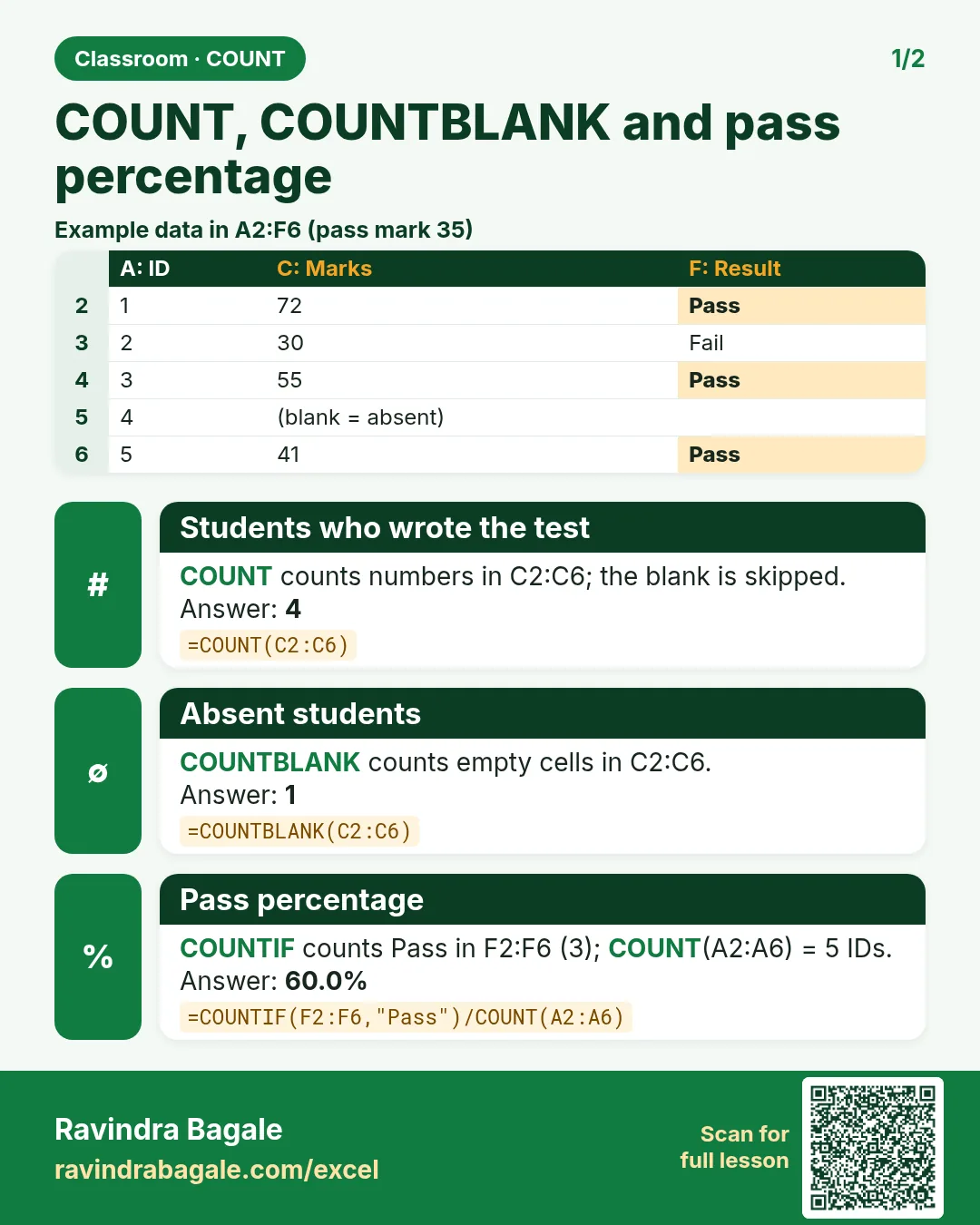

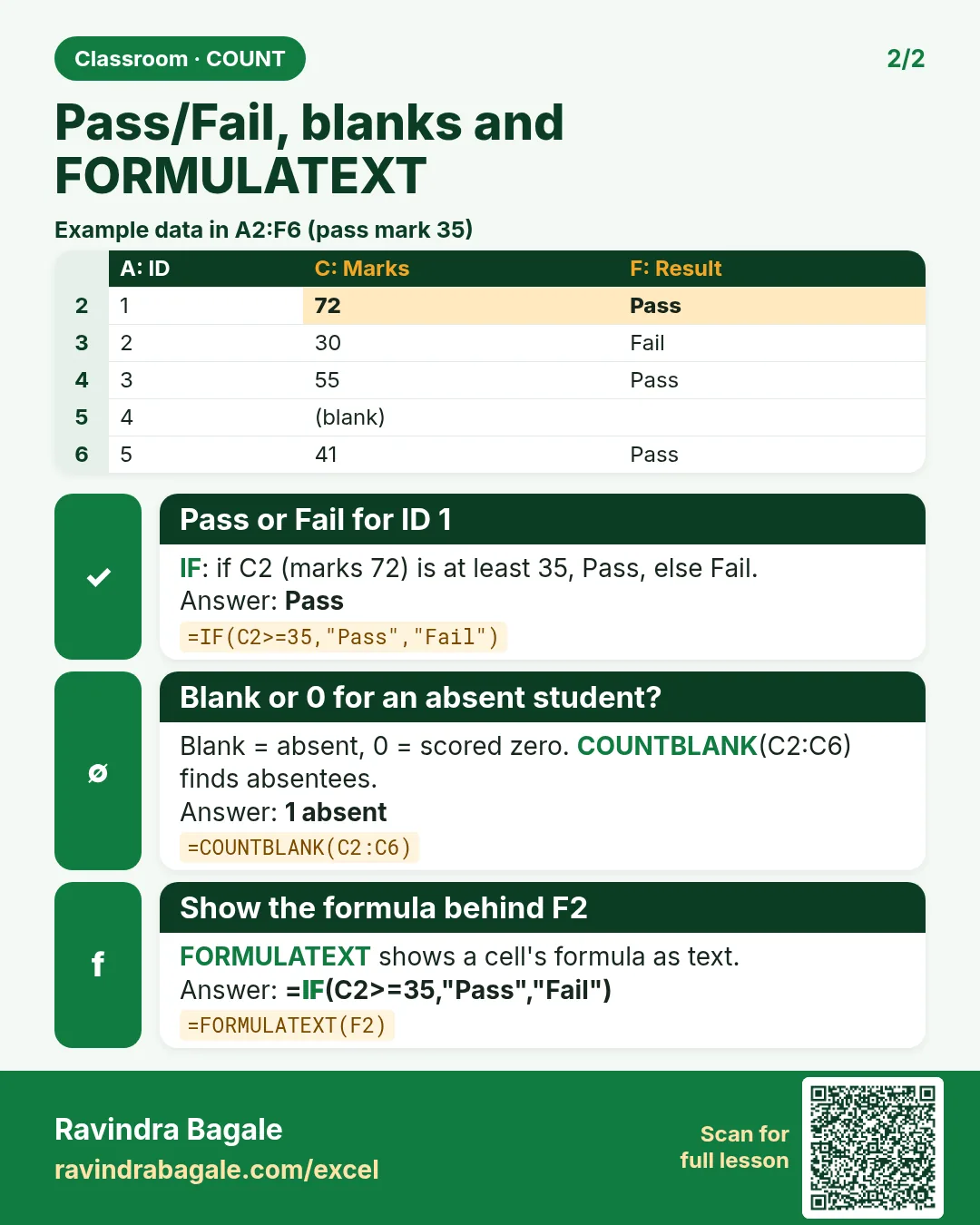

More cards for every chapter: Ravi Sir's Cards.
Loading practice tasks...
- Pass or fail (Easy): "Pass" if B2 is at least 40, else "Fail".
- Total (Easy): B2 plus C2.
- Passed score 1 (Easy): How many in B2:B11 are 40 or more?
- Passed both (Medium): TRUE if B3 and C3 are both at least 40.
- Passed either (Medium): TRUE if B4 or C4 is at least 75.
- Grade (Medium): Grade for the average of B2:C2: "A" 75+, "B" 60+, "C" 40+, else "F".
- Eligible (Medium): "Eligible" if D5 is at least 75 and B5 at least 40, else "Not eligible".
- Count passed both (Hard): How many have both scores at least 40?
- Pass percentage (Hard): Share passing score 1, rounded to 2 decimals.
- Nested IF band (Hard): "High" if C6 ≥ 75, "Mid" if ≥ 50, else "Low", using nested IF.
- Top scorer (Hard): Name with the highest score 1.