Excel Basics for Beginners: Workbook, Sheets, Cells, AutoFill and Date Series
This is your first hands-on Excel chapter. We open Excel, create a workbook for an Instagram-style project, save it as insta, and make one sheet each for Users, Reels and Posts. Then we learn the parts of the screen, how big one sheet really is, and the most useful beginner skill of all: AutoFill. With one drag you can fill 1 to 100, a multiplication table, a whole month of dates, the months of a year or the days of the week. Keep Excel open and do every step with me.
What you'll learn in this chapter
- Open Excel and create a blank workbook
- Type a first table and save it as insta
- Rename sheets: Users, Reels, Posts
- Tabs, ribbon, Name Box and Formula Bar
- Rows, columns, cells and sheet limits
- AutoFill: copy, series, gaps, reverse
- Multiplication tables in one drag
- Fix ##### and widen many columns at once
- Fill dates, months, days, times and text
Practice file: excel-basics-practice.xlsx has every example from this chapter, plus empty "Your turn" areas.
1. Open Excel and create a blank workbook
Why: every Excel project starts with a file. That file is called a workbook.
How (Windows):
- Press the Windows key or click Start.
- Type
excel. - Click Excel in the results.
- On the start screen, click Blank workbook.
On a Mac, open Excel from Launchpad or the Applications folder, then choose Blank Workbook.
What you see: an empty grid with Sheet1 at the bottom-left. The title at the top says Book1, the temporary name of a new workbook that has not been saved yet.
- A workbook is the whole Excel file.
- A worksheet (or just sheet) is one page inside the workbook.
- One workbook can hold many sheets.
2. Type your first table
Why: data in Excel is almost always kept as a table: one header row, then one row per record. This is the same idea as the tables inside Instagram or Flipkart.
How: in Sheet1, type the headers and two records:
- Click cell A1 and type
id. Press Tab to move right. - In B1 type
name, press Tab. In C1 typecity, press Tab. In D1 typeage, and press Enter. - In row 2 type
1001,Rani,Pune,24. - In row 3 type
1002,Ravindra Bagale,Solapur,32. - In row 4 type
1003,Zoya,Mumbai,27.
Tab moves one cell to the right; Enter moves down. That is the fastest way to type a table row by row.
The same simple layout is used everywhere in business: a car showroom lists every car sold, and a builder tracks the sale of all 500 flats in a project, one flat per row.
3. Save the workbook as insta
How:
- Press Ctrl+S (on Mac, Cmd+S), or click File › Save.
- Excel suggests the name Book1. Click Browse (or More options) to choose a place.
- Choose This PC › Desktop.
- In File name, type
insta. - Click Save.
The title bar now shows insta.xlsx. .xlsx is the normal Excel file type.
Ravindra Bagale's Tip
Save the file right after creating it, not at the end. If Excel or your laptop shuts down before the first save, everything in "Book1" is gone. After the first save, keep pressing Ctrl+S every few minutes; it becomes a habit within a week.
Ravindra Bagale's Tip – मराठी
File बनवल्या बनवल्या लगेच save करा, शेवटी नाही. पहिल्या save च्या आधीच Excel किंवा laptop बंद पडला तर "Book1" मधलं सगळं जातं. पहिल्या save नंतर दर काही मिनिटांनी Ctrl+S दाबत राहा; आठवड्याभरात ती सवय होते.
Ravindra Bagale's Tip – हिंदी
File बनाते ही तुरंत save करो, आखिर में नहीं. पहले save से पहले ही Excel या laptop बंद हो गया तो "Book1" का सब कुछ चला जाता है. पहले save के बाद हर कुछ मिनट में Ctrl+S दबाते रहो; एक हफ्ते में ये आदत बन जाती है.
4. Rename sheets and add new ones
Why: an app like Instagram keeps users, reels and posts in separate tables. In Excel, each kind of data gets its own sheet in the same workbook.
How:
- Double-click the Sheet1 tab at the bottom.
- Type
Usersand press Enter. - Click the + button next to the tabs. A new sheet appears.
- Double-click it, type
Reelsand press Enter. - Click + again, and rename the new sheet
Posts. - Press Ctrl+S to save.
You can also right-click a tab and choose Rename, Delete or Tab Color.
Figure 1. One workbook file, insta.xlsx, with three worksheets: Users, Reels and Posts.
Rule of thumb: one workbook per project (or app), one sheet per kind of data.
Ravindra Bagale's Tip
Give sheets short, clear names like Users, Sales_2026 or Stock. Avoid leaving "Sheet1, Sheet2, Sheet3". When you write formulas that use other sheets later, a clear name tells you at once where the data comes from.
Ravindra Bagale's Tip – मराठी
Sheets ना Users, Sales_2026 किंवा Stock अशी छोटी, स्पष्ट नावं द्या. "Sheet1, Sheet2, Sheet3" तशीच ठेवू नका. पुढे दुसऱ्या sheets वापरणारे formulas लिहाल तेव्हा स्पष्ट नावावरून लगेच कळतं की data कुठून येतोय.
Ravindra Bagale's Tip – हिंदी
Sheets को Users, Sales_2026 या Stock जैसे छोटे, साफ नाम दो. "Sheet1, Sheet2, Sheet3" वैसे ही मत छोड़ो. आगे दूसरी sheets वाले formulas लिखोगे तब साफ नाम से तुरंत पता चलता है कि data कहाँ से आ रहा है.
5. The parts of the Excel window
Figure 2. The parts of the Excel window, numbered 1 to 9.
- Title bar: shows the workbook name, here
insta.xlsx. - Tabs: File, Home, Insert, Draw, Page Layout, Formulas, Data, Review, View. Some people call them menus.
- Ribbon: the big strip of buttons under the tabs. The buttons change when you click a different tab. Home has the everyday buttons: font, alignment, number format, and so on.
- Name Box: at the left, above column A. It shows the address of the selected cell, for example
B3. - Formula Bar: next to the fx sign. It shows what is really inside the selected cell.
- Column letters: A, B, C … across the top.
- Row numbers: 1, 2, 3 … down the left side.
- Active cell: the cell with the green border. The small green square at its bottom-right corner is the fill handle.
- Sheet tabs: Users, Reels, Posts and the + button.
Classroom line
Some people will call them menus, some will call them tabs.
Class मधलं वाक्य
"Kahi log menu boltil, kahi log tabs boltil."
काही लोक menu बोलतील, काही लोक tabs बोलतील.
Classroom line
Some people will call them menus, some will call them tabs.
See the Formula Bar in action:
- Click cell F2 and type
=2+3, then press Enter. - The cell shows
5. - Click F2 again. The Formula Bar shows
=2+3.
The cell shows the result; the Formula Bar shows the formula behind it.
6. Rows, columns, cells and how big a sheet is
- Columns go across and are named with letters: A to Z, then AA to AZ, BA to BZ … up to ZZ, then AAA, AAB … The last column is XFD.
- Rows go down and are numbered from 1.
- A cell is where a column and a row meet. Its address is column letter + row number:
K144is column K, row 144;J11is column J, row 11.
How big is one sheet?
- 16,384 columns (A to XFD)
- 1,048,576 rows
- 16,384 × 1,048,576 = 17,179,869,184 cells, about 1,700 crore cells in a single sheet.
Figure 3. One worksheet has 16,384 columns (A to XFD) and 1,048,576 rows. A cell address is the column letter plus the row number.
Try it:
- Click the Name Box, type
K144and press Enter. Excel jumps to cell K144. - Press Ctrl+Home to go back to A1.
- On an empty sheet, press Ctrl+Down Arrow. You land on row 1,048,576, the last row.
- Press Ctrl+Right Arrow. You land on column XFD, the last column.
- Press Ctrl+Home to come back.
7. AutoFill: let Excel continue the pattern
Why: typing 1 to 100 by hand takes minutes and invites mistakes. AutoFill does it in one drag.
What: the fill handle is the small green square at the bottom-right corner of the selected cell or cells. When you point at it, the mouse pointer becomes a thin black +. Drag it down or across and Excel continues the pattern. AutoFill follows fixed rules (number steps and built-in lists); it is not guessing.
Classroom line
It's much easier if you have a mouse.
Class मधलं वाक्य
"Mouse asel tar bara hoil."
Mouse असेल तर बरं होईल.
Classroom line
It's much easier if you have a mouse.
Dragging small handles is much easier with a mouse than with a laptop touchpad.
7.1 Copy one value
- Click a new sheet, or an empty area such as column H on Users.
- Type
1in H2 and press Enter. - Click H2 again, point at the fill handle and drag down to H6.
- Every cell shows
1. One plain number is copied, not counted.
7.2 Make a series: 1 to 30
- Type
1in H2 and2in H3. - Select both cells (click H2, then drag to H3).
- Drag the fill handle down to H31.
- You get 1, 2, 3 … 30. The two cells told Excel the step: 2 − 1 = 1.
7.3 Gaps (a step bigger than 1)
- Type
1and4, select both and drag: 7, 10, 13 … (step 3). - Type
10and20, select both and drag: 30, 40, 50 … (step 10).
7.4 Counting backwards
- Type
100and99, select both and drag: 98, 97, 96 … (step −1). - Type
100and90, select both and drag: 80, 70, 60 … (step −10).
Figure 4. Yellow cells are typed, green cells are filled. Two typed cells set the step; one plain number is only copied.
Ravindra Bagale's Tip
Many beginners type a single 1, drag it, and get 1, 1, 1, 1. For a series, type two values (1 and 2) and select both before dragging, or hold Ctrl while dragging a single number. Right after dragging, a small Auto Fill Options button appears: click it to switch between Copy Cells and Fill Series.
Ravindra Bagale's Tip – मराठी
बरेच beginners एकच 1 type करून drag करतात आणि 1, 1, 1, 1 मिळतं. Series हवी असेल तर दोन values (1 आणि 2) type करा आणि drag करण्याआधी दोन्ही select करा, किंवा एकच number drag करताना Ctrl दाबून ठेवा. Drag केल्यावर लगेच एक छोटं Auto Fill Options button येतं: त्यावर click करून Copy Cells आणि Fill Series मध्ये बदला.
Ravindra Bagale's Tip – हिंदी
बहुत से beginners एक ही 1 type करके drag करते हैं और 1, 1, 1, 1 मिलता है. Series चाहिए तो दो values (1 और 2) type करो और drag से पहले दोनों select करो, या एक number drag करते समय Ctrl दबाकर रखो. Drag के तुरंत बाद एक छोटा Auto Fill Options button आता है: उस पर click करके Copy Cells और Fill Series में बदलो.
7.5 Multiplication tables in one drag
Why: this is the best exercise to understand how AutoFill reads a step from each row and each column.
How:
- In C3 type
2and in C4 type4. - Select C3:C4 and drag the fill handle down to C12. You get 2, 4, 6 … 20: the table of 2.
- In D3 type
3and in D4 type6. - Select D3:D4 and drag down to D12. You get 3, 6, 9 … 30: the table of 3.
- Now select C3:D12 (both full columns).
- Drag the fill handle to the right, up to column K.
- In each row, Excel sees a step (row 3: 2 → 3 is +1; row 4: 4 → 6 is +2) and continues it. Column E becomes the table of 4, F the table of 5 … K the table of 10.
- Keep dragging further right for bigger tables: column U gives the table of 20.
Figure 5. Four typed numbers (yellow) become the tables of 2 to 10. Columns are filled down first, then the two columns are dragged right together.
Check one value: cell H7 is in the table of 7 (column H), row 7 is the 5th row (7 − 2 = 5), so it holds 7 × 5 = 35.
8. ##### in a cell: the column is too narrow
Why it happens: when a number or date is wider than its column, Excel shows ##### instead of a wrong, cut-off value. The data is safe; only the column is too narrow.
Fix one column:
- Point at the boundary line between two column letters, for example between C and D at the top.
- The pointer becomes a double arrow.
- Drag to the right until the date shows.
- Or double-click the boundary. Excel sets the width to fit the longest value. This is called AutoFit.
Fix many columns at once:
- Type
01-08-2026in C4 and drag the fill handle right to P4. Some narrow columns show#####. - Click the column letter C, then drag across the letters to P. All 14 columns are selected.
- Drag any one boundary between the selected letters. All selected columns get the same width together.
- Or double-click one boundary. All selected columns are AutoFit together.
Classroom line
So here's a little trick.
Class मधलं वाक्य
"So ithe ek jugad asa aahe."
So इथे एक जुगाड असा आहे.
Classroom line
So here's a little trick.
Figure 6. Before: dates in narrow columns show #####. After: select the column letters and drag (or double-click) one boundary to widen them all.
Ravindra Bagale's Tip
##### is not an error and your data is not lost. Click the cell and look at the Formula Bar: the real value is still there. Just widen the column. (A date or time that comes out negative also shows #####; widening won't fix that one, so then check the calculation.)
Ravindra Bagale's Tip – मराठी
##### हा error नाही आणि तुमचा data गेलेला नाही. Cell वर click करून Formula Bar बघा: खरी value तिथेच आहे. फक्त column रुंद करा. (Negative आलेली date किंवा time सुद्धा ##### दाखवते; ती column रुंद करून जात नाही, तेव्हा calculation check करा.)
Ravindra Bagale's Tip – हिंदी
##### कोई error नहीं है और आपका data गया नहीं है. Cell पर click करके Formula Bar देखो: असली value वहीं है. बस column चौड़ा करो. (Negative आई date या time भी ##### दिखाती है; वो column चौड़ा करने से नहीं जाती, तब calculation देखो.)
9. Dates, months, days and times
9.1 Typing a date
Excel understands a date in many ways. With Indian (day-month-year) date settings, all of these become the same date, shown as 01-08-2026:
01/08/2601-08-261-8-2601-08-2026
Excel shows the date in your computer's date format. A real date is right-aligned in the cell. If what you typed stays left-aligned, Excel did not recognise it as a date and kept it as text.
9.2 Filling dates
- Type
01-08-2026in B2. - Drag the fill handle down to B17.
- You get 02-08-2026, 03-08-2026 … 16-08-2026: one day per cell.
- Click the Auto Fill Options button and choose Fill Weekdays to skip Saturdays and Sundays, or Fill Months to get 01-09-2026, 01-10-2026 …
9.3 Short dates, months, days and times
| You type | Excel shows | Drag down gives |
|---|---|---|
1 aug |
01-Aug | 02-Aug, 03-Aug … (the current year is assumed) |
1 August |
01-Aug | 02-Aug, 03-Aug … |
Jan |
Jan | Feb, Mar, Apr … |
January |
January | February, March … |
Jan 2026 |
Jan-26 | Feb-26, Mar-26 … (one month per cell) |
Monday |
Monday | Tuesday, Wednesday … |
Mon |
Mon | Tue, Wed … |
10:10 |
10:10 | 11:10, 12:10, 13:10 … (one hour per cell) |
1 AM |
01:00 AM | 02:00 AM, 03:00 AM … 12:00 PM, 01:00 PM … |
Figure 7. One typed cell (yellow) becomes a whole series (green): days, months, weekdays and hours.
Months and weekday names are built-in lists. Excel keeps your style: type monday in small letters and you get tuesday, wednesday …
10. Numbers vs text with a number
A year typed alone does not count up.
- Type
2026and drag down. You get 2026, 2026, 2026 … - Excel sees 2026 as an ordinary number, and one number is copied, just like
1.
Classroom line
It won't increase it. Excel thinks it's just a number.
Class मधलं वाक्य
"To nahi ghenar. Tyala kay vatatay he digit aahe."
तो नाही घेणार. त्याला काय वाटतंय हे digit आहे.
Classroom line
It won't increase it. Excel thinks it's just a number.
Three ways to get 2026, 2027, 2028 …:
- Hold Ctrl while you drag the single cell.
- Or type
2026and2027, select both, and drag. - Or drag normally, then choose Fill Series from the Auto Fill Options button.
Text that ends in a number counts up by itself:
- Type
Week 1and drag: Week 2, Week 3, Week 4 … - Type
Zoya 1and drag: Zoya 2, Zoya 3 … - Type
Shop-01and drag: Shop-02, Shop-03 …
Figure 8. A plain number is copied unless you hold Ctrl or give two values; text that ends in a number counts up on its own.
Ravindra Bagale's Tip
If AutoFill gives you the wrong thing, don't type everything again. Press Ctrl+Z to undo, or click the Auto Fill Options button that appears after the drag and pick what you wanted: Copy Cells, Fill Series, Fill Days, Fill Weekdays or Fill Months.
Ravindra Bagale's Tip – मराठी
AutoFill ने चुकीचं भरलं तर सगळं परत type करू नका. Undo साठी Ctrl+Z दाबा, किंवा drag नंतर येणाऱ्या Auto Fill Options button वर click करून हवं ते निवडा: Copy Cells, Fill Series, Fill Days, Fill Weekdays किंवा Fill Months.
Ravindra Bagale's Tip – हिंदी
AutoFill ने गलत भर दिया तो सब दोबारा type मत करो. Undo के लिए Ctrl+Z दबाओ, या drag के बाद आने वाले Auto Fill Options button पर click करके जो चाहिए वो चुनो: Copy Cells, Fill Series, Fill Days, Fill Weekdays या Fill Months.
11. The whole chapter on one page
- Start › type
excel› Blank workbook. Workbook = file; worksheet = one page inside it. - Type a table with headers in row 1: Tab moves right, Enter moves down.
- Ctrl+S › Browse › Desktop › name
insta› Save →insta.xlsx. - Double-click a sheet tab to rename it; + adds a sheet: Users, Reels, Posts.
- Tabs and ribbon at the top; Name Box shows the address; Formula Bar shows what is inside.
- A sheet has 16,384 columns (A to XFD) and 1,048,576 rows. A cell address = column + row, like K144.
- Fill handle = small square at the bottom-right of the selection. One number copies; two numbers set the step; Ctrl+drag counts up.
- Two seed columns dragged right make multiplication tables.
#####= column too narrow. Select many column letters and drag or double-click one boundary.- Dates, short dates, months, weekdays and times fill as series; Auto Fill Options can switch to weekdays or months.
- A plain year copies; text ending in a number (Week 1, Zoya 1) counts up.
12. Try at home
Try at home
Task 1: your own workbook
- Create a workbook and save it on the Desktop as
myshop. - Make three sheets:
Staff,StockandSales. - In Staff, type headers
id,name,role,salaryand add five staff rows (use names such as Shahrukh, Amir, Salman, Ravina and Raja).
Task 2: AutoFill numbers
- Fill 1 to 50 in column A.
- Fill 5, 10, 15 … 100 in column B.
- Fill 50, 48, 46 … 2 in column C.
- Make the tables of 2 to 15 using only four typed numbers.
Task 3: dates and times
- Fill every date of next month in one column, then use Fill Weekdays to list only working days.
- Fill January to December in a row, and Monday to Sunday below it.
- Fill the hours from 9 AM to 6 PM.
- Drag a date to the right across ten columns, get
#####, and widen all ten columns in one go.
Task 4: check yourself
- Open the practice file excel-basics-practice.xlsx.
- Do each "Your turn" area and compare it with the answer next to it.
Recap
In short
- Workbook = file; worksheets = pages inside it. Save early with Ctrl+S.
- One workbook per project, one sheet per kind of data: Users, Reels, Posts.
- Tabs and ribbon on top; Name Box = address; Formula Bar = what is inside.
- 16,384 columns (A to XFD) × 1,048,576 rows; address = column + row.
- Fill handle: one number copies; two numbers set the step; Ctrl+drag counts.
- Two seed columns dragged right give multiplication tables.
-
= column too narrow; widen or AutoFit many columns at once.
- Dates, months, weekdays, times and "text + number" fill as series.
Quick revision cards
Quick revision
Revise this chapter in two minutes. Save the cards on your phone or download them as PNG files. All names and numbers are made up for practice.
झटपट उजळणी
हा chapter दोन मिनिटांत revise करा. Cards phone वर save करा किंवा PNG म्हणून download करा. सगळी नावं आणि आकडे सरावासाठी काल्पनिक आहेत.
झटपट दोहराई
यह chapter दो मिनट में revise करें. Cards phone पर save करें या PNG के रूप में download करें. सभी नाम और आंकड़े अभ्यास के लिए काल्पनिक हैं.
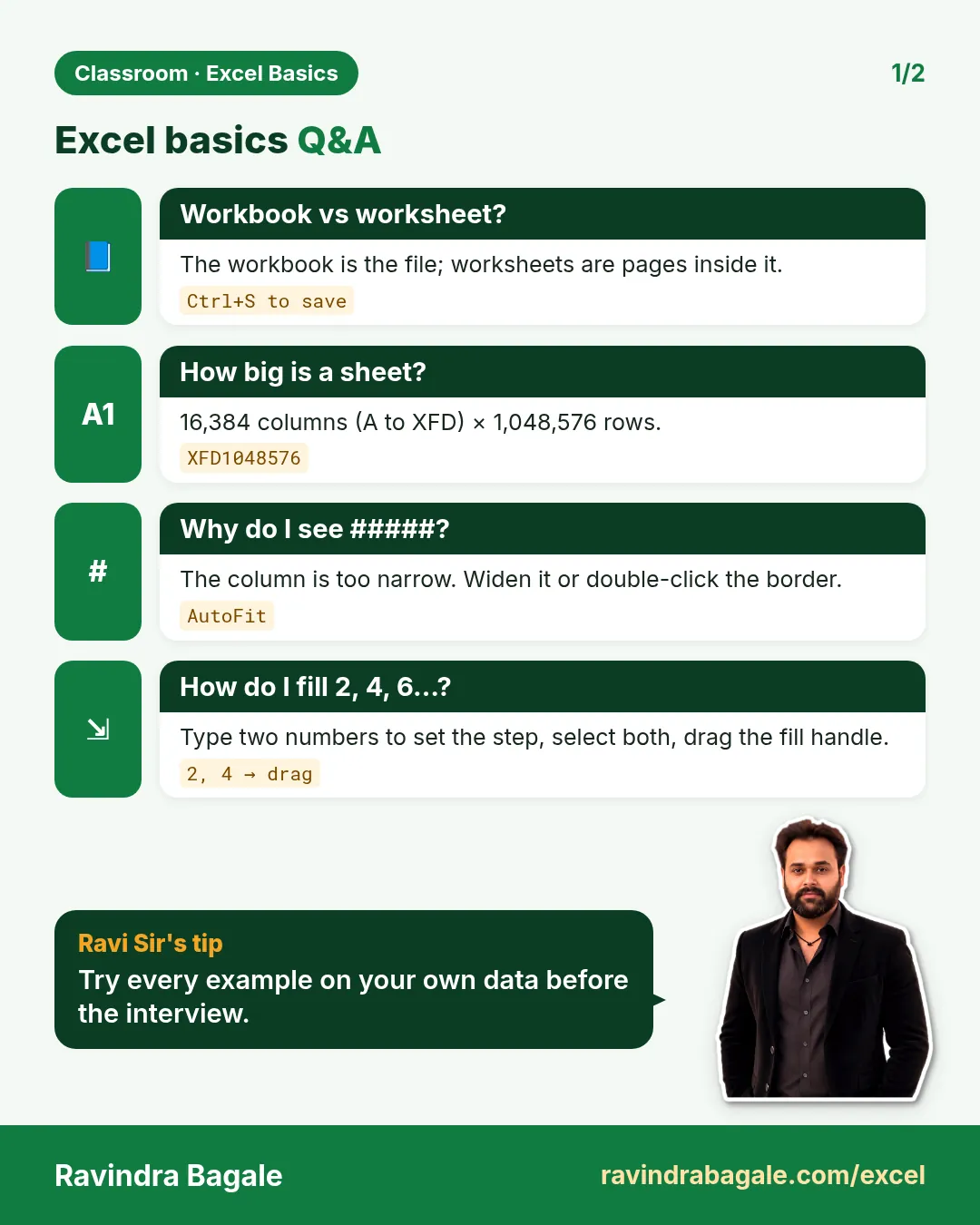
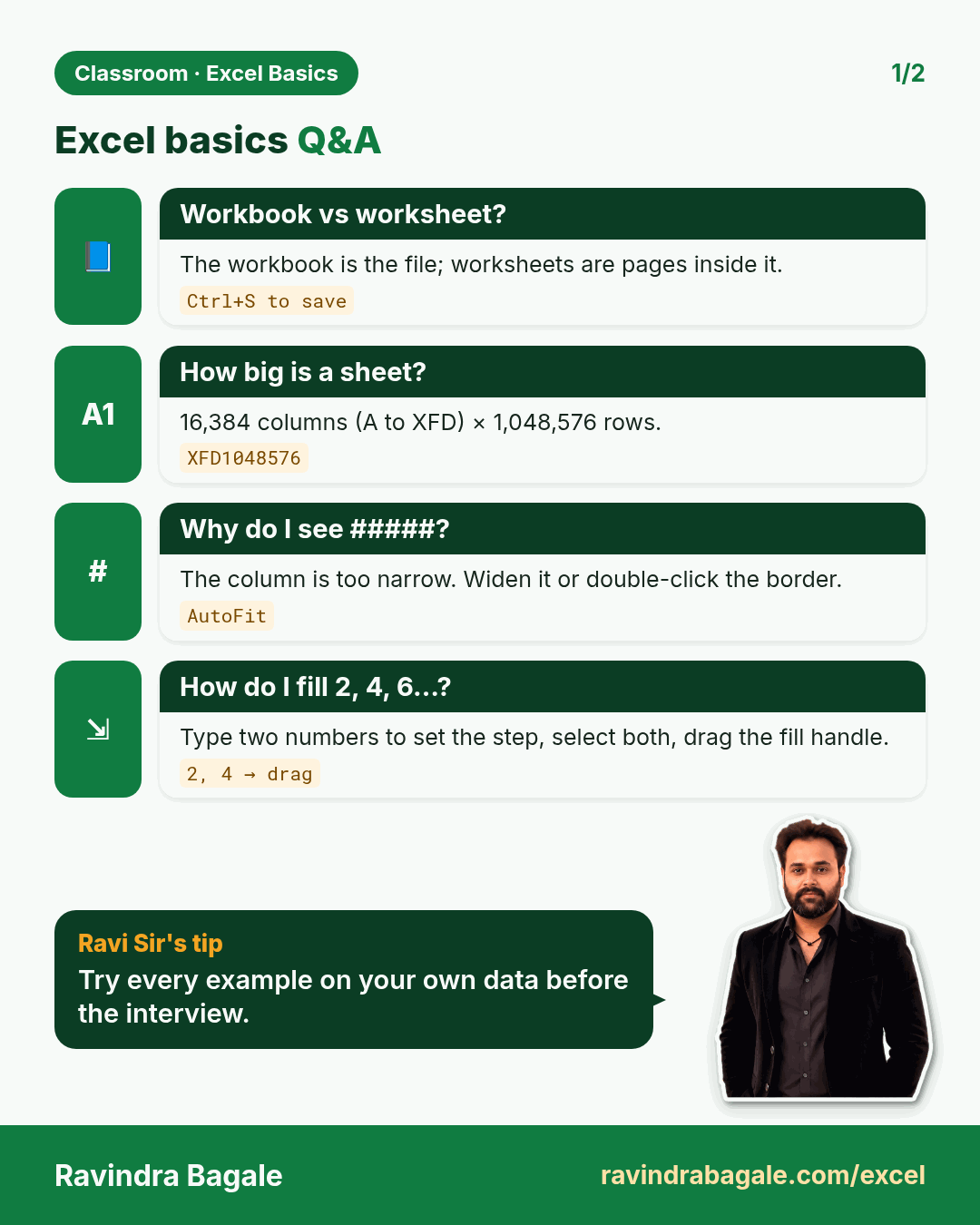
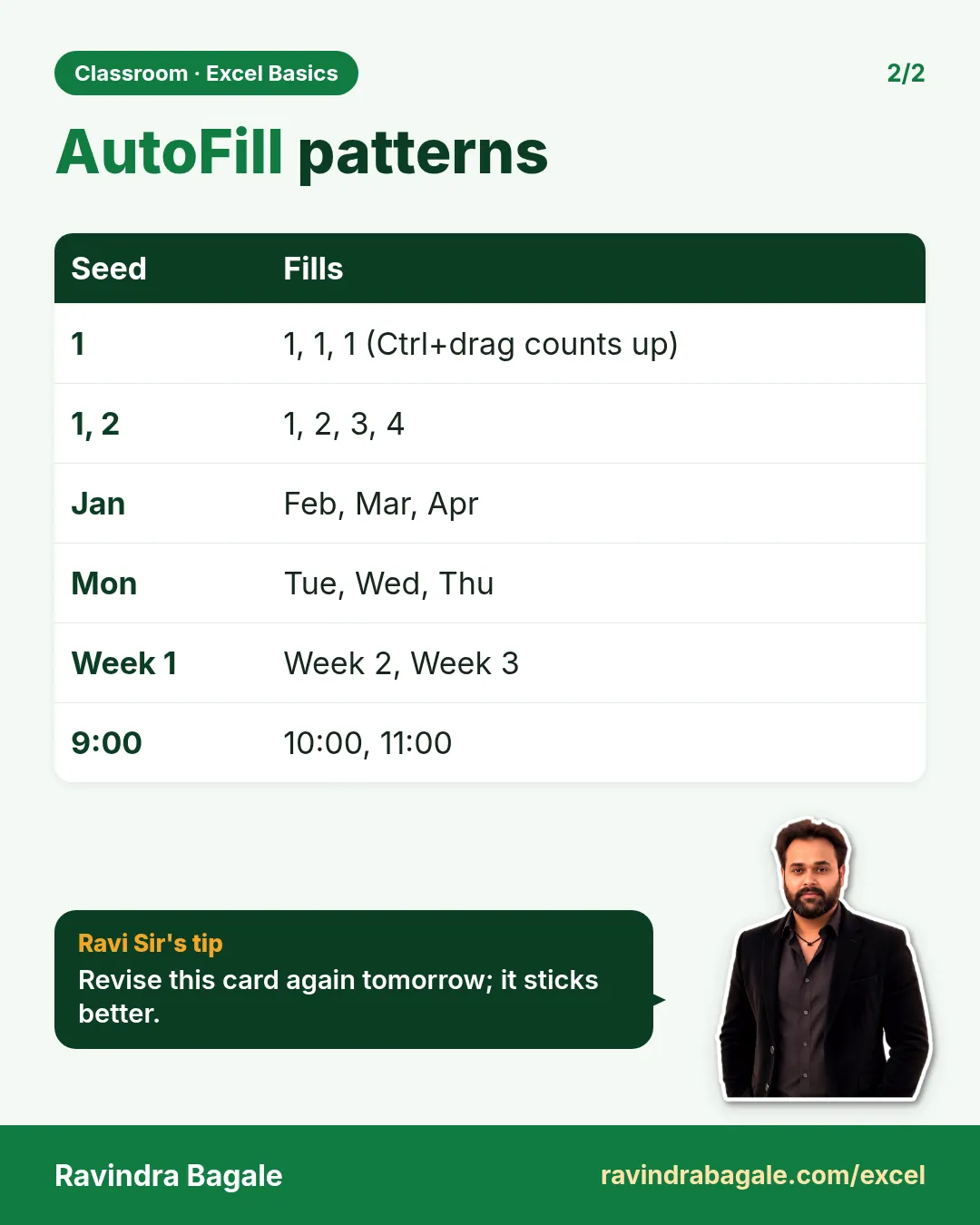
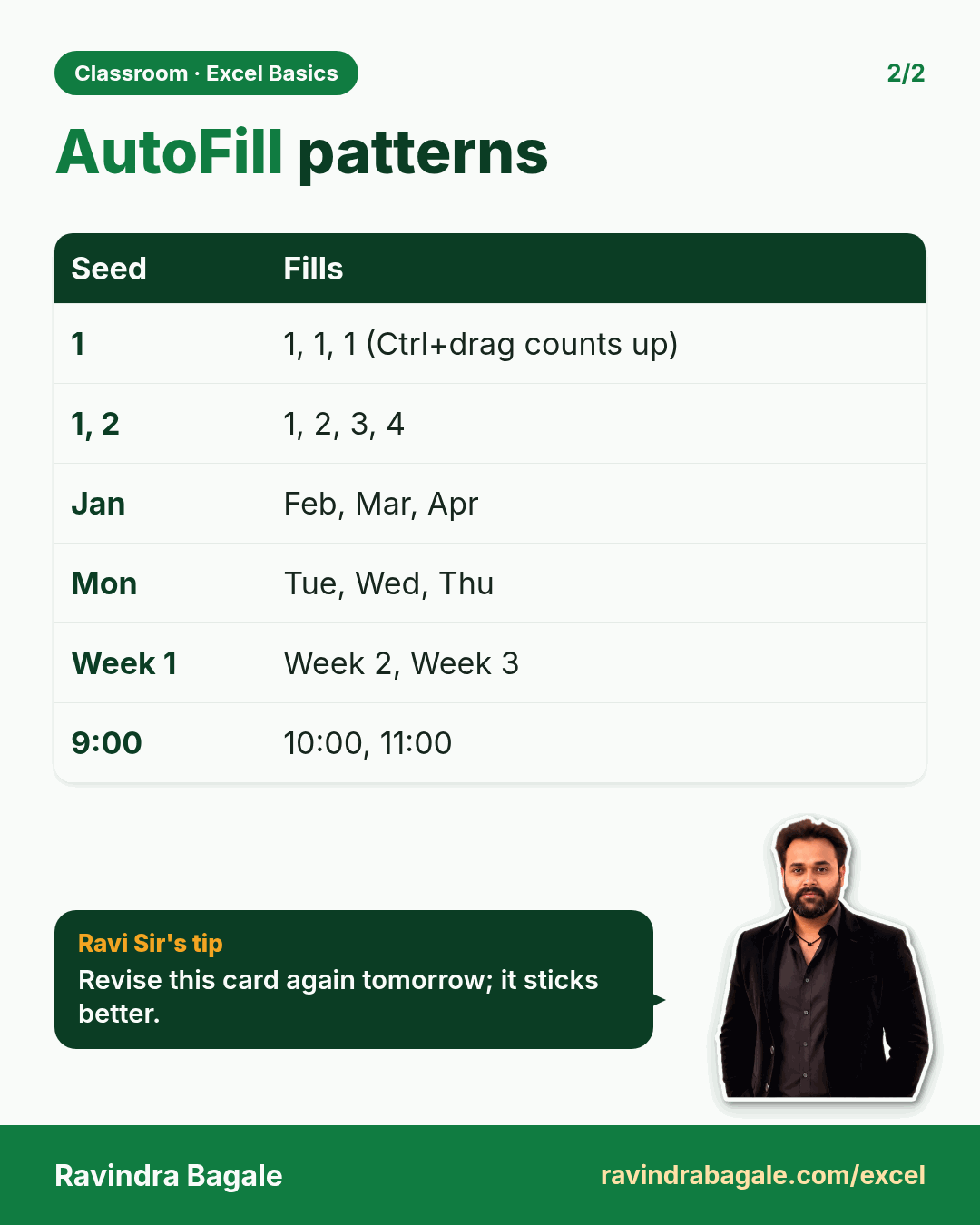
More cards for every chapter: Ravi Sir's Cards.
Loading practice tasks...
- Total deals won (Easy): Add up Deals won in D2:D11. (sheet "Data")
- Average avg deal value (Easy): Average of E2:E11, rounded to 2 decimals. (sheet "Data")
- Rows in North (Easy): How many rows have Region "North"? (sheet "Data")
- Largest deals won (Easy): The largest value in D2:D11. (sheet "Data")
- Days taken (Easy): C2 minus B2. (sheet "Dates")
- Start year (Easy): Year of B3. (sheet "Dates")
- Due month (Easy): Month number of C3. (sheet "Dates")
- Earliest start (Easy): Earliest date in B2:B9 (as a date number). (sheet "Dates")
- Deals won for North (Medium): Total of D2:D11 where B is "North". (sheet "Data")
- North in London (Medium): Total of D2:D11 where B is "North" and C is "London". (sheet "Data")
- Working days (Medium): Working days from B2 to C2. (sheet "Dates")
- Weekday of due (Medium): Weekday number of C4 (Sunday = 1). (sheet "Dates")