Excel PivotTable with Multiple Values, Nested Rows and Columns: Count and Sum Side by Side, City by Payment Mode
The first PivotTable chapter put one field in Rows and one in Values. Real reports ask more at once: how many orders and how much profit per city, how each city splits between COD and Online, and a grid of cities against payment modes. All of it comes from dragging more than one field into the same box. In this chapter you build those pivots on the same 24 made-up orders.
What you'll learn in this chapter
- Two fields in Values: Count and Sum side by side
- Two fields in Rows: City with Payment_Mode nested inside
- A field in Columns: a cross-tab of City and Payment_Mode
- Columns vs Filters for the same field
- What really decides Count or Sum, and numbers in Rows
- Adding a pivot by typing the table name
Practice file: excel-pivottable-multiple-values-columns-practice.xlsx: Orders (the table named Orders) and Pivot answers (every pivot result in this chapter, worked out with COUNTIFS and SUMIFS).
Made-up data: the 24 orders are made up for practice. They imitate a quick-commerce app such as Blinkit or Amazon Now in Pune, Nashik, Solapur, Kolhapur, Nagpur and Sambhaji Nagar.
1. Start from the table
Click inside the Orders table and use Insert > PivotTable > From Table/Range, New Worksheet, OK, as in the first PivotTable chapter. The PivotTable Fields pane has four areas:
- Rows: the groups, down the side.
- Columns: the groups, across the top.
- Values: what is counted or added.
- Filters: a condition for the whole pivot.
2. Two fields in Values
- Drag City into Rows.
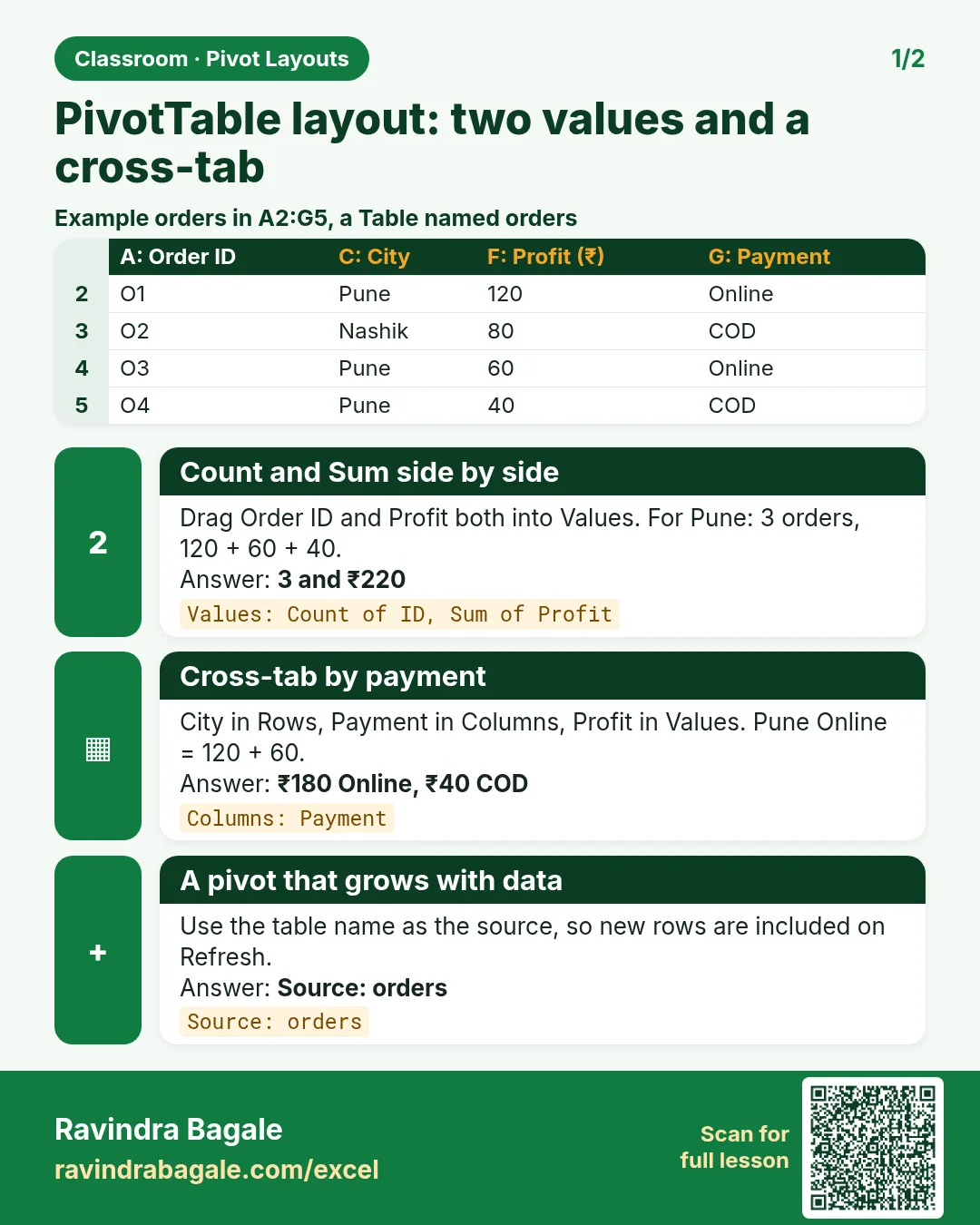
- Drag Order_ID into Values: Count of Order_ID.
- Drag Profit into Values as well: Sum of Profit appears in a second column.
| Row Labels | Count of Order_ID | Sum of Profit |
|---|---|---|
| Kolhapur | 4 | 64 |
| Nagpur | 4 | 154 |
| Nashik | 4 | 36 |
| Pune | 6 | 6 |
| Sambhaji Nagar | 3 | 61 |
| Solapur | 3 | 6 |
| Grand Total | 24 | 327 |
Pune has the most orders (6) but almost no profit (6). Nagpur has 4 orders and the highest profit, 154. Two numbers side by side tell a story that neither tells alone.
When you add a second field to Values, Excel also puts a Σ Values item in the Columns area. It only decides where the value columns go; leave it there.
Figure 1. City in Rows; Order_ID and Profit both in Values. Each city gets a count and a sum in one row: Pune 6 orders but profit 6, Nagpur 4 orders and profit 154. Grand Total 24 and 327.
3. Two fields in Rows: nested groups
- Remove Profit from Values (drag it out), keep Count of Order_ID.
- Drag Payment_Mode into Rows, below City.
| Row Labels | Count of Order_ID |
|---|---|
| Kolhapur | 4 |
| COD | 2 |
| Online | 2 |
| Nagpur | 4 |
| Online | 4 |
| Nashik | 4 |
| COD | 3 |
| Online | 1 |
| ... | ... |
- Each city gets its own small group, with its payment modes inside.
- Nagpur shows only Online: it has no COD orders, so there is nothing to list.
- The order of the fields in Rows matters. Payment_Mode above City would give COD and Online as the outer groups, with cities inside each.
- Click the − button next to a city to collapse its group.
4. A field in Columns: the cross-tab
Now drag Payment_Mode from Rows into Columns.
| Row Labels | COD | Online | Grand Total |
|---|---|---|---|
| Kolhapur | 2 | 2 | 4 |
| Nagpur | 4 | 4 | |
| Nashik | 3 | 1 | 4 |
| Pune | 1 | 5 | 6 |
| Sambhaji Nagar | 1 | 2 | 3 |
| Solapur | 2 | 1 | 3 |
| Grand Total | 9 | 15 | 24 |
Every value of the Columns field becomes a column of its own: COD and Online. The grid answers "how many COD orders does Pune have?" at a glance (1), and you get totals in both directions. Nagpur's COD cell is empty, not 0, because there are no rows to count; PivotTable Analyze > Options > For empty cells show: 0 fills it in.
Classroom line
When you put a field in Columns, a column is created for every value it has.
Class मधलं वाक्य
"Jya veli apan ekhada column Columns madhe takto, tyache jevde values astat, tya pratyek value cha column tayar hoto."
ज्या वेळी आपण एखादा column Columns मध्ये टाकतो, त्याच्या जेवढ्या values असतात, त्या प्रत्येक value चा column तयार होतो.
Classroom line
When you put a field in Columns, a column is created for every value it has.
Figure 2. The same field, two places. Payment_Mode under City in Rows gives nested groups (Nagpur has only Online). Payment_Mode in Columns gives a grid with COD and Online columns; Nagpur's COD cell stays empty.
5. Columns or Filters?
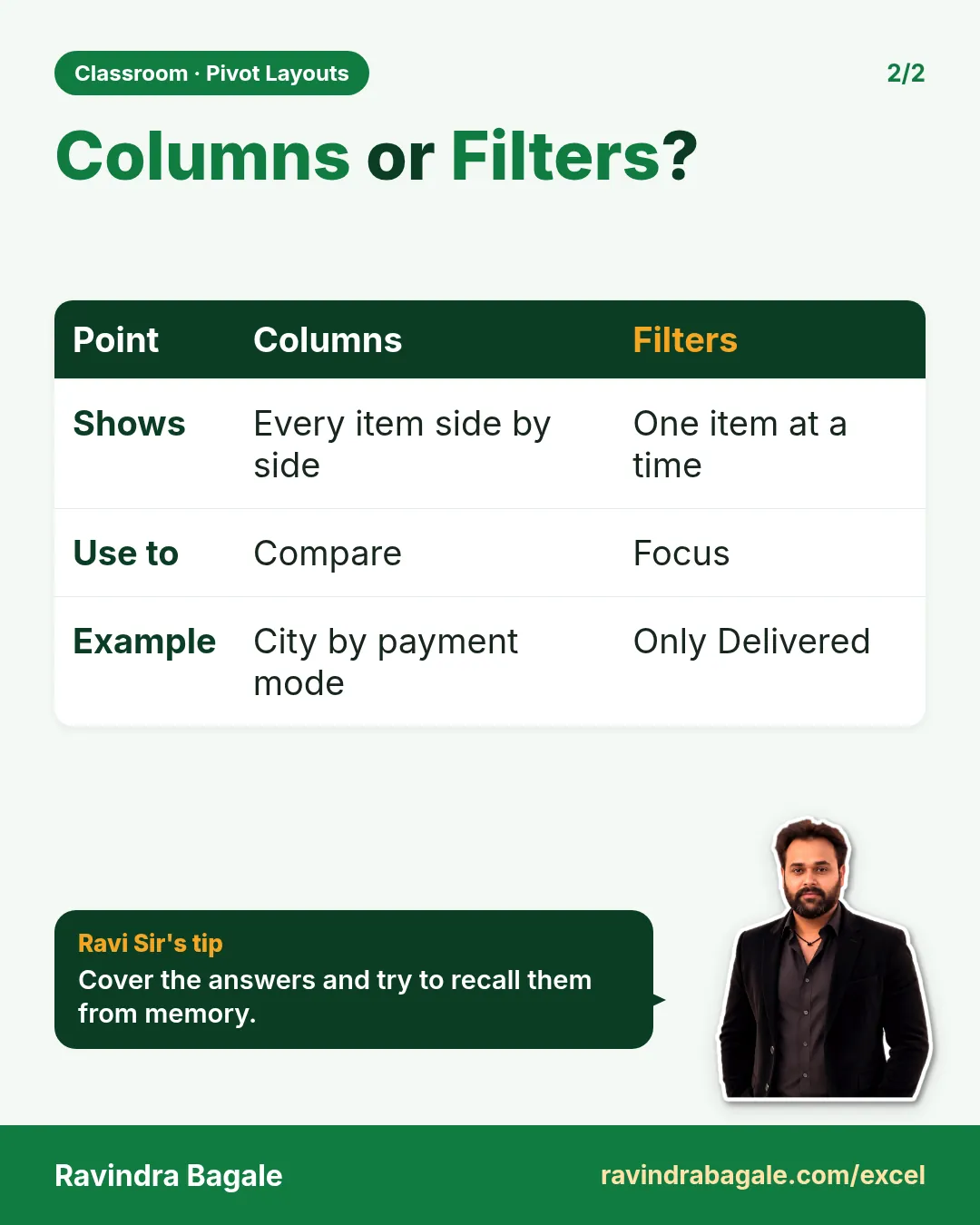
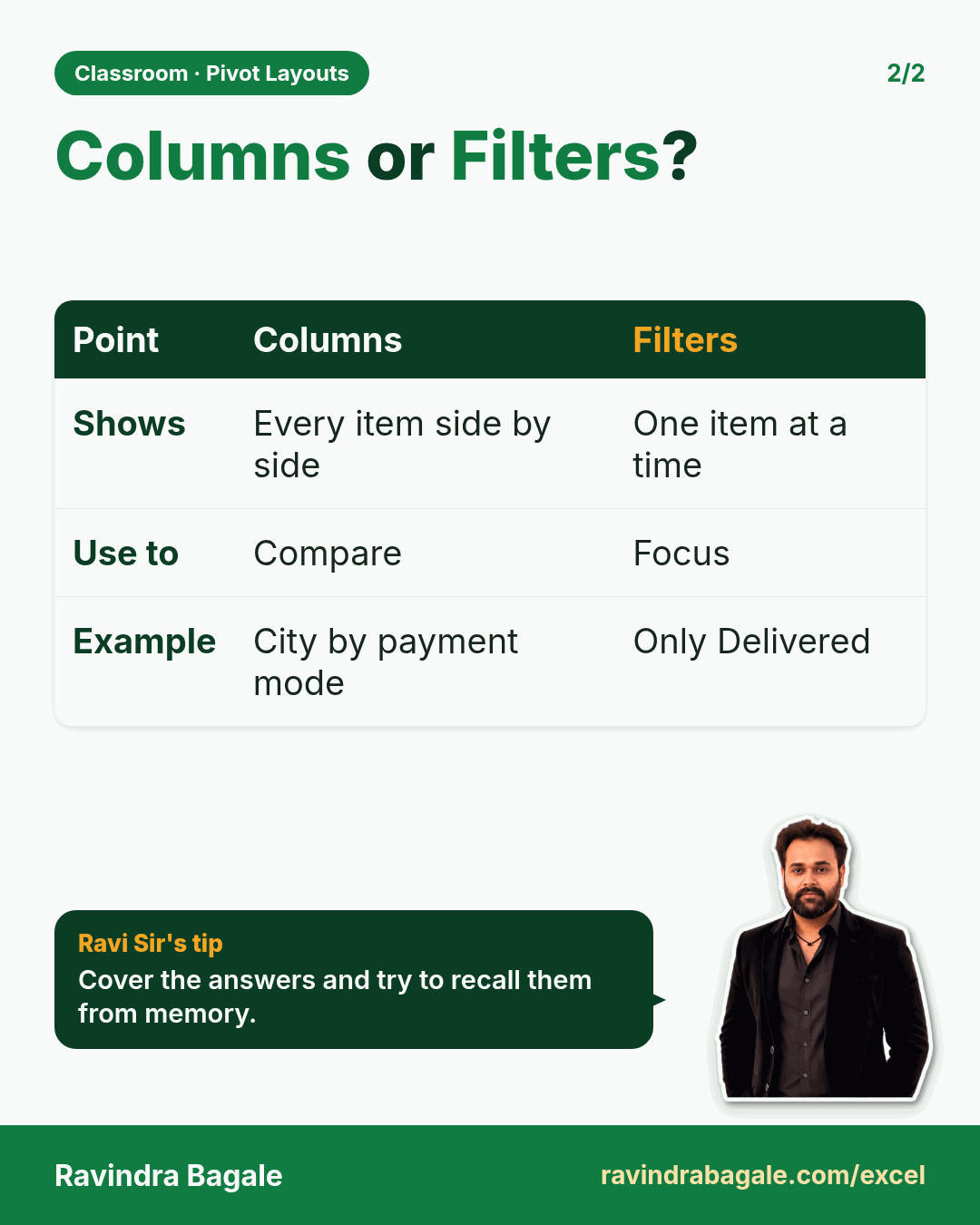
Payment_Mode can also go into Filters, which you used for Status in the first PivotTable chapter. The difference:
- Columns shows every value side by side: COD and Online together.
- Filters shows one value at a time (or a chosen few) and hides the rest: choose Online and the pivot shows only Online orders, 15 in total.
Use Columns to compare; use Filters to focus.
6. What really decides Count or Sum
Excel chooses the calculation from the column it puts in Values: a column with text (such as Order_ID) is counted, a column with only numbers (such as Profit) is summed. This rule is only about Values.
Rows, Columns and Filters can hold text or numbers. Drag Quantity into Rows, for example, and the pivot groups the orders by quantity: 1, 2, 3, 4, 5, 6 and 10. A year, a rating or a store number works the same way. To change Count to Sum (or anything else), use Value Field Settings.
Ravindra Bagale's Tip
Before dragging fields, say the question out loud: "count of orders, by city, split by payment mode". The words map straight onto the boxes: what you count or add goes to Values, the first "by" to Rows, the "split by" to Columns.
Ravindra Bagale's Tip – मराठी
Fields drag करण्याआधी प्रश्न मोठ्याने बोला: "count of orders, by city, split by payment mode". शब्दच boxes सांगतात: जे count किंवा add करायचं ते Values मध्ये, पहिला "by" Rows मध्ये, "split by" Columns मध्ये.
Ravindra Bagale's Tip – हिंदी
Fields drag करने से पहले सवाल ज़ोर से बोलो: "count of orders, by city, split by payment mode". शब्द ही boxes बता देते हैं: जो count या add करना है वो Values में, पहला "by" Rows में, "split by" Columns में.
7. Another pivot from the table name
The first PivotTable chapter showed how to copy a pivot. The second way is to start a fresh one on the same sheet:
- Click an empty cell, for example H3.
- Insert > PivotTable > From Table/Range.
- In Table/Range, type the table name: Orders.
- Choose Existing Worksheet; Location already shows H3. Click OK.
Typing the table name, rather than selecting cells, means the pivot grows with the table: add orders, then PivotTable Analyze > Refresh.
Figure 3. The question "count of orders by city, split by payment mode" mapped onto the four areas: Order_ID to Values, City to Rows, Payment_Mode to Columns, Status left for Filters.
8. The whole chapter on one page
| You want | Drag |
|---|---|
| Count and profit per city | City to Rows; Order_ID and Profit to Values |
| Payment modes inside each city | City, then Payment_Mode, to Rows |
| City × payment mode grid | City to Rows, Payment_Mode to Columns |
| Only Online orders | Payment_Mode to Filters, choose Online |
- Several fields in Values give several number columns.
- Several fields in Rows give nested groups; their order matters.
- A field in Columns gives one column per value, with totals both ways.
- Columns compares all values; Filters shows one.
- Text in Values is counted and numbers are summed; Rows can hold either.
9. Try at home
Try at home
Task 1
- In the cross-tab, put Profit in Values instead of Order_ID. What is the Sum of Profit for Pune, Online? (18.)
Task 2
- Put Payment_Mode in Rows above City. How many cities appear under COD? (5: every city except Nagpur.)
Task 3
- Put Status in Columns and City in Rows with Count of Order_ID. How many Delivered orders does Pune have? (5.)
Recap
In short
- Drag two fields into Values for Count and Sum side by side.
- Two fields in Rows nest one inside the other.
- A field in Columns makes a cross-tab with totals both ways.
- Columns compares; Filters focuses.
- Type the table name to add another pivot that grows with the data.
Quick revision cards
Quick revision
Revise this chapter in two minutes. Save the cards on your phone or download them as PNG files. All names and numbers are made up for practice.
झटपट उजळणी
हा chapter दोन मिनिटांत revise करा. Cards phone वर save करा किंवा PNG म्हणून download करा. सगळी नावं आणि आकडे सरावासाठी काल्पनिक आहेत.
झटपट दोहराई
यह chapter दो मिनट में revise करें. Cards phone पर save करें या PNG के रूप में download करें. सभी नाम और आंकड़े अभ्यास के लिए काल्पनिक हैं.

More cards for every chapter: Ravi Sir's Cards.
Loading practice tasks...
- Total parcels (Easy): Add up Parcels in D2:D11.
- Average cost (Easy): Average of E2:E11, rounded to 2 decimals.
- Rows in Royal Mail (Easy): How many rows have Carrier "Royal Mail"?
- Largest parcels (Easy): The largest value in D2:D11.
- Parcels for Royal Mail (Medium): Total of D2:D11 where B is "Royal Mail".
- Royal Mail in Manchester (Medium): Total of D2:D11 where B is "Royal Mail" and C is "Manchester".
- Best in Royal Mail (Medium): Largest E2:E11 value where B is "Royal Mail".
- Value of row 2 (Medium): D2 times E2.
- Look up Vikram Singh (Medium): The Parcels for "Vikram Singh" (use a lookup on column A).
- Total value (Hard): Sum of D times E for all rows.
- Share of Royal Mail (Hard): Share of D2:D11 that is "Royal Mail", rounded to 3 decimals.
- Rank of row 2 (Hard): Rank of D2 among D2:D11 (largest = 1).
- Above average? (Hard): "Above" if E2 is above the average of E2:E11, else "Below".