Instagram Creator Dashboard in Excel: Reach, Engagement Rate, Saves, Followers and Brand Deals
A creator posts reels, photos and stories. They must know which posts reach people, get engagement and earn brand deals. This page gives you a ready Excel dashboard for it. It has 1,400 example rows, 15 KPI cards, 6 charts and 3 drop-down filters.
What you'll learn on this page
- Why a Instagram-style creator studio business needs a dashboard
- What is inside each sheet of the workbook
- What the 15 KPIs mean and the formula behind each
- How the Creator, Format and Month drop-downs change every number
- How to add new data safely
- Common mistakes and how to avoid them
Download the template: instagram-dashboard-template.xlsx (Excel workbook, 6 sheets, example data).
Example data only
Every number in this workbook is made up for practice. It is not real Instagram data and not an official report. The colours are only inspired by the brand; there is no logo.
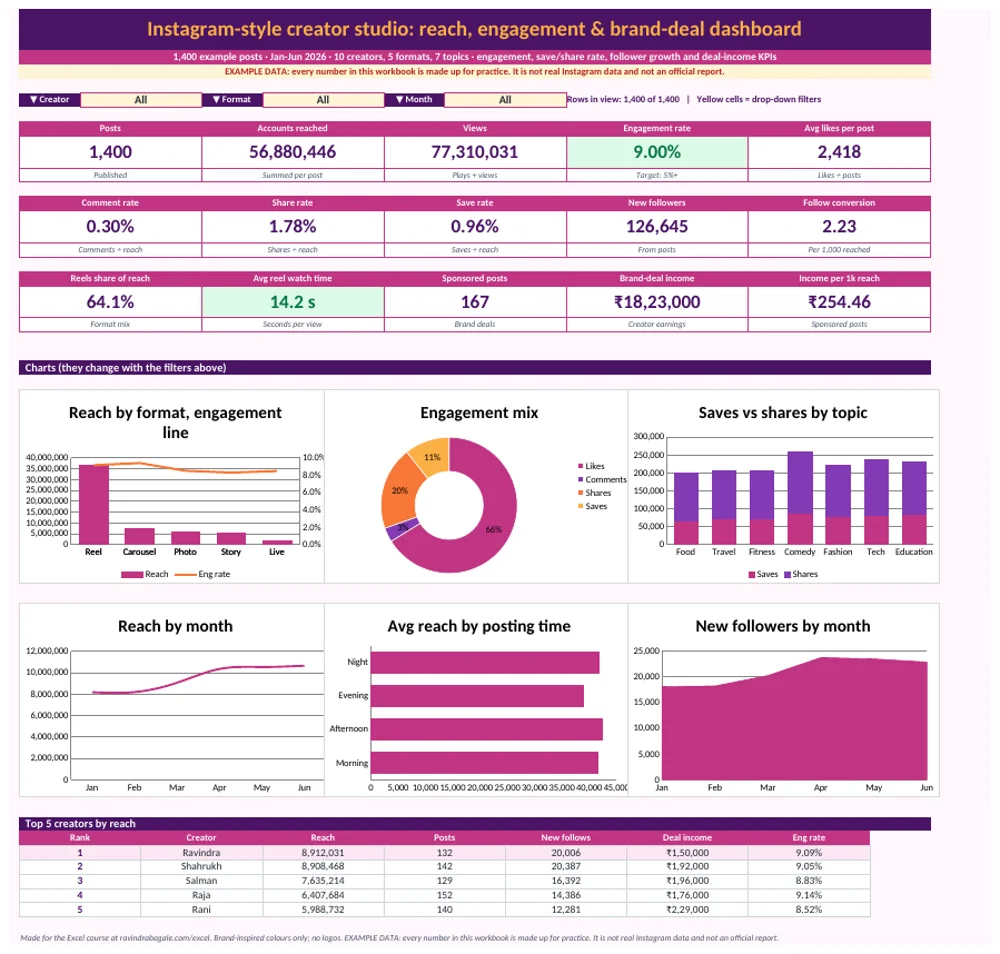
Figure 1. The Dashboard sheet with all filters set to All (example data)
In short
This Instagram-style creator studio dashboard shows 1,400 example rows on one screen. Pick a filter and all 15 KPI cards and 6 charts change at once. All data is made up for practice.
थोडक्यात
हा Instagram-style creator studio dashboard 1,400 example rows एका screen वर दाखवतो. पिवळ्या drop-down मधून filter निवडा, की सगळी 15 KPI cards आणि 6 charts लगेच बदलतात. सगळा data सरावासाठी काल्पनिक आहे.
संक्षेप में
यह Instagram-style creator studio dashboard 1,400 example rows एक screen पर दिखाता है. पीले drop-down से filter चुनें, तो सभी 15 KPI cards और 6 charts तुरंत बदल जाते हैं. सारा data अभ्यास के लिए काल्पनिक है.
1. Why this dashboard, what it shows, how to start
Why
A creator posts reels, photos and stories. They must know which posts reach people, get engagement and earn brand deals. Looking at 1,400 rows one by one is slow. A dashboard turns them into a few clear numbers.
What
The dashboard answers questions like these:
- Posts: Number of posts, reels, stories and lives.
- Views: Total views (replays count for reels).
- Avg likes per post: Average likes on one post.
- New followers: Follows gained from these posts.
How
- Download instagram-dashboard-template.xlsx.
- Open it in Excel. Click Enable Editing if Excel asks.
- Stay on the first sheet, Dashboard.
- Read the 15 cards from left to right, top to bottom.
- Then change one drop-down in row 6 and watch the numbers move.
2. What is inside the workbook
Why
Each sheet has one job. When you know the job, you know where to look and what not to touch.
What
| Sheet | What it holds |
|---|---|
| Dashboard | 15 KPI cards, 3 yellow drop-down filters, 6 charts and a Top 5 table. |
| Data | The example rows, one row per post. The last column, Inc, is a formula. |
| Calc | Small helper tables (by month, by city and so on) that feed the charts. |
| Rules & Instructions | How to use it, what each KPI means, data rules, how to add data, do's and don'ts. |
| Formulas used | Every formula in the file, cell by cell, with what it does. |
| Lists | The values shown in each drop-down list. |
The Data sheet has these columns: PostID, Month, Creator, Format, Topic, PostTime, Followers, Reach, Views, Likes, Comments, Shares, Saves, NewFollows, AvgWatchSec, Sponsored, DealIncome and Inc.
How
- Click each sheet tab at the bottom once.
- On Data, press Ctrl+Down to see the last row.
- On Rules & Instructions, read section 3 (data rules) before you type anything.
- On Formulas used, find any formula you want to learn.
3. The 15 KPIs: what each one means
Why
KPI means Key Performance Indicator: one number that tells you if the business is doing well. A KPI is useful only if everyone reads it the same way.
What
Example values are for all rows (every filter set to All). In the formulas, Data[Column] means that whole column on the Data sheet; in the workbook it is written as a range like Data!$B$2:$B$1401.
| KPI | What it means | Formula (Dashboard cell) | Example value |
|---|---|---|---|
| Posts | Number of posts, reels, stories and lives. | =COUNTIFS(Data[Inc],1)Dashboard!B9 |
1,400 |
| Accounts reached | Unique accounts that saw each post, added up. | =SUMIFS(Data[Reach],Data[Inc],1)Dashboard!E9 |
5,68,80,446 |
| Views | Total views (replays count for reels). | =SUMIFS(Data[Views],Data[Inc],1)Dashboard!H9 |
7,73,10,031 |
| Engagement rate | (Likes + comments + shares + saves) ÷ reach. Target rule: card turns green when the value is ≥ 0.05. | =IFERROR((SUMIFS(Data[Likes],Data[Inc],1)+SUMIFS(Data[Comments],Data[Inc],1)+SUMIFS(Data[Shares],Data[Inc],1)+SUMIFS(Data[Saves],Data[Inc],1))/(SUMIFS(Data[Reach],Data[Inc],1)),0)Dashboard!K9 |
9.00% |
| Avg likes per post | Average likes on one post. | =IFERROR(AVERAGEIFS(Data[Likes],Data[Inc],1),0)Dashboard!N9 |
2,418 |
| Comment rate | How often viewers comment. | =IFERROR((SUMIFS(Data[Comments],Data[Inc],1))/(SUMIFS(Data[Reach],Data[Inc],1)),0)Dashboard!B13 |
0.30% |
| Share rate | How often viewers send the post to others. | =IFERROR((SUMIFS(Data[Shares],Data[Inc],1))/(SUMIFS(Data[Reach],Data[Inc],1)),0)Dashboard!E13 |
1.78% |
| Save rate | How often viewers bookmark the post. | =IFERROR((SUMIFS(Data[Saves],Data[Inc],1))/(SUMIFS(Data[Reach],Data[Inc],1)),0)Dashboard!H13 |
0.96% |
| New followers | Follows gained from these posts. | =SUMIFS(Data[NewFollows],Data[Inc],1)Dashboard!K13 |
1,26,645 |
| Follow conversion | New followers for every 1,000 accounts reached. | =IFERROR((SUMIFS(Data[NewFollows],Data[Inc],1))/(SUMIFS(Data[Reach],Data[Inc],1)),0)*1000Dashboard!N13 |
2.23 |
| Reels share of reach | Share of reach that came from Reels. | =IFERROR((SUMIFS(Data[Reach],Data[Inc],1,Data[Format],"Reel"))/(SUMIFS(Data[Reach],Data[Inc],1)),0)Dashboard!B17 |
64.1% |
| Avg reel watch time | Average seconds a reel was watched. Target rule: card turns green when the value is ≥ 12. | =IFERROR(AVERAGEIFS(Data[AvgWatchSec],Data[Inc],1,Data[Format],"Reel"),0)Dashboard!E17 |
14.2 s |
| Sponsored posts | Posts paid for by a brand. | =COUNTIFS(Data[Inc],1,Data[Sponsored],"Yes")Dashboard!H17 |
167 |
| Brand-deal income | ₹ earned from sponsored posts (example deals). | =SUMIFS(Data[DealIncome],Data[Inc],1)Dashboard!K17 |
₹18,23,000 |
| Income per 1k reach | Deal income ÷ reach of sponsored posts × 1,000. | =IFERROR((SUMIFS(Data[DealIncome],Data[Inc],1))/(SUMIFS(Data[Reach],Data[Inc],1,Data[Sponsored],"Yes")),0)*1000Dashboard!N17 |
₹254.46 |
How
- Read the small grey line under each card: it says what the card counts.
- A green card meets its target rule. A red card needs attention.
- Click a card and look at the formula bar to see the real formula.
- Change a filter, for example Creator = Ravindra, and see which cards turn red or green.
4. The drop-down filters
Why
A total for the whole business hides problems. Filters let you look at one Creator, one Format or one Month at a time.
What
Row 6 has three yellow cells with drop-down lists: Creator, Format and Month. Each list starts with All. The Data sheet has one extra column, Inc (include). Its formula gives 1 when the row matches all three filters, otherwise 0:
=IF(AND(OR(Dashboard!$C$6="All",C2=Dashboard!$C$6),OR(Dashboard!$F$6="All",D2=Dashboard!$F$6),OR(Dashboard!$I$6="All",B2=Dashboard!$I$6)),1,0)
Every KPI and chart uses Data[Inc],1 as its first condition, so only matching rows are counted.
How
- Click the yellow cell next to Creator.
- Click the small arrow and pick a value.
- Look at the line 'Rows in view' to see how many rows match.
- Pick All to remove that filter.
- Set all three back to All before you save.
5. The charts and the Top 5 table
Why
Numbers tell you how much. Charts show you where and when: which month dropped, which city leads.
What
- Reach by format, engagement line
- Engagement mix
- Saves vs shares by topic
- Reach by month
- Avg reach by posting time
- New followers by month
- Table: Top 5 creators by reach (uses INDEX, MATCH and LARGE)
Each chart reads a small table on the Calc sheet. Those tables also use the Inc column, so the charts follow the filters.
How
- Point at a bar or line to see its exact value.
- To see where a chart's numbers come from, right-click it and choose Select Data.
- Open the Calc sheet and find the table with the same title.
- Do not type in Calc; it is all formulas.
6. How to add new data
Why
A dashboard is only useful if you keep feeding it. Adding rows the wrong way breaks totals without any error.
What
| Column | What it holds | Rule |
|---|---|---|
PostID, Month |
Post code and month | Unique |
Creator |
Example creator (allowed names) | Exact |
Format, Topic, PostTime |
Reel/Carousel/Photo/Story/Live, subject, time band | Exact spellings |
Followers |
Follower count when posted | Number |
Reach, Views |
Accounts reached; total views | Views ≥ Reach |
Likes, Comments, Shares, Saves, NewFollows |
Actions on the post | Whole numbers |
AvgWatchSec |
Reels only | Blank for other formats |
Sponsored, DealIncome |
Paid by a brand; ₹ earned | 0 when No |
How
- Go to the first empty row under the Data table.
- Type or paste the new rows. Keep the same spelling as the lists (for example Ravindra).
- Check that Inc filled down by itself (it shows 1 or 0).
- The formulas read rows 2 to 1401. If your data goes past row 1401, use Find & Replace on the Dashboard and Calc sheets to change 1401 to your new last row.
- Press F9 if numbers do not update, then set the filters to All and compare totals.
Use it in 3 steps
1) Open the Dashboard sheet. 2) Pick a value in a yellow cell in row 6, like Creator = Ravindra. 3) Read the cards: green is good, red needs attention.
3 steps मध्ये वापरा
1) Dashboard sheet उघडा. 2) Row 6 मधल्या पिवळ्या cell मध्ये value निवडा, उदा. Creator = Ravindra. 3) Cards वाचा: हिरवा म्हणजे चांगलं, लाल म्हणजे लक्ष द्या.
3 steps में इस्तेमाल करें
1) Dashboard sheet खोलें. 2) Row 6 के पीले cell में value चुनें, जैसे Creator = Ravindra. 3) Cards पढ़ें: हरा मतलब अच्छा, लाल मतलब ध्यान दें.
7. Formulas used
This is the same list as the 'Formulas used' sheet. A formula marked 'copied down' is the same in the rows below it.
| Cell | Formula | What it does |
|---|---|---|
| Data!R2 | =IF(AND(OR(Dashboard!$C$6="All",C2=Dashboard!$C$6),OR(Dashboard!$F$6="All",D2=Dashboard!$F$6),OR(Dashboard!$I$6="All",B2=Dashboard!$I$6)),1,0) |
Inc flag: 1 when the row matches every Dashboard filter (copied down every row) |
| Dashboard!K6 | ="Rows in view: "&TEXT(SUM(Data!$R$2:$R$1401),"#,##0")&" of 1,400 | Yellow cells = drop-down filters" |
Counts rows in view |
| Dashboard!B9 | =COUNTIFS(Data!$R$2:$R$1401,1) |
KPI: Posts |
| Dashboard!E9 | =SUMIFS(Data!$H$2:$H$1401,Data!$R$2:$R$1401,1) |
KPI: Accounts reached |
| Dashboard!H9 | =SUMIFS(Data!$I$2:$I$1401,Data!$R$2:$R$1401,1) |
KPI: Views |
| Dashboard!K9 | =IFERROR((SUMIFS(Data!$J$2:$J$1401,Data!$R$2:$R$1401,1)+SUMIFS(Data!$K$2:$K$1401,Data!$R$2:$R$1401,1)+SUMIFS(Data!$L$2:$L$1401,Data!$R$2:$R$1401,1)+SUMIFS(Data!$M$2:$M$1401,Data!$R$2:$R$1401,1))/(SUMIFS(Data!$H$2:$H$1401,Data!$R$2:$R$1401,1)),0) |
KPI: Engagement rate |
| Dashboard!N9 | =IFERROR(AVERAGEIFS(Data!$J$2:$J$1401,Data!$R$2:$R$1401,1),0) |
KPI: Avg likes per post |
| Dashboard!B13 | =IFERROR((SUMIFS(Data!$K$2:$K$1401,Data!$R$2:$R$1401,1))/(SUMIFS(Data!$H$2:$H$1401,Data!$R$2:$R$1401,1)),0) |
KPI: Comment rate |
| Dashboard!E13 | =IFERROR((SUMIFS(Data!$L$2:$L$1401,Data!$R$2:$R$1401,1))/(SUMIFS(Data!$H$2:$H$1401,Data!$R$2:$R$1401,1)),0) |
KPI: Share rate |
| Dashboard!H13 | =IFERROR((SUMIFS(Data!$M$2:$M$1401,Data!$R$2:$R$1401,1))/(SUMIFS(Data!$H$2:$H$1401,Data!$R$2:$R$1401,1)),0) |
KPI: Save rate |
| Dashboard!K13 | =SUMIFS(Data!$N$2:$N$1401,Data!$R$2:$R$1401,1) |
KPI: New followers |
| Dashboard!N13 | =IFERROR((SUMIFS(Data!$N$2:$N$1401,Data!$R$2:$R$1401,1))/(SUMIFS(Data!$H$2:$H$1401,Data!$R$2:$R$1401,1)),0)*1000 |
KPI: Follow conversion |
| Dashboard!B17 | =IFERROR((SUMIFS(Data!$H$2:$H$1401,Data!$R$2:$R$1401,1,Data!$D$2:$D$1401,"Reel"))/(SUMIFS(Data!$H$2:$H$1401,Data!$R$2:$R$1401,1)),0) |
KPI: Reels share of reach |
| Dashboard!E17 | =IFERROR(AVERAGEIFS(Data!$O$2:$O$1401,Data!$R$2:$R$1401,1,Data!$D$2:$D$1401,"Reel"),0) |
KPI: Avg reel watch time |
| Dashboard!H17 | =COUNTIFS(Data!$R$2:$R$1401,1,Data!$P$2:$P$1401,"Yes") |
KPI: Sponsored posts |
| Dashboard!K17 | =SUMIFS(Data!$Q$2:$Q$1401,Data!$R$2:$R$1401,1) |
KPI: Brand-deal income |
| Dashboard!N17 | =IFERROR((SUMIFS(Data!$Q$2:$Q$1401,Data!$R$2:$R$1401,1))/(SUMIFS(Data!$H$2:$H$1401,Data!$R$2:$R$1401,1,Data!$P$2:$P$1401,"Yes")),0)*1000 |
KPI: Income per 1k reach |
| Calc!B5 | =SUMIFS(Data!$H$2:$H$1401,Data!$R$2:$R$1401,1,Data!$D$2:$D$1401,$A5) |
By format: Reach for Reel (copied down) |
| Calc!C5 | =IFERROR((SUMIFS(Data!$J$2:$J$1401,Data!$R$2:$R$1401,1,Data!$D$2:$D$1401,$A5)+SUMIFS(Data!$K$2:$K$1401,Data!$R$2:$R$1401,1,Data!$D$2:$D$1401,$A5)+SUMIFS(Data!$L$2:$L$1401,Data!$R$2:$R$1401,1,Data!$D$2:$D$1401,$A5)+SUMIFS(Data!$M$2:$M$1401,Data!$R$2:$R$1401,1,Data!$D$2:$D$1401,$A5))/SUMIFS(Data!$H$2:$H$1401,Data!$R$2:$R$1401,1,Data!$D$2:$D$1401,$A5),0) |
By format: Eng rate for Reel (copied down) |
| Calc!B14 | =SUMIFS(Data!$H$2:$H$1401,Data!$R$2:$R$1401,1,Data!$E$2:$E$1401,$A14) |
By topic: Reach for Food (copied down) |
| Calc!C14 | =SUMIFS(Data!$M$2:$M$1401,Data!$R$2:$R$1401,1,Data!$E$2:$E$1401,$A14) |
By topic: Saves for Food (copied down) |
| Calc!D14 | =SUMIFS(Data!$L$2:$L$1401,Data!$R$2:$R$1401,1,Data!$E$2:$E$1401,$A14) |
By topic: Shares for Food (copied down) |
| Calc!B25 | =IFERROR(AVERAGEIFS(Data!$H$2:$H$1401,Data!$R$2:$R$1401,1,Data!$F$2:$F$1401,$A25),0) |
By posting time: Avg reach for Morning (copied down) |
| Calc!B33 | =SUMIFS(Data!$H$2:$H$1401,Data!$R$2:$R$1401,1,Data!$B$2:$B$1401,$A33) |
By month: Reach for Jan (copied down) |
| Calc!C33 | =SUMIFS(Data!$N$2:$N$1401,Data!$R$2:$R$1401,1,Data!$B$2:$B$1401,$A33) |
By month: New follows for Jan (copied down) |
| Calc!B43 | =IFERROR(CHOOSE(MATCH($A43,{"Likes","Comments","Shares","Saves"},0),SUMIFS(Data!$J$2:$J$1401,Data!$R$2:$R$1401,1),SUMIFS(Data!$K$2:$K$1401,Data!$R$2:$R$1401,1),SUMIFS(Data!$L$2:$L$1401,Data!$R$2:$R$1401,1),SUMIFS(Data!$M$2:$M$1401,Data!$R$2:$R$1401,1)),0) |
Engagement mix: Count for Likes (copied down) |
| Calc!B51 | =SUMIFS(Data!$H$2:$H$1401,Data!$R$2:$R$1401,1,Data!$C$2:$C$1401,$A51) |
By creator: Reach for Ravindra (copied down) |
| Calc!C51 | =COUNTIFS(Data!$R$2:$R$1401,1,Data!$C$2:$C$1401,$A51) |
By creator: Posts for Ravindra (copied down) |
| Calc!D51 | =SUMIFS(Data!$N$2:$N$1401,Data!$R$2:$R$1401,1,Data!$C$2:$C$1401,$A51) |
By creator: New follows for Ravindra (copied down) |
| Calc!E51 | =SUMIFS(Data!$Q$2:$Q$1401,Data!$R$2:$R$1401,1,Data!$C$2:$C$1401,$A51) |
By creator: Deal income for Ravindra (copied down) |
| Calc!F51 | =IFERROR((SUMIFS(Data!$J$2:$J$1401,Data!$R$2:$R$1401,1,Data!$C$2:$C$1401,$A51)+SUMIFS(Data!$K$2:$K$1401,Data!$R$2:$R$1401,1,Data!$C$2:$C$1401,$A51)+SUMIFS(Data!$L$2:$L$1401,Data!$R$2:$R$1401,1,Data!$C$2:$C$1401,$A51)+SUMIFS(Data!$M$2:$M$1401,Data!$R$2:$R$1401,1,Data!$C$2:$C$1401,$A51))/SUMIFS(Data!$H$2:$H$1401,Data!$R$2:$R$1401,1,Data!$C$2:$C$1401,$A51),0) |
By creator: Eng rate for Ravindra (copied down) |
| Calc!G51 | =B51+ROW()/1000000 |
By creator: Rank key for Ravindra (copied down) |
| Dashboard!D55 | =IFERROR(INDEX(Calc!$A$51:$A$60,MATCH(LARGE(Calc!$G$51:$G$60,$B55),Calc!$G$51:$G$60,0)),"-") |
Top 5 creators by reach: column 'Creator' (copied down) |
| Dashboard!F55 | =IFERROR(INDEX(Calc!$B$51:$B$60,MATCH(LARGE(Calc!$G$51:$G$60,$B55),Calc!$G$51:$G$60,0)),"-") |
Top 5 creators by reach: column 'Reach' (copied down) |
| Dashboard!H55 | =IFERROR(INDEX(Calc!$C$51:$C$60,MATCH(LARGE(Calc!$G$51:$G$60,$B55),Calc!$G$51:$G$60,0)),"-") |
Top 5 creators by reach: column 'Posts' (copied down) |
| Dashboard!J55 | =IFERROR(INDEX(Calc!$D$51:$D$60,MATCH(LARGE(Calc!$G$51:$G$60,$B55),Calc!$G$51:$G$60,0)),"-") |
Top 5 creators by reach: column 'New follows' (copied down) |
| Dashboard!L55 | =IFERROR(INDEX(Calc!$E$51:$E$60,MATCH(LARGE(Calc!$G$51:$G$60,$B55),Calc!$G$51:$G$60,0)),"-") |
Top 5 creators by reach: column 'Deal income' (copied down) |
| Dashboard!N55 | =IFERROR(INDEX(Calc!$F$51:$F$60,MATCH(LARGE(Calc!$G$51:$G$60,$B55),Calc!$G$51:$G$60,0)),"-") |
Top 5 creators by reach: column 'Eng rate' (copied down) |
8. Common mistakes
| Mistake | What goes wrong | Fix |
|---|---|---|
| Typing ₹ or a comma as text in a number cell | SUMIFS and AVERAGEIFS skip text, so totals become too small. | Type only the number. The cell format adds ₹. |
| A different spelling, like an extra space after a name | The row never matches the Creator filter or the Calc tables. | Copy values from the Lists sheet, or use Data Validation. |
| Averaging the per-row values to get Engagement rate | An average of averages gives the wrong answer. | Divide totals, as the KPI formula does: =IFERROR((SUMIFS(Data[Likes],Data[Inc],1)+SUMIFS(Data[Comments],Data[Inc],1)+SUMIFS(Data[Shares],Data[Inc],1)+SUMIFS(Data[Saves],Data[Inc],1))/(SUMIFS(Data[Reach],Data[Inc],1)),0) |
| Adding rows below row 1401 and not updating the ranges | New rows are left out of every KPI. | Update the last row number in the formulas (see step 4 above). |
| Typing over a KPI card or the Inc column | The formula is lost and the card stops changing. | Press Ctrl+Z, or copy the formula back from the 'Formulas used' sheet. |
| Showing these numbers as real company results | This is example data, not Instagram data. | Always say 'example data' when you share a screenshot. |
9. FAQ
How do I calculate Engagement rate in Excel?
(Likes + comments + shares + saves) ÷ reach. The workbook uses =IFERROR((SUMIFS(Data[Likes],Data[Inc],1)+SUMIFS(Data[Comments],Data[Inc],1)+SUMIFS(Data[Shares],Data[Inc],1)+SUMIFS(Data[Saves],Data[Inc],1))/(SUMIFS(Data[Reach],Data[Inc],1)),0) in Dashboard!K9.
How do I calculate Avg likes per post in Excel?
Average likes on one post. Formula: =IFERROR(AVERAGEIFS(Data[Likes],Data[Inc],1),0).
How do the drop-down filters change every KPI?
Each Data row has an Inc formula. It gives 1 when the row matches all three drop-downs (Creator, Format, Month), or the drop-down says All. Every KPI counts only rows where Inc = 1.
Is this real Instagram data?
No. All 1,400 rows are made up for practice. The colours are only inspired by the brand. It is not an official Instagram report.
Which Excel version do I need?
Excel 2010 or newer works, because the file uses COUNTIFS, SUMIFS, AVERAGEIFS, IFERROR, INDEX and MATCH. We checked it in LibreOffice Calc with zero errors.
10. Practice tasks
- Set Creator = Ravindra. Write down the new value of Views.
- Which format, engagement line is highest in the chart 'Reach by format, engagement line'?
- Add one new row to the Data sheet and check that Posts changes.
- Change one target rule in Conditional Formatting (Home › Conditional Formatting › Manage Rules) and watch the card colour.
Remember
KPI cards, the Calc sheet and the Inc column hold formulas, so never type on them. Add new data only under the Data table, with the same spellings.
लक्षात ठेवा
KPI cards, Calc sheet आणि Inc column मध्ये formulas आहेत, त्यावर काही type करू नका. नवीन data फक्त Data table च्या खाली, त्याच spelling ने जोडा.
याद रखें
KPI cards, Calc sheet और Inc column में formulas हैं, उन पर कुछ type न करें. नया data सिर्फ Data table के नीचे, उसी spelling के साथ जोड़ें.
Related: all Excel dashboards · Excel dashboards chapter · SUMIFS, COUNTIFS and AVERAGEIFS · KPI cards in Excel
Loading practice tasks...
- Total clicks (Easy): Add up Clicks in D2:D11.
- Average spend (Easy): Average of E2:E11, rounded to 2 decimals.
- Rows in Google (Easy): How many rows have Platform "Google"?
- Largest clicks (Easy): The largest value in D2:D11.
- Clicks for Google (Medium): Total of D2:D11 where B is "Google".
- Google in Dublin (Medium): Total of D2:D11 where B is "Google" and C is "Dublin".
- Best in Google (Medium): Largest E2:E11 value where B is "Google".
- Value of row 2 (Medium): D2 times E2.
- Look up Lucas Rossi (Medium): The Clicks for "Lucas Rossi" (use a lookup on column A).
- Total value (Hard): Sum of D times E for all rows.
- Share of Google (Hard): Share of D2:D11 that is "Google", rounded to 3 decimals.
- Rank of row 2 (Hard): Rank of D2 among D2:D11 (largest = 1).
- Above average? (Hard): "Above" if E2 is above the average of E2:E11, else "Below".