Excel for Education Institutes: Fees, Timetable, Results and Admissions (With Templates)
This guide is for people in the education industry who use Excel every day. You will see every common file, the formulas people actually type, and downloadable templates with made-up Indian ₹ data. Related short lessons are linked — we do not re-teach them here.
What you'll learn
- Which roles use Excel in education
- Every common Excel file type for this industry
- Sample tables with realistic ₹ examples (made-up names)
- Formulas: Conversion %, Pending fee, Collection %, Overload flag and more
- Ready templates you can download and reuse
Downloads: education-fees-timetable-results.xlsx (Admissions + fees + timetable + results + staff load)
Example data only
All names, amounts, rates and dates are made up for practice. They are not real client or employer records. Follow your organisation's own rules and software for live work.
In short
One industry → many Excel files. Each file is one clear list. Yellow cells are inputs; green cells are formulas. Start with the Roles table, then open the matching template.
थोडक्यात
एक industry → अनेक Excel files. प्रत्येक file = एक स्पष्ट यादी. Yellow = input; green = formula. Roles table पासून सुरू करा, नंतर matching template उघडा.
संक्षेप में
एक industry → कई Excel files. हर file = एक साफ सूची. Yellow = input; green = formula. Roles table से शुरू करें, फिर matching template खोलें.
Related chapters (already on this site)
Why
Some topics already have a focused lesson. Use those for depth; use this guide for the full industry picture.
What
| Chapter | What it covers |
|---|---|
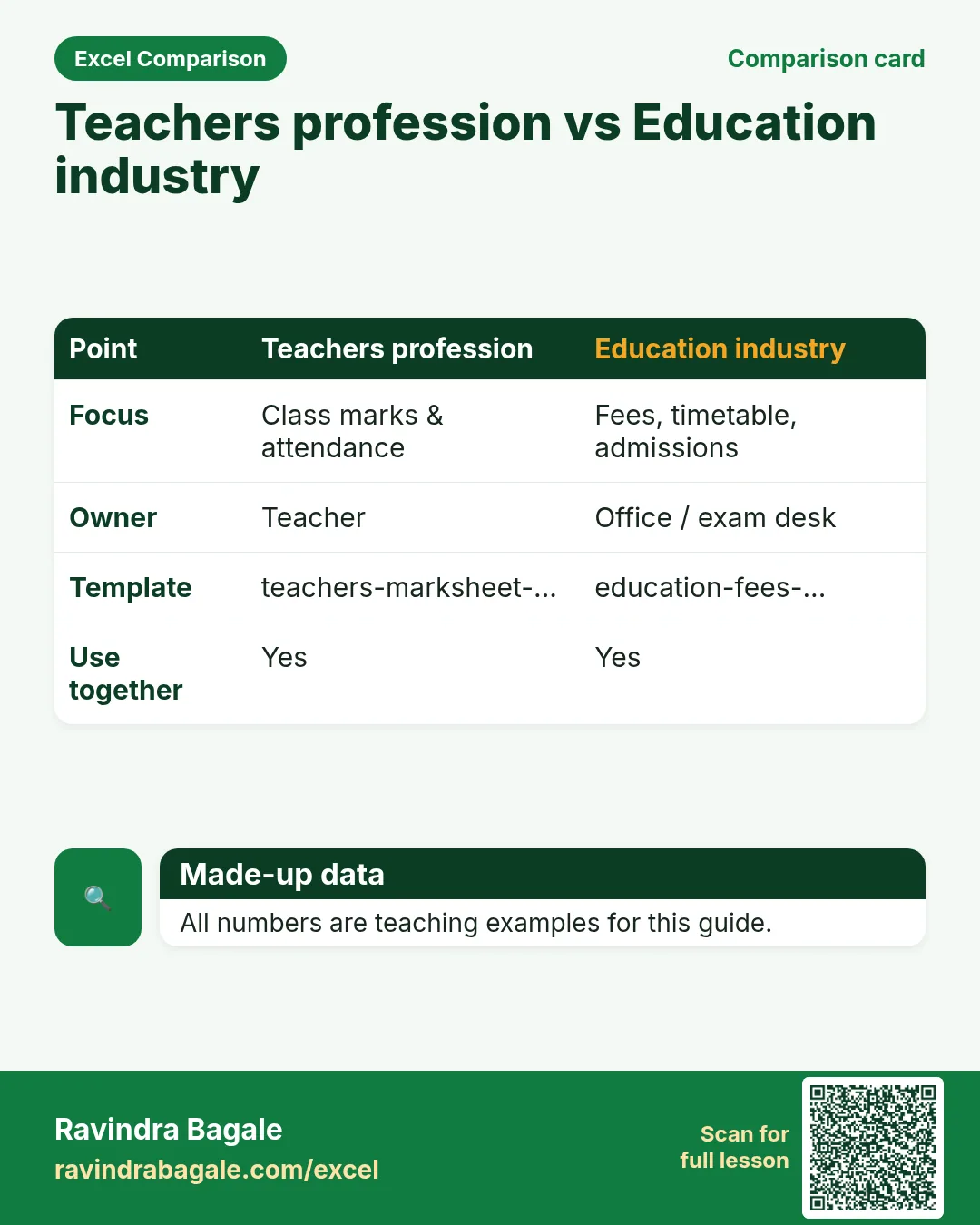
| Excel for Teachers (profession) | Classroom marksheets. |
| 22. KPI in All Industries | Education KPIs. |
How
- Skim the link if you need that one skill.
- Come back here for the full file list and templates.
1. Who uses Excel
Why
Teachers profession guide = class attendance and marksheet. This guide = institute office.
What
| Role | Typical Excel work |
|---|---|
| Admission desk | Enquiry to enrolment funnel. |
| Accounts (fees) | Fee due, collected, pending. |
| Timetable clerk | Class-teacher-room grid. |
| Exam office | Consolidate section results. |
How
- Download education-fees-timetable-results.xlsx.
- Teachers download their own classroom template from the profession page.
2. Every common Excel file
Why
If you only learn one dashboard, you miss the daily registers that feed it.
What
| File | What one row / sheet holds |
|---|---|
| Admissions funnel | Enquiry, form sold, admitted, conversion %. |
| Fee register | Student, fee head, due, paid, pending. |
| Timetable grid | Day, period, class, subject, teacher. |
| Result consolidate | Student, section, %, grade, result. |
| Staff load | Teacher, periods/week, max, overload flag. |
How
- Pick the file that matches your role.
- Download the template that contains that sheet.
- Replace yellow sample rows with your practice data (still made-up if you share screenshots).
3. Formulas people use
Why
Typed numbers go stale. Formulas update when inputs change.
What
| Name | Formula | What it does |
|---|---|---|
| Conversion % | =admitted/enquiries |
Admission funnel. |
| Pending fee | =due-paid |
Collection follow-up. |
| Collection % | =paid/due |
Fee realisation. |
| Overload flag | =IF(periods>max,"Overload","OK") |
Teacher load. |
| Section average | =AVERAGE(%_range) |
Exam office. |
How
- Open the Formulas used sheet inside each template.
- Change only yellow cells.
- Watch green cells recalculate.
3. Admissions and fees
Why
Enquiry without fee tracking loses both students and cash.
What
Funnel conversion + fee pending.
How
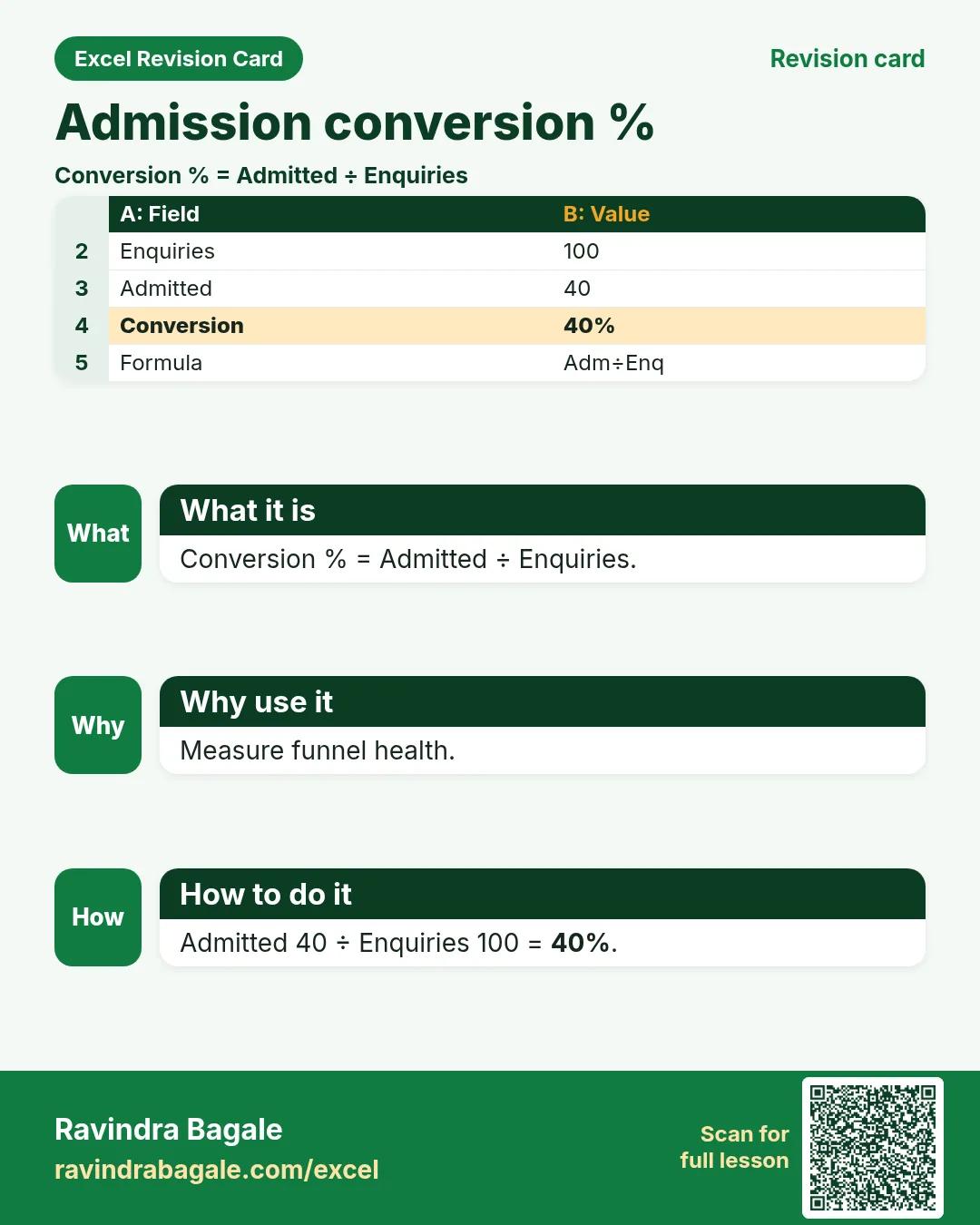
- Conversion % = Admitted ÷ Enquiries.
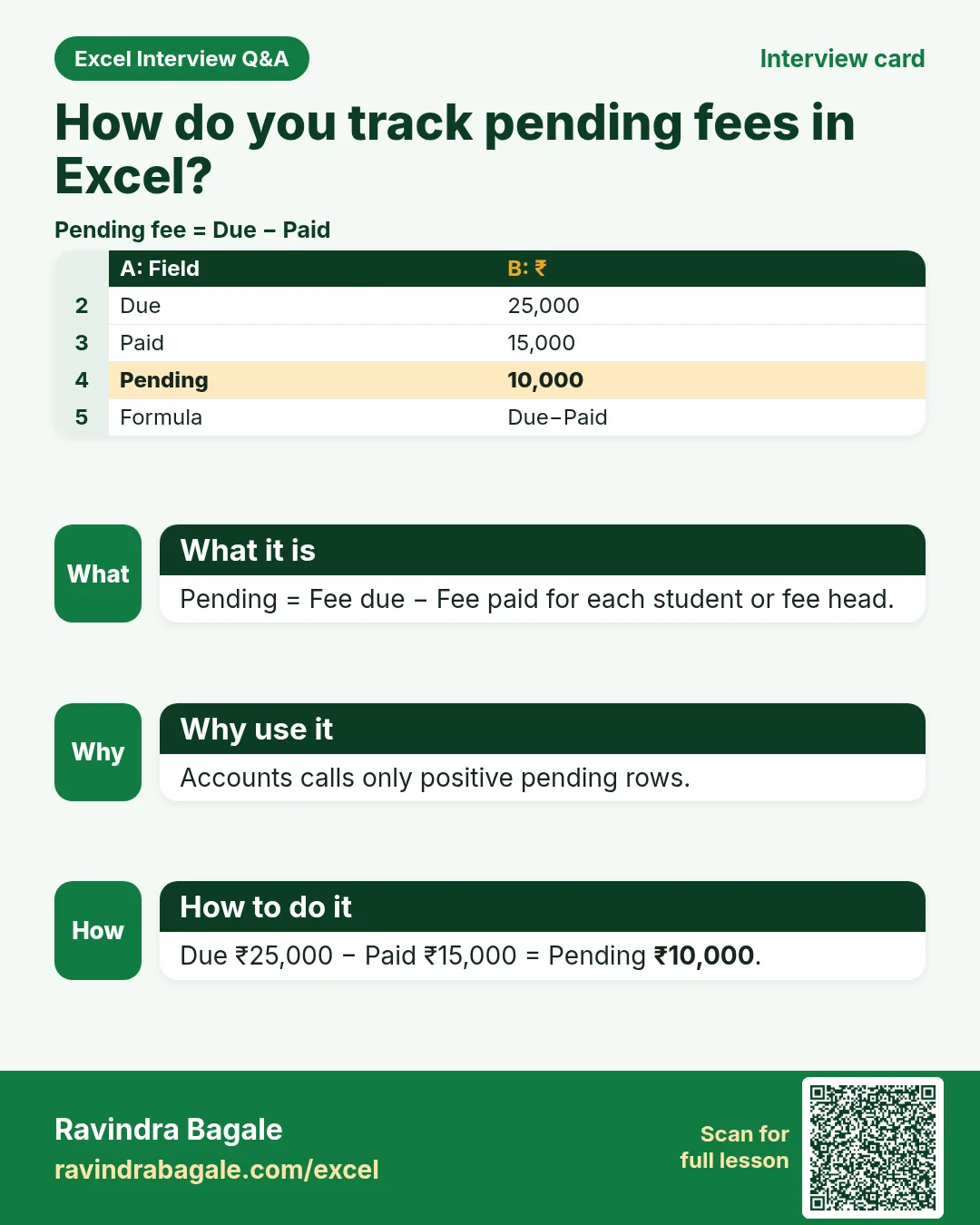
- Pending = Due − Paid.
- Filter Pending > 0 for calls.
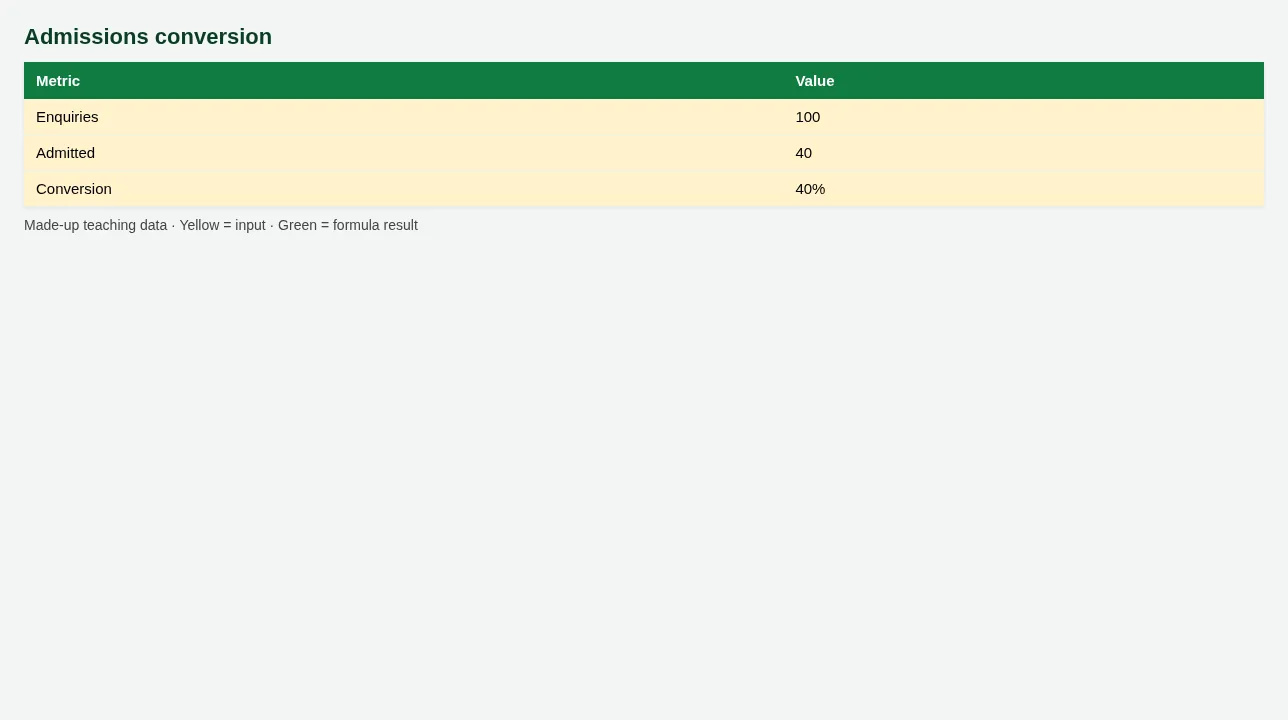
Figure. Admissions conversion
4. Timetable and results
Why
Clashes and overloads show up as teacher complaints.
What
Timetable grid + staff load flag + result consolidate.
How
- Check Overload flag on Staff load.
- Result consolidate pulls % and Grade.
- Section average guides academic review.
5. Sheet previews
Why
See the layout before you open Excel.
What
Screenshots of the main sheets in the downloadable templates.
How
Scroll the figures, then download the matching .xlsx.
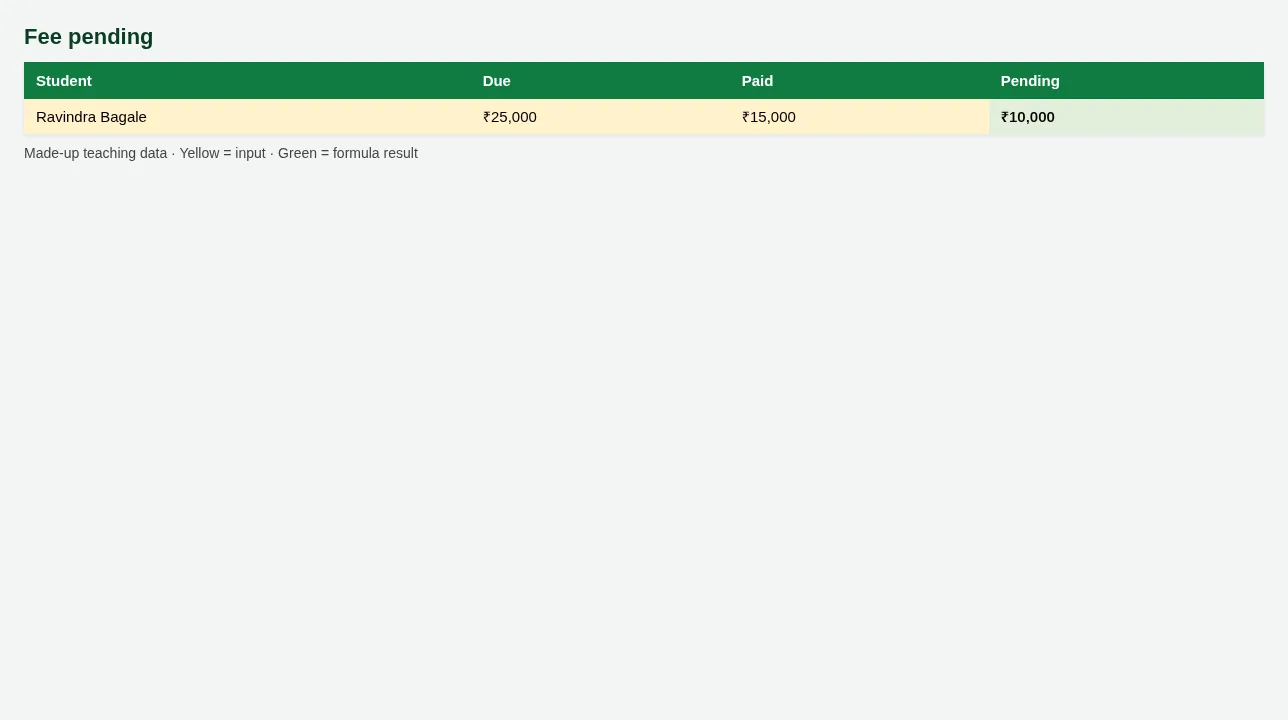
Figure. Fee pending
Figure. Admissions conversion
6. Common mistakes
| Mistake | What goes wrong | Fix |
|---|---|---|
| Fee paid as text Yes/No only | Cannot sum pending ₹. | Keep Due and Paid amounts. |
| Timetable in Word only | Hard to spot double-booked teachers. | Use grid + load sheet. |
7. FAQ
Board result rules?
Grade bands teaching-only — follow your board.
8. Try at home
Try at home
- Conversion % for the sample intake?
- Total Pending fees?
- Which teacher shows Overload?
Recap
In short
- 4 roles use Excel in this industry.
- 5 common file types are listed above.
- 1 downloadable templates with yellow inputs and green formulas.
- Rates and rules here are teaching examples only.
- Use Related chapters for focused skills.
Quick revision cards
Quick revision
1 interview card, 1 comparison card and 1 revision card. Save on your phone or download as PNG. Numbers are made up for practice.
झटपट उजळणी
1 interview card, 1 comparison card आणि 1 revision card. Phone वर save करा किंवा PNG download करा. आकडे सरावासाठी काल्पनिक आहेत.
झटपट दोहराई
1 interview card, 1 comparison card और 1 revision card. Phone पर save करें या PNG download करें. आंकड़े अभ्यास के लिए काल्पनिक हैं.