Excel Flash Fill (Ctrl+E) with Real Examples: Names, Emails, Phone Numbers and Masking
Joining 500 first names and surnames, pulling the city out of 500 addresses, or hiding all but the last 4 digits of 500 ID numbers: by hand that is an afternoon of typing. With Flash Fill you type one example, press Ctrl+E, and Excel fills the rest by following your pattern. In this chapter we do more than fifteen real examples, see why long phone numbers turn into 9.19E+11, and learn when Flash Fill gets it wrong and how to correct it.
What you'll learn in this chapter
- What Flash Fill is and how Ctrl+E works
- Join first and last names, make initials and usernames
- Build email IDs and split them into username and domain
- Why long numbers show 9.19E+11, and how to keep them as text
- Split a country code from a phone number
- Mask ID numbers to show only the last 4 digits
- Split product codes and pull the city from an address
- Change case: UPPER and Proper
- When Flash Fill fails, and how to fix it
Practice file: excel-flash-fill-practice.xlsx has one practice sheet and one answers sheet for every example.
1. What Flash Fill does
Why: a lot of everyday Excel work is reshaping text: joining, splitting, picking a part, changing case. Formulas can do it, but Flash Fill needs no formula at all.
What: you type the result you want for the first row. Excel looks at the data next to it, works out the pattern, and fills the rest of the column.
Classroom line
What Excel understands on its own and fills in for you, that is what we call Flash Fill.
Class मधलं वाक्य
जे Excel आपोआप समजून घेऊन fill करतं, त्याला आपण Flash Fill म्हणतो.
Classroom line – हिंदी
"Flash fill ka matlab hai apne aap jo samajh ke leke fill karta hai usko hum bolte hain Flash Fill."
How (first example: full name):
- Put the first names in column A and the surnames in column B: Ravindra Bagale, Shraddha Bagale and Ruhi Bagale.
- In C5, right next to the data, type the result for row 5:
Ravindra Bagale. Press Enter. - You are now in C6. Press Ctrl+E.
- C6 and C7 fill with Shraddha Bagale and Ruhi Bagale.
The same command is also in Data › Flash Fill and Home › Fill › Flash Fill. Sometimes Excel even shows a grey preview while you type the second row; press Enter to accept it.
Figure 1. Type one example (yellow), press Ctrl+E, and Excel fills the rest of the column (green) by following the pattern.
2. Rules Flash Fill needs
- Work right next to the data. The result column must touch the data columns. With an empty column in between, Excel shows a message that it didn't see a pattern.
- One output column at a time. Each new column needs its own first example.
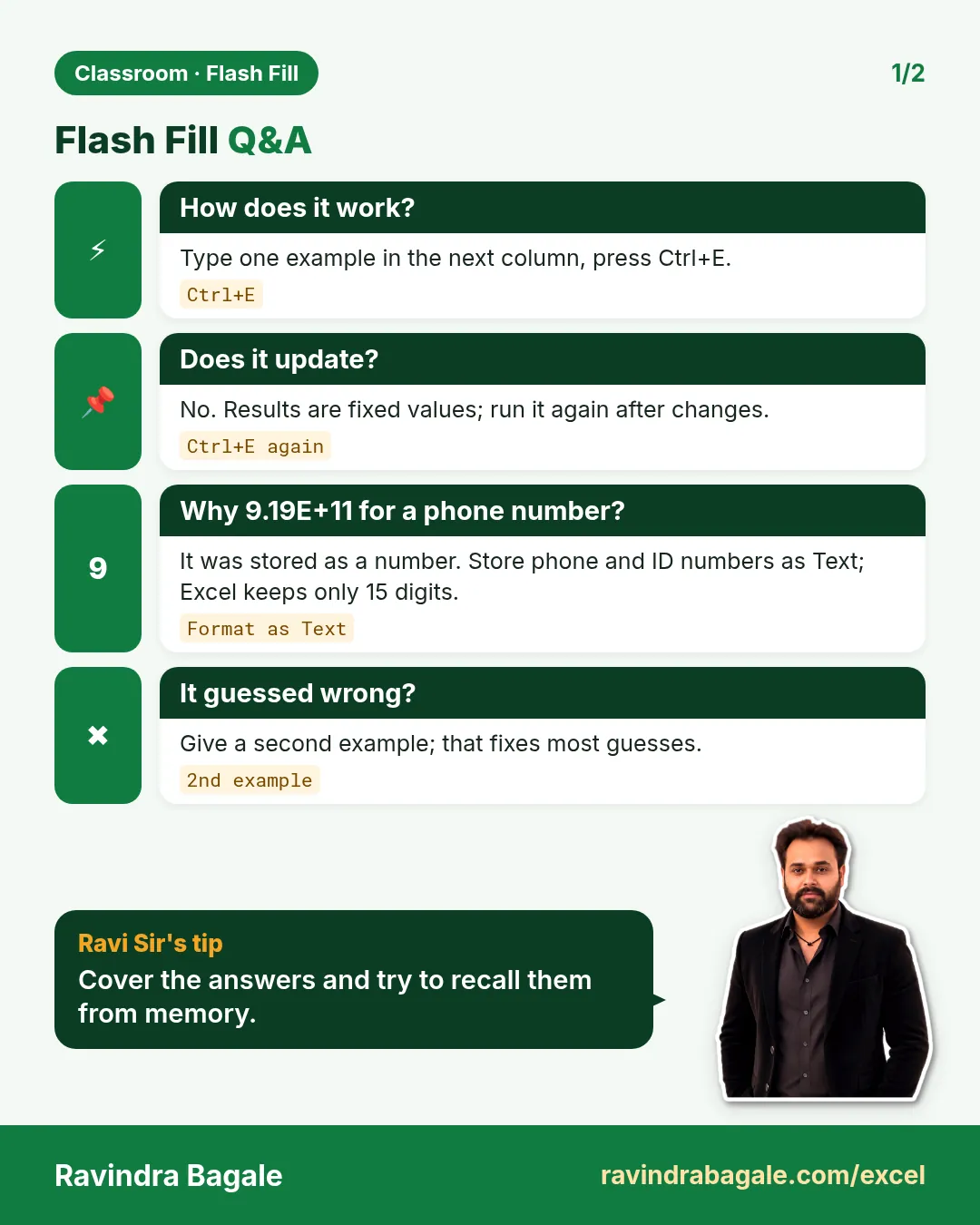
- The results do not update. Flash Fill types plain values. If you later change a surname in column B, the full name in column C does not change; run Ctrl+E again (or use a formula when the data keeps changing).
- Check the result. Flash Fill guesses a pattern. Read a few rows, especially short and long names.
Figure 2. Left: the result column touches the data, so Ctrl+E works. Right: an empty column in between, so Excel cannot see the data and shows a message instead.
3. Names: initials, usernames, emails and more
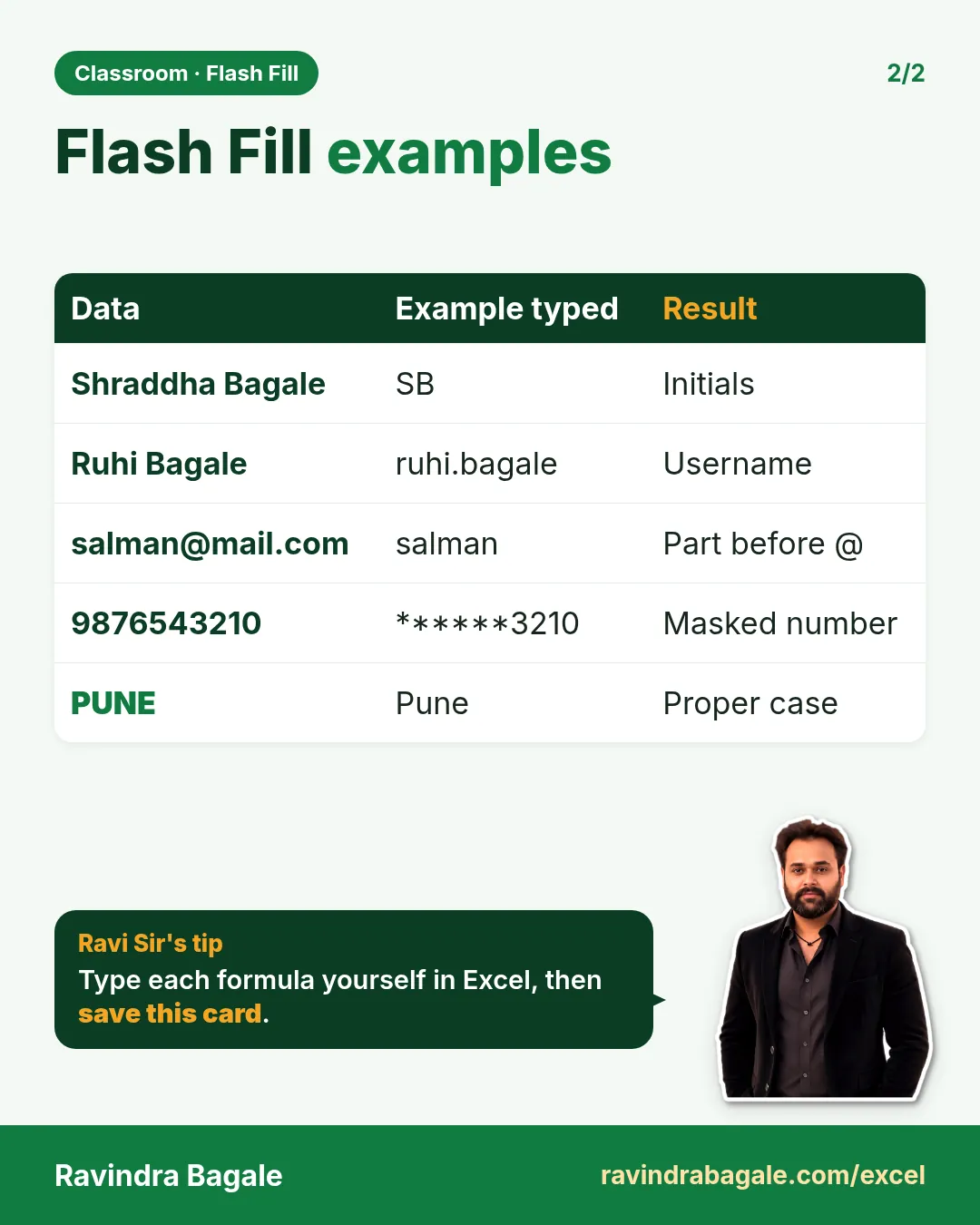
All of these start from the same two columns (first name, surname). Type the yellow example in row 5, press Enter, then Ctrl+E.
| You type in row 5 | Pattern | Rows below become |
|---|---|---|
rb |
initials, small letters | sb, rb |
r bagale |
first initial + surname | s bagale, r bagale |
ravindra_bagale |
username with underscore | shraddha_bagale, ruhi_bagale |
ravindra.bagale@example.com |
email ID | shraddha.bagale@example.com, ruhi.bagale@example.com |
ra ba |
first two letters of each | sh ba, ru ba |
Bagale, Ravindra |
surname first, with comma | Bagale, Shraddha; Bagale, Ruhi |
RAVINDRA BAGALE |
all capitals | SHRADDHA BAGALE, RUHI BAGALE |
Figure 3. One pair of name columns, seven different outputs. Each output column got one typed example and Ctrl+E.
Classroom line
If there is a pattern, Excel will understand it.
Class मधलं वाक्य
Pattern असेल तर तो समजून घेईल.
Classroom line – हिंदी
"Agar pattern hai to samajh ke lega wo."
Ravindra Bagale's Tip
If Flash Fill picks the wrong letters, don't delete the column. Correct the first wrong cell by typing the right value there, press Enter, and Flash Fill updates the rest using the new example. Two examples remove most confusion.
Ravindra Bagale's Tip – मराठी
Flash Fill ने चुकीची अक्षरं घेतली तर column delete करू नका. पहिल्या चुकीच्या cell मध्ये बरोबर value type करा, Enter दाबा, आणि Flash Fill नवीन example वापरून बाकीचं update करतं. दोन examples दिले की बहुतेक गोंधळ जातो.
Ravindra Bagale's Tip – हिंदी
Flash Fill ने गलत अक्षर लिए तो column delete मत करो. पहली गलत cell में सही value type करो, Enter दबाओ, और Flash Fill नए example से बाकी update कर देता है. दो examples देने से ज़्यादातर गड़बड़ खत्म हो जाती है.
4. Split an email ID
Flash Fill works in reverse too. Start from a column of emails such as shraddha.bagale@example.com:
- Username: type
ravindra.bagalenext to the first email, Ctrl+E. - Domain: in the next column type
example.com, Ctrl+E. - Domain name only: in the next column type
example, Ctrl+E.
This is useful when a list mixes company and personal emails and you want to count how many come from each domain.
5. Long numbers: why 919000000001 shows 9.19E+11
What happens: type a phone number with the country code, 919000000001, in a normal cell. Excel shows 9.19E+11. The number is still there, but the cell is in the General format, and a 12-digit number is too wide, so Excel shows it in scientific (E) form.
There is a bigger problem with very long numbers. Excel keeps only 15 digits of any number. Type a 16-digit card-style number and the last digit becomes 0, permanently.
Phone numbers, ID numbers, PIN codes and card numbers are labels, not amounts. You never add or average them, so store them as text:
- Before typing: select the column, press Ctrl+1, choose Text, click OK. Now everything you type keeps every digit.
- Or start the entry with an apostrophe:
'919000000001. The apostrophe is not shown in the cell; it only tells Excel "this is text".
A text number sits on the left of the cell, and Excel may show a small green triangle ("number stored as text"). For a phone or ID column that is exactly what you want.
Figure 4. The same three numbers in a General column and in a Text column. General shows E+ notation and keeps only 15 digits; Text keeps every digit exactly as typed.
Ravindra Bagale's Tip
Set the column to Text before you type or paste the numbers. If you change it afterwards, a 16-digit number has already lost its last digit and the zero will not come back. For data you import, the phone numbers lesson shows how to clean existing columns.
Ravindra Bagale's Tip – मराठी
Numbers type किंवा paste करण्याच्या आधी column Text वर set करा. नंतर बदललं तर 16-digit number चा शेवटचा digit आधीच गेलेला असतो आणि तो 0 परत येत नाही. Import केलेल्या data साठी phone numbers वाला lesson आधीचे columns कसे clean करायचे ते दाखवतो.
Ravindra Bagale's Tip – हिंदी
Numbers type या paste करने से पहले column को Text पर set करो. बाद में बदला तो 16-digit number का आखिरी digit पहले ही जा चुका होता है और वो 0 वापस नहीं आता. Import किए data के लिए phone numbers वाला lesson पुराने columns साफ करना सिखाता है.
6. Split the country code from a phone number
With the phone numbers stored as text in column A (919000000001, 919000000002 …):
- In B5 type
91, press Enter, then Ctrl+E. The country codes fill. - In C5 type
9000000001, press Enter, then Ctrl+E. The 10-digit numbers fill.
The same idea joins them back: two columns 91 and 9000000001, type +91 9000000001 in the next column, Ctrl+E.
7. Masking: show only the last 4 digits
Why: when you share a list with ID numbers or card numbers, the other person usually needs only enough to recognise the record, not the full number. Showing the last 4 digits is the common way.
How:
- Column A has 12-digit ID numbers stored as text, for example
123456789012. - In B5 type
********9012(eight stars, then the last four digits of A5). Press Enter. - Press Ctrl+E. Every row shows eight stars and its own last 4 digits.
Classroom line
We want to show only the last 4 digits, not the rest.
Class मधलं वाक्य
"Shevatche 4 digits aplyala dakhwayche ahet, bakiche nahi dakhwayche."
शेवटचे 4 digits आपल्याला दाखवायचे आहेत, बाकीचे नाही दाखवायचे.
Classroom line
We want to show only the last 4 digits, not the rest.
Figure 5. Masking with Flash Fill: one typed example with eight stars and the last 4 digits, then Ctrl+E for the rest.
Ravindra Bagale's Tip
Masking adds a new column; the full numbers are still in column A. Before you share the file, delete column A (or copy only the masked column into a new workbook). Hiding the column is not enough, because anyone can unhide it.
Ravindra Bagale's Tip – मराठी
Masking मुळे नवीन column येतो; पूर्ण numbers अजूनही column A मध्ये आहेत. File share करण्याआधी column A delete करा (किंवा फक्त masked column नवीन workbook मध्ये copy करा). Column hide करणं पुरेसं नाही, कारण कोणीही तो unhide करू शकतो.
Ravindra Bagale's Tip – हिंदी
Masking से नया column आता है; पूरे numbers अभी भी column A में हैं. File share करने से पहले column A delete करो (या सिर्फ masked column नई workbook में copy करो). Column hide करना काफी नहीं, क्योंकि कोई भी उसे unhide कर सकता है.
8. Split codes and pull a part of an address
Product codes. Column A has codes like ELEC-01, FURN-02, TOYS-03:
- Type
ELECnext to the first code, Ctrl+E: the category fills. - In the next column type
01, Ctrl+E: the number part fills. Format this column as Text first if you want to keep the leading 0.
Addresses. Column A has addresses like Flat 4, Shivaji Nagar, Pune, India:
- Type
Punenext to the first address, Ctrl+E: the city fills. - In the next column type
Shivaji Nagar, Ctrl+E: the area fills.
This works well when every address has the same structure, with the parts separated by commas in the same order. If one address has an extra part, check that row and correct it by hand.
Figure 6. Flash Fill splits a product code at the dash, and picks the city or the area from an address, as long as the parts are separated by commas in the same order.
9. Change case
Names often arrive in mixed case: ravindra bagale, RUHI BAGALE.
- Proper case: next to
ravindra bagaletypeRavindra Bagale, Ctrl+E. - Capitals: in the next column type
RAVINDRA BAGALE, Ctrl+E.
Formulas do the same job and also update when the source changes: =PROPER(A5), =UPPER(A5), =LOWER(A5).
10. When Flash Fill gets it wrong
- Different lengths. Asked for
ravi bfrom Ravindra Bagale, Excel may guess "first 4 letters" or "letters up to the v". A short name such as Ruhi shows which one it chose. Give a second example in a row where the name length is different. - Another column confuses it. If a column on the left also contains text, Excel may take letters from the wrong column. Type the correct value in the first wrong row, Enter, and Ctrl+E again.
- Uneven data. Addresses with a missing comma, or codes with no dash, break the pattern for that row. Check those rows by hand.
- Nothing happens. Make sure the result column touches the data and the cell you are in is directly below your example.
11. The whole chapter on one page
- Type one example next to the data, Enter, Ctrl+E. Also in Data › Flash Fill.
- The result column must touch the data; one output column at a time.
- Flash Fill writes values; they do not update when the source changes.
- Names: full name, initials, usernames, emails, "surname, first", capitals.
- Emails split into username, domain and domain name.
- Long numbers: General shows 9.19E+11 and keeps only 15 digits; set Text (Ctrl+1) or type an apostrophe first.
- Phone: split 91 from the 10-digit number.
- Masking:
********9012+ Ctrl+E; delete the full numbers before sharing. - Codes split at the dash; addresses split at commas when the structure is the same.
- Wrong results: correct the first wrong cell and press Ctrl+E again.
12. Try at home
Try at home
Task 1: names
- Type first names and surnames for three people (Ravindra Bagale, Shraddha Bagale, Ruhi Bagale).
- Make full names, initials,
first.lastusernames andfirst.last@example.comemails, one column each.
Task 2: phone numbers
- Set a column to Text and type six numbers from
919000000001to919000000006. - Split each into
91and the 10-digit number. - In a General column, type one 12-digit number and see the E+ form.
Task 3: masking
- Type six 12-digit ID numbers (as text), such as
123456789012. - Mask them to show only the last 4 digits.
- Copy only the masked column into a new workbook.
Task 4: practice file
- Open excel-flash-fill-practice.xlsx.
- Do each practice sheet, then compare it with its "(answers)" sheet.
Recap
In short
- Flash Fill = one example + Ctrl+E.
- Work in the column right next to the data.
- Results are fixed values; rerun after changes.
- Store phone, ID and card numbers as Text: Excel keeps only 15 digits of a number.
- Mask with stars + last 4 digits; remove the full column before sharing.
- Split codes, emails and addresses when the structure is consistent.
- A second example fixes most wrong guesses.
Quick revision cards
Quick revision
Revise this chapter in two minutes. Save the cards on your phone or download them as PNG files. All names and numbers are made up for practice.
झटपट उजळणी
हा chapter दोन मिनिटांत revise करा. Cards phone वर save करा किंवा PNG म्हणून download करा. सगळी नावं आणि आकडे सरावासाठी काल्पनिक आहेत.
झटपट दोहराई
यह chapter दो मिनट में revise करें. Cards phone पर save करें या PNG के रूप में download करें. सभी नाम और आंकड़े अभ्यास के लिए काल्पनिक हैं.
More cards for every chapter: Ravi Sir's Cards.
Loading practice tasks...
- Total nights (Easy): Add up Nights in D2:D11. (sheet "Data")
- Average rate per night (Easy): Average of E2:E11, rounded to 2 decimals. (sheet "Data")
- Rows in Standard (Easy): How many rows have Room type "Standard"? (sheet "Data")
- Largest nights (Easy): The largest value in D2:D11. (sheet "Data")
- Clean name (Easy): Trim A2. (sheet "Text")
- Proper case (Easy): A2 trimmed and in proper case. (sheet "Text")
- Code prefix (Easy): First 3 characters of B2. (sheet "Text")
- Code number (Easy): Last 4 characters of B3. (sheet "Text")
- Nights for Standard (Medium): Total of D2:D11 where B is "Standard". (sheet "Data")
- Standard in Leeds (Medium): Total of D2:D11 where B is "Standard" and C is "Leeds". (sheet "Data")
- City part (Medium): Characters 5 to 7 of B4. (sheet "Text")
- Name length (Medium): Length of A3. (sheet "Text")