Analyse Blinkit Orders in Excel: Total Orders, Cities, Products and Payment Mode with COUNTA, UNIQUE and COUNTIF
In the previous chapter you learned to understand an orders dataset before touching a formula: what one row means, what every column says and which business questions the data can answer. Now we start answering them. The first questions any manager asks are simple: How many orders did we get? In how many cities? How many products do we sell? How do customers pay? In this chapter you answer all of them with three functions, COUNTA, UNIQUE and COUNTIF, and turn the counts into a % share.
What you'll learn in this chapter
- The orders table used in the next three chapters
- Total orders: why COUNT gives 0 and COUNTA gives 24
- Distinct cities and products with UNIQUE, COUNTA and ROWS
- Orders per payment mode with COUNTIF and a locked range
- % share with an absolute reference
- Status and delivery status counts, and TRANSPOSE
Practice file: blinkit-orders-counta-unique-countif-practice.xlsx: the Orders sheet with every answer from this chapter in column O onwards, two common mistakes in red, a Read me sheet and a Your turn sheet.
Made-up data: all 24 orders, areas, products, prices and profits are made up for practice. No real customer, shop or order is used, and product names are generic.
1. The orders table
This is a slimmer version of the orders file from the dataset chapter: 24 orders from a quick-commerce app (think Blinkit or Amazon Now) in Pune, Nashik, Solapur, Kolhapur, Nagpur and Sambhaji Nagar, from 1 to 8 September 2026. Headers are in row 1 and the orders in rows 2 to 25, columns A to M:
| Col | Column | What it holds |
|---|---|---|
| A | Order_ID | text such as ORD1001 |
| B | Order_Date | date of the order |
| C | City | one of six cities |
| D | Area | area inside the city |
| E | Product_Name | Milk, Bread, Eggs, Fruits, Snacks, Paneer |
| F | Quantity | units ordered |
| G | Cost_Price | price per unit the store paid |
| H | Selling_Price | price per unit the customer paid |
| I | Payment_Mode | Online or COD (cash on delivery) |
| J | Status | Delivered, Returned or Cancelled |
| K | Delivery_Time_mins | minutes to deliver (empty if cancelled) |
| L | Delivery_Status | On Time (15 minutes or less) or Late |
| M | Profit | Quantity × (Selling_Price − Cost_Price) − 20 |
The 20 in Profit is a fixed delivery cost per order. Some orders make a loss: 2 packets of snacks earn 2 × 5 = 10, minus 20 for delivery, so −10.
The first rows:
| Order_ID | Order_Date | City | Area | Product_Name | Quantity | Cost_Price | Selling_Price | Payment_Mode | Status | Delivery_Time_mins | Delivery_Status | Profit |
|---|---|---|---|---|---|---|---|---|---|---|---|---|
| ORD1001 | 01-Sep-2026 | Pune | Kothrud | Milk | 6 | 26 | 30 | Online | Delivered | 11 | On Time | 4 |
| ORD1002 | 01-Sep-2026 | Pune | Baner | Paneer | 3 | 70 | 90 | Online | Delivered | 13 | On Time | 40 |
| ORD1003 | 01-Sep-2026 | Nashik | Gangapur Road | Fruits | 4 | 48 | 60 | COD | Delivered | 19 | Late | 28 |
The same 24 orders are used in this chapter, in the SORT, FILTER and TAKE chapter and in the SUMIFS and MAXIFS chapter, so every answer can be compared across chapters.
Figure 1. The 13 columns A to M of the orders table, grouped into order, product and price, payment and delivery, and the Profit column.
Classroom line
On the Blinkit data we will need to use a few more new functions.
Class मधलं वाक्य
"Blinkit cha data varthi ajun kahi navin functions aplayla vaparave lagtil."
Blinkit च्या data वर अजून काही नवीन functions आपल्याला वापरावे लागतील.
Classroom line
On the Blinkit data we will need to use a few more new functions.
2. How many orders? COUNT vs COUNTA
Each row is one order and every order has an ID, so count the IDs:
=COUNT(A2:A25)
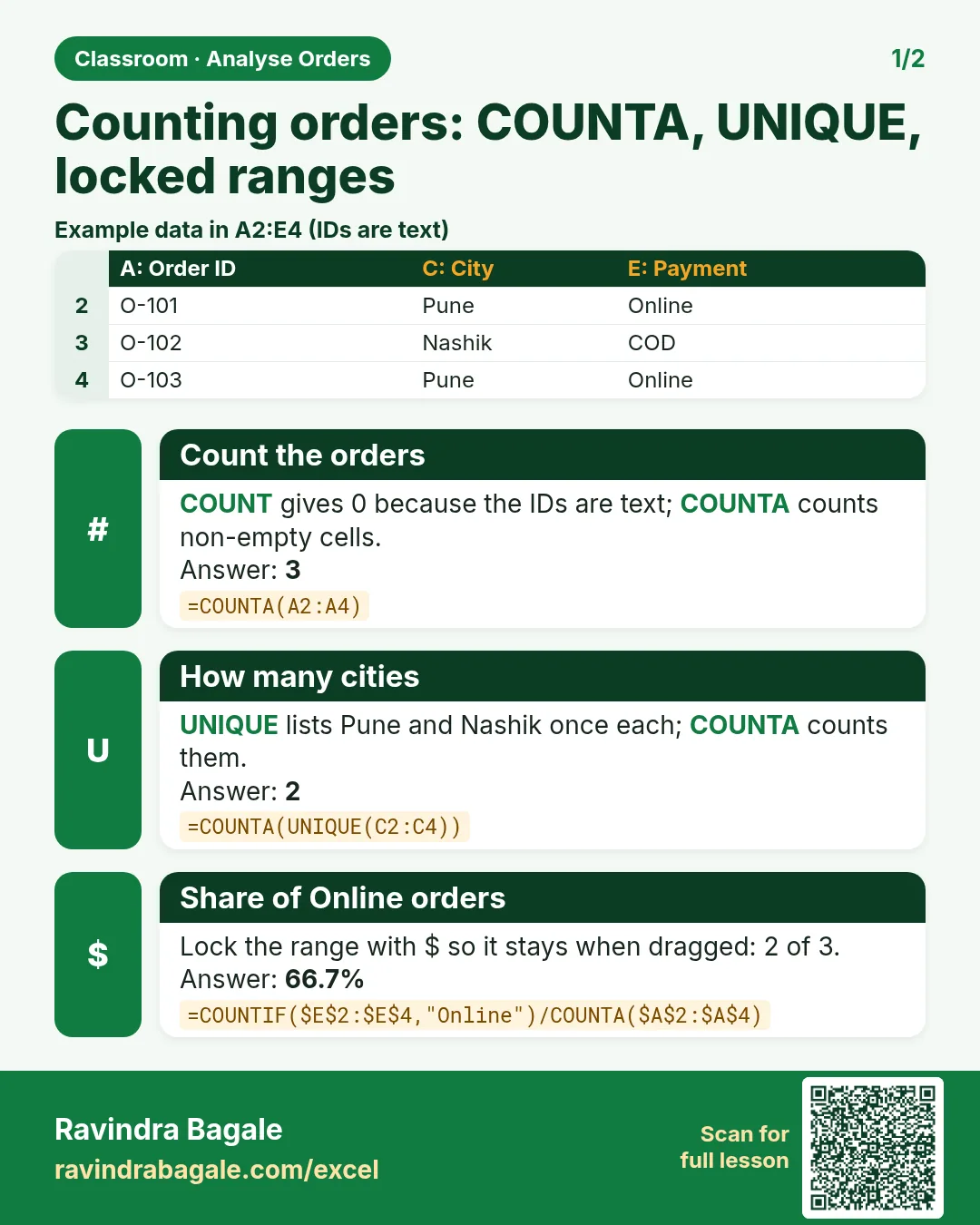
→ 0. The formula is right, the range is right, and the answer is wrong. COUNT counts only cells that hold numbers, and ORD1001 is text. Use COUNTA, which counts every non-empty cell:
=COUNTA(A2:A25)
→ 24 orders. This is a favourite interview question: "Why does COUNT give 0 on Order_ID?" Because the IDs are text.
Classroom line
The COUNT function won't work, because COUNT works on numbers.
Class मधलं वाक्य
Count function काम करणार नाही कारण count फक्त numbers वर काम करतं.
Classroom line – हिंदी
"Count function kam nahi karega kyunki count number pe kam karta hai."
Figure 2. The Order_ID column holds text. COUNT(A2:A25) finds no numbers and returns 0; COUNTA(A2:A25) counts all 24 filled cells.
3. How many cities and products? UNIQUE
The City column has 24 entries but only a few different cities. UNIQUE returns each value once:
=UNIQUE(C2:C25)
→ Pune, Nashik, Solapur, Kolhapur, Nagpur, Sambhaji Nagar, in the order they first appear. The formula is in one cell and the list spills down into the cells below it.
Classroom line
The UNIQUE function always returns unique values.
Class मधलं वाक्य
Unique function नेहमी unique values return करतं.
Classroom line – हिंदी
"Unique function hamesha unique values return karta hai."
To get the number of cities, count that list:
=COUNTA(UNIQUE(C2:C25))
→ 6 cities. =ROWS(UNIQUE(C2:C25)) gives the same 6: ROWS counts how many rows the list has.
The same for products:
=COUNTA(UNIQUE(E2:E25))
→ 6 products: Milk, Paneer, Fruits, Bread, Eggs and Snacks.
Which Excel has UNIQUE? Excel 2021, Excel 2024, Microsoft 365 and Excel for the web. In older versions, copy the column and use Data › Remove Duplicates to get the list.
Figure 3. UNIQUE(C2:C25) spills the six different cities; COUNTA around it counts them: 6.
4. Online or COD? COUNTIF with a locked range
Type the two payment modes as labels, COD in O10 and Online in O11, and count each one with COUNTIF:
=COUNTIF($I$2:$I$25,O10)
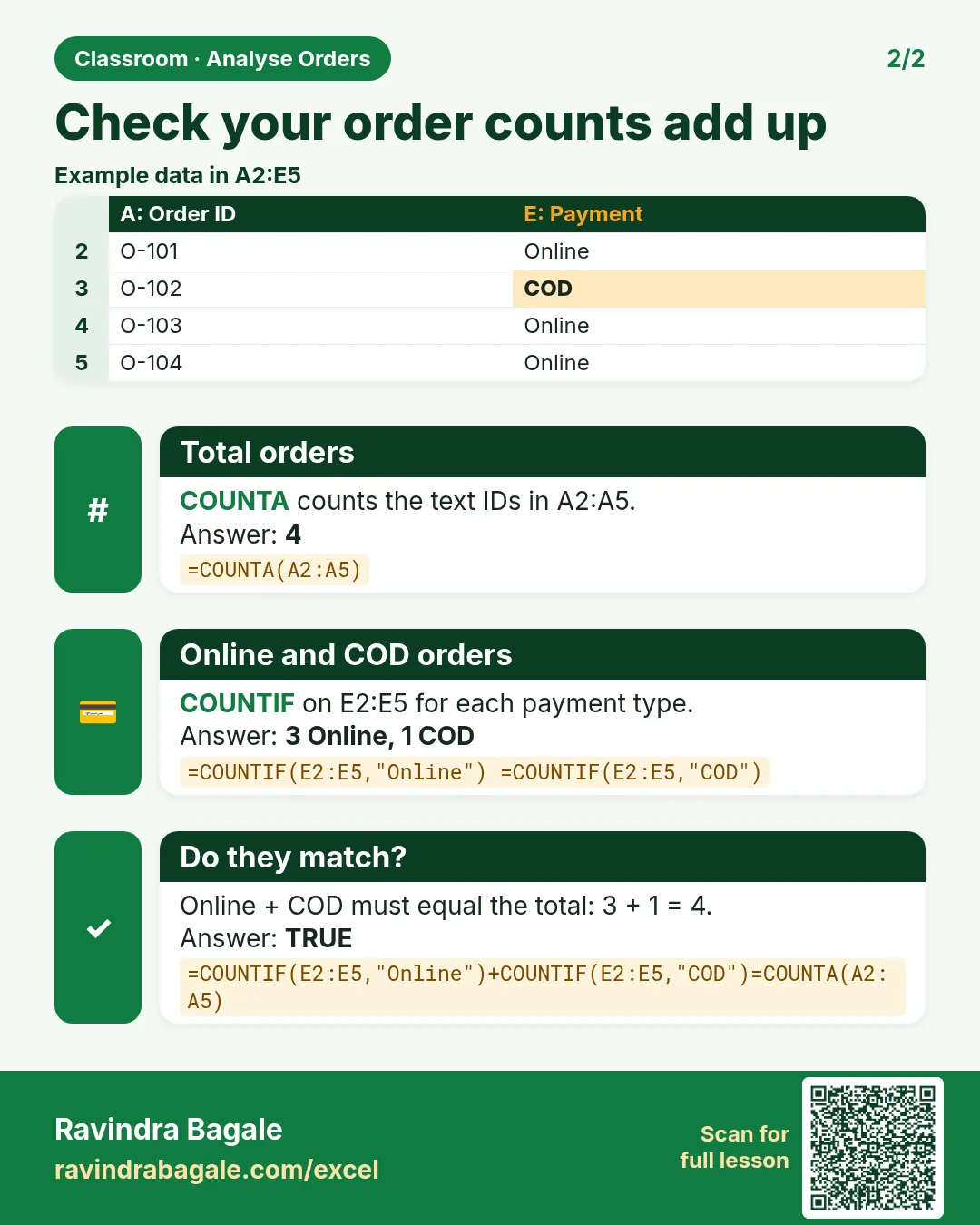
→ COD 9 and, after dragging down, Online 15. 9 + 15 = 24, every order.
The $ signs matter. Without them, =COUNTIF(I2:I25,O10) dragged down becomes =COUNTIF(I3:I26,O11): the range slides one row down with the formula. It skips order ORD1001, which is Online, so Online shows 14 and the two counts add up to 23, not 24. Lock the range with $ (press F4) before you drag. The label O10 stays relative so it moves to O11.
Figure 4. Without $ the range slides to I3:I26 and misses the first order: Online 14, total 23. With $I$2:$I$25 both counts are right: 9 + 15 = 24.
Ravindra Bagale's Tip
After any count table, add a check row: =SUM(P10:P11) must equal the total orders (24). If it doesn't, a range has slid or a label has a typo. It takes five seconds and catches the mistake before anyone sees your report.
Ravindra Bagale's Tip – मराठी
कोणत्याही count table नंतर एक check row जोडा: =SUM(P10:P11) हे एकूण orders (24) इतकंच यायला हवं. तसं नसेल तर एखादी range सरकली आहे किंवा label मध्ये typo आहे. याला पाच seconds लागतात आणि report कोणी बघण्याआधीच चूक पकडली जाते.
Ravindra Bagale's Tip – हिंदी
किसी भी count table के बाद एक check row जोड़ो: =SUM(P10:P11) कुल orders (24) के बराबर आना चाहिए. ऐसा न हो तो कोई range खिसक गई है या label में typo है. इसमें पाँच seconds लगते हैं और report कोई देखे उससे पहले ही गलती पकड़ में आ जाती है.
5. % share with an absolute reference
A count alone doesn't say much; the share does. Total orders sit in P3 (=COUNTA(A2:A25)), so in Q10:
=P10/$P$3*100
→ COD 37.5% and Online 62.5%. The $ on P3 keeps every row dividing by the same total. Without it, the second row becomes =P11/P4*100, where P4 holds the number of cities (6), and Online shows 250%, which is impossible. A share above 100% is a sure sign the total moved.
6. Status: let UNIQUE write the labels
Instead of typing labels, let UNIQUE write them. In O15:
=UNIQUE(J2:J25)
→ Delivered, Cancelled, Returned. Next to it, in P15, =COUNTIF($J$2:$J$25,O15) dragged down, and the share in Q15, =P15/$P$3*100:
| Status | Orders | Share % |
|---|---|---|
| Delivered | 18 | 75.00 |
| Cancelled | 3 | 12.50 |
| Returned | 3 | 12.50 |
So 6 out of 24 orders, one in four, never turned into a sale. That is the kind of finding a manager wants to hear.
Want the labels across a row instead of down a column? Wrap UNIQUE in TRANSPOSE:
=TRANSPOSE(UNIQUE(J2:J25))
→ Delivered | Cancelled | Returned in three cells side by side.
Figure 5. Status labels from UNIQUE, counts from COUNTIF with a locked range, and share = count / $P$3 × 100: Delivered 75%, Cancelled 12.5%, Returned 12.5%.
7. Exercise: On Time vs Late
Count the On Time and Late deliveries (column L) and their share.
=COUNTIF($L$2:$L$25,"On Time")→ 15; Late → 6.- 15 + 6 = 21, not 24: the 3 cancelled orders were never delivered, so their Delivery_Status is empty.
- So divide by the number of orders that have a delivery status:
=COUNTA(L2:L25)→ 21 (COUNTA skips empty cells). - On Time share = 15 / 21 × 100 = 71.43%; Late = 28.57%.
=UNIQUE(L2:L25) here returns On Time, Late and 0: the 0 stands for the empty cells. That is UNIQUE telling you the column has blanks.
Ravindra Bagale's Tip
Before you divide, ask "out of what?". Out of all orders, out of delivered orders, or out of orders that have a delivery time? Write the answer next to the % column, for example "share of 21 delivered orders". Two people using two different totals is the most common reason two reports disagree.
Ravindra Bagale's Tip – मराठी
Divide करण्याआधी स्वतःला विचारा: "कशाच्या पैकी?" सगळ्या orders पैकी, delivered orders पैकी, की ज्यांना delivery time आहे त्यांच्या पैकी? उत्तर % column च्या शेजारी लिहा, उदा. "21 delivered orders पैकी share". दोन लोकांनी दोन वेगवेगळे totals वापरणं हेच दोन reports न जुळण्याचं सगळ्यात common कारण आहे.
Ravindra Bagale's Tip – हिंदी
Divide करने से पहले खुद से पूछो: "किसमें से?" सारे orders में से, delivered orders में से, या जिनका delivery time है उनमें से? जवाब % column के बगल में लिखो, जैसे "21 delivered orders में से share". दो लोगों का दो अलग totals इस्तेमाल करना ही दो reports के न मिलने की सबसे common वजह है.
8. The whole chapter on one page
| Question | Formula | Answer |
|---|---|---|
| Total orders | =COUNTA(A2:A25) |
24 |
| Same with COUNT | =COUNT(A2:A25) |
0 (IDs are text) |
| Cities | =COUNTA(UNIQUE(C2:C25)) |
6 |
| Products | =COUNTA(UNIQUE(E2:E25)) |
6 |
| COD / Online | =COUNTIF($I$2:$I$25,O10) |
9 / 15 |
| Share % | =P10/$P$3*100 |
37.5 / 62.5 |
| Delivered / Cancelled / Returned | =COUNTIF($J$2:$J$25,O15) |
18 / 3 / 3 |
| On Time / Late | =COUNTIF($L$2:$L$25,O21) |
15 / 6 (of 21) |
- COUNT counts numbers only; use COUNTA for text IDs.
- UNIQUE lists each value once; COUNTA or ROWS around it counts them.
- Lock the COUNTIF range with
$before dragging; leave the label relative. - Share = count / $total$ × 100, and the shares must add up to 100.
- UNIQUE: Excel 2021, Excel 2024, Microsoft 365 and Excel for the web.
9. Try at home
Try at home
Task 1
- How many different areas are there? (
=COUNTA(UNIQUE(D2:D25))→ 13.)
Task 2
- Count the orders per city with UNIQUE and COUNTIF. Which city has the most orders? (Pune, 6.)
Task 3
- Find the share of orders per product. Do the shares add up to 100?
Task 4
- Show the six products across one row with TRANSPOSE.
Recap
In short
- COUNT gives 0 on text IDs; COUNTA gives 24.
- COUNTA(UNIQUE(range)) counts distinct values.
- A COUNTIF range needs
$before you drag it. - % share divides by a locked total.
- Check that counts add up to the total.
Quick revision cards
Quick revision
Revise this chapter in two minutes. Save the cards on your phone or download them as PNG files. All names and numbers are made up for practice.
झटपट उजळणी
हा chapter दोन मिनिटांत revise करा. Cards phone वर save करा किंवा PNG म्हणून download करा. सगळी नावं आणि आकडे सरावासाठी काल्पनिक आहेत.
झटपट दोहराई
यह chapter दो मिनट में revise करें. Cards phone पर save करें या PNG के रूप में download करें. सभी नाम और आंकड़े अभ्यास के लिए काल्पनिक हैं.


More cards for every chapter: Ravi Sir's Cards.
Loading practice tasks...
- Distinct groups (Easy): How many different values in B2:B11?
- List groups (Easy): Unique list of B2:B11.
- Filter names (Easy): Names in A2:A11 where B is "Snacks".
- Sum of filtered (Medium): Sum of D2:D11 where B is "Dairy", using FILTER.
- Count filtered (Medium): Rows where D is above the average of D2:D11.
- Sorted values (Medium): D2:D11 sorted largest first.
- Top value via SORT (Medium): The largest E2:E11 value using SORT and INDEX.
- Second largest (Hard): Second largest D2:D11 using SORT and INDEX.
- Numbers 1 to 5 (Hard): A spill of numbers 1 to 5.
- Two-condition filter (Hard): Sum of D2:D11 where B is "Snacks" or "Dairy".
- Names joined (Hard): Names where B is "Snacks", joined with ", ".