13. DAX: Data Analysis Expressions
13.27 DAX Query View
DAX query view in Power BI with example — in 30 seconds
What: DAX query view lets you write a DAX query that returns a table. It is a test sheet inside Power BI Desktop.
Why: A card shows a strange number. You want to see the numbers behind it without building new visuals.
Tiny example: EVALUATE SUMMARIZECOLUMNS(Orders[City], "Sales", [Total Sales]) returns one row per city.
DAX query view in Power BI with example — 30 सेकंदात
काय: DAX query view मध्ये table परत देणारी DAX query लिहिता येते. Power BI Desktop मधली ही एक test sheet आहे.
का: एखादा card विचित्र number दाखवतो. नवीन visuals न बनवता त्यामागचे आकडे बघायचेत.
छोटं उदाहरण: EVALUATE SUMMARIZECOLUMNS(Orders[City], "Sales", [Total Sales]) प्रत्येक शहराची एक row देतो.
DAX query view in Power BI with example — 30 सेकंड में
क्या: DAX query view में table लौटाने वाली DAX query लिख सकते हैं. यह Power BI Desktop के अंदर एक test sheet है.
क्यों: कोई card अजीब number दिखाता है. नए visuals बनाए बिना उसके पीछे के आँकड़े देखने हैं.
छोटा उदाहरण: EVALUATE SUMMARIZECOLUMNS(Orders[City], "Sales", [Total Sales]) हर शहर की एक row देता है.
First look at the data (before → after):
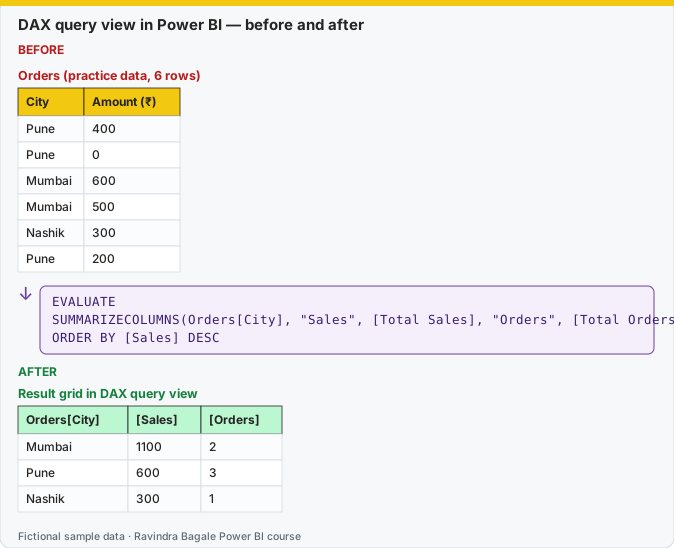
Same before / after tables as text
Before — Orders (practice data, 6 rows)
| City | Amount (₹) |
|---|---|
| Pune | 400 |
| Pune | 0 |
| Mumbai | 600 |
| Mumbai | 500 |
| Nashik | 300 |
| Pune | 200 |
Formula / click path
EVALUATE
SUMMARIZECOLUMNS(Orders[City], "Sales", [Total Sales], "Orders", [Total Orders])
ORDER BY [Sales] DESC
After — Result grid in DAX query view
| Orders[City] | [Sales] | [Orders] |
|---|---|---|
| Mumbai | 1100 | 2 |
| Pune | 600 | 3 |
| Nashik | 300 | 1 |
Do it step by step:
- Click the DAX query view icon in the left bar.
- Type the query. Every query starts with
EVALUATE. - Click Run.
- Read the grid: Mumbai 1100, Pune 600, Nashik 300.
- To test a new measure, put
DEFINE MEASURE Orders[Test AOV] = DIVIDE([Total Sales], [Total Orders])above EVALUATE. - When it works, click Update model with changes to save the measure.
एक-एक step करून बघा:
- डावीकडच्या bar मधल्या DAX query view icon वर click करा.
- Query type करा. प्रत्येक query
EVALUATEने सुरू होते. - Run वर click करा.
- Grid वाचा: Mumbai 1100, Pune 600, Nashik 300.
- नवीन measure test करायला EVALUATE च्या वर
DEFINE MEASURE Orders[Test AOV] = DIVIDE([Total Sales], [Total Orders])लिहा. - ते चाललं की measure save करायला Update model with changes वर click करा.
एक-एक step करके देखिए:
- बाईं ओर की bar में DAX query view icon पर click कीजिए.
- Query type कीजिए. हर query
EVALUATEसे शुरू होती है. - Run पर click कीजिए.
- Grid पढ़िए: Mumbai 1100, Pune 600, Nashik 300.
- नया measure test करने के लिए EVALUATE के ऊपर
DEFINE MEASURE Orders[Test AOV] = DIVIDE([Total Sales], [Total Orders])लिखिए. - वह चल जाए तो measure save करने के लिए Update model with changes पर click कीजिए.
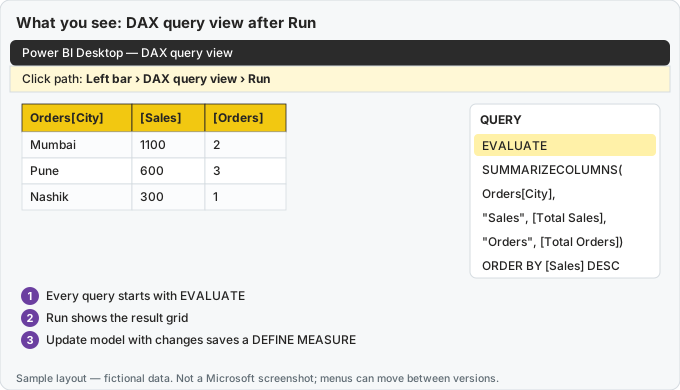
What you should see on screen after the steps (sample layout — fictional data, not a Microsoft screenshot).
A report visual is just a dress over a DAX query. In DAX query view you can write that query yourself. Use this view for debugging.
Report visual म्हणजे DAX query च्या वरचा पोशाख. Query view मध्ये ती query स्वतः लिहिता येते. Debugging साठी हा view वापरा.
Report visual बस DAX query के ऊपर का पहनावा है. Query view में वह query ख़ुद लिखी जा सकती है. Debugging के लिए यह view इस्तेमाल कीजिए.
Open DAX query view from the left icon bar (section 2.2). You write a query, choose Run, and read a result grid. Nothing is saved to the model until you explicitly add it (the button has been labelled Update model with changes in recent Desktop builds; the label is version-dependent).
EVALUATE runs a table expression and shows the rows. ORDER BY sorts that result. DEFINE introduces query-only measures, columns or tables that exist for this query, which is how you test a measure before you trust it on a page.
DEFINE
    MEASURE Orders[Test AOV] =
        DIVIDE([Total Sales], [Delivered Orders])
EVALUATE
SUMMARIZECOLUMNS(
    DarkStore[City],
    "Sales", [Total Sales],
    "AOV", [Test AOV]
)
ORDER BY [Sales] DESC
MEASURE inside DEFINE overrides a model measure of the same name for this query only, or creates a temporary one. That is the safe way to try a fix. SUMMARIZECOLUMNS here is the query-language group-by: city, then two numbers.
Steps – test before you publish
- Open DAX query view. Paste the query above.
- Run it. Confirm Pune, Mumbai, Nashik, Sambhaji Nagar, Kolhapur and Nagpur appear only if they have rows. A blank AOV means delivered orders were zero; that is
DIVIDE, not a broken query. - Add a filter to see one city:
FILTER(VALUES(DarkStore[City]), DarkStore[City] = "Kolhapur")as the first argument's replacement, or useTREATAS/ a calculate pattern you already trust. Simpler: look at the Kolhapur row in the full result. - Only when the number matches a Table-view spot check, create the real measure with Modeling › New measure. Do not paste
DEFINEinto the measure editor. The measure editor wants the expression only.
Worked example. You think Kolhapur AOV is wrong. Query view shows Sales ₹300 and Delivered Orders blank, so AOV is blank. The page card showed 0 because a visual format or a + 0 was hiding the blank. The query told the truth. Fix the card, not the sales table.
Quick queries: right-click a measure in this view (in versions that offer it) and choose a define-and-evaluate starter. If you do not see that menu, paste the pattern above. The icons move; EVALUATE does not.
Ravindra Bagale's Tip
Many students debug by adding ten card visuals. Query view is faster and it does not change the report. And do not assume DEFINE MEASURE is saved to the model without clicking the button. Check a wrong number here before you put it on a page. Remember this rule.
Ravindra Bagale's Tip – मराठी
बरेच students दहा card visuals टाकून debug करतात. Query view जास्त fast आहे आणि report बदलत नाही. आणि button न दाबता DEFINE MEASURE model मध्ये save होतो असं समजू नका. चुकीचा number page वर ठेवण्याआधी इथे बघा. हा नियम लक्षात ठेवा.
Ravindra Bagale's Tip – हिंदी
बहुत से students दस card visuals लगाकर debug करते हैं. Query view ज़्यादा fast है और report नहीं बदलता. और button दबाए बिना DEFINE MEASURE model में save हो जाता है, ऐसा मत समझो. ग़लत number page पर रखने से पहले यहाँ देखो. यह नियम याद रखो.
Loading DAX practice tasks...
- Show the Shop table (Easy): Query: return the whole Shop table.
- English shops (Easy): Query: return Shop rows where Country is "England".
- Menu items, sorted (Easy): Query: return the different Item values of Sales, sorted A to Z.
- Total cups in one row (Easy): Query: return one row with a column "Cups" holding the SUM of Sales[Cups].
- Big sales (Medium): Query: return Sales rows with Cups of 20 or more, sorted by SaleID.
- Revenue by city (Medium): Query: one row per Shop City with a column "Revenue" = [Revenue], sorted by City.
- Cups per barista (Medium): Query: each Barista with a column "Cups" = CALCULATE of SUM of Sales[Cups], sorted by Barista.
- Sales count by pay mode (Medium): Query: one row per PayMode with "Sales" = COUNTROWS of Sales, sorted by PayMode.
- Top 2 items (Hard): Query: the 2 Items with the highest [Revenue], sorted by Item.
- London baristas (Hard): Query: the different Barista values for sales in London shops, sorted by Barista.
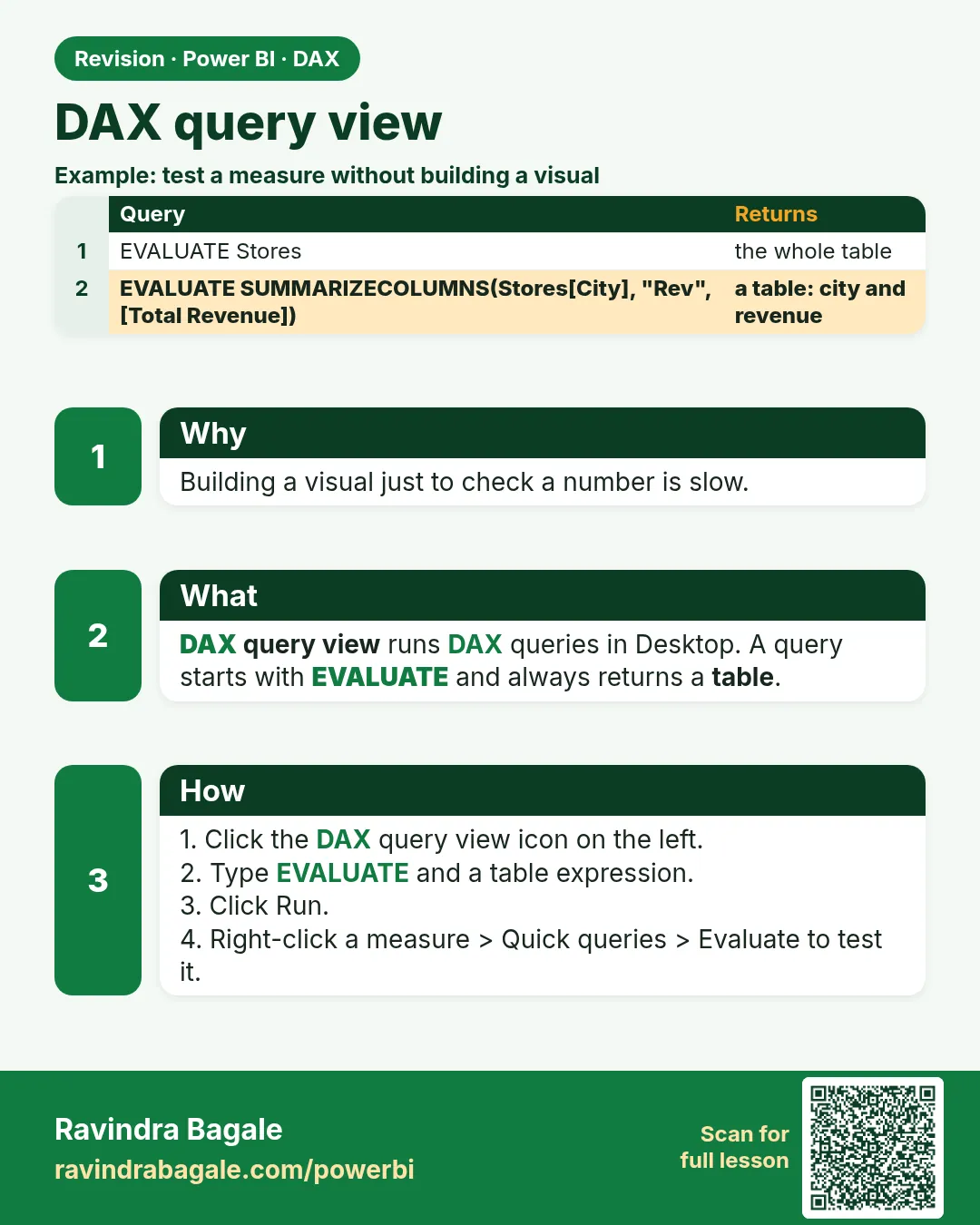 Revision card