How to Create a Measures Table in Power BI and Test DAX in DAX Query View (EVALUATE, SELECTCOLUMNS)
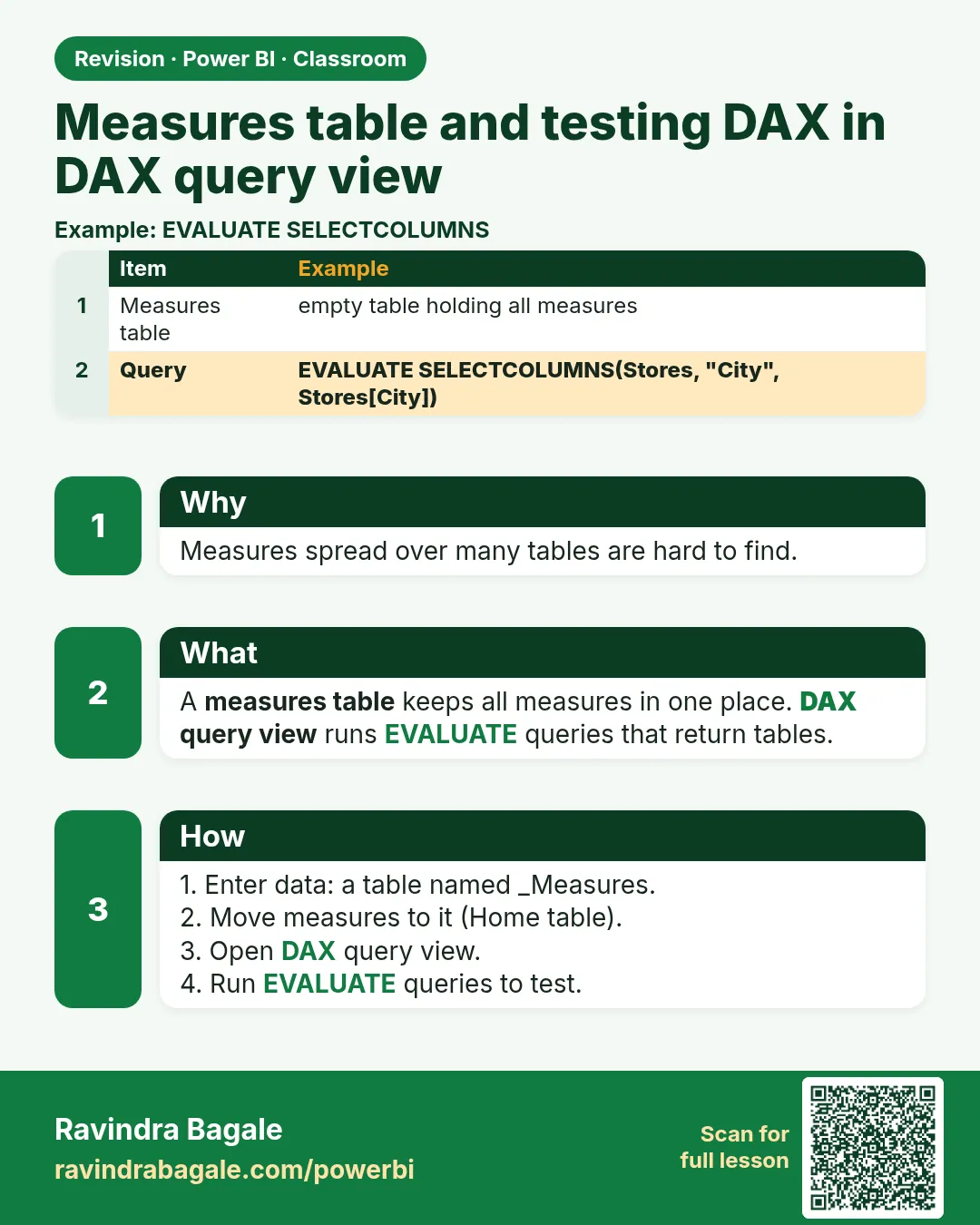
After a few chapters of measures, the Data pane gets messy: total revenue in sales, target color somewhere else, maharashtra revenue in the parameter table because that was selected when you clicked New measure. Finding a measure becomes a hunt. A Measures Table puts every measure in one place, at the top of the Data pane, with its own icon. In the second half of this chapter you open DAX query view, a practice space where you can run DAX and see the result as a table without changing your data, model or report.
What you'll learn in this chapter
- Why measures end up in different tables
- Enter data: an empty table named Measures Table
- Measure tools › Home table
- Deleting Column1 and the icon change
- DAX query view: EVALUATE, TOPN, a whole table
- SELECTCOLUMNS with and without names, custom headers
- SUMMARIZECOLUMNS: a 1×1 table vs a single value, and grouping
Practice file: blinkit-sales-2025-metrics.csv (800 order lines), with the measures from the previous two chapters.
Made-up data: fictional Blinkit-style sales, for practice only. Amounts are in ₹ and dates are DD-MM-YYYY.
1. The problem
A measure lives in whichever table was selected when you clicked New measure. After two chapters, total revenue, total sales, total orders, total profit and dairy revenue sit in sales, while maharashtra revenue landed in Metric Selector. In a bigger model with ten tables, nobody can find anything.
Classroom line
Suppose my measures right now are all in different tables.
Class मधलं वाक्य
समजा आत्ता माझे जे measures आहेत, ते सगळे वेगवेगळ्या tables मध्ये आहेत.
Classroom line – हिंदी
"Suppose abhi mere jo measures hain na, ye sab alag alag table mein hain."
2. The idea in simple words
A Measures Table is an empty table whose only job is to hold measures, like a folder. Moving a measure there changes only where it is listed; its formula and result stay the same.
DAX query view (the fourth icon on the left, below Model view) runs DAX queries and shows the result as a grid. Nothing you run there changes the tables, the data or the report. Every query starts with EVALUATE followed by something that returns a table.
3. The data
The measures to collect:
| Measure | Value (no filter) | Home table now |
|---|---|---|
| total revenue | ₹1,48,221 | sales |
| total sales | 1,431 | sales |
| total orders | 496 | sales |
| total profit | ₹42,482 | sales |
| maharashtra revenue | ₹44,763 | Metric Selector |
4. Step by step
Create the Measures Table
- Home › Enter data. Leave the grid empty. Name:
Measures Table. Load. A table with one empty column, Column1, appears. - Select total revenue in the Data pane › Measure tools › Home table › Measures Table. It moves.
- Repeat for every measure.
- In Measures Table, Column1 › three dots › Delete from model › Yes.
- The table's icon changes to the measures-table icon and it moves to the top of the Data pane.
Figure 1. Create an empty table, move each measure with Home table, then delete Column1 (illustration).
Classroom line
We can't delete the column before adding a measure, because a table must have at least one field.
Class मधलं वाक्य
Measure add केल्याशिवाय आपण column delete करू शकत नाही, कारण table मध्ये किमान एक field असायलाच हवं.
Classroom line – हिंदी
"Bina measure add kiye hum column delete nahi kar sakte, kyunki ek table ke andar kam se kam ek column to hona chahiye."
DAX query view
- Click the fourth icon on the left, DAX query view.
- Type
EVALUATE TOPN(100, 'sales')› Run. The results grid shows 100 rows of sales. - Replace it with
EVALUATE sales› Run: all 800 rows. - Remove the word EVALUATE and run
sales: Power BI shows a query syntax error. Every query needs EVALUATE. -
Run:
EVALUATE
SELECTCOLUMNS(sales, sales[category], sales[state])
The headers come out with the table prefix, like sales[category]. 11. Give each column a name:
EVALUATE
SELECTCOLUMNS(sales, "category", sales[category], "state", sales[state])
The headers are now clean: category, state. 12. The header is whatever text you write, not the column name:
SELECTCOLUMNS(sales, "products", sales[category])shows the categories under the header products. 13. RunEVALUATE SUMMARIZECOLUMNS("Total revenue", SUM(sales[revenue])). The result is a table with one row and one column, Total revenue = 148221. (Leave out the name "Total revenue" and you get a syntax error.) 14. For a true single value, useEVALUATE { SUM(sales[revenue]) }(one value, header Value) orEVALUATE ROW("Total revenue", [total revenue]). 15. The real job of SUMMARIZECOLUMNS is grouping:EVALUATE SUMMARIZECOLUMNS(sales[category], "Revenue", [total revenue])Four rows: Dairy & Bakery 59,124, Snacks & Branded Foods 35,200, Staples 30,290, Beverages 23,607.
Classroom line
Power BI has given us a place to practise: DAX query view.
Class मधलं वाक्य
"Power BI ने आपल्याला practice करण्यासाठी एक जागा दिली आहे, ती आहे DAX query view."
Power BI ने आपल्याला practice करण्यासाठी एक जागा दिली आहे, ती म्हणजे DAX query view.
Classroom line
Power BI has given us a place to practise: DAX query view.
Classroom line
We are showing category, but what title did I write? products.
Class मधलं वाक्य
आपण category दाखवतोय, पण मी title काय लिहिलं? products.
Classroom line – हिंदी
"Bhale hi hum log category dikha rahe hain, lekin maine title kya likha hai? products."
Classroom line
Without EVALUATE, nothing runs in DAX query view.
Class मधलं वाक्य
"बिना EVALUATE आपण काहीही लिहू शकत नाही DAX query view वर."
EVALUATE शिवाय DAX query view वर आपण काहीही चालवू शकत नाही.
Classroom line
Without EVALUATE, nothing runs in DAX query view.
5. Your result should look like this
- Data pane: Measures Table at the top with the measures-table icon, holding all five measures; the cards still show the same values.
- DAX query view: SELECTCOLUMNS with names returns 800 rows with headers category and state; SUMMARIZECOLUMNS("Total revenue", …) returns a 1×1 table (148221); grouping by category returns 4 rows.
Figure 2. Without names the headers keep the table prefix; with names they are clean (illustration).
6. What happened
- Enter data created a real (empty) table; Home table changed only where each measure is listed.
- A table must always have at least one field, so Column1 can go only after the first measure has moved in.
- Once a table holds only measures, Power BI treats it as a measures table and shows it first.
- In query view, EVALUATE returns a table to the results grid; nothing is saved into the model.
Classroom line
Writing here won't change our tables, our data or our report.
Class मधलं वाक्य
"इथे लिहिल्याने आपल्या table मध्ये changes होणार नाहीत, आपला data change होणार नाही, आपला report change होणार नाही."
इथे लिहिल्याने आपल्या table मध्ये changes होणार नाहीत, data बदलणार नाही, report बदलणार नाही.
Classroom line
Writing here won't change our tables, our data or our report.
7. Explore further
- Names must be unique. A second table called Measures Table is refused, because every table name in the model must be unique. Use
_Measuresif you want it to sort first by name too. - Test an unexpected result. When a measure or column gives a number you don't expect, rebuild it piece by piece in query view:
EVALUATE ROW("rev", [total revenue], "MH", [maharashtra revenue]), then add one filter at a time until the number changes. - Table, not value. SUMMARIZECOLUMNS always returns a table, even a 1×1 one;
{ … }and ROW are the ways to ask for a single value. - Distinct values. SELECTCOLUMNS returns one row per sales row (800). Wrap it in DISTINCT to see each category–state pair once: 20 rows.
- More. How to Create a Conditional Column in Power BI: Weekday vs Weekend (Power Query and DAX IF) first introduced query view; the main course lessons DAX Query View and Implicit vs Explicit Measures and Measure Tables go further.
Classroom line
Sometimes you can't tell where the error is; test it here.
Class मधलं वाक्य
कधी कधी error कुठे आहे ते कळत नाही; तेव्हा इथे test करा.
Classroom line – हिंदी
"Kabhi kabhi samajh mein nahi aata ki error kahan pe hai..."
Classroom line
This is simply for practice, for testing.
Class मधलं वाक्य
"हे simply practice साठी आहे, testing साठी आहे."
हे फक्त practice साठी आहे, testing साठी आहे.
Classroom line
This is simply for practice, for testing.
8. Common mistakes
| Wrong result | Reason | Fix |
|---|---|---|
| Cannot delete Column1 | No measure moved in yet | Move one measure first |
| "Measures Table" name refused | A table with that name already exists | Use a unique name |
| Icon did not change | Column1 still there | Delete Column1 from model |
| Query syntax error | EVALUATE missing | Start with EVALUATE |
| Headers show sales[category] | Columns not named | "category", sales[category] |
| Syntax error in SUMMARIZECOLUMNS | Expression without a name | "Total revenue", SUM(sales[revenue]) |
| Expected one number, got a table | SUMMARIZECOLUMNS returns a table | EVALUATE { SUM(sales[revenue]) } or ROW(…) |
Ravindra Bagale's Tip
Create the Measures Table at the start of a project, before the first measure. Then select it every time you click New measure, and you never have to move anything later.
Ravindra Bagale's Tip – मराठी
Project च्या सुरुवातीलाच, पहिल्या measure आधी, Measures Table बनवा. मग New measure click करताना प्रत्येक वेळी तोच select करा, म्हणजे नंतर काहीच हलवावं लागत नाही.
Ravindra Bagale's Tip – हिंदी
Project की शुरुआत में ही, पहले measure से पहले, Measures Table बनाएँ. फिर हर बार New measure click करते समय उसी को select करें, ताकि बाद में कुछ भी move न करना पड़े.
9. Practise on your own
Practice task
Using blinkit-sales-2025-metrics.csv and your measures:
- Move all measures into a Measures Table and delete Column1. Does total revenue change?
- In DAX query view, show the first 5 rows of sales.
- Show city and state with clean headers, one row per pair. How many rows?
- Show total orders by state with SUMMARIZECOLUMNS. Which state has the most orders?
Show solution
- No: still ₹1,48,221.
EVALUATE TOPN(5, 'sales').EVALUATE DISTINCT(SELECTCOLUMNS(sales, "city", sales[city], "state", sales[state])): 10 rows.EVALUATE SUMMARIZECOLUMNS(sales[state], "Orders", [total orders]): Maharashtra, 178.
10. Think like a professional
- Business view. A tidy Data pane makes a report easy to hand over; the next person finds every measure in one place.
- One home. Keep all measures in the Measures Table; use display folders when it grows.
- Test before you build. Check a measure's number in query view before putting it on a visual.
- Sandbox. Query view is safe for experiments; nothing changes until you build it into the model.
Interview questions
- How do you create a measures table? Enter data with an empty table, move measures with Home table, then delete the placeholder column.
- Does moving a measure change its result? No; only where it is listed.
- What does DAX query view do? Runs DAX queries and shows results without changing the model or report.
- Why is EVALUATE needed? A DAX query must start with EVALUATE followed by a table expression.
- What does SUMMARIZECOLUMNS("Total revenue", SUM(sales[revenue])) return? A table with one row and one column, not a scalar.
Recap
In short
- Home › Enter data › empty › Measures Table › Load.
- Measure tools › Home table moves each measure; results stay the same.
- Delete Column1 after a measure is in; the icon changes.
- DAX query view: EVALUATE TOPN(100, 'sales'); no EVALUATE, no result.
- SELECTCOLUMNS names set the headers (even "products").
- SUMMARIZECOLUMNS returns a table (1×1 for a total); use { } or ROW for one value; group with SUMMARIZECOLUMNS(sales[category], "Revenue", [total revenue]).
 Revision card