How to Set Up Drill Through to Another Page in Power BI
Your overview page has a clean chart of revenue by category. People want details for one category: its sub-categories, its numbers, maybe its cities. You do not want to crowd the overview page with all of that. Drill through lets you keep a separate details page that opens, already filtered, when someone right-clicks a bar. In this chapter you build that page, connect it with one field, and learn how drill through differs from the drill down you already know.
What you'll learn in this chapter
- Drill down vs drill through
- A details page for one category
- The Drillthrough well is set per page
- Use the plain field, not the hierarchy
- Right-click › Drill through
- The Back button
- Keep all filters and cross-report
Practice files: blinkit-sales-2025-small.csv (12 orders on this page) and blinkit-sales-2025.csv (360 orders). Start from the report of How to Create a Custom Hierarchy and Drill Down by Category in Power BI, or build a new category chart.
Made-up data: fictional Blinkit-style orders from Maharashtra cities, for practice only. Amounts are in ₹.
1. The problem
The overview page shows revenue by category: Dairy & Bakery 1,600 · Snacks & Branded Foods 880 · Sweets 840 · Staples 530.
For each category the team wants a small details page: total revenue, revenue by sub-category, and revenue by city. Building four copies of that page, one per category, would be slow and would break the day a fifth category appears. You want one details page that shows whichever category was clicked.
2. The idea in simple words
- Drill down opens the next level inside the same chart (category › sub_category).
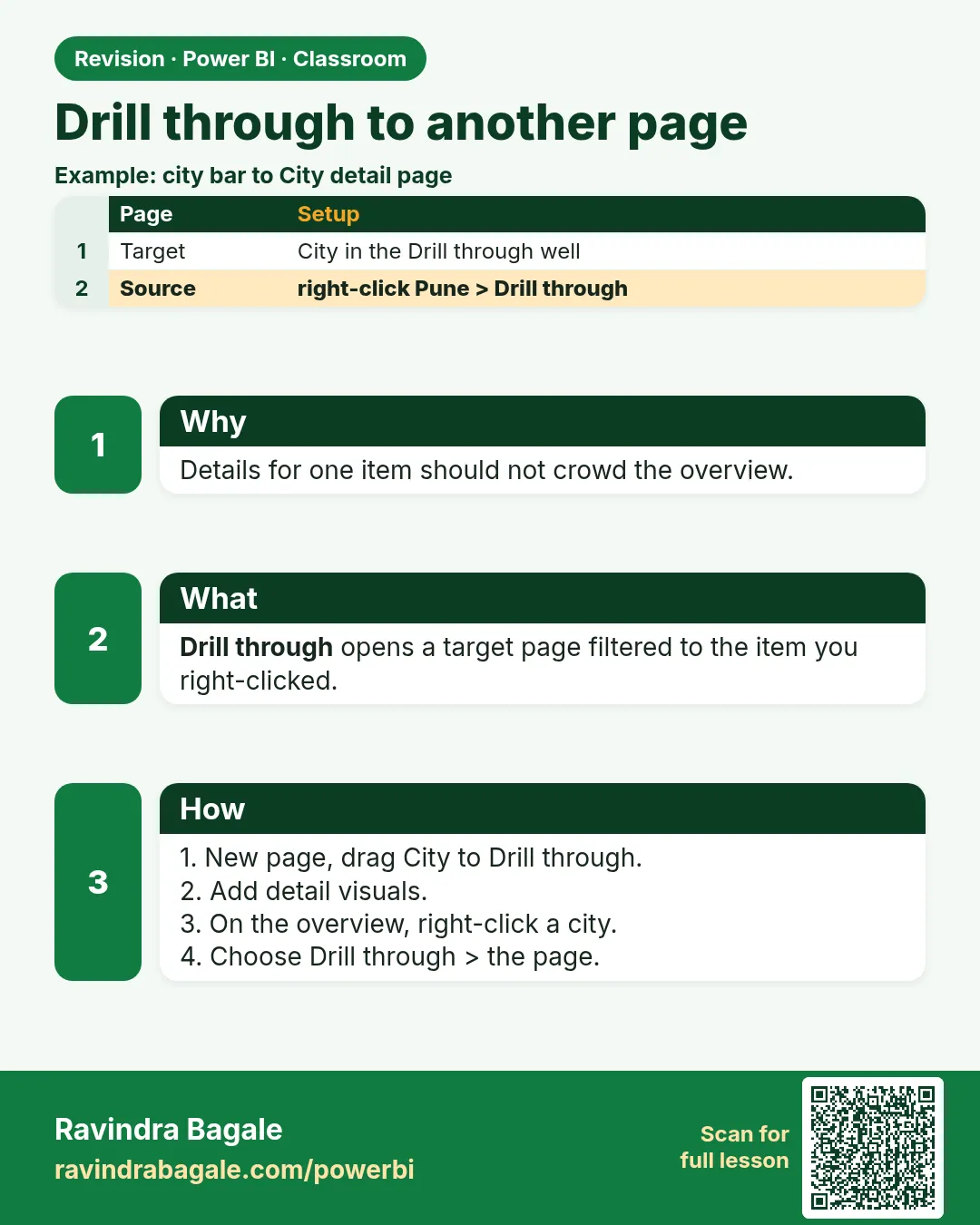
- Drill through jumps to another page and filters it to the item you right-clicked. Think of a map: right-click India and a page opens with India's states (Maharashtra, Karnataka, Gujarat…).
To make it work, the details page needs to know which field carries the filter. You put that field (here category) in the details page's Drillthrough well. The well belongs to the page, not to any visual, so you set it with the empty canvas selected.
Figure 1. Drill down changes the same chart to the next level; drill through opens a separate details page filtered to the clicked category (illustration).
Classroom line
Drill down and drill through are different. Drill down happens in the same visual. Drill through happens on another page.
Class मधलं वाक्य
"Drill down and drill through madhe farak ahe. Drill down same visual vr hoil. Drill through dusrya page vr hoil."
Drill down आणि drill through मध्ये फरक आहे. Drill down same visual वर होईल. Drill through दुसऱ्या page वर होईल.
Classroom line
Drill down and drill through are different. Drill down happens in the same visual. Drill through happens on another page.
3. The data
What the details page should show for each category (12 orders, blinkit-sales-2025-small.csv):
| Clicked category | Revenue card | Revenue by sub_category | Revenue by city |
|---|---|---|---|
| Snacks & Branded Foods | 880 | Biscuits & Cookies 460 · Namkeen 420 | Pune 290 · Kolhapur 240 · Chhatrapati Sambhajinagar 180 · Nagpur 170 |
| Dairy & Bakery | 1,600 | Ghee & Butter 1,300 · Curd & Shrikhand 300 | Nashik 950 · Pune 650 |
| Sweets | 840 | Mithai 840 | Pune 840 |
| Staples | 530 | Dals & Pulses 320 · Atta & Flours 210 | Solapur 320 · Nagpur 210 |
4. Step by step
The overview page
- On the page with the chart (call it
Overview), make sure a clustered column chart shows category (or the category hierarchy) on the X-axis and revenue on the Y-axis.
The details page
- Click + at the bottom to add a page. Rename it
Category details. - Click an empty part of the canvas so that no visual is selected.
- In the Visualizations pane, scroll to the bottom to the Drillthrough section. Drag category from the Data pane into Add drillthrough fields here. Use the plain category field, not the category Hierarchy. In the newer Format pane you may find the same setting as Format page › Page information › Page type: Drillthrough, then Drill through from › Add data › category.
- Power BI adds a Back button (a left arrow) at the top left of the page.
- Add a Card with revenue, a Clustered column chart with sub_category × revenue, and a Clustered bar chart with city × revenue. Add a text box or card with category so the page shows which category it is for.
Use it
- Go back to
Overview. Right-click the Snacks & Branded Foods bar › Drill through › Category details. - The details page opens, filtered to Snacks & Branded Foods: card 880, Biscuits & Cookies 460 and Namkeen 420.
- To return, Ctrl+click the Back button (in Power BI Desktop a plain click selects the button for editing; in the Power BI Service a normal click works).
- Right-click Dairy & Bakery › Drill through › Category details: card 1,600, Ghee & Butter 1,300 and Curd & Shrikhand 300.
Figure 2. The details page with the canvas selected: Drillthrough section in the Visualizations pane with category added, Keep all filters on, and the automatic Back button (illustration).
5. Your result should look like this
| You right-click | Details page shows |
|---|---|
| Snacks & Branded Foods | card 880; sub_category: Biscuits & Cookies 460, Namkeen 420 |
| Dairy & Bakery | card 1,600; sub_category: Ghee & Butter 1,300, Curd & Shrikhand 300 |
| Staples | card 530; sub_category: Dals & Pulses 320, Atta & Flours 210 |
In the Filters pane of the details page you can see the drill-through filter, for example category is Snacks & Branded Foods. If you open the details page directly from its tab, it shows all categories (₹3,850), because nothing has been passed to it.
6. What happened
- Putting category in the Drillthrough well told Power BI: this page can receive a category.
- Every visual on any other page that uses category now offers Drill through › Category details on right-click.
- Clicking it carried the clicked value over as a page filter, so all three visuals on the details page showed only that category.
- The Back button returned you to the page you came from.
Classroom line
Not the hierarchy; put the plain category field.
Class मधलं वाक्य
"Hierarchy nako, sadha category tak."
Hierarchy नको, साधा category टाक.
Classroom line
Not the hierarchy; put the plain category field.
7. Explore further
- Keep all filters. On by default: filters from the source (slicers, page filters, the clicked bar) are carried to the details page. With a page filter city = Pune on the overview, drilling through on Snacks gives 290, not 880. Turn it off if you want only the drill-through field to pass.
- Cross-report. Turn on Cross-report in the Drillthrough section to drill through from other reports in the same workspace in the Power BI Service.
- Several fields. Add both category and city to the well to open details for "Snacks in Pune". The source visual then needs both fields.
- Drill-through button. Insert › Buttons › Blank, Action type Drill through, Destination Category details. Users select a bar, then click the button: easier to discover than right-click.
- Hide the details page (right-click the tab › Hide page) if it makes no sense on its own; drill through still works.
Classroom line
With drill up and drill down we see different data in the same visual; with drill through we go to another page.
Class मधलं वाक्य
"Drill up and down मध्ये ... एकाच visual मध्ये आपण वेगवेगळे data बघतो... Drill through मध्ये... दुसऱ्या page वरती ..."
Drill up आणि drill down मध्ये एकाच visual मध्ये आपण वेगवेगळा data बघतो; drill through मध्ये दुसऱ्या page वर जातो.
Classroom line
With drill up and drill down we see different data in the same visual; with drill through we go to another page.
8. Common mistakes
| Wrong result | Reason | Fix |
|---|---|---|
| No Drill through option on right-click | The source visual does not use the field that is in the well | Use category in the source chart, or put the right field in the well |
| You cannot find the Drillthrough section | A visual is selected, so the pane shows that visual | Click empty canvas on the details page first |
| The hierarchy in the well does not work as expected | The category Hierarchy was dragged in | Use the plain category field |
| The details page shows all categories | You opened it from its tab, not through drill through | Right-click a bar › Drill through |
| Clicking Back does nothing in Desktop | Desktop buttons need Ctrl+click | Ctrl+click, or test in the Power BI Service |
| Numbers on the details page are lower than the bar | Keep all filters passed a slicer or page filter too | Expected; turn off Keep all filters if you do not want that |
Ravindra Bagale's Tip
Put a big title on every drill-through page that shows the passed value, such as a card with category. When people land on a details page they should know in one second what they are looking at and how to go back.
Ravindra Bagale's Tip – मराठी
प्रत्येक drill-through page वर pass झालेली value दाखवणारं मोठं title ठेवा, जसं category चं card. Details page वर आल्यावर लोकांना एका सेकंदात कळलं पाहिजे की ते काय बघतायत आणि परत कसं जायचं.
Ravindra Bagale's Tip – हिंदी
हर drill-through page पर pass हुई value दिखाने वाला बड़ा title रखिए, जैसे category का card. Details page पर आते ही लोगों को एक सेकंड में पता चलना चाहिए कि वे क्या देख रहे हैं और वापस कैसे जाना है.
Classroom line
Clicking on what should bring up this page? Clicking on a category.
Class मधलं वाक्य
"Kashala click kelyanantr ha page yayla pahije? Category la click kelyanantr."
कशावर click केल्यानंतर हा page यायला पाहिजे? Category वर click केल्यानंतर.
Classroom line
Clicking on what should bring up this page? Clicking on a category.
9. Practise on your own
Practice task
With blinkit-sales-2025.csv, build the Overview and Category details pages.
- Drill through on Staples: what does the revenue card show, and which sub-categories appear?
- Drill through on Sweets: how many sub-categories?
- Drill through on Snacks & Branded Foods: which sub-category is bigger?
- How many orders does Snacks & Branded Foods have? (Add a card with Count of order_id.)
Show solution
- ₹19,240: Dals & Pulses 12,720 · Atta & Flours 3,640 · Rice & Poha 2,880.
- 1: Mithai 21,720.
- Biscuits & Cookies 9,750, then Namkeen 8,460 (total 18,210).
- 153 orders: the most orders, but the lowest revenue of the four categories.
10. Think like a professional
- Business view. Overview pages answer "where"; drill-through pages answer "why". Keeping them apart keeps both readable.
- One details page, any item. A single drill-through page scales to new categories without changes.
- Design for discovery. Add a subtitle on the overview ("Right-click a bar for details") or a drill-through button.
- Watch carried filters. Keep all filters is usually what users expect, but label the page so they know which filters came along.
Interview questions
- What is drill through? Navigation from a visual to another page that is filtered to the selected item.
- How do you set it up? On the target page, with no visual selected, add the field to the Drillthrough well (or Page type Drillthrough › Drill through from).
- Drill down vs drill through? Drill down shows the next level in the same visual; drill through opens another page.
- What does Keep all filters do? Passes all filters from the source page, not just the drill-through field.
Recap
In short
- Drill through opens another page filtered to the clicked item.
- Add a details page; with the canvas selected, put category in the Drillthrough well.
- Use the plain field, not the hierarchy.
- Right-click a bar › Drill through › the page; Ctrl+click Back in Desktop.
- Keep all filters carries slicers and page filters along.
 Revision card