How to Show Total Orders, Revenue and Sales with Card Visuals in Power BI
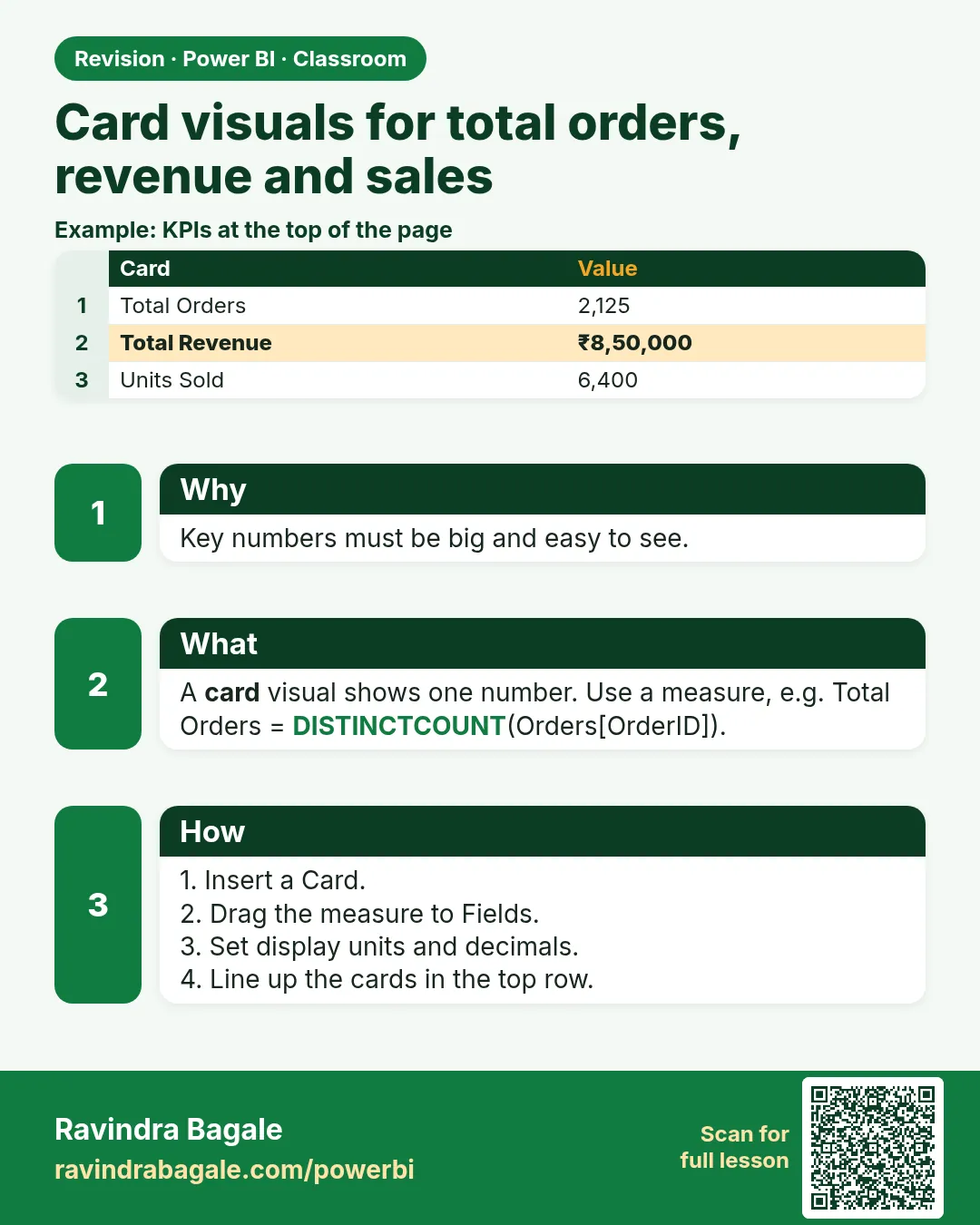
The first thing anyone looks at on a dashboard is the row of big numbers at the top: how many orders, how much revenue, how many units. These are card visuals. They look simple, but a card shows whatever Power BI guesses unless you check it: an order ID card can show "First order_id: BLK1001" instead of a count, and revenue can show a rounded "K" value nobody asked for. In this chapter you build three correct cards, format them, and line them up above a chart.
What you'll learn in this chapter
- What a card visual shows
- Why a text field shows First, and how to change it
- Count vs Count (Distinct)
- Sum of revenue and sales on a card
- Display units: Auto vs None
- Format the callout value and label
- Copy formatting and align cards in a row
Practice files: blinkit-orders-small-clean.csv (7 orders) and blinkit-orders-clean.csv (274 orders). Load them with order_date as Date (locale English (India)), sales and stock as Whole Number, price and revenue as Decimal Number, as in How to Clean Messy Sales Data in Power BI Power Query.
Made-up data: fictional Blinkit-style orders from Maharashtra cities, for practice only. Amounts are in ₹; "sales" means units sold.
1. The problem
You need three headline numbers for the 7 orders: Total Orders, Total Revenue and Total Sales (units). You drop order_id on a card and it says BLK1001. You drop revenue on a card and it says something like 3.31K. Neither is what the manager wants to read.
2. The idea in simple words
A card shows one number: one field, added up in one way. That way is called the aggregation.
| Field type | What Power BI picks by default | What you usually want |
|---|---|---|
| Number (revenue, sales) | Sum | Sum (sometimes Average) |
| Text (order_id, city) | First (the first value alphabetically) | Count or Count (Distinct) |
- Count counts the non-blank values in the column.
- Count (Distinct) counts each different value once.
For order_id after cleaning, both give the same answer, because every order ID is unique. For store_id they differ: 7 rows, but only 4 different stores.
Figure 1. Count vs Count (Distinct) on the store_id column of the 7 orders: Count = 7, Count (Distinct) = 4 (illustration).
3. The data
| order_id | store_id | sales | revenue (₹) |
|---|---|---|---|
| BLK1001 | PUN01 | 2 | 240 |
| BLK1002 | NSK01 | 1 | 450 |
| BLK1003 | SLP01 | 3 | 270 |
| BLK1005 | PUN01 | 4 | null |
| BLK1006 | NSK01 | 1 | 999 |
| BLK1008 | KOP01 | 2 | 900 |
| BLK1009 | PUN01 | 5 | 450 |
By hand:
| Card | Calculation | Answer |
|---|---|---|
| Total Orders | count of order_id | 7 |
| Total Revenue | 240 + 450 + 270 + 999 + 900 + 450 (null skipped) | ₹3,309 |
| Total Sales | 2 + 1 + 3 + 4 + 1 + 2 + 5 | 18 units |
| Stores | Count (Distinct) of store_id | 4 |
4. Step by step
Total Orders
- In Report view click an empty part of the canvas, then Card in the Visualizations pane. (In some versions there is also a newer card; either works for these steps.)
- Drag order_id to the Fields well of the card. It shows BLK1001, labelled First order_id.
- In the Fields well click the small arrow next to First order_id and choose Count. The card shows 7.
- Open the same menu and try Count (Distinct). It also shows 7. Leave it on Count.
- Double-click the field name in the well and type Total Orders.
Total Revenue
- Click an empty part of the canvas, add another Card, and drag revenue to Fields. It shows Sum of revenue, shortened with a K for thousands.
- Open Format visual (the paintbrush) › Visual › Callout value. Set Display units to None and Value decimal places to 0. The card shows 3,309.
- Rename the field to Total Revenue (₹).
Total Sales
- Add a third card with sales. It shows 18. Rename it Total Sales (units).
Format once, copy to the others
- Select the Total Orders card. In Callout value set the font to bold, size 28 and a colour of your choice. In Category label keep it on so the name shows under the number.
- With the formatted card selected, click Home › Format painter, then click the Total Revenue card. Repeat for Total Sales.
Line them up
- Resize one card, then select all three (Ctrl+click).
- Format tab › Align › Align top, then Align › Distribute horizontally.
- Place the column chart from How to Create Column and Bar Charts with Date Hierarchy and Drill Down in Power BI below the row of cards, as wide as the three cards together.
Figure 2. The finished layout: three cards in a row (Total Orders 7, Total Revenue ₹3,309, Total Sales 18 units) above the revenue column chart (illustration).
5. Your result should look like this
| Card | Shows | Label |
|---|---|---|
| 1 | 7 | Total Orders |
| 2 | 3,309 | Total Revenue (₹) |
| 3 | 18 | Total Sales (units) |
If you also add a card with store_id set to Count (Distinct), it shows 4.
6. What happened
- order_id is text, and a text column cannot be summed, so Power BI picked First: the smallest value in alphabetical order, BLK1001. Changing it to Count told Power BI to count the rows that have an order ID.
- revenue is a number, so Power BI picked Sum, and skipped the null for BLK1005.
- Display units: Auto shortens large numbers (K for thousand, M for million). None shows the full value.
- Format painter copies every format setting from one visual to another, so all three cards match.
Ravindra Bagale's Tip
Power BI guesses the aggregation for every field you drop, and it is not always right. After every card, read the small label: First, Count, Sum or Average. If the word does not match your question, change it before you format anything.
Ravindra Bagale's Tip – मराठी
तुम्ही drop केलेल्या प्रत्येक field चं aggregation Power BI अंदाजाने ठरवतो, आणि ते नेहमी बरोबर नसतं. प्रत्येक card नंतर छोटं label वाचा: First, Count, Sum की Average. तो शब्द तुमच्या प्रश्नाशी जुळत नसेल, तर format करण्याआधीच बदला.
Ravindra Bagale's Tip – हिंदी
आप जो भी field drop करते हैं, उसका aggregation Power BI अंदाज़े से तय करता है, और वह हमेशा सही नहीं होता. हर card के बाद छोटा label पढ़िए: First, Count, Sum या Average. वह शब्द आपके सवाल से मेल नहीं खाता, तो format करने से पहले ही बदलिए.
Classroom line
Power BI guesses the aggregation, but it is not always right.
Class मधलं वाक्य
"Power BI aggregation guess karto, pan to nehmi barobar nasto."
Power BI aggregation guess करतो, पण तो नेहमी बरोबर नसतो.
Classroom line
Power BI guesses the aggregation, but it is not always right.
7. Explore further
- Average on a card. Choose Average for price and the card shows 371.5 for the 7 orders: (120 + 450 + 120 + 999 + 450 + 90) ÷ 6. The null price of BLK1003 is skipped, which is why cleaning used null and not 0.
- ₹ symbol. In Table view select revenue, then Column tools › Format › Currency, and pick the ₹ symbol. Cards and charts then show the rupee sign.
- Indian digit grouping. Whether Power BI shows 1,69,509 or 169,509 depends on the regional setting (File › Options and settings › Options › Regional settings). Check it before you share a report with lakh figures.
- Measures instead of fields. A measure such as
Total Revenue = SUM(Sales[revenue])gives the same 3,309, but you write it once and reuse it on every page. The DAX chapters of the course start from here. - Multi-row card shows several numbers in one visual, useful when space is tight.
8. Common mistakes
| Wrong result | Reason | Fix |
|---|---|---|
| Card shows BLK1001 | Text field with the default First | Change to Count or Count (Distinct) |
| Total Orders shows 9 | Duplicate order IDs were not removed in Power Query | Remove duplicates on order_id; or use Count (Distinct) and fix the source too |
| Card shows 3.31K | Display units on Auto | Callout value › Display units › None |
| Total Sales is wrong or shows Count | sales is still text because the "$" was not removed | Extract text before "$" and set Whole Number in Power Query |
| Average price 318.43 | NA was replaced with 0 instead of null | Fix in Power Query: replace NA with an empty value |
| Cards in slightly different sizes | Each card was resized by hand | Use Format painter, then Align and Distribute |
9. Practise on your own
Practice task
With blinkit-orders-clean.csv build four cards:
- Total Orders (Count of order_id)
- Total Revenue (₹) with Display units None
- Total Sales (units)
- Number of stores (Count (Distinct) of store_id)
Then add a fifth card with Count of store_id and compare it with card 4.
Hints: 274 orders after cleaning; there are 7 stores in 6 cities.
Show solution
- Total Orders: 274
- Total Revenue: 169,509 (₹1,69,509 with Indian grouping)
- Total Sales: 664 units
- Stores, Count (Distinct): 7
- Count of store_id: 274, because Count counts every row, while Count (Distinct) counts each store once.
10. Think like a professional
- Business view. Put the three to five numbers the reader cares about most in one row at the top, left to right in order of importance. Everything else goes below.
- Performance. Cards are cheap visuals, but each one is a query. Ten cards of small facts slow a page more than one table with the same facts.
- Maintenance. Name the field in every card in plain words with the unit: "Total Revenue (₹)", "Total Sales (units)". Later, replace fields with measures so every page uses the same definition.
- Check every card by hand once. For a small sample (like the 7 orders) the numbers must match your pencil totals exactly before you trust the dashboard.
Interview questions
- Why does a card with order_id show a value like BLK1001? The field is text, so the default aggregation is First; change it to Count.
- Difference between Count and Count (Distinct)? Count counts non-blank values; Count (Distinct) counts each different value once.
- How do you show 3,309 instead of 3.31K? Format visual › Callout value › Display units › None.
- How do you make several cards look the same quickly? Format one, then use Format painter; align with Align and Distribute.
Recap
In short
- A card shows one field with one aggregation.
- Text fields default to First: change order_id to Count.
- Count counts rows; Count (Distinct) counts different values.
- Display units None shows the full number.
- Format one card, copy with Format painter, then align.
 Revision card