Power BI मध्ये Card Visuals ने Total Orders, Revenue आणि Sales कसे दाखवायचे
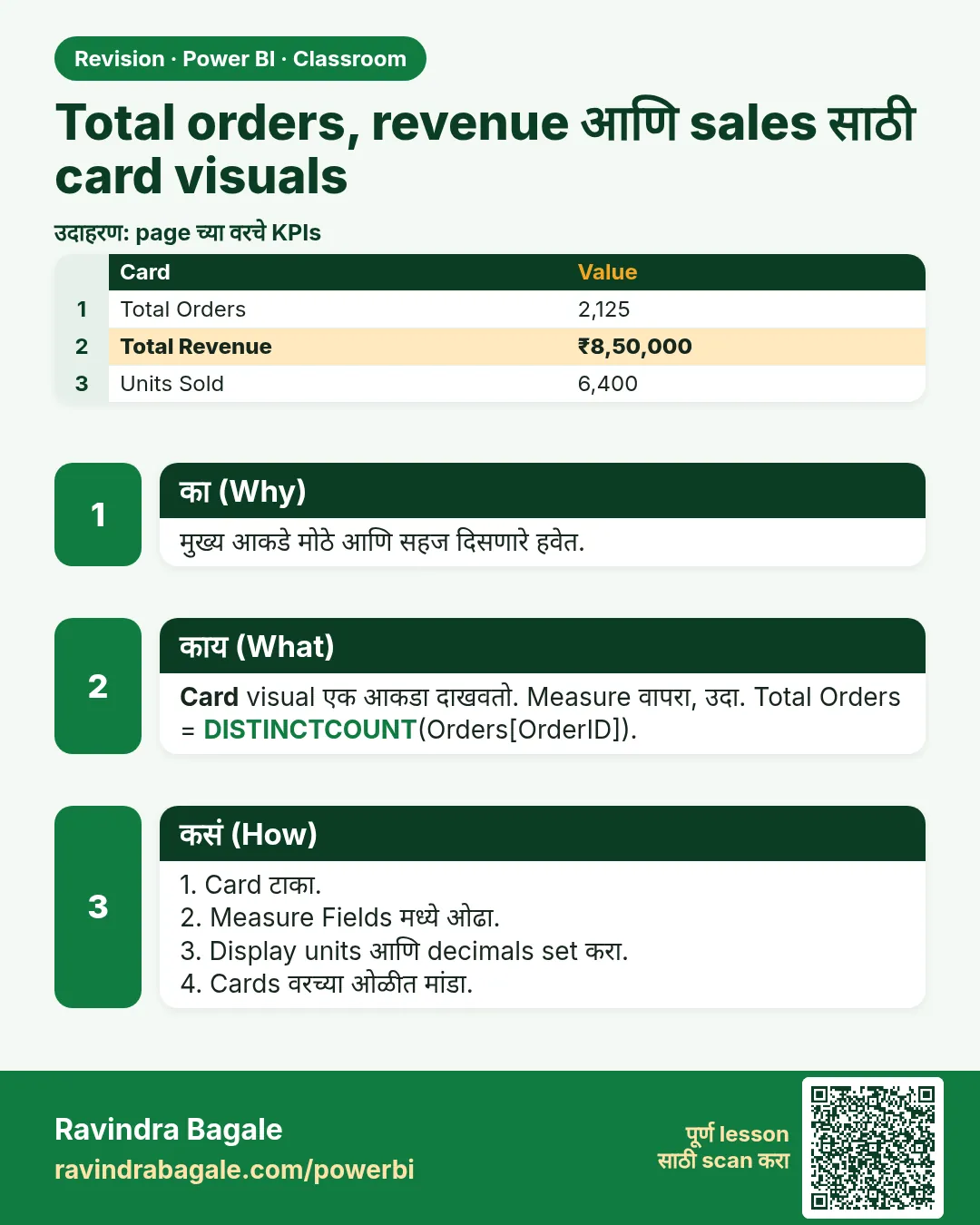
Dashboard वर कोणीही सगळ्यात आधी वरच्या मोठ्या आकड्यांची ओळ बघतो: किती orders, किती revenue, किती units. हे card visuals आहेत. दिसायला सोपे, पण तुम्ही check केलं नाही तर card Power BI चा अंदाजच दाखवतो: order ID चा card count ऐवजी "First order_id: BLK1001" दाखवू शकतो, आणि revenue कोणी न मागितलेला "K" वाला गोल आकडा दाखवतो. या chapter मध्ये आपण तीन बरोबर cards बनवणार, format करणार, आणि chart च्या वर एका ओळीत लावणार.
या chapter मध्ये काय शिकणार
- Card visual काय दाखवतो
- Text field First का दाखवतो, आणि तो कसा बदलायचा
- Count आणि Count (Distinct)
- Card वर revenue आणि sales चा Sum
- Display units: Auto आणि None
- Callout value आणि label format
- Format copy करणं आणि cards एका ओळीत
Practice files: blinkit-orders-small-clean.csv (7 orders) आणि blinkit-orders-clean.csv (274 orders). order_date Date (locale English (India)), sales आणि stock Whole Number, price आणि revenue Decimal Number करून load करा, Power BI Power Query मध्ये messy sales data clean कसा करायचा मध्ये केलं तसं.
काल्पनिक data: Maharashtra मधल्या शहरांतले Blinkit सारखे orders, फक्त practice साठी. Amounts ₹ मध्ये; "sales" म्हणजे विकलेले units.
1. Problem काय आहे
7 orders साठी तीन headline आकडे हवेत: Total Orders, Total Revenue आणि Total Sales (units). order_id card वर टाकला की तो BLK1001 दाखवतो. revenue टाकला की 3.31K सारखं काहीतरी. Manager ला यापैकी काहीच वाचायचं नाहीये.
2. सोप्या भाषेत idea
Card एकच आकडा दाखवतो: एक field, एका पद्धतीने add up केलेला. त्या पद्धतीला aggregation म्हणतात.
| Field type | Power BI default काय घेतो | सहसा काय हवं |
|---|---|---|
| Number (revenue, sales) | Sum | Sum (कधी Average) |
| Text (order_id, city) | First (alphabetically पहिली value) | Count किंवा Count (Distinct) |
- Count column मधल्या non-blank values मोजतो.
- Count (Distinct) प्रत्येक वेगळी value एकदाच मोजतो.
Cleaning नंतर order_id साठी दोन्ही same उत्तर देतात, कारण प्रत्येक order ID unique आहे. store_id साठी फरक पडतो: 7 rows, पण stores फक्त 4.
Figure 1. 7 orders च्या store_id column वर Count आणि Count (Distinct): Count = 7, Count (Distinct) = 4 (चित्र).
3. Data
| order_id | store_id | sales | revenue (₹) |
|---|---|---|---|
| BLK1001 | PUN01 | 2 | 240 |
| BLK1002 | NSK01 | 1 | 450 |
| BLK1003 | SLP01 | 3 | 270 |
| BLK1005 | PUN01 | 4 | null |
| BLK1006 | NSK01 | 1 | 999 |
| BLK1008 | KOP01 | 2 | 900 |
| BLK1009 | PUN01 | 5 | 450 |
हाताने:
| Card | हिशोब | उत्तर |
|---|---|---|
| Total Orders | order_id चा count | 7 |
| Total Revenue | 240 + 450 + 270 + 999 + 900 + 450 (null सोडला) | ₹3,309 |
| Total Sales | 2 + 1 + 3 + 4 + 1 + 2 + 5 | 18 units |
| Stores | store_id चा Count (Distinct) | 4 |
4. Step by step
Total Orders
- Report view मध्ये canvas च्या रिकाम्या भागावर click करा, मग Visualizations pane मध्ये Card. (काही versions मध्ये नवीन card पण असतो; या steps साठी कोणताही चालेल.)
- order_id ओढून card च्या Fields well मध्ये टाका. तो BLK1001 दाखवतो, label First order_id.
- Fields well मध्ये First order_id च्या बाजूचा छोटा arrow click करा आणि Count निवडा. Card 7 दाखवतो.
- त्याच menu मधून Count (Distinct) पण बघा. तो पण 7 दाखवतो. Count वर ठेवा.
- Well मधल्या field नावावर double-click करून Total Orders टाइप करा.
Total Revenue
- Canvas च्या रिकाम्या भागावर click करा, दुसरा Card टाका, आणि revenue Fields मध्ये ओढा. तो Sum of revenue दाखवतो, हजारांसाठी K लावून.
- Format visual (paintbrush) › Visual › Callout value उघडा. Display units None आणि Value decimal places 0 करा. Card 3,309 दाखवतो.
- Field चं नाव Total Revenue (₹) करा.
Total Sales
- sales चा तिसरा card टाका. तो 18 दाखवतो. नाव Total Sales (units) करा.
एकदा format करा, बाकीच्यांवर copy करा
- Total Orders card select करा. Callout value मध्ये font bold, size 28 आणि तुम्हाला हवा तो रंग. Category label चालू ठेवा, म्हणजे आकड्याखाली नाव दिसेल.
- Format केलेला card select असताना Home › Format painter click करा, मग Total Revenue card वर click करा. Total Sales साठी पण तसंच.
एका ओळीत लावा
- एक card resize करा, मग तिन्ही select करा (Ctrl+click).
- Format tab › Align › Align top, मग Align › Distribute horizontally.
- Power BI मध्ये Date Hierarchy आणि Drill Down सकट Column आणि Bar Charts कसे बनवायचे मधला column chart cards च्या ओळीखाली, तिन्ही cards इतका रुंद ठेवा.
Figure 2. तयार layout: एका ओळीत तीन cards (Total Orders 7, Total Revenue ₹3,309, Total Sales 18 units) आणि खाली revenue column chart (चित्र).
5. तुमचा result असा दिसला पाहिजे
| Card | दाखवतो | Label |
|---|---|---|
| 1 | 7 | Total Orders |
| 2 | 3,309 | Total Revenue (₹) |
| 3 | 18 | Total Sales (units) |
store_id Count (Distinct) वर ठेवून card टाकला तर तो 4 दाखवतो.
6. काय झालं
- order_id text आहे, आणि text column चा sum होत नाही, म्हणून Power BI ने First घेतलं: alphabetical क्रमाने सगळ्यात लहान value, BLK1001. Count केल्यावर Power BI ने order ID असलेले rows मोजले.
- revenue number आहे, म्हणून Power BI ने Sum घेतला, आणि BLK1005 चा null सोडून दिला.
- Display units: Auto मोठे आकडे लहान करतो (हजारासाठी K, millions साठी M). None पूर्ण value दाखवतो.
- Format painter एका visual ची सगळी format settings दुसऱ्यावर copy करतो, म्हणून तिन्ही cards सारखे दिसतात.
Ravindra Bagale's Tip
Power BI guesses the aggregation for every field you drop, and it is not always right. After every card, read the small label: First, Count, Sum or Average. If the word does not match your question, change it before you format anything.
Ravindra Bagale's Tip – मराठी
तुम्ही drop केलेल्या प्रत्येक field चं aggregation Power BI अंदाजाने ठरवतो, आणि ते नेहमी बरोबर नसतं. प्रत्येक card नंतर छोटं label वाचा: First, Count, Sum की Average. तो शब्द तुमच्या प्रश्नाशी जुळत नसेल, तर format करण्याआधीच बदला.
Ravindra Bagale's Tip – हिंदी
आप जो भी field drop करते हैं, उसका aggregation Power BI अंदाज़े से तय करता है, और वह हमेशा सही नहीं होता. हर card के बाद छोटा label पढ़िए: First, Count, Sum या Average. वह शब्द आपके सवाल से मेल नहीं खाता, तो format करने से पहले ही बदलिए.
Classroom line
Power BI guesses the aggregation, but it is not always right.
Class मधलं वाक्य
"Power BI aggregation guess karto, pan to nehmi barobar nasto."
Power BI aggregation guess करतो, पण तो नेहमी बरोबर नसतो.
Classroom line
Power BI guesses the aggregation, but it is not always right.
7. अजून थोडं खोलात
- Card वर Average. price साठी Average निवडलं की 7 orders साठी card 371.5 दाखवतो: (120 + 450 + 120 + 999 + 450 + 90) ÷ 6. BLK1003 ची null price सोडली जाते; म्हणूनच cleaning मध्ये 0 नाही, null वापरला.
- ₹ चिन्ह. Table view मध्ये revenue select करा, मग Column tools › Format › Currency, आणि ₹ निवडा. Cards आणि charts मध्ये rupee चिन्ह दिसायला लागतं.
- Indian digit grouping. Power BI 1,69,509 दाखवतो की 169,509, हे regional setting वर अवलंबून आहे (File › Options and settings › Options › Regional settings). लाखांचे आकडे असलेला report share करण्याआधी check करा.
- Fields ऐवजी measures.
Total Revenue = SUM(Sales[revenue])सारखा measure पण 3,309 च देतो, पण तो एकदा लिहून प्रत्येक page वर वापरता येतो. Course चे DAX chapters इथून सुरू होतात. - Multi-row card एकाच visual मध्ये अनेक आकडे दाखवतो; जागा कमी असेल तेव्हा उपयोगी.
8. नेहमीच्या चुका
| चुकीचा result | कारण | उपाय |
|---|---|---|
| Card BLK1001 दाखवतो | Text field, default First | Count किंवा Count (Distinct) करा |
| Total Orders 9 दाखवतो | Power Query मध्ये duplicate order IDs काढले नाहीत | order_id वर duplicates काढा; किंवा Count (Distinct) वापरा आणि source पण fix करा |
| Card 3.31K दाखवतो | Display units Auto वर | Callout value › Display units › None |
| Total Sales चुकीचा किंवा Count दाखवतो | "$" न काढल्यामुळे sales अजून text | Power Query मध्ये "$" च्या आधीचा text extract करा आणि Whole Number करा |
| Average price 318.43 | NA ऐवजी null न टाकता 0 टाकला | Power Query मध्ये fix: NA रिकाम्या value ने replace करा |
| Cards थोडे वेगवेगळ्या size चे | प्रत्येक card हाताने resize केला | Format painter, मग Align आणि Distribute |
9. स्वतः practice करा
Practice task
blinkit-orders-clean.csv वापरून चार cards बनवा:
- Total Orders (order_id चा Count)
- Display units None सकट Total Revenue (₹)
- Total Sales (units)
- Stores ची संख्या (store_id चा Count (Distinct))
मग store_id चा Count असलेला पाचवा card टाका आणि card 4 शी तुलना करा.
Hints: cleaning नंतर 274 orders; 6 cities मध्ये 7 stores आहेत.
Solution बघा
- Total Orders: 274
- Total Revenue: 169,509 (Indian grouping ने ₹1,69,509)
- Total Sales: 664 units
- Stores, Count (Distinct): 7
- store_id चा Count: 274, कारण Count प्रत्येक row मोजतो, तर Count (Distinct) प्रत्येक store एकदाच.
10. Professional सारखा विचार करा
- Business view. वाचणाऱ्याला सगळ्यात महत्त्वाचे तीन ते पाच आकडे वर एका ओळीत, डावीकडून उजवीकडे महत्त्वाच्या क्रमाने. बाकी सगळं खाली.
- Performance. Cards हलके visuals आहेत, पण प्रत्येक card एक query आहे. छोट्या facts चे दहा cards, तेच facts असलेल्या एका table पेक्षा page जास्त slow करतात.
- Maintenance. प्रत्येक card मधल्या field ला unit सकट साध्या शब्दांत नाव द्या: "Total Revenue (₹)", "Total Sales (units)". पुढे fields ऐवजी measures वापरा, म्हणजे प्रत्येक page वर एकच definition.
- प्रत्येक card एकदा हाताने check करा. छोट्या sample साठी (जसे 7 orders) dashboard वर विश्वास ठेवण्याआधी आकडे तुमच्या pencil totals शी अगदी जुळले पाहिजेत.
Interview questions
- order_id चा card BLK1001 सारखी value का दाखवतो? Field text आहे, म्हणून default aggregation First; तो Count करा.
- Count आणि Count (Distinct) मध्ये फरक? Count non-blank values मोजतो; Count (Distinct) प्रत्येक वेगळी value एकदाच मोजतो.
- 3.31K ऐवजी 3,309 कसं दाखवायचं? Format visual › Callout value › Display units › None.
- अनेक cards पटकन सारखे कसे करायचे? एक format करा, मग Format painter; Align आणि Distribute ने लावा.
Recap
थोडक्यात
- Card एक field एका aggregation ने दाखवतो.
- Text fields default First: order_id Count करा.
- Count rows मोजतो; Count (Distinct) वेगळ्या values.
- Display units None पूर्ण आकडा दाखवतो.
- एक card format करा, Format painter ने copy करा, मग align.
 उजळणी card