Power BI मध्ये custom hierarchy बनवून category नुसार drill down कसं करायचं
Revenue by category चा chart सांगतो की Snacks & Branded Foods ने ₹880 कमावले. पुढचा प्रश्न नेहमी असतो "कशातून?": biscuits की namkeen? आणि कोणतं biscuit? तीन charts बनवता येतील, किंवा level by level उघडणारा एकच chart बनवता येईल. Dates साठी Power BI हे स्वतःच करतो (year, quarter, month, day). या chapter मध्ये आपण products साठी तेच बनवणार: category › sub_category › product अशी custom hierarchy, आणि त्यात खाली जायचे दोन मार्ग शिकणार.
या chapter मध्ये काय शिकणार
- Hierarchy म्हणजे काय (Data pane मधला arrow)
- category वरून Create hierarchy
- sub_category आणि product त्यात add करणं
- Go to the next level: सगळे items
- Drill-down mode: फक्त click केलेला bar
- Drill up करून परत category
- Drill down आणि drill through
Practice files: blinkit-sales-2025-small.csv (या page वरचे 12 orders) आणि blinkit-sales-2025.csv (360 orders). Date hierarchy आणि drill buttons Power BI मध्ये Date Hierarchy आणि Drill Down सकट Column आणि Bar Charts कसे बनवायचे मध्ये आधीच बघितलेत; या chapter मध्ये तेच buttons तुम्ही स्वतः बनवलेल्या hierarchy वर वापरतोय.
Made-up data: Maharashtra मधल्या शहरांचे काल्पनिक Blinkit-style orders, फक्त practice साठी. Amounts ₹ मध्ये.
1. Problem काय आहे
तुमच्या category chart मध्ये चार bars आहेत: Dairy & Bakery 1,600 · Snacks & Branded Foods 880 · Sweets 840 · Staples 530. Snacks team विचारते: snacks मध्ये काय विकलं जातंय? मग: biscuits मध्ये कोणता product?
सगळ्या 11 products चा chart वेगळ्याच प्रश्नाचं उत्तर देतो आणि त्यात ghee आणि dal पण मिसळतात. तुम्हाला Snacks वर click करून फक्त snack sub-categories बघायच्यात, मग Biscuits & Cookies वर click करून फक्त ते products, नवीन charts न बनवता.
2. सोप्या भाषेत idea
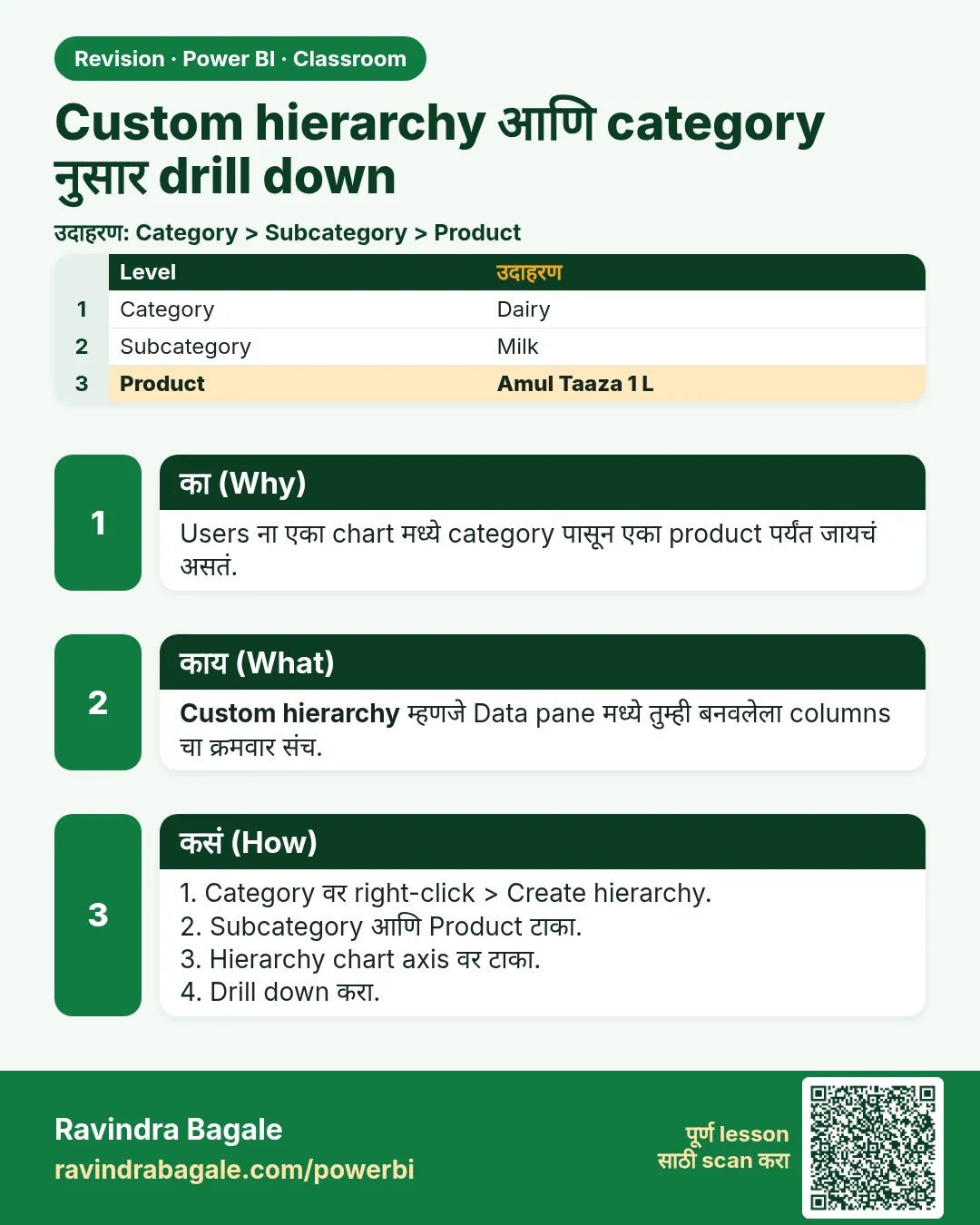
Hierarchy म्हणजे मोठ्यापासून छोट्यापर्यंत fields ची list, जिथे प्रत्येक level वरच्या level च्या आत बसते:
- Dates: Year › Quarter › Month › Day. ही Power BI स्वतः बनवतो.
- Products: category › sub_category › product. ही तुम्ही बनवता.
Data pane मध्ये ज्या field समोर छोटा arrow (▸) असतो, ती hierarchy असते; उघडली की तिच्या levels दिसतात.
Hierarchy असलेल्या chart वर खाली जायचे दोन मार्ग आहेत:
| Button | काय दिसतं |
|---|---|
| Go to the next level in the hierarchy (double down arrow ⇊) | सगळ्या data साठी पुढची level: प्रत्येक category ची प्रत्येक sub-category |
| Drill down mode (single down arrow ↓), मग bar वर click | पुढची level फक्त त्या bar च्या आत: फक्त snack sub-categories |
| Drill up (up arrow ↑) | एक level मागे |
हे सगळं एकाच visual मध्ये होतं. Details साठी दुसऱ्या page वर जाणं हे वेगळं feature आहे, drill through, पुढच्या chapter मध्ये.
Figure 1. Custom hierarchy: category › sub_category › product, Snacks & Branded Foods साठी प्रत्येक level चा revenue (चित्र).
Classroom line
Every column with an arrow like this in front of its name is a hierarchy.
Class मधलं वाक्य
"ज्या ज्या column च्या नावासमोर असा arrow दिसतो... ते hierarchical data types असतात."
ज्या ज्या column च्या नावासमोर असा arrow दिसतो, ते hierarchical data types असतात.
Classroom line
Every column with an arrow like this in front of its name is a hierarchy.
3. Data
blinkit-sales-2025-small.csv मधले 12 orders, प्रत्येक level वर total:
| category | sub_category | product | revenue (₹) |
|---|---|---|---|
| Dairy & Bakery | Ghee & Butter | ghee 1 l | 1,300 |
| Dairy & Bakery | Curd & Shrikhand | shrikhand 500 g | 300 |
| Snacks & Branded Foods | Biscuits & Cookies | jeera biscuits 250 g | 200 |
| Snacks & Branded Foods | Biscuits & Cookies | butter cookies 300 g | 170 |
| Snacks & Branded Foods | Biscuits & Cookies | masala chai biscuit 200 g | 90 |
| Snacks & Branded Foods | Namkeen | bhakarwadi 200 g | 240 |
| Snacks & Branded Foods | Namkeen | poha chivda 400 g | 180 |
| Sweets | Mithai | kaju katli 250 g | 640 |
| Sweets | Mithai | amba barfi 250 g | 200 |
| Staples | Dals & Pulses | toor dal 1 kg | 320 |
| Staples | Atta & Flours | jowar atta 1 kg | 210 |
| Level | Bars |
|---|---|
| category | Dairy & Bakery 1,600 · Snacks & Branded Foods 880 · Sweets 840 · Staples 530 |
| sub_category (सगळ्या) | Ghee & Butter 1,300 · Mithai 840 · Biscuits & Cookies 460 · Namkeen 420 · Dals & Pulses 320 · Curd & Shrikhand 300 · Atta & Flours 210 |
| Snacks च्या आत | Biscuits & Cookies 460 · Namkeen 420 |
| Biscuits & Cookies च्या आत | jeera biscuits 200 · butter cookies 170 · masala chai biscuit 90 |
4. Step by step
Hierarchy बनवा
blinkit-sales-2025-small.csvload करा. Data pane मध्ये category वर hover करा, More options (…) › Create hierarchy वर click करा. category Hierarchy नावाचा नवीन field येतो, ज्यात category आहे.- sub_category वर hover › More options › Add to hierarchy › category Hierarchy.
- product वर hover › More options › Add to hierarchy › category Hierarchy.
- category Hierarchy expand करा: levels category, sub_category, product अशा दिसतात. क्रम चुकला असेल तर hierarchy च्या आत levels drag करून ठीक करा. Hierarchy चं नाव (double-click करून)
Product hierarchyकरू शकता.
Chart वर टाका
- Clustered column chart टाका. category Hierarchy (पूर्ण hierarchy, एकच level नाही) X-axis वर, आणि revenue Y-axis वर drag करा. चार category bars येतात.
- Data labels चालू करा (Format › Visual › Data labels › On, Display units None).
सगळ्यांसाठी पुढची level
- Chart च्या वर Go to the next level in the hierarchy (⇊) वर click करा. सगळ्या categories च्या 7 sub-category bars दिसतात.
- परत ⇊ click करा: 11 product bars. Category च्या 4 bars वर परत यायला Drill up (↑) दोनदा click करा.
एका bar मध्ये drill down
- Drill-down mode चालू करायला Drill down (↓) वर click करा. Icon गडद होतो.
- Snacks & Branded Foods bar वर click करा. Chart फक्त Biscuits & Cookies 460 आणि Namkeen 420 दाखवतो.
- Biscuits & Cookies वर click करा: jeera biscuits 250 g 200, butter cookies 300 g 170, masala chai biscuit 200 g 90.
- Categories वर परत यायला Drill up दोनदा, मग drill-down mode बंद करायला परत ↓ click करा.
Figure 2. Category level वरून Go to the next level सगळ्या 7 sub-categories दाखवतो; Snacks bar वर drill-down mode फक्त त्याच्या 2 sub-categories दाखवतो (चित्र).
5. Result असा दिसायला हवा
- Data pane मध्ये arrow आणि तीन levels असलेली category Hierarchy दिसते.
- एकच chart 4, 7 किंवा 11 bars, किंवा 2 snack sub-categories, किंवा 3 biscuit products दाखवू शकतो, तुम्ही कोणतं button वापरलं त्यानुसार.
- X-axis चं title तुम्ही कोणत्या level वर आहात ते दाखवतं (category, sub_category किंवा product).
- प्रत्येक level चा total same ₹3,850 येतो, फक्त drilled views चा total तुम्ही click केलेल्या bar एवढा येतो (Snacks साठी 880, Biscuits & Cookies साठी 460).
6. काय झालं
- Hierarchy म्हणजे model मधली फक्त एक व्याख्या: तिन्ही columns तसेच राहतात, आणि category, sub_category आणि product वेगवेगळे पण वापरता येतात.
- Go to the next level ने पूर्ण chart sub_category नुसार परत group केला, म्हणून सगळ्या 7 sub-categories एकत्र दिसल्या.
- Drill-down mode मध्ये bar वर click केल्यावर पडद्यामागे "category = Snacks & Branded Foods" असा filter लागला, आणि मग त्याच्या आतली sub_category दिसली.
- Drill up ने तो filter काढला आणि एक level मागे नेलं.
Classroom line
What I want is to see the sub-categories inside one specific category only.
Class मधलं वाक्य
"मला काय पाहिजे, एका specific category मधलीच sub-categories बघायचंय."
मला काय पाहिजे, तर एका specific category मधल्याच sub-categories बघायच्या आहेत.
Classroom line
What I want is to see the sub-categories inside one specific category only.
7. अजून थोडं खोलात
- Dates सारखेच buttons. Date hierarchy पण अशीच चालते: Year मध्ये Quarter, Quarter मध्ये Month, Month मध्ये Day. Date axis वरचं drill Power BI मध्ये Date Hierarchy आणि Drill Down सकट Column आणि Bar Charts कसे बनवायचे मध्ये आहे.
- Expand all down one level (forked arrow) दोन्ही levels axis वर एकत्र दाखवतो, उदा. "Snacks & Branded Foods Namkeen". प्रत्येक child शेजारी parent दिसायला हवा तेव्हा वापरा.
- Bar वर right-click › Drill down हे drill mode चालू न करता पण चालतं.
- दुसऱ्या visuals मध्ये hierarchies. Matrix, bar, line आणि donut charts पण हीच hierarchy घेतात. Matrix मध्ये rows वर + buttons येतात.
- मोठ्या models ना memory लागते. प्रत्येक click ला drill chart परत calculate करतो. Power BI data memory मध्ये ठेवतो, म्हणून मोठ्या models साठी जास्त RAM मदत करते.
Classroom line
Inside a year there is a quarter, inside a quarter a month, and inside a month a day: it is built in.
Class मधलं वाक्य
"Year chya aat madhe quarter inbuilt asat, quarter chya aat madhe month inbuilt asat, month chya aat madhe day inbuilt asat."
Year च्या आत quarter inbuilt असतं, quarter च्या आत month inbuilt असतं, month च्या आत day inbuilt असतं.
Classroom line
Inside a year there is a quarter, inside a quarter a month, and inside a month a day: it is built in.
8. नेहमीच्या चुका
| चुकीचा result | कारण | उपाय |
|---|---|---|
| Bar वर click केलं की तो फक्त highlight होतो | Drill-down mode बंद | आधी ↓ click करा, किंवा right-click › Drill down |
| फक्त snacks हवे होते पण सगळ्या sub-categories दिसल्या | Go to the next level (⇊) वापरलं | Drill-down mode (↓) वापरा आणि bar वर click करा |
| Drill buttons दिसत नाहीत | X-axis वर फक्त एकच level (category) | पूर्ण hierarchy drag करा, किंवा X-axis well मध्ये category खाली sub_category add करा |
| Levels चुकीच्या क्रमाने (category च्या वर product) | Fields वेगळ्या क्रमाने add झाले | Hierarchy च्या आत levels drag करा |
| Chart product level वर अडकलाय | Drill down केलं आणि drill up केलंच नाही | Category level परत येईपर्यंत Drill up करा |
| Click केल्यावर page वरचे बाकीचे visuals बदलले | Drill-down mode बंद होता, म्हणून click ने page cross-filter झालं | Click करण्याआधी drill-down mode चालू करा |
Ravindra Bagale's Tip
Build hierarchies in the order people ask questions: the first question at the top, the most detailed one at the bottom. If users always ask "which city" before "which store", the hierarchy is city › store, not the other way round.
Ravindra Bagale's Tip – मराठी
लोक ज्या क्रमाने प्रश्न विचारतात, त्याच क्रमाने hierarchy बनवा: पहिला प्रश्न सगळ्यात वर, सगळ्यात detailed खाली. Users नेहमी "कोणता store" च्या आधी "कोणतं शहर" विचारत असतील, तर hierarchy city › store, उलटी नाही.
Ravindra Bagale's Tip – हिंदी
लोग जिस क्रम में सवाल पूछते हैं, उसी क्रम में hierarchy बनाइए: पहला सवाल सबसे ऊपर, सबसे detailed नीचे. Users हमेशा "कौन सा store" से पहले "कौन सा शहर" पूछते हों, तो hierarchy city › store होगी, उल्टी नहीं.
9. स्वतः practice करा
Practice task
blinkit-sales-2025.csv वापरून column chart वर हीच category › sub_category › product hierarchy बनवा.
- एकदा Go to the next level केल्यावर किती bars दिसतात, आणि दोनदा केल्यावर?
- Dairy & Bakery मध्ये drill down करा: कोणत्या sub-categories, किती revenue?
- Ghee & Butter मध्ये drill down करा: कोणते products?
- एकूण सगळ्यात मोठी sub-category कोणती?
Solution बघा
- 9 sub-category bars, मग 16 product bars.
- Ghee & Butter 43,030 · Curd & Shrikhand 3,750 · Bread & Pav 1,480 (total 48,260).
- ghee 1 l 35,750 · white butter 500 g 7,280.
- Ghee & Butter, ₹43,030, त्यानंतर Mithai 21,720.
10. Professional सारखा विचार करा
- Business view. एक drill करता येणारा chart तीन static charts ची जागा घेतो आणि story एकाच ठिकाणी ठेवतो: category, मग तिच्या आतलं कारण.
- Users ना drill कसं करायचं ते सांगा. बरेच users arrows कडे लक्षच देत नाहीत. "Details साठी ↓ मग bar वर click करा" असं subtitle टाका.
- Hierarchy clean ठेवा. प्रत्येक child एकाच parent चा असेल तेव्हाच hierarchy चालते. "Namkeen" दोन categories खाली दिसत असेल, तर आधी data fix करा.
- नाव द्या. मोठ्या model मध्ये "category Hierarchy" पेक्षा "Product hierarchy" शोधायला सोपं.
Interview questions
- Custom hierarchy कशी बनवता? Data pane › वरच्या field वर More options › Create hierarchy, मग खालच्या fields साठी Add to hierarchy.
- Go to the next level आणि Drill down मध्ये फरक काय? Next level सगळ्या data साठी पुढची level दाखवतो; drill down फक्त click केलेल्या item च्या आत.
- Drill down आणि drill through? Drill down त्याच visual मध्ये राहतो; drill through item ने filter झालेला दुसरा page उघडतो.
- Data pane मध्ये hierarchy कशी ओळखायची? तिच्या समोर arrow असतो आणि ती levels मध्ये उघडते.
Recap
थोडक्यात
- Hierarchy म्हणजे मोठं › छोटं: category › sub_category › product.
- category वर Create hierarchy, मग बाकीच्यांसाठी Add to hierarchy.
- पूर्ण hierarchy X-axis वर टाका.
- ⇊ सगळ्या bars साठी पुढची level दाखवतो; ↓ मग click एका bar साठी.
- Drill up परत नेतो; drill through (दुसरा page) पुढच्या chapter मध्ये.
 उजळणी card