How to Create a Custom Hierarchy and Drill Down by Category in Power BI
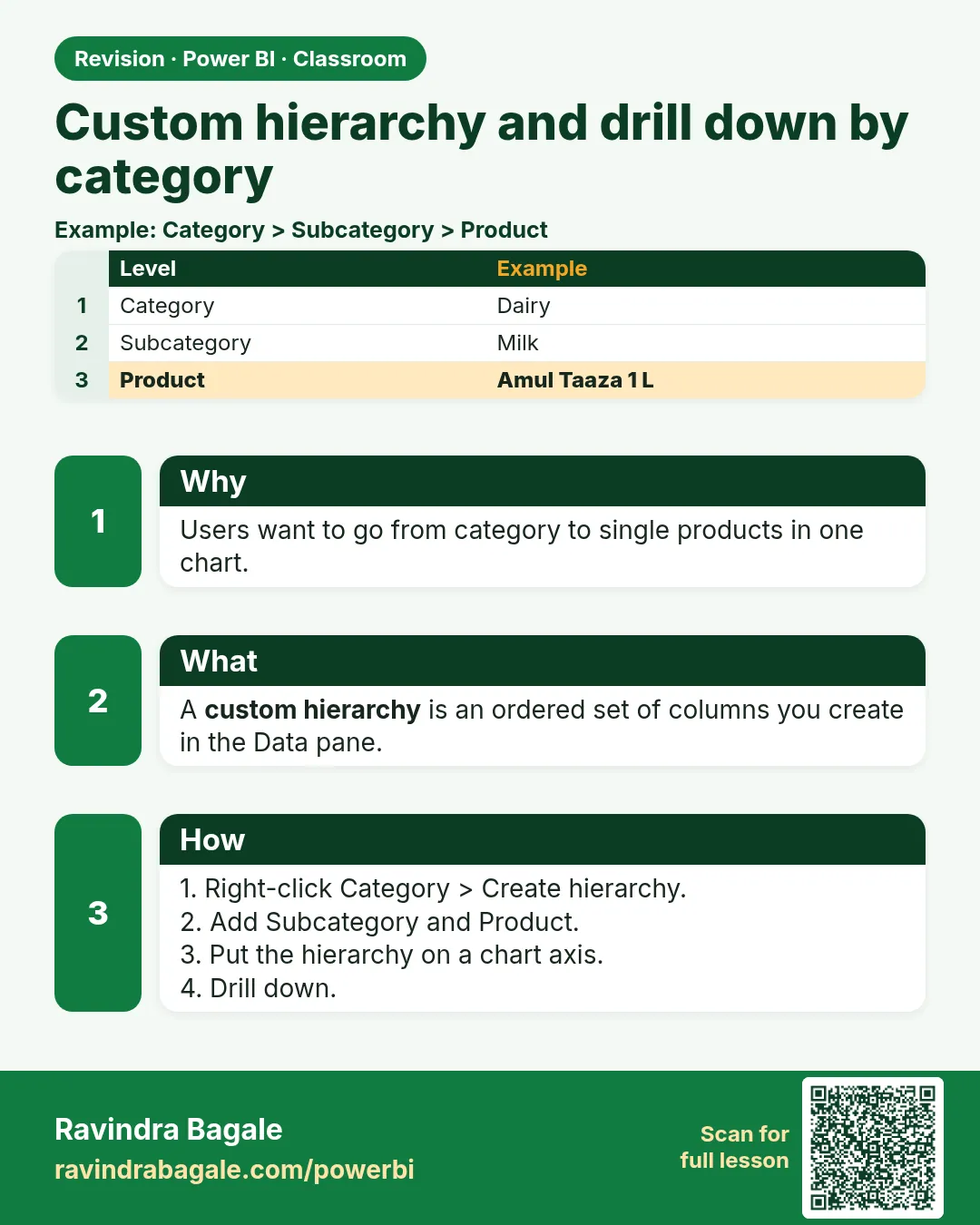
A chart of revenue by category tells you that Snacks & Branded Foods earned ₹880. The next question is always "from what?": biscuits or namkeen? and which biscuit? You could build three charts, or you could build one chart that opens level by level. Power BI does this for dates on its own (year, quarter, month, day). In this chapter you build the same thing for products: a custom hierarchy of category › sub_category › product, and you learn the two ways to go down it.
What you'll learn in this chapter
- What a hierarchy is (the arrow in the Data pane)
- Create hierarchy from category
- Add sub_category and product to it
- Go to the next level: all items
- Drill-down mode: only the clicked bar
- Drill up back to category
- Drill down vs drill through
Practice files: blinkit-sales-2025-small.csv (12 orders on this page) and blinkit-sales-2025.csv (360 orders). The date hierarchy and the drill buttons are introduced in How to Create Column and Bar Charts with Date Hierarchy and Drill Down in Power BI; this chapter uses the same buttons on a hierarchy you build yourself.
Made-up data: fictional Blinkit-style orders from Maharashtra cities, for practice only. Amounts are in ₹.
1. The problem
Your category chart has four bars: Dairy & Bakery 1,600 · Snacks & Branded Foods 880 · Sweets 840 · Staples 530. The snacks team asks: inside snacks, what sells? Then: inside biscuits, which product?
A product chart with all 11 products answers a different question and mixes in ghee and dal. You want to click Snacks and see only snack sub-categories, then click Biscuits & Cookies and see only those products, without building new charts.
2. The idea in simple words
A hierarchy is a list of fields from big to small, where each level sits inside the one above:
- Dates: Year › Quarter › Month › Day. Power BI builds this one for you.
- Products: category › sub_category › product. You build this one.
In the Data pane, a field with a small arrow (▸) in front of it is a hierarchy; open it to see its levels.
On a chart with a hierarchy there are two ways down:
| Button | What you see |
|---|---|
| Go to the next level in the hierarchy (double down arrow ⇊) | the next level for all data: every sub-category of every category |
| Drill down mode (single down arrow ↓), then click a bar | the next level only inside that bar: only the snack sub-categories |
| Drill up (up arrow ↑) | back one level |
All of this happens in the same visual. Moving to another page with details is a different feature, drill through, in the next chapter.
Figure 1. The custom hierarchy: category › sub_category › product, with revenue at each level for Snacks & Branded Foods (illustration).
Classroom line
Every column with an arrow like this in front of its name is a hierarchy.
Class मधलं वाक्य
"ज्या ज्या column च्या नावासमोर असा arrow दिसतो... ते hierarchical data types असतात."
ज्या ज्या column च्या नावासमोर असा arrow दिसतो, ते hierarchical data types असतात.
Classroom line
Every column with an arrow like this in front of its name is a hierarchy.
3. The data
The 12 orders from blinkit-sales-2025-small.csv, totalled at each level:
| category | sub_category | product | revenue (₹) |
|---|---|---|---|
| Dairy & Bakery | Ghee & Butter | ghee 1 l | 1,300 |
| Dairy & Bakery | Curd & Shrikhand | shrikhand 500 g | 300 |
| Snacks & Branded Foods | Biscuits & Cookies | jeera biscuits 250 g | 200 |
| Snacks & Branded Foods | Biscuits & Cookies | butter cookies 300 g | 170 |
| Snacks & Branded Foods | Biscuits & Cookies | masala chai biscuit 200 g | 90 |
| Snacks & Branded Foods | Namkeen | bhakarwadi 200 g | 240 |
| Snacks & Branded Foods | Namkeen | poha chivda 400 g | 180 |
| Sweets | Mithai | kaju katli 250 g | 640 |
| Sweets | Mithai | amba barfi 250 g | 200 |
| Staples | Dals & Pulses | toor dal 1 kg | 320 |
| Staples | Atta & Flours | jowar atta 1 kg | 210 |
| Level | Bars |
|---|---|
| category | Dairy & Bakery 1,600 · Snacks & Branded Foods 880 · Sweets 840 · Staples 530 |
| sub_category (all) | Ghee & Butter 1,300 · Mithai 840 · Biscuits & Cookies 460 · Namkeen 420 · Dals & Pulses 320 · Curd & Shrikhand 300 · Atta & Flours 210 |
| inside Snacks | Biscuits & Cookies 460 · Namkeen 420 |
| inside Biscuits & Cookies | jeera biscuits 200 · butter cookies 170 · masala chai biscuit 90 |
4. Step by step
Build the hierarchy
- Load
blinkit-sales-2025-small.csv. In the Data pane, hover over category, click More options (…) › Create hierarchy. A new field category Hierarchy appears with category inside it. - Hover over sub_category › More options › Add to hierarchy › category Hierarchy.
- Hover over product › More options › Add to hierarchy › category Hierarchy.
- Expand category Hierarchy: the levels read category, sub_category, product. If the order is wrong, drag the levels inside the hierarchy to fix it. You can rename the hierarchy (double-click it) to
Product hierarchy.
Put it on a chart
- Insert a Clustered column chart. Drag category Hierarchy (the whole hierarchy, not a single level) to the X-axis, and revenue to the Y-axis. Four category bars appear.
- Turn on data labels (Format › Visual › Data labels › On, Display units None).
Next level for everything
- Click Go to the next level in the hierarchy (⇊) above the chart. You see 7 sub-category bars from all categories.
- Click ⇊ again: 11 product bars. Click Drill up (↑) twice to return to the 4 categories.
Drill down into one bar
- Click Drill down (↓) to switch drill-down mode on. The icon turns dark.
- Click the Snacks & Branded Foods bar. The chart shows only Biscuits & Cookies 460 and Namkeen 420.
- Click Biscuits & Cookies: jeera biscuits 250 g 200, butter cookies 300 g 170, masala chai biscuit 200 g 90.
- Click Drill up twice to return to categories, then click ↓ again to turn drill-down mode off.
Figure 2. From the category level, Go to the next level shows all 7 sub-categories; drill-down mode on the Snacks bar shows only its 2 sub-categories (illustration).
5. Your result should look like this
- The Data pane shows category Hierarchy with an arrow and three levels.
- One chart can show 4, 7 or 11 bars, or the 2 snack sub-categories, or the 3 biscuit products, depending on the button you used.
- The X-axis title shows the level you are on (category, sub_category or product).
- Every level adds up to the same ₹3,850, except the drilled views, which add up to the bar you clicked (880 for Snacks, 460 for Biscuits & Cookies).
6. What happened
- The hierarchy is only a definition in the model: the three columns are unchanged, and you can still use category, sub_category and product on their own.
- Go to the next level regrouped the whole chart by sub_category, so all 7 sub-categories appeared together.
- Drill-down mode added a filter "category = Snacks & Branded Foods" behind the scenes when you clicked the bar, then showed sub_category inside it.
- Drill up removed that filter and went back one level.
Classroom line
What I want is to see the sub-categories inside one specific category only.
Class मधलं वाक्य
"मला काय पाहिजे, एका specific category मधलीच sub-categories बघायचंय."
मला काय पाहिजे, तर एका specific category मधल्याच sub-categories बघायच्या आहेत.
Classroom line
What I want is to see the sub-categories inside one specific category only.
7. Explore further
- Same buttons as dates. The date hierarchy works the same way: Year contains Quarter, Quarter contains Month, Month contains Day. The basics, with drill on a date axis, are in How to Create Column and Bar Charts with Date Hierarchy and Drill Down in Power BI.
- Expand all down one level (the forked arrow) shows both levels together on the axis, for example "Snacks & Branded Foods Namkeen". Use it when people need to see the parent next to each child.
- Right-click a bar › Drill down also works without switching drill mode on.
- Hierarchies in other visuals. Matrix, bar, line and donut charts accept the same hierarchy. In a matrix you get + buttons on the rows.
- Big models need memory. Drilling recalculates the chart at every click. Power BI keeps the data in memory, so more RAM helps with big models.
Classroom line
Inside a year there is a quarter, inside a quarter a month, and inside a month a day: it is built in.
Class मधलं वाक्य
"Year chya aat madhe quarter inbuilt asat, quarter chya aat madhe month inbuilt asat, month chya aat madhe day inbuilt asat."
Year च्या आत quarter inbuilt असतं, quarter च्या आत month inbuilt असतं, month च्या आत day inbuilt असतं.
Classroom line
Inside a year there is a quarter, inside a quarter a month, and inside a month a day: it is built in.
8. Common mistakes
| Wrong result | Reason | Fix |
|---|---|---|
| Clicking a bar only highlights it | Drill-down mode is off | Click ↓ first, or right-click › Drill down |
| You see all sub-categories when you wanted only snacks | You used Go to the next level (⇊) | Use drill-down mode (↓) and click the bar |
| The drill buttons do not appear | Only one level (category) is on the X-axis | Drag the whole hierarchy, or add sub_category below category in the X-axis well |
| Levels in the wrong order (product above category) | Fields were added in a different order | Drag the levels inside the hierarchy |
| The chart is stuck at product level | You drilled down and never drilled up | Click Drill up until the category level is back |
| Other visuals on the page changed when you clicked | Drill-down mode was off, so the click cross-filtered the page | Turn drill-down mode on before clicking |
Ravindra Bagale's Tip
Build hierarchies in the order people ask questions: the first question at the top, the most detailed one at the bottom. If users always ask "which city" before "which store", the hierarchy is city › store, not the other way round.
Ravindra Bagale's Tip – मराठी
लोक ज्या क्रमाने प्रश्न विचारतात, त्याच क्रमाने hierarchy बनवा: पहिला प्रश्न सगळ्यात वर, सगळ्यात detailed खाली. Users नेहमी "कोणता store" च्या आधी "कोणतं शहर" विचारत असतील, तर hierarchy city › store, उलटी नाही.
Ravindra Bagale's Tip – हिंदी
लोग जिस क्रम में सवाल पूछते हैं, उसी क्रम में hierarchy बनाइए: पहला सवाल सबसे ऊपर, सबसे detailed नीचे. Users हमेशा "कौन सा store" से पहले "कौन सा शहर" पूछते हों, तो hierarchy city › store होगी, उल्टी नहीं.
9. Practise on your own
Practice task
With blinkit-sales-2025.csv, build the same category › sub_category › product hierarchy on a column chart.
- How many bars do you see after one Go to the next level, and after two?
- Drill down into Dairy & Bakery: which sub-categories, with what revenue?
- Drill down into Ghee & Butter: which products?
- Which sub-category is the biggest overall?
Show solution
- 9 sub-category bars, then 16 product bars.
- Ghee & Butter 43,030 · Curd & Shrikhand 3,750 · Bread & Pav 1,480 (total 48,260).
- ghee 1 l 35,750 · white butter 500 g 7,280.
- Ghee & Butter, ₹43,030, followed by Mithai 21,720.
10. Think like a professional
- Business view. One drillable chart replaces three static ones and keeps the story in one place: category, then the reason inside it.
- Tell users how to drill. Many users never notice the arrows. Add a subtitle such as "Click ↓ then a bar to see details".
- Keep the hierarchy clean. A hierarchy only works when each child belongs to one parent. If "Namkeen" appears under two categories, fix the data first.
- Name it. "Product hierarchy" is easier to find than "category Hierarchy" in a large model.
Interview questions
- How do you create a custom hierarchy? Data pane › More options on the top field › Create hierarchy, then Add to hierarchy for the lower fields.
- What is the difference between Go to the next level and Drill down? Next level shows the next level for all data; drill down shows it only inside the clicked item.
- Drill down vs drill through? Drill down stays in the same visual; drill through opens another page filtered to the item.
- How do you recognise a hierarchy in the Data pane? It has an arrow in front of it and opens into levels.
Recap
In short
- A hierarchy is big › small: category › sub_category › product.
- Create hierarchy on category, then Add to hierarchy for the others.
- Put the whole hierarchy on the X-axis.
- ⇊ shows the next level for all bars; ↓ then a click shows it for one bar.
- Drill up returns; drill through (another page) is the next chapter.
 Revision card