How to Create Relationships in Power BI Instead of Merging Tables (One-to-Many)
Merging the product table and the store table into sales feels convenient: one table, every column in one place. With 900 rows it works. With a few lakh rows, the same product name and the same state are stored again on every single sales row, the model grows, and Power BI starts to lag. Power BI is built to work the other way: keep each table small and separate, and connect them with relationships. In this chapter you replace the merges with relationships and learn to read one-to-many.
What you'll learn in this chapter
- Why one merged table grows the model
- Fact and lookup tables (star schema)
- Remove merge steps and turn Enable load back on
- Create relationships in Model view
- One-to-many: 1: and :1
- The same-height bars test
- Repair broken visuals with Fix this
Practice files: blinkit-sales-2025-stores.csv (900 orders), blinkit-product-hierarchy.csv (14 products) and blinkit-store-cities-clean.csv (10 stores).
Made-up data: fictional Blinkit-style orders, products and stores in 2025, for practice only. Amounts are in ₹.
1. The problem
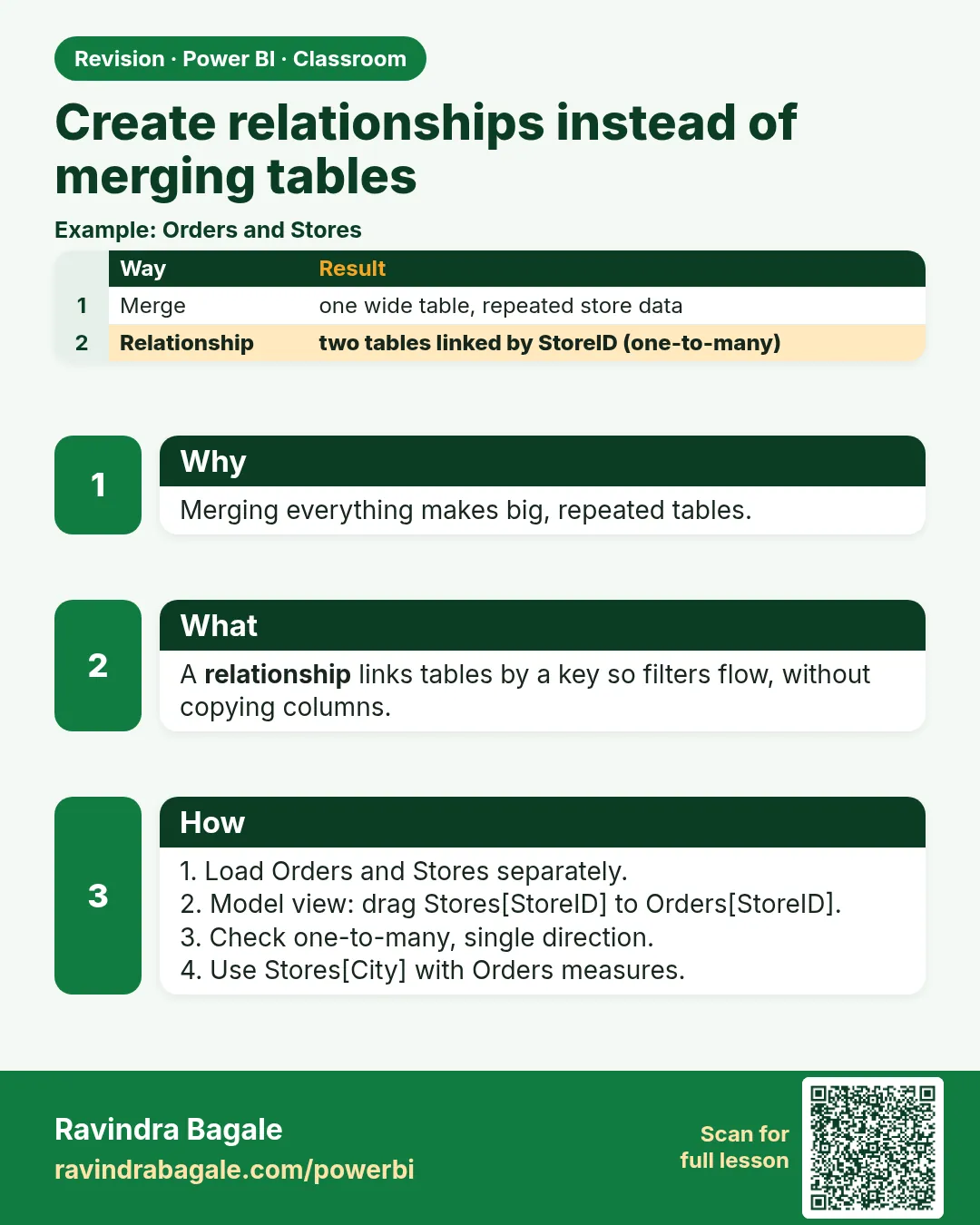
The quick route is to merge everything into sales in Power Query:
- Merge producthierarchy into sales on product_id (Left Outer) and expand product, category and sub_category.
- Merge store_cities into sales on store_id (Left Outer) and expand state, state_abr and city.
- Untick Enable load on producthierarchy and store_cities, so only one table reaches the report.
Every chart works. But look at what the sales table now stores: "Maharashtra" 371 times, "Dairy & Bakery" on every dairy order, the full product name on all 900 rows. The lookup tables had 14 and 10 rows; their text is now copied onto 900. With real data that is lakhs of copies, a bigger model and a slower report.
2. The idea in simple words
- A fact table records events: each sale with its product_id, store_id, units and revenue. It is long.
- A lookup (dimension) table describes things: one row per product, one row per store. It is short.
- A relationship links them on a key column. A chart can then take category from producthierarchy and revenue from sales, and Power BI finds the matching rows itself. Nothing is copied.
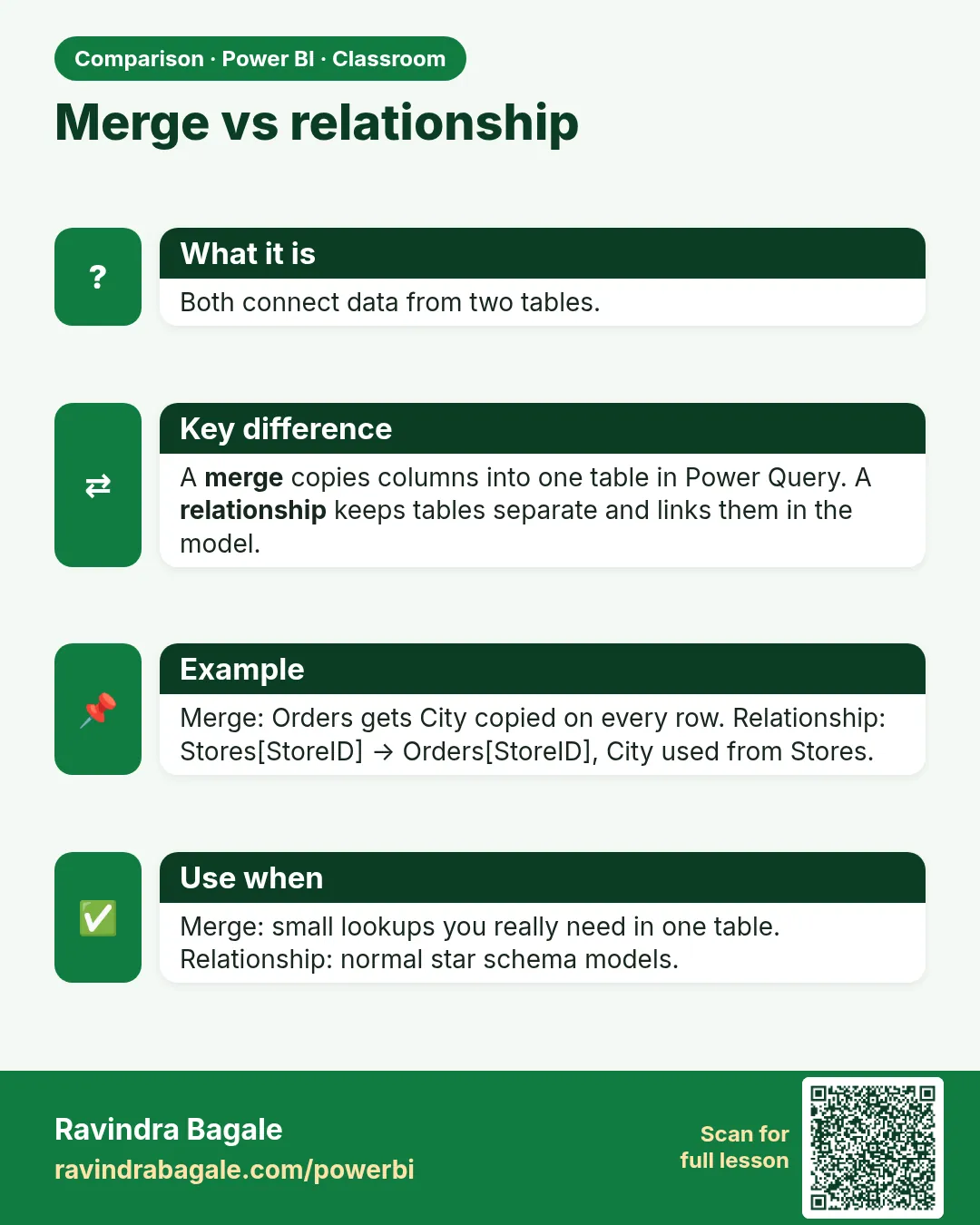
This layout, one fact table in the middle with lookup tables around it, is called a star schema. Relationships are the normal way of working in Power BI, not an extra feature; merging is still the right tool when you really need columns in one table. Append is different and still needed: it stacks the 2023, 2024 and 2025 sales into one fact table (How to Append Multiple Years of Sales Data in Power BI Power Query).
Figure 1. Merged: store and product text repeats on every sales row. Model: three tables linked by relationships, each fact stored once (illustration).
Classroom line
After merging, the same data repeats many times for no reason.
Class मधलं वाक्य
"Merge केल्यानंतर same data उगीचच भरपूर वेळा repeat होतो."
Merge केल्यानंतर same data उगीचच भरपूर वेळा repeat होतो.
Classroom line
After merging, the same data repeats many times for no reason.
3. The data
| Table | Rows | Key | Role |
|---|---|---|---|
| sales | 900 | product_id, store_id | fact |
| producthierarchy | 14 | product_id (each once) | lookup |
| store_cities | 10 | store_id (each once) | lookup |
Revenue by category: Dairy & Bakery 58,683, Snacks & Branded Foods 46,750, Staples 41,090, Beverages 33,015; total ₹1,79,538. Product P208 (ghee 1 l) is once in producthierarchy and on 28 sales rows.
4. Step by step
Undo the merges
- Transform data › select sales. In Applied Steps, delete from the bottom up: Expanded store_cities, Merged Queries1, Expanded producthierarchy, Merged Queries (click the ✕ next to each). Sales is back to its 6 columns.
- Right-click producthierarchy in the Queries pane › tick Enable load. Do the same for store_cities.
- Close & Apply. The Data pane now shows three tables.
Create the relationships
- Open Model view (the third icon on the left). If Power BI has already drawn lines, double-click each to check it; otherwise you see three separate boxes.
- Drag product_id from sales onto product_id in producthierarchy. In the dialog, check: Cardinality Many to one (*:1), Cross filter direction Single, Make this relationship active ticked. OK.
- Drag store_id from store_cities onto store_id in sales. Cardinality: One to many (1:*), Single. OK.
- Each line shows 1 at the lookup table and * at sales.
Repair the visuals
- Back in Report view, charts that used state or category from the merged sales table show "Something's wrong with one or more fields". Click Fix this.
- Remove the field marked in red, then drag the same column from its own table: state from store_cities, category from producthierarchy. Keep revenue from sales.
- Re-apply any filter that used the removed field, for example the Top N 5 filter on state.
Test the relationship
- On a new page, build a column chart: category from producthierarchy, revenue from sales. You get four different bars.
- In Model view, right-click the product_id line › Delete › Yes. Back in the report, every bar now shows 1,79,538.
- Drag product_id again (sales → producthierarchy, *:1, Single). The real values return.
Figure 2. Without a relationship every category shows the grand total 1,79,538; with the product_id relationship each category shows its own revenue (illustration).
Classroom line
Take category from the product table and revenue from the sales table.
Class मधलं वाक्य
"Category product table मधनं select करा, आणि revenue sales table मधनं."
Category product table मधून select करा, आणि revenue sales table मधून.
Classroom line
Take category from the product table and revenue from the sales table.
5. Your result should look like this
- Model view: producthierarchy 1 —— * sales * —— 1 store_cities.
- Revenue by category: Dairy & Bakery 58,683 · Snacks & Branded Foods 46,750 · Staples 41,090 · Beverages 33,015.
- Revenue by state (state from store_cities): Maharashtra 76,450 · Karnataka 40,271 · Telangana 17,998 · Gujarat 16,770 · Tamil Nadu 14,261 · Madhya Pradesh 8,980 · Rajasthan 2,277 · (Blank) 2,531.
- The numbers are the same as with the merged table, but the sales table holds only its own 6 columns.
6. What happened
- A relationship lets a filter flow from the one side to the many side. Selecting "Dairy & Bakery" in producthierarchy finds its products, and through product_id, their sales rows.
- Without the relationship, producthierarchy cannot filter sales at all, so every category gets the whole revenue: the same-height bars.
- (Blank) in the state chart is store 111: its sales rows have no matching store, so Power BI groups them under a blank state instead of dropping them, just like Left Outer.
- Fixing a visual means pointing it to a column that exists. The red field was a column of the old merged sales table.
Figure 3. One-to-many: P208 appears once in producthierarchy and 28 times in sales; 1:* from one side is *:1 from the other (illustration).
Classroom line
Without a relationship, all the bars would have looked the same height.
Class मधलं वाक्य
"Relationship नसला असता, तर सगळे same height चे दिसले असते."
Relationship नसता, तर सगळे bars same height चे दिसले असते.
Classroom line
Without a relationship, all the bars would have looked the same height.
7. Explore further
- 1: or :1? They are the same relationship seen from opposite sides. The dialog says :1 when you drag from sales to producthierarchy, and 1: when you drag from store_cities to sales: the table written first decides how it is labelled.
- One-to-one (each key once on both sides) is rare; often the two tables can be one. Many-to-many happens when the key repeats on both sides; check the lookup table for duplicate keys first.
- Data types must match. store_id must be the same type (both Whole Number or both Text) in both tables, or the relationship cannot be created.
- Enable load and "Possible Data Loss". Turning Enable load off shows a warning. It only matters if visuals already use columns of that table; they would break.
- Model size. Power BI compresses each column. A short lookup table plus a key column in sales takes far less memory than the same text repeated on every sales row.
- Lookup columns for slicers. Take category, state and city from the lookup tables in every visual and slicer; then one slicer filters everything.
Classroom line
You may lose data, but when? Only if you have used those columns in the reports.
Class मधलं वाक्य
"Data loss वगैरे होईल, पण कधी? जर आपण reports वरती त्या columns वापरले असतील तर."
Data loss वगैरे होईल, पण कधी? जर आपण reports वरती ते columns वापरले असतील तर.
Classroom line
You may lose data, but when? Only if you have used those columns in the reports.
8. Common mistakes
| Wrong result | Reason | Fix |
|---|---|---|
| Every bar shows 1,79,538 | No relationship (or deleted) | Create the product_id relationship in Model view |
| Only one table in the Data pane | Enable load still off for the lookup tables | Right-click the query › Enable load |
| "Something's wrong with one or more fields" | The visual used a column that was removed with the merge | Fix this › remove the red field › drag it from the lookup table |
| Relationship dialog shows Many to many | Duplicate keys in the lookup table | Remove duplicates in producthierarchy or store_cities |
| Cannot create the relationship | Different data types on the two keys | Make both Whole Number or both Text |
| A slicer filters nothing | The slicer field comes from sales while the chart uses a lookup table, or the other way round | Use lookup-table columns in slicers |
Ravindra Bagale's Tip
Make the same-height bars test a habit. After you build a model, put a lookup column and a sales measure on one chart. Different bars: the relationship works. Identical bars: stop and open Model view before you build anything else.
Ravindra Bagale's Tip – मराठी
Same-height bars test ची सवय लावा. Model बनवल्यावर एक lookup column आणि एक sales measure एकाच chart वर टाका. Bars वेगळे: relationship चालतोय. Bars same: थांबा आणि पुढचं काही बनवण्याआधी Model view उघडा.
Ravindra Bagale's Tip – हिंदी
Same-height bars test की आदत डालिए. Model बनाने के बाद एक lookup column और एक sales measure एक ही chart पर डालिए. Bars अलग: relationship चल रहा है. Bars same: रुकिए और आगे कुछ बनाने से पहले Model view खोलिए.
Classroom line
Which table is written first matters.
Class मधलं वाक्य
"पहिल्यांदा कुठलं table लिहिलंय ते matter करतं."
पहिल्यांदा कुठलं table लिहिलंय ते matter करतं.
Classroom line
Which table is written first matters.
9. Practise on your own
Practice task
Load the three practice files as separate tables and create both relationships.
- What is the revenue by storetype_id (from store_cities)?
- With state = Maharashtra in a slicer (from store_cities), what is the revenue by category?
- How many times does P208 appear in sales, and how many times in producthierarchy?
- You delete the store_id relationship. What does every bar of a revenue-by-city chart show?
Show solution
- Type 1 87,530, type 2 51,840, type 3 25,888, type 4 11,749, and (Blank) 2,531 for store 111.
- Dairy & Bakery 27,644, Snacks & Branded Foods 18,980, Beverages 15,426, Staples 14,400 (total 76,450).
- 28 times in sales, once in producthierarchy: one-to-many.
- 1,79,538, the grand total, on every city.
10. Think like a professional
- Business view. A star model stays fast as the data grows, and every new fact table (returns, targets) can reuse the same product and store tables.
- Merge for shape, relate for analysis. Merge when a table really needs a column from another; relate when you only want to slice one table by another.
- Name and hide keys. Hide product_id and store_id in sales (right-click › Hide in report view) so report users take them from the lookup tables.
- Check the model before the visuals. Most "wrong number" problems are missing or wrong relationships.
Interview questions
- Why not merge every lookup table into the fact table? The lookup text repeats on every fact row, which grows the model and slows the report; relationships store each value once.
- What is a star schema? One fact table in the middle, related to lookup (dimension) tables around it.
- Difference between 1: and :1? None in meaning; it is the same one-to-many relationship read from opposite sides.
- Why does every bar show the same value? The column on the axis comes from a table that has no relationship with the table of the value.
Recap
In short
- Merging lookups into sales repeats their text on every row and grows the model.
- Keep sales (fact), producthierarchy and store_cities (lookups) separate.
- Delete the merge steps, turn Enable load back on, Close & Apply.
- Model view: drag product_id and store_id; the lookup side is 1, sales is *.
- Same-height bars mean a missing relationship.
- Fix this: replace the red field with the column from the lookup table.
 Revision card
 Comparison card