How to Use Filters in Power BI: Visual, Page and Report Level Filters with Top N and Advanced Filtering
You put product on a column chart and revenue on the Y-axis, and Power BI draws a bar for every product you sell. With a few hundred products the chart is a grey comb that nobody can read. The answer is not a bigger screen; it is a filter. In this chapter you learn the three filter levels in Power BI, keep only the Top 3 or Top 5 items by revenue, find every product that contains a word, make the numbers on the bars readable, and fix a chart where every bar shows the same total.
What you'll learn in this chapter
- Report pages, and what a report is
- Filters on this visual, this page, all pages
- Why visual filters disappear
- Top N: Top 3 categories by revenue
- Advanced filtering: product contains a word
- Data labels: units, decimals, font
- Flat bars: a missing relationship
Practice files: blinkit-sales-2025-small.csv (the 12 orders on this page), blinkit-sales-2025.csv (360 orders, 16 products, for the practice task) and blinkit-product-hierarchy.csv (for section 7).
Made-up data: fictional Blinkit-style orders from Maharashtra cities in 2025, for practice only. Amounts are in ₹ and dates are DD-MM-YYYY.
1. The problem
Your manager asks three questions:
- Which 3 categories bring the most revenue?
- Which are our top 5 products?
- How much do we sell of anything called biscuit?
A plain chart of revenue by product shows every product side by side, and the numbers on the bars read "1K" and "0.64K". You need to cut the chart down to what was asked, and show numbers people can read.
2. The idea in simple words
A Power BI Desktop file is a report. A report has pages (the tabs at the bottom), and each page holds visuals. (Dashboards are built in the Power BI Service by pinning visuals from reports; a one-page report is often loosely called a dashboard.)
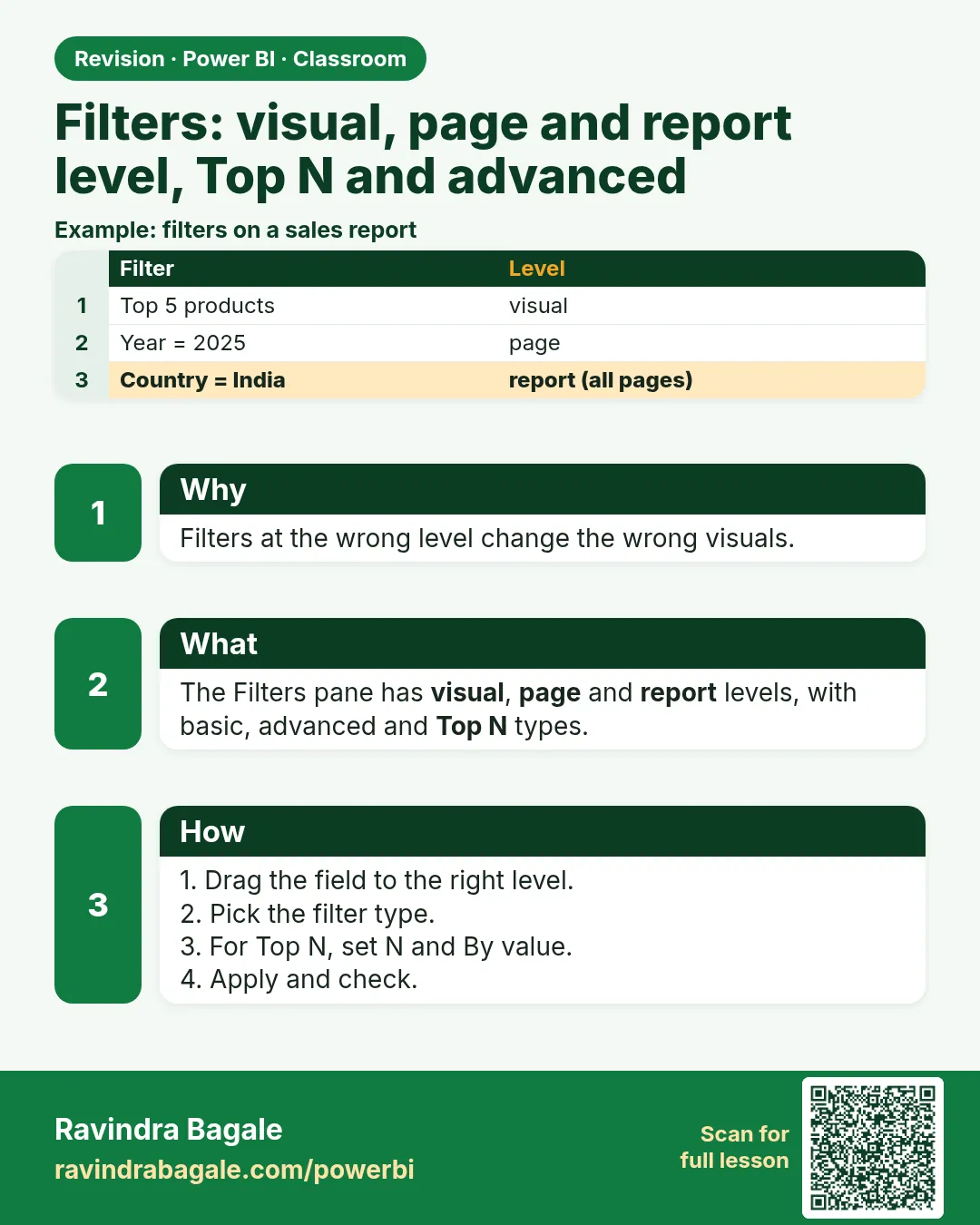
The Filters pane has three levels, from narrow to wide:
| Level | Where in the Filters pane | Affects |
|---|---|---|
| Visual | Filters on this visual | only the selected visual |
| Page | Filters on this page | every visual on this page |
| Report | Filters on all pages | every visual on every page |
Two filter types do most of the work:
- Top N keeps the top (or bottom) N items by a value, such as Top 3 categories by revenue. It works like Excel's TAKE on a sorted list.
- Advanced filtering keeps items that match a rule, such as product contains "biscuit".
Figure 1. Three filter levels: on this visual (one chart), on this page (all charts on the page), on all pages (the whole report) (illustration).
Classroom line
Power BI has three levels of filters: visual level, page level and report level.
Class मधलं वाक्य
"Power BI madhe teen level che filters ahet: Visual level filter, page level filter, ani report level filter."
Power BI मध्ये तीन level चे filters आहेत: visual level filter, page level filter आणि report level filter.
Classroom line
Power BI has three levels of filters: visual level, page level and report level.
3. The data
The 12 orders in blinkit-sales-2025-small.csv (columns: order_id, order_date, product_id, product, category, sub_category, city, sales, revenue):
| order_id | order_date | product | category | revenue (₹) |
|---|---|---|---|---|
| BLK6001 | 04-01-2025 | masala chai biscuit 200 g | Snacks & Branded Foods | 90 |
| BLK6002 | 17-01-2025 | ghee 1 l | Dairy & Bakery | 650 |
| BLK6003 | 02-02-2025 | kaju katli 250 g | Sweets | 640 |
| BLK6004 | 21-02-2025 | butter cookies 300 g | Snacks & Branded Foods | 170 |
| BLK6005 | 09-03-2025 | toor dal 1 kg | Staples | 320 |
| BLK6006 | 28-03-2025 | bhakarwadi 200 g | Snacks & Branded Foods | 240 |
| BLK6007 | 12-04-2025 | jeera biscuits 250 g | Snacks & Branded Foods | 200 |
| BLK6008 | 30-04-2025 | shrikhand 500 g | Dairy & Bakery | 300 |
| BLK6009 | 15-05-2025 | ghee 1 l | Dairy & Bakery | 650 |
| BLK6010 | 03-06-2025 | poha chivda 400 g | Snacks & Branded Foods | 180 |
| BLK6011 | 19-06-2025 | jowar atta 1 kg | Staples | 210 |
| BLK6012 | 08-07-2025 | amba barfi 250 g | Sweets | 200 |
Total revenue ₹3,850. By category: Dairy & Bakery 1,600, Snacks & Branded Foods 880, Sweets 840, Staples 530.
By product, top 6: ghee 1 l 1,300, kaju katli 640, toor dal 320, shrikhand 300, bhakarwadi 240, jowar atta 210.
4. Step by step
A new page and a chart that is too big
- Load
blinkit-sales-2025-small.csv(Get data › Text/CSV › Load). Set revenue to a whole number if needed. - At the bottom, click + to add a report page. Double-click the tab and name it
Filters. - Insert a Clustered column chart. X-axis: product. Y-axis: revenue. You get 11 bars (one product was not sold); with the 360-row file you get 16, and a real shop gives hundreds.
Top 5 products (visual level)
- Click the chart so it is selected. Open the Filters pane. Under Filters on this visual, expand product.
- Filter type: Top N. Show items: Top, 5. By value: drag revenue into the box. Click Apply filter.
- The chart now shows 5 bars: ghee 1 l, kaju katli 250 g, toor dal 1 kg, shrikhand 500 g, bhakarwadi 200 g.
Top 3 categories
- Add a second clustered column chart: X-axis category, Y-axis revenue.
- With it selected, Filters on this visual › category › Top N › Top 3 › By value revenue › Apply filter. Staples (530) disappears.
Products that contain a word (Advanced filtering)
- Add a third chart (product × revenue). Filters on this visual › product › Filter type Advanced filtering.
- Show items when the value: contains, type
biscuit. Click Apply filter. Two bars: jeera biscuits 250 g (200) and masala chai biscuit 200 g (90).
Page and report level
- Drag city from the Data pane to Filters on this page and tick Pune. Every chart on this page now shows Pune only. Untick it again.
- Drag category to Filters on all pages to filter every page at once. Remove it when you are done (hover › ✕).
Readable numbers
- Select the Top 5 chart. Open the Format pane (the paintbrush) › Visual › Data labels › On.
- Under Values: Display units None, Value decimal places 0, font Segoe UI, size 14, bold, and a dark colour.
Figure 2. The filter card for product: Filter type Top N, Show items Top 5, By value revenue, Apply filter (illustration).
5. Your result should look like this
| Chart | Filter | Bars |
|---|---|---|
| Revenue by product | Top 5 by revenue | ghee 1 l 1,300 · kaju katli 250 g 640 · toor dal 1 kg 320 · shrikhand 500 g 300 · bhakarwadi 200 g 240 |
| Revenue by category | Top 3 by revenue | Dairy & Bakery 1,600 · Snacks & Branded Foods 880 · Sweets 840 |
| Revenue by product | contains "biscuit" | jeera biscuits 250 g 200 · masala chai biscuit 200 g 90 |
With the page filter city = Pune, the category chart shows Sweets 840 · Dairy & Bakery 650 · Snacks & Branded Foods 290: Pune revenue is ₹1,780.
Data labels read 1,300, not 1.3K.
6. What happened
- Top N ranked the products by the sum of revenue and kept the first 5. The 6th (jowar atta, 210) dropped out.
- The Top 3 category filter worked on category totals, not on single orders.
- "contains biscuit" matched both products whose name has the letters biscuit. It did not match butter cookies, even though it sits in the Biscuits & Cookies sub-category: a text filter only reads the field you filter.
- The visual filters belong to one chart each. The page filter on city changed all three charts; the report filter would also change the other pages.
- Display units None and 0 decimals show the full value instead of a rounded K value.
Classroom line
If you have not selected any visual, you will not see the visual filters.
Class मधलं वाक्य
"Tumhi jar kutlyach visual la select kela ch nahi tar visual filter disnar nahi."
तुम्ही जर कुठल्याच visual ला select केलं नाही, तर visual filter दिसणार नाही.
Classroom line
If you have not selected any visual, you will not see the visual filters.
7. Explore further
- Ties in Top N. If two items tie at the cut-off, Power BI keeps both, so "Top 5" can show 6 bars. In the 360-row practice file there are no ties in the top 5.
- Top N needs a "by value". "Top 5" alone means nothing; Top 5 by revenue and Top 5 by units sold can be different products.
- "biscuit" vs "biscuits". contains
biscuitsmatches only jeera biscuits; the singularbiscuitcatches both. Type the shortest word that is common to all the names you want. - Basic filtering is the tick-box list. Use it when you know the exact items (Pune, Nashik); use Advanced when you need a rule (contains, starts with, is not blank).
- Filters pane vs Format pane. The Filters pane decides which data a visual shows. The Format pane (paintbrush) decides how it looks: labels, colours, fonts.
Classroom line
The Filters pane and the Format pane are two different things. Don't get confused.
Class मधलं वाक्य
"Filter pane ani format pane, donhi vegvegle ahet. Confuse hou naka."
Filter pane आणि format pane, दोन्ही वेगवेगळे आहेत. Confuse होऊ नका.
Classroom line
The Filters pane and the Format pane are two different things. Don't get confused.
When every bar shows the same number. Load blinkit-product-hierarchy.csv as a second table, producthierarchy. Build a chart with category from producthierarchy and revenue from sales. If the two tables have no relationship (for example because you turned off relationship autodetect), every bar shows 3,850, the grand total: Power BI cannot tell which sale belongs to which category. Open Model view: there is no line between the tables. Drag product_id from producthierarchy onto product_id in sales (one-to-many). Back in Report view the bars become 1,600 · 880 · 840 · 530. You could also merge the two tables in Power Query, as in How to Merge Tables in Power BI Power Query (Left Outer vs Inner Join).
Figure 3. Without a relationship each category bar shows the grand total 3,850; with product_id linked the bars split into 1,600 · 880 · 840 · 530 (illustration).
Classroom line
If you take fields from two different tables, Power BI cannot find the matching data, because there is no relationship between the two tables.
Class मधलं वाक्य
"Don veg veglya file madhle tumhi jar goshti ghetlyat... tar tyala data bhetat nahi... Tya donhi table madhe relation naslya mule."
दोन वेगवेगळ्या tables मधल्या गोष्टी तुम्ही घेतल्या, तर त्याला data मिळत नाही, कारण त्या दोन्ही tables मध्ये relation नाहीये.
Classroom line
If you take fields from two different tables, Power BI cannot find the matching data, because there is no relationship between the two tables.
8. Common mistakes
| Wrong result | Reason | Fix |
|---|---|---|
| "Filters on this visual" is missing | No visual is selected | Click the chart first |
| Top N filter does nothing | By value was left empty, or Apply filter not clicked | Drag revenue into By value, click Apply filter |
| All charts changed when you meant one | The field was dropped on Filters on this page or all pages | Move it to Filters on this visual |
| Labels show 1.3K | Display units on Auto | Display units None, decimals 0 |
| You searched the Format pane for Top N | Top N is a filter, not a format | Use the Filters pane |
| Every bar shows 3,850 | Fields from two tables with no relationship | Create the relationship on product_id in Model view |
| "Top 5" shows 6 bars | A tie at the 5th place | Expected; both tied items are kept |
Ravindra Bagale's Tip
Before you build a chart, write the question as a sentence: "Top 5 products by revenue for Pune". Each part of the sentence is a filter: Top 5 by revenue on the visual, Pune on the page. If you cannot write the sentence, the chart is not ready.
Ravindra Bagale's Tip – मराठी
Chart बनवण्याआधी प्रश्न एका वाक्यात लिहा: "Pune साठी revenue नुसार Top 5 products". वाक्याचा प्रत्येक भाग एक filter आहे: visual वर revenue नुसार Top 5, page वर Pune. वाक्य लिहिता येत नसेल, तर chart अजून तयार नाही.
Ravindra Bagale's Tip – हिंदी
Chart बनाने से पहले सवाल एक वाक्य में लिखिए: "Pune के लिए revenue के हिसाब से Top 5 products". वाक्य का हर हिस्सा एक filter है: visual पर revenue के हिसाब से Top 5, page पर Pune. वाक्य न लिख पाएँ, तो chart अभी तैयार नहीं है.
Classroom line
Top five based on what? Based on revenue.
Class मधलं वाक्य
"Top five kashyavarna mhanaycha apan? ... Revenue varna."
Top five कशावरून म्हणायचं आपण? Revenue वरून.
Classroom line
Top five based on what? Based on revenue.
9. Practise on your own
Practice task
Load blinkit-sales-2025.csv (360 orders).
- What is the total revenue, and how many products appear on a product chart?
- Which are the top 3 products by revenue?
- Which category is dropped by a Top 3 category filter?
- What is the revenue of products that contain "biscuit"?
- With a page filter city = Thane, what does a revenue card show?
Hints: use a card for totals; keep Display units None.
Show solution
- ₹1,07,430; 16 products.
- ghee 1 l 35,750, kaju katli 250 g 10,880, toor dal 1 kg 7,680.
- Snacks & Branded Foods (18,210). The top 3 are Dairy & Bakery 48,260, Sweets 21,720, Staples 19,240.
- ₹4,140: masala chai biscuit 200 g 2,220 + jeera biscuits 250 g 1,920.
- ₹23,285 (Thane is the top city).
10. Think like a professional
- Business view. A report answers questions. Top N and page filters turn a crowded chart into one answer per visual.
- Make filters visible. Users cannot see visual filters unless they open the pane. Put the rule in the title: "Top 5 products by revenue".
- Report filters are powerful and easy to forget. A forgotten "Filters on all pages" entry quietly changes every number. Check it before you publish.
- Relationships first. If bars look identical, check Model view before you blame the data.
Interview questions
- What are the three filter levels in Power BI? Visual (this visual), page (this page) and report (all pages).
- How do you show the top 5 products by revenue? Filters on this visual › product › Top N › Top 5 › By value revenue › Apply filter.
- Why does every bar in a chart show the same total? The category and the value come from tables with no relationship.
- Basic vs advanced filtering? Basic is a list of ticked items; advanced uses rules like contains or is not blank.
Recap
In short
- A Desktop file is a report of pages; filters work at visual, page and report level.
- Visual filters appear only when a visual is selected.
- Top N needs a count and a "by value": Top 5 by revenue.
- Advanced filtering: product contains "biscuit".
- Data labels: Display units None, 0 decimals.
- Identical bars mean a missing relationship.
 Revision card