How to Create a Custom Report Page Tooltip in Power BI
You hover over a column in Power BI and a small grey box appears: the category name and one number. It answers "how much?", but your manager immediately asks "made of what?". Drill down would replace the chart, and drill through would take you to another page. A report page tooltip shows a whole mini chart right where the mouse is, without leaving the visual. In this chapter you build one that shows revenue by sub-category when you hover over a category.
What you'll learn in this chapter
- Drill down vs drill through vs tooltip
- What the default tooltip shows
- A tooltip page: Allow use as tooltip, Tooltip canvas
- Way 1: the Tooltip fields well (auto-binding)
- Way 2: Format › General › Tooltips › Report page
- Bar chart for long names
Practice files: blinkit-sales-2025-stores.csv (900 orders) and blinkit-product-hierarchy.csv (14 products with category and sub_category).
Made-up data: fictional Blinkit-style orders from 11 stores in 2025, for practice only. Amounts are in ₹ and dates are DD-MM-YYYY.
1. The problem
A column chart shows revenue by category. Hovering over Snacks & Branded Foods shows:
- category: Snacks & Branded Foods
- Sum of revenue: 46,750
The manager wants to see, on the same hover, which sub-categories make up that ₹46,750: chips, biscuits or chocolates. You do not want to change the chart (drill down) or jump to another page (drill through).
2. The idea in simple words
Three ways to see the detail behind a number:
| Feature | How you trigger it | Where the detail appears |
|---|---|---|
| Drill down | Click the drill arrow on the visual | Same visual, next level of the hierarchy |
| Drill through | Right-click › Drill through | Another page, filtered |
| Report page tooltip | Just hover | A small page pops up over the same visual |
A report page tooltip is an ordinary report page that you mark as a tooltip. Power BI shows it, filtered to the data point under the mouse, instead of the grey box. Drill down and drill through are covered in How to Create a Custom Hierarchy and Drill Down by Category in Power BI and How to Use Drill Through to Another Page in Power BI.
Figure 1. Drill down stays in the same visual, drill through goes to another page, a report page tooltip pops up on hover (illustration).
Classroom line
I don't want to change the visual or go to the next page; I want the related details right here.
Class मधलं वाक्य
मला visual पण बदलायचा नाही आणि पुढच्या page वर पण जायचं नाही; related माहिती इथेच हवी.
Classroom line – हिंदी
"Na mujhe wo visual change karna hai, na mujhe next page jaana hai... yahi pe iske related other information chahiye."
3. The data
Two tables: sales (from blinkit-sales-2025-stores.csv: order_id, order_date, store_id, product_id, sales, revenue) and producthierarchy (product_id, product, category, sub_category), related on product_id.
| category | revenue (₹) |
|---|---|
| Dairy & Bakery | 58,683 |
| Snacks & Branded Foods | 46,750 |
| Staples | 41,090 |
| Beverages | 33,015 |
| Total | 1,79,538 |
Sub-categories inside Snacks & Branded Foods: Chips & Namkeen 24,490, Biscuits & Cookies 14,100, Chocolates, Candies & Sweet Treats 8,160.
4. Step by step
The main chart
- Load both files (Get data › Text/CSV). Check in Model view that
producthierarchy[product_id]andsales[product_id]are linked; if not, drag one onto the other. - On a report page, insert a Clustered column chart: X-axis category (from producthierarchy), Y-axis revenue (from sales).
- Hover over a column. This is the default tooltip: name and value only.
The tooltip page
- Click + at the bottom for a new page. Double-click the tab and rename it
Tooltip. - Click an empty part of the canvas, so that no visual is selected. Open Format page (the paintbrush).
- Page information › Allow use as tooltip: On. (In older versions: Page information › Page type › Tooltip.)
- Canvas settings › Type: Tooltip. The page shrinks to 320 × 240 pixels. Set Vertical alignment to Middle if you like.
- Insert a Clustered bar chart (horizontal bars): Y-axis sub_category, X-axis revenue. Turn on Data labels and make the chart fill the small page.
Way 1: the Tooltip fields well (auto-binding)
- Still on the Tooltip page with nothing selected, open the Build side of the Visualizations pane and find the Tooltip fields well ("Add tooltip fields here").
- Drag category from producthierarchy into it.
- Go back to the main page and hover over Snacks & Branded Foods. The tooltip page appears, showing only that category's three sub-categories.
Way 2: link the page to one visual
- Select the main column chart. Format visual › General › Tooltips › Options: Type Report page, Page Tooltip.
- Hover again. This visual now always uses the Tooltip page, even if the field is not in the Tooltip fields well.
Figure 2. Build the tooltip page from top to bottom: new page, Allow use as tooltip, Tooltip canvas, a bar chart, then the category field in the Tooltip fields well (illustration).
Classroom line
Take a new page and click anywhere on it. Turn on Allow use as tooltip here.
Class मधलं वाक्य
"Ek navin page ghya, page varti kuthe bi click kara. Ithe allow use as tooltip kara."
एक नवीन page घ्या, page वर कुठेही click करा. इथे Allow use as tooltip करा.
Classroom line
Take a new page and click anywhere on it. Turn on Allow use as tooltip here.
5. Your result should look like this
| Hover over | The tooltip page shows |
|---|---|
| Snacks & Branded Foods | Chips & Namkeen 24,490 · Biscuits & Cookies 14,100 · Chocolates, Candies & Sweet Treats 8,160 |
| Dairy & Bakery | Ghee & Butter 35,100 · Milk & Curd 23,583 |
| Staples | Atta, Rice & Dals 27,220 · Edible Oils 13,870 |
| Beverages | Tea & Coffee 22,620 · Juices & Soft Drinks 10,395 |
The sub-category numbers always add up to the column you hovered: 24,490 + 14,100 + 8,160 = 46,750.
Figure 3. Hovering over Snacks & Branded Foods opens the tooltip page with its three sub-categories (illustration).
6. What happened
- The Tooltip page is a normal page with a filter applied on the fly: the data point under the mouse (category = Snacks & Branded Foods) filters every visual on that page.
- Way 1 works by field: any visual on any page that uses category picks up the tooltip page automatically.
- Way 2 works by visual: you choose the tooltip page for one chart, whatever fields it uses.
- The Tooltip canvas (320 × 240) keeps the pop-up small enough not to cover the chart.
Classroom line
Whenever we move the mouse over a category, revenue by sub-category should appear.
Class मधलं वाक्य
जेव्हा जेव्हा आपण category वर mouse नेऊ, तेव्हा तेव्हा sub category नुसार revenue दिसायला हवा.
Classroom line – हिंदी
"Jab jab category pe hum mouse leke jayenge tab tab sub category wise revenue dikhna chahiye."
7. Explore further
- Long names. "Chocolates, Candies & Sweet Treats" gets cut off under a column chart. On a small tooltip page use a bar chart: the names sit on the left and stay readable.
- Hide the tooltip page. Right-click the Tooltip tab › Hide page. Readers of the published report do not see it as a tab, but the tooltip still works.
- More than one field. Put both category and sub_category in the Tooltip fields well, and the page works for charts of either field.
- Back to the grey box. For one visual: Format › General › Tooltips › Type Default. To switch tooltips off: Tooltips Off.
- Cards and numbers. A tooltip page can hold cards too, for example total units and number of orders for the hovered category.
Classroom line
If the names on the X-axis are long, use a bar chart.
Class मधलं वाक्य
X-axis वर नावं मोठी मोठी असतील, तर bar chart वापरा.
Classroom line – हिंदी
"X-axis pe aapke naam bade bade honge toh ... Bar chart."
8. Common mistakes
| Wrong result | Reason | Fix |
|---|---|---|
| Still the grey default tooltip | The page is not marked as a tooltip, or nothing links it | Allow use as tooltip On; add the field to the Tooltip fields well, or set Type Report page › Page on the visual |
| Tooltip shows all four categories' totals | The bar chart on the tooltip page uses fields from a table with no relationship | Check the product_id relationship in Model view |
| Tooltip is huge and covers the chart | Canvas type left at 16:9 | Canvas settings › Type Tooltip |
| Tooltip fields well not visible | A visual is selected on the tooltip page | Click empty canvas first |
| Names are cut off | Column chart with long labels | Use a bar chart |
Ravindra Bagale's Tip
Build the tooltip page so it answers one question in two seconds: one small chart, big labels, no title clutter. If people have to read it slowly, it belongs on a drill-through page, not in a tooltip.
Ravindra Bagale's Tip – मराठी
Tooltip page असं बनवा की ते दोन सेकंदात एक प्रश्न सोडवेल: एक छोटा chart, मोठे labels, title चा पसारा नको. लोकांना सावकाश वाचावं लागत असेल, तर ते drill-through page चं काम आहे, tooltip चं नाही.
Ravindra Bagale's Tip – हिंदी
Tooltip page ऐसा बनाइए कि वह दो सेकंड में एक सवाल का जवाब दे: एक छोटा chart, बड़े labels, title की भीड़ नहीं. अगर लोगों को धीरे-धीरे पढ़ना पड़े, तो वह drill-through page का काम है, tooltip का नहीं.
Classroom line
Look how ugly the default tooltip looks.
Class मधलं वाक्य
बघा, default tooltip किती खराब दिसतोय.
Classroom line – हिंदी
"Tooltip dekho kaisa dikh raha ganda dikh raha."
9. Practise on your own
Practice task
Load blinkit-sales-2025-stores.csv and blinkit-product-hierarchy.csv, and build the Tooltip page from this chapter.
- What does the tooltip show when you hover over Beverages?
- Which sub-category is the largest in the whole data, and in which category is it?
- Add a card with Sum of sales (units) to the tooltip page. Why does its number change with each hover?
- Which setting makes only one chart use the page, even without the Tooltip fields well?
Show solution
- Tea & Coffee 22,620 and Juices & Soft Drinks 10,395 (total 33,015).
- Ghee & Butter, 35,100, in Dairy & Bakery.
- The hovered category filters every visual on the tooltip page, the card included.
- Format visual › General › Tooltips › Type Report page, Page Tooltip.
10. Think like a professional
- Business view. Tooltips save space: one chart on the page, the breakdown on demand.
- Keep it fast. Every hover renders the tooltip page. Two or three simple visuals are enough.
- Name it clearly. Call the page "TT Category breakdown" and hide it, so other report authors know what it is for.
- Same field, many charts. With Way 1 the same tooltip appears on every chart of category, which keeps the report consistent.
Interview questions
- What is a report page tooltip? A report page marked Allow use as tooltip that pops up on hover, filtered to the data point.
- Two ways to attach it to a visual? Put the field in the tooltip page's Tooltip fields well (auto), or set Format › General › Tooltips › Type Report page and pick the page.
- Drill down vs drill through vs tooltip? Same visual next level; another page; pop-up on hover.
- Which canvas size is used for a tooltip page? Canvas type Tooltip, 320 × 240 pixels.
Recap
In short
- The default tooltip shows only a name and a value.
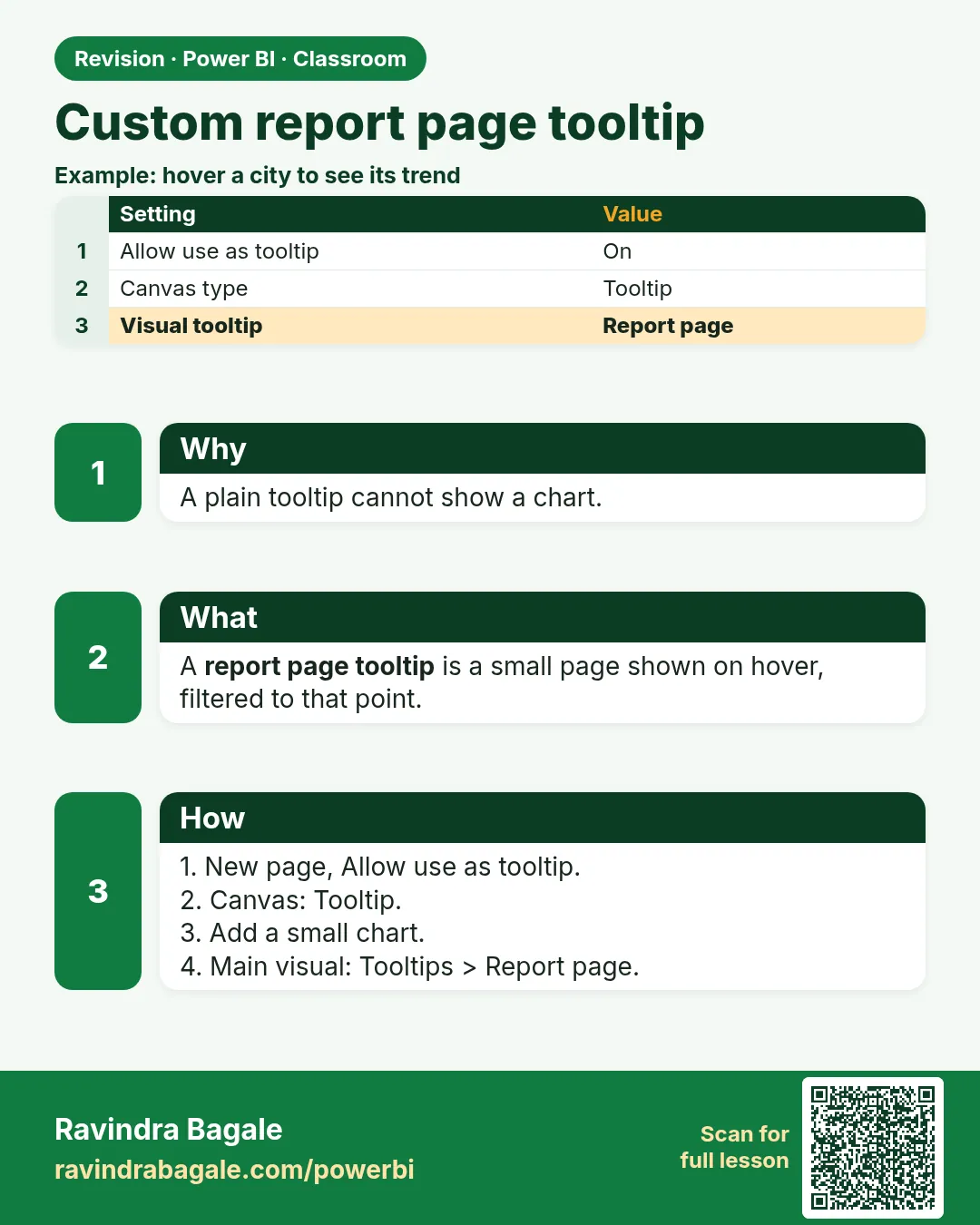
- A tooltip page: new page › Allow use as tooltip On › Canvas Type Tooltip.
- Put a bar chart of sub_category × revenue on it.
- Way 1: drag category into the Tooltip fields well.
- Way 2: Format › General › Tooltips › Report page › the page.
- Hide the tooltip page; use bar charts for long names.
 Revision card