How to Fix DataFormat.Error We Couldn't Convert to Number in Power Query
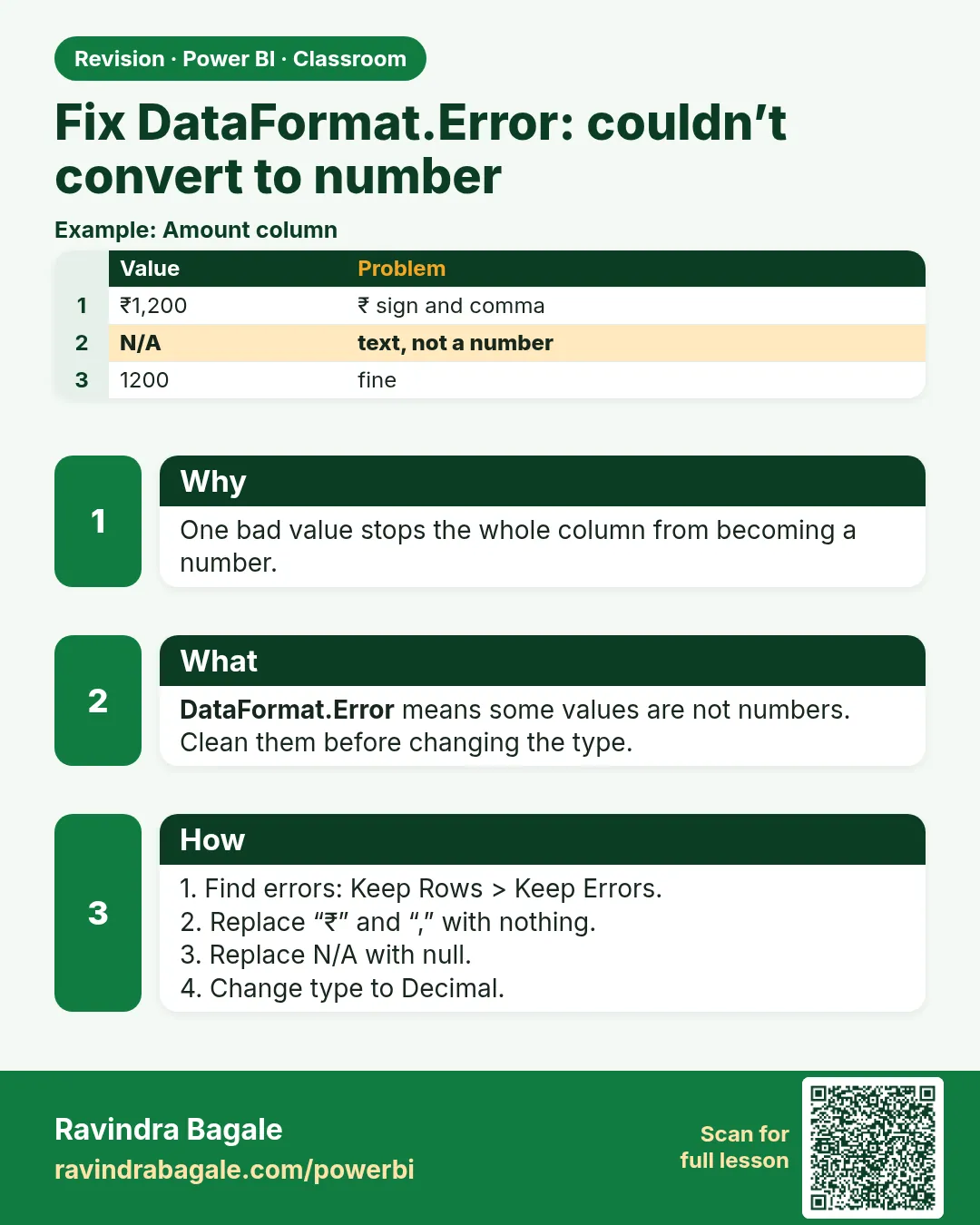
You change the price column to a number and a few cells turn into the word Error. Click one and Power Query says: DataFormat.Error: We couldn't convert to Number. Many people then try to change the type back, or filter the errors away, and lose good orders. In this chapter you find out exactly which value caused the error, which step created it, and how to fix it in the right order so no row is lost.
What you'll learn in this chapter
- What DataFormat.Error means
- Read the error details (Details: NA)
- Use Applied Steps to see data at each step
- Find the step that created the error
- Delete a Changed Type step safely
- Replace first, change type second
- Count errors with Column quality
Practice files: blinkit-orders-small-raw.csv (12 rows) and blinkit-orders-raw.csv (315 rows). They are the same fictional files as in How to Clean Messy Sales Data in Power BI Power Query.
Made-up data: the orders, products and stores are fictional practice data imitating a Blinkit-style export from Maharashtra cities. Amounts are in ₹.
1. The problem
After removing the title row, promoting headers and removing blank and duplicate order IDs, the small file has 7 orders left. You click the type icon of price and choose Decimal Number. The column now looks like this:
| order_id | price |
|---|---|
| BLK1001 | 120 |
| BLK1002 | 450 |
| BLK1003 | Error |
| BLK1005 | 120 |
| BLK1006 | 999 |
| BLK1008 | 450 |
| BLK1009 | 90 |
One order, BLK1003, has an error. If you load this, that price is lost, and if you filter errors away, the whole order is lost.
2. The idea in simple words
A data type is a promise: "every value in this column is a number". Power Query checks the promise cell by cell. 120 can become a number. "NA" cannot, because N and A are letters. Power Query does not guess; it marks that one cell as Error and moves on.
So the error is not in the type. It is in the order of your steps: you made the promise before you removed the text that breaks it.
The fix always has the same shape:
- Remove the step that made the promise too early.
- Clean the text (replace NA with null).
- Make the promise again (change the type).
Figure 1. Changing the type converts each cell; the text "NA" cannot become a number, so that cell becomes Error (illustration).
3. The data
Use the 7 orders left after the ID cleaning, with their price as text, exactly as they are in the file:
| order_id | price (text) | Can it become a number? |
|---|---|---|
| BLK1001 | 120 | yes |
| BLK1002 | 450 | yes |
| BLK1003 | NA | no |
| BLK1005 | 120 | yes |
| BLK1006 | 999 | yes |
| BLK1008 | 450 | yes |
| BLK1009 | 90 | yes |
Predict: how many Error cells will price show? (One.) And how many will revenue show if you change its type before replacing NA? (One: BLK1005.)
4. Step by step
Read the error
- Click the white space next to the word Error in the BLK1003 cell (not on the word itself). A pane opens at the bottom of the editor.
- Read it: DataFormat.Error: We couldn't convert to Number. Details: NA. "Details" is the value that failed.
Find where the error was made
- Look at Applied Steps on the right. The last step is Changed Type (Power Query may name it Changed Type1 or Changed Type2 if there are several).
- Click the step just above it. The price column is text again and BLK1003 shows NA. This is the data before the type change.
- To confirm there are no other bad values, click the filter arrow on price and type
NAin the search box. You see NA in the list. Close the list without changing anything.
Fix it in the right order
- Click the ✕ to the left of the Changed Type step that made the error. Power Query removes the step.
- Click the last step in the list again, so you work at the end.
- Right-click the price header › Replace Values. Value To Find:
NA. Replace With: leave it empty. Advanced options › tick Match entire cell contents. OK. - Now set the price type to Decimal Number. If Power Query asks Change Column Type: Replace current / Add new step, choose Add new step.
- Do steps 8 and 9 for revenue.
Check
- View › tick Column quality. Under each header you see Valid, Error and Empty percentages.
Figure 2. Applied Steps before and after the fix: the early Changed Type step is deleted, Replaced Value comes first, the type change comes after it (illustration).
5. Your result should look like this
| order_id | price | revenue |
|---|---|---|
| BLK1001 | 120 | 240 |
| BLK1002 | 450 | 450 |
| BLK1003 | null | 270 |
| BLK1005 | 120 | null |
| BLK1006 | 999 | 999 |
| BLK1008 | 450 | 900 |
| BLK1009 | 90 | 450 |
Column quality for price: Valid 86%, Error 0%, Empty 14% (6 valid values and 1 null out of 7). The Applied Steps list now ends with the replace and type steps for price and revenue, each replace above its type change (Power Query adds numbers to repeated names, such as Replaced Value1). Still 7 rows.
6. What happened
- The first Changed Type tried to turn the text "NA" into a number before it was cleaned, and failed on that one cell.
- Deleting the step put the column back to text, with "NA" visible again.
- Replace Values turned "NA" into an empty value.
- The new type change had nothing it could not convert: the empty value became null, which is allowed in a number column.
Each step works on the result of the step above it. That is why the order of steps matters as much as the steps themselves.
Classroom line
Whenever we change the data type of a column, Power Query converts every single value in it.
Class मधलं वाक्य
"Jya velesa aapan ekhadya column cha data type change karto..."
ज्या वेळेस आपण एखाद्या column चा data type बदलतो, तेव्हा Power Query त्यातली प्रत्येक value convert करतो.
Classroom line
Whenever we change the data type of a column, Power Query converts every single value in it.
7. Explore further
- Where the extra Changed Type comes from. When you promote headers, Power Query often adds its own Changed Type step, guessing types from the first rows. If it guesses a number type for a column that still has NA lower down, the same error appears. The fix is the same.
- The formula bar shows each step. Click a step and read the formula bar (View › Formula Bar). A type change looks like
Table.TransformColumnTypes(#"Removed Duplicates",{{"price", type number}}). The first name inside the brackets is the step it works on. - Replace Errors. Right-click a header › Replace Errors can put null in Error cells. It works, but it also hides errors you did not expect, such as "1,200" typed with a comma. Prefer fixing the known text first and leaving Replace Errors for cases you have checked.
- Keep Errors. Home › Keep Rows › Keep Errors shows only the rows with errors in the selected column. Use it to look at them, then delete that step.
- Other values that cause the same error: "-", "n/a", "₹120", "120 rs", "1.2.3". Replace or extract them before the type change.
8. Common mistakes
| Wrong result | Reason | Fix |
|---|---|---|
| Error cells stay after changing the type back to Text | The new Text step converts the Error, not the original NA; the NA is already gone at that point | Delete the Changed Type step that made the error |
| 6 rows instead of 7 | Errors were removed with Remove Rows › Remove Errors, which deletes BLK1003 | Delete that step; replace NA before the type change |
| Replace Values finds nothing | You replaced at the Changed Type step, after NA had already become Error | Delete the Changed Type step first, then replace |
| Average price ₹318.43 | NA was replaced with 0 instead of an empty value | Leave "Replace With" empty so the cell becomes null |
| Later steps break after deleting a step | A later step used a column name created by the deleted step | Check each later step; usually only a type change follows, so nothing breaks |
Classroom line
First keep it as text and clean it; change the type after that.
Class मधलं वाक्य
"Pahilyanda tyala text madhe convert kar."
पहिल्यांदा त्याला text मध्ये ठेव आणि clean कर; type नंतर बदल.
Classroom line
First keep it as text and clean it; change the type after that.
Ravindra Bagale's Tip
Whenever you see Error in a column, do not touch the Error cell. Click the step above the type change and look at the real value there. Fix that value, then change the type again.
Ravindra Bagale's Tip – मराठी
Column मध्ये Error दिसला की Error cell ला हात लावू नका. Type change च्या वरच्या step वर click करा आणि तिथे खरी value काय आहे ते बघा. ती value fix करा, आणि मग type परत बदला.
Ravindra Bagale's Tip – हिंदी
Column में Error दिखे तो Error cell को मत छेड़िए. Type change के ऊपर वाले step पर click कीजिए और वहाँ असली value देखिए. वह value fix कीजिए, फिर type दोबारा बदलिए.
9. Practise on your own
Practice task
In blinkit-orders-raw.csv, after removing the title row, promoting headers and cleaning order_id and product_id (274 rows):
- Change price to Decimal Number before any replace. How many Error cells does price show?
- Do the same for revenue. How many Error cells, and how many nulls?
- Fix both columns in the right order. What does Column quality show for Error?
Hints: empty cells do not cause errors; only text does. Use Keep Errors to count, then delete that step.
Show solution
- price: 18 Error cells (the 18 NA values).
- revenue: 14 Error cells (the NA values) and 8 nulls (the empty cells, which convert to null without an error).
- After deleting the early Changed Type steps, replacing NA with an empty value and changing the types again: Error 0% in both columns. price has 18 nulls, revenue has 22 nulls, and the table still has 274 rows.
10. Think like a professional
- Business view. An error cell in a report is a silent wrong number. A null is an honest "not known". Report the count of nulls to the people who own the source file.
- Performance. Do type changes once, near the end of the cleaning, instead of after every step. Fewer steps are easier to read and refresh a little faster.
- Maintenance. Rename the steps (Replaced NA in price, Set types). When next month's file brings a new bad value such as "-", the error appears at a step whose name tells you where to look.
- Refresh safety. Turn on Column quality and Column profile (View tab) while you build. Set Column profiling based on entire data set (at the bottom of the editor) when the file is small enough, because the default looks at the first 1,000 rows only.
Interview questions
- What does "DataFormat.Error: We couldn't convert to Number" mean? A value in the column, shown under Details, cannot be read as a number by the type conversion.
- How do you find which step caused an error? Click the steps in Applied Steps from the bottom up; the error appears at the first step that shows it, usually a Changed Type.
- Why not just use Remove Errors? It deletes whole rows, so good data in the other columns of that order is lost.
- What is the right order? Clean text values first, then change the data type.
Recap
In short
- DataFormat.Error means a value (shown in Details) cannot become a number.
- Click a step in Applied Steps to see the data at that moment.
- Delete the Changed Type step that ran too early.
- Replace NA with an empty value, then change the type: it becomes null.
- Never remove error rows: you lose whole orders.
 Revision card