How to Create a Conditional Column in Power BI: Weekday vs Weekend (Power Query and DAX IF)
You now have a Day Name for every order. The question was simpler than that: weekday or weekend? That is an if-then-else rule, and Power BI gives you three ways to write it: the Conditional Column dialog in Power Query, an M formula in a Custom Column, and a DAX IF in Table view. In this chapter you build a Day Type column, compare weekday and weekend revenue fairly, learn the "greater than" edge that catches everyone once, and see when the dialog is not enough.
What you'll learn in this chapter
- Conditional Column: If, Else If, Else
- The two-clause trick for weekend
- Weekday vs weekend chart, and the per-day view
- "greater than 100": what happens to exactly 100
- AND conditions: M if-and, or DAX IF with IN { }
- DAX query view as a practice space
Practice files: blinkit-sales-2025-days.csv (1,200 orders), blinkit-product-list.csv (category for each product).
Made-up data: fictional Blinkit-style orders from 2025, for practice only. Amounts are in ₹.
1. The problem
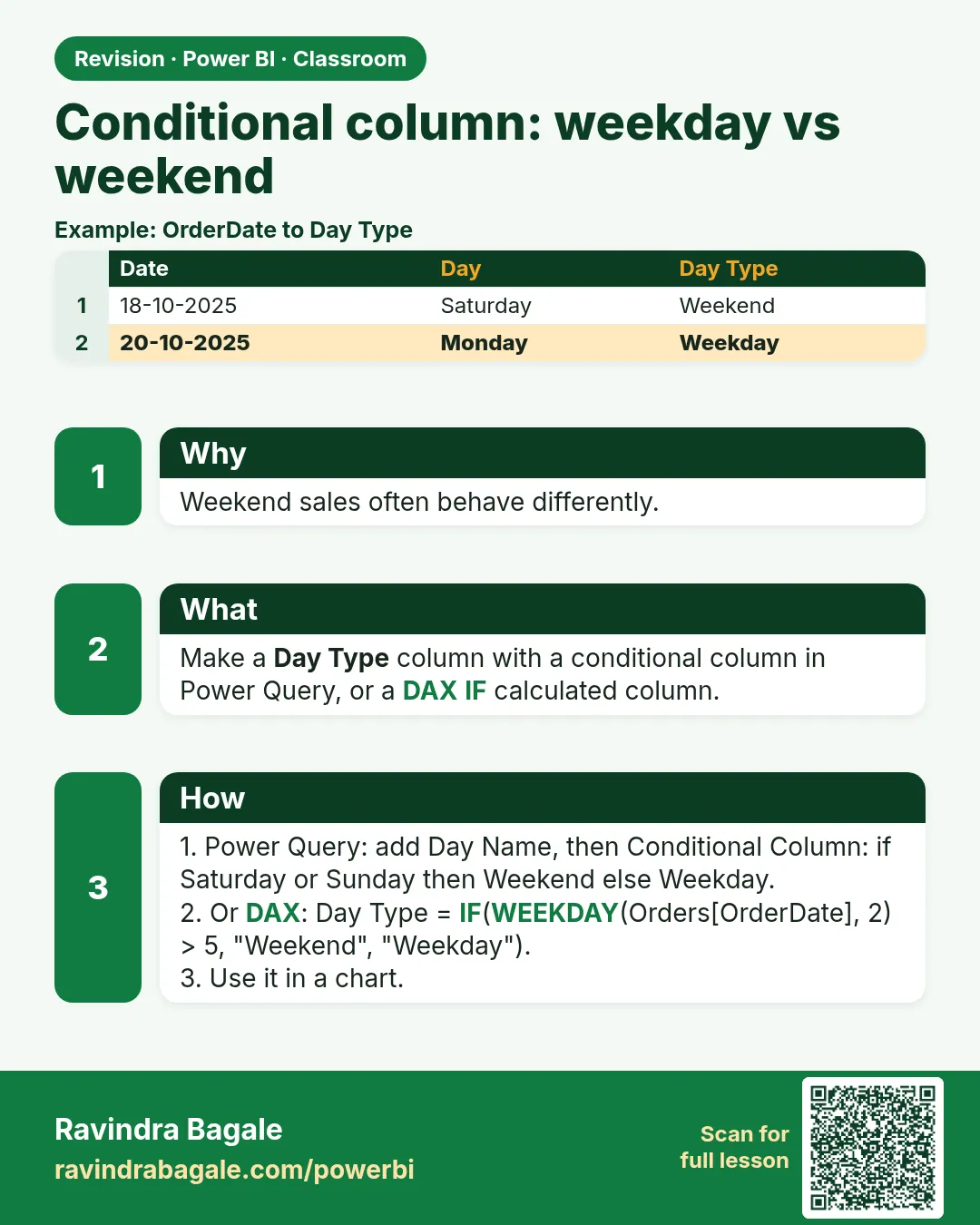
The sales table has a Day Name column (built in How to Use Column From Examples in Power Query (Get Day Name from a Date)). Management wants one chart with two bars: weekday revenue and weekend revenue. You need a column that says weekday for Monday to Friday and weekend for Saturday and Sunday.
2. The idea in simple words
A conditional column fills each row from a rule:
- If Day Name equals Saturday → weekend
- Else If Day Name equals Sunday → weekend
- Else → weekday
Write the short list. Weekend is 2 days, weekday is 5; testing for Saturday and Sunday needs 2 clauses, testing for the weekdays would need 5.
The three ways to write such a rule:
| Way | Where | Good for |
|---|---|---|
| Conditional Column dialog | Power Query › Add Column | simple if / else if / else, no code |
| Custom Column with M | Power Query › Add Column | AND / OR, ranges |
| DAX calculated column | Table view › Table tools › New column | rules on columns already in the model |
All three create a stored column. In Power BI the name calculated column usually refers to the DAX one.
Figure 1. The Conditional Column rule from top to bottom: Saturday → weekend, Sunday → weekend, else weekday (illustration).
Classroom line
Just write two conditions, for Saturday and Sunday. And the else? Weekday.
Class मधलं वाक्य
"Simply दोन conditions लिहा Saturday Sunday ची, else काय? weekday."
Simply दोन conditions लिहा, Saturday आणि Sunday च्या; else काय? weekday.
Classroom line
Just write two conditions, for Saturday and Sunday. And the else? Weekday.
3. The data
1,200 orders in 2025, total revenue ₹3,59,600. 2025 has 261 weekdays and 104 weekend days.
| Day Name | revenue (₹) |
|---|---|
| Monday | 43,652 |
| Tuesday | 46,675 |
| Wednesday | 44,315 |
| Thursday | 49,584 |
| Friday | 45,393 |
| Saturday | 56,940 |
| Sunday | 73,041 |
4. Step by step
Day Type with the Conditional Column dialog
- Transform data › select the sales query (it already has Day Name).
- Add Column › Conditional Column. New column name:
Day Type. - First row: Column name Day Name, Operator equals, Value
Saturday, Outputweekend. - Click Add Clause. Else If: Day Name equals
Sunday, Outputweekend. - Else:
weekday. Click OK. - Close & Apply.
The chart
- Insert a Clustered column chart: X-axis Day Type, Y-axis revenue.
- Format visual › Data labels On, Display units None, decimals 0. Under Columns (or X-axis), raise Inner padding if the bars look thin.
The same rule in DAX
- In Table view, select the sales table. Table tools › New column.
- Type:
Day Type DAX = IF(sales[Day Name] IN {"Saturday", "Sunday"}, "weekend", "weekday")and press Enter. - Check that every row has the same value as Day Type. Keep one of the two and delete the other.
Unique row numbers after an append
- When you append yearly tables whose order numbers each restart at 1, add an Index Column to give every row its own number. That is covered step by step in How to Add an Index Column in Power Query (From 0, From 1 and Custom Start).
Classroom line
When there are multiple values, write them inside curly braces.
Class मधलं वाक्य
"ज्यावेळी multiple values असतात त्यावेळी curly braces मध्ये लिहायचं."
ज्यावेळी multiple values असतात, त्यावेळी curly braces मध्ये लिहायचं.
Classroom line
When there are multiple values, write them inside curly braces.
5. Your result should look like this
| Day Type | revenue (₹) | days in 2025 | revenue per day (₹) |
|---|---|---|---|
| weekday | 2,29,619 | 261 | 880 |
| weekend | 1,29,981 | 104 | 1,250 |
The weekday bar is taller, but each weekend day brings in more: ₹1,250 against ₹880.
Figure 2. Weekday wins on total revenue (5 days) but weekend wins per day (2 days) (illustration).
6. What happened
- The dialog checked each row from the top: Saturday? weekend. Otherwise Sunday? weekend. Otherwise weekday. The first match wins.
- equals compares the whole text. contains would also work here, because Day Name holds one word, but equals says exactly what you mean.
- The DAX version reads: IF(logical test, value if true, value if false).
IN {"Saturday", "Sunday"}is true when the value is in the list. - Comparing totals is unfair when the groups have a different number of days. Dividing by the days gives a fair comparison.
Classroom line
Weekday is higher, but that is five days together, and this is only two days. Don't forget that.
Class मधलं वाक्य
"Weekday ला जास्त आहे... पण ते पाच दिवस मिळून आहे, हे दोनच दिवसाचं आहे. हे पण विसरू नका."
Weekday ला जास्त आहे, पण ते पाच दिवस मिळून आहे, हे दोनच दिवसांचं आहे. हे पण विसरू नका.
Classroom line
Weekday is higher, but that is five days together, and this is only two days. Don't forget that.
7. Explore further
- The edge of "greater than". A rule "revenue is greater than 100 → high, else low" sends a revenue of exactly 100 to low, because 100 > 100 is false. In this data 49 orders are exactly ₹100. With > 100 you get 827 high orders; with is greater than or equal to 100 you get 876. The same applies to any cut-off, for example > 10: exactly 10 is low. Decide which side the edge belongs to and choose the operator on purpose.
- AND in Power Query. The Conditional Column dialog tests one thing per clause, so "marks from 60 up to 75" does not fit. A Custom Column with M does:
if [marks] >= 60 and [marks] < 75 then "B" else "other". Useorin the same way. - AND in DAX.
IF(AND(sales[revenue] >= 100, sales[revenue] < 300), "mid", "other"), or with the&&operator. - "Type" in a name is fine. Day Type works as a column name in Power Query and in DAX.
- DAX query view. The fourth view on the left.
EVALUATE TOPN(100, 'sales')shows 100 rows. Queries here do not add anything to the model; it is a place to test DAX. - Measures vs columns. Weekday/weekend is a label for each row, so a column suits it. Totals such as "average revenue per weekend day" are better as measures.
Classroom line
Sometimes the condition is such that we cannot write it in this dialog.
Class मधलं वाक्य
"कधी कधी condition अशी येते की आपण इथे आपली condition नाही लिहू शकत."
कधी कधी condition अशी येते की आपण इथे आपली condition लिहूच शकत नाही.
Classroom line
Sometimes the condition is such that we cannot write it in this dialog.
8. Common mistakes
| Wrong result | Reason | Fix |
|---|---|---|
| Every row says weekday | Value typed as "saturday" or with a space | Match the Day Name text exactly; equals compares the whole text |
| Orders of exactly ₹100 counted as low | > 100 excludes 100 | Use >= 100 if 100 should be high |
| Need a range (60 to 75) in the dialog | One condition per clause | Custom Column with M if … and … then … else …, or DAX AND |
| DAX error with several values | Values not in curly braces | IN {"Saturday", "Sunday"} |
| Weekend looks weak | Comparing 2 days with 5 | Compare revenue per day |
Ravindra Bagale's Tip
Write the rule as a sentence first: "Saturday and Sunday are weekend, everything else is weekday". Then count which side is shorter and write that side as conditions; the long side goes into Else. Short rules have fewer mistakes.
Ravindra Bagale's Tip – मराठी
आधी rule वाक्यात लिहा: "Saturday आणि Sunday weekend, बाकी सगळं weekday". मग कुठली बाजू छोटी ते मोजा आणि ती बाजू conditions म्हणून लिहा; मोठी बाजू Else मध्ये जाते. छोट्या rules मध्ये चुका कमी होतात.
Ravindra Bagale's Tip – हिंदी
पहले rule एक वाक्य में लिखिए: "Saturday और Sunday weekend, बाकी सब weekday". फिर देखिए कौन-सी तरफ़ छोटी है और उसे conditions में लिखिए; बड़ी तरफ़ Else में जाती है. छोटे rules में गलतियाँ कम होती हैं.
Classroom line
It is just a ground to play in, that is, to practise.
Class मधलं वाक्य
"ते फक्त ground आहे खेळण्यासाठी, म्हणजे practice करण्यासाठी."
ते फक्त खेळण्यासाठी ground आहे, म्हणजे practice करण्यासाठी.
Classroom line
It is just a ground to play in, that is, to practise.
9. Practise on your own
Practice task
Use blinkit-sales-2025-days.csv with Day Name and Day Type. Merge or relate blinkit-product-list.csv to get category.
- What are weekday and weekend revenue, and revenue per day for each?
- Add a Conditional Column Remark: revenue is greater than 100 → high, else low. How many orders are high?
- How many orders change to high if you use "is greater than or equal to"?
- With the > 100 rule, what is high and low revenue for Snacks & Branded Foods? Why does Staples have no low?
Show solution
- Weekday ₹2,29,619 (₹880 per day); weekend ₹1,29,981 (₹1,250 per day).
- 827 orders.
- 49 more (876 in total): the orders of exactly ₹100.
- High 29,870, low 12,750. Staples products cost ₹160 and ₹190, so every Staples order is over ₹100.
10. Think like a professional
- Business view. Weekday vs weekend drives offers and staffing. Per day, weekends earn about 42% more here.
- Pick the simplest tool. Dialog for simple rules, M for ranges in Power Query, DAX when the rule uses columns that exist only in the model.
- Edges are decisions. Write down whether the cut-off value belongs to high or low; reviewers will ask.
- One rule, one place. Do not keep the same rule as both a Power Query column and a DAX column; they can drift apart.
Interview questions
- How do you create weekday/weekend in Power Query? Add Column › Conditional Column: Saturday → weekend, Else If Sunday → weekend, Else weekday.
- Can Power Query handle AND conditions? Yes, in a Custom Column with M (
if … and … then … else …); only the dialog cannot. - Write the DAX for weekend.
IF(sales[Day Name] IN {"Saturday", "Sunday"}, "weekend", "weekday").
Recap
In short
- Conditional Column: If, Else If, Else; the first match wins.
- Write the short side (Saturday, Sunday) and put the rest in Else.
- Compare per day: weekend ₹1,250 vs weekday ₹880.
-
100 leaves exactly 100 out; choose >= if it belongs in.
- AND/OR: M if-and in a Custom Column, or DAX IF with AND or IN { }.
 Revision card