How to Stop Power BI Changing Data Types Automatically and Fix Slow Loading
You open a CSV and Power BI has already added a Changed Type step for you. It guessed the types from the first rows, so a price column with NA further down gives errors, and every fix starts with deleting that step. Then, when the file grows, Close & Apply takes longer and longer. In this chapter you tell Power BI to stop guessing types, set them yourself in the right order, keep the Applied Steps list clean, append the 2025 file into sales, and turn off one setting that makes loading slow.
What you'll learn in this chapter
- Never detect column types for CSV files
- GLOBAL vs CURRENT FILE options
- Blank vs null: before and after the type
- Replace first, set the type second
- Latest data is at the last step
- Append the next year into sales
- Turn off relationship autodetect
Practice files: blinkit-orders-2025-small.csv (the 3 rows on this page) and blinkit-orders-2025.csv (150 rows). You also need the sales query from How to Append Multiple Years of Sales Data in Power BI Power Query.
Made-up data: fictional Blinkit-style orders from Maharashtra cities, for practice only. Amounts are in ₹.
1. The problem
The 2025 file has a few new surprises:
| order_id | product_id | city | order_date | order_date_2 | sales | price | revenue | stock |
|---|---|---|---|---|---|---|---|---|
| BLK5001 | P103 | Nashik | (empty) | 14-01-2025 | (blank) | 90 | (blank) | (blank) |
| BLK5002 | P102 | Chhatrapati Sambhajinagar | (empty) | 22-04-2025 | 2 | 450 | 900 | 11 |
| BLK5003 | P105 | Pune | (empty) | 05-08-2025 | 1 | NA | 999 | 6 |
(The file also has store_id, an empty promo_bin column and delivery_date.)
order_dateis empty; the real date is inorder_date_2.- Some sales, revenue and stock cells are blank.
- One price is NA.
With automatic type detection on, Power Query adds a Changed Type step straight after loading. If it decides price is a number, the NA becomes an Error before you have had a chance to clean it.
2. The idea in simple words
For CSV and text files (Power BI calls them unstructured sources), Power Query looks at the first 200 rows and guesses each column's type. A guess is fine for a tidy file. For a messy file it is a trap, because the type change runs before your cleaning.
So you switch the guess off and follow one fixed order:
- Promote headers yourself.
- Remove and rename columns.
- Replace text such as NA with null.
- Set the types last.
Two more ideas in this chapter:
- Blank vs null. In a text column, an empty cell shows as blank. After you set the column to a number type, the same cell shows null. You do not need to replace blanks in number columns; the type change does it.
- Applied Steps run top to bottom. The latest data is always at the last step. Work at the bottom; do not edit old steps in the middle.
Figure 1. With detection on, Changed Type runs before cleaning and NA becomes Error; with detection off, you replace NA with null first and set the types last (illustration).
3. The data
What each cell becomes, step by step, for the 3 rows:
| order_id | sales (as text) | sales (Whole Number) | price (as text) | price after Replace NA → null and Decimal |
|---|---|---|---|---|
| BLK5001 | (blank) | null | 90 | 90 |
| BLK5002 | 2 | 2 | 450 | 450 |
| BLK5003 | 1 | 1 | NA | null |
After appending these 3 rows to the 7 rows of sales:
| Check | By hand |
|---|---|
| Rows | 7 + 3 = 10 |
| Revenue | 2,634 + 900 + 999 = ₹4,533 (BLK5001 revenue is null) |
| Sales (units) | 14 + 2 + 1 = 17 |
4. Step by step
Switch off type detection
- File › Options and settings › Options.
- Under GLOBAL, click Data Load. Under Type Detection, choose Never detect column types and headers for unstructured sources. This applies to new files.
- Under CURRENT FILE, click Data Load. Under Type Detection, untick Detect column types and headers for unstructured sources. This applies to the file you have open. OK.
Load the 2025 file
- Home › Transform data to open Power Query, then Home › New Source › Text/CSV ›
blinkit-orders-2025-small.csv› OK. Rename the query toorders_2025. - Look at Applied Steps: only Source. The columns are Column1, Column2 … and no Changed Type step was added.
- Home › Use First Row as Headers. If a Changed Type step still appears under it, click its ✕ to delete it.
Clean in the right order
- Check order_id and product_id with the filter arrow (click Load more if shown) and untick (blank) and NA.
- Remove the empty order_date and promo_bin columns. Rename order_date_2 to
order_date. - Look at sales, revenue and stock: the empty cells show as blank. Leave them.
- Right-click price › Replace Values › Value To Find
NA, Replace Withnull› OK. - Now set the types: order_date and delivery_date › Change Type › Using Locale › Date, English (India); sales and stock › Whole Number; price and revenue › Decimal Number. The blank sales, revenue and stock cells of BLK5001 now show null.
Append into sales
- Select the
salesquery. Home › Append Queries (the plain one) › Two tables › Table to append:orders_2025› OK. - Right-click
orders_2025› untick Enable load.
Make loading faster
- File › Options and settings › Options › CURRENT FILE › Data Load. Under Relationships, untick Autodetect new relationships after data is loaded. OK.
- Home › Close & Apply.
Figure 2. The Options window: GLOBAL settings apply to new files, CURRENT FILE settings to the open file; Type Detection and the Relationships options sit under Data Load (illustration).
5. Your result should look like this
orders_2025 Applied Steps: Source › Promoted Headers › Filtered Rows › Removed Columns › Renamed Columns › Replaced Value › Changed Type (the names may carry numbers, such as Changed Type1). sales has 10 rows:
| Check | Value |
|---|---|
| Rows | 10 (4 from 2023, 3 from 2024, 3 from 2025) |
| Total revenue | ₹4,533 |
| Total sales | 17 units |
| Nulls | sales 1, price 2, revenue 1, stock 1 |
| Errors | 0 in every column (View › Column quality) |
6. What happened
- With detection off, nothing guessed the types, so the NA in price stayed as text until you replaced it. No Error ever appeared.
- Setting the number types after the replace turned the NA (now null) and the blank cells into null. Blank was just "empty text"; as a number it can only be null.
- Appending into
salesadded a step at the bottom of thesalesquery.orders_2023,orders_2024andorders_2025feed it; onlysalesis loaded. - Autodetect relationships makes Power BI scan the loaded tables for matching column names after each load. With one loaded table there is nothing to find, and in bigger files the scan costs time.
Classroom line
Whenever any error appears, first delete the Changed Type step.
Class मधलं वाक्य
"kadhi bi kahi bi error ala, pahilyanda to change type vala jo kahi step ahe to delete marayacha"
कधीही कोणताही error आला, तर पहिल्यांदा तो Changed Type वाला step delete करायचा.
Classroom line
Whenever any error appears, first delete the Changed Type step.
7. Explore further
- Latest data is at the last step. Clicking an old step shows the data as it was then. If you add a step while an old one is selected, Power Query asks to Insert it in the middle; later steps may then break. Select the last step before you work.
- Do not rename inside an old step's formula. Later steps refer to columns by name; renaming in the middle breaks them with The column … of the table wasn't found.
- When the list is a mess, delete the steps back to Source (right-click a step › Delete Until End) and redo them in order. For a small file this is often the quickest fix.
- GLOBAL vs CURRENT FILE. GLOBAL options are your defaults for files you create from now on. CURRENT FILE options are saved inside the .pbix and travel with it to a colleague.
- Relationships options. Microsoft documents three options under Data Load › Relationships: Import relationships from data sources on first load, Update or delete relationships when refreshing data, and Autodetect new relationships after data is loaded. Some versions also show the Relationships options under GLOBAL › Data Load, where they act as the default for new files; check your own Options window.
- The error rule from the earlier chapter still holds. If you set a number type and an Error appears, delete that Changed Type step, replace the text, then set the type again. See How to Fix DataFormat.Error We Couldn't Convert to Number in Power Query.
Classroom line
Your latest data is always at the last step.
Class मधलं वाक्य
"Tumcha latest data always last step la asto."
तुमचा latest data नेहमी शेवटच्या step ला असतो.
Classroom line
Your latest data is always at the last step.
8. Common mistakes
| Wrong result | Reason | Fix |
|---|---|---|
| A Changed Type step still appears after loading | Only the GLOBAL option was changed; the open file still has detection on | Also untick it under CURRENT FILE, and delete the step |
| price shows Error for BLK5003 | Type set before NA was replaced | Delete that Changed Type step, replace NA with null, set the type again |
| Blank sales cells replaced with 0 | Blanks were treated as zero | Leave them; the number type turns them into null |
sales has both order_date and order_date_2 |
order_date_2 was not renamed, or the empty order_date was not removed | Remove the empty column, rename order_date_2 to order_date |
| A later step fails with column wasn't found | A rename was made in an old step | Undo it there and do the rename as a new step at the bottom |
| 13 rows instead of 10 | orders_2025 was appended twice, or "as New" was used and then appended again |
Check the Append step in sales; keep one |
Ravindra Bagale's Tip
Make the Applied Steps list read like a recipe: headers, remove, rename, replace, types, append. If you cannot read it top to bottom and understand it, it is time to delete back to Source and redo it cleanly.
Ravindra Bagale's Tip – मराठी
Applied Steps ची list recipe सारखी वाचता आली पाहिजे: headers, remove, rename, replace, types, append. वरून खाली वाचून समजत नसेल, तर Source पर्यंत delete करून परत नीट करायची वेळ आलीय.
Ravindra Bagale's Tip – हिंदी
Applied Steps की list recipe की तरह पढ़ी जानी चाहिए: headers, remove, rename, replace, types, append. ऊपर से नीचे पढ़कर समझ न आए, तो Source तक delete करके फिर से साफ़ बनाने का समय आ गया है.
9. Practise on your own
Practice task
With your 255-row sales from the previous chapter, load blinkit-orders-2025.csv with type detection off, clean it and append it.
- How many rows does
orders_2025keep after the ID checks? - How many nulls does it have in sales, price, revenue and stock?
- How many rows does
saleshave now, and what is the total revenue?
Hints: 4 rows have product_id NA. Blank sales, revenue and stock cells need no replace.
Show solution
- 146 rows (150 − 4).
- sales 9, price 9, revenue 10, stock 7 nulls.
saleshas 401 rows (120 + 135 + 146). Revenue ₹1,95,016 (2023: 53,186 · 2024: 70,636 · 2025: 71,194). Sales 860 units.
10. Think like a professional
- Business view. Wrong types are silent: a revenue column stored as text gives Count instead of Sum. Setting types yourself, at a known step, removes the guessing.
- Performance. Fewer, deliberate steps refresh faster. Relationship autodetect and Auto date/time both add work on every load; turn off what you do not use.
- Maintenance. Rename important steps (right-click › Rename: "Replaced NA in price", "Set types"). Each yearly query then reads the same way.
- Team settings. CURRENT FILE options travel with the .pbix; GLOBAL options do not. If a colleague opens your file, its own settings apply.
Interview questions
- How do you stop Power BI adding Changed Type automatically for CSV files? Options › GLOBAL › Data Load › Type Detection › Never detect…, and untick the CURRENT FILE option for open files.
- Why does a blank cell show as blank in one step and null in the next? In a text column it is empty text; after a number type it can only be null.
- Where is the latest data in Applied Steps? At the last step.
- Name one setting that can make loading slow. Autodetect new relationships after data is loaded.
Recap
In short
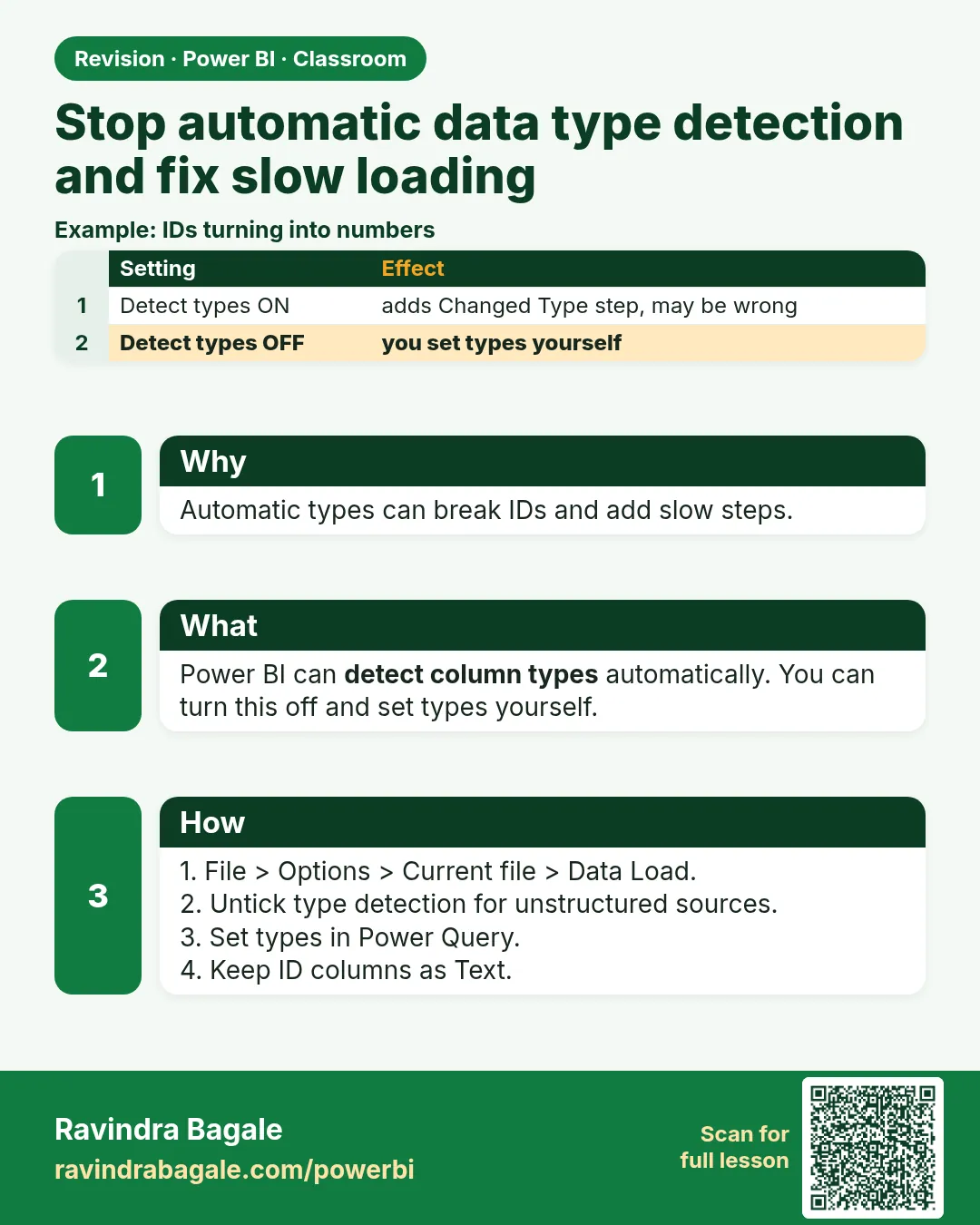
- For CSV files, choose Never detect column types and headers.
- Order: headers, remove, rename, replace NA with null, types last.
- Blanks in number columns become null on their own.
- Work at the last step; delete back to Source if the list is a mess.
- Append orders_2025 into sales; turn off relationship autodetect for faster loading.
 Revision card