How to Show Top 5 and Bottom 5 in Power BI with Data Labels and Format Painter
"Where do we sell the most, and where are we weakest?" Every sales review starts with these two questions. In Power BI the answer is two charts: the top 5 states and the bottom 5 cities by revenue. In this chapter you bring the store locations into the sales table, build both charts with Top N filters, make the numbers on the bars easy to read, and copy that look from one chart to the other in a single click with Format Painter.
What you'll learn in this chapter
- Bring state and city into sales (Left Outer merge)
- Top 5 states with a Top N filter
- Bottom 5 cities with Show items Bottom
- Why a (Blank) city appears, and how to remove it
- Data labels: size, bold, Display units, decimals
- Format Painter: copy one chart's look to another
Practice files: blinkit-sales-2025-stores.csv (900 orders from 11 stores) and blinkit-store-cities-clean.csv (10 stores with state and city).
Made-up data: fictional Blinkit-style orders and stores in 2025, for practice only. Amounts are in ₹.
1. The problem
The sales table has a store_id but no state or city. The store table has state and city but no sales. You need:
- a chart of the 5 states with the highest revenue, and
- a chart of the 5 cities with the lowest revenue,
both with readable numbers on the bars and the same look, so they sit well side by side.
2. The idea in simple words
- Bring the location in. Merge store_cities into sales on store_id with Left Outer: every sales row stays, and state and city are added where the store is known. (Merging is explained in How to Merge Tables in Power BI Power Query (Left Outer vs Inner Join). The next chapter shows the better way for bigger models: relationships.)
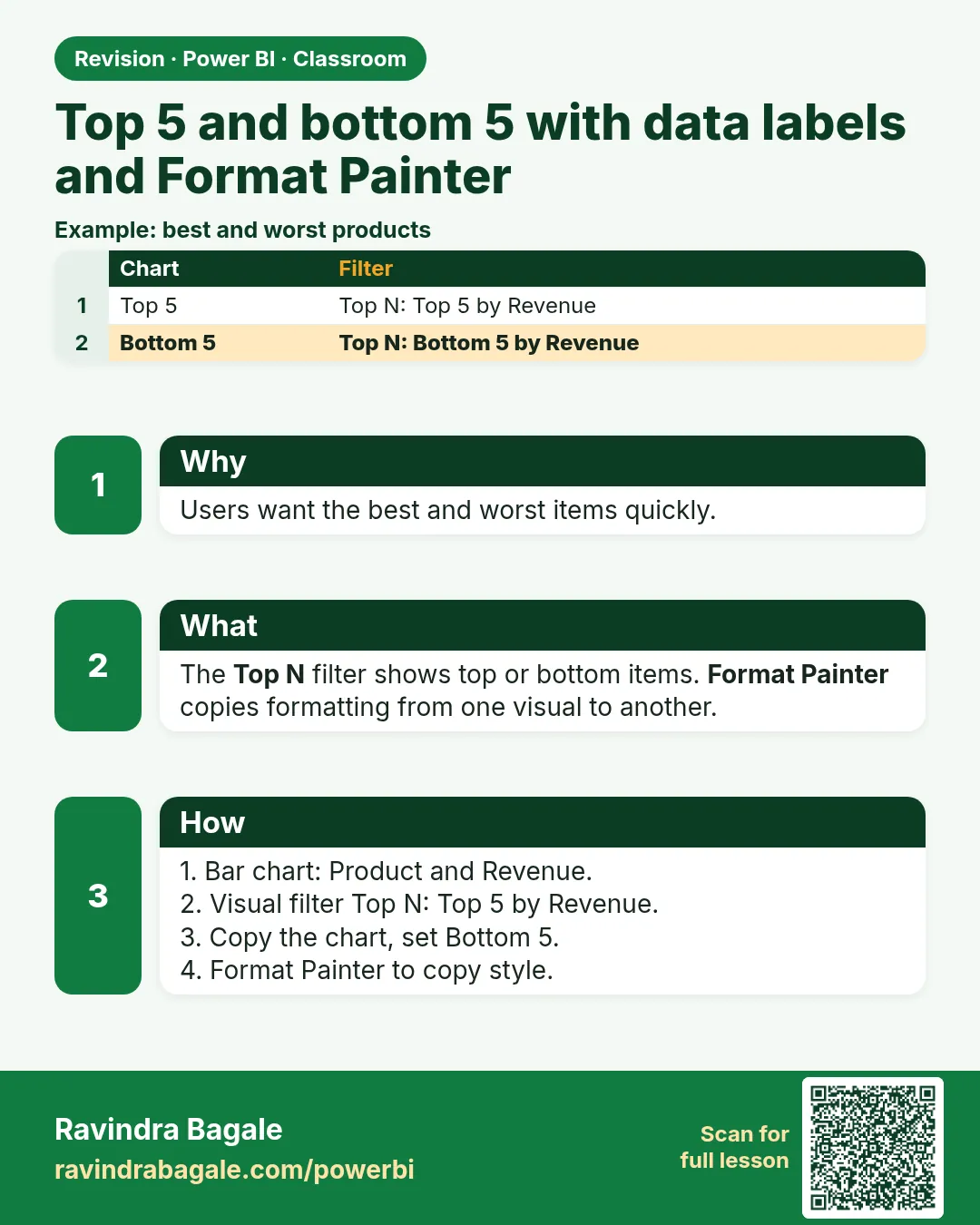
- Top N works both ways. The same filter card shows the Top 5 or the Bottom 5 items by a value. Top N basics are in How to Use Filters in Power BI: Visual, Page and Report Level Filters with Top N and Advanced Filtering.
- Format Painter copies formatting (labels, fonts, colours, title style) from one visual to another. It does not copy the fields or the filters.
Figure 1. Top 5 states and bottom 5 cities by revenue, with full numbers as data labels (illustration).
Classroom line
When merging, you have to say which column is common to both tables.
Class मधलं वाक्य
"Merge करताना ... दोन्हीमधला common column कुठला आहे तो सांगावा लागेल."
Merge करताना दोन्ही tables मधला common column कुठला आहे ते सांगावं लागतं.
Classroom line
When merging, you have to say which column is common to both tables.
3. The data
After the merge, the sales table has 900 rows and total revenue ₹1,79,538. Store 111 is new and not yet in store_cities, so its 19 orders (₹2,531) have a blank state and city.
| state | revenue (₹) |
|---|---|
| Maharashtra | 76,450 |
| Karnataka | 40,271 |
| Telangana | 17,998 |
| Gujarat | 16,770 |
| Tamil Nadu | 14,261 |
| Madhya Pradesh | 8,980 |
| (Blank) | 2,531 |
| Rajasthan | 2,277 |
| city | revenue (₹) | city | revenue (₹) |
|---|---|---|---|
| Pune | 38,733 | Chennai | 14,261 |
| Bengaluru | 30,799 | Nagpur | 11,627 |
| Mumbai | 26,090 | Mysuru | 9,472 |
| Hyderabad | 17,998 | Indore | 8,980 |
| Ahmedabad | 16,770 | (Blank) | 2,531 |
| Jaipur | 2,277 |
4. Step by step
Bring state and city into sales
- Load both files and open Transform data. Select the sales query.
- Home › Merge Queries. Second table: store_cities. Click store_id in both tables. Join Kind: Left Outer (all from first, matching from second). OK.
- Click the expand icon on the new store_cities column. Tick only state and city, untick Use original column name as prefix, OK.
- Close & Apply.
Top 5 states
- Insert a Clustered column chart: X-axis state, Y-axis revenue.
- With the chart selected: Filters pane › Filters on this visual › state › Filter type Top N › Show items Top 5 › By value revenue › Apply filter.
- Format visual › Visual › Data labels: On. Under Values: font size 14, bold, Display units None, Value decimal places 0.
- General › Title › text:
Top 5 states by revenue.
Bottom 5 cities
- Insert a Stacked column chart: X-axis city, Y-axis revenue.
- Filters on this visual › city › Top N › Show items Bottom, 5 › By value revenue › Apply filter.
- A (Blank) bar appears with 2,531: the orders of store 111. Drag state into Filters on this visual › Filter type Advanced filtering › Show items when the value is not blank › Apply filter. The Bottom 5 now shows real cities only.
Copy the look with Format Painter
- Click the Top 5 states chart.
- Home › Format painter (the paintbrush icon).
- Click the Bottom 5 cities chart. Its data labels, fonts and colours now match. Change its title to
Bottom 5 cities by revenue.
Figure 2. Format Painter from top to bottom: select the formatted chart, click Format painter, click the other chart; the look is copied, the fields and filters are not (illustration).
Classroom line
The formatting you did on one visual can be copied to another visual as it is.
Class मधलं वाक्य
"एकाच visual ला ... जे format केलेलं आहे, तेच same format दुसऱ्या visual ला ... copy करू शकतो."
एका visual ला जे format केलेलं आहे, तेच same format दुसऱ्या visual ला copy करू शकतो.
Classroom line
The formatting you did on one visual can be copied to another visual as it is.
5. Your result should look like this
| Chart | Bars (₹) |
|---|---|
| Top 5 states by revenue | Maharashtra 76,450 · Karnataka 40,271 · Telangana 17,998 · Gujarat 16,770 · Tamil Nadu 14,261 |
| Bottom 5 cities by revenue | Jaipur 2,277 · Indore 8,980 · Mysuru 9,472 · Nagpur 11,627 · Chennai 14,261 |
Labels read 76,450, not 76.45K. Before the "is not blank" filter, the bottom 5 was Jaipur, (Blank), Indore, Mysuru and Nagpur.
6. What happened
- Left Outer kept all 900 sales rows. An Inner join would have dropped store 111's 19 orders and shown total revenue of ₹1,77,007 instead of ₹1,79,538.
- Top 5 ranked the states by the sum of revenue and kept the highest five. Bottom 5 did the same from the other end.
- (Blank) is a real item to Power BI: the rows with no city have revenue, so they take part in the ranking. Filtering state "is not blank" removes those rows from this visual only; the card total still includes them.
- Display units None and 0 decimals show the full number. With Auto, Power BI shortens to K.
- Format Painter copied the formatting only. The city chart kept its own fields and its own Bottom 5 filter.
Classroom line
Don't sit quietly; tell me if something is not clear.
Class मधलं वाक्य
"Gapp basu naka bar ka, sangat jawa konala kalal nasel."
गप्प बसू नका बरं का, कोणाला कळलं नसेल तर सांगत जा.
Classroom line
Don't sit quietly; tell me if something is not clear.
7. Explore further
- Bottom N and zero sales. Bottom N only ranks items that have rows in the data. A city with no orders at all does not appear; to show it you need the city from a store table related to sales (next chapter).
- Ties. If two cities tie at the cut-off, both are kept, so "Bottom 5" can show 6 bars.
- Sort. Top N does not sort the bars. Use More options (…) › Sort axis › revenue, descending for the top 5 and ascending for the bottom 5.
- Format Painter on many visuals. Click Format painter again for each extra visual. The look also works between different chart types, as far as the settings exist on both.
- Fix the blank at the source. The best fix for (Blank) is to add store 111 to store_cities. The filter is a stopgap until the store list is updated.
Classroom line
Tell me, what do we do next?
Class मधलं वाक्य
"Sanga atah next ka karaych?"
सांगा, आता पुढे काय करायचं?
Classroom line
Tell me, what do we do next?
8. Common mistakes
| Wrong result | Reason | Fix |
|---|---|---|
| Revenue drops after the merge | Join Kind Inner | Use Left Outer |
| Columns named store_cities.state | Prefix left ticked when expanding | Untick Use original column name as prefix, or rename |
| Bottom 5 shows a (Blank) bar | Sales rows with no matching store | Filter state is not blank, and add the store to store_cities |
| Bottom 5 shows the biggest cities | Show items left on Top | Choose Bottom |
| Labels show 76.45K | Display units Auto | Display units None, 0 decimals |
| Format Painter changed nothing | Clicked the empty canvas instead of the chart | Select the source chart, click Format painter, then click inside the target chart |
Ravindra Bagale's Tip
Format one chart perfectly, then paint the rest. Your report gets one font size, one label style and one colour for revenue, and a report that looks consistent is trusted more, even before anyone reads the numbers.
Ravindra Bagale's Tip – मराठी
एक chart perfect format करा, मग बाकीचे paint करा. Report मध्ये एक font size, एक label style आणि revenue साठी एक colour येतो, आणि consistent दिसणाऱ्या report वर लोक जास्त विश्वास ठेवतात, numbers वाचायच्या आधीच.
Ravindra Bagale's Tip – हिंदी
एक chart को perfect format कीजिए, फिर बाकी को paint कीजिए. Report में एक font size, एक label style और revenue के लिए एक colour आता है, और consistent दिखने वाले report पर लोग ज़्यादा भरोसा करते हैं, numbers पढ़ने से पहले ही.
9. Practise on your own
Practice task
Use blinkit-sales-2025-stores.csv and blinkit-store-cities-clean.csv, merged with Left Outer.
- Which are the top 3 cities by revenue?
- Which are the bottom 3 states, with blanks excluded?
- Change the Top 5 states chart to Top 5 by sales (units). Does the order change?
- What total revenue would a card show if you had used an Inner join?
Show solution
- Pune 38,733, Bengaluru 30,799, Mumbai 26,090.
- Rajasthan 2,277, Madhya Pradesh 8,980, Tamil Nadu 14,261.
- No. By units: Maharashtra 634, Karnataka 327, Telangana 167, Gujarat 140, Tamil Nadu 113.
- ₹1,77,007 (881 rows); store 111's ₹2,531 would be lost.
10. Think like a professional
- Business view. Top 5 shows where to invest; bottom 5 shows where to look for problems. Show both on one page.
- Say the rule in the title. "Bottom 5 cities by revenue (excluding unknown stores)" tells the reader exactly what they see.
- Treat (Blank) as a signal. A blank city means master data is missing. Report it to whoever maintains the store list.
- Consistency is a feature. Use Format Painter, or a report theme, so every chart follows the same style.
Interview questions
- How do you show the bottom 5 cities by revenue? Filters on this visual › city › Top N › Show items Bottom 5 › By value revenue.
- Why does (Blank) appear in a Top N chart? Rows with no matching value in the merged or related table; they have revenue, so they are ranked.
- What does Format Painter copy? Formatting only: labels, fonts, colours, title style. Not fields or filters.
- Left Outer or Inner when adding store details to sales? Left Outer, so no sales row is lost.
Recap
In short
- Merge store_cities into sales on store_id with Left Outer.
- Top N › Top 5 by revenue for states; Bottom 5 by revenue for cities.
- Remove (Blank) with state is not blank; fix the store list at the source.
- Data labels: bigger, bold, Display units None, 0 decimals.
- Format Painter copies the look, not the fields or filters.
 Revision card