How to Create Column and Bar Charts with Date Hierarchy and Drill Down in Power BI
Your manager asks two questions: "How is revenue moving month by month?" and "Which city brings the most?" Both answers are one chart away, but only if you put the right field on the right axis and understand what Power BI does when you drop a date onto a chart. In this chapter you build a column chart over time, walk up and down the date hierarchy with the drill icons, and build a bar chart by city, checking every bar against numbers you can add by hand.
What you'll learn in this chapter
- When to use a column chart and when a bar chart
- Put a date on the X-axis and a measure on the Y-axis
- The automatic Year › Quarter › Month › Day hierarchy
- Drill down, drill up and next level
- What happens when you remove hierarchy levels
- Use the plain date for a continuous timeline
- A bar chart with the city on the Y-axis
Practice files: blinkit-orders-small-clean.csv (the 7 clean orders used on this page) and blinkit-orders-clean.csv (274 clean orders, April 2025 to March 2026). Both are the result of How to Clean Messy Sales Data in Power BI Power Query. When you load them, set order_date to Date with locale English (India).
Made-up data: fictional Blinkit-style orders from Maharashtra cities, for practice only. Amounts are in ₹.
1. The problem
You have 7 clean orders. You want to see revenue over time and by city. You drag order_date and revenue onto a chart and get a single tall column labelled 2025. Where did the months go? And when you try a bar chart, the city names do not show where you expect. Both surprises have simple reasons.
2. The idea in simple words
- A column chart has vertical columns. The category (dates, cities) runs along the bottom, the X-axis; the number goes up, the Y-axis.
- A bar chart is the same chart turned on its side. The category runs down the left, the Y-axis; the number goes across, the X-axis. Use it when labels are long ("Chhatrapati Sambhajinagar") or when there are many categories.
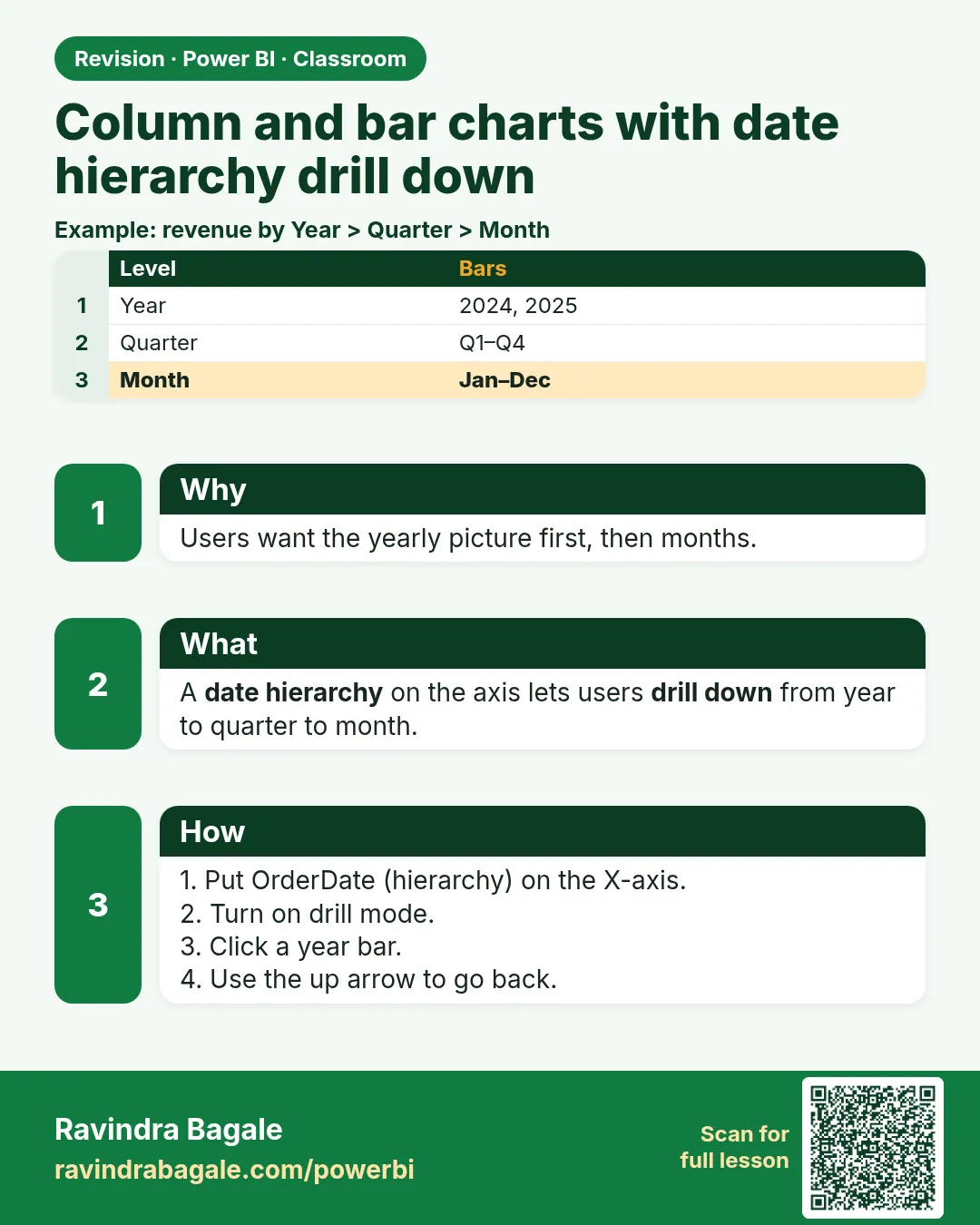
- When you drop a date onto an axis, Power BI (with Auto date/time on, the default) replaces it with a date hierarchy: Year › Quarter › Month › Day. The chart starts at the top level, Year, and adds up everything inside each year.
- Drilling moves between the levels: down from Year to Quarter to Month, and back up.
Figure 1. The date hierarchy for the 7 orders: one year splits into two quarters and four months; the drill icons move between the levels (illustration).
3. The data
The 7 clean orders (revenue null for BLK1005):
| order_id | city | order_date | revenue (₹) |
|---|---|---|---|
| BLK1001 | Pune | 05-04-2025 | 240 |
| BLK1002 | Nashik | 05-04-2025 | 450 |
| BLK1003 | Solapur | 18-04-2025 | 270 |
| BLK1005 | Pune | 05-05-2025 | null |
| BLK1006 | Nashik | 05-05-2025 | 999 |
| BLK1008 | Kolhapur | 21-06-2025 | 900 |
| BLK1009 | Pune | 05-07-2025 | 450 |
Work out by hand before you build:
| Level | Groups and totals |
|---|---|
| Year | 2025: 240 + 450 + 270 + 999 + 900 + 450 = ₹3,309 |
| Quarter | Qtr 2 (April–June): ₹2,859; Qtr 3 (July–September): ₹450 |
| Month | April ₹960, May ₹999, June ₹900, July ₹450 |
| City | Nashik ₹1,449, Kolhapur ₹900, Pune ₹690, Solapur ₹270 |
4. Step by step
Column chart of revenue over time
- Go to Report view (the bar-chart icon on the left).
- In the Visualizations pane click Clustered column chart. An empty chart appears on the canvas.
- From the Data pane drag order_date to X-axis.
- Drag revenue to Y-axis. Power BI shows Sum of revenue: one column, 2025, height 3,309.
Drill down and up
- Point at the chart. Icons appear above it. Click Go to the next level in the hierarchy (two down arrows). The chart now shows quarters: Qtr 2 = 2,859, Qtr 3 = 450.
- Click it again: months, April 960, May 999, June 900, July 450.
- Click Drill up (the up arrow) twice to go back to Year.
- Click Drill down (the single down arrow) to turn on drill mode. It stays highlighted.
- Click the 2025 column. The chart shows only the quarters inside 2025. Click the Qtr 2 column: April, May and June.
- Click Drill up until you are back at Year, then click the single down arrow again to turn drill mode off.
Remove levels on purpose
- In the X-axis well, expand order_date and click the ✕ next to Year, Quarter and Month, leaving only Day.
- The chart now has three columns: 5 = 2,139, 18 = 270, 21 = 900.
- Press Ctrl+Z three times (or drag order_date in again) to get the full hierarchy back.
Continuous timeline
- In the X-axis well, click the small arrow next to order_date and choose order_date instead of Date Hierarchy. The chart now shows one column per date on a single time axis.
Bar chart by city
- Click an empty part of the canvas, then Clustered bar chart in Visualizations.
- Drag city to Y-axis and revenue to X-axis.
- The bars are sorted largest first: Nashik 1,449, Kolhapur 900, Pune 690, Solapur 270.
Figure 2. Column chart vs bar chart: in a column chart the category is on the X-axis; in a bar chart the category is on the Y-axis and the value runs along the X-axis (illustration).
5. Your result should look like this
| Chart state | Columns or bars you should see |
|---|---|
| Year | 2025 = 3,309 |
| Quarter | Qtr 2 = 2,859 · Qtr 3 = 450 |
| Month | April = 960 · May = 999 · June = 900 · July = 450 |
| Day only (levels removed) | 5 = 2,139 · 18 = 270 · 21 = 900 |
| Bar chart by city | Nashik 1,449 · Kolhapur 900 · Pune 690 · Solapur 270 |
Every state adds up to 3,309. If a total does not, a row is missing or a null was replaced with something else.
6. What happened
- At Year level all 7 orders fall into 2025, so Power BI adds them into one column. BLK1005 has null revenue and adds nothing.
- At Quarter level Power BI uses the calendar quarter: Qtr 2 is April–June. April 960 + May 999 + June 900 = 2,859.
- When you removed Year, Quarter and Month, Power BI grouped by the day number only. Day 5 now means "the 5th of any month": 5 April (240 + 450), 5 May (999) and 5 July (450) = 2,139. That is why removing levels changes the meaning of the chart, not just its look.
- In the bar chart, city is the category, so it sits on the Y-axis down the left, and the value runs across.
Ravindra Bagale's Tip
Do not copy the clicks; understand them. Before you drop a field, say out loud which axis it belongs on and what Power BI will add up. Drag and drop is easy, and Power BI will always try to guess; your job is to check that its guess answers the question you were asked.
Ravindra Bagale's Tip – मराठी
माझे clicks copy करू नका; ते समजून घ्या. Field drop करण्याआधी मोठ्याने सांगा: तो कोणत्या axis वर जाणार आणि Power BI काय add up करणार. Drag and drop सोपं आहे, आणि Power BI नेहमी अंदाज लावायचा प्रयत्न करतो; तो अंदाज विचारलेल्या प्रश्नाचं उत्तर देतो का, हे check करणं तुमचं काम आहे.
Ravindra Bagale's Tip – हिंदी
मेरे clicks copy मत कीजिए; उन्हें समझिए. Field drop करने से पहले ज़ोर से बोलिए: वह किस axis पर जाएगा और Power BI क्या add up करेगा. Drag and drop आसान है, और Power BI हमेशा अंदाज़ा लगाने की कोशिश करता है; वह अंदाज़ा पूछे गए सवाल का जवाब देता है या नहीं, यह check करना आपका काम है.
Classroom line
Copying my clicks is not learning. Understanding is.
Class मधलं वाक्य
"Mazya clicks copy kelyane shikat nahi. Samjun ghetla tar shikta."
माझे clicks copy केल्याने शिकता येत नाही. समजून घेतलं तर शिकता येतं.
Classroom line
Copying my clicks is not learning. Understanding is.
7. Explore further
- Expand all down one level (the forked arrow icon) shows the next level for all parents at once, labelled like "2025 Qtr 2". Compare it with Go to the next level, which shows Qtr 2 for all years added together.
- Financial year. The automatic hierarchy is calendar based: Qtr 1 is January–March. Indian reports usually start the year in April. For April–March quarters you need your own date table, which the Power BI course covers in data modelling.
- Auto date/time is set in File › Options and settings › Options › Current File › Data Load. If it is off, the date stays a plain date and no hierarchy appears.
- Sort. On a column chart of months, use More options (…) › Sort axis › order_date to keep April before May.
- Many categories. A bar chart with 30 cities is still readable; a column chart with 30 slanted labels is not.
8. Common mistakes
| Wrong result | Reason | Fix |
|---|---|---|
| One column only, labelled 2025 | You are at the Year level of the hierarchy | Use Go to the next level, or drill down |
| Day 5 shows 2,139 when you expected 240 + 450 | Year and Month were removed, so day 5 adds up the 5th of every month | Keep the higher levels, or use the plain order_date |
| City names do not show on the left of the bar chart | city was dropped on X-axis | In a bar chart put the category on Y-axis and the value on X-axis |
| Count of revenue instead of Sum | revenue is text because its type was not set in Power Query | Set revenue to a number type in Power Query |
| No hierarchy appears | order_date is text, or Auto date/time is off | Set the type to Date (locale English (India)), or turn Auto date/time on |
| Clicking a column does nothing | Drill mode (single down arrow) is off | Turn it on first |
9. Practise on your own
Practice task
Load blinkit-orders-clean.csv (274 orders) and build:
- A column chart of revenue by order_date. What are the two columns at Year level?
- Drill to quarters. Which quarter is largest?
- Drill to months. Which month is largest, and what is its revenue?
- A bar chart of revenue by city. Which city is first?
- Remove Year, Quarter and Month. What does Day 5 show?
Hints: the orders run from April 2025 to March 2026, so two calendar years appear.
Show solution
- 2025 = 1,31,996 and 2026 = 37,513 (total ₹1,69,509).
- Quarters: 2025 Qtr 2 = 34,448 · 2025 Qtr 3 = 45,690 · 2025 Qtr 4 = 51,858 (largest) · 2026 Qtr 1 = 37,513.
- October 2025 = 20,760 is the largest month.
- Pune = 44,980 first, then Kolhapur 31,958, Nagpur 31,228, Nashik 27,921, Solapur 18,154, Chhatrapati Sambhajinagar 15,268.
- Day 5 = 4,715 (the 5th of all twelve months added together).
10. Think like a professional
- Business view. Pick the chart from the question. "Over time" → column or line chart with the date on the X-axis. "Which city" → bar chart, sorted largest first.
- Performance. Auto date/time creates a hidden date table for every date column. In large models, turn it off and use one shared date table.
- Maintenance. Rename the field in the visual (double-click Sum of revenue in the Y-axis well) to "Revenue (₹)", so readers do not see technical names.
- Honest charts. Keep the value axis starting at 0 for column and bar charts, so bar lengths can be compared.
Interview questions
- Column or bar chart for city names? Bar chart; the category goes on the Y-axis and long labels stay readable.
- What levels does the automatic date hierarchy have? Year, Quarter, Month and Day.
- Difference between Drill down and Go to the next level? Drill down opens the level inside the one column you click; Go to the next level shows the next level for all data together.
- Why does removing the Year and Month levels change the totals? The chart groups by day number only, so the same day of different months is added together.
Recap
In short
- Column chart: category on the X-axis. Bar chart: category on the Y-axis.
- A date on an axis becomes Year › Quarter › Month › Day.
- Drill down, Drill up and Go to the next level move between levels.
- Removing levels regroups the data: Day 5 adds every 5th.
- Choose order_date (not Date Hierarchy) for a continuous timeline.
 Revision card