How to Show Revenue, Sales and Orders in One Chart with Field Parameters in Power BI
Revenue by category, sales by category, orders by category: three charts that look almost the same and eat half the page. A cleaner page has one chart and three buttons above it: click Revenue, Sales or Orders and the chart switches. Power BI builds this with two things you already have, measures, and one new thing, a field parameter. In this chapter you first see why measures are worth writing (they are reusable), then build the three measures, the parameter and the button slicer, and finish with the slicer settings that keep the chart readable.
What you'll learn in this chapter
- Three benefits of measures, and reusing one inside another
- Total orders with DISTINCTCOUNT, not SUM
- Modeling › New parameter › Fields
- The parameter table: NAMEOF and the order number
- Parameter on the Y-axis; legend when nothing is selected
- Slicer Selection and Style options
Practice file: blinkit-sales-2025-metrics.csv (800 order lines, 496 orders).
Made-up data: fictional Blinkit-style sales, for practice only. Amounts are in ₹ and dates are DD-MM-YYYY.
1. The problem
The manager wants revenue, units sold and number of orders by category. Three column charts side by side take half the page and repeat the same axis three times. You want one chart that shows whichever metric the viewer picks.
Figure 1. Three charts take half the page; one chart with three buttons shows the same information (illustration).
Classroom line
On this one column chart I want to see revenue, sales and the number of orders.
Class मधलं वाक्य
या एकाच column chart वर मला revenue, sales आणि orders ची संख्या, तिन्ही बघायचं आहे.
Classroom line – हिंदी
"Is ek hi single column chart pe mujhe revenue bhi dekhna hai, sales bhi, aur number of orders bhi."
2. The idea in simple words
Measures first. A measure is worth writing because:
- it aggregates: SUM, MAX, MIN, AVERAGE, COUNT;
- it can drive formatting through fx: colour, text, transparency;
- it is reusable: write it once, use it in any number of visuals and inside other measures.
Measures are calculated when a visual asks for them and add no stored data, so they keep the model small. Reuse in practice:
total revenue = SUM(sales[revenue])
total expense = SUM(sales[expense])
total profit = [total revenue] - [total expense]
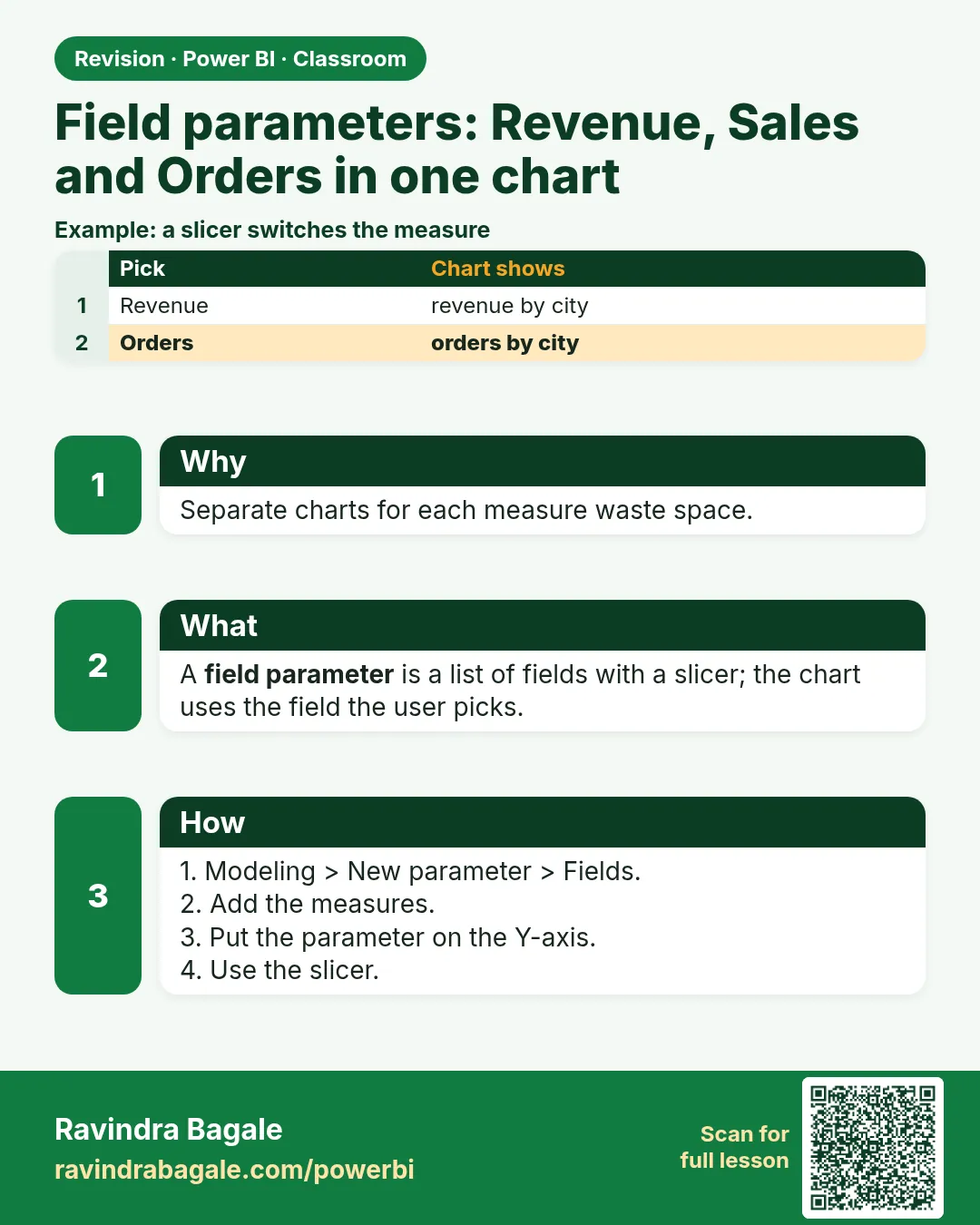
Then a field parameter. A field parameter is a small table of choices (Revenue, Sales, Orders), each pointing to a measure. Put it on a slicer and on the chart's Y-axis, and the slicer decides which measure the chart shows.
Classroom line
Third, a measure is reusable. Once you create it, you can use it in any number of visuals.
Class मधलं वाक्य
तिसरं, measure reusable आहे. एकदा बनवला की कितीही visuals मध्ये वापरू शकता.
Classroom line – हिंदी
"Teesra, measure reusable hai. Ek baar aapne banaya toh kitne bhi visuals mein use kar sakte ho."
3. The data
blinkit-sales-2025-metrics.csv: order_id (text, e.g. BO-10001), order_date, product_id, category, city, state, sales (units), revenue (₹), expense (₹). One order can have up to three lines.
| Category | Revenue (₹) | Sales (units) | Orders |
|---|---|---|---|
| Dairy & Bakery | 59,124 | 474 | 214 |
| Snacks & Branded Foods | 35,200 | 592 | 281 |
| Staples | 30,290 | 176 | 94 |
| Beverages | 23,607 | 189 | 99 |
| Total | 1,48,221 | 1,431 | 496 |
The orders column does not add up to 496: an order with dairy and snacks counts once in each category, but once in the total. Expense totals ₹1,05,739, so total profit is ₹42,482.
4. Step by step
Three measures
- Load the file and rename the table
sales. - Three dots on sales › New measure, three times:
total revenue = SUM(sales[revenue])total sales = SUM(sales[sales])total orders = DISTINCTCOUNT(sales[order_id])
The field parameter
- Modeling › New parameter › Fields.
- Name:
Metric Selector. In the field list, open sales and tick total revenue, total sales and total orders, in the order you want the buttons. - Keep Add slicer to this page ticked › Create. A table Metric Selector and a slicer appear.
- Click the Metric Selector table to see its DAX:
Metric Selector = {
       ("total revenue", NAMEOF('sales'[total revenue]), 0),
       ("total sales", NAMEOF('sales'[total sales]), 1),
       ("total orders", NAMEOF('sales'[total orders]), 2)
   }
The first value is the button text, NAMEOF points to the measure, the number is the button order. Change the texts to "Revenue", "Sales" and "Orders" and press Enter.
Chart and slicer
- Add a Stacked column chart: X-axis category, Y-axis Metric Selector (the parameter field, not a measure).
- Select the slicer › Format visual › Slicer settings › Options › Style Tile. Values: bold, 10.5 pt.
- Slicer settings › Selection › Single select on.
- Click Revenue, Sales, Orders: the chart switches metric each time.
Figure 2. Measures, then a field parameter, then a slicer and a chart (illustration).
Classroom line
To show several metrics on one visual, we will use measures plus parameters.
Class मधलं वाक्य
एकाच visual वर अनेक metrics दाखवण्यासाठी आपण measures + parameters वापरणार.
Classroom line – हिंदी
"Ek single visual pe multiple data dikhane ke liye, hum log Measures + Parameters use karenge."
Classroom line
What is a parameter? It is like a table.
Class मधलं वाक्य
Parameter म्हणजे काय? तो एका table सारखा आहे.
Classroom line – हिंदी
"Parameter kya hai? Ek table jaisa hai."
5. Your result should look like this
Figure 3. With Revenue selected: Dairy & Bakery ₹59,124, Snacks & Branded Foods ₹35,200, Staples ₹30,290, Beverages ₹23,607 (illustration).
| Button | Highest category | Value |
|---|---|---|
| Revenue | Dairy & Bakery | ₹59,124 |
| Sales | Snacks & Branded Foods | 592 units |
| Orders | Snacks & Branded Foods | 281 orders |
6. What happened
- The field parameter is a table whose rows point to measures. The slicer filters that table to one row.
- The chart's Y-axis follows the selected row and shows that measure.
- With nothing selected, all three measures appear together with a legend telling them apart.
- Single select prevents that mixed view, where revenue in thousands of ₹ would flatten orders in the hundreds.
Classroom line
So what did we do? First, we made three measures.
Class मधलं वाक्य
"तर काय काय केलं आपण? पहिल्यांदा तीन measure काढले."
तर आपण काय काय केलं? पहिल्यांदा तीन measures बनवले.
Classroom line
So what did we do? First, we made three measures.
7. Explore further
- Any visual. A bar chart, line chart or pie chart takes the parameter in the same way.
- Selection options. Single select: one at a time. With it off, Multi-select with CTRL lets viewers pick several; Show "Select all" adds a select-all button.
- Style options. Tile (compact buttons for the top of a page), Dropdown or Vertical list.
- Gridlines. Whether the chart shows gridlines depends on the report theme; turn them on or off under Format › X-axis / Y-axis › Gridlines.
- Edit instead of tick. If you created the parameter from columns, edit the NAMEOF references to point to the measures; ticking the measures in the dialog avoids the edit.
- Field parameters for the axis too. The main course lessons Field Parameters – Switch Measures and Field Parameters – Switch Dimensions (Dynamic Axis) go further.
Classroom line
Take any visual: a bar chart or a pie chart.
Class मधलं वाक्य
"तुम्ही कुठलाही visual घ्या... bar chart घ्या, किंवा pie chart घ्या."
तुम्ही कुठलाही visual घ्या: bar chart घ्या, किंवा pie chart घ्या.
Classroom line
Take any visual: a bar chart or a pie chart.
8. Common mistakes
| Wrong result | Reason | Fix |
|---|---|---|
| SUM(order_id) gives an error | order_id is text | DISTINCTCOUNT(sales[order_id]) |
| Total orders shows 800 | COUNT counts lines, not orders | DISTINCTCOUNT gives 496 |
| Chart shows one bar per metric | Parameter put on X-axis | Category on X, Metric Selector on Y |
| Revenue and orders on one axis, orders look flat | Several buttons selected | Selection › Single select |
| Table named "Parameter 2" | Default name kept | Give it a unique name: Metric Selector |
| Button reads "order id" | Text not changed | Edit the first value in the DAX to "Orders" |
Ravindra Bagale's Tip
Name the parameter for what it does: Metric Selector, not Parameter. When the model has three parameters, a name tells you at once which slicer drives which chart.
Ravindra Bagale's Tip – मराठी
Parameter ला तो काय करतो त्यावरून नाव द्या: Parameter नाही, Metric Selector. Model मध्ये तीन parameters असतील तेव्हा नावावरून लगेच कळतं कोणता slicer कोणता chart चालवतो.
Ravindra Bagale's Tip – हिंदी
Parameter को उसके काम के हिसाब से नाम दें: Parameter नहीं, Metric Selector. जब model में तीन parameters हों, तो नाम से तुरंत पता चलता है कि कौन सा slicer कौन सा chart चलाता है.
Classroom line
The order id's data type is text, so it needs a count.
Class मधलं वाक्य
"Order id चा datatype text आहे, तिथे count पाहिजे."
Order id चा datatype text आहे, तिथे count पाहिजे.
Classroom line
The order id's data type is text, so it needs a count.
9. Practise on your own
Practice task
Using blinkit-sales-2025-metrics.csv:
- Create total expense and total profit (reusing the measures). What is total profit?
- Add total profit to Metric Selector as a fourth button. Which category has the highest profit?
- What does COUNT(sales[order_id]) return, and why is it different from total orders?
- With Orders selected, what is the bar for Staples?
Show solution
total expense = SUM(sales[expense]),total profit = [total revenue] - [total expense]= ₹42,482.- Add
("Profit", NAMEOF('sales'[total profit]), 3). Dairy & Bakery: ₹59,124 − ₹42,229 = ₹16,895. - 800: it counts order lines; an order can have up to three lines. DISTINCTCOUNT counts each order once: 496.
- 94.
10. Think like a professional
- Business view. One switchable chart keeps the page calm and leaves space for other questions.
- Right count. Decide whether you are counting lines or orders; on line-level data, orders need DISTINCTCOUNT.
- Names users see. Button texts are labels for people: Revenue, Sales, Orders, not measure names.
- One scale at a time. Metrics with different units belong on separate selections.
Interview questions
- What is a field parameter? A table of choices that point to fields or measures; a slicer on it changes what a visual shows.
- What is the third value in the parameter DAX? The order of the choices.
- How do you count orders on line-level data? DISTINCTCOUNT(sales[order_id]).
- Why use single select on a metric slicer? Different metrics have different scales; mixing them on one axis misleads.
Recap
In short
- Measures aggregate, drive fx formatting and are reusable: total profit = [total revenue] − [total expense].
- total orders = DISTINCTCOUNT(sales[order_id]).
- Modeling › New parameter › Fields › tick the measures › name it Metric Selector.
- Category on X, the parameter on Y.
- Slicer: Tile style, Single select.
 Revision card