How to Clean Text Columns in Power Query with Split, Trim, Clean and Lowercase
Numbers are only half of a dataset. The other half is text: product names, brands, categories. Text looks fine on screen and still breaks things: "Ghee" and " GHEE" are two different products to Power BI, a hidden tab character stops a match, and one column holding "Name (Brand)" cannot be filtered by brand. In this chapter you clean a product table with four tools, Split, Clean, Trim and lowercase, and you learn what to do with a product that has no name.
What you'll learn in this chapter
- Split one column into two by a delimiter
- Why split by " (" and not "("
- Extract text before ")"
- Clean, Trim and lowercase: the three text steps
- Column quality, distribution and profile
- Label blanks as unknown, do not delete
- Find null cells: type null in Replace Values
Practice file: blinkit-products.csv: 9 fictional products with the mess shown below. The same table is used in How to Merge Tables in Power BI Power Query.
Made-up data: the products and brands (Sahyadri Foods, Krishna Dairy, Godavari Mills, Mauli Sweets) are invented for practice. They imitate a quick-commerce product list from Maharashtra; no real company is meant.
1. The problem
The product file as it arrives (spaces shown as ·, a tab as →):
| product_id_ | product (brand) | category || sub_category | size (L x D x W cm) |
|---|---|---|---|
| P101 | Masala Chai Biscuit (Sahyadri Foods)·· | Snacks || Biscuits | 20 x 5 x 8 |
| P102 | ··GHEE 1 L (Krishna Dairy) | Dairy || Ghee | 10 x 10 x 22 |
| P103 | Poha 500 g (Godavari Mills)→ | Staples || Poha | 12 x 5 x 18 |
| P104 | (blank) | Snacks || Namkeen | 15 x 6 |
| P105 | Kaju Katli 250 g (Mauli Sweets) | Sweets || Mithai | 18 x 4 x 12 |
| P106 | toor dal 1 kg (Godavari Mills) | Staples || Dal | 25 x 6 x 15 |
| P107 | Shrikhand 500 g (Krishna Dairy)· | DAIRY || Shrikhand | 14 x 8 x 14 |
| P108 | Bhakarwadi 200 g (Mauli Sweets) | Snacks || Namkeen | 16 x 5 x 10 |
| P110 | Jowar Atta 1 kg (Sahyadri Foods) | Staples || Atta | 22 x 7 x 14 |
You cannot make a "revenue by brand" chart because brand is stuck inside the product text. "Dairy" and "DAIRY" would show as two categories. P104 has no name at all. (The size column is handled in the merge chapter.)
2. The idea in simple words
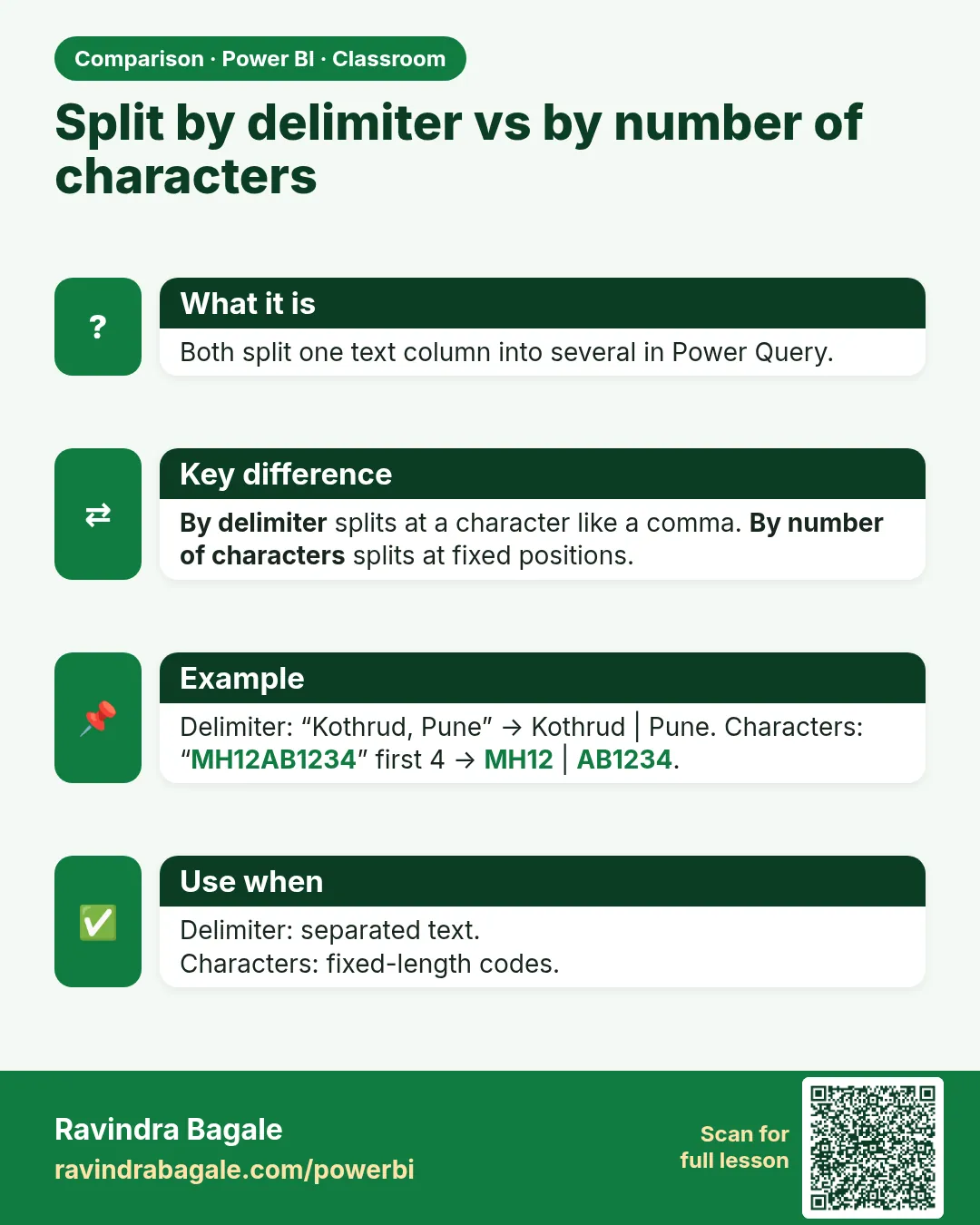
- Split Column cuts one column into two at a delimiter, the text that separates the parts. "Masala Chai Biscuit (Sahyadri Foods)" split at " (" gives "Masala Chai Biscuit" and "Sahyadri Foods)".
- Split by " (" (space and bracket), not just "(". Otherwise the product keeps a space at its end.
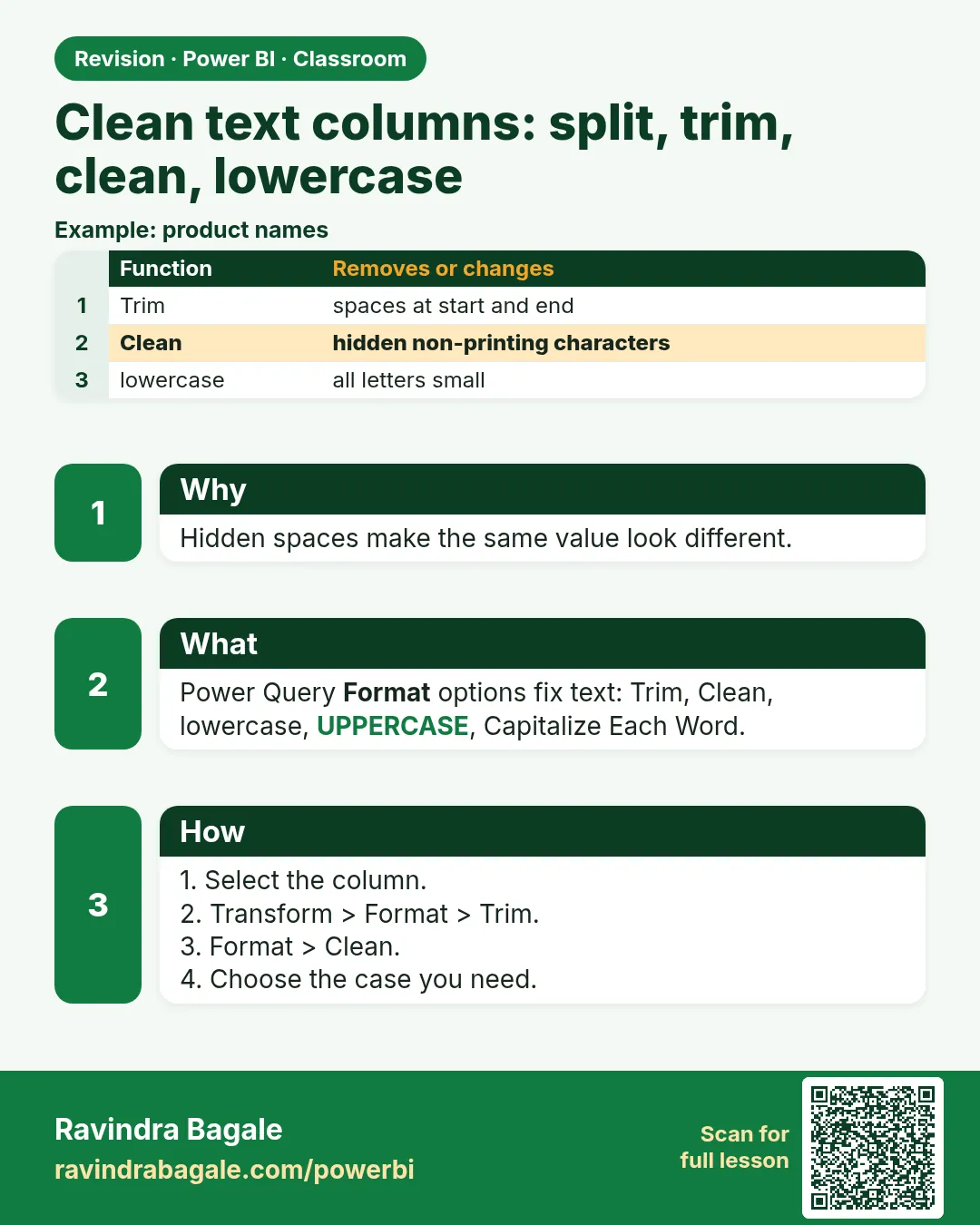
- Clean removes characters you cannot see, such as tabs and line breaks. Trim removes spaces at the start and end. lowercase makes "GHEE" and "Ghee" the same. Run these three on every text column you will filter, group or match on.
- A blank product is still a product that people order. Do not delete the row; give it a clear label such as "unknown product", so its orders stay in every total.
Figure 1. Split "Masala Chai Biscuit (Sahyadri Foods)" at " (": product and brand; then Extract Text Before ")" on the brand (illustration).
3. The data
Expected result for the 9 rows, which you can check by eye:
| product_id_ | product | brand | category | sub_category |
|---|---|---|---|---|
| P101 | masala chai biscuit | sahyadri foods | snacks | biscuits |
| P102 | ghee 1 l | krishna dairy | dairy | ghee |
| P103 | poha 500 g | godavari mills | staples | poha |
| P104 | unknown product | unknown brand | snacks | namkeen |
| P105 | kaju katli 250 g | mauli sweets | sweets | mithai |
| P106 | toor dal 1 kg | godavari mills | staples | dal |
| P107 | shrikhand 500 g | krishna dairy | dairy | shrikhand |
| P108 | bhakarwadi 200 g | mauli sweets | snacks | namkeen |
| P110 | jowar atta 1 kg | sahyadri foods | staples | atta |
Distinct values after cleaning: 4 brands plus "unknown brand", 4 categories (snacks, dairy, staples, sweets).
4. Step by step
Load
- Home › New Source › Text/CSV ›
blinkit-products.csv› OK. Rename the query toproducts. - If the headers are in row 1 (type detection off), Home › Use First Row as Headers.
Split product and brand
- Select product (brand). Home › Split Column › By Delimiter.
- Choose --Custom-- and type
((a space, then an opening bracket). Split at: Left-most delimiter. Open Advanced options, Quote Character: None. OK. - Rename the two new columns: product (brand).1 →
product, product (brand).2 →brand. - Select brand. Transform › Extract › Text Before Delimiter, type
), OK. "Sahyadri Foods)··" becomes "Sahyadri Foods".
Split category
- Select category || sub_category. Split Column › By Delimiter › Custom
||(space, two bars, space) › Each occurrence of the delimiter › Quote Character None › OK. - Rename the parts to
categoryandsub_category.
The three text steps
- Ctrl+click product, brand, category and sub_category.
- Transform › Format › Clean. The tab after "Godavari Mills" is gone.
- Transform › Format › Trim. Leading and trailing spaces are gone.
- Transform › Format › lowercase.
Find and label the blank product
- View › tick Column quality, Column distribution and Column profile. Under product and brand you see one Empty value.
- Click the product cell for P104. If it is empty text, right-click product › Replace Values, leave Value To Find empty, Replace With
unknown product, OK. - The brand cell for P104 shows null in italics. Right-click brand › Replace Values › Value To Find: type
null› Replace Withunknown brand› OK. (An empty Value To Find does not match null cells.)
Figure 2. One value through the three text steps: Clean removes the tab, Trim removes the outer spaces, lowercase makes the case the same (illustration).
5. Your result should look like this
The products query matches the table in section 3: 9 rows, no Empty values in product, brand, category or sub_category (Column quality shows 100% Valid), and every text value in lowercase, including the unknown labels.
Column distribution for brand: 5 distinct values (sahyadri foods, krishna dairy, godavari mills, mauli sweets, unknown brand). For category: 4 distinct.
6. What happened
- Split by " (" cut each value at the space before the bracket, so product has no trailing space and brand starts with the brand's first letter.
- Extract Text Before ")" dropped the bracket and anything after it, including the spaces and tab at the end of P101 and P103.
- Clean removed the hidden tab; Trim removed the spaces before "GHEE" and after "Shrikhand 500 g (Krishna Dairy)"; lowercase turned "DAIRY" into "dairy" so it groups with "dairy".
- For P104 the split had nothing to cut: product became empty text and brand became null, which is why the two Replace Values steps needed different Value To Find entries.
- Row count stayed 9: you fixed values and kept every product.
Classroom line
Three compulsory steps for text: lowercase, Trim and Clean.
Class मधलं वाक्य
"Compulsory teen step: lower case, trim, clean."
Text साठी तीन compulsory steps: lowercase, Trim आणि Clean.
Classroom line
Three compulsory steps for text: lowercase, Trim and Clean.
7. Explore further
- Left-most vs each occurrence. Left-most splits once into two columns, safe when a product name could contain a second bracket. Each occurrence splits at every delimiter and can create more columns.
- Quote Character None. With the default (") a delimiter inside quotes is ignored. Product names with inch marks can then fail to split; None treats every character the same.
- Why lowercase and not Capitalize Each Word? Any one consistent case works for matching. Lowercase is the safest because it does not depend on where words start. For display you can still format labels later.
- Clean vs Trim. Clean removes non-printable characters anywhere in the text; Trim removes spaces only at the start and end, not between words.
- Column profile is based on the first 1,000 rows by default. For big tables switch to Column profiling based on entire data set at the bottom of the editor.
- How many orders hide behind a blank product? In the 401-order practice data from the append chapters, P104 has 43 orders worth ₹5,340. Deleting it would remove them all.
Classroom line
To remove all the non-printable characters, you have to run Clean.
Class मधलं वाक्य
"Non-printable jevade bi characters aahet te clean karun ghenyasaathi clean karava lagel"
जेवढे पण non-printable characters आहेत, ते काढून टाकण्यासाठी Clean करावं लागेल.
Classroom line
To remove all the non-printable characters, you have to run Clean.
8. Common mistakes
| Wrong result | Reason | Fix |
|---|---|---|
| product values end with a space, so merges fail | Split by "(" without the space | Split by " (", or run Trim after the split |
| brand shows "Sahyadri Foods)" | Extract Text Before ")" was skipped | Run it on brand |
| Two categories, "dairy" and "DAIRY" | lowercase not applied | Run lowercase on category |
| "Godavari Mills" does not match in a merge | A hidden tab is still there | Run Clean, then Trim |
| Replace Values finds nothing in brand for P104 | Value To Find was left empty, but the cell is null | Type null in Value To Find |
| P104 row deleted | Blank product filtered out | Keep the row; label it unknown product / unknown brand |
Ravindra Bagale's Tip
After every text clean-up, open Column distribution and count the distinct values. If you expect 4 categories and see 5, one of them still has a space, a tab or a capital letter.
Ravindra Bagale's Tip – मराठी
प्रत्येक text clean-up नंतर Column distribution उघडा आणि distinct values मोजा. 4 categories अपेक्षित असताना 5 दिसल्या, तर एकात अजून space, tab किंवा capital letter आहे.
Ravindra Bagale's Tip – हिंदी
हर text clean-up के बाद Column distribution खोलिए और distinct values गिनिए. 4 categories की उम्मीद हो और 5 दिखें, तो किसी एक में अभी भी space, tab या capital letter है.
9. Practise on your own
Practice task
Using blinkit-products.csv:
- How many products belong to the snacks category after cleaning?
- Which brand has the most products?
- What does "··GHEE 1 L (Krishna Dairy)" become in product and brand?
- Which sub_category appears twice?
Hints: count after lowercase, so "Snacks" and "snacks" are one value.
Show solution
- 3 (P101, P104, P108).
- A tie: sahyadri foods, krishna dairy, godavari mills and mauli sweets each have 2 products; unknown brand has 1.
- product ghee 1 l, brand krishna dairy.
- namkeen (P104 and P108).
10. Think like a professional
- Business view. A brand or category column is only useful if every spelling of it is one value. The three text steps are what make "revenue by brand" correct.
- Performance. Cleaner text means fewer distinct values, which compresses better in the model.
- Maintenance. Keep the text steps together and name them ("Text clean: Clean, Trim, lowercase"). When next month's file arrives with new spaces, the same steps fix it.
- Unknowns are a to-do list. Share the list of unknown products with the team that owns the product master, so they can be named at the source.
Interview questions
- What is the difference between Trim and Clean? Trim removes leading and trailing spaces; Clean removes non-printable characters such as tabs and line breaks.
- How do you split "Name (Brand)" into two columns? Split Column by the custom delimiter " (", then Extract Text Before ")" on the second part.
- Why not delete rows with a blank product name? Their orders would disappear from every total; label them unknown instead.
- How do you replace null cells with Replace Values? Type null in Value To Find.
Recap
In short
- Split "Name (Brand)" by " (", then Extract Text Before ")".
- Split "category || sub_category" by " || ".
- Clean, Trim and lowercase every text column you filter or match on.
- Check Column quality and distribution for blanks and extra values.
- Label blanks as unknown; type null in Value To Find to catch null cells.
 Revision card
 Comparison card