13. DAX: Data Analysis Expressions
13.26 Dynamic Segmentation, Pareto and ABC
ABC (Pareto) classification in DAX with example — in 30 seconds
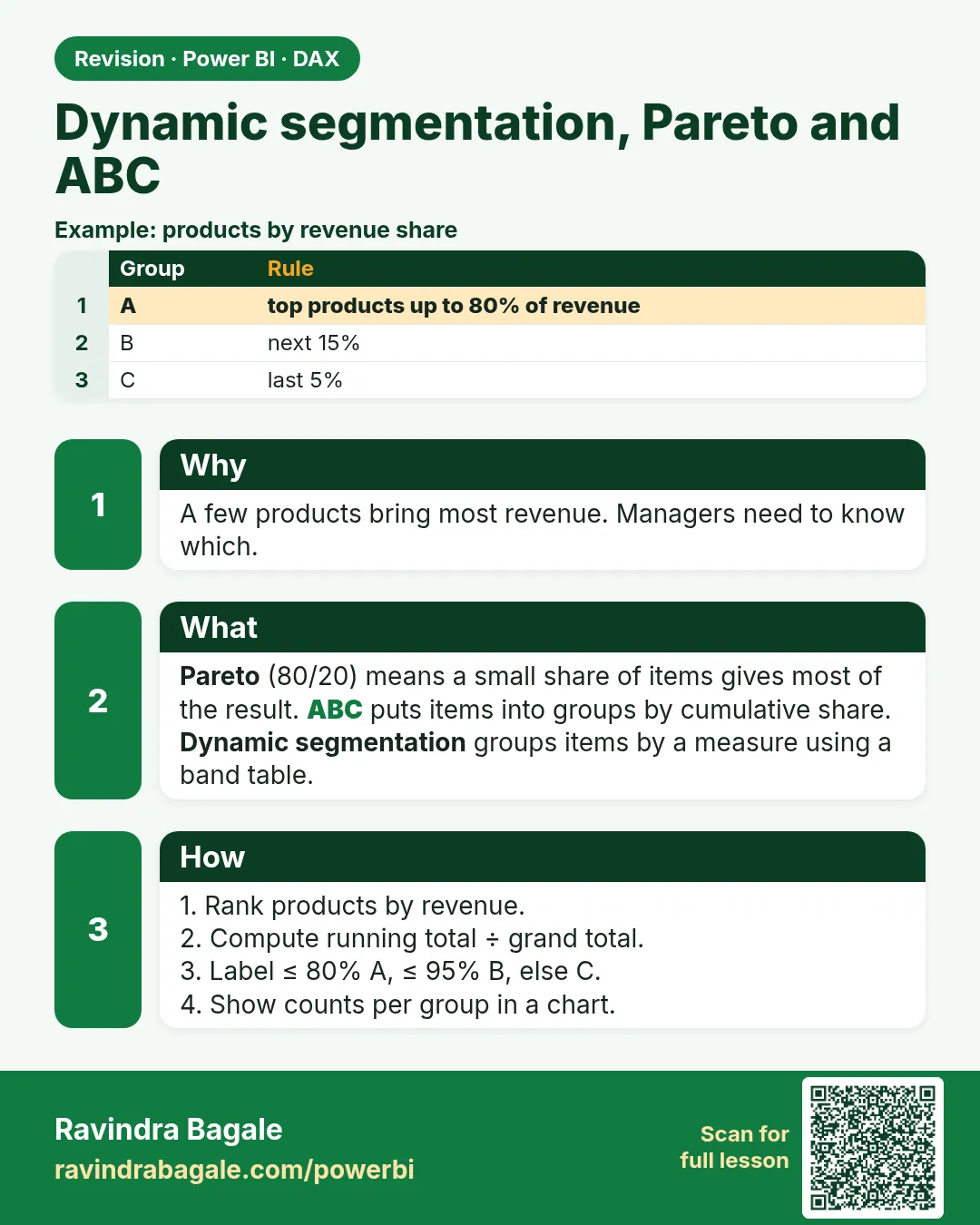
What: ABC classes products by their running share of sales: A = top share (up to 80% here), B = next (up to 95%), C = the rest.
Why: The category team wants to know which few products bring most of the money, so those never go out of stock.
Tiny example: 5 products. Milk and Bread together bring 70% of sales, so both are class A.
ABC (Pareto) classification in DAX with example — 30 सेकंदात
काय: ABC products ना त्यांच्या sales च्या running share नुसार वर्गात टाकतो: A = वरचा हिस्सा (इथे 80% पर्यंत), B = पुढचा (95% पर्यंत), C = बाकी.
का: Category team ला माहीत करून घ्यायचंय की कोणते थोडे products जास्त पैसा आणतात, म्हणजे ते कधीच out of stock होऊ नयेत.
छोटं उदाहरण: 5 products. Milk आणि Bread मिळून 70% sales आणतात, म्हणून दोन्ही class A.
ABC (Pareto) classification in DAX with example — 30 सेकंड में
क्या: ABC products को उनकी sales के running share के हिसाब से वर्गों में डालता है: A = ऊपर का हिस्सा (यहाँ 80% तक), B = अगला (95% तक), C = बाक़ी.
क्यों: Category team जानना चाहती है कि कौन-से थोड़े products ज़्यादा पैसा लाते हैं, ताकि वे कभी out of stock न हों.
छोटा उदाहरण: 5 products. Milk और Bread मिलकर 70% sales लाते हैं, इसलिए दोनों class A.
First look at the data (before → after):
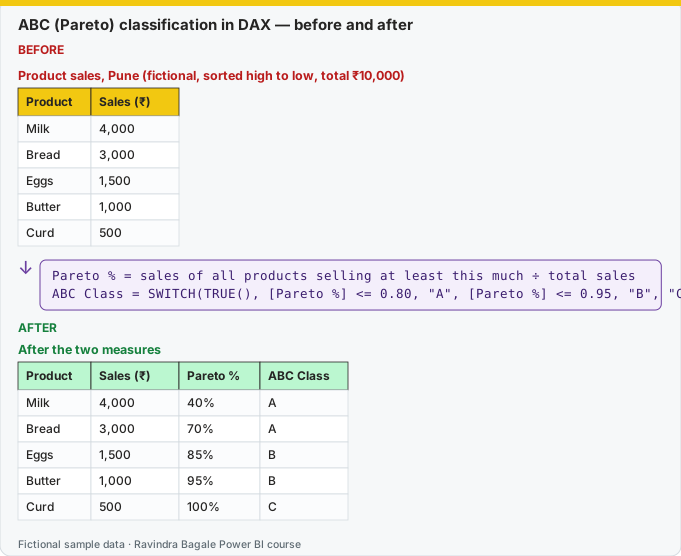
Same before / after tables as text
Before — Product sales, Pune (fictional, sorted high to low, total ₹10,000)
| Product | Sales (₹) |
|---|---|
| Milk | 4,000 |
| Bread | 3,000 |
| Eggs | 1,500 |
| Butter | 1,000 |
| Curd | 500 |
Formula / click path
Pareto % = sales of all products selling at least this much ÷ total sales
ABC Class = SWITCH(TRUE(), [Pareto %] <= 0.80, "A", [Pareto %] <= 0.95, "B", "C")
After — After the two measures
| Product | Sales (₹) | Pareto % | ABC Class |
|---|---|---|---|
| Milk | 4,000 | 40% | A |
| Bread | 3,000 | 70% | A |
| Eggs | 1,500 | 85% | B |
| Butter | 1,000 | 95% | B |
| Curd | 500 | 100% | C |
Do it step by step:
- Build a table: Product[Product Name] and Total Sales. Sort high to low.
- Create the Pareto % measure from this section.
- Create the ABC Class measure with SWITCH(TRUE()).
- Add both measures to the table. Check: Milk and Bread = A, Eggs and Butter = B, Curd = C.
- Add a City slicer. The classes change per city, because they are measures, not fixed columns.
एक-एक step करून बघा:
- Table बनवा: Product[Product Name] आणि Total Sales. मोठ्याकडून लहानाकडे sort करा.
- या section मधला Pareto % measure बनवा.
- SWITCH(TRUE()) ने ABC Class measure बनवा.
- दोन्ही measures table मध्ये टाका. तपासा: Milk आणि Bread = A, Eggs आणि Butter = B, Curd = C.
- एक City slicer टाका. प्रत्येक शहरासाठी classes बदलतात, कारण ते fixed columns नाहीत, measures आहेत.
एक-एक step करके देखिए:
- Table बनाइए: Product[Product Name] और Total Sales. बड़े से छोटे sort कीजिए.
- इस section का Pareto % measure बनाइए.
- SWITCH(TRUE()) से ABC Class measure बनाइए.
- दोनों measures table में डालिए. जाँचिए: Milk और Bread = A, Eggs और Butter = B, Curd = C.
- एक City slicer लगाइए. हर शहर के लिए classes बदलती हैं, क्योंकि वे fixed columns नहीं, measures हैं.
Band, Pareto, ABC. He charts nahi, measures aahet. Class madhe ekach product list var karu.
Dynamic segmentation puts customers into bands from their measure result, not from a column on the customer row. A disconnected Bands table (Enter data) holds the edges. There is no relationship to Customer.
| Band | Min | Max |
|---|---|---|
| Low | 0 | 5000 |
| Mid | 5000 | 20000 |
| High | 20000 | 99999999 |
Customers in Band =
VAR MinV = SELECTEDVALUE(Bands[Min])
VAR MaxV = SELECTEDVALUE(Bands[Max])
RETURN
COUNTROWS(
    FILTER(
        VALUES(Customer[Customer Name]),
        VAR SalesAmt = [Total Sales]
        RETURN NOT ISBLANK(SalesAmt) && SalesAmt >= MinV && SalesAmt < MaxV
    )
)
Put Bands[Band] on a bar axis and this measure in Values. The band table filters nothing by itself; the measure does the test.
Pareto (a running share sorted by size) and ABC (A = top share, often about 80%, B = the next slice, C = the rest) use product sales. The cut-offs below are practice labels, not a law.
Pareto % =
VAR SalesByProduct =
    ADDCOLUMNS(ALL(Product[Product Name]), "@S", [Total Sales])
VAR CurrentS = [Total Sales]
VAR Cum =
    SUMX(FILTER(SalesByProduct, [@S] >= CurrentS), [@S])
VAR Grand = SUMX(SalesByProduct, [@S])
RETURN
    DIVIDE(Cum, Grand)

ABC Class =
SWITCH(TRUE(),
    ISBLANK([Pareto %]), BLANK(),
    [Pareto %] <= 0.80, "A",
    [Pareto %] <= 0.95, "B",
    "C")
Worked example, fictional product sales: Chakli ₹500, Shrikhand ₹300, Poha ₹200. Grand is ₹1000. Chakli's Pareto is 500/1000 = 50% (A). Shrikhand includes everyone at least 300, so 800/1000 = 80% (A, on the line). Poha is 1000/1000 = 100% (C). Sort the table by sales descending before you read it to a manager. If two products tie, this pattern keeps both in the cumulative total, which is what you want.
Ravindra Bagale's Tip
A common mistake is a calculated column ABC based on a fixed sales column; then a slicer does nothing to the class. Segmentation and ABC must be measures (or a disconnected band table) so they respect the city slicer. Pune's A product can be a C in Nagpur. Got it?
Ravindra Bagale's Tip – मराठी
एक common चूक म्हणजे fixed sales column वर आधारित ABC calculated column; मग slicer चा class वर काहीच परिणाम होत नाही. Segmentation आणि ABC measures (किंवा disconnected band table) असायला हवेत, म्हणजे ते city slicer पाळतील. Pune चं A product Nagpur मध्ये C असू शकतं. समजलं का?
Ravindra Bagale's Tip – हिंदी
एक common गलती है fixed sales column पर आधारित ABC calculated column; फिर slicer का class पर कोई असर नहीं होता. Segmentation और ABC measures (या disconnected band table) होने चाहिए, ताकि वे city slicer मानें. Pune का A product Nagpur में C हो सकता है. समझ आया?
Loading DAX practice tasks...
- Product rank (Easy): Shown per ProductName. Measure: Sales Rank = rank of [Total Sales] over ALL product names.
- Share of all sales (Easy): Shown per ProductName. Measure: Sales Share = [Total Sales] ÷ sales of ALL products.
- Running total from the top (Medium): Shown per ProductName. Measure: Cum Sales = sales of all products whose [Total Sales] is at least this product sales.
- Running percent (Medium): Shown per ProductName. Measure: Cum Pct = running total ÷ sales of ALL products.
- ABC class (Hard): Shown per ProductName. Measure: ABC = "A" if running percent is 0.7 or less, "B" if 0.9 or less, else "C".
- Top 3 product sales (Medium): Measure: Top3 Sales = total [Total Sales] of the 3 best product names.
- Top or other (Medium): Shown per ProductName. Measure: Top Label = "Top" if the sales rank is 3 or better, else "Other".
- Big customers (Hard): Measure: Big Customers = number of CustomerName values with [Total Sales] above 1000.
- Sales from big customers (Hard): Measure: Big Customer Sales = [Total Sales] added over customers whose [Total Sales] is above 1000.
- Customers above ₹500 per segment (Hard): Shown per Segment. Measure: Customers 500+ = number of customers with [Total Sales] above 500.
 Revision card