25.1 What is the Power BI Service?
Quick answer: the short, self-contained version of this lesson is the guide Publish a Power BI Report to the Service.
Start with a problem
Ravindra built the Blinkit sales report on his laptop. Rani, the regional head, wants to open it on her phone in Mumbai. A .pbix file on a laptop cannot do that.
Explain simply
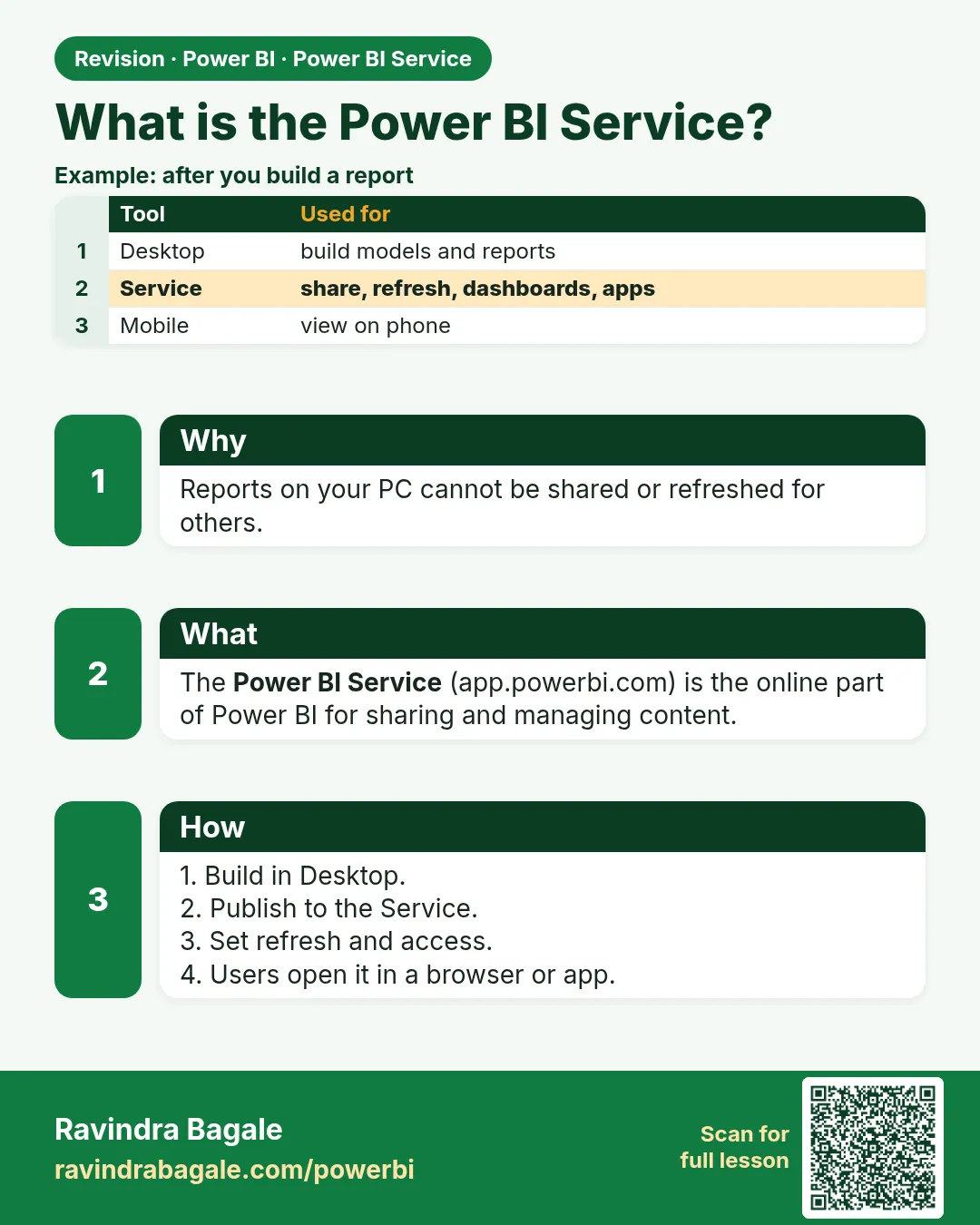
The Power BI Service (app.powerbi.com) is the online part of Power BI. You publish from Desktop, and people view, share, refresh and get alerts there.
Show the data
| Task | Desktop | Service |
|---|---|---|
| Build model and visuals | Yes | Limited |
| Scheduled refresh | No | Yes |
| Share with Rani | No | Yes |
| Mobile app viewing | No | Yes |
About this data: This table uses columns: Task, Desktop, Service. This table uses columns: Item in left pane, Purpose. This table uses columns: Wrong result, Reason, Correction. Values shown are the lesson examples already on this page (not a new dataset).
Fictional sample data. Practice file: refresh_history_sample.csv (source: src/practice/).
Demonstrate
- Open a browser and go to app.powerbi.com.
- Sign in with your work account.
- Open My workspace in the left pane.
- Look at Home, Create, Browse, Workspaces and Apps.
Show the result
Your result should look like this (fictional sample):
| Item in left pane | Purpose |
|---|---|
| Home | Recent and recommended content |
| Workspaces | Team folders for reports and models |
| Apps | Packaged reports for readers |
Explain what happened
Desktop is where you build; the Service is where the organisation consumes and maintains the report.
Explore further
- Mobile app uses the same Service content.
Detailed reference for this lesson:
The Power BI Service (app.powerbi.com, also reachable through the Microsoft Fabric portal) is where reports are published, shared, refreshed and consumed. The left navigation shows Home, Create, Browse, OneLake catalog, Apps, Metrics, Monitor, Learn, Workspaces and My workspace (exact items vary by version and licence).
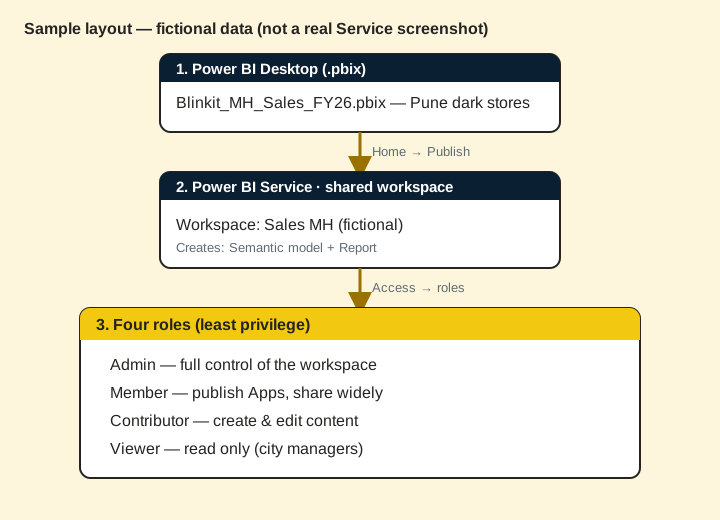
When you publish a .pbix file, it becomes two items in the workspace:
- a semantic model (formerly called dataset) – the data, model and measures;
- a report – the pages and visuals, connected to that semantic model.
Ravindra Bagale's Tip
Friends, many students think the Service is only for viewing reports. It is also where you schedule refresh, manage gateways and security, build apps, set subscriptions and alerts, and monitor usage. Explore the Service settings for your semantic model at least once. Don't make this mistake!
Ravindra Bagale's Tip – मराठी
मित्रांनो, बऱ्याच students ना वाटतं Service फक्त reports बघण्यासाठी आहे. तिथेच तुम्ही refresh schedule करता, gateways आणि security manage करता, apps बनवता, subscriptions आणि alerts set करता, आणि usage monitor करता. तुमच्या semantic model च्या Service settings किमान एकदा तरी नीट बघा. ही चूक करू नका!
Ravindra Bagale's Tip – हिंदी
दोस्तों, बहुत से students सोचते हैं कि Service सिर्फ़ reports देखने के लिए है. यहीं तुम refresh schedule करते हो, gateways और security manage करते हो, apps बनाते हो, subscriptions और alerts set करते हो, और usage monitor करते हो. अपने semantic model की Service settings कम से कम एक बार ज़रूर देखो. यह गलती मत करना!
Fix common mistakes
| Wrong result | Reason | Correction |
|---|---|---|
| Personal Gmail account rejected | Service needs a work or school account | Use the organisation account |
| Cannot find report after publishing | Looking in the wrong workspace | Check the workspace chosen when publishing |
| Thinks Service stores a copy of the laptop file only | The Service holds a semantic model + report | Learn both items |
Practise independently
Practice task
List two things only the Service can do.
Hints
- Think about time and people.
Solution
Scheduled refresh and sharing (also alerts, subscriptions, apps).
Think like a professional
In interviews, say: Desktop to build, Service to share and govern.
Deepen this topic (Why / What / How)
Fictional Maharashtra example. Numbers and workspace names below are practice data only.
Why: Without a mental map of the Service, students publish once and never schedule refresh or Apps.
What: The Service is the cloud home for semantic models, reports, dashboards, workspaces, Apps, refresh, gateways and governance.
How — tour the Service in 10 minutes:
Vertical steps (one under another)
- Open app.powerbi.com and sign in with your work or school account (practice tenant if you have one).
- Open My workspace once — then create or open a shared workspace for team work.
- Find a semantic model, a report and (if any) a dashboard — note they are different artefacts.
- Open Settings on the semantic model and find Scheduled refresh (even if empty).
- Bookmark the deep series: Ch 37 workspaces → Ch 44 capstone.
Tiny example: Fictional: Raja opens Sales MH workspace, sees Blinkit_MH_Sales semantic model + report, no App yet.
Ravindra Bagale's Tip
Friends, treat Chapter 25 as the map and Chapters 37–44 as the road trip. Do not stop at the map.
Ravindra Bagale's Tip – मराठी
मित्रांनो, Chapter 25 म्हणजे नकाशा; 37–44 म्हणजे पूर्ण प्रवास. नकाशावरच थांबू नका.
Ravindra Bagale's Tip – हिंदी
दोस्तों, Chapter 25 नक्शा है; 37–44 पूरी यात्रा। नक्शे पर मत रुकना।
Go deeper next
This Chapter 25 page is the overview. For the full Service deep lesson, open Ch 37 · Workspaces, Roles and Publishing (start of Service deep series). Chapters 37–44 are the deep Service series; Chapter 44 is the publish–secure–refresh–share capstone.
Quiz (5 questions)
1. Power BI Service is best described as:
2. Chapter 25 vs Chapters 37–44:
3. Team content should live in:
4. A semantic model in the Service is:
5. Best next deep chapter after the Service map:
Practice tasks (12) — hints only, no full answers
- Task. Write the business question this 25 1 what is the power bi service page answers in one sentence.
Hint: Name the user and the decision. - Task. List three mistakes learners make with 25 1 what is the power bi service.
Hint: Use Fix common mistakes as a seed. - Task. Draw a 5-box flow on paper for 25 1 what is the power bi service (fictional MH Ops).
Hint: Photo counts as artefact. - Task. Explain 25 1 what is the power bi service to a friend in 60 seconds using Why/What/How.
Hint: Record voice memo if you can. - Task. Open the linked deep chapter and write three new facts not on this overview page.
Hint: Cite section titles only. - Task. Create a checklist of 7 ticks before you call 25 1 what is the power bi service “done”.
Hint: Include a verify step. - Task. Invent fictional refresh/share/role data that fits 25 1 what is the power bi service.
Hint: Keep IST times. - Task. Map who is Admin / Member / Contributor / Viewer for a fictional workspace using 25 1 what is the power bi service.
Hint: Least privilege. - Task. Write an interview STAR story that uses 25 1 what is the power bi service.
Hint: 45–60 seconds. - Task. Find one unused habit you will stop (e.g. My workspace for team content) related to 25 1 what is the power bi service.
Hint: Be specific. - Task. Link 25 1 what is the power bi service forward to the correct Ch 37–44 lesson and say why.
Hint: One sentence why. - Task. Teach 25 1 what is the power bi service back using Marathi or Hindi tip language once.
Hint: Keep English terms for product UI.
 Revision card