14. Visuals and Their Formatting
14.24 Sparklines in a Table or Matrix
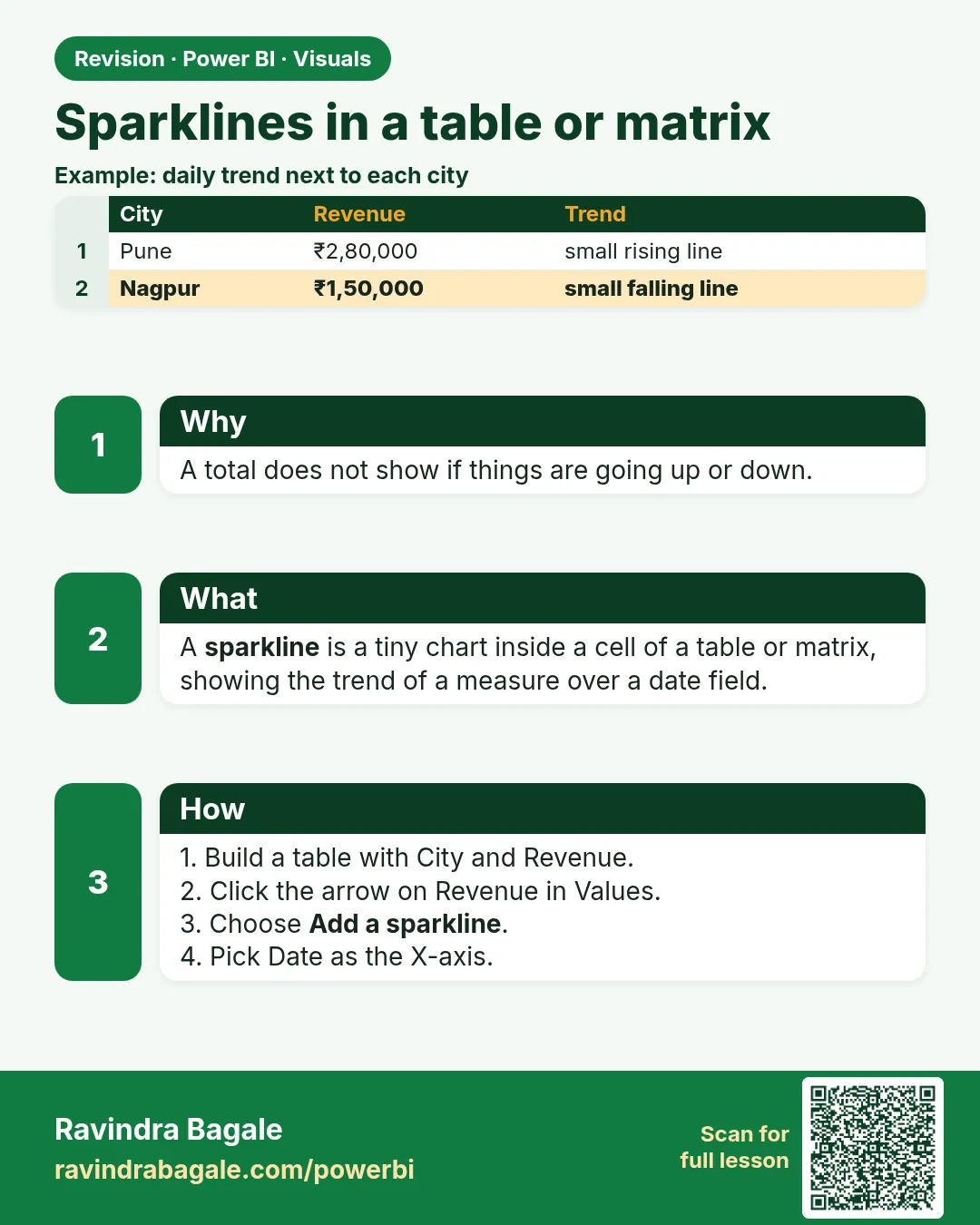
In short: A sparkline is a tiny line inside each row of a table or matrix, showing the trend of a measure over a field such as Month.
Start with a problem
Rani wants each city row in a table to show not only the total but also the April-to-May direction, without adding another chart.
Explain simply
A sparkline is a tiny line inside each row of a table or matrix, showing the trend of a measure over a field such as Month.
Show the data
| City | Apr (₹) | May (₹) | Total (₹) |
|---|---|---|---|
| Pune | 600 | 250 | 850 |
| Nashik | 300 | 500 | 800 |
| Kolhapur | 0 | 450 | 450 |
Fictional sample data. Practice file: visuals_orders_apr_may_2026.csv (source: src/practice/).
Demonstrate
- Insert Table:
City,Total Sales. - In the Columns well, click the arrow on
Total Sales› Add a sparkline. - Y-axis
Total Sales, X-axis Month › Create. - Format › Sparklines › show markers for highest and lowest points.
Show the result
Your result should look like this (fictional sample):
| City | Total | Sparkline |
|---|---|---|
| Pune | 850 | falls (600 → 250) |
| Nashik | 800 | rises (300 → 500) |
| Kolhapur | 450 | rises (0 → 450) |
Explain what happened
For each row, Power BI evaluates Total Sales for each month in that row's city filter, and draws the points as a mini line.
Explore further
- Sparklines support up to five per visual and a limited number of points per line.
Detailed reference for this lesson:
A small line inside every row is called a sparkline. It shows the trend without filling the page with a separate chart.
A sparkline is a tiny chart inside a table or matrix cell, so the reader sees the trend without leaving the row. Microsoft has shipped this as a preview in some Desktop releases. If the menu below is missing, update Desktop; do not install a random custom visual for this.
Steps
- Build a matrix. Rows:
DarkStore[City]. Values:[Total Orders]. Do not put the date on Columns if you want the date inside the sparkline. - In the Values well, open the dropdown beside
[Total Orders]and choose Add a sparkline. (Some builds also show Insert › Add a sparkline.) - Y-axis:
[Total Orders]. X-axis:'Date'[Date]or'Date'[Month Name]sorted by month number. Select Create. A new sparkline column appears. - Format pane › Sparklines. Pick Line or Column, colour, width, and markers such as Highest and Lowest.
Documented limits change, but recent Microsoft docs cap a visual at about five sparklines and about 52 points on each, and they note that pinning a sparkline visual to a dashboard may be unsupported. Prefer month over day if the year is long, so you stay under the point limit.
Worked example. Rows are Pune, Nashik and Kolhapur. The number column is total orders for the filtered year. The sparkline uses month on the X-axis. Pune's line rises in the festival month you flagged on the date table; Kolhapur's line is flat. You can see that without six separate line charts. The underlying rows are the fictional sample.
Ravindra Bagale's Tip
Many students put Date on matrix columns and a sparkline, and the grid explodes into one column per day. Put Date on the sparkline X-axis, not on the matrix columns. And do not assume a sparkline will pin to a dashboard tile; keep it on the page. Pay attention!
Ravindra Bagale's Tip – मराठी
बरेच students matrix columns वर Date आणि sparkline दोन्ही ठेवतात, आणि grid दिवसाला एक column असा फुगतो. Date sparkline च्या X-axis वर ठेवा, matrix columns वर नाही. आणि sparkline dashboard tile वर pin होईल असं धरून चालू नका; तो page वरच ठेवा. लक्षात ठेवा!
Ravindra Bagale's Tip – हिंदी
बहुत से students matrix columns पर Date और sparkline दोनों रख देते हैं, और grid हर दिन का एक column बनकर फैल जाता है. Date को sparkline के X-axis पर रखो, matrix columns पर नहीं. और sparkline dashboard tile पर pin होगी, यह मानकर मत चलो; उसे page पर ही रखो. ध्यान रखो!
Fix common mistakes
| Wrong result | Reason | Correction |
|---|---|---|
| Add a sparkline missing | Feature not available in your version or visual | Update Desktop; use a table or matrix |
| Sparkline flat for Kolhapur April | No April rows means no point | Expected; explain blank vs zero |
| Too many points, unreadable | Daily axis over years | Use months |
Practise independently
Practice task
Add a sparkline by Month to a Category table. Which category falls?
Hints
- Dairy: Apr 700, May 350.
Solution
Dairy falls (700 → 350); Snacks rises (200 → 450); Fruits rises (0 → 400).
Think like a professional
Sparklines add trend context to exact-value tables at almost no space cost – ideal for city manager pages.
 Revision card