Ravindra BagaleCourses & study guides मराठी Track your progress

Ravi Sir's Cards › Power BI

20. Dynamic Text and Dynamic Colour (Conditional Formatting): Cards

मराठी cards · Open the chapter

Revision cards
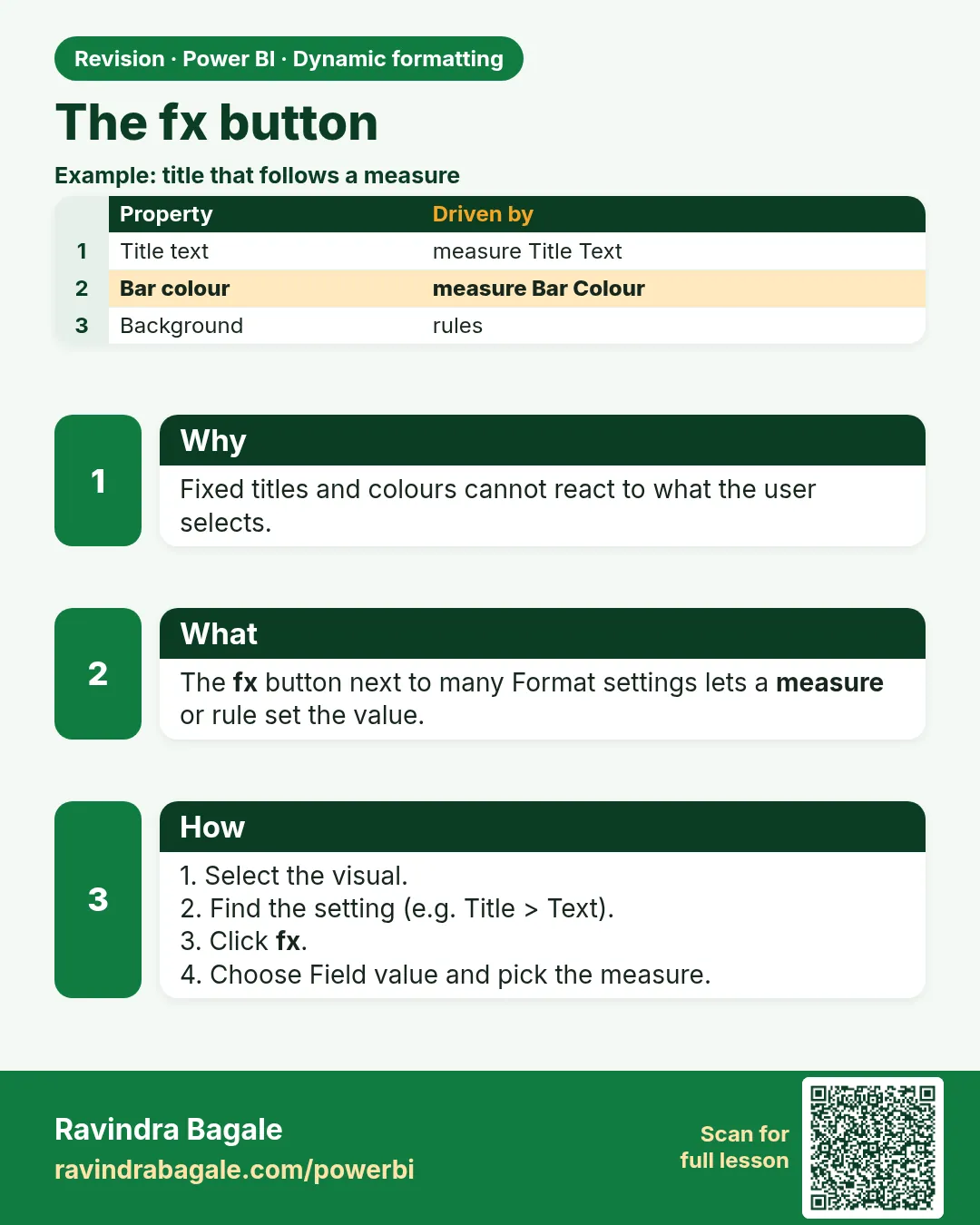
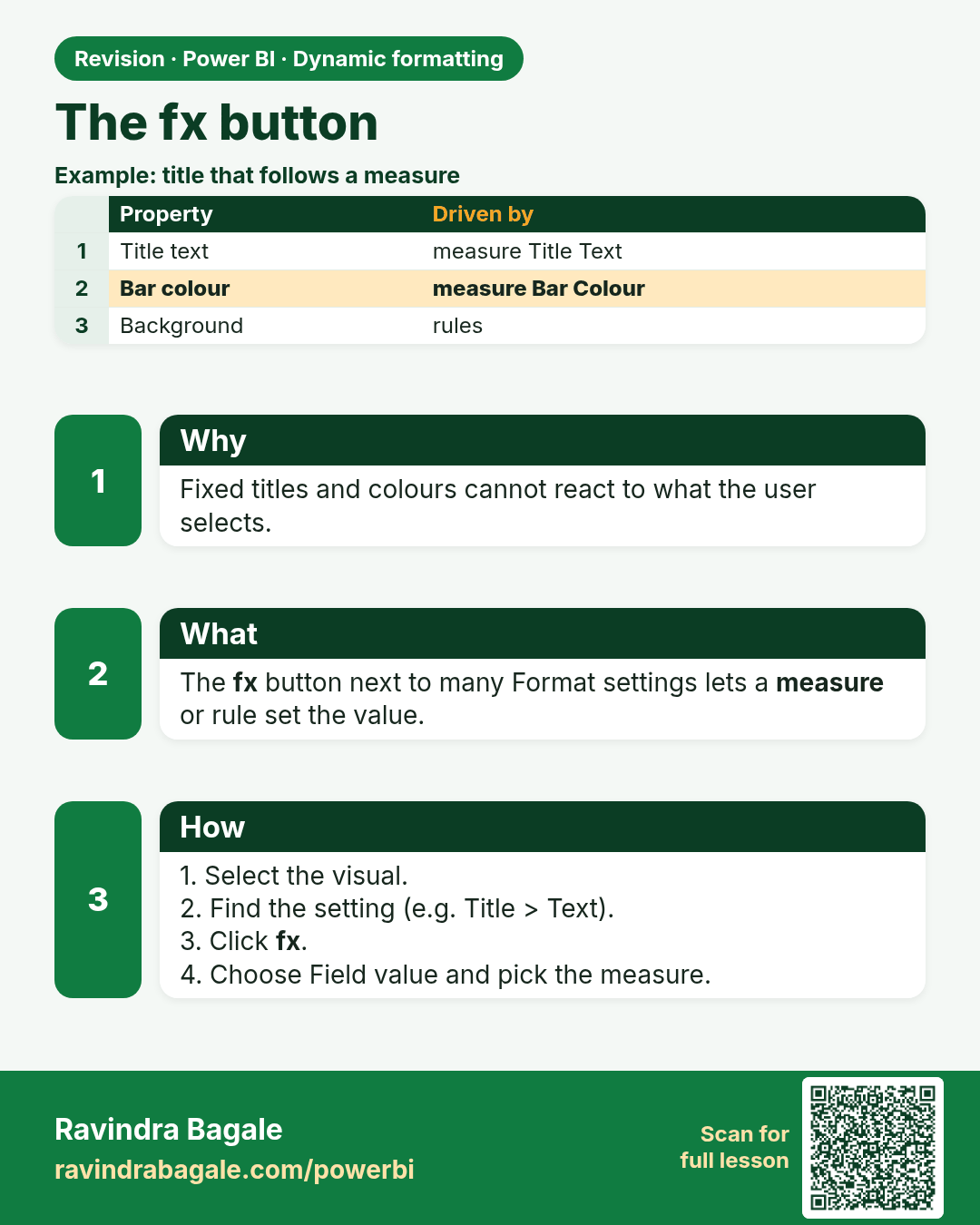
The fx button. Fixed titles and colours cannot react to what the user selects.
Revision card 1 of 8: The fx button · Download PNG · Open card page

Lesson: 20.1 The fx Button

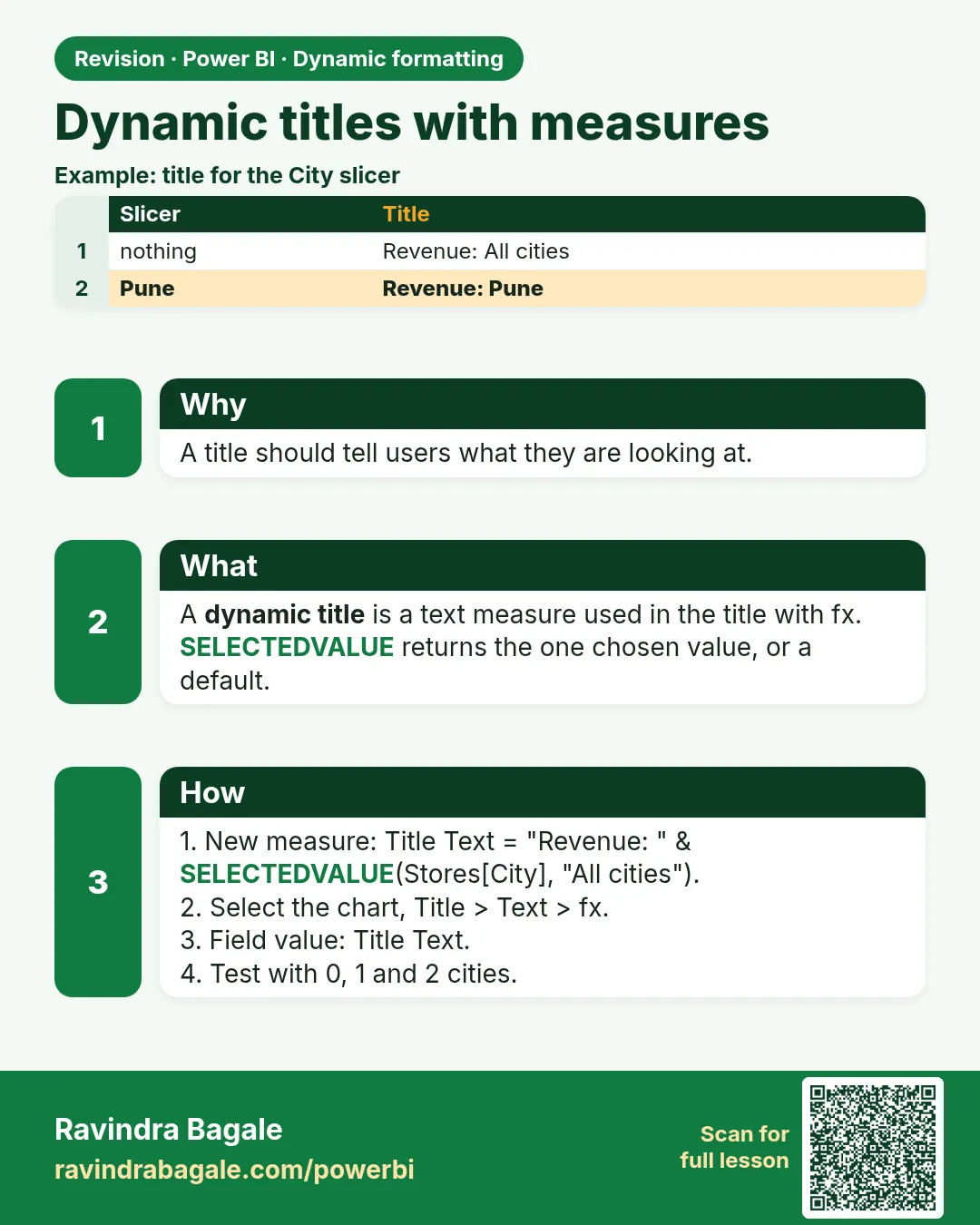
Dynamic titles with measures. A title should tell users what they are looking at.
Revision card 2 of 8: Dynamic titles with measures · Download PNG · Open card page

Lesson: 20.2 Dynamic Titles with Measures
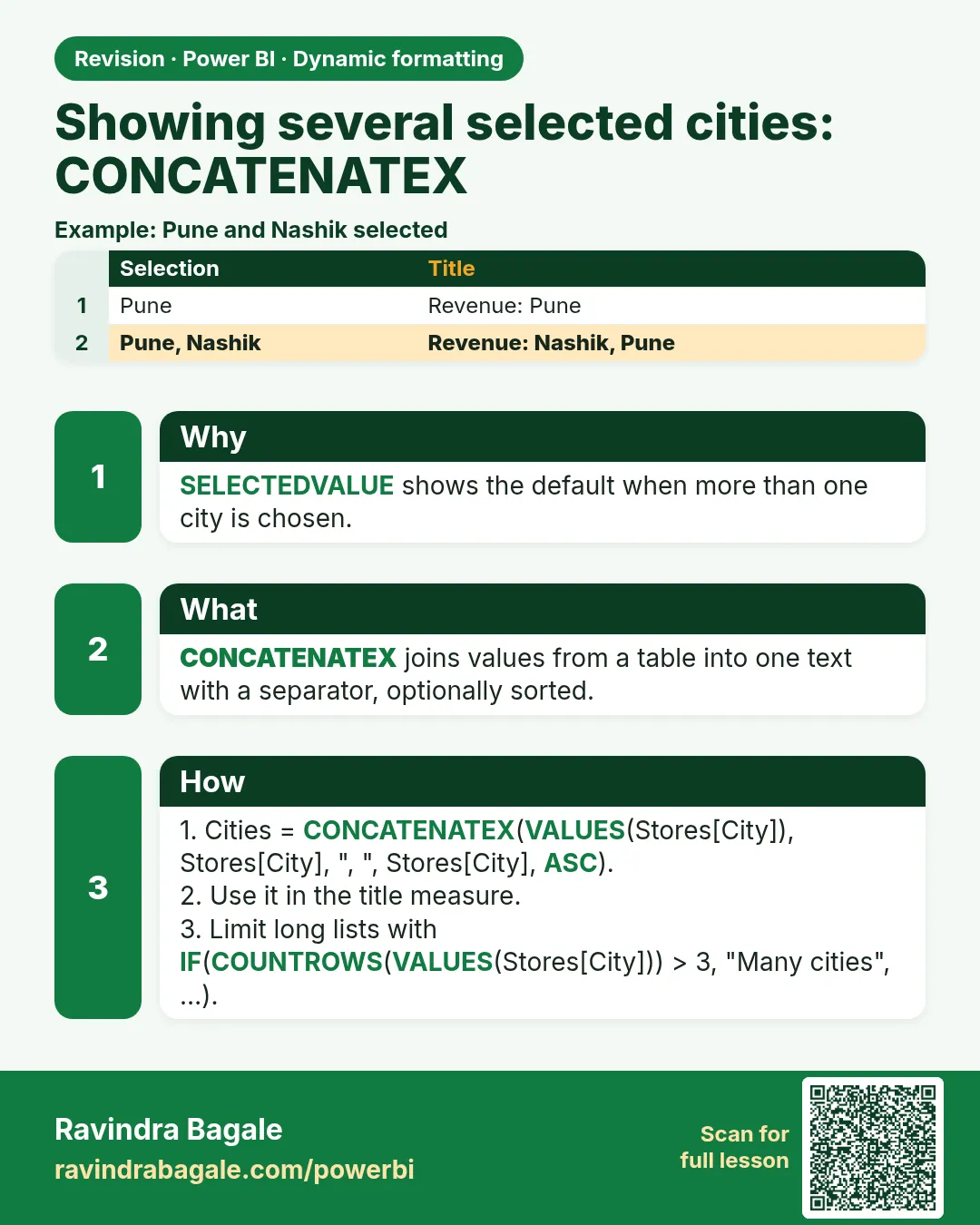
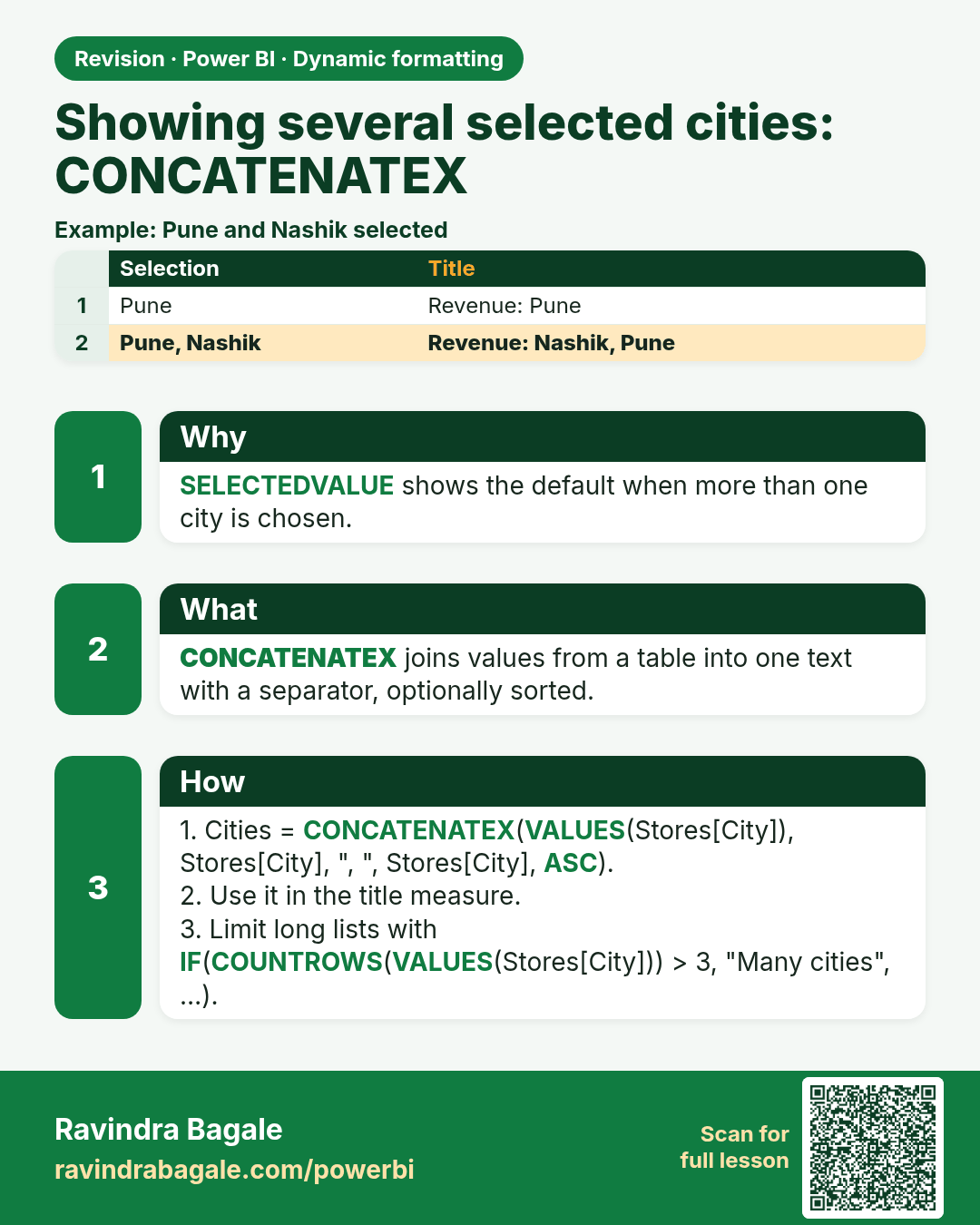
Showing several selected cities: CONCATENATEX. SELECTEDVALUE shows the default when more than one city is chosen.
Revision card 3 of 8: Showing several selected cities: CONCATENATEX · Download PNG · Open card page

Lesson: 20.3 Showing Several Selected Cities (CONCATENATEX)

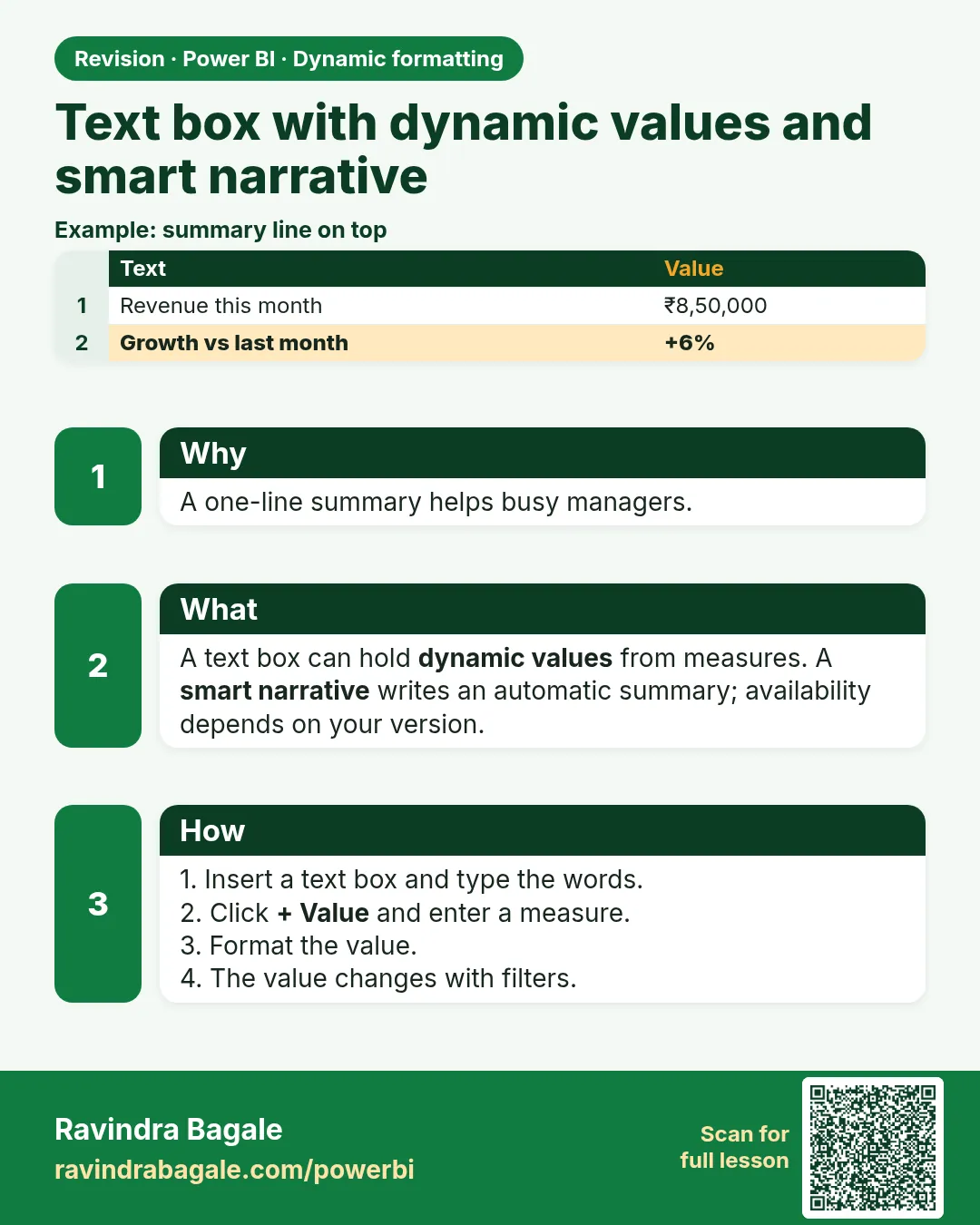
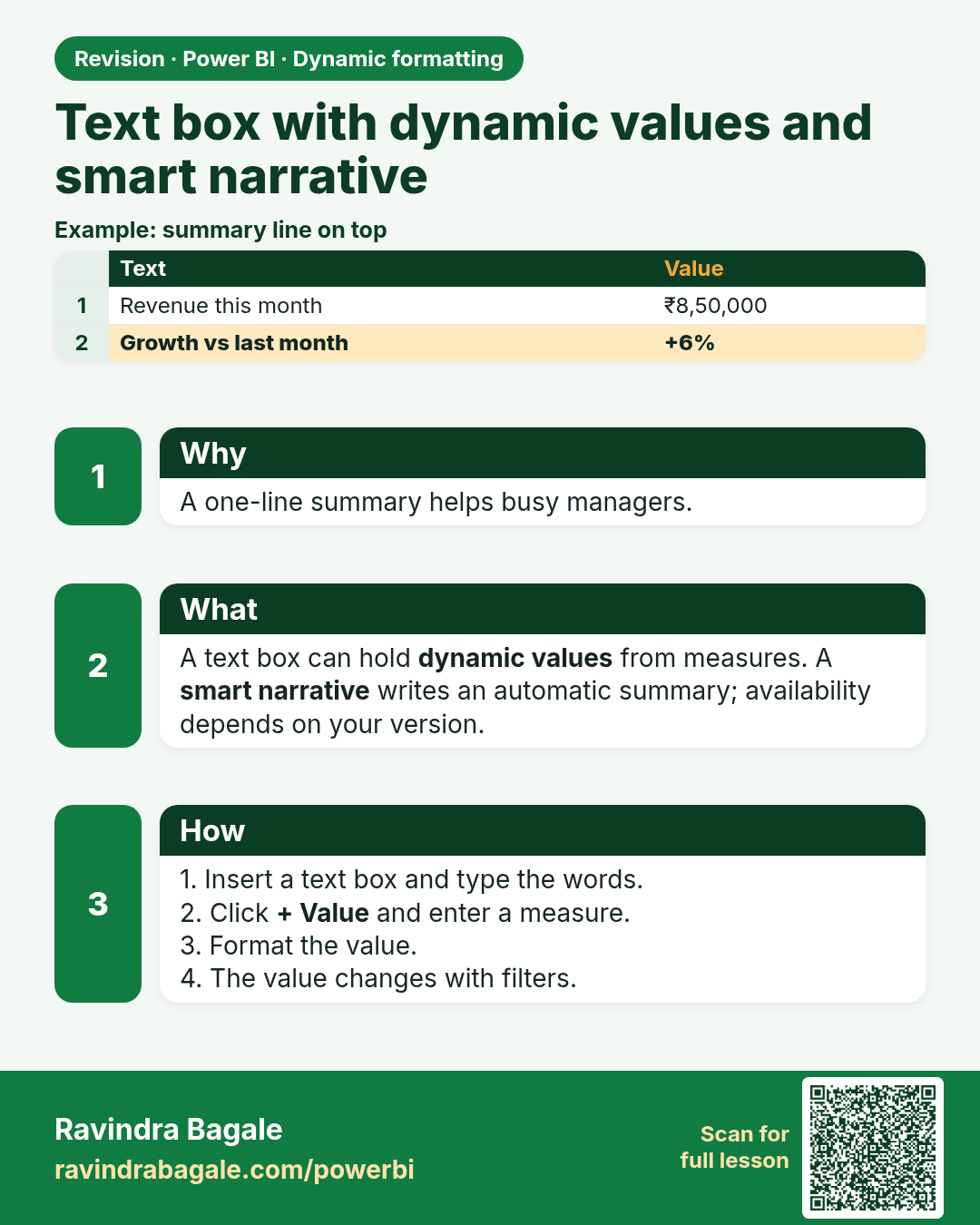
Text box with dynamic values and smart narrative. A one-line summary helps busy managers.
Revision card 4 of 8: Text box with dynamic values and smart narrative · Download PNG · Open card page

Lesson: 20.4 Text Box with Dynamic Values and Smart Narrative

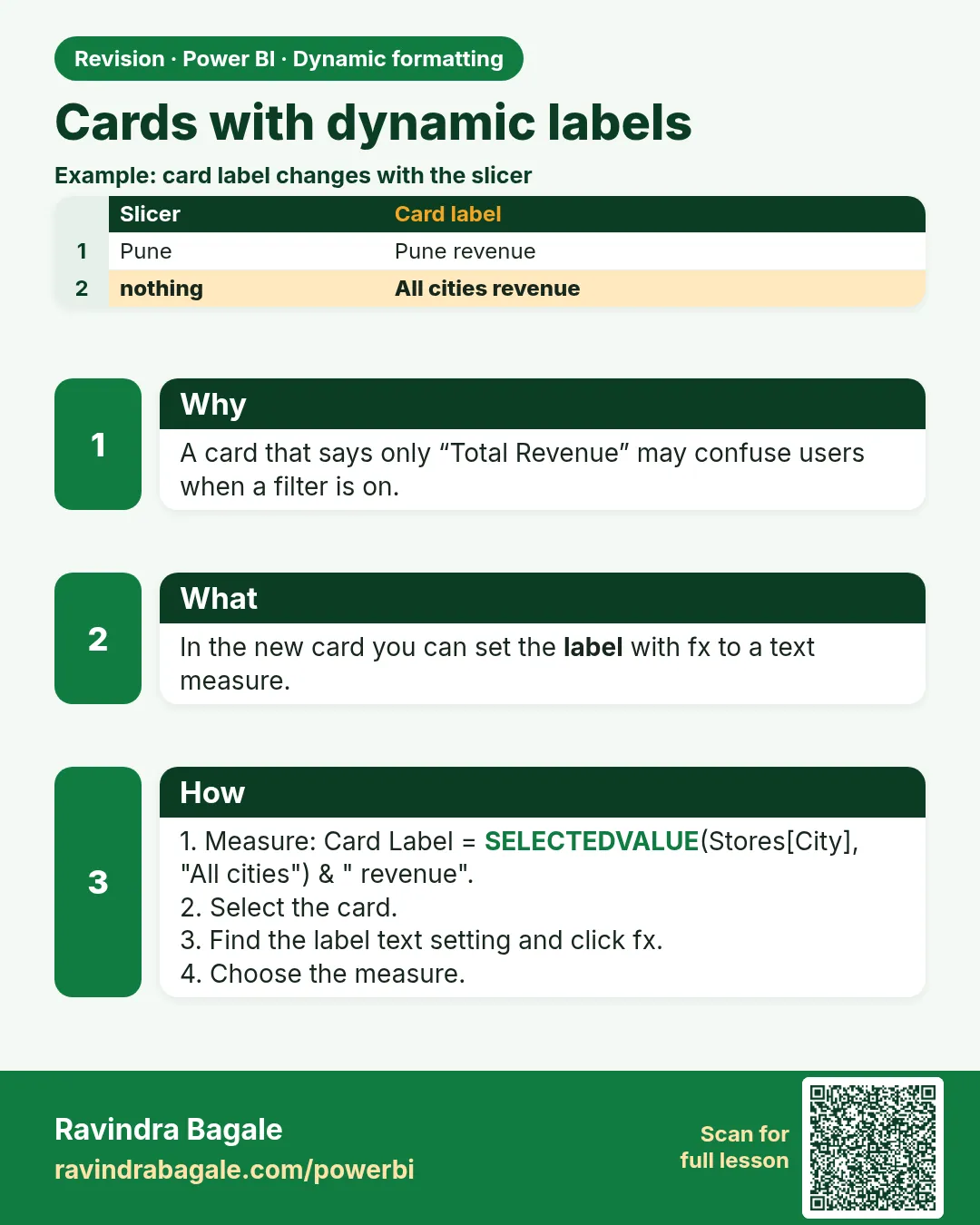
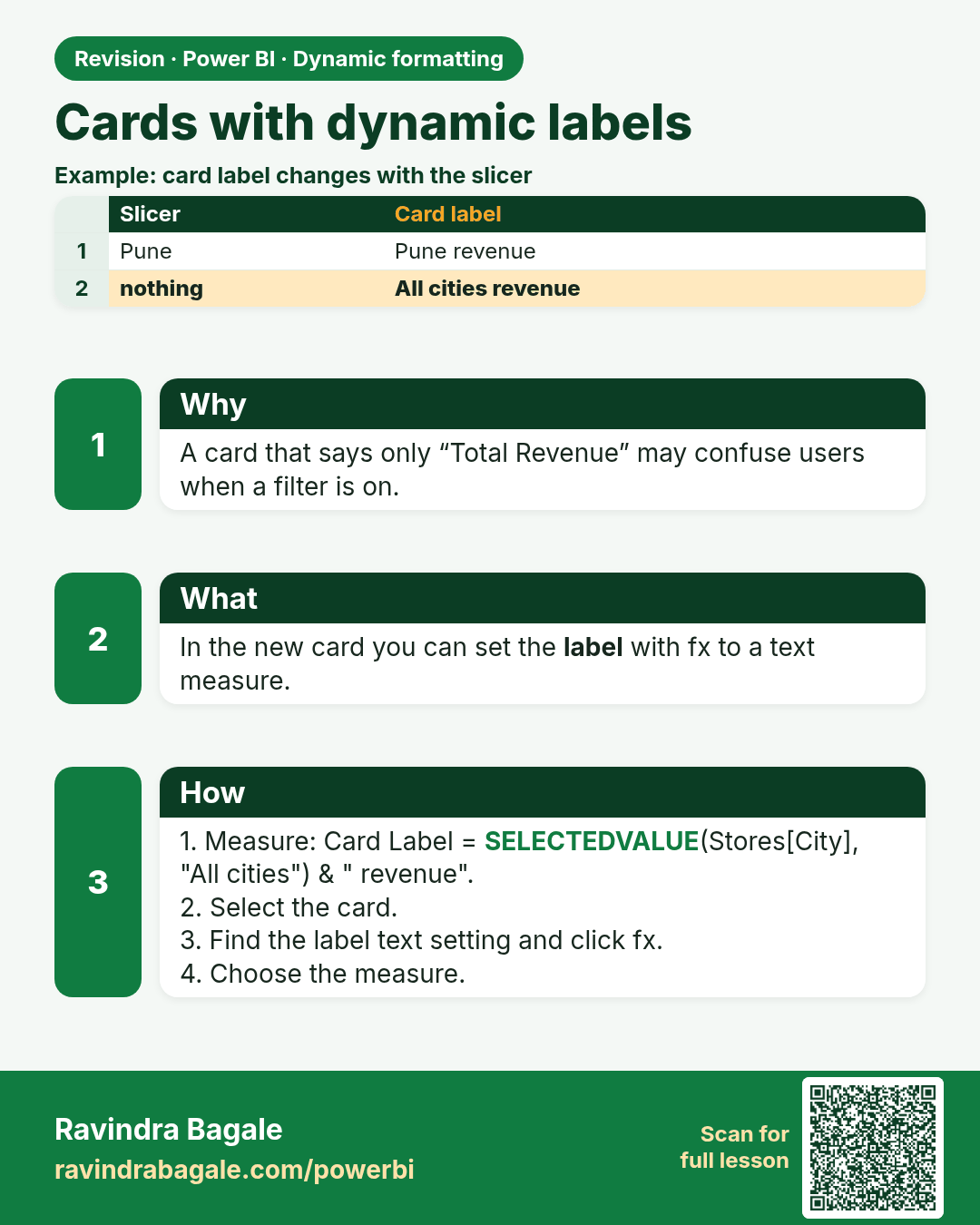
Cards with dynamic labels. A card that says only “Total Revenue” may confuse users when a filter is on.
Revision card 5 of 8: Cards with dynamic labels · Download PNG · Open card page

Lesson: 20.5 Cards with Dynamic Labels

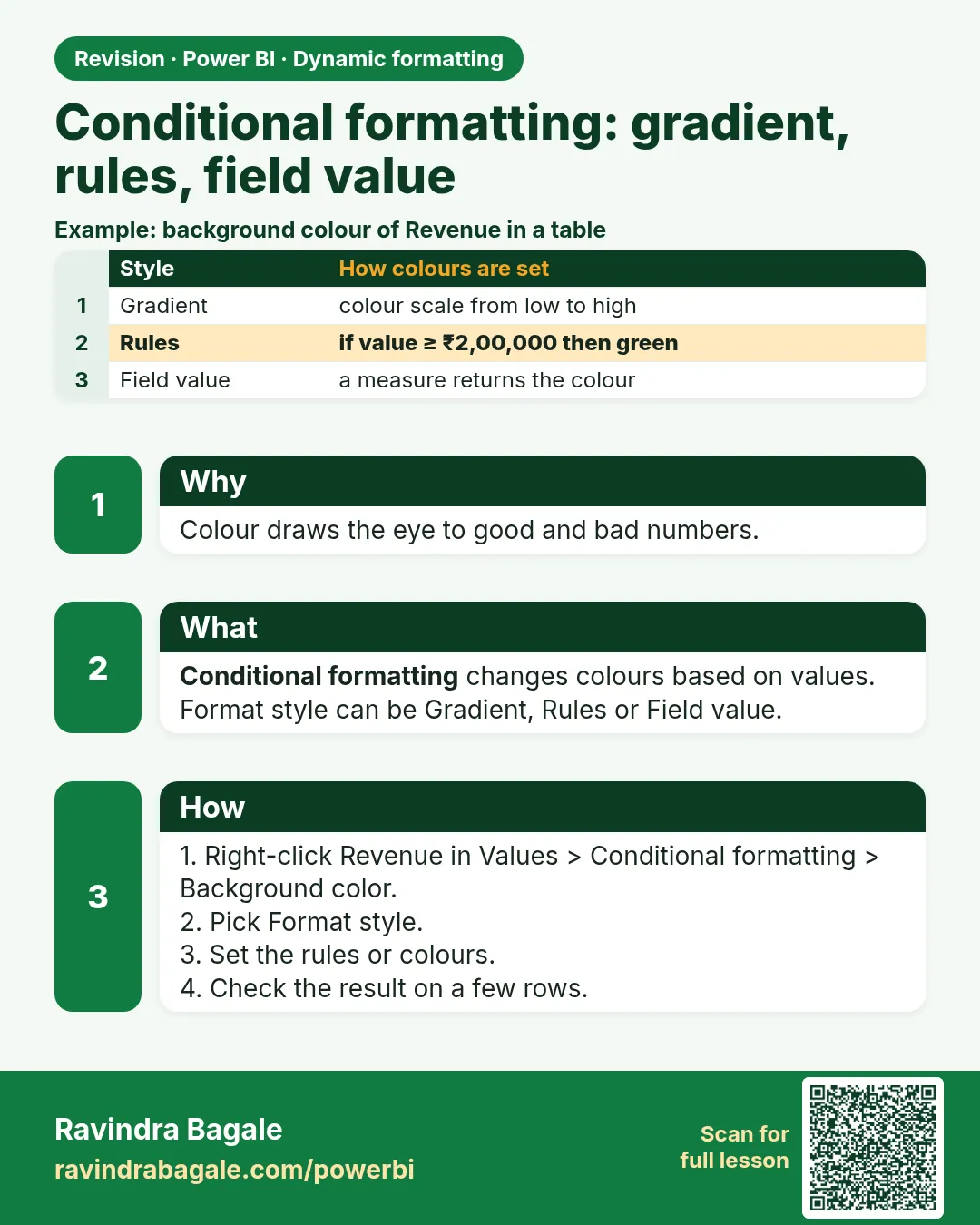
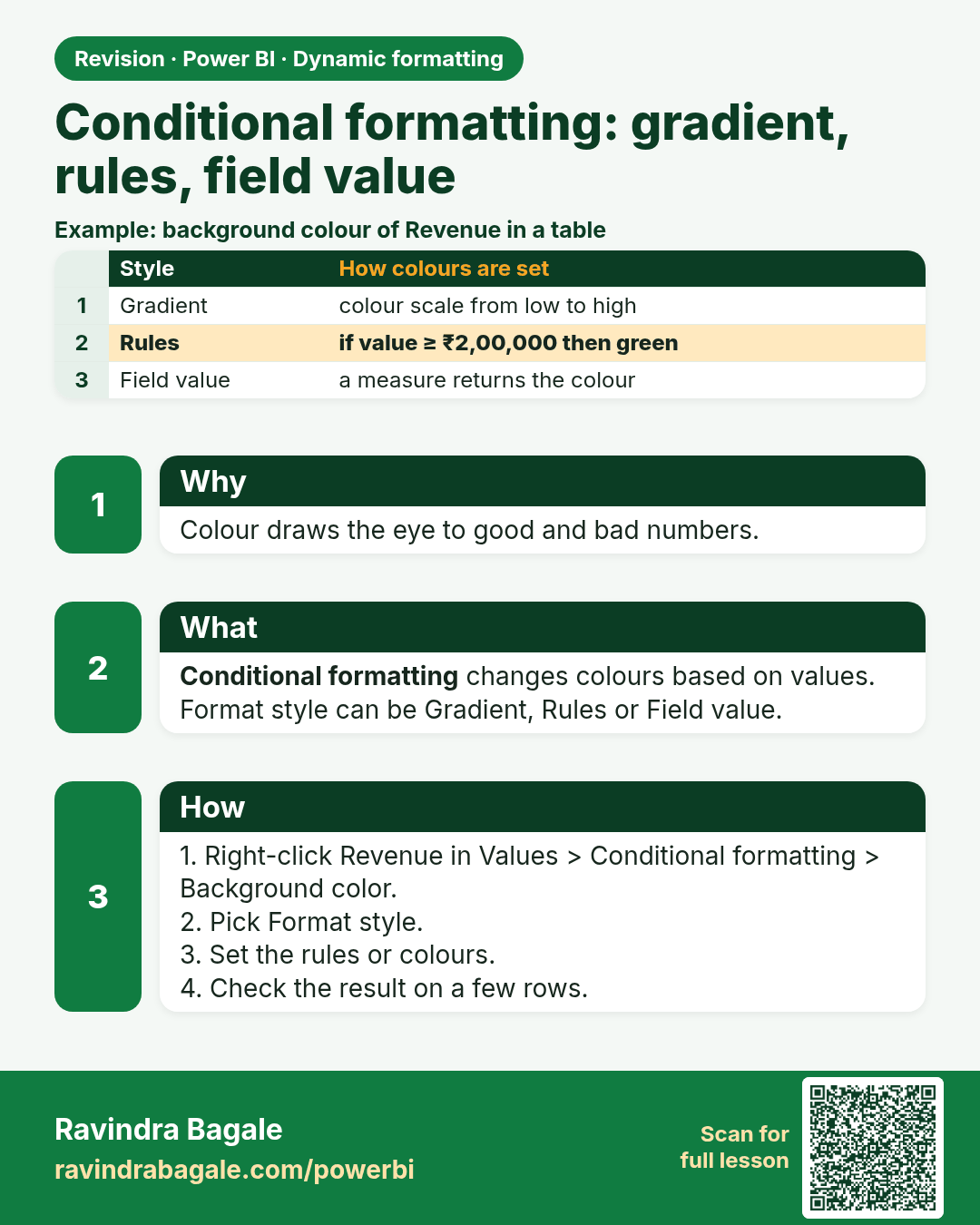
Conditional formatting: gradient, rules, field value. Colour draws the eye to good and bad numbers.
Revision card 6 of 8: Conditional formatting: gradient, rules, field value · Download PNG · Open card page

Lesson: 20.6 Conditional Formatting: Rules, Gradient and Field Value

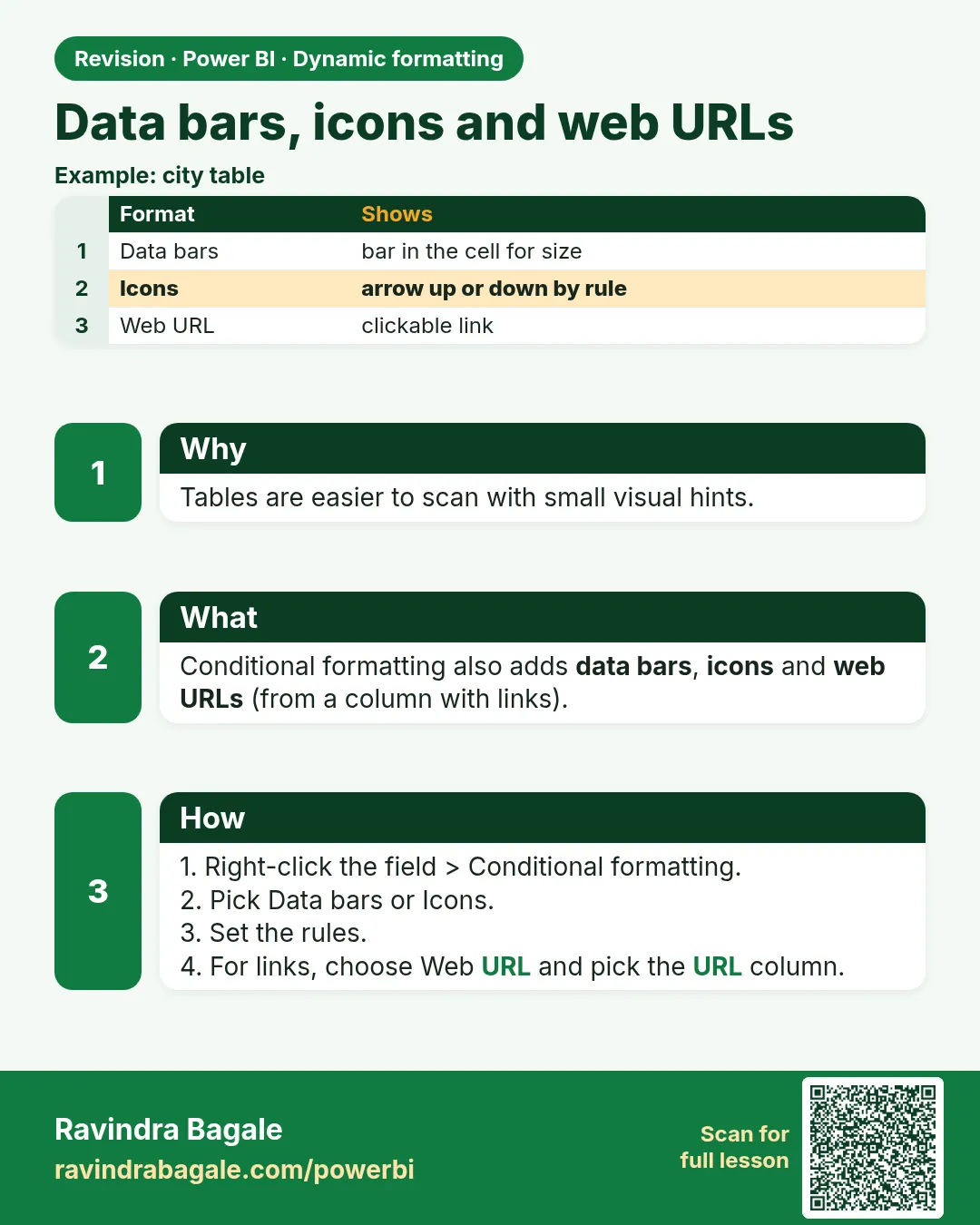
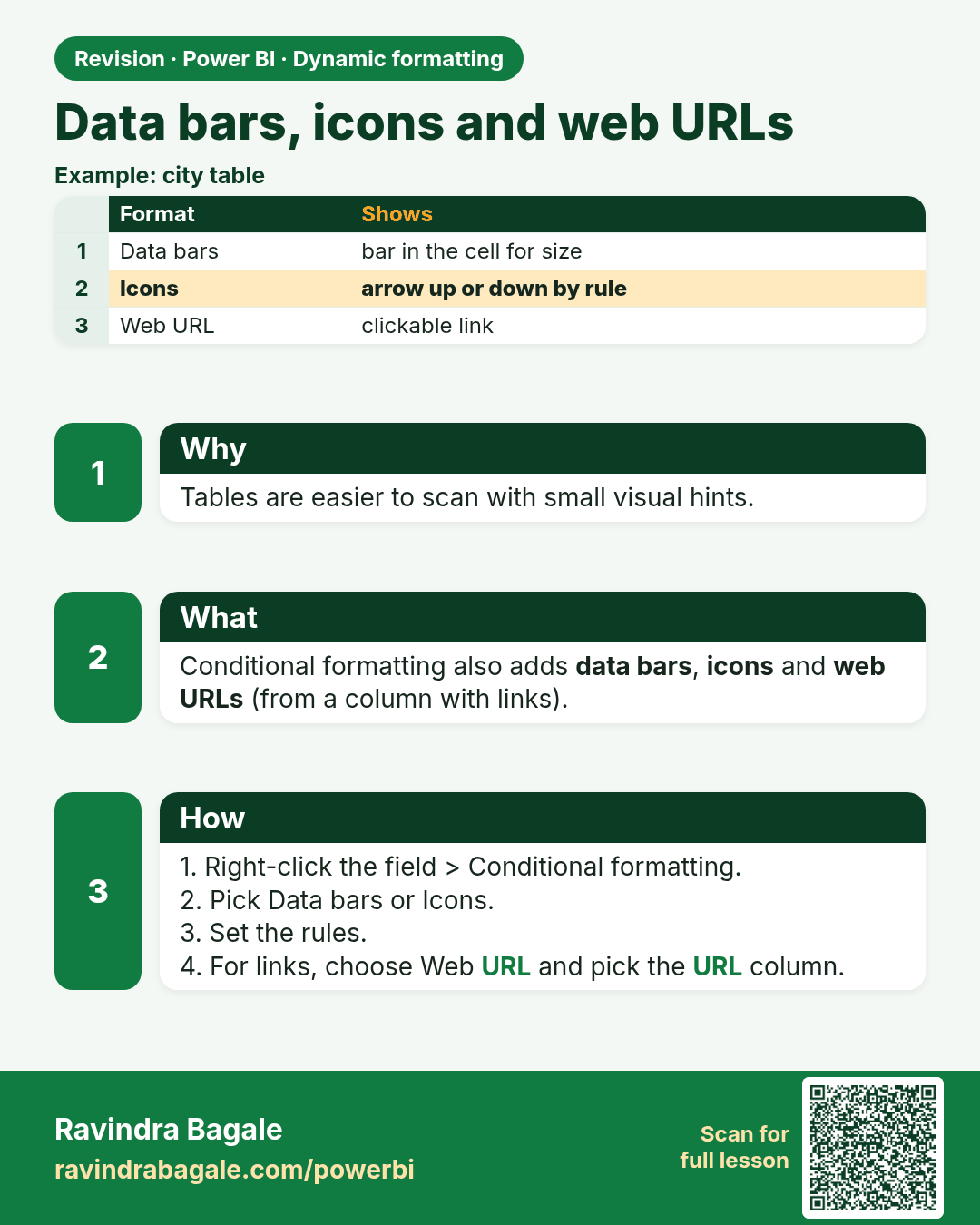
Data bars, icons and web URLs. Tables are easier to scan with small visual hints.
Revision card 7 of 8: Data bars, icons and web URLs · Download PNG · Open card page

Lesson: 20.7 Data Bars, Icons and Web URLs

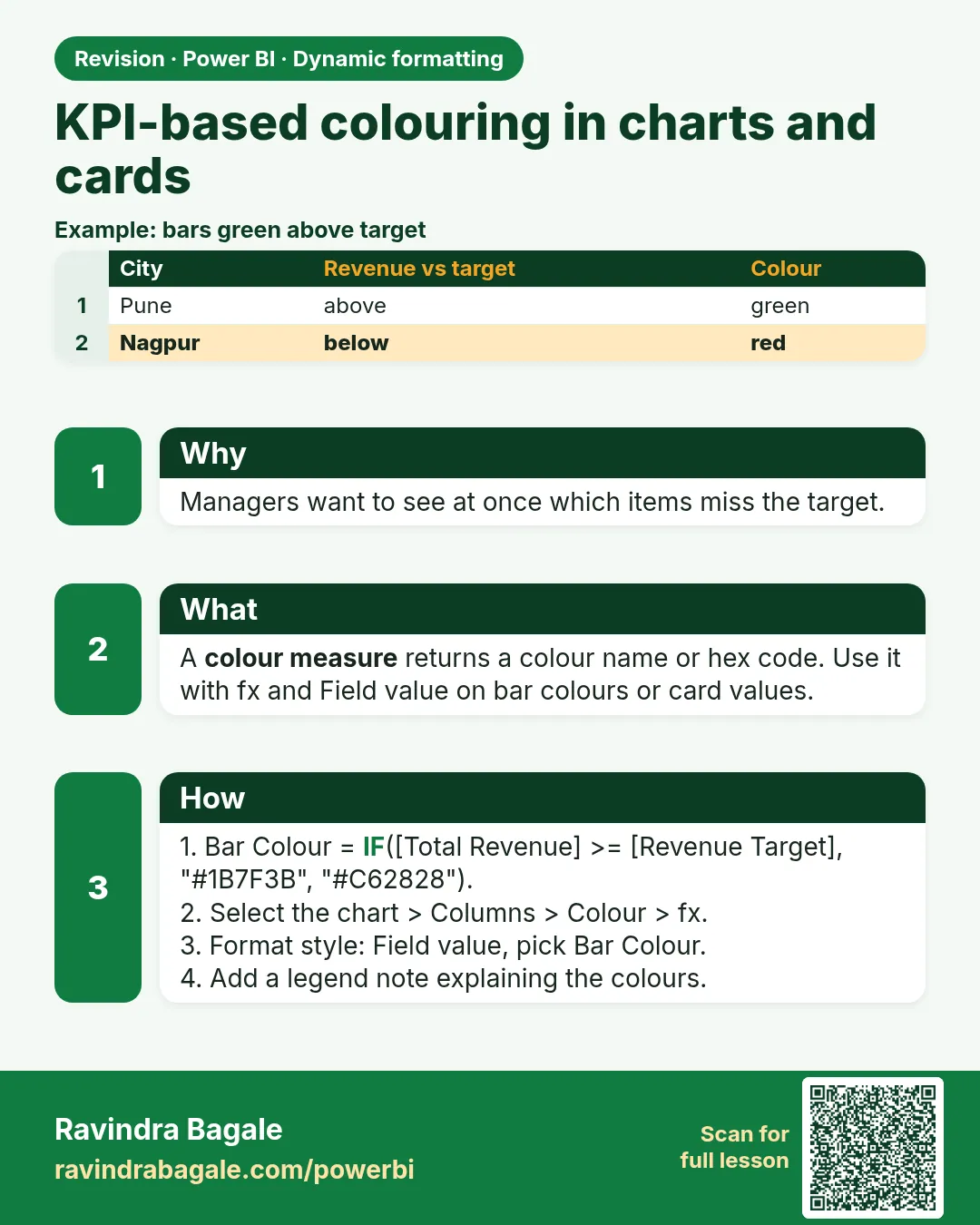
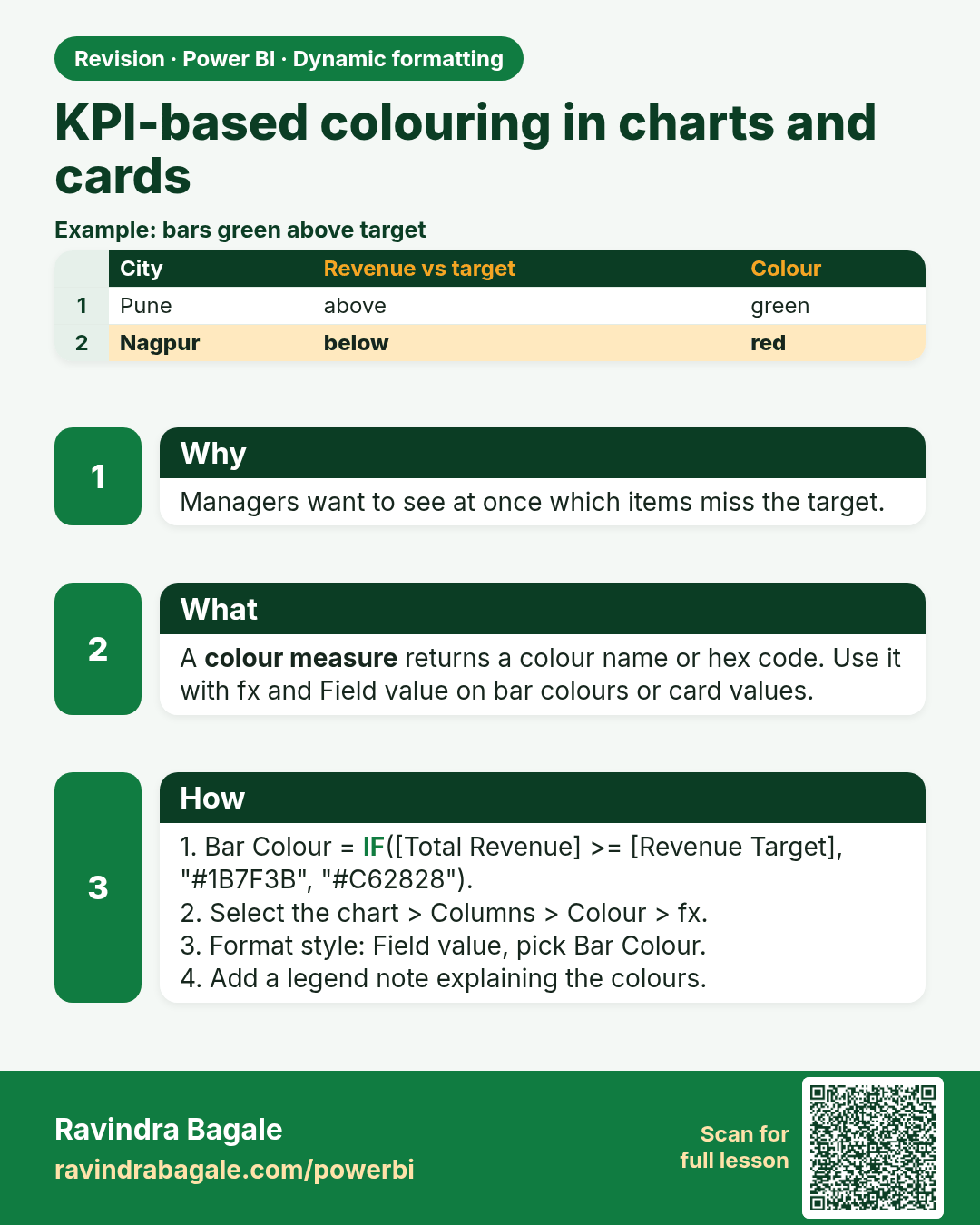
KPI-based colouring in charts and cards. Managers want to see at once which items miss the target.
Revision card 8 of 8: KPI-based colouring in charts and cards · Download PNG · Open card page

Lesson: 20.8 KPI-based Colouring in Charts and Cards

Interview cards

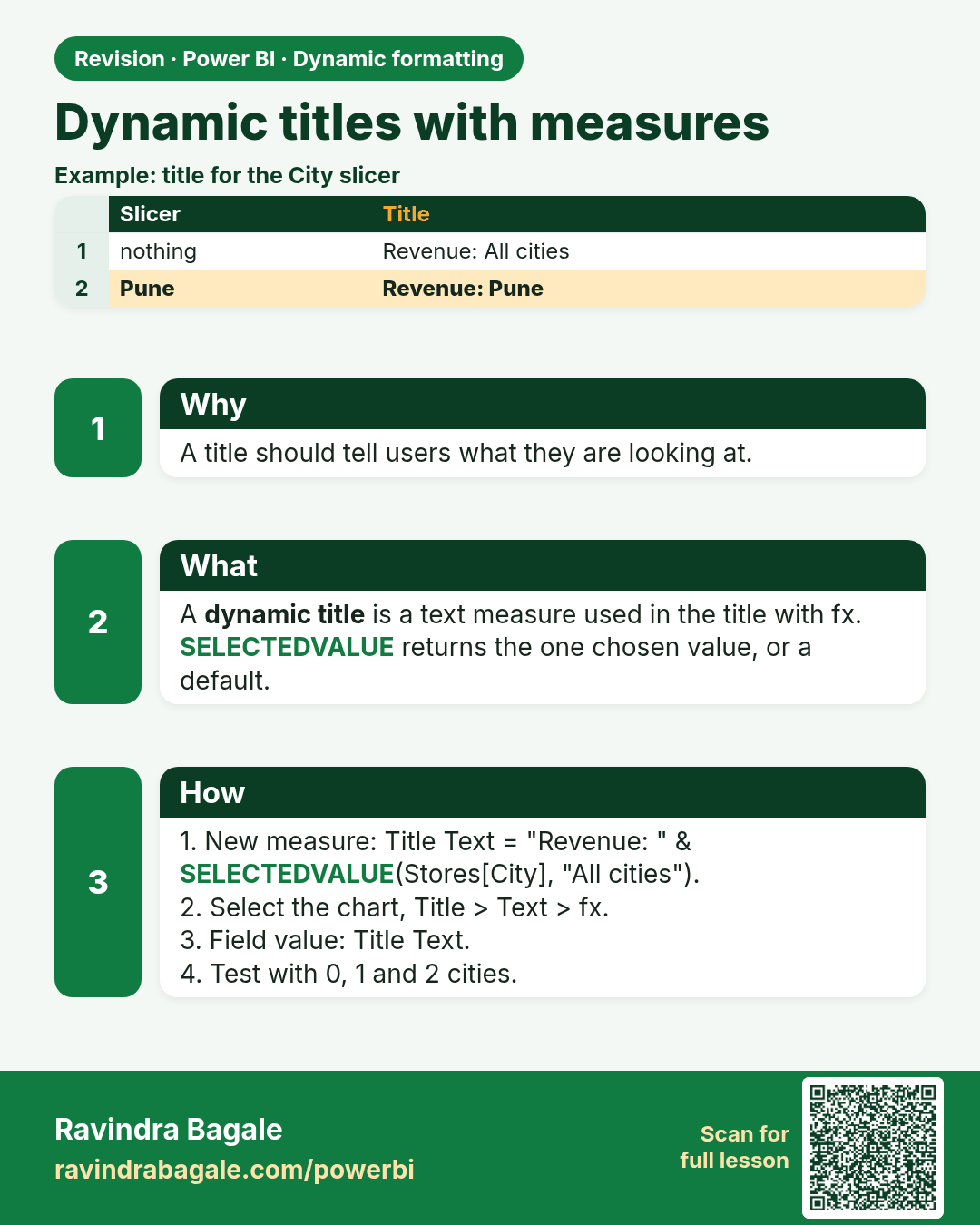
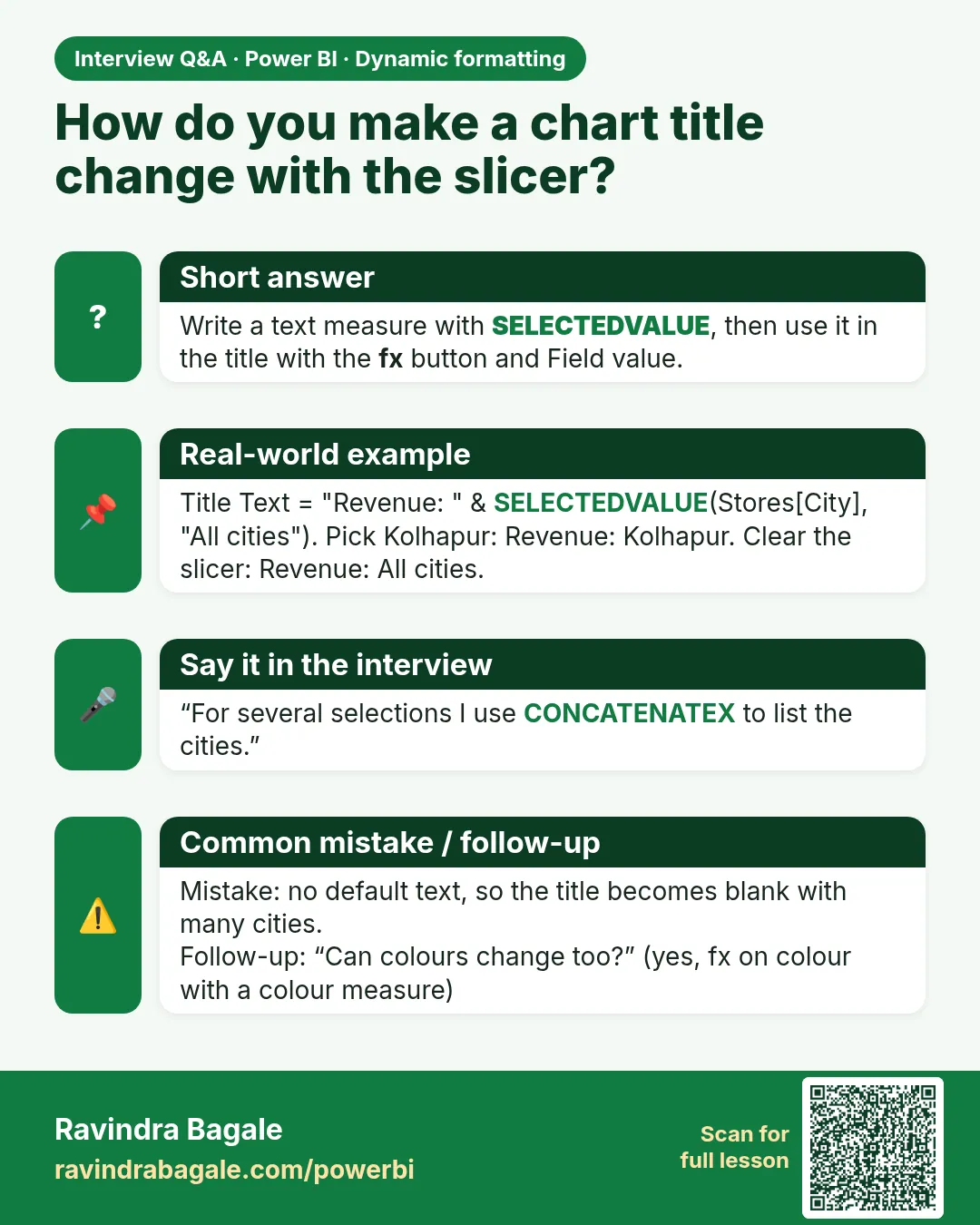
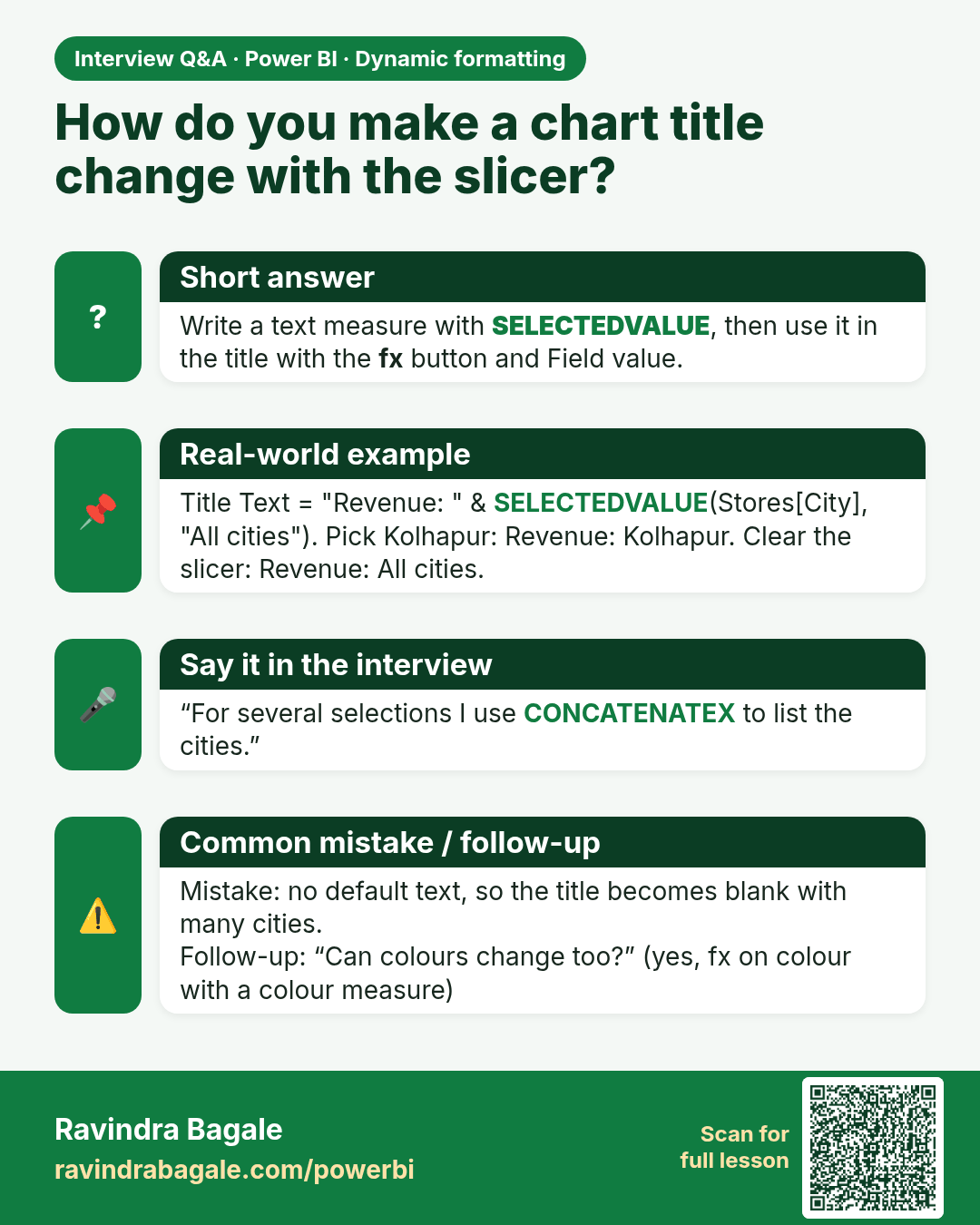
How do you make a chart title change with the slicer? Write a text measure with SELECTEDVALUE, then use it in the title with the fx button and Field value.
Interview card 1 of 2: How do you make a chart title change with the slicer? · Download PNG · Open card page

Lesson: 20.2 Dynamic Titles with Measures
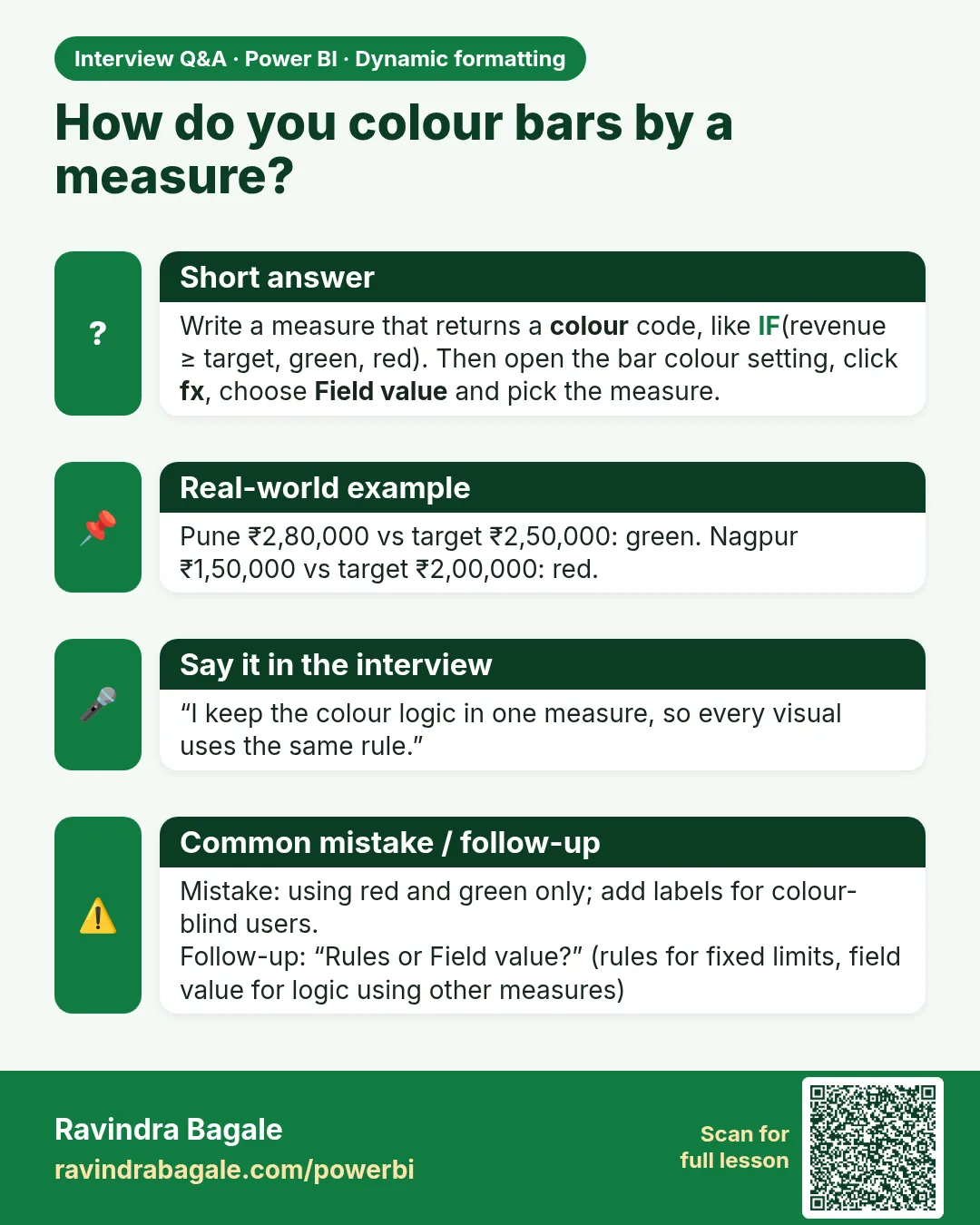
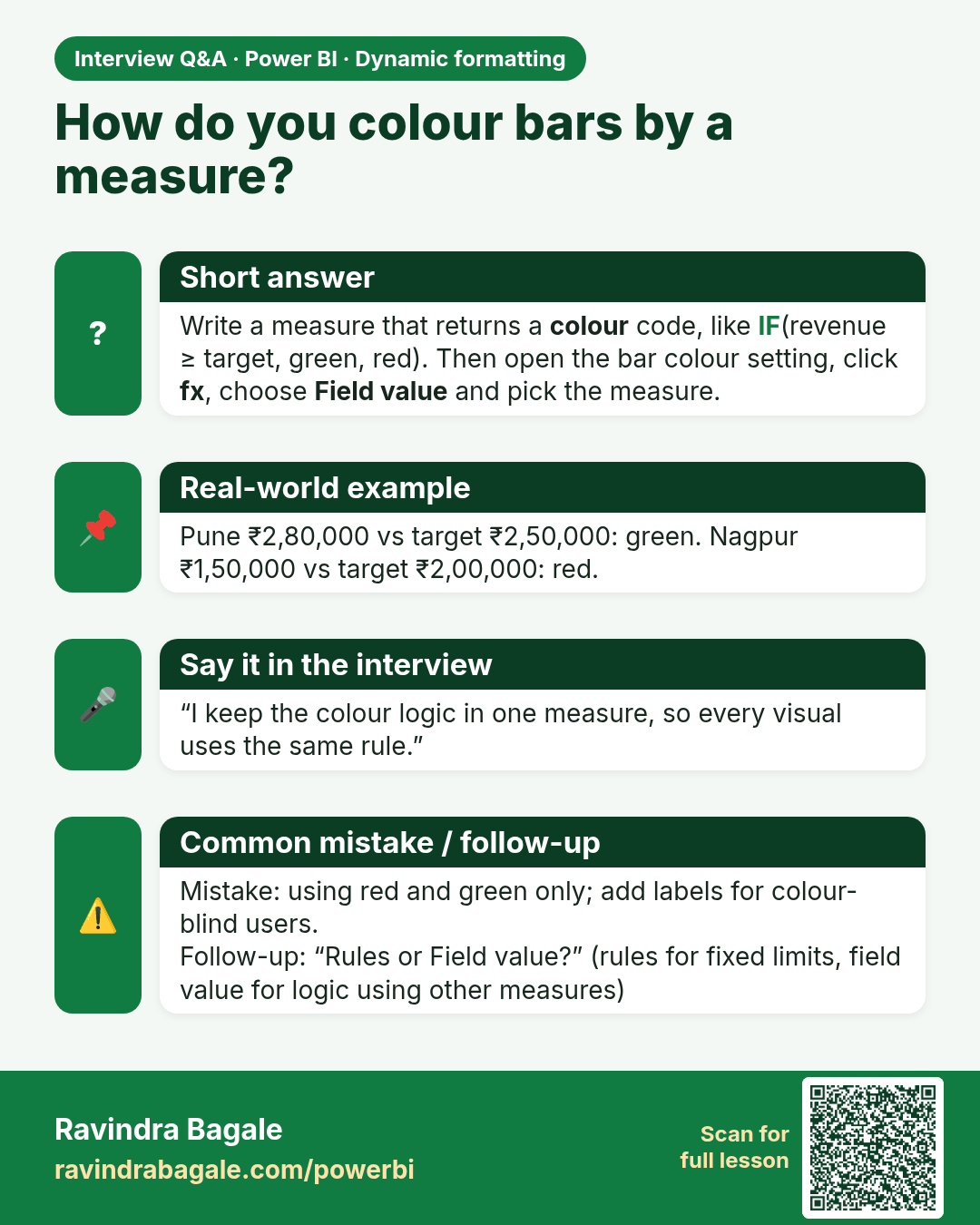
How do you colour bars by a measure? Write a measure that returns a colour code, like IF(revenue ≥ target, green, red). Then open the bar colour setting, click fx, choose Field value and pick the measure.
Interview card 2 of 2: How do you colour bars by a measure? · Download PNG · Open card page

Lesson: 20.8 KPI-based Colouring in Charts and Cards

Comparison cards
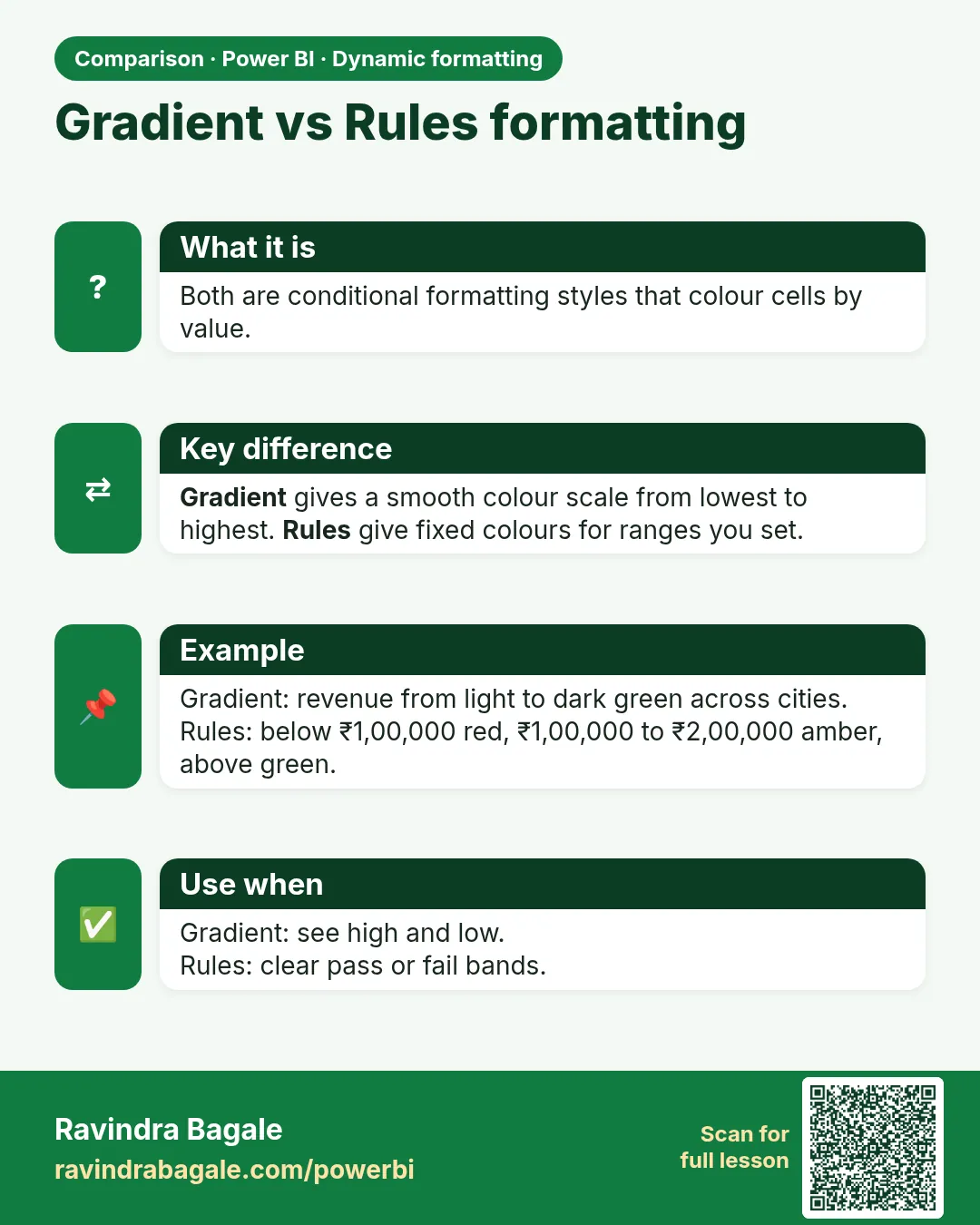
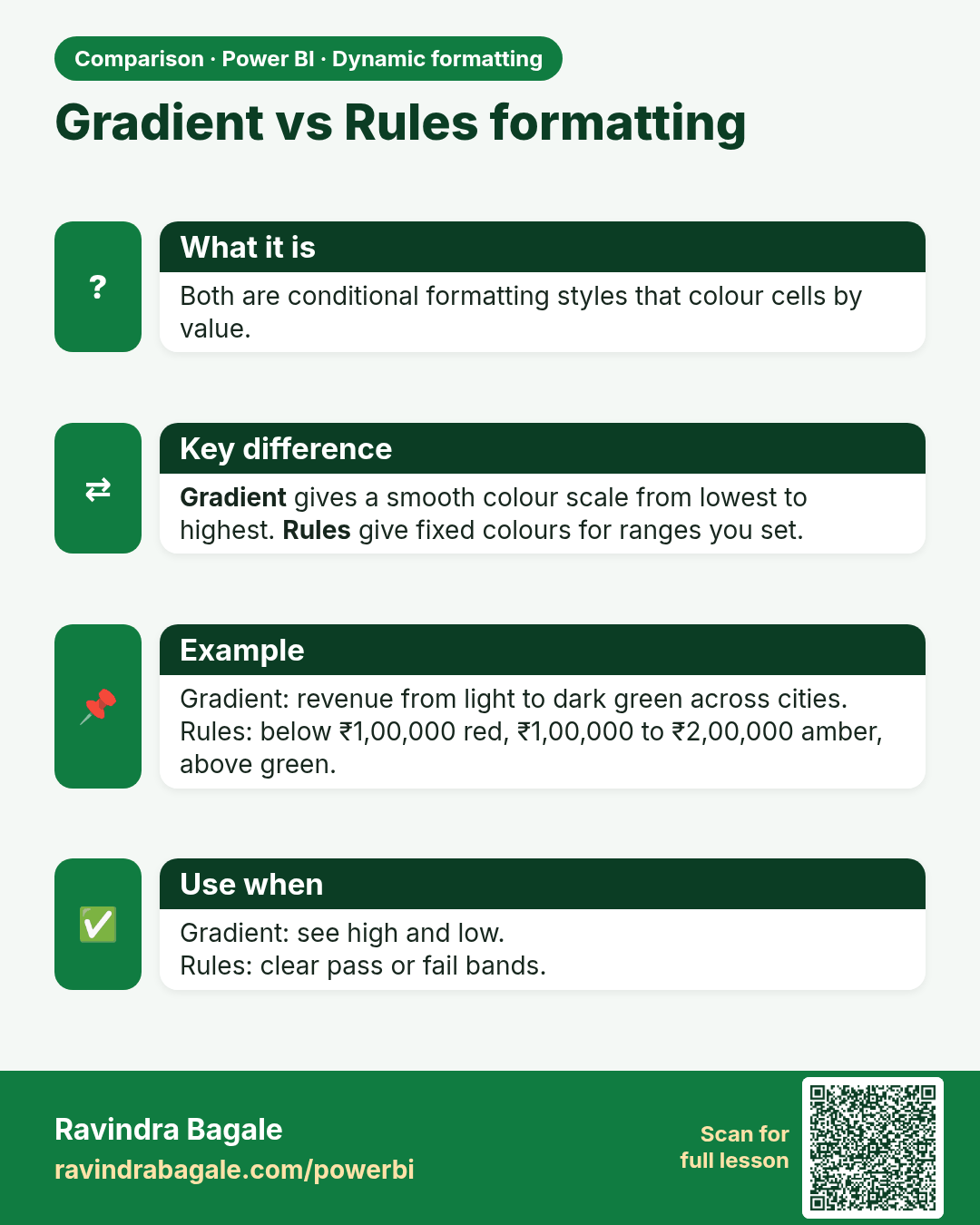
Gradient vs Rules formatting. Both are conditional formatting styles that colour cells by value.
Comparison card 1 of 1: Gradient vs Rules formatting · Download PNG · Open card page

Lesson: 20.6 Conditional Formatting: Rules, Gradient and Field Value