20. Dynamic Text and Dynamic Colour (Conditional Formatting)
20.5 Cards with Dynamic Labels
Start with a problem
Amir wants the card label to say Pune sales instead of the generic Total Sales.
Explain simply
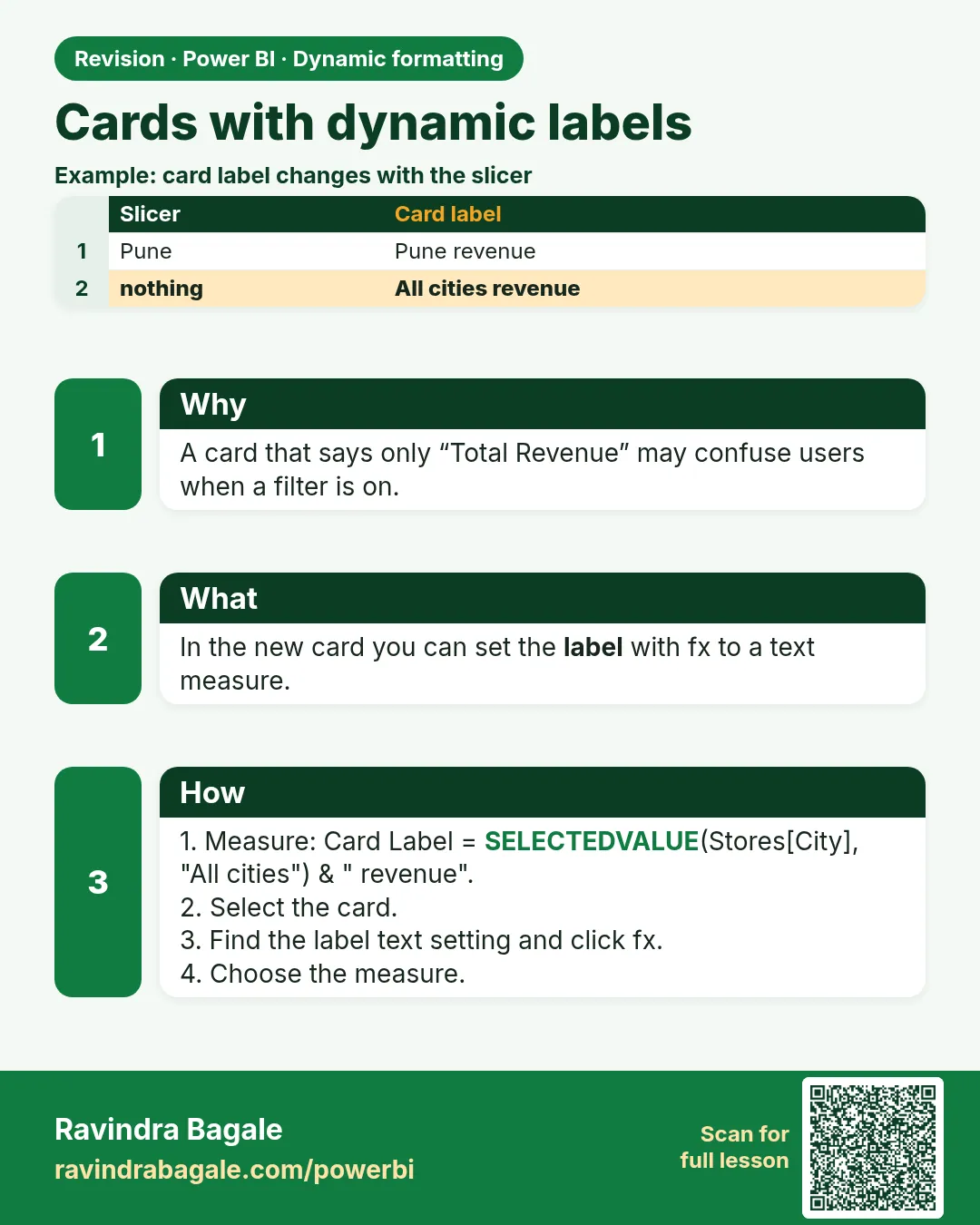
Card category labels and titles can use fx with a text measure, so the label reflects the selection.
Show the data
| City | Total Sales (₹) |
|---|---|
| Pune | 850 |
| Nashik | 800 |
| Kolhapur | 450 |
| Total | 2,100 |
About this data: This table uses columns: City, Total Sales (₹). This table uses columns: Slicer, Card title, Value. This table uses columns: Wrong result, Reason, Correction. Values shown are the lesson examples already on this page (not a new dataset).
Fictional sample data. Practice file: visuals_orders_apr_may_2026.csv (source: src/practice/).
Demonstrate
- Create
Card Label = SELECTEDVALUE(Orders[City], "All cities") & " sales". - Card › Format › Visual › Category label Off; General › Title On › Text fx ›
Card Label. - Select Pune.
Show the result
Your result should look like this (fictional sample):
| Slicer | Card title | Value |
|---|---|---|
| Pune | Pune sales | ₹850 |
| None | All cities sales | ₹2,100 |
Explain what happened
The title measure and the value measure are both evaluated in the same filter context.
Explore further
- Card (new) has its own label options; fx availability varies by version.
Detailed reference for this lesson:
- Card (classic): turn Category label off, and turn General › Title on with fx → a measure such as
"Orders – " & [Selected Platform]. - Card (new): each callout has a Label with fx, and Reference labels can show a second measure such as
[Orders MoM %]with its own dynamic colour. - Arrow text for change:
Orders MoM Label =
VAR chg = [Orders MoM %]
RETURN IF(ISBLANK(chg), "–", IF(chg >= 0, "▲ ", "▼ ") & FORMAT(ABS(chg), "0.0%") & " vs last month")
Ravindra Bagale's Tip
A common mistake with cards is a label that says "Total Sales" when a slicer has filtered it to one city and one week. Use a dynamic label measure for the card title or category label, so the user always knows what the number covers. Keep this in mind!
Ravindra Bagale's Tip – मराठी
Card मधली एक common चूक म्हणजे slicer ने एक city आणि एक आठवड्यापुरता filter केलेला असतानाही label "Total Sales" असं सांगतो. Card title किंवा category label साठी dynamic label measure वापरा, म्हणजे number कशाचा आहे हे user ला नेहमी कळेल. लक्षात ठेवा!
Ravindra Bagale's Tip – हिंदी
Card की एक common गलती है label का "Total Sales" कहना जबकि slicer ने उसे एक city और एक हफ़्ते तक filter कर दिया है. Card title या category label के लिए dynamic label measure इस्तेमाल करो, ताकि user को हमेशा पता रहे कि number किसका है. ध्यान रखना!
Fix common mistakes
| Wrong result | Reason | Correction |
|---|---|---|
| Label shows (Blank) sales | No fallback | Add the fallback argument |
| Label and value disagree | Label uses a different field | Use the same City column |
| Two labels shown | Category label still on | Turn it off |
Practise independently
Practice task
What does the card show for Nashik?
Hints
- Nashik total 800.
Solution
Title Nashik sales, value ₹800.
Think like a professional
Small label improvements remove ambiguity in board decks.
Loading DAX practice tasks...
- Cups label (Easy): Shown per Shop City. Measure: Cups Label = SUM of Cups followed by " cups".
- Sales count label (Easy): Shown per Item. Measure: Sales Label = number of Sales rows followed by " sales".
- Pay mode label (Easy): Slicer: PayMode = Card. Measure: Pay Label = the picked PayMode, else "All pay modes", followed by " sales".
- Rounded revenue label (Medium): Shown per Shop City. Measure: Revenue Label = "£" followed by [Revenue] rounded to 0 decimals.
- Busy or quiet (Medium): Shown per Shop Name. Measure: Busy Label = "Busy" when SUM of Cups is 50 or more, else "Quiet".
- Barista label (Medium): Shown per Barista. Measure: Barista Label = the barista, ": ", SUM of Cups, " cups".
- Shops label (Medium): Shown per Shop Country. Measure: Shops Label = distinct count of Sales ShopID followed by " shops".
- Above or below average (Hard): Shown per Shop Name. Measure: Avg Label = "Above avg" when [Revenue] is more than revenue of all shops ÷ 5, else "Below avg".
- Average cups label (Hard): Shown per Shop City. Measure: Avg Cups Label = AVERAGE of Cups rounded to 0 decimals, followed by " cups per sale".
- Card share label (Hard): Shown per Shop City. Measure: Card Label = card revenue ÷ [Revenue] × 100, rounded to 0, followed by "% card".
 Revision card