11.9 A Flat Table versus a Dimensional Model
Start with a problem
Ravina receives one wide sheet: order, store, city, manager and manager email on every line. When Ravindra's email changes, three rows need editing.
Explain simply
Split the flat table: the descriptions go to a dimension (one row per store); the events stay in a narrow fact table.
Show the data
Flat export (Ravindra's orders):
| Order ID | Store | City | Manager | Manager Email | Amount (₹) |
|---|---|---|---|---|---|
| 301 | Kothrud | Pune | Ravindra | ravindra@example.com | 400 |
| 302 | Baner | Pune | Ravindra | ravindra@example.com | 200 |
| 306 | Kothrud | Pune | Ravindra | ravindra@example.com | 250 |
Fictional sample data. Practice file: visuals_orders_apr_may_2026.csv, dark_stores_maharashtra.csv (source: src/practice/).
Demonstrate
- Simulate the flat file: merge Orders with DarkStore on Store (Left Outer) and expand City, Region, Manager, Manager Email. Call it FlatOrders.
-
Right-click FlatOrders › Reference › keep Store, City, Region, Manager, Manager Email › Remove Duplicates › rename
DarkStore.Your result should look like this:
DarkStore rows 5 (one per store) -
Back in FlatOrders › remove City, Region, Manager, Manager Email › rename
Orders.Your result should look like this:
Orders columns Order ID, Order Date, Store, Platform, Category, Amount, Delivery Mins, Status -
Relate DarkStore[Store] 1 → * Orders[Store].
Show the result
Your result should look like this (fictional sample):
| Item | Flat table | Star model |
|---|---|---|
| Rows that hold a manager email | 8 | 5 |
| Rows to edit if Ravindra's email changes | 3 (orders 301, 302, 306) | 2 (Kothrud, Baner) |
| Total Amount | ₹2,100 | ₹2,100 |
Explain what happened
Reference reused the flat query, Remove Duplicates kept one row per store, and removing the text columns made Orders narrow. The total is unchanged.
Explore further
- The flat file is fine as an input; the model should be dimensional.
Detailed reference for this lesson:
Students often bring one Excel sheet that holds everything. That is a flat table. In the model you split it into facts and dimensions.
Students बऱ्याचदा सगळं एकाच Excel sheet मध्ये घेऊन येतात. त्याला flat table म्हणतात. Model मध्ये आपण ते facts आणि dimensions मध्ये तोडतो.
Students अक्सर सब कुछ एक ही Excel sheet में लेकर आते हैं. उसे flat table कहते हैं. Model में हम उसे facts और dimensions में बाँटते हैं.
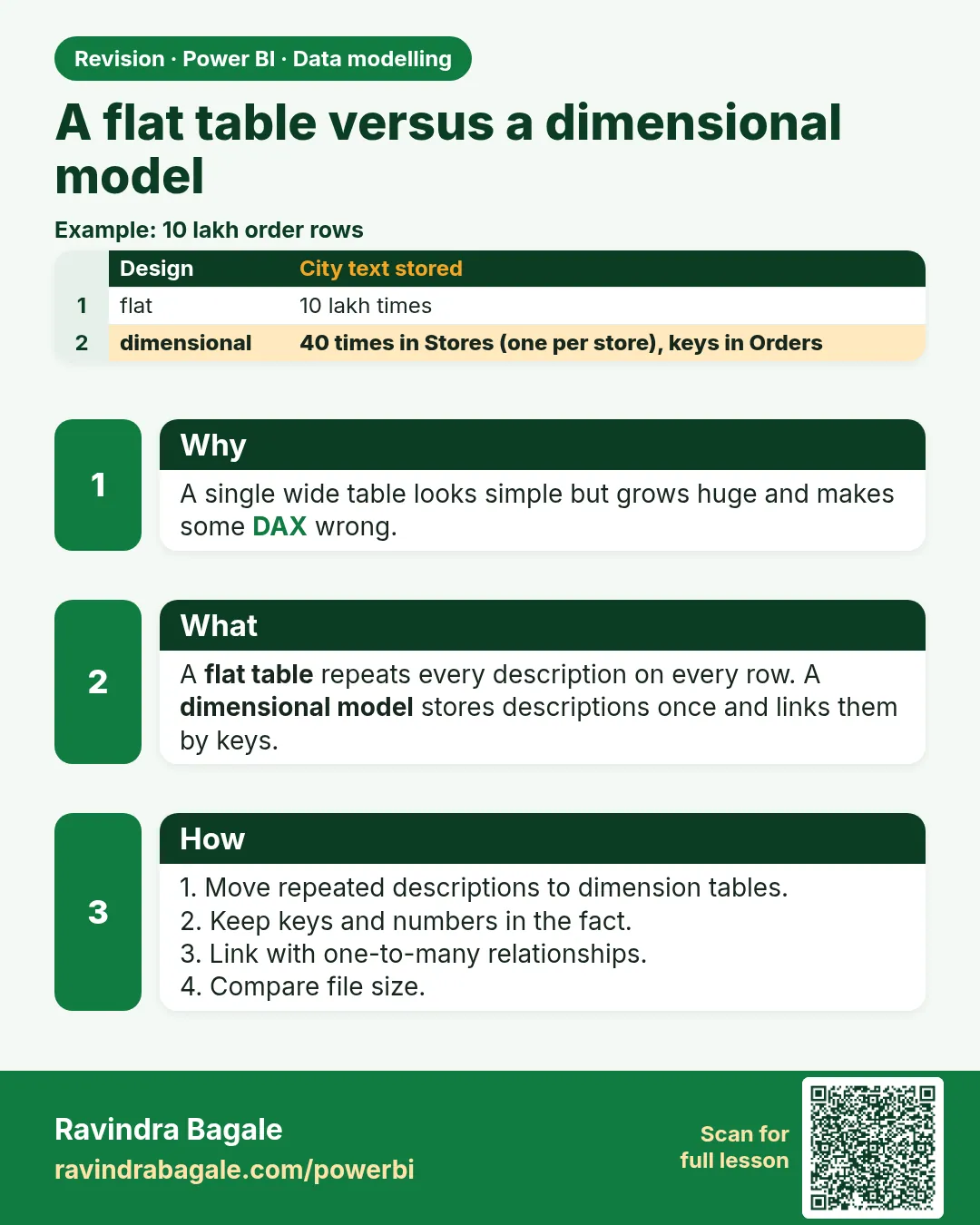
A flat table repeats dimension text on every fact row: city name, category, customer name, again and again. It is how an export arrives. A dimensional model keeps the facts (amounts, quantities) in one table and the descriptions in dimension tables, joined by keys. Snowflake (section 11.3) is still dimensional; it only splits a dimension into smaller tables. Flat is the thing you are leaving.
| Flat export | Star (dimensional) | |
|---|---|---|
| City name | Repeated on every order line | Once in DarkStore |
| Filter a category | Works, but the column is wide and duplicated | Filter Product[Category], it flows to Orders |
| New attribute (store manager) | You paste it onto every order row | One column on DarkStore |
| File size | Larger, high-cardinality text on the fact | Smaller, text lives on the one-side |
Worked example. A fictional export has 4 order lines: Ruhi Bagale, Pune, Snacks, ₹200; Ruhi Bagale, Pune, Dairy, ₹150; Amir, Nashik, Snacks, ₹90; Salman, Kolhapur, Snacks, ₹110. The flat file stores "Pune" twice and "Snacks" three times. In the star, Orders keeps Customer ID, Product ID, Store ID and Amount. Customer, Product and DarkStore hold the names once. [Total Sales] is still SUM(Orders[Amount]), which is ₹550 on this tiny sample.
Ravindra Bagale's Tip
Friends, many students merge every lookup in Power Query "so the report has all columns in one table", and they rebuild a flat file inside the model. Load the tables separately and relate them. Merge is for cleaning a key, not for gluing the whole star back together. Don't forget this.
Ravindra Bagale's Tip – मराठी
मित्रांनो, बरेच students "report मध्ये सगळे columns एकाच table मध्ये हवेत" म्हणून Power Query मध्ये प्रत्येक lookup merge करतात, आणि model मध्ये परत flat file बनवतात. Tables वेगवेगळे load करा आणि relate करा. Merge key साफ करण्यासाठी आहे, पूर्ण star परत चिकटवण्यासाठी नाही. अजिबात विसरू नका.
Ravindra Bagale's Tip – हिंदी
दोस्तों, बहुत से students "report में सारे columns एक ही table में चाहिए" सोचकर Power Query में हर lookup merge करते हैं, और model में फिर से flat file बना देते हैं. Tables अलग-अलग load करो और relate करो. Merge key साफ़ करने के लिए है, पूरे star को वापस चिपकाने के लिए नहीं. बिल्कुल मत भूलो.
Fix common mistakes
| Wrong result | Reason | Correction |
|---|---|---|
| Totals double after the split | DarkStore still has duplicate stores (different spellings) | Clean and dedupe the key first |
| Orders loses rows | Merge used Inner join | Left Outer |
| Two copies of the flat data load | Staging query left loaded | Disable load on staging queries |
Practise independently
Practice task
If Rajarampuri's manager changes from Zoya to Raja, how many rows change in the flat table and in the star model?
Hints
- Rajarampuri has orders 305 and 308.
Solution
Flat: 2 rows (305, 308). Star: 1 row (Rajarampuri in DarkStore).
Think like a professional
When someone hands you a flat file, your first job is to find the grain and the dimensions hiding inside it.
Loading DAX practice tasks...
- Total Salary (Easy): Measure: Salary Sum = SUM of Salary.
- Rows per Dept (Easy): Shown per Depts Name. Measure: Row Count = number of Employees rows.
- Total Bonus per Status (Easy): Shown per Status. Measure: Total Bonus = SUM of Bonus.
- Average training hours per country (Easy): Shown per Country. Measure: Avg TrainingHrs = AVERAGE of TrainingHrs.
- How many depts per Status (Medium): Shown per Status. Measure: Depts Count = distinct count of DeptID in Employees.
- Salary for Left only (Medium): Shown per City. Measure: Salary Left = SUM of Salary where Status is "Left".
- Bonus Rate (Medium): Shown per Depts Name. Measure: Bonus Rate = SUM of Bonus ÷ SUM of Salary.
- Share of Salary (Medium): Shown per Depts Name. Measure: Salary Share = SUM of Salary ÷ SUM of Salary for all of Depts.
- Rows with high training hours (Medium): Shown per Country. Measure: High TrainingHrs Rows = number of rows where TrainingHrs is more than 40.
- Salary minus Bonus column (Medium): Calculated column on Employees: Row Gap = Salary − Bonus.
 Revision card