6.8 Parameters (Overview)
Start with a problem
Ravindra's Source step contains C:\Users\Ravindra\Desktop\pq_raw_pune_export.csv. On Shraddha's laptop the query fails.
Explain simply
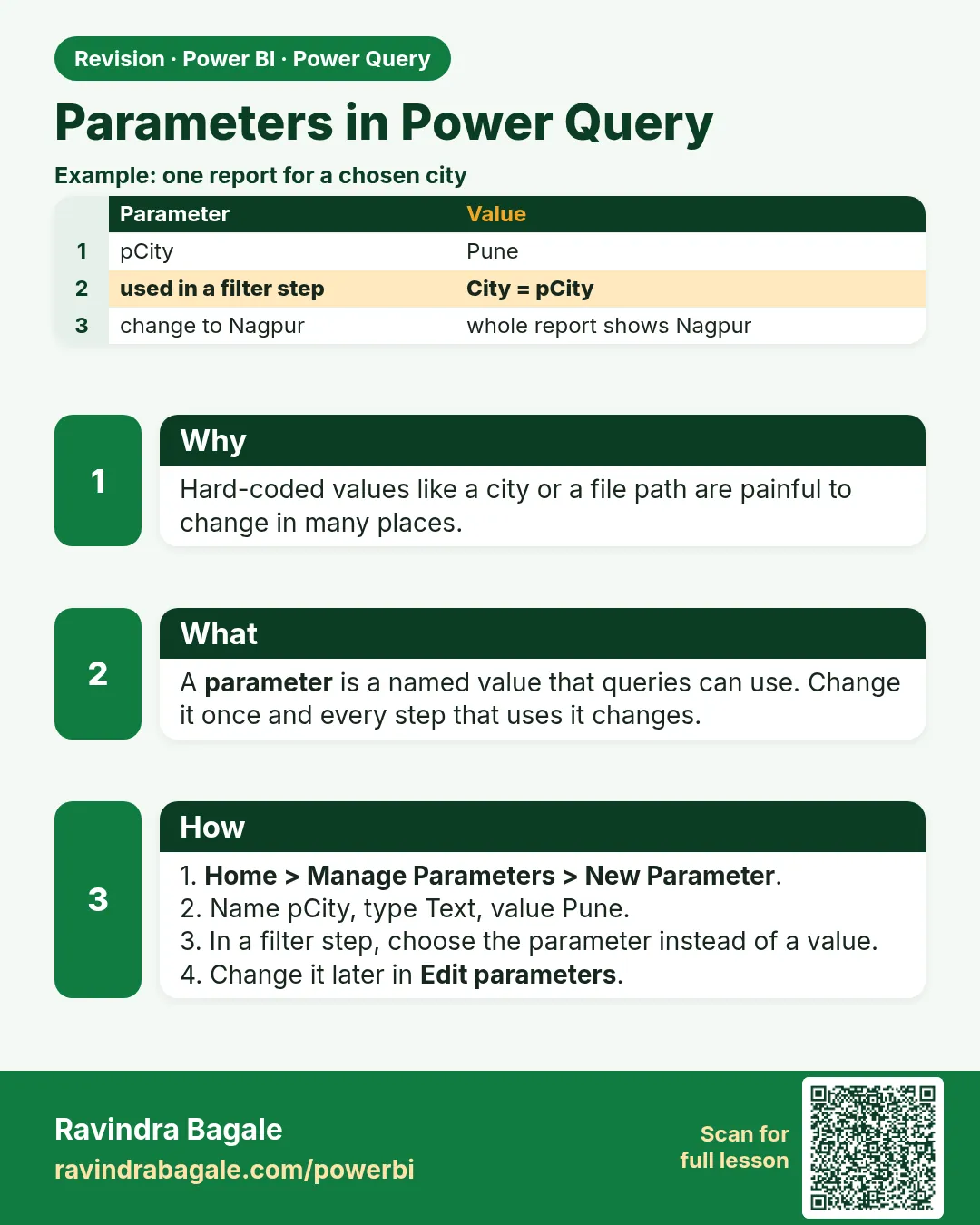
A parameter is a named value (folder path, server, date) used inside queries. Change it in one place. Module 10 covers parameters fully.
Show the data
| Parameter | Type | Current value |
|---|---|---|
| FolderPath | Text | C:\PBI\practice\ |
About this data: This table uses columns: Parameter, Type, Current value. This table uses columns: Laptop, FolderPath, Orders rows. This table uses columns: Wrong result, Reason, Correction. Values shown are the lesson examples already on this page (not a new dataset).
Fictional sample data. Practice file: pq_raw_pune_export.csv (source: src/practice/).
Demonstrate
- Home › Manage Parameters › New Parameter: Name
FolderPath, Type Text, Current valueC:\PBI\practice\› OK. -
Open the Source step of Raw_Pune in the formula bar; replace the hard-coded folder with
FolderPath & "pq_raw_pune_export.csv".Your result should look like this:
Formula bar (start) = Csv.Document(File.Contents(FolderPath & "pq_raw_pune_export.csv"), … -
Change FolderPath to Shraddha's folder and refresh.
Show the result
Your result should look like this (fictional sample):
| Laptop | FolderPath | Orders rows |
|---|---|---|
| Ravindra | C:\PBI\practice\ | 4 |
| Shraddha | D:\Class\practice\ | 4 |
Explain what happened
Only the parameter value changes; every query using it follows.
Explore further
- Parameters also feed templates (.pbit) and incremental refresh (Module 10).
Detailed reference for this lesson:
A parameter is a named value, such as a folder path, a server name or a start date, that queries can use instead of hard-coded text. Create it with Home › Manage Parameters › New Parameter. Module 10 covers parameters fully: types, suggested values and lists, parameterised file and server paths, date-range filters, templates (.pbit), and the RangeStart/RangeEnd parameters used by incremental refresh (फक्त नवीन/बदललेला डेटा अद्ययावत करणे).
Ravindra Bagale's Tip
Friends, many students hard-code a folder path like C:\Users\Ravindra\Desktop\Data, and the report breaks on every other laptop and in the Service. Put paths, server names and date limits in parameters from the start (Module 10), so changing environments is a one-field edit. Don't worry – after doing it two or three times, it becomes a habit.
Ravindra Bagale's Tip – मराठी
मित्रांनो, बरेच students C:\Users\Ravindra\Desktop\Data सारखा folder path hard-code करतात, आणि report दुसऱ्या प्रत्येक laptop वर आणि Service मध्ये तुटतो. Paths, server names आणि date limits सुरुवातीपासूनच parameters मध्ये ठेवा (Module 10), म्हणजे environment बदलणं फक्त एका field चा बदल ठरतो. घाबरू नका, दोन-तीन वेळा केलं की सवय होते.
Ravindra Bagale's Tip – हिंदी
दोस्तों, बहुत से students C:\Users\Ravindra\Desktop\Data जैसा folder path hard-code कर देते हैं, और report हर दूसरे laptop पर और Service में टूट जाती है. Paths, server names और date limits शुरू से ही parameters में रखो (Module 10), ताकि environment बदलना बस एक field का edit हो. घबराओ मत, दो-तीन बार करने पर आदत हो जाती है.
Fix common mistakes
| Wrong result | Reason | Correction |
|---|---|---|
| File not found | Missing trailing backslash | End the folder value with \ |
| Parameter ignored | Source still hard-coded | Edit the Source formula |
| Type error | Parameter type Any | Use Text |
Practise independently
Practice task
Where would you change the path when moving to the Service with a SharePoint file?
Hints
- Connector changes too.
Solution
Switch the source to the SharePoint/OneDrive connector (Module 3.5); a parameter can hold the site URL.
Think like a professional
No hard-coded paths is a common code-review rule.
 Revision card