7. Data Cleaning A–Z in Power Query
7.8 Numbers Stored as Text, ₹ Symbol and Commas
Start with a problem
Amount arrives as "₹1,250". Power BI cannot add text, so the Total Sales card shows Count instead of Sum.
Explain simply
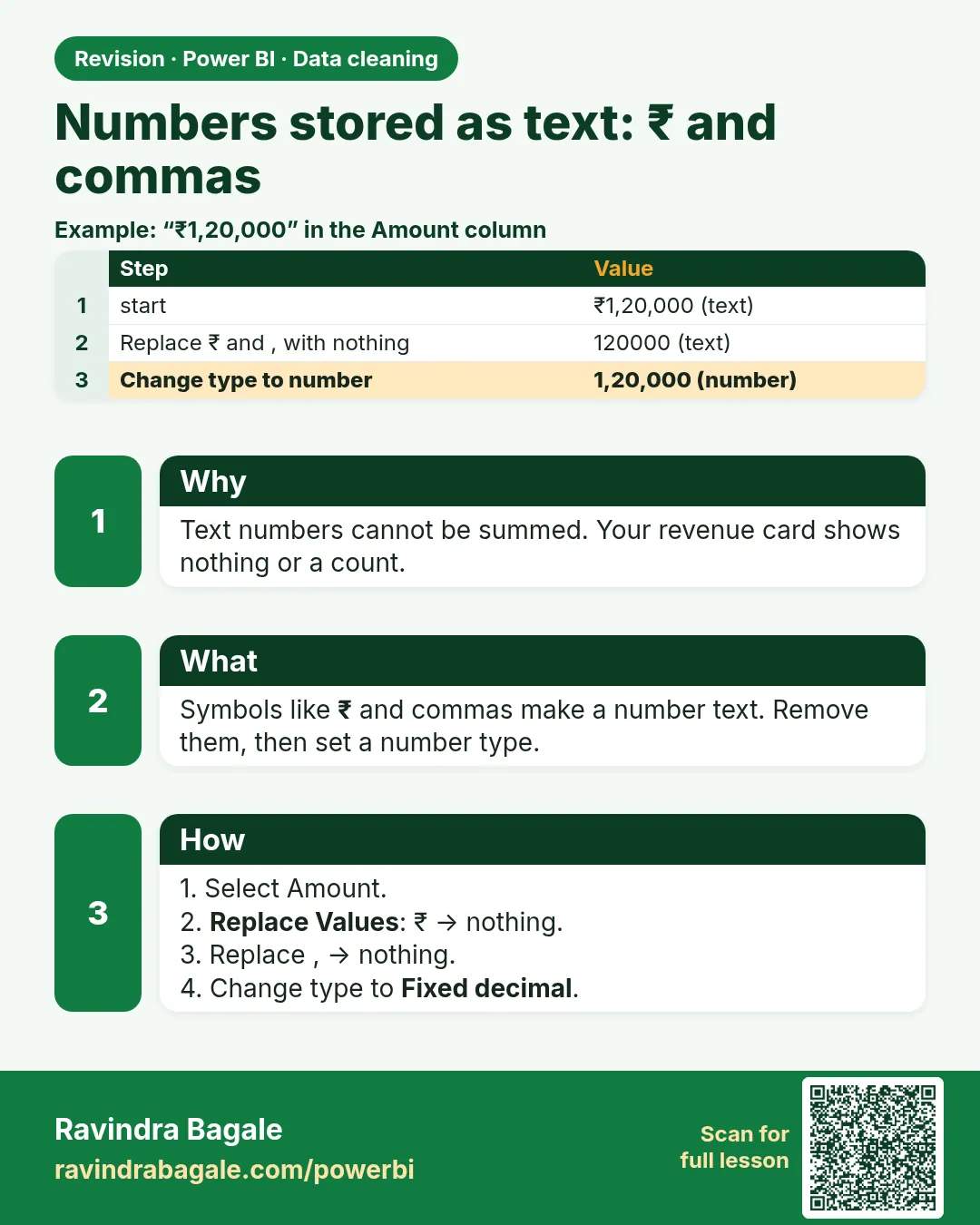
Remove the ₹ symbol, commas and spaces with Replace Values (or Text.Remove), then change the type to Fixed decimal number.
Show the data
Before:
| Order ID | Amount (Text) |
|---|---|
| BLK-401 | ₹1,250 |
| BLK-402 | ₹980 |
| BLK-403 | ₹450 |
| BLK-404 | ₹320 |
About this data: This table uses columns: Order ID, Amount (Text). This table uses columns: Measure, Value. This table uses columns: Order ID, Amount, Delivery Fee. Values shown are the lesson examples already on this page (not a new dataset).
Fictional sample data. Practice file: pq_raw_pune_export.csv (source: src/practice/).
Demonstrate
-
Select Amount › Replace Values ›
₹→ (nothing).Your result should look like this:
Amount 1,250 980 450 320 -
Replace Values ›
,→ (nothing).Your result should look like this:
Amount 1250 980 450 320 -
Type icon › Fixed decimal number.
Your result should look like this:
Amount (Fixed decimal) 1,250.00 980.00 450.00 320.00 -
Close & Apply; card Sum of Amount.
Show the result
Your result should look like this (fictional sample):
| Measure | Value |
|---|---|
| Sum of Amount (4 orders, after de-duplication) | ₹3,000 |
| Sum before de-duplication | ₹3,450 |
Explain what happened
After cleaning, each text becomes a valid number, so Power BI can sum it.
Explore further
- One step alternative:
Table.TransformColumns(Prev, {{"Amount", each Number.From(Text.Remove(_, {"₹", ",", " "})), Currency.Type}}).
Detailed reference for this lesson:
Before
| Order ID | Amount | Delivery Fee |
|---|---|---|
| BLK-30001 | ₹1,250 | ₹25 |
| BLK-30002 | ₹ 86.50 | Free |
| BLK-30003 | 2,40,000 | ₹0 |
| BLK-30004 | Rs. 499 | ₹30 |
After
| Order ID | Amount | Delivery Fee |
|---|---|---|
| BLK-30001 | 1250.00 | 25 |
| BLK-30002 | 86.50 | 0 |
| BLK-30003 | 240000.00 | 0 |
| BLK-30004 | 499.00 | 30 |
Note the Indian digit grouping in "2,40,000" (lakh format). Removing all commas handles both 1,250 and 2,40,000.
Steps in Power BI
- Select Amount and Delivery Fee › Transform › Replace Values › find
₹› replace with nothing › OK. - Repeat Replace Values for
Rs.,,(comma) and a space. - On Delivery Fee, replace
Freewith0. - Transform › Data Type › Fixed Decimal Number (or right-click › Change Type).
- Check the quality bar. Any remaining errors show text you have not handled yet. Use Home › Keep Rows › Keep Errors in a duplicate query to see them.
Numbers = Table.TransformColumns(Source, {
    {"Amount", each Number.From(Text.Remove(Text.Replace(_, "Rs.", ""), {"₹", ",", " "})), Currency.Type},
    {"Delivery Fee", each if _ = "Free" then 0 else Number.From(Text.Remove(_, {"₹", ",", " "})), Currency.Type}
})
Tip
Text.Remove(text, {"₹", ","}) removes every listed character in one go, so it is shorter than three Replace Values steps.
Ravindra Bagale's Tip
Friends, pay attention: numbers stored as text sort as "1000, 125, 20" and can't be summed. In the model they show Count instead of Sum. Remove "₹", "Rs." and thousands commas first, then change the type. Check the source first, because a decimal comma ("86,50") is not the same as a thousands comma.
Ravindra Bagale's Tip – मराठी
मित्रांनो, लक्ष द्या: text म्हणून साठवलेले numbers "1000, 125, 20" असे sort होतात आणि त्यांची बेरीज होत नाही. Model मध्ये ते Sum ऐवजी Count दाखवतात. आधी "₹", "Rs." आणि हजारांचे commas काढा, मग type बदला. आधी source चेक करा, कारण decimal comma ("86,50") आणि हजारांचा comma एकच नाही.
Ravindra Bagale's Tip – हिंदी
दोस्तों, ध्यान दो: text के रूप में रखे numbers "1000, 125, 20" की तरह sort होते हैं और उनका जोड़ नहीं होता. Model में वे Sum की जगह Count दिखाते हैं. पहले "₹", "Rs." और हज़ार वाले commas हटाओ, फिर type बदलो. पहले source check करो, क्योंकि decimal comma ("86,50") और हज़ार वाला comma एक नहीं है.
Practice task
Clean a Nashik (College Road) sheet whose MRP column has values like "₹ 1,099", "₹99.00" and "N/A". Convert N/A to null and the rest to Fixed Decimal Number.
Fix common mistakes
| Wrong result | Reason | Correction |
|---|---|---|
| Error on every row | Type changed before removing ₹ | Replace first |
| 1,250 became 1.25 | Locale treats comma as decimal (e.g., German) | Remove commas or use locale en-IN |
| Rs. 86.50 errors | Different symbol | Also remove Rs. |
Practise independently
Practice task
What is the Amount total for 06-Apr-2026?
Hints
- BLK-401 + BLK-402.
Solution
₹2,230.
Think like a professional
Numbers stored as text are the most common reason for wrong totals – check every amount column's type.
 Revision card