7. Data Cleaning A–Z in Power Query
7.4 Remove Duplicates in Power Query with Example (Full Row and by Key)
Start with a problem
Raja's order-line file has an exact duplicate (BLK-701 twice) and an order that was updated (BLK-702: ₹45 at 08:05, ₹50 at 09:30). Sales are overstated.
Explain simply
Remove Duplicates on all columns removes exact copies. On a key column (Order ID) it keeps the first row of each key, so sort first if you want the latest version (and buffer the sorted table).
Show the data
Before:
| Order ID | Product | Amount | Updated At |
|---|---|---|---|
| BLK-701 | Milk | 60 | 06-Apr 08:00 |
| BLK-701 | Milk | 60 | 06-Apr 08:00 |
| BLK-702 | Bread | 45 | 06-Apr 08:05 |
| BLK-702 | Bread | 50 | 06-Apr 09:30 |
| BLK-703 | Eggs | 90 | 06-Apr 08:10 |
About this data: This table uses columns: Order ID, Product, Amount, Updated At. This table uses columns: Rows, Amount sum. This table uses columns: Rows, BLK-702 kept, Sum. Values shown are the lesson examples already on this page (not a new dataset).
Fictional sample data. Practice file: pq_duplicates.csv (source: src/practice/).
Demonstrate
-
Select all columns (Ctrl+A) › Home › Remove Rows › Remove Duplicates.
Your result should look like this:
Rows Amount sum 4 245 (BLK-702 kept twice) -
Delete that step.
-
Select only Order ID › Remove Duplicates.
Your result should look like this:
Rows BLK-702 kept Sum 3 ₹45 (first row) 195 -
Delete that step. Sort Updated At descending. In the formula bar wrap the sort step:
= Table.Buffer(Table.Sort(...)). -
Select Order ID › Remove Duplicates.
Your result should look like this:
Rows BLK-702 kept Sum 3 ₹50 (latest) 200
Show the result
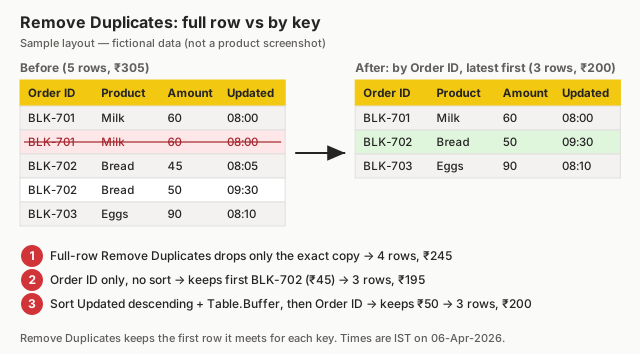
Your result should look like this (fictional sample):
| Method | Rows | Total (₹) |
|---|---|---|
| Full row | 4 | 245 |
| By Order ID (no sort) | 3 | 195 |
| By Order ID after sort desc + Buffer | 3 | 200 |
Explain what happened
Full-row de-duplication kept both BLK-702 versions because Amount differs. Key de-duplication keeps the first row it meets; sorting latest-first (buffered so the order is kept) makes the latest version first.
Explore further
- Count rows before and after – write both numbers in your step description.
Detailed reference for this lesson:
Remove duplicates in Power Query with example — in 30 seconds
What: Remove Duplicates keeps one row for each value in the columns you selected.
Why: A file that was downloaded twice doubles your sales. The report then lies.
Tiny example: Order BLK-201 appears twice. Sales show ₹1,300. The real sales are ₹800.
Remove duplicates in Power Query with example — 30 सेकंदात
काय: Remove Duplicates तुम्ही निवडलेल्या columns मधल्या प्रत्येक value साठी एकच row ठेवतो.
का: दोनदा download झालेली file तुमचा sales दुप्पट करते. मग report खोटं बोलतो.
छोटं उदाहरण: Order BLK-201 दोनदा आहे. Sales ₹1,300 दिसतो. खरा sales ₹800 आहे.
Remove duplicates in Power Query with example — 30 सेकंड में
क्या: Remove Duplicates आपके चुने columns की हर value के लिए एक ही row रखता है.
क्यों: दो बार download हुई file आपकी sales दोगुनी कर देती है. फिर report झूठ बोलती है.
छोटा उदाहरण: Order BLK-201 दो बार है. Sales ₹1,300 दिखती है. असली sales ₹800 है.
First look at the data (before → after):
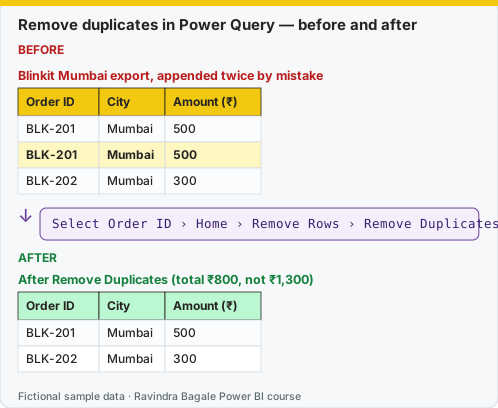
Same before / after tables as text
Before — Blinkit Mumbai export, appended twice by mistake
| Order ID | City | Amount (₹) |
|---|---|---|
| BLK-201 | Mumbai | 500 |
| BLK-201 | Mumbai | 500 |
| BLK-202 | Mumbai | 300 |
Formula / click path
Select Order ID › Home › Remove Rows › Remove Duplicates
After — After Remove Duplicates (total ₹800, not ₹1,300)
| Order ID | City | Amount (₹) |
|---|---|---|
| BLK-201 | Mumbai | 500 |
| BLK-202 | Mumbai | 300 |
Do it step by step:
- First clean the key: Transform › Format › Trim and UPPERCASE on Order ID. Remove Duplicates is case-sensitive.
- Select the Order ID column.
- Click Home › Remove Rows › Remove Duplicates.
- Check the row count at the bottom-left of the editor.
- Click Close & Apply. Your Total Sales card should now show ₹800.
एक-एक step करून बघा:
- आधी key साफ करा: Order ID वर Transform › Format › Trim आणि UPPERCASE. Remove Duplicates case-sensitive आहे.
- Order ID column निवडा.
- Home › Remove Rows › Remove Duplicates वर click करा.
- Editor च्या खाली डावीकडे row count तपासा.
- Close & Apply वर click करा. तुमचा Total Sales card आता ₹800 दाखवला पाहिजे.
एक-एक step करके देखिए:
- पहले key साफ़ कीजिए: Order ID पर Transform › Format › Trim और UPPERCASE. Remove Duplicates case-sensitive है.
- Order ID column चुनिए.
- Home › Remove Rows › Remove Duplicates पर click कीजिए.
- Editor के नीचे बाईं ओर row count जाँचिए.
- Close & Apply पर click कीजिए. आपका Total Sales card अब ₹800 दिखाना चाहिए.
Before
| Order ID | Product ID | Qty | Status |
|---|---|---|---|
| BLK-20001 | P-101 | 2 | Delivered |
| BLK-20001 | P-101 | 2 | Delivered |
| BLK-20002 | P-205 | 1 | Cancelled |
| BLK-20002 | P-205 | 1 | Delivered |
After (by key, latest status kept)
| Order ID | Product ID | Qty | Status |
|---|---|---|---|
| BLK-20001 | P-101 | 2 | Delivered |
| BLK-20002 | P-205 | 1 | Delivered |
Full-row duplicates. The first two rows are identical in every column. This happens when the same file is exported twice.
Duplicates by key. The last two rows have the same Order ID + Product ID (the key of an order line) but a different status. The file captured the line before and after the status changed.
Steps in Power BI
- Full row: click the table icon at the top-left corner of the data grid (or press Ctrl + A in the grid) to select all columns › Home › Remove Rows › Remove Duplicates.
- By key: hold Ctrl and select only Order ID and Product ID › Home › Remove Rows › Remove Duplicates.
- To keep the latest status, first sort by Status Updated DateTime descending, add Table.Buffer (see below), then remove duplicates by key.
- To inspect duplicates instead of deleting them, select the key columns › Home › Keep Rows › Keep Duplicates.
FullRowDistinct = Table.Distinct(Source),
ByKey  = Table.Distinct(Source, {"Order ID", "Product ID"}),
// keep the latest version of each order line
Sorted = Table.Buffer(Table.Sort(Source, {{"Status Updated DateTime", Order.Descending}})),
Latest = Table.Distinct(Sorted, {"Order ID", "Product ID"})
Ravindra Bagale's Tip
Friends, don't make a mistake here: Remove Duplicates is case-sensitive and space-sensitive: "BLK-20001" and "blk-20001 " are different to Power Query. Always trim and fix the case first. In the Orders table, never remove duplicates on Order ID alone, because one order has many lines; the real key is Order ID + Product ID. Never forget this.
Ravindra Bagale's Tip – मराठी
मित्रांनो, इथे चूक करू नका: Remove Duplicates case आणि spaces दोन्हींबाबत sensitive आहे: Power Query साठी "BLK-20001" आणि "blk-20001 " वेगळे आहेत. नेहमी आधी trim करा आणि case दुरुस्त करा. Orders table मध्ये फक्त Order ID वर कधीच duplicates काढू नका, कारण एका order मध्ये अनेक lines असतात; खरी key म्हणजे Order ID + Product ID. हे अजिबात विसरू नका.
Ravindra Bagale's Tip – हिंदी
दोस्तों, यहाँ गलती मत करना: Remove Duplicates case और spaces दोनों के प्रति sensitive है: Power Query के लिए "BLK-20001" और "blk-20001 " अलग हैं. हमेशा पहले trim करो और case ठीक करो. Orders table में सिर्फ़ Order ID पर कभी duplicates मत हटाओ, क्योंकि एक order में कई lines होती हैं; असली key है Order ID + Product ID. यह बिल्कुल मत भूलना.
Practice task
The Amazon Now export for Mumbai (Andheri East) was downloaded twice and appended. Use Keep Duplicates to count the repeated order lines, then remove them.
Fix common mistakes
| Wrong result | Reason | Correction |
|---|---|---|
| Duplicates remain | Trailing spaces or case differences in the key | Trim and fix case first (7.6) |
| Kept the old price | Key de-duplication keeps the first row | Sort latest first + Table.Buffer |
| Removed real repeat orders | De-duplicated on Product, not Order ID | Choose the correct key |
Practise independently
Practice task
In the Pune export, how many rows remain after full-row Remove Duplicates (after removing the Total row)?
Hints
- BLK-403 twice.
Solution
4 rows; total ₹3,000.
Think like a professional
Always state the key you de-duplicated on – it is a business rule, not a technical detail.
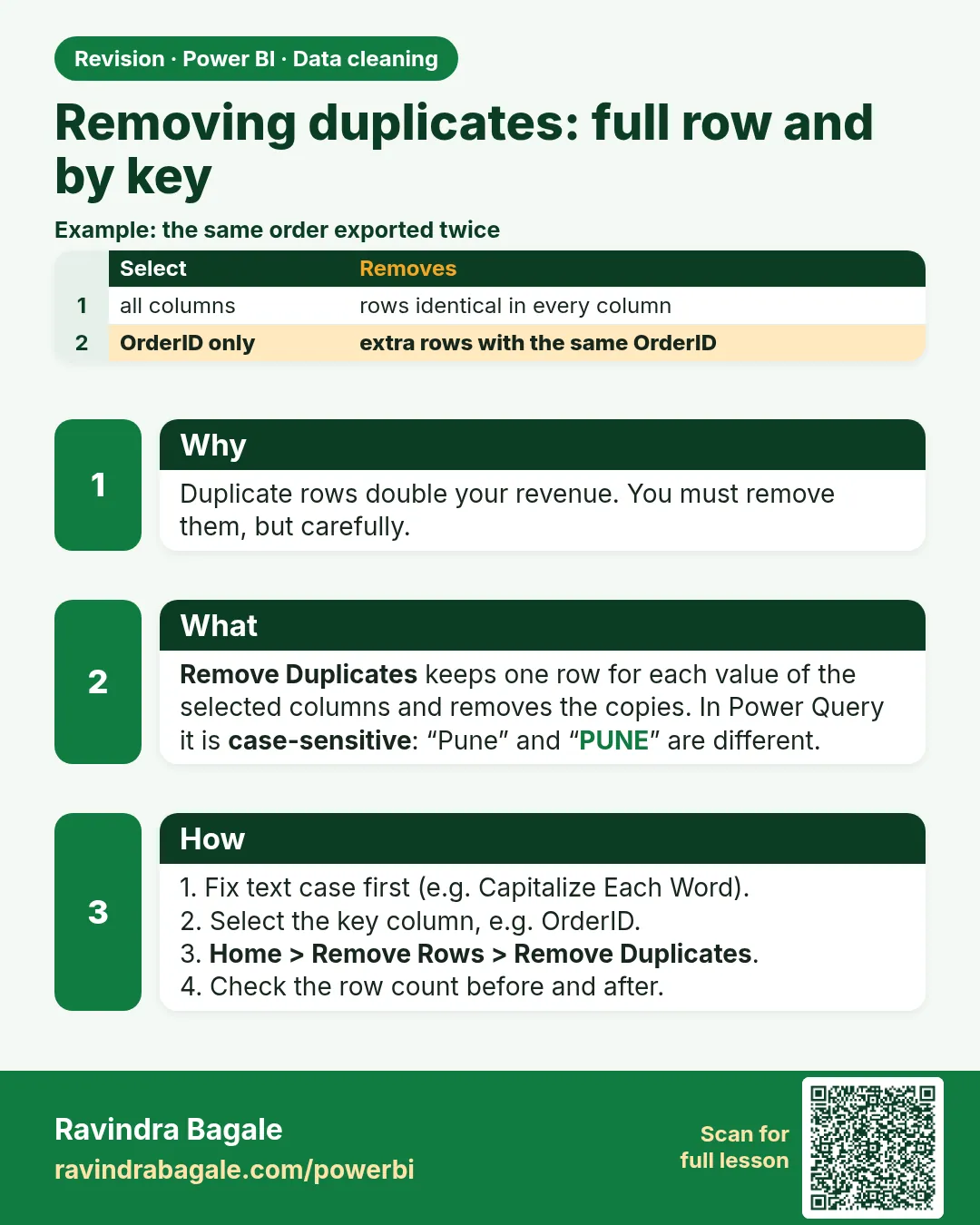 Revision card
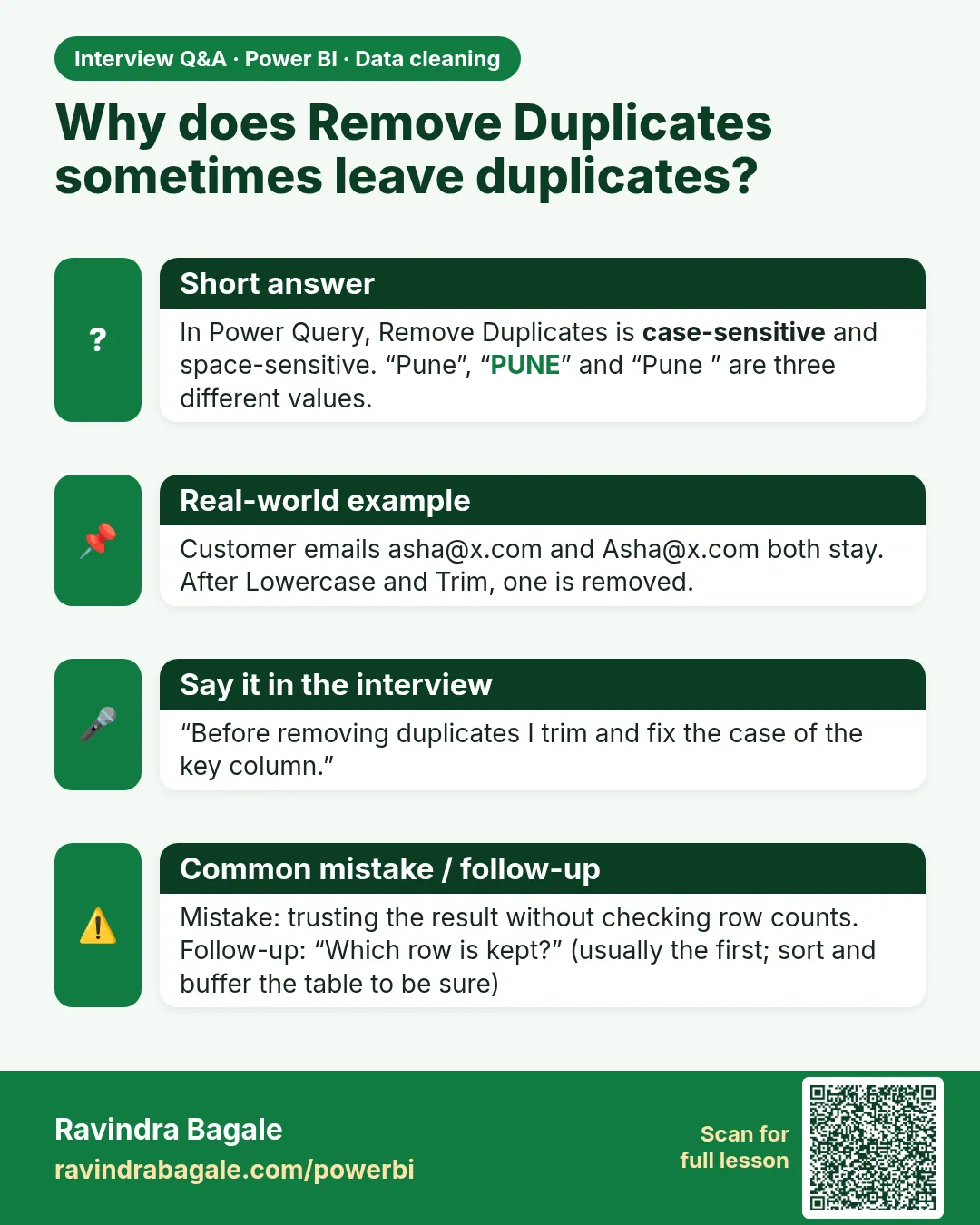 Interview card