7. Data Cleaning A–Z in Power Query
7.15 Errors: Remove, Replace, Keep and try … otherwise
Start with a problem
After changing types, BLK-502 (Qty "two") and BLK-503 (Amount "N/A") show Error. Shahrukh clicks Remove Errors and loses ₹300 of valid sales.
Explain simply
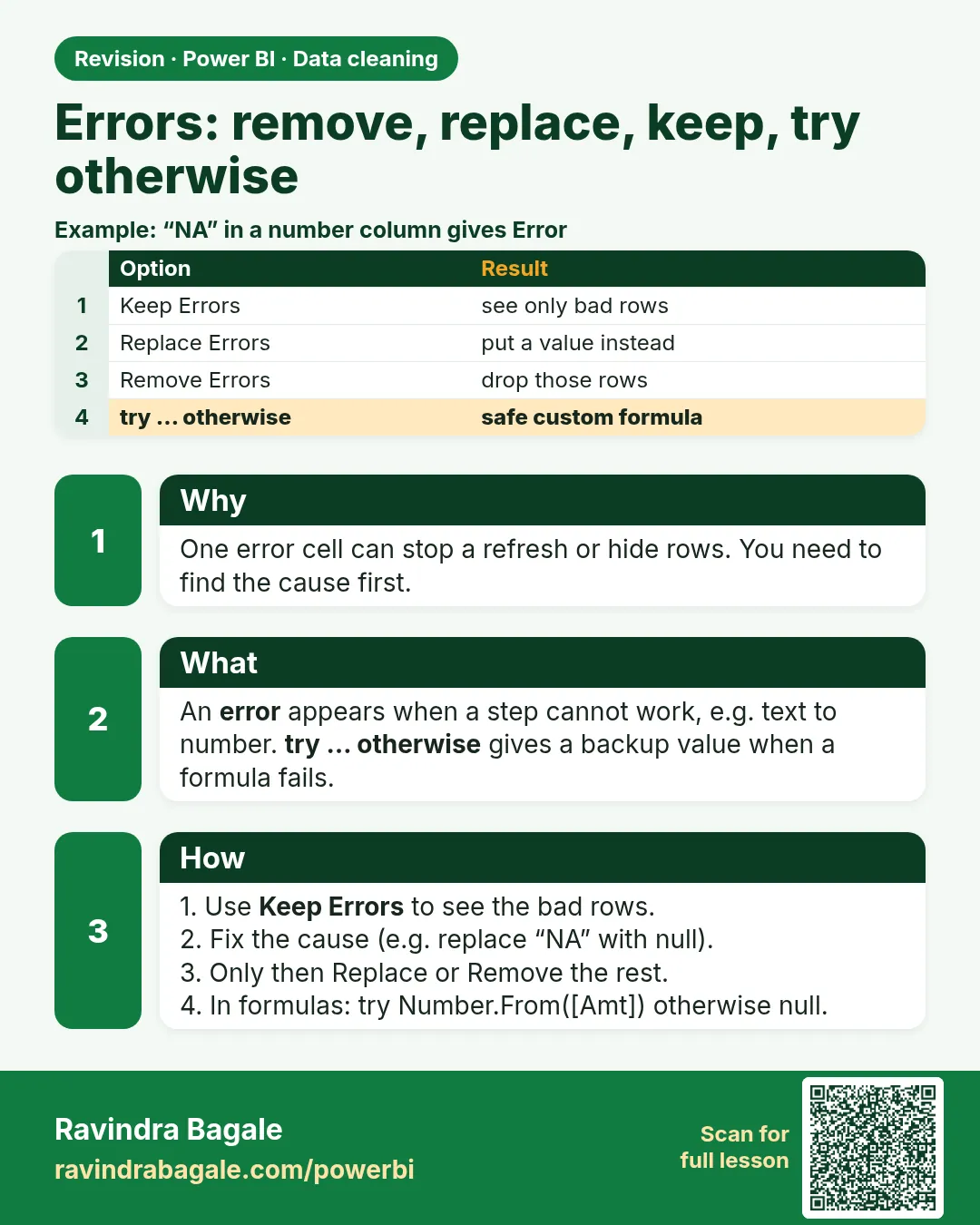
Errors are cell-level. Replace Errors (with null) keeps the row. Remove Errors drops the whole row. Keep Errors shows only error rows for an error log. try … otherwise handles errors inside formulas.
Show the data
Before (after Change Type):
| Order ID | Qty | Amount |
|---|---|---|
| BLK-501 | 2 | 500 |
| BLK-502 | Error | 300 |
| BLK-503 | 1 | Error |
| BLK-504 | 3 | 450 |
| BLK-505 | 1 | 200 |
| BLK-506 | 2 | 350 |
About this data: This table uses columns: Order ID, Qty, Amount. This table uses columns: Rows, Amount sum. This table uses columns: Approach, Rows, Amount (₹). Values shown are the lesson examples already on this page (not a new dataset).
Fictional sample data. Practice file: pq_errors_outliers.csv (source: src/practice/).
Demonstrate
-
Reference the query, select Qty and Amount › Keep Rows › Keep Errors. Name it
Error log.Your result should look like this:
Error log rows BLK-502, BLK-503 -
In the main query: Qty and Amount › Transform › Replace Errors ›
null.Your result should look like this:
Rows Amount sum 6 1,800 -
(Compare) Remove Errors on Qty and Amount instead.
Your result should look like this:
Rows Amount sum 4 1,500 ✗ (BLK-502's ₹300 lost) -
Formula alternative:
try Number.From([Amount]) otherwise null.
Show the result
Your result should look like this (fictional sample):
| Approach | Rows | Amount (₹) |
|---|---|---|
| Replace Errors with null | 6 | 1,800 |
| Remove Errors | 4 | 1,500 |
Explain what happened
Remove Errors removed BLK-502 because of the Qty error, even though its Amount was valid.
Explore further
- Load the Error log as a small table for the data owner.
Detailed reference for this lesson:
Cell-level errors appear when a conversion fails, for example "NA" in a number column.
Before (after Change Type)
| Order ID | Delivery Time Mins |
|---|---|
| BLK-60001 | 9 |
| BLK-60002 | Error |
| BLK-60003 | 14 |
| BLK-60004 | Error |
After (Replace Errors with null)
| Order ID | Delivery Time Mins |
|---|---|
| BLK-60001 | 9 |
| BLK-60002 | null |
| BLK-60003 | 14 |
| BLK-60004 | null |
Steps in Power BI
- Investigate first. Duplicate the query (right-click › Duplicate), select the column › Home › Keep Rows › Keep Errors. Click a cell's empty space and read the error message at the bottom (for example DataFormat.Error: We couldn't convert to Number. Details: NA).
- Replace: right-click the column header › Replace Errors… › value
null(or 0 if it makes business sense) › OK. - Remove: select the column › Home › Remove Rows › Remove Errors (use this when the whole row is unusable).
- Prevent in formulas: in a Custom Column, wrap risky logic in
try … otherwise.
Replaced = Table.ReplaceErrorValues(Typed, {{"Delivery Time Mins", null}}),
NoErrors = Table.RemoveRowsWithErrors(Typed, {"Amount"}),
Safe     = Table.AddColumn(Source, "Delivery Mins Safe",
              each try Number.From([Delivery Time Mins]) otherwise null, type number),
// keep the error message for a data-quality report
WithMsg  = Table.AddColumn(Source, "Error Reason",
              each let r = try Number.From([Delivery Time Mins]) in
                   if r[HasError] then r[Error][Message] else null)
| Type of error | Example | Fix |
|---|---|---|
| Cell-level | "NA" converted to number | Replace/Remove Errors, try … otherwise |
| Step-level | DataSource.NotFound (file moved), The column 'Amount' of the table wasn't found | Fix the source path (Data source settings / parameter) or the step that refers to the renamed column |
Do not be scared of errors – they tell you what went wrong in the data. Look first, then handle them.
Errors ना घाबरू नका – data मध्ये काय चुकलंय ते ते तुम्हाला सांगतात. आधी बघा, मग handle करा.
Errors से मत डरिए – वे बताते हैं कि data में क्या ग़लत हुआ है. पहले देखिए, फिर handle कीजिए.
Ravindra Bagale's Tip
Friends, many students remove error rows without looking at them. Ten error rows today can be ten thousand next month. Use Keep Errors to see the cause (for example "NA" typed by staff), fix it before the type change by replacing "NA" with null, and only then remove anything that is truly unusable. Never forget this.
Ravindra Bagale's Tip – मराठी
मित्रांनो, बरेच students error rows न बघताच काढून टाकतात. आज दहा error rows असतील तर पुढच्या महिन्यात दहा हजार असू शकतात. कारण बघण्यासाठी Keep Errors वापरा (उदाहरणार्थ staff ने type केलेलं "NA"), type change च्या आधी "NA" ला null ने replace करून दुरुस्त करा, आणि त्यानंतरच खरोखर निरुपयोगी असेल ते काढा. हे अजिबात विसरू नका.
Ravindra Bagale's Tip – हिंदी
दोस्तों, बहुत से students error rows को देखे बिना हटा देते हैं. आज दस error rows हैं तो अगले महीने दस हज़ार हो सकती हैं. वजह देखने के लिए Keep Errors इस्तेमाल करो (जैसे staff का type किया "NA"), type change से पहले "NA" को null से replace करके ठीक करो, और उसके बाद ही वह हटाओ जो सच में किसी काम का नहीं. यह बिल्कुल मत भूलना.
Practice task
Mhanje asa: in a Mumbai (Powai) file, Quantity contains "2", "3 pcs" and "-". Create a Custom Column using try Number.From(Text.Select([Quantity], {"0".."9"})) otherwise null, and list the rows that still return null.
Fix common mistakes
| Wrong result | Reason | Correction |
|---|---|---|
| Sales too low | Remove Errors dropped rows | Replace with null; log errors |
| Errors return after refresh | Fixed only in preview | Fix at source or keep the replace step |
| try returns a record | Used try without otherwise | Add otherwise null |
Practise independently
Practice task
Which rows appear in the error log, and why?
Hints
- Text in number columns.
Solution
BLK-502 ("two" in Qty) and BLK-503 ("N/A" in Amount).
Think like a professional
An error log table shows you handled data quality transparently – managers appreciate it.
More worked examples: errors in Power Query
Suppose we are at Flipkart. A price column has values like 499, 1299 and one bad value N/A. When we change the type to Whole Number, the bad cell becomes Error. Here is how to handle it.
Example 1 (simplest): Replace Errors
You want the bad price to show as 0.
Steps:
- Right-click the Price column header.
- Choose Replace Errors.
- Type
0and click OK.
Output: The Error cell now shows 0. The other prices stay the same.
Example 2: Keep Errors to find bad rows
You want to see which rows are bad before fixing them.
Steps:
- Click Home, then Keep Rows, then Keep Errors.
- Read the bad rows and note what is wrong.
- Delete this step in Applied Steps when you are done.
Output: Only the error rows show while you check them. After deleting the step, all rows come back.
Example 3: try otherwise in a custom column
You want a clean column and to keep the original.
Steps:
- Click Add Column, then Custom Column.
- Name it
Price Cleanand type the formula below. - Click OK and set the type to Whole Number.
Output: Good prices are copied; N/A becomes 0.
= try Number.From([Price]) otherwise 0See also: Applied steps in Power Query · Data cleaning A to Z · Connect CSV and Excel to Power BI
Frequently asked questions
How do I remove errors in Power Query?
Select the column, then on the Home tab choose Remove Rows and Remove Errors. Rows with an error in that column are removed.
What is the difference between Remove Errors and Replace Errors?
Remove Errors deletes the whole row. Replace Errors keeps the row and puts your chosen value in the error cell.
What does try otherwise do?
It tries the formula. If the formula gives an error, it returns the value after otherwise instead.
 Revision card