5. Web Data, APIs and Google Sheets
5.8 XML Files
Start with a problem
A partner sends dark stores as an XML feed. Ruhi opens it and sees tables inside tables.
Explain simply
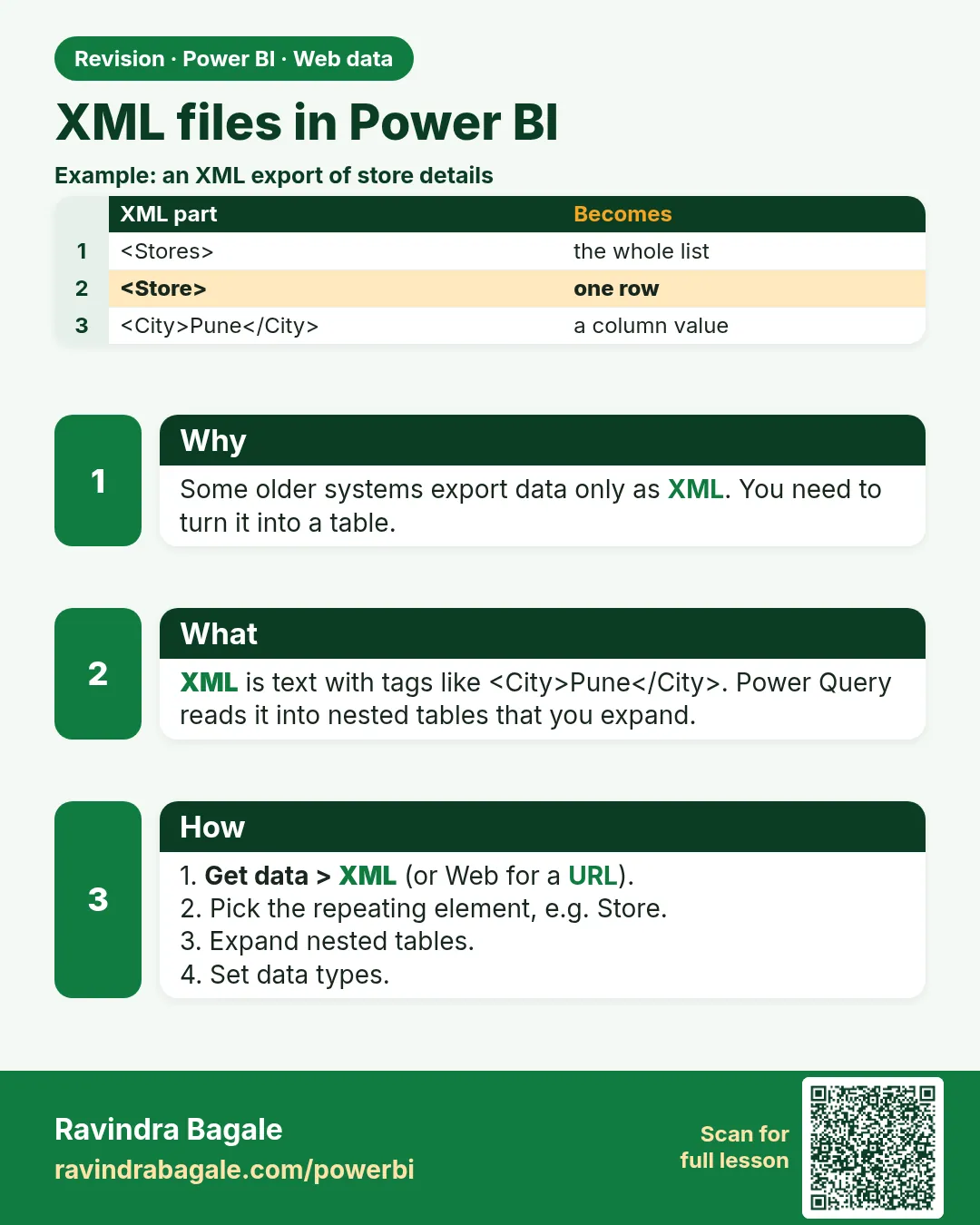
Get data › XML uses Xml.Tables. Nested elements arrive as Table cells; expand only the fields you need and set types.
Show the data
web_stores.xml (5 store elements):
| id | city | name |
|---|---|---|
| S01 | Pune | Kothrud |
| S02 | Pune | Baner |
| S03 | Nashik | Gangapur |
| S04 | Nashik | College Road |
| S05 | Kolhapur | Rajarampuri |
Fictional sample data. Practice file: web_stores.xml, visuals_orders_apr_may_2026.csv (source: src/practice/).
Demonstrate
-
Get data › More… › File › XML (or Web with the course-site link) › web_stores.xml.
Your result should look like this:
Navigator stores › store (Table) -
Select store › Transform Data.
Your result should look like this:
Columns id, city, name (5 rows) -
If the feed nests deeper, expand only
id,city,namewith the expand icon and untick the prefix. - Set all three columns to Text; rename
nametoStore.
Show the result
Your result should look like this (fictional sample):
| city | Stores |
|---|---|
| Pune | 2 |
| Nashik | 2 |
| Kolhapur | 1 |
| Total | 5 |
Explain what happened
Xml.Tables turned each repeated <store> element into a row and each child element into a column.
Explore further
- Element names depend on how the XML was written; expand what you see in the preview.
Detailed reference for this lesson:
After JSON comes XML. Both hold nested data. In Power Query, an XML file opens as tables inside tables.
Get data › XML (under More, if it is not on the main list) or Get data › More… › File › XML. Power Query uses Xml.Tables behind the click. Nested elements arrive as Table cells. Click the expand icon on those columns and pick the child fields you need. Set types after the expand, not before, because a nested cell is not a number yet.
let
    Source = Xml.Tables(File.Contents("C:\Data\stores.xml")),
    Expanded = Table.ExpandTableColumn(Source, "store", {"id", "city", "name"})
in
    Expanded
The element names in your file will not be the word store unless the XML was written that way. Expand what you see in the preview, then rename.
Worked example. A fictional feed lists dark stores:
<stores>
  <store><id>S01</id><city>Pune</city><name>Kothrud</name></store>
  <store><id>S02</id><city>Nagpur</city><name>Dharampeth</name></store>
</stores>
After expand you have two rows, Pune and Nagpur. city is still text. Set the type to Text, and do not load the XML file path as a column into the report. The feed is practice data, not a live company API.
Ravindra Bagale's Tip
Many students expand every nested column "just in case" and the query becomes a dozen technical fields. Expand only id, city and name, then remove the rest. XML loves extra wrappers; your model should not. Don't make this mistake!
Ravindra Bagale's Tip – मराठी
बरेच students "असू दे" म्हणून प्रत्येक nested column expand करतात आणि query मध्ये डझनभर technical fields होतात. फक्त id, city आणि name expand करा, बाकी काढून टाका. XML ला जास्तीचे wrappers आवडतात; तुमच्या model ला नकोत. चूक करू नका!
Ravindra Bagale's Tip – हिंदी
बहुत से students "रहने दो" सोचकर हर nested column expand करते हैं और query में दर्जन भर technical fields हो जाते हैं. सिर्फ़ id, city और name expand करो, बाक़ी हटा दो. XML को फ़ालतू wrappers पसंद हैं; तुम्हारे model को नहीं. ग़लती मत करो!
Fix common mistakes
| Wrong result | Reason | Correction |
|---|---|---|
| A dozen technical columns | Expanded every wrapper | Expand only id, city, name |
| Store IDs lose leading zeros | Auto type set to number | Set Text |
| File path column loaded into the report | Kept the source column | Remove it |
Practise independently
Practice task
Merge the XML stores with the practice orders on store name. Which store has the most orders?
Hints
- Kothrud: 301, 306; College Road: 304, 307; Rajarampuri: 305, 308.
Solution
Three stores tie on 2 orders: Kothrud, College Road and Rajarampuri. Gangapur and Baner have 1 each.
Think like a professional
Agree with the partner on a schema (element names and types); then a feed change breaks loudly, not silently.
Thodkyaat sangaycha tar (quick recap)
Keep the base URL fixed, put the changing part in RelativePath, expand only the JSON fields you need, and refresh only as often as needed. Respect the site's rules. Now let us step into the world of Power Query!
Base URL fixed ठेवा, बदलणारा भाग RelativePath मध्ये टाका, फक्त लागणारे JSON fields expand करा, आणि refresh गरजेपुरताच ठेवा. Site च्या नियमांचा आदर करा. आता पुढे जाऊया Power Query च्या दुनियेत!
Base URL fixed रखिए, बदलने वाला हिस्सा RelativePath में डालिए, सिर्फ़ ज़रूरी JSON fields expand कीजिए, और refresh ज़रूरत भर ही रखिए. Site के नियमों का सम्मान कीजिए. अब चलते हैं Power Query की दुनिया में!
 Revision card