3.6 Excel, PivotTables, Power Pivot and Analyze in Excel
Start with a problem
Shraddha built a PivotTable of Amount by City in Excel. Now the team needs the same numbers with a daily refresh, phone access and row-level security.
Explain simply
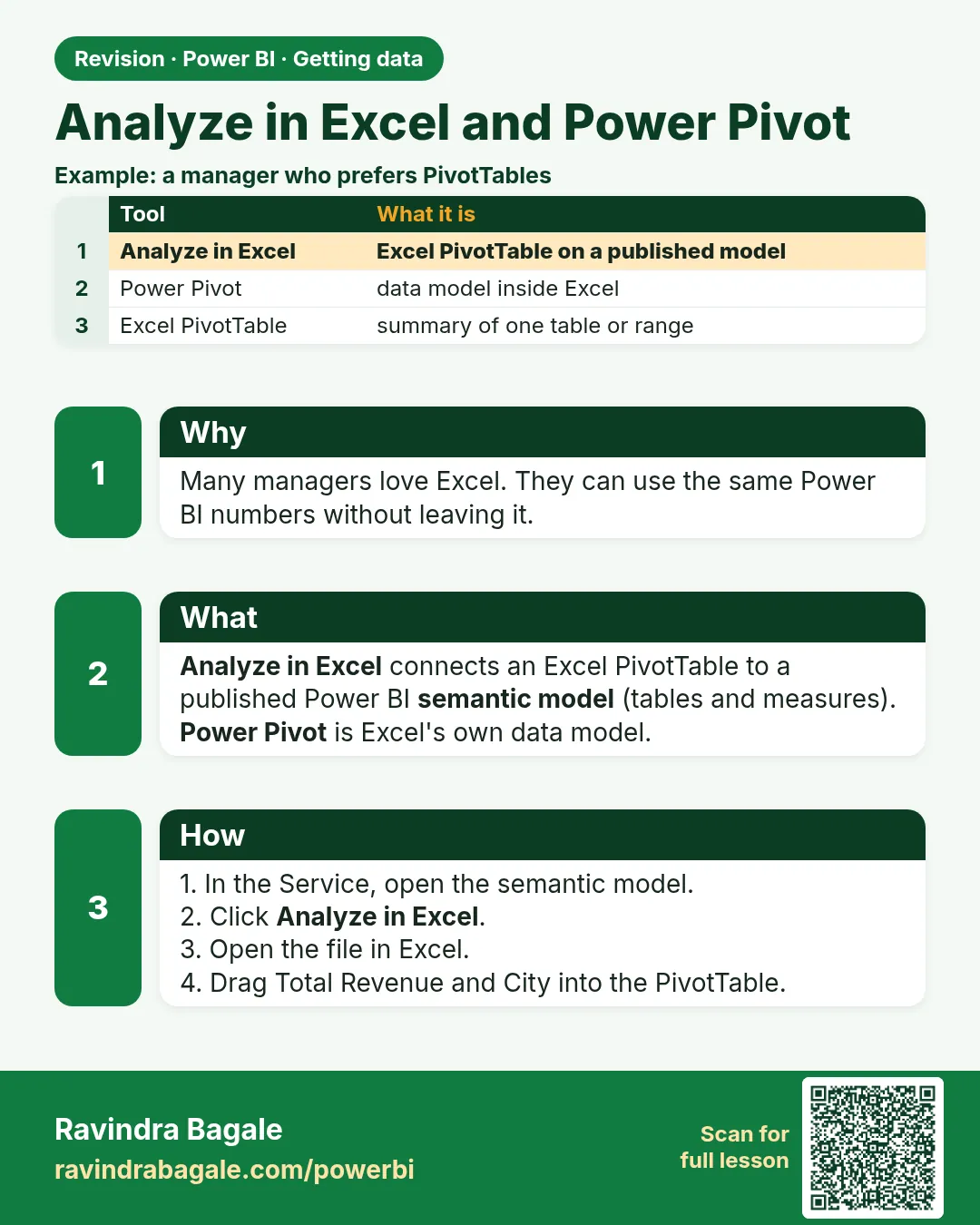
Excel and Power BI share engines: Get & Transform = Power Query, Power Pivot = the tabular model with DAX. A PivotTable is great for one person; a Power BI report suits a team. Analyze in Excel lets Excel users pivot a published model, with RLS still applied.
Show the data
| Order ID | Order Date | City | Store | Platform | Category | Amount (₹) | Delivery mins | Status |
|---|---|---|---|---|---|---|---|---|
| 301 | 06-Apr-2026 | Pune | Kothrud | Blinkit | Dairy | 400 | 8 | Delivered |
| 302 | 06-Apr-2026 | Pune | Baner | Amazon Now | Snacks | 200 | 12 | Delivered |
| 303 | 07-Apr-2026 | Nashik | Gangapur | Blinkit | Dairy | 300 | 14 | Delivered |
| 304 | 04-May-2026 | Nashik | College Road | Blinkit | Fruits | 150 | 9 | Delivered |
| 305 | 04-May-2026 | Kolhapur | Rajarampuri | Amazon Now | Snacks | 450 | 7 | Delivered |
| 306 | 05-May-2026 | Pune | Kothrud | Blinkit | Fruits | 250 | 16 | Delivered |
| 307 | 05-May-2026 | Nashik | College Road | Amazon Now | Dairy | 350 | 11 | Delivered |
| 308 | 05-May-2026 | Kolhapur | Rajarampuri | Blinkit | Dairy | 0 | Cancelled |
Fictional sample data. Practice file: visuals_orders_apr_may_2026.csv (source: src/practice/).
Demonstrate
-
Excel: select the data › Insert › PivotTable › Rows City, Values Sum of Amount.
Your result should look like this:
City Total Sales (₹) Pune 850 Nashik 800 Kolhapur 450 Total 2,100 -
Power BI: load the same CSV › Matrix › Rows City, Values Amount.
Your result should look like this:
Matrix Pune 850, Nashik 800, Kolhapur 450, Total 2,100 -
Publish › in the Service, the semantic model › Analyze in Excel.
Your result should look like this:
Excel PivotTable connected to the model Same totals -
Sign in as Shraddha (RLS role Nashik, Module 26).
Your result should look like this:
Analyze in Excel PivotTable Nashik 800 only
Show the result
Your result should look like this (fictional sample):
| Tool | Who uses it | Total for Shraddha |
|---|---|---|
| Excel PivotTable on her sheet | Shraddha alone | ₹2,100 (all rows on her sheet) |
| Power BI report with RLS | Whole team | ₹800 (Nashik) |
| Analyze in Excel with RLS | Excel users | ₹800 (Nashik) |
Explain what happened
The numbers agree because the engine is the same. The difference is sharing, refresh and security: RLS travels with the published model into Analyze in Excel.
Explore further
- A DAX measure written in Power Pivot works in Power BI with the same syntax.
Detailed reference for this lesson:
Excel and Power BI are not rivals. They take different paths to the same goal. In an interview, never say "I stopped using Excel".
Excel आणि Power BI एकमेकांचे शत्रू नाहीत. दोघं एकाच goal कडे जातात, फक्त रस्ता वेगळा आहे. Interview मध्ये "मी Excel वापरणं सोडलं" असं कधीच बोलू नका.
Excel और Power BI एक-दूसरे के दुश्मन नहीं हैं. दोनों एक ही goal तक जाते हैं, बस रास्ता अलग है. Interview में कभी मत कहिए कि "मैंने Excel इस्तेमाल करना छोड़ दिया".
Excel as a source. Section 3.2 is the connector. Use a formatted Table (Ctrl+T), not a painted range. That is the whole habit.
Power Query. Excel's Data › Get & Transform is the same engine as Power BI's Power Query. The M steps you learn here open in Excel, and the other way around. Refresh in Excel is still an Excel refresh. It is not a Power BI Service schedule.
PivotTable versus a Power BI report. A PivotTable is excellent for one person exploring a Table on a sheet. It gets heavy when several people need the same model, row-level security, a phone layout and a refresh that does not depend on one laptop. That is the report in the Service. You do not throw the PivotTable away for a quick personal check.
Power Pivot. Excel's data model (Power Pivot) is the same tabular idea as a Power BI semantic model: relationships and DAX. Measures you write with SUM, CALCULATE and DIVIDE are the same language. The difference is the product around them. Power BI adds report pages, the Service, apps, gateways and RLS roles aimed at sharing. Excel's model is aimed at a workbook. Not every Service feature exists in Power Pivot. If a function is missing, check the Excel version instead of assuming DAX is "wrong".
Analyze in Excel (section 25.11) is the bridge the other way. A published semantic model becomes the source of an Excel PivotTable. The user can slice, and RLS still applies. They should not export a CSV and start a second model.
Worked example. Shraddha has an Excel Table of fictional Nashik orders, columns City, Amount, Order Date. She builds a PivotTable of Amount by City for herself. The team report must also show Ruhi Bagale's Pune rows, refresh at night, and hide other cities from a city manager. That report belongs in Power BI, using the same Table as Get data › Excel workbook only while the file sits in SharePoint (section 3.5). The DAX [Total Sales] = SUM(Orders[Amount]) matches the PivotTable's Sum of Amount on the same rows. If the PivotTable says ₹800 and the card says ₹800, the model agrees with Excel. If not, the filter or the grain differs. Do not "fix" it with a typed number.
Ravindra Bagale's Tip
Many students rebuild the PivotTable in Power BI by loading the pivoted layout (months across columns). Load the flat Table and pivot in the visual, or Unpivot in Power Query (section 7.17). DAX from Power Pivot works here, but sharing a workbook is not the same as sharing in the Service. Pay attention!
Ravindra Bagale's Tip – मराठी
बरेच students pivoted layout (months आडवे columns मध्ये) load करून PivotTable Power BI मध्ये परत बनवतात. Flat Table load करा आणि visual मध्ये pivot करा, किंवा Power Query मध्ये Unpivot करा (section 7.17). Power Pivot मधला DAX इथे चालतो, पण workbook share करणं म्हणजे Service मध्ये share करणं नाही. लक्षात ठेवा!
Ravindra Bagale's Tip – हिंदी
बहुत से students pivoted layout (months आड़े columns में) load करके PivotTable को Power BI में दोबारा बनाते हैं. Flat Table load करो और visual में pivot करो, या Power Query में Unpivot करो (section 7.17). Power Pivot का DAX यहाँ चलता है, पर workbook share करना Service में share करना नहीं है. ध्यान रखो!
Fix common mistakes
| Wrong result | Reason | Correction |
|---|---|---|
| Months across columns loaded from a pivot | Loaded the pivoted layout | Load the flat table, or Unpivot (7.17) |
| Exported CSV becomes a second model | Export instead of Analyze in Excel | Use Analyze in Excel on the published model |
| "I stopped using Excel" in an interview | Treated the tools as rivals | Explain when each is the right tool |
Practise independently
Practice task
In the Excel PivotTable, add Platform to Columns. What are Pune's Blinkit and Amazon Now values?
Hints
- Pune: 301 Blinkit 400, 302 Amazon Now 200, 306 Blinkit 250.
Solution
Blinkit ₹650; Amazon Now ₹200; Pune total ₹850.
Think like a professional
Use Excel for personal exploration and Power BI for shared, governed reporting; connect them with Analyze in Excel, not exports.
Thodkyaat sangaycha tar (quick recap)
Do not click Load straight from the Navigator; use Transform Data. Keep the default Import. If you get a credentials problem, go to Data source settings. Got it? Now let us move on to databases.
Navigator मधून सरळ Load करू नका, Transform Data वापरा; default Import ठेवा; आणि credentials चा problem आला तर Data source settings मध्ये जा. समजलं का? आता पुढे जाऊया databases कडे.
Navigator से सीधे Load मत कीजिए, Transform Data इस्तेमाल कीजिए; default Import रखिए; और credentials की problem आए तो Data source settings में जाइए. समझ आया? अब आगे बढ़ते हैं databases की ओर.
 Revision card