3.5 OneDrive and SharePoint Files
Start with a problem
Ravina opened Zoya's targets file from a C:\Users\... OneDrive sync path. It worked in Desktop, but scheduled refresh failed after publishing.
Explain simply
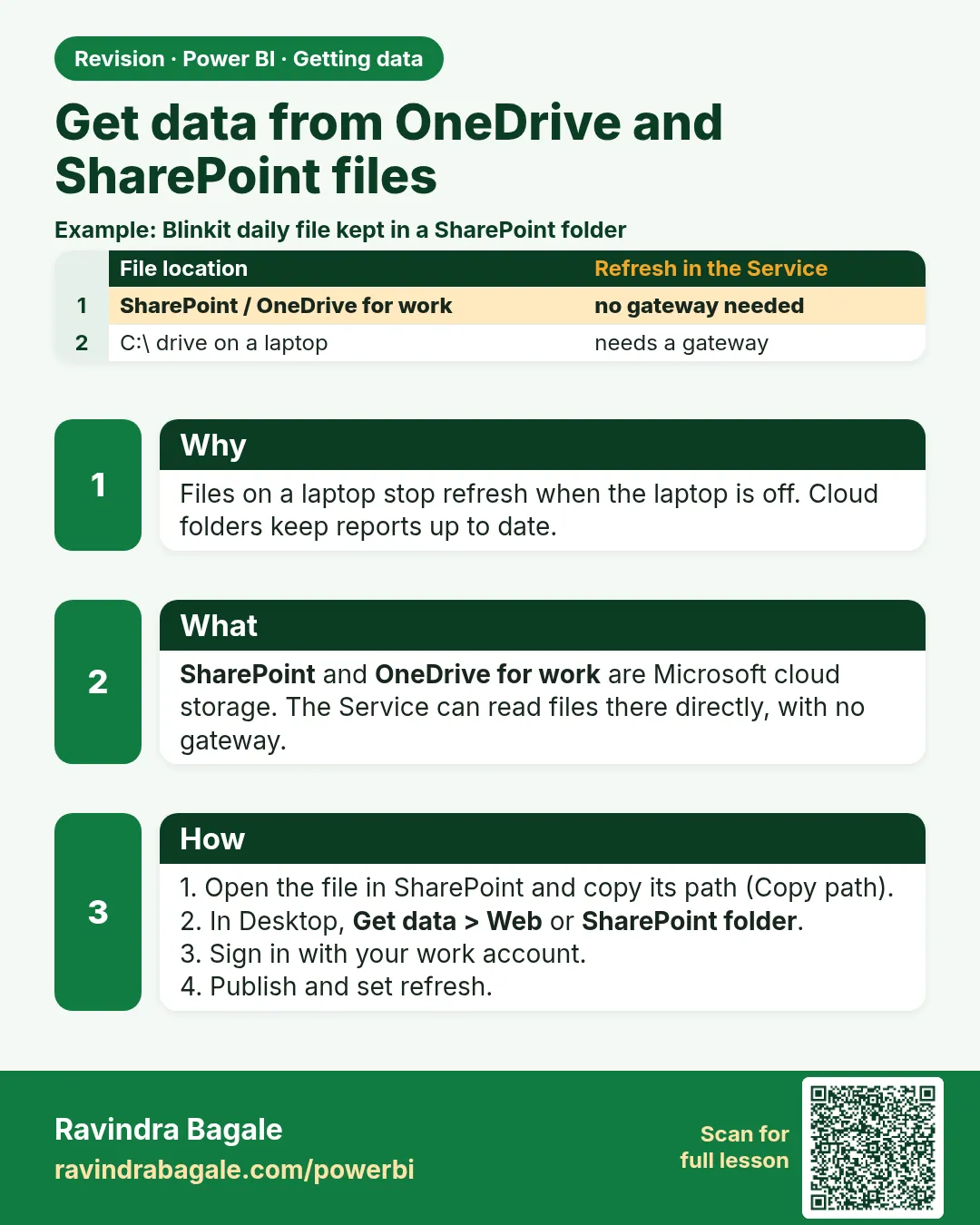
A file that must refresh in the Service should live in SharePoint Online or OneDrive for work, connected with the SharePoint folder connector and the site URL. No gateway is needed for these cloud files.
Show the data
Targets file in the team library (same values as monthly_targets_fy2026_27.csv):
| Month | Target (₹) |
|---|---|
| 2026-04 | 1,000 |
| 2026-05 | 1,100 |
Fictional sample data. Practice file: monthly_targets_fy2026_27.csv, visuals_orders_apr_may_2026.csv (source: src/practice/).
Demonstrate
- Put
Targets.xlsxin the SharePoint document library. Copy the site URL (e.g.https://contoso.sharepoint.com/sites/MHOps), not a sharing link. -
Desktop › Get data › More… › File › SharePoint folder › paste the site URL › sign in with the work account.
Your result should look like this:
File list All files in the site's libraries -
Filter Name =
Targets.xlsx› click Binary (or Combine) › pick the Table.Your result should look like this:
Targets 2 rows: Apr 1,000; May 1,100 -
Close & Apply › Publish › semantic model settings › sign in for SharePoint. No gateway.
-
Refresh now in the Service.
Your result should look like this:
Refresh history Completed
Show the result
Your result should look like this (fictional sample):
| Path used | Desktop refresh | Service refresh | Gateway |
|---|---|---|---|
| C:\Users\Ravina\OneDrive…\Targets.xlsx | Works | Fails (local path) | Would be needed |
| SharePoint folder (site URL) | Works | Works | Not needed |
Explain what happened
The Service cannot read a laptop path. The SharePoint folder connector reads the file from the cloud with the work account, so the Service can refresh it on schedule.
Explore further
- Consumer (personal) OneDrive is a different case; follow current Microsoft documentation.
Detailed reference for this lesson:
If the Excel file stays on a laptop path, the report works on your machine, but refresh stops in the Service. A cloud file needs a different connector.
Excel file laptop च्या path वरच राहिली, तर report तुमच्या machine वर चालतो, पण Service मध्ये refresh बंद पडतो. Cloud file साठी वेगळा connector लागतो.
अगर Excel file laptop के path पर ही रहे, तो report आपकी machine पर चलती है, लेकिन Service में refresh रुक जाता है. Cloud file के लिए अलग connector चाहिए.
The short rule from section 3.2 still stands: a file that must refresh in the Service should not live only on C:\. Use OneDrive for work or school or a SharePoint document library.
Steps – one Excel file in a SharePoint library
- Put
Targets.xlsxin a SharePoint document library (or the OneDrive for work library behind that site). Copy the site URL, for examplehttps://contoso.sharepoint.com/sites/MHOps. Do not paste a sharing link that contains?d=. - In Desktop: Get data › More… › File › SharePoint folder › paste the site URL › sign in with the work account.
- Transform data. Filter
Folder PathorNamedown toTargets.xlsx. Then use Combine or the Excel workbook navigation so you load the formatted table, not the file list. - Close & Apply. Publish. In the semantic model settings, set the SharePoint credentials. A gateway is not required for SharePoint Online or OneDrive for work.
OneDrive for work is the same family of storage. Many tenants do not show a separate "OneDrive" button; the SharePoint folder connector, pointed at the person's OneDrive site, is the stable method. Consumer OneDrive (a personal Microsoft account) is a weak choice for a team report: Service refresh and organisational sign-in often do not line up. Prefer a work library.
Worked example. Zoya keeps a fictional target file for Kolhapur and Mumbai in the team library. Ravina opens it from her laptop with Excel workbook and a C:\Users\... path. Desktop shows the targets. After publish, refresh fails because the Service cannot see Ravina's disk. Rebuild that one query with SharePoint folder and the site URL. The numbers in the file are practice numbers, not a company forecast.
Ravindra Bagale's Tip
A common mistake is pasting the "Copy link" sharing URL, the one with a long ? query, into the SharePoint folder connector. That connector wants the site root; then you filter to the file inside Power Query. Don't forget this.
Ravindra Bagale's Tip – मराठी
एक common चूक म्हणजे लांब ? query असलेली "Copy link" sharing URL SharePoint folder connector मध्ये paste करणं. त्या connector ला site root हवा असतो; मग Power Query मध्ये file पर्यंत filter करायचं. अजिबात विसरू नका.
Ravindra Bagale's Tip – हिंदी
एक common गलती है लंबी ? query वाली "Copy link" sharing URL को SharePoint folder connector में paste करना. उस connector को site root चाहिए; फिर Power Query में file तक filter करना है. बिल्कुल मत भूलो.
Fix common mistakes
| Wrong result | Reason | Correction |
|---|---|---|
| Connector error with a long URL | Pasted a sharing link with ? parameters |
Paste the site root URL |
| Loads the file list, not the targets | Did not drill into the file | Filter Name, open the Binary, pick the Table |
| Refresh fails after publish | Credentials not set in the Service | Sign in under semantic model settings |
Practise independently
Practice task
Actual sales are April ₹900 and May ₹1,200. After the SharePoint refresh, what are April and May achievement percentages?
Hints
- Actual ÷ target.
Solution
April ₹900 ÷ ₹1,000 = 90.0%; May ₹1,200 ÷ ₹1,100 = 109.1%.
Think like a professional
Decide where shared files live before building. Cloud libraries avoid gateways and "works on my laptop" refresh failures.
 Revision card