26.3 Dynamic RLS with USERPRINCIPALNAME in Power BI, with Example
Start with a problem
Next year there will be 60 cities. Ravindra cannot keep creating roles.
Explain simply
Dynamic RLS uses a security table (Email → City) and USERPRINCIPALNAME() to filter by the signed-in user.
Show the data
| City | |
|---|---|
| ravindra@example.com | Pune |
| shraddha@example.com | Nashik |
| zoya@example.com | Kolhapur |
| salman@example.com | Pune |
| salman@example.com | Nashik |
About this data: This table uses columns: Email, City. This table uses columns: User (email), City in security table, Rows visible, Total Sales (₹). This table uses columns: Other user, Cities visible. Values shown are the lesson examples already on this page (not a new dataset).
Fictional sample data. Practice file: rls_user_security.csv, visuals_orders_apr_may_2026.csv (source: src/practice/).
Demonstrate
- Import
rls_user_security.csvasSecurity. - Relate
Security[City]to a City dimension (or Orders[City]) – Security filters City. - Manage roles › role
ByUseron Security:[Email] = USERPRINCIPALNAME(). - Ensure the filter flows to Orders (single direction City → Orders; Security → City).
- View as › Other user salman@example.com + role ByUser.
Show the result
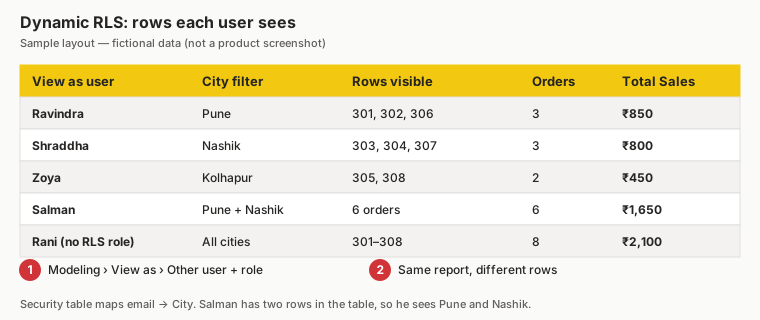
Your result should look like this (fictional sample):
| User (email) | City in security table | Rows visible | Total Sales (₹) |
|---|---|---|---|
| ravindra@example.com | Pune | 301, 302, 306 | 850 |
| shraddha@example.com | Nashik | 303, 304, 307 | 800 |
| zoya@example.com | Kolhapur | 305, 308 | 450 |
| salman@example.com | Pune, Nashik | 6 orders | 1,650 |
| Rani (no role, workspace Viewer with all-cities role) | All | 301–308 | 2,100 |
Explain what happened
USERPRINCIPALNAME returns the email; the matching Security rows filter City, which filters Orders.
Explore further
- Add a new manager by adding a row – no model change.
Detailed reference for this lesson:
Dynamic RLS with USERPRINCIPALNAME in Power BI with example — in 30 seconds
What: Dynamic RLS uses the signed-in e-mail. One role works for every manager.
Why: Six cities today, sixty tomorrow. You update a table, not the roles.
Tiny example: ravina@example.com is mapped to Pune and Mumbai, so she sees both.
Dynamic RLS with USERPRINCIPALNAME in Power BI with example — 30 सेकंदात
काय: Dynamic RLS sign-in केलेला e-mail वापरतं. एकच role प्रत्येक manager साठी चालतो.
का: आज सहा शहरं, उद्या साठ. तुम्ही roles नाही, एक table update करता.
छोटं उदाहरण: ravina@example.com ला Pune आणि Mumbai जोडलेत, म्हणून तिला दोन्ही दिसतात.
Dynamic RLS with USERPRINCIPALNAME in Power BI with example — 30 सेकंड में
क्या: Dynamic RLS sign-in किया हुआ e-mail इस्तेमाल करता है. एक ही role हर manager के लिए चलता है.
क्यों: आज छह शहर, कल साठ. आप roles नहीं, एक table update करते हैं.
छोटा उदाहरण: ravina@example.com को Pune और Mumbai से जोड़ा है, इसलिए उसे दोनों दिखते हैं.
First look at the data (before → after):
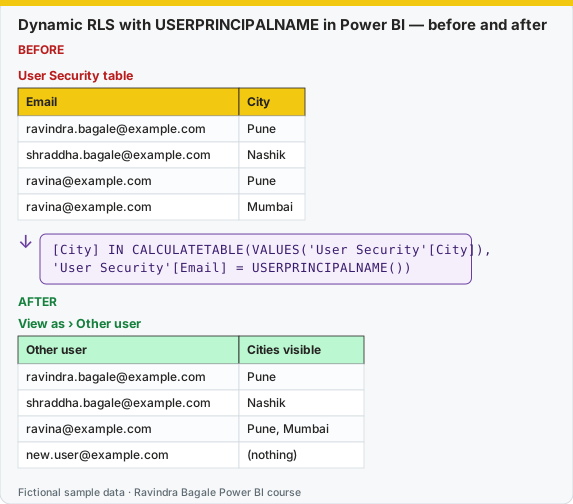
Same before / after tables as text
Before — User Security table
| City | |
|---|---|
| ravindra.bagale@example.com | Pune |
| shraddha.bagale@example.com | Nashik |
| ravina@example.com | Pune |
| ravina@example.com | Mumbai |
Formula / click path
[City] IN CALCULATETABLE(VALUES('User Security'[City]),
    'User Security'[Email] = USERPRINCIPALNAME())
After — View as › Other user
| Other user | Cities visible |
|---|---|
| ravindra.bagale@example.com | Pune |
| shraddha.bagale@example.com | Nashik |
| ravina@example.com | Pune, Mumbai |
| new.user@example.com | (nothing) |
Do it step by step:
- Load the User Security table. Do not relate it (Option A).
- Manage roles › New →
City Manager→ table DarkStore → paste the rule. - Save. Click View as. Tick Other user and type
ravina@example.com. Tick City Manager. - Check: Pune and Mumbai only.
- Hide the User Security table from report view.
एक-एक step करून बघा:
- User Security table load करा. त्याला relate करू नका (Option A).
- Manage roles › New →
City Manager→ table DarkStore → rule paste करा. - Save करा. View as वर click करा. Other user tick करून
ravina@example.comtype करा. City Manager tick करा. - तपासा: फक्त Pune आणि Mumbai.
- User Security table report view मधून hide करा.
एक-एक step करके देखिए:
- User Security table load कीजिए. उसे relate मत कीजिए (Option A).
- Manage roles › New →
City Manager→ table DarkStore → rule paste कीजिए. - Save कीजिए. View as पर click कीजिए. Other user tick करके
ravina@example.comtype कीजिए. City Manager tick कीजिए. - जाँचिए: सिर्फ़ Pune और Mumbai.
- User Security table को report view से hide कीजिए.
USERPRINCIPALNAME() returns the sign-in name of the current user, usually their e-mail-style address (UPN), such as shraddha.bagale@example.com. The rule compares this to a column in the data.
Simple version – one manager per city
The DarkStore table has a Manager Email column (for example, every Pune store row has ravindra.bagale@example.com, every Nashik row has shraddha.bagale@example.com). Create one role called City Manager with this rule on the DarkStore table:
[Manager Email] = USERPRINCIPALNAME()
Now every manager, when signed in, sees fakt the dark stores – and therefore only the orders – where their e-mail matches.
Flexible version – a security (mapping) table
When a user may see several cities, or a city has several users, create a table User Security:
| City | |
|---|---|
| ravindra.bagale@example.com | Pune |
| shraddha.bagale@example.com | Nashik |
| shahrukh@example.com | Nagpur |
| zoya@example.com | Kolhapur |
| amir@example.com | Mumbai |
| raja@example.com | Sambhaji Nagar |
| ravina@example.com | Pune |
| ravina@example.com | Mumbai |
Here Ravina (a regional lead in this example) can see both Pune and Mumbai.
Option A – without any relationship to the security table, use this rule on DarkStore:
[City]
    IN CALCULATETABLE(
        VALUES('User Security'[City]),
        'User Security'[Email] = USERPRINCIPALNAME()
    )
Option B – relate User Security to a City dimension, filter 'User Security'[Email] = USERPRINCIPALNAME(), and allow the filter to flow onwards (this usually requires a bi-directional relationship with Apply security filter in both directions enabled). Option A avoids bi-directional relationships and is usually simpler.
Hide the User Security table from report view (users do not need to see it).
USERNAME vs USERPRINCIPALNAME
USERNAME() in Power BI Desktop returns the Windows format DOMAIN\user, while in the Service it returns the UPN. USERPRINCIPALNAME() returns the UPN format consistently when users are signed in, so it is the usual choice for dynamic RLS.
A role that sees everything
For the state operations head (Rani in our sample), create a role (e.g. All Cities) with no filter – or give access in a way where RLS does not apply (see below).
Dynamic RLS is a little tricky, but do not worry. A security table and USERPRINCIPALNAME – there are only these two pieces.
Dynamic RLS थोडं tricky आहे, पण घाबरू नका. Security table आणि USERPRINCIPALNAME – एवढेच दोन तुकडे आहेत.
Dynamic RLS थोड़ा tricky है, पर घबराइए मत. Security table और USERPRINCIPALNAME – बस यही दो टुकड़े हैं.
Ravindra Bagale's Tip
Friends, the mistake I see most is an e-mail in the security table that doesn't match the user's sign-in name (an old domain, an alias or extra spaces; DAX text comparison ignores upper/lower case). Check USERPRINCIPALNAME() by showing it in a card while testing, and keep the security table's relationship filtering in the right direction. Practise, and it will feel very easy.
Ravindra Bagale's Tip – मराठी
मित्रांनो, सगळ्यात जास्त दिसणारी चूक म्हणजे security table मधला e-mail user च्या sign-in name शी न जुळणं (जुनं domain, alias किंवा जास्तीचे spaces; DAX text compare करताना upper/lower case बघत नाही). Testing करताना USERPRINCIPALNAME() card मध्ये दाखवून चेक करा, आणि security table च्या relationship चं filtering योग्य दिशेला ठेवा. Practice करा, मग एकदम सोपं वाटेल.
Ravindra Bagale's Tip – हिंदी
दोस्तों, सबसे ज़्यादा दिखने वाली गलती है security table के e-mail का user के sign-in name से मेल न खाना (पुराना domain, alias या extra spaces; DAX text compare करते समय upper/lower case नहीं देखता). Testing के समय USERPRINCIPALNAME() को card में दिखाकर check करो, और security table की relationship की filtering सही दिशा में रखो. Practice करो, फिर बहुत आसान लगेगा.
Fix common mistakes
| Wrong result | Reason | Correction |
|---|---|---|
| Everyone sees blank | Email mismatch (case/UPN differs) | Use exact UPN; test with View as |
| Filter does not reach Orders | Relationship direction | Check the filter path |
| Salman sees one city | Only one row | Add both rows |
Practise independently
Practice task
Add raja@example.com, Kolhapur. What does Raja see?
Hints
- Kolhapur rows.
Solution
305, 308 – ₹450.
Think like a professional
Dynamic RLS is the scalable pattern – explain table + UPN + relationship.
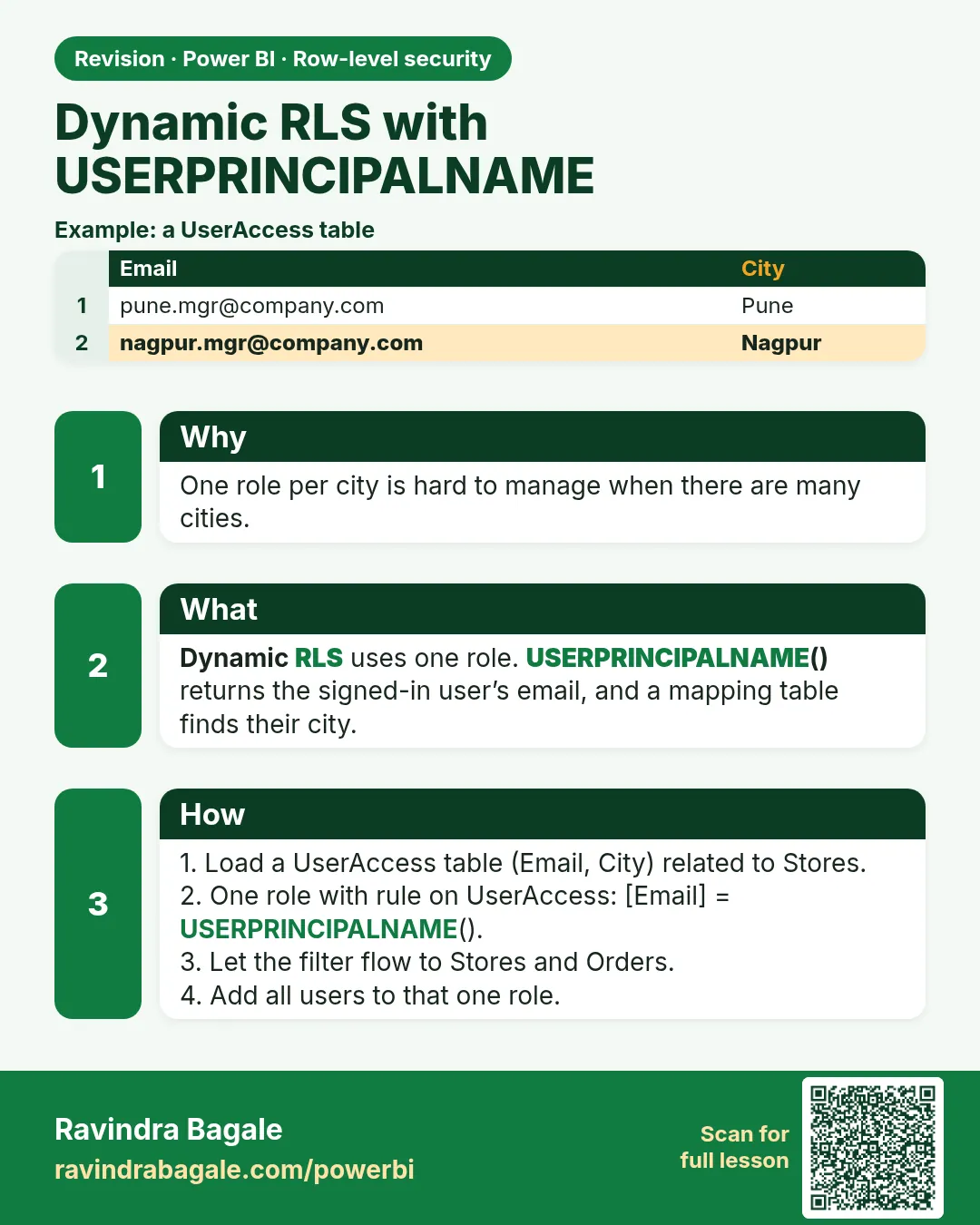 Revision card
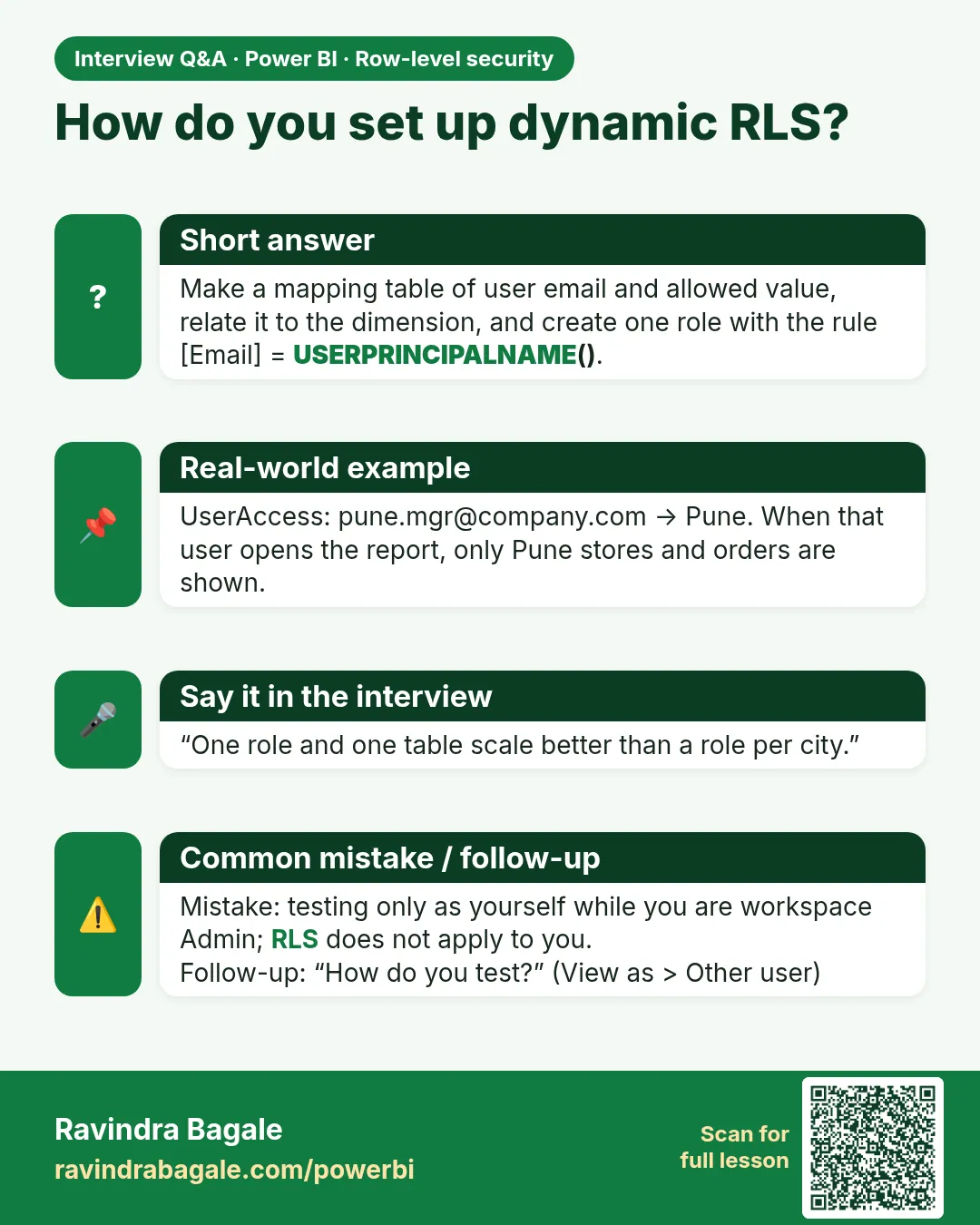 Interview card