19. Bookmarks, Selection Pane, Buttons and Navigation
19.2 The Bookmarks Pane
Start with a problem
Raja has eight bookmarks and wants them in a sensible order with groups for the Delivery page.
Explain simply
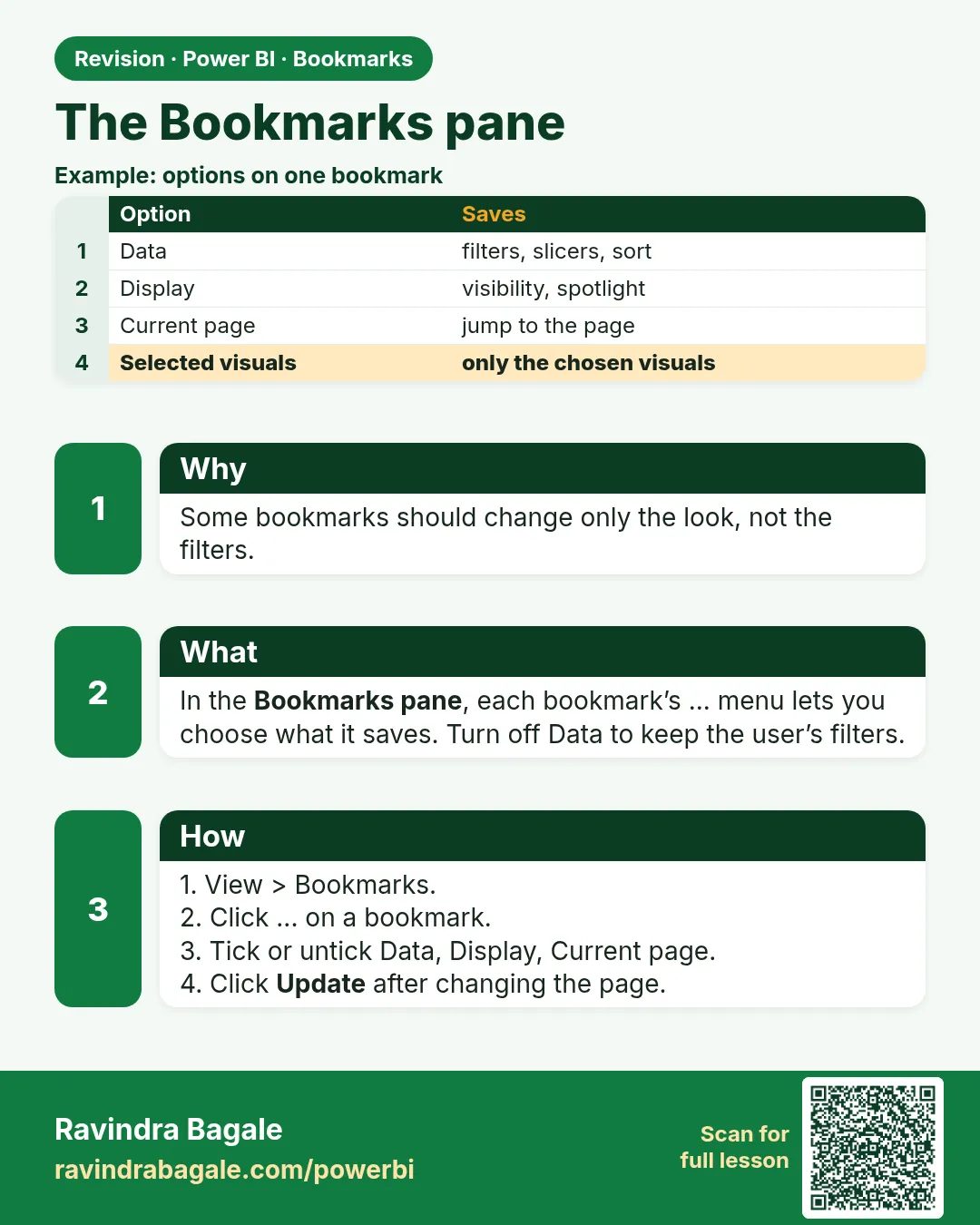
The Bookmarks pane lists bookmarks. You can add, rename, update, reorder, group, and choose options (Data, Display, Current page, All visuals or Selected visuals) for each one.
Show the data
| Bookmark | Data | Display | Selected visuals only |
|---|---|---|---|
| Chart view | Off | On | Yes |
| Table view | Off | On | Yes |
| Reset filters | On | Off | No |
About this data: This table uses columns: Bookmark, Data, Display, Selected visuals only. This table uses columns: Group, Bookmarks. This table uses columns: Wrong result, Reason, Correction. Values shown are the lesson examples already on this page (not a new dataset).
Fictional sample data. Practice file: visuals_orders_apr_may_2026.csv (source: src/practice/).
Demonstrate
- View › Bookmarks.
- Right-click Chart view › untick Data; tick Selected visuals (after selecting the chart and table).
- Ctrl + click two bookmarks › Group › rename Delivery toggle.
- Drag bookmarks to reorder.
- Use View to play them like a slide show.
Show the result
Your result should look like this (fictional sample):
| Group | Bookmarks |
|---|---|
| Delivery toggle | Chart view, Table view |
| (ungrouped) | Reset filters |
Explain what happened
Options are stored per bookmark, so each one applies only what you ticked.
Explore further
- Update a bookmark after layout changes: right-click › Update.
Detailed reference for this lesson:
Steps in Power BI
- View › Bookmarks opens the Bookmarks pane.
- Set up the page as you want it (e.g. Platform slicer = Blinkit, City = Pune) › click Add. A bookmark Bookmark 1 appears. Double-click it to rename (Pune – Blinkit).
- Click … (More options) next to a bookmark: Update (save the current state into it), Rename, Delete, Group (after selecting several bookmarks with Ctrl), and the toggles Data, Display, Current page, All visuals / Selected visuals.
- Drag bookmarks to reorder them. Click View at the top of the pane to present bookmarks as a slide show (Next/Previous arrows at the bottom).
- Report readers in the Service can also create personal bookmarks (Bookmarks menu in the report toolbar).
Ravindra Bagale's Tip
Remember one thing: the bookmark mistakes I see most are changing the page and forgetting to click Update, and a toggle bookmark with Data ticked that resets the user's slicers. For show/hide patterns, untick Data so only Display is captured. If you delete and recreate a visual, update the bookmarks that referenced it. Never forget this.
Ravindra Bagale's Tip – मराठी
एक गोष्ट लक्षात ठेवा: bookmarks मधल्या सगळ्यात जास्त दिसणाऱ्या चुका म्हणजे page बदलून Update click करायला विसरणं, आणि Data tick असलेला toggle bookmark जो user चे slicers reset करतो. Show/hide patterns साठी Data untick करा म्हणजे फक्त Display capture होईल. एखादा visual delete करून पुन्हा बनवला तर त्याला refer करणारे bookmarks update करा. हे अजिबात विसरू नका.
Ravindra Bagale's Tip – हिंदी
एक बात याद रखो: bookmarks की सबसे ज़्यादा दिखने वाली गलतियाँ हैं page बदलकर Update click करना भूल जाना, और Data tick वाला toggle bookmark जो user के slicers reset कर देता है. Show/hide patterns के लिए Data untick करो ताकि सिर्फ़ Display capture हो. कोई visual delete करके दोबारा बनाओ तो उसे refer करने वाले bookmarks update करो. यह बिल्कुल मत भूलना.
Fix common mistakes
| Wrong result | Reason | Correction |
|---|---|---|
| Toggle also resets slicers | Data ticked | Untick Data |
| Toggle affects other visuals | All visuals applied | Use Selected visuals |
| Bookmark order random in View mode | Not reordered | Drag to order |
Practise independently
Practice task
Which options would you set for a bookmark that only hides a filter panel?
Hints
- No data change; only some visuals.
Solution
Data Off, Display On, Current page On, Selected visuals (the panel group only).
Think like a professional
Bookmark options are where most toggle bugs come from. Document them in the bookmark name, e.g. Panel open (display only).
 Revision card