32. Keyboard Shortcuts and DAX Cheat Sheet
32.2 DAX Quick Reference
| Category | Function | Syntax | Purpose |
|---|---|---|---|
| Aggregation | SUM | SUM(col) |
Adds all numbers in a column |
| Aggregation | AVERAGE | AVERAGE(col) |
Arithmetic mean |
| Aggregation | MIN / MAX | MIN(col) / MAX(col) |
Smallest / largest value |
| Aggregation | COUNT / COUNTA | COUNT(col) |
Non-blank values |
| Aggregation | COUNTROWS | COUNTROWS(table) |
Number of rows |
| Aggregation | DISTINCTCOUNT | DISTINCTCOUNT(col) |
Number of unique values |
| Iterator | SUMX / AVERAGEX | SUMX(table, expr) |
Row-by-row expression, then aggregate |
| Iterator | MINX / MAXX / COUNTX | MAXX(table, expr) |
Row-by-row min/max/count |
| Logical | IF | IF(cond, then, [else]) |
Conditional result |
| Logical | SWITCH | SWITCH(expr, v1, r1, …, [else]) |
Multiple conditions; SWITCH(TRUE(), …) pattern |
| Logical | AND / OR / NOT | AND(a, b) · a && b · a || b |
Combine conditions |
| Logical | COALESCE | COALESCE(v1, v2, …) |
First non-blank value |
| Math | DIVIDE | DIVIDE(num, den, [alt]) |
Safe division |
| Math | ROUND | ROUND(num, digits) |
Round a value |
| Filter | CALCULATE | CALCULATE(expr, filter1, …) |
Evaluate in modified filter context |
| Filter | CALCULATETABLE | CALCULATETABLE(table, filter1, …) |
Table version of CALCULATE |
| Filter | FILTER | FILTER(table, condition) |
Rows meeting a condition |
| Filter | ALL | ALL(table or col, …) |
Remove filters / all rows |
| Filter | ALLEXCEPT | ALLEXCEPT(table, col, …) |
Remove filters except listed columns |
| Filter | ALLSELECTED | ALLSELECTED([table or col]) |
Keep outer (slicer) filters only |
| Filter | REMOVEFILTERS | REMOVEFILTERS([table or col]) |
Remove filters (CALCULATE modifier) |
| Filter | KEEPFILTERS | KEEPFILTERS(filter) |
Intersect with existing filters |
| Relationship | RELATED | RELATED(col) |
Value from the one side |
| Relationship | RELATEDTABLE | RELATEDTABLE(table) |
Rows from the many side |
| Relationship | USERELATIONSHIP | USERELATIONSHIP(col1, col2) |
Activate inactive relationship |
| Relationship | CROSSFILTER | CROSSFILTER(col1, col2, dir) |
Change filter direction for a calculation |
| Information | VALUES / DISTINCT | VALUES(col) |
Distinct visible values |
| Information | SELECTEDVALUE | SELECTEDVALUE(col, [alt]) |
Single selected value or alternate |
| Information | HASONEVALUE | HASONEVALUE(col) |
TRUE if one value visible |
| Information | ISBLANK / ISINSCOPE | ISBLANK(value) |
Tests |
| Text | CONCATENATE | CONCATENATE(text1, text2) |
Join two strings (use & for more) |
| Text | CONCATENATEX | CONCATENATEX(table, expr, [delim]) |
Join values from a table |
| Text | LEFT / RIGHT / MID | LEFT(text, n) · MID(text, start, n) |
Extract characters |
| Text | LEN / UPPER / LOWER / TRIM | LEN(text) |
Length and cleaning |
| Text | FORMAT | FORMAT(value, "format") |
Number/date to formatted text |
| Text | SUBSTITUTE / SEARCH | SUBSTITUTE(text, old, new) |
Replace / find text |
| Date | TODAY / NOW | TODAY() |
Current date / date-time |
| Date | YEAR / MONTH / DAY | YEAR(date) |
Parts of a date |
| Date | DATE | DATE(y, m, d) |
Build a date |
| Date | DATEDIFF | DATEDIFF(start, end, DAY) |
Difference in intervals |
| Date | EOMONTH / EDATE | EOMONTH(date, months) |
End of month / add months |
| Date | CALENDAR | CALENDAR(start, end) |
Date table between dates |
| Date | CALENDARAUTO | CALENDARAUTO([fy_end_month]) |
Automatic date table |
| Time intel. | TOTALYTD / QTD / MTD | TOTALYTD(expr, dates, [filter], [ye]) |
Period-to-date totals |
| Time intel. | DATESYTD | DATESYTD(dates, [ye]) |
Dates from year start |
| Time intel. | SAMEPERIODLASTYEAR | SAMEPERIODLASTYEAR(dates) |
Same dates one year back |
| Time intel. | DATEADD | DATEADD(dates, n, interval) |
Shift dates |
| Time intel. | PARALLELPERIOD | PARALLELPERIOD(dates, n, interval) |
Full shifted period |
| Time intel. | DATESINPERIOD | DATESINPERIOD(dates, start, n, interval) |
Rolling window |
| Time intel. | DATESBETWEEN | DATESBETWEEN(dates, start, end) |
Dates in a range |
| Ranking | RANKX | RANKX(table, expr, [val], [order], [ties]) |
Rank items |
| Ranking | TOPN | TOPN(n, table, orderBy, [order]) |
Top N rows |
| Table | SUMMARIZE / ADDCOLUMNS | ADDCOLUMNS(table, "Name", expr) |
Build table expressions |
| Table | GENERATESERIES | GENERATESERIES(start, end, step) |
Number series (what-if) |
| Security | USERPRINCIPALNAME | USERPRINCIPALNAME() |
Current user's UPN (for RLS) |
| Variables | VAR / RETURN | VAR x = … RETURN … |
Store intermediate results |
About this data: This table uses columns: Category, Function, Syntax, Purpose. Values shown are the lesson examples already on this page (not a new dataset).
Ravindra Bagale's Tip
A common mistake is copying functions from the cheat sheet without checking the argument order. Hover over the function in the formula bar to see its syntax, and test it in a small table visual first. Keep this in mind!
Ravindra Bagale's Tip – मराठी
एक common चूक म्हणजे arguments चा क्रम चेक न करता cheat sheet मधून functions copy करणं. Syntax बघण्यासाठी formula bar मध्ये function वर hover करा, आणि आधी छोट्या table visual मध्ये test करा. लक्षात ठेवा!
Ravindra Bagale's Tip – हिंदी
एक common गलती है arguments का क्रम check किए बिना cheat sheet से functions copy करना. Syntax देखने के लिए formula bar में function पर hover करो, और पहले छोटे table visual में test करो. ध्यान रखना!
Deepen this topic (Why / What / How)
Fictional Maharashtra practice. Shortcut lists can differ by Desktop version — verify in your build.
Why: Looking up every function mid-demo breaks trust.
What: A compact DAX map: aggregation, filter, time intel starters, iterators — with pointers to deep chapters.
How — build your one-page DAX card:
Vertical steps (one under another)
- List SUM, COUNTROWS, DISTINCTCOUNT you use weekly.
- Add CALCULATE + one FILTER example on fictional MH sales.
- Add DIVIDE for safe ratios (Cancel %).
- Add TOTALYTD or same-period starter only if you have a proper Date table.
- Point advanced CALCULATE/iterators/time intel to Ch 45–47.
Tiny example: Fictional: [Cancel %] = DIVIDE([Cancelled],[Orders]) with CALCULATE city filter in demos.
Ravindra Bagale's Tip
Friends, cheat sheets are for recall — understanding still lives in Ch 13 and Ch 45–48.
Ravindra Bagale's Tip – मराठी
मित्रांनो, cheat sheet = आठवण; समज Ch 13 आणि 45–48 मध्ये.
Ravindra Bagale's Tip – हिंदी
दोस्तों, cheat sheet = याद; समझ Ch 13 और 45–48 में।
Aggregation and math you must type blind
Vertical points
- SUM, AVERAGE, MIN, MAX on fact columns — prefer measures over implicit totals.
- COUNTROWS(FactOrders) for grain-aware counts.
- DISTINCTCOUNT(FactOrders[OrderID]) for order heads.
- DIVIDE(num, den, 0) avoids divide-by-zero surprises.
- FORMAT sparingly — prefer numeric measures + visual format.
Filter context starters (then go deep)
Vertical points
- CALCULATE(expr, filter1, filter2) changes filter context.
- KEEPFILTERS / REMOVEFILTERS / ALL appear in interviews — practise meaning, not only names.
- FILTER returns a table; often used inside CALCULATE.
- Deep mastery: Ch 45 (CALCULATE/filter context).
- Iterators (SUMX) deep dive: Ch 46.
Worked mini reference (fictional MH Ops)
Assume FactOrders, DimCity, DimDate (marked as date table).
[Delivered Orders] = COUNTROWS ( FactOrders )

[Revenue] = SUM ( FactOrders[Revenue] )

[AOV] = DIVIDE ( [Revenue], [Delivered Orders] )

[Pune Revenue] =
CALCULATE (
    [Revenue],
    DimCity[City] = "Pune"
)

[Cancel %] =
DIVIDE ( [Cancelled Orders], [Delivered Orders] )
Why: Seeing patterns on one model beats abstract lists.
What: Five measures you can adapt and test against Excel.
How — adapt safely:
Vertical steps
- Paste into a measures table with your real table names.
- Check Pune Revenue against a filtered Excel pivot (fictional OK).
- Replace Cancelled Orders with your cancel flag logic.
- Do not add time intel until DimDate is marked.
- Continue mastery in Ch 45–47.
Ravindra Bagale's Tip
Friends, type these once from memory tomorrow — that is the real cheat sheet.
Ravindra Bagale's Tip – मराठी
मित्रांनो, उद्या memory ने एकदा लिहा — तो खरा cheat sheet.
Ravindra Bagale's Tip – हिंदी
दोस्तों, कल memory से एक बार लिखो — वही असली cheat sheet।
Quiz (5 questions)
1. DIVIDE is preferred for ratios because:
2. CALCULATE is mainly about:
3. Deep CALCULATE chapter:
4. COUNTROWS is useful when:
5. Time intelligence needs:
Practice tasks (12) — hints only, no full answers
- Task. Write [Delivered Orders] and [AOV] measures using DIVIDE.
Hint: Fictional FactOrders. - Task. Write a CALCULATE that keeps only Pune.
Hint: DimCity[City]="Pune". - Task. List 10 DAX functions you can explain aloud.
Hint: No need to memorise all parameters. - Task. Point each of SUMX, CALCULATE, DATEADD to a deep chapter.
Hint: 46 / 45 / 47. - Task. Rebuild a messy measure with clear variable names (VAR).
Hint: Readable > clever. - Task. Explain filter context vs row context in 90 seconds.
Hint: Easy English. - Task. Create a one-page PDF cheat sheet of your top 15 functions.
Hint: From this chapter. - Task. Find one measure in your .pbix that should use DIVIDE.
Hint: Replace if safe. - Task. Quiz a friend with 5 DAX name, then purpose prompts.
Hint: Use this quiz as seed. - Task. Map DISTINCTCOUNT to a business question.
Hint: Order heads vs lines. - Task. Write Cancel % with DIVIDE and a fictional threshold IF.
Hint: For conditional colour later. - Task. Schedule Ch 45 study after this cheat sheet.
Hint: Put a date in your calendar.
Loading DAX practice tasks...
- Total Max Marks (Easy): Measure: MaxMarks Sum = SUM of MaxMarks.
- Rows per School (Easy): Shown per Schools Name. Measure: Row Count = number of Results rows.
- Average days absent per country (Easy): Shown per Country. Measure: Avg DaysAbsent = AVERAGE of DaysAbsent.
- Highest days absent per Subject (Easy): Shown per Subject. Measure: Max DaysAbsent = MAX of DaysAbsent.
- How many schools per Subject (Medium): Shown per Subject. Measure: Schools Count = distinct count of SchoolID in Results.
- Score Rate (Medium): Shown per Schools Name. Measure: Score Rate = SUM of Marks ÷ SUM of MaxMarks.
- MaxMarks for Maths only (Medium): Shown per City. Measure: MaxMarks Maths = SUM of MaxMarks where Subject is "Maths".
- Share of MaxMarks (Medium): Shown per Schools Name. Measure: MaxMarks Share = SUM of MaxMarks ÷ SUM of MaxMarks for all of Schools.
- Score Rate against target (Hard): Shown per Schools Name. Measure: Score Rate Status = "On target" when Score Rate is >= 0.65, else "Check".
- Rank by MaxMarks (Hard): Shown per Schools Name. Measure: MaxMarks Rank = rank of [Total Max Marks] among all Schools Name values.
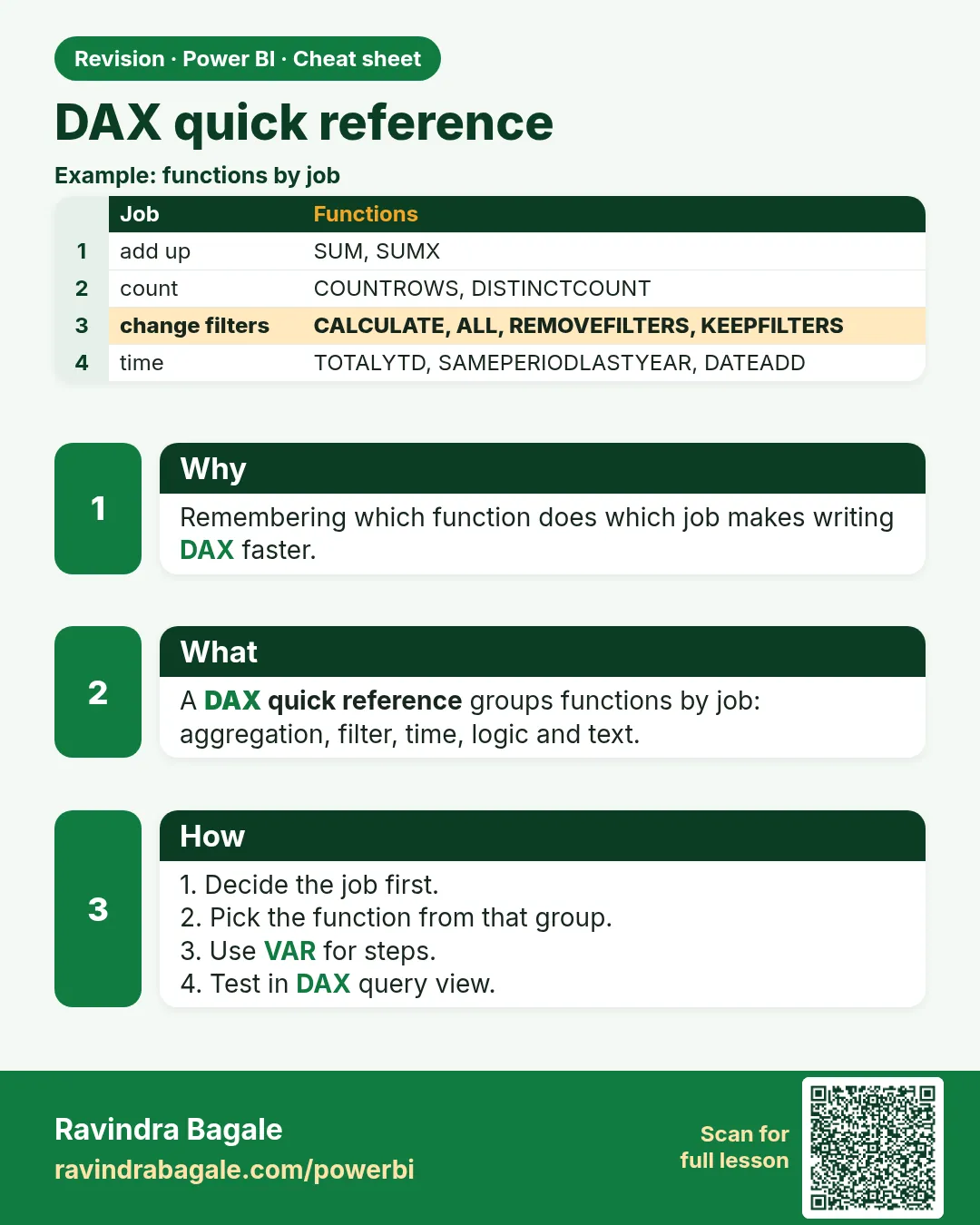 Revision card
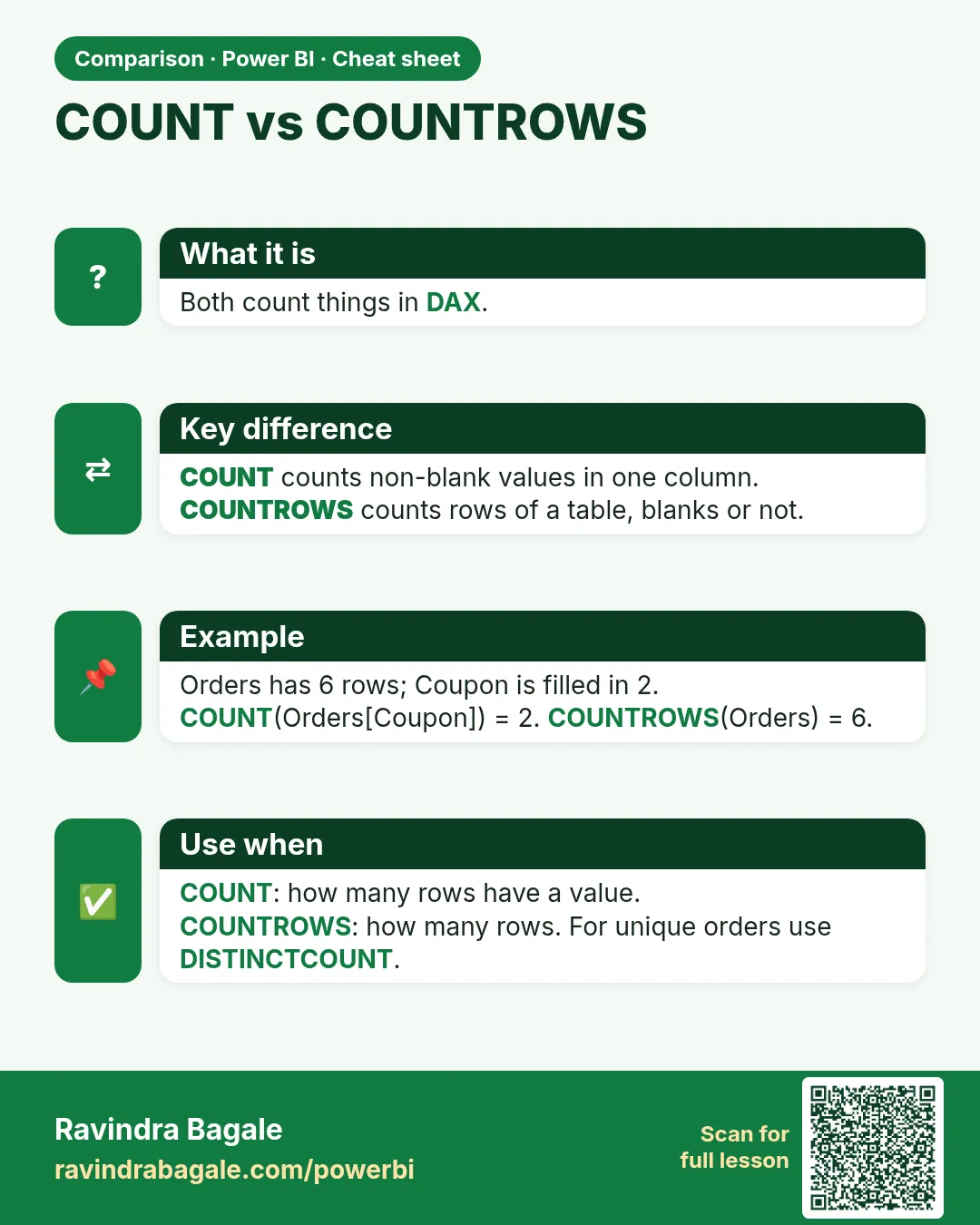 Comparison card