9. Get Data from Folder: Monthly Bank Statements Walkthrough
9.8 Automatic Refresh When a New Month Arrives
Start with a problem
April's statement arrives. Ravina asks: do we have to edit the queries every month?
Explain simply
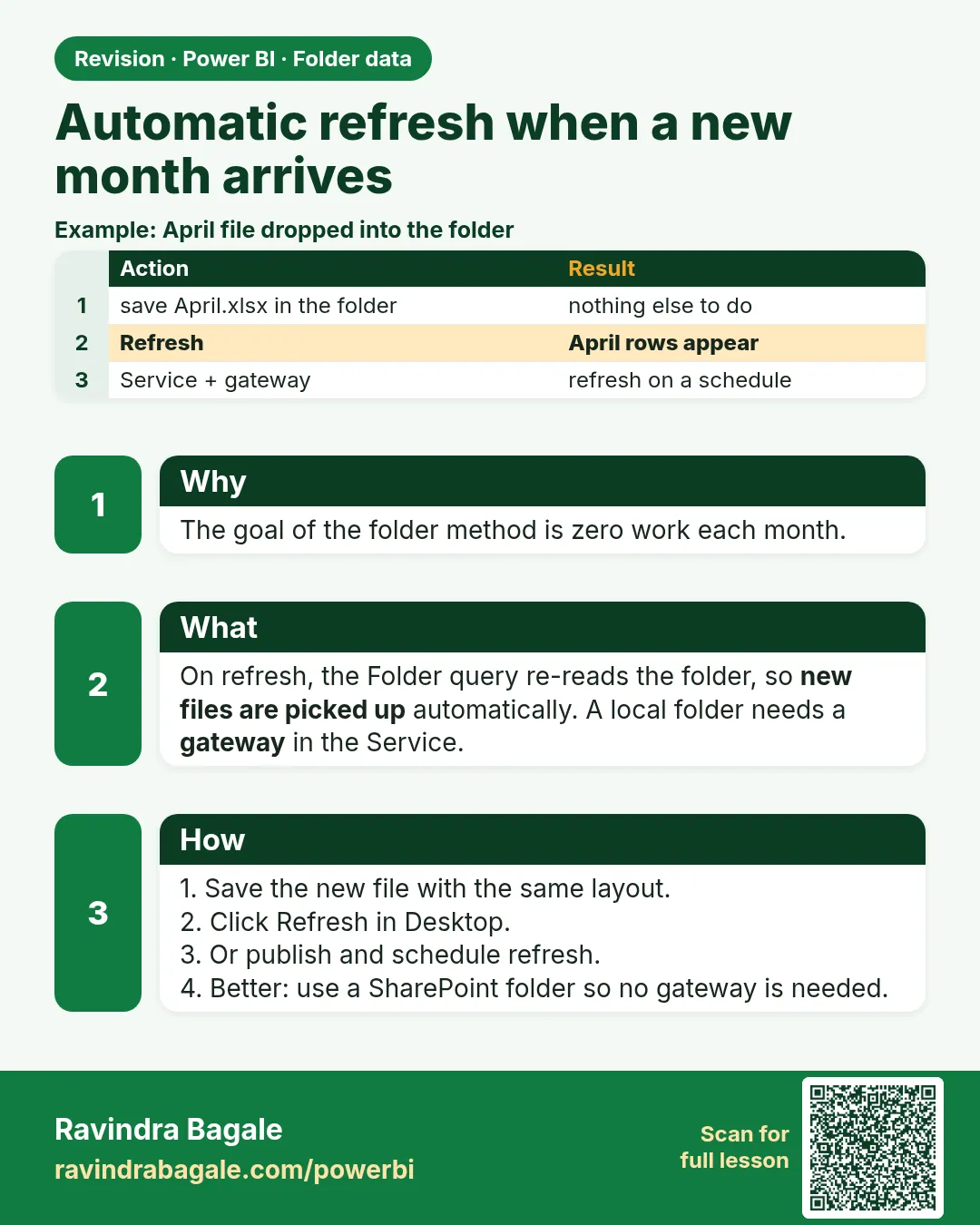
No. Save the new file in the same folder and refresh. The folder query, the filters and the file function do the rest.
Show the data
Folder after saving the new month:
| Name |
|---|
| Feb.xlsx |
| Jan.xlsx |
| Mar.xlsx |
| Apr.xlsx (new) |
| notes.txt |
| README.txt |
About this data: This table uses columns: Month, Total Spend (₹), Total Income (₹). This table uses columns: Month, Rows, Total Spend (₹), Total Income (₹). This table uses columns: Wrong result, Reason, Correction. Values shown are the lesson examples already on this page (not a new dataset).
Fictional sample data. Practice file: bank_statements/Jan.xlsx, bank_statements/Feb.xlsx, bank_statements/Mar.xlsx, bank_statements/Apr.xlsx (source: src/practice/).
Demonstrate
- Copy the practice file
Apr.xlsxinto the same folder. -
Power BI Desktop › Home › Refresh.
Your result should look like this:
Source.Name values Apr.xlsx, Feb.xlsx, Jan.xlsx, Mar.xlsx -
Check the Month visual.
Your result should look like this:
Month Total Spend (₹) Total Income (₹) Apr 410 65,000 -
For scheduled refresh in the Service, a local folder needs an on-premises data gateway. A SharePoint folder does not.
Show the result
Your result should look like this (fictional sample):
| Month | Rows | Total Spend (₹) | Total Income (₹) |
|---|---|---|---|
| Jan | 3 | 2,486 | 65,000 |
| Feb | 4 | 12,870 | 65,000 |
| Mar | 2 | 640 | 65,000 |
| Apr | 2 | 410 | 65,000 |
| Total | 11 | 16,406 | 2,60,000 |
Explain what happened
Nothing in the queries changed. Folder.Files listed one more file, the filters kept it, and Transform File cleaned it like the others. Balance check: ₹50,000 + net ₹2,43,594 (₹2,60,000 − ₹16,406) = April closing balance ₹2,93,594.
Explore further
- Month No sorts Jan–Apr in calendar order. For an April–March view, use FY Month No (April = 1) from the Date table.
- Keep the folder path in a parameter (Module 10.3).
Detailed reference for this lesson:
- Save
Apr.xlsxinto the same folder. - In Power BI Desktop, click Home › Refresh. April rows appear. No query changes are needed.
- In the Power BI Service, a local folder needs an on-premises data gateway (Module 4.8) for scheduled refresh.
- Better for teams: SharePoint folder. Save the files in a SharePoint document library (or OneDrive for work) and connect with Get data › More… › SharePoint folder › Site URL (for example
https://example.sharepoint.com/sites/Finance). Filter Folder Path to your library folder, then combine the monthly statement files the same way as the local Folder connector (Combine & Transform → Sample file → promote headers). Scheduled refresh then works without a gateway.
Source = SharePoint.Files("https://example.sharepoint.com/sites/Finance", [ApiVersion = 15]),
OnlyStatements = Table.SelectRows(Source, each Text.Contains([Folder Path], "/Shared Documents/BankStatements/"))
Make the folder a parameter
Create a Text parameter (बदलता येणारे मूल्य, जे अनेक ठिकाणी वापरता येते) FolderPath and use Folder.Files(FolderPath). When you move to another laptop or to SharePoint, you change one value (Module 10).
Practice task
Lakshat theva, create three fictional statement files (Jan, Feb, Mar) for Ravina with UPI payments to Blinkit and Amazon Now, an IMPS transfer to Raja, ATM withdrawals in Nashik and a salary credit. Make Mar.xlsx use Withdrawal Amt./Deposit Amt. headers. Combine them, add Month, Mode and Category, and build a column chart of Total Spend by Month and Category. Then add Apr.xlsx and refresh.
Ravindra Bagale's Tip
Friends, many students drop a new month's file into the folder with a different name pattern (for example "March 2026 final.xlsx") and the month column breaks. Agree on one naming convention (2026-03.xlsx) and keep it. After adding a file, refresh and check the row count per month in a quick table visual. Never forget this.
Ravindra Bagale's Tip – मराठी
मित्रांनो, बरेच students नव्या महिन्याची file वेगळ्या name pattern ने folder मध्ये टाकतात (उदाहरणार्थ "March 2026 final.xlsx") आणि month column तुटतो. एक naming convention (2026-03.xlsx) ठरवा आणि तीच पाळा. File जोडल्यानंतर refresh करा आणि एका छोट्या table visual मध्ये प्रत्येक महिन्याचा row count चेक करा. हे अजिबात विसरू नका.
Ravindra Bagale's Tip – हिंदी
दोस्तों, बहुत से students नए महीने की file अलग name pattern से folder में डाल देते हैं (जैसे "March 2026 final.xlsx") और month column टूट जाता है. एक naming convention (2026-03.xlsx) तय करो और उसी पर टिके रहो. File जोड़ने के बाद refresh करो और एक छोटे table visual में हर महीने का row count check करो. यह बिल्कुल मत भूलना.
Fix common mistakes
| Wrong result | Reason | Correction |
|---|---|---|
| April missing after refresh | File saved as April.xlsx or .xls |
Follow the naming rule; the Month logic expects Mmm |
| Scheduled refresh fails in the Service | Local folder without a gateway | Configure a gateway, or move the files to a SharePoint folder |
| April counted twice | Both Apr.xlsx and Apr (1).xlsx saved |
Delete the duplicate; show a file count on a check page |
Practise independently
Practice task
After April, what is the quick-commerce spend for January–April, and for FY 2026-27 so far?
Hints
- FY 2026-27 starts on 1 April 2026.
Solution
January–April: ₹486 + ₹870 + ₹640 + ₹410 = ₹2,406. FY 2026-27 so far (April only): ₹410.
Think like a professional
Automate the boring part, then add a visible check: a card with the latest statement month and the row count per file, so a missing file is obvious.
 Revision card