Toyota Dashboard in Power BI: Star Schema, 40 DAX Measures, Forecast and What-if (5,500 Rows of Example Data)
Why: Excel is great for one file; Power BI is built for big data, fast filters and sharing a report with a team. This page builds the same Toyota dashboard as the Excel version, so you can compare the two.
What: a star schema (1 fact table + 3 dimension tables), 40 DAX measures, an Overview page and an Analytics page with the four types of analytics.
How: load the CSV files, link the tables, paste the measures, then build the visuals step by step.
About this data. Simulated example data for practice, not real Toyota figures. Only public facts (HQ: Toyota City, Aichi, Japan; industry: automobiles) are real. Money is in Japanese yen (¥).
No .pbix file. A .pbix can only be saved by Power BI Desktop on Windows, which is not used to make this page. So you get the data, the DAX and pictures of the layout, and you build the report yourself in about 30–45 minutes. The images below are pictures of the layout, not screenshots of Power BI.
Downloads: Sales.csv · Product.csv · Region.csv · Date.csv · toyota_powerbi_data.xlsx · measures.dax
1. The report you will build
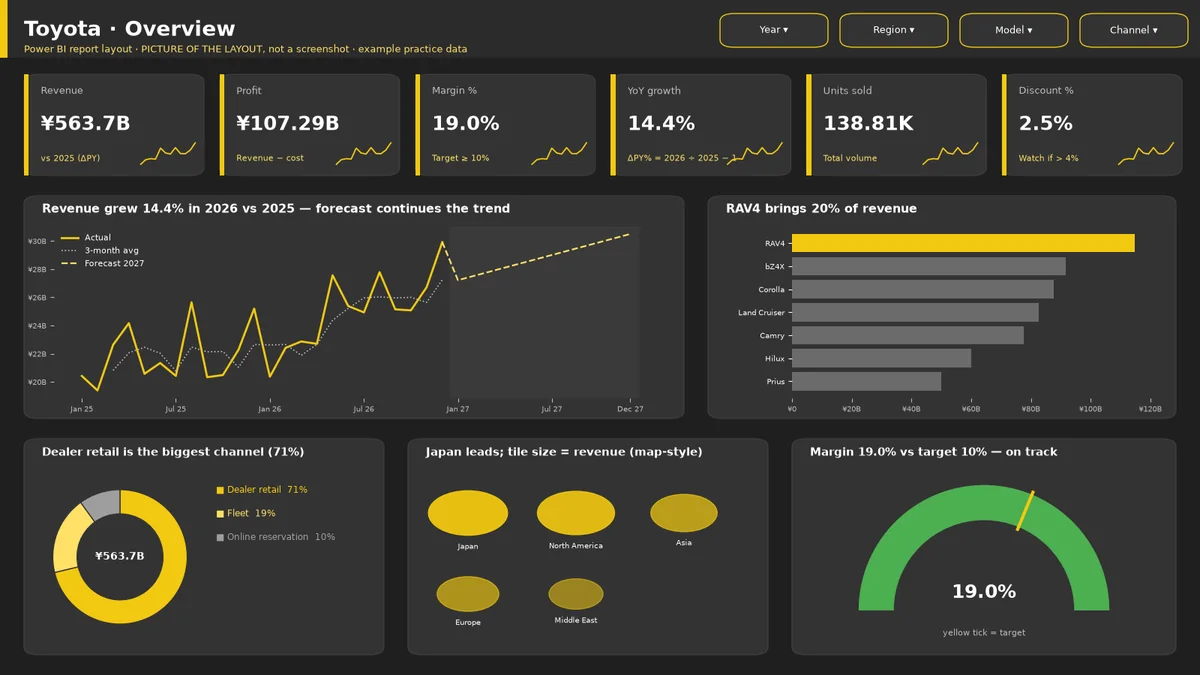
Figure 1. Picture of the layout (not a screenshot): Overview page with slicers, 6 KPI cards, AC trend with forecast, model bars, channel donut, region tiles and a margin gauge.
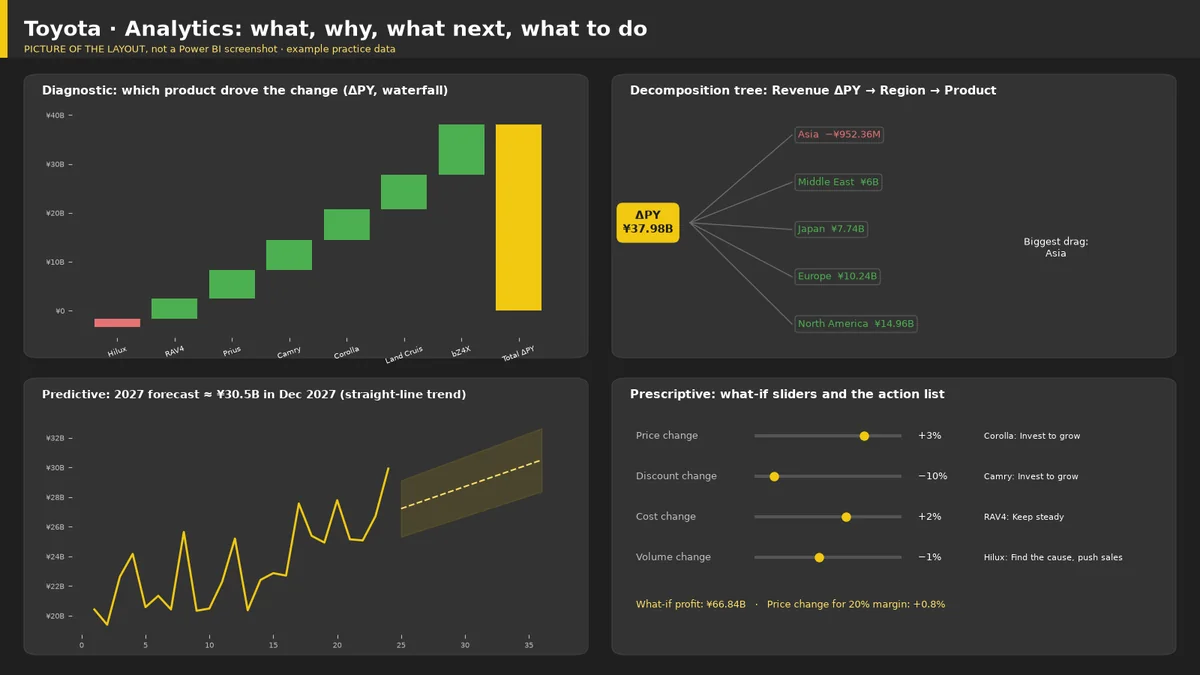
Figure 2. Picture of the layout (not a screenshot): Analytics page with ΔPY waterfall, decomposition tree, forecast band and what-if sliders.
2. Rebuild it from a blank report
Step 1. Get the data
Home › Get Data › Text/CSV. Load Sales.csv, Product.csv, Region.csv and Date.csv one by one (or Excel workbook › the _powerbi_data.xlsx and tick the 4 tables). In Power Query check the types: Date = Date, money columns = Decimal number, Qty = Whole number. Close & Apply.
Step 2. Build the star schema
Model view. Drag Sales[Date] to Date[Date], Sales[Product] to Product[Product], Sales[Region] to Region[Region]. Each is one-to-many, single direction, from the dimension to Sales.
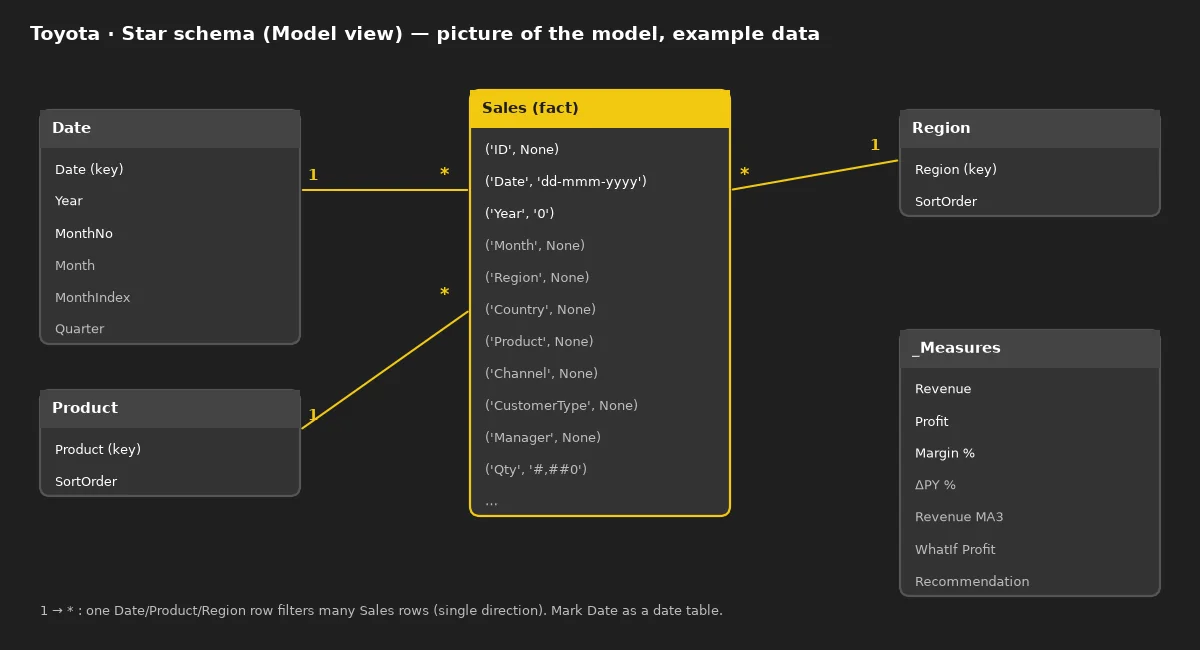
Figure 3. Picture of the star schema: Sales fact table in the middle, Date, Product and Region around it.
Step 3. Mark the date table
Select the Date table › Table tools › Mark as date table › Date column. Time-intelligence functions such as SAMEPERIODLASTYEAR need this. Sort Date[Month] by Date[MonthNo].
Step 4. Create the measures
Home › New measure, then paste each measure from measures.dax (40 measures). Put them in a Measures table (Enter data › empty table) to keep the model tidy. Format: money measures as currency ¥, % measures as percentage with 1 decimal.
Step 5. Overview page: slicers and KPI cards
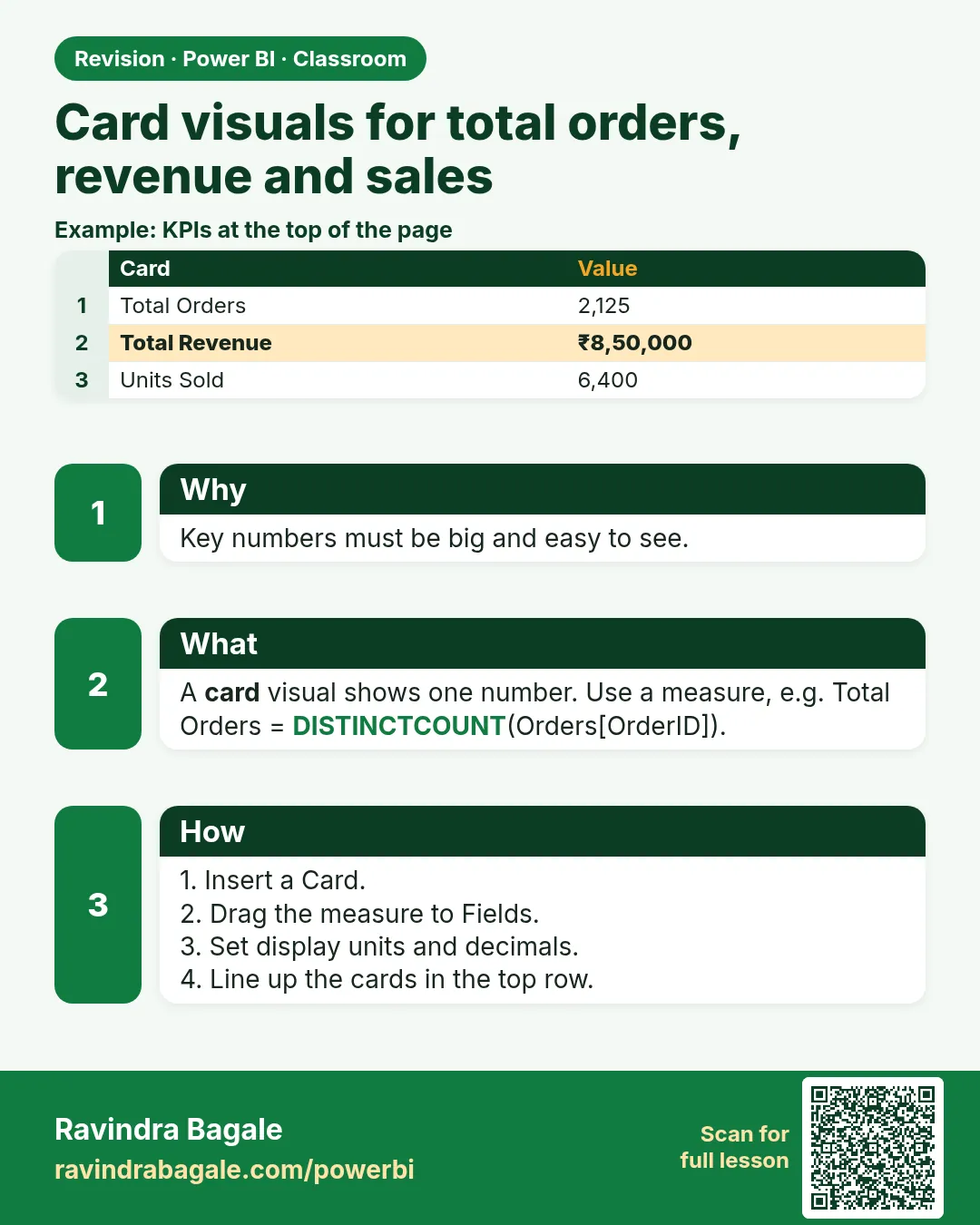
Top band: 4 slicers (Year, Region, Product, Channel) as drop-downs. Under it 6 card visuals (Revenue, Profit, Margin %, YoY %, Units, Discount %). Use the new Card visual with reference labels for ΔPY %.
Picture: see Figure 1 above.
Step 6. Overview page: charts
Line chart: Date[Month] on X, [Revenue] and [Revenue MA3]. Bar chart: Product vs [Revenue], sorted. Donut: Channel (few parts only). Gauge: [Margin % 2026] with target value. Write the finding in each title (Format › Title › fx and a text measure).
Picture: see Figure 1 above.
Step 7. Analytics page: diagnostic
Waterfall: Category = Product, Y = [ΔPY]. Decomposition tree: Analyse = [ΔPY], Explain by = Region, Product, Channel. Click the + to drill down and find the biggest drag.
Picture: see Figure 2 above.
Step 8. Analytics page: predictive
Line chart of [Revenue] by month › Analytics pane › Forecast › length 12 months, confidence 95%. Compare with the 'Revenue Trend' measure (LINESTX straight line).
Picture: see Figure 2 above.
Step 9. Analytics page: prescriptive
Modeling › New parameter › Numeric range: Price change from −0.10 to 0.10, step 0.01 (repeat for Discount, Cost and Volume). Use the parameter values in [WhatIf Revenue] and [WhatIf Profit] instead of the fixed constants. Add a table with Product and [Recommendation].
Picture: see Figure 2 above.
Step 10. Theme
View › Themes › Browse for themes and load the JSON below (save it as theme.json). Background #1F1F1F, panels #2B2B2B, cards #333333, accent yellow #F2C811, text white #FFFFFF / grey #BDBDBD, good #4CAF50, bad #E57373.
Step 11. Check and publish
Change every slicer and confirm every visual changes. Compare the card values with the table in section 4. Then File › Publish to share it in the Power BI service.
Theme JSON and hex codes
{
 "name": "RB Yellow Charcoal",
 "dataColors": [
  "#F2C811",
  "#FFE066",
  "#BDBDBD",
  "#8C8C8C",
  "#4CAF50",
  "#E57373"
 ],
 "background": "#1F1F1F",
 "foreground": "#FFFFFF",
 "tableAccent": "#F2C811",
 "good": "#4CAF50",
 "bad": "#E57373",
 "neutral": "#BDBDBD",
 "visualStyles": {
  "*": {
   "*": {
    "background": [
     {
      "color": {
       "solid": {
        "color": "#333333"
       }
      },
      "transparency": 0
     }
    ],
    "title": [
     {
      "fontColor": {
       "solid": {
        "color": "#FFFFFF"
       }
      }
     }
    ]
   }
  },
  "page": {
   "*": {
    "background": [
     {
      "color": {
       "solid": {
        "color": "#1F1F1F"
       }
      },
      "transparency": 0
     }
    ]
   }
  }
 }
}| Colour | Used for |
|---|---|
#1F1F1F | Page background |
#2B2B2B | Panels |
#333333 | Cards |
#F2C811 | Accent |
#FFE066 | Light accent |
#FFFFFF | Text |
#BDBDBD | Muted text |
#4CAF50 | Good |
#E57373 | Bad |
3. All DAX measures
The four types of analytics in DAX: descriptive (Revenue, Profit, Margin %), diagnostic (ΔPY, ΔPY %, Contribution %), predictive (Revenue MA3, Revenue Trend) and prescriptive (WhatIf Revenue, WhatIf Profit, Price Change Needed, Recommendation).
// Toyota · Power BI measures (example practice data). Paste each into New measure.
// Tables: Sales (fact), Date, Product, Region.

Revenue = SUM(Sales[Revenue])

Profit = SUM(Sales[Profit])

Units sold = SUM(Sales[Qty])

Margin % = DIVIDE([Profit], [Revenue])

Revenue 2026 = CALCULATE([Revenue], 'Date'[Year] = 2026)

Revenue 2025 = CALCULATE([Revenue], 'Date'[Year] = 2025)

YoY % = DIVIDE([Revenue 2026] - [Revenue 2025], [Revenue 2025])

Discount % = DIVIDE(SUM(Sales[Discount]), SUM(Sales[GrossSales]))

Revenue per vehicle = DIVIDE([Revenue], [Units sold])

Electrified % = DIVIDE(CALCULATE([Units sold], Sales[Powertrain] IN {"Hybrid","EV"}), [Units sold])

EV % = DIVIDE(CALCULATE([Units sold], Sales[Powertrain] = "EV"), [Units sold])

Sell-through % = DIVIDE([Units sold], SUM(Sales[Produced]))

Units per dealer-month = DIVIDE([Units sold], COUNTROWS(Sales))

Fleet % = DIVIDE(CALCULATE([Units sold], Sales[Channel] = "Fleet"), [Units sold])

Gross Sales = SUM(Sales[GrossSales])

Discount Amt = SUM(Sales[Discount])

Cost = SUM(Sales[Cost])

Revenue PY = CALCULATE([Revenue], SAMEPERIODLASTYEAR('Date'[Date]))

ΔPY = [Revenue 2026] - [Revenue 2025]

ΔPY % = DIVIDE([ΔPY], [Revenue 2025])

Contribution % = DIVIDE([ΔPY], CALCULATE([ΔPY], ALL(Sales[Product])))

Margin % 2026 = DIVIDE(CALCULATE([Profit], 'Date'[Year] = 2026), [Revenue 2026])

Revenue MA3 = DIVIDE(CALCULATE([Revenue], DATESINPERIOD('Date'[Date], MAX('Date'[Date]), -3, MONTH)), 3)

Price Change = 0.03

Discount Change = -0.10

Cost Change = 0.02

Volume Change = -0.01

WhatIf Revenue = (CALCULATE([Gross Sales], 'Date'[Year] = 2026) * (1 + [Price Change]) - CALCULATE([Discount Amt], 'Date'[Year] = 2026) * (1 + [Discount Change])) * (1 + [Volume Change])

WhatIf Profit = [WhatIf Revenue] - CALCULATE([Cost], 'Date'[Year] = 2026) * (1 + [Cost Change]) * (1 + [Volume Change])

Target Margin = 0.2

Price Change Needed = DIVIDE(CALCULATE([Cost], 'Date'[Year] = 2026) * (1 + [Cost Change]) / (1 - [Target Margin]) + CALCULATE([Discount Amt], 'Date'[Year] = 2026) * (1 + [Discount Change]), CALCULATE([Gross Sales], 'Date'[Year] = 2026)) - 1

Recommendation = IF([Margin % 2026] < 0.1, "Fix price / cut discount", IF([ΔPY %] < 0, "Find the cause, push sales", IF([ΔPY %] >= 0.1, "Invest to grow", "Keep steady")))

Revenue Trend =
VAR pts = ADDCOLUMNS(SUMMARIZE(ALL('Date'), 'Date'[MonthIndex]), "@rev", [Revenue])
VAR fit = LINESTX(pts, [@rev], 'Date'[MonthIndex])
VAR slope = SELECTCOLUMNS(fit, [Slope1])
VAR icpt = SELECTCOLUMNS(fit, [Intercept])
RETURN icpt + slope * MAX('Date'[MonthIndex])

Correl Discount vs Qty =
VAR n = COUNTROWS(Sales)
VAR mx = AVERAGE(Sales[Discount]) VAR my = AVERAGE(Sales[Qty])
VAR cov = SUMX(Sales, (Sales[Discount] - mx) * (Sales[Qty] - my))
VAR sx = SQRT(SUMX(Sales, (Sales[Discount] - mx) ^ 2)) VAR sy = SQRT(SUMX(Sales, (Sales[Qty] - my) ^ 2))
RETURN DIVIDE(cov, sx * sy)
4. How the DAX was checked
Each measure was run in a DAX test engine on the same data and compared with pandas: 22 of 22 checks matched. Revenue Trend (LINESTX) and the CORREL measure were checked in pandas only. Use these values to check your report with no slicer selected:
| Measure | Expected value (all rows) |
|---|---|
| Revenue | ¥563.7B |
| Profit | ¥107.29B |
| Margin % | 19.0% |
| YoY % | +14.4% |
| Units sold | 138.81K |
| Discount % | 2.5% |
| Revenue per vehicle | ¥4.06M |
| Electrified % | 58.0% |
| EV % | 10.4% |
| Sell-through % | 96.6% |
| Units per dealer-month | 25.24 |
| Fleet % | 19.1% |
| Revenue 2026 | ¥300.84B |
| Revenue 2025 | ¥262.86B |
| ΔPY | ¥37.98B |
| ΔPY % | +14.4% |
| Margin % 2026 | 20.7% |
| WhatIf Revenue | ¥307.76B |
| WhatIf Profit | ¥66.84B |
| Price Change Needed | +0.8% |
| Revenue MA3 (Dec 2026) | ¥27.23B |
| Revenue Trend (t=36, Dec 2027) | ¥30.5B |
| Correl Discount vs Qty | 0.50 |
Next: the same dashboard in Excel · all 50 Power BI company dashboards.
5. FAQ
Can I download a .pbix?
No. A .pbix needs Power BI Desktop on Windows. You get the data, DAX and layout pictures and build it yourself.
Is this real Toyota data?
No, it is simulated example data for practice.
Why a separate Date table?
Time intelligence (SAMEPERIODLASTYEAR, DATESINPERIOD) needs a full, marked date table.
6. Quick quiz
Five questions on this page. Sign in to save your score.
Which table is the fact table?
- Date
- Product
- Sales
- Region
Show answer
C. Sales. Sales holds one row per sales line; the others describe it.
Which function gives last year's revenue?
- SAMEPERIODLASTYEAR
- RELATED
- SWITCH
- VALUES
Show answer
A. SAMEPERIODLASTYEAR. CALCULATE([Revenue], SAMEPERIODLASTYEAR('Date'[Date])).
Which visual finds the biggest drag on ΔPY?
- Card
- Decomposition tree
- Slicer
- Gauge
Show answer
B. Decomposition tree. The decomposition tree splits ΔPY by Region, Product and Channel.
Why DIVIDE() and not '/'?
- It is faster
- It returns blank instead of an error when dividing by 0
- It rounds
- It sorts
Show answer
B. It returns blank instead of an error when dividing by 0. DIVIDE handles zero safely.
Can you download a .pbix from this page?
- Yes
- No, you build it from the CSVs and DAX
- Only on mobile
- Only the theme
Show answer
B. No, you build it from the CSVs and DAX. A .pbix needs Power BI Desktop on Windows.
 Revision card