Labs · Power BI
Lab: Turn the File Path into a Power Query Parameter So the Report Works on Any Laptop
Course: Power BI · Chapter 10: Parameters in Power Query (and Other Kinds of Parameters)
Chapter 10 explains Power Query parameters and other kinds of parameters; this lab builds the most useful one, a folder path.
Chala mitrano! "It works on my laptop" is the most famous sentence in IT, and also in Power BI. You send your report to a colleague and the refresh fails, because his file is in a different folder. Today we fix this forever with one parameter. One small box, and your report travels anywhere. Ek parameter, sagle laptop khush!
चला मित्रांनो! "माझ्या laptop वर चालतं" हे IT मधलं सगळ्यात प्रसिद्ध वाक्य आहे, आणि Power BI मध्येही. तुम्ही report colleague ला पाठवता आणि refresh fail होतो, कारण त्याची file वेगळ्या folder मध्ये आहे. आज हे एका parameter ने कायमचं सोडवू. एक छोटा box, आणि तुमचा report कुठेही चालतो. एक parameter, सगळे laptop खुश!
चलो दोस्तों! "मेरे laptop पर चलता है" IT का सबसे मशहूर वाक्य है, और Power BI में भी। आप report colleague को भेजते हो और refresh fail हो जाता है, क्योंकि उसकी file अलग folder में है। आज इसे एक parameter से हमेशा के लिए ठीक करेंगे। एक छोटा box, और आपका report कहीं भी चलेगा। एक parameter, सारे laptop खुश!
Suppose we are…
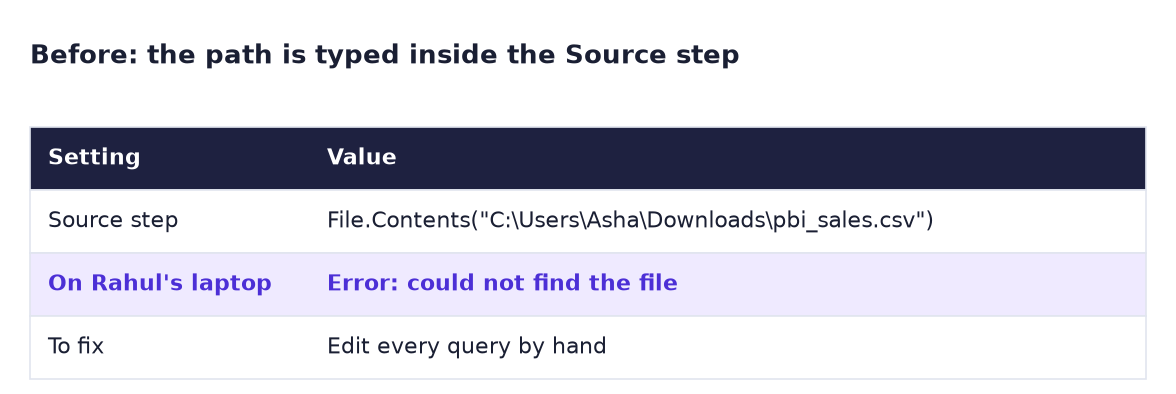
Suppose we are on the MIS team at Bajaj Finserv in Pune. Asha built a sales report on her laptop. The Source step says C:\Users\Asha\Downloads\pbi_sales.csv. She goes on leave and Rahul opens the report on his laptop. His Windows user is "Rahul" and he keeps files in a different folder, so Refresh fails. Rahul would have to open Power Query and edit every query by hand.
A parameter is a named value (like a small variable) that queries can use. If the folder lives in one parameter, Rahul changes one box and everything works. The sales data is sample data made up for practice.
Goal of this lab
By the end you will have:
- A text parameter FolderPath.
- A Source step that reads
FolderPath & "pbi_sales.csv"instead of a fixed path. - Broken the refresh on purpose by moving the file, then fixed it with Edit parameters in seconds.
- A template file (
.pbit) that asks for the folder when someone opens it.
What you need (all free)
- Power BI Desktop.
- The file: Download pbi_sales.csv (24 orders)
- 30 minutes.
The data: before and after
Before. The path is typed inside the Source step. On another laptop the file is not found.
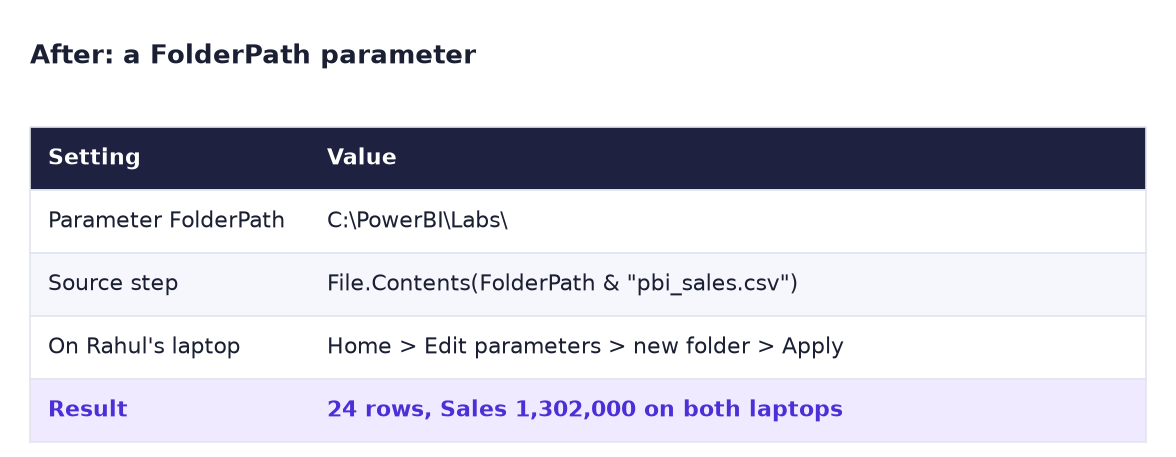
After. The folder lives in a parameter. Rahul changes only the parameter value.
The formula
This is the only line of code we change. Before:
= Csv.Document(File.Contents("C:\PowerBI\Labs\pbi_sales.csv"), [Delimiter=",", Columns=7, Encoding=65001, QuoteStyle=QuoteStyle.None])
After:
= Csv.Document(File.Contents(FolderPath & "pbi_sales.csv"), [Delimiter=",", Columns=7, Encoding=65001, QuoteStyle=QuoteStyle.None])
& joins two pieces of text in M. If FolderPath is C:\PowerBI\Labs\, then FolderPath & "pbi_sales.csv" becomes C:\PowerBI\Labs\pbi_sales.csv, exactly the old path. That is why the parameter value must end with a backslash.
Steps
- Create the folder
C:\PowerBI\Labsand savepbi_sales.csvin it. - In Power BI Desktop: Get data → Text/CSV, pick
C:\PowerBI\Labs\pbi_sales.csv, click Transform Data. -
In Applied Steps, click Source. If you do not see the formula bar above the table, tick View → Formula Bar.
What you should see: the formula bar shows
= Csv.Document(File.Contents("C:\PowerBI\Labs\pbi_sales.csv"), …. -
Click Home → Manage Parameters → New Parameter. Fill in: Name
FolderPath, Type Text, Suggested Values Any value, Current ValueC:\PowerBI\Labs\(with the backslash at the end). Click OK.What you should see: FolderPath in the Queries list on the left, with a small parameter icon and the value C:\PowerBI\Labs.
-
Click the pbi_sales query, then its Source step. In the formula bar, select the text
"C:\PowerBI\Labs\pbi_sales.csv"(including the quotes) and replace it withFolderPath & "pbi_sales.csv". Press Enter.What you should see: the same 24 rows; no error. Click the last step in Applied Steps to check the final table is fine too.
-
Click Home → Close & Apply. Add a Card with Sales.
What you should see: 1.30M. Save the file as
Lab-10-parameter. -
Now play Rahul. Create the folder
C:\Users\Public\Documents\SalesDataand move (cut and paste)pbi_sales.csvfromC:\PowerBI\Labsinto it. In Power BI click Home → Refresh.What you should see: an error like Could not find file 'C:\PowerBI\Labs\pbi_sales.csv'. Close the message.
-
Click the small arrow under Home → Transform data and choose Edit parameters. Change FolderPath to
C:\Users\Public\Documents\SalesData\and click OK, then Apply changes.What you should see: the refresh runs and the card shows 1.30M again. You did not open Power Query.
-
Click File → Export → Power BI template, type a description such as "Sales report. Set FolderPath to the folder with pbi_sales.csv" and save as
Lab-10-sales.pbit. -
Close Power BI and double-click
Lab-10-sales.pbit.What you should see: a window asking for FolderPath before anything loads. Enter
C:\Users\Public\Documents\SalesData\and click Load. This is exactly what Rahul would do.
Ravindra Bagale's Tip
Ninety percent of parameter errors are one missing backslash. C:\PowerBI\Labs + pbi_sales.csv becomes C:\PowerBI\Labspbi_sales.csv, and the file is not found. Always end the folder with a backslash. Ek chhota slash, motha farak!
Ravindra Bagale's Tip – मराठी
Parameter च्या नव्वद टक्के errors म्हणजे एक missing backslash. C:\PowerBI\Labs + pbi_sales.csv होतं C:\PowerBI\Labspbi_sales.csv, आणि file सापडत नाही. Folder नेहमी backslash ने संपवा. एक छोटा slash, मोठा फरक!
Ravindra Bagale's Tip – हिंदी
Parameter के नब्बे प्रतिशत errors एक missing backslash होते हैं। C:\PowerBI\Labs + pbi_sales.csv बन जाता है C:\PowerBI\Labspbi_sales.csv, और file नहीं मिलती। Folder हमेशा backslash से खत्म करो। एक छोटा slash, बड़ा फर्क!
Common mistakes
| Mistake | What happens | Fix |
|---|---|---|
| FolderPath without the last backslash | "Could not find file …Labspbi_sales.csv" | End the value with \ |
Typing "FolderPath" in quotes |
Power Query looks for a file literally called FolderPath | No quotes around the parameter name |
| Parameter type left as Any | Works, but some dialogs will not offer it | Set Type to Text |
| Copying the file instead of moving it in step 7 | Refresh still works and you do not see the error | Move (cut) it, so the old path really is empty |
| Using the parameter in only one of many queries | Other queries still break on Rahul's laptop | Use FolderPath in the Source step of every file query |
| Looking for "Edit parameters" inside Power Query | It is on the main window | Home → Transform data ▼ → Edit parameters |
Self-check checklist
0 of 5 done
Try-at-home challenge
Your manager wants the same report for two branches whose files have different names: pbi_sales.csv and pune_sales.csv. Make the file name a second parameter, FileName, so both the folder and the file can change.
Check your answer
Create a second Text parameter FileName with the current value pbi_sales.csv. Change the Source step to:
= Csv.Document(File.Contents(FolderPath & FileName), [Delimiter=",", Columns=7, Encoding=65001, QuoteStyle=QuoteStyle.None])Now Edit parameters shows two boxes. To test, copy pbi_sales.csv as pune_sales.csv, set FileName to it and refresh: still 24 rows and 1.30M, because the content is the same. With a real Pune file the numbers would change.
Samjla ka? Put the folder in a parameter, join it with &, and end it with a backslash. Aata pudhe jaauya: build a proper star schema with a Date, Product and City table.