Labs · Power BI
Lab: Connect Power BI to a Local SQL Server Express Database and Compare Import with DirectQuery
Course: Power BI · Chapter 4: Connecting to Databases: SQL Server, MySQL, DirectQuery and Live Connection
Chapter 4 explains Import, DirectQuery and Live connection; this lab lets you see the difference with one inserted row.
Download shopdb_sqlserver.sql (creates ShopDB with 24 orders)
Chala mitrano! Every interviewer asks "Import or DirectQuery?" Most students answer from memory. Today you will answer from experience: one database, two reports, one new order, and you will see with your own eyes which report notices it. Ekda pahila ki kayam lakshat rahil!
चला मित्रांनो! प्रत्येक interviewer विचारतो "Import की DirectQuery?" बहुतेक students पाठांतरातून उत्तर देतात. आज तुम्ही अनुभवातून उत्तर द्याल: एक database, दोन reports, एक नवीन order, आणि कोणत्या report ला ते कळतं हे स्वतःच्या डोळ्यांनी बघाल. एकदा पाहिलं की कायम लक्षात राहील!
चलो दोस्तों! हर interviewer पूछता है "Import या DirectQuery?" ज़्यादातर students रटा हुआ जवाब देते हैं। आज आप अनुभव से जवाब दोगे: एक database, दो reports, एक नया order, और कौन सी report उसे पकड़ती है यह अपनी आँखों से देखोगे। एक बार देख लिया तो हमेशा याद रहेगा!
Suppose we are…
Suppose we are the reporting analyst at a Reliance Digital-style electronics chain. The store billing system writes every order into a SQL Server database called ShopDB. The sales head asks two things: "Can my report be fast?" and "Can it show an order the minute it is billed?" These two wishes pull in opposite directions, and the answer is the choice between Import and DirectQuery:
- Import copies the rows into the Power BI file. Very fast, but it only knows what was there at the last Refresh.
- DirectQuery keeps no copy. Every click sends a new SQL query to the database. Always fresh, but slower and with some limits.
We build ShopDB on our own laptop with 24 sample orders (made up for practice, not real company data), connect it both ways and insert one new order.
Why SQL Server and not MySQL?
The chapter covers MySQL too, but the Power BI MySQL connector supports Import only, not DirectQuery, so it cannot show this comparison. SQL Server Express is free and supports both. If your company uses MySQL, everything about Import in this lab works the same way with Get data → MySQL database (it needs the free MySQL Connector/NET installed).
Goal of this lab
By the end you will have:
- A local SQL Server Express database ShopDB with a table dbo.Orders (24 rows).
- Two Power BI files:
Lab-04-import.pbixandLab-04-directquery.pbix. - Seen with your own eyes that a new order appears in DirectQuery at once, but in Import only after Refresh.
What you need (all free)
- Windows 10 or 11 with about 6 GB of free disk space.
- SQL Server Express (free edition of SQL Server) and SQL Server Management Studio (SSMS, the free tool to run SQL).
- Power BI Desktop.
- The script: Download shopdb_sqlserver.sql (creates ShopDB with 24 orders)
- 45 minutes (most of it is the install).
The data: before and after
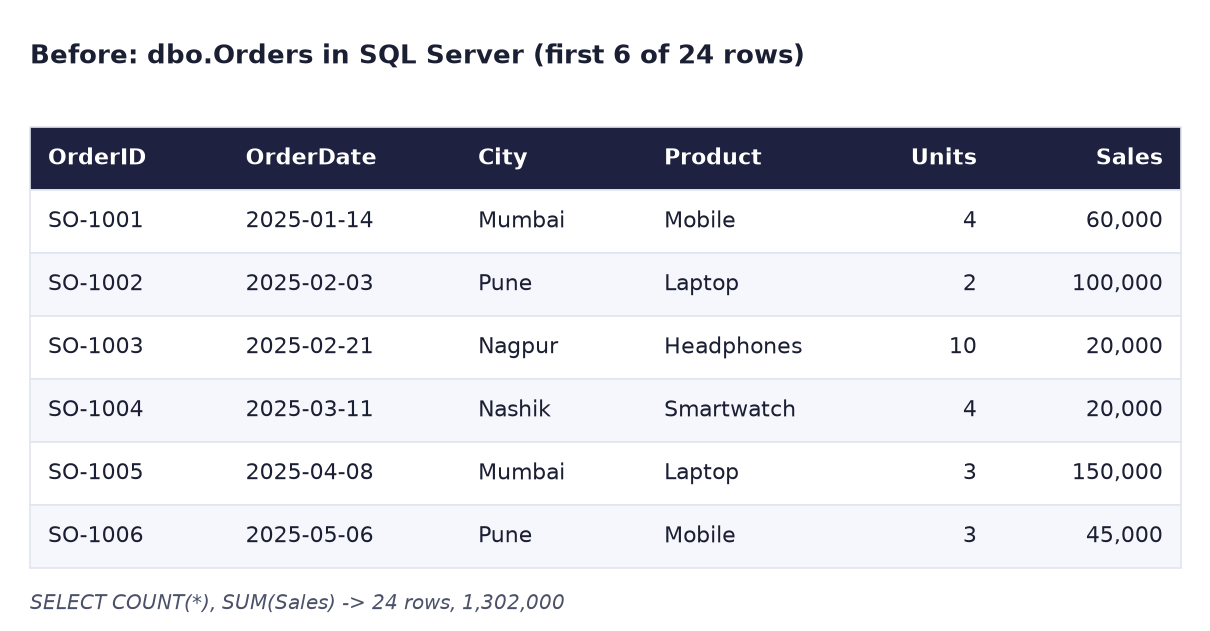
Before. The table dbo.Orders in SQL Server after running the script. Same 24 orders as pbi_sales.csv, total 1,302,000.
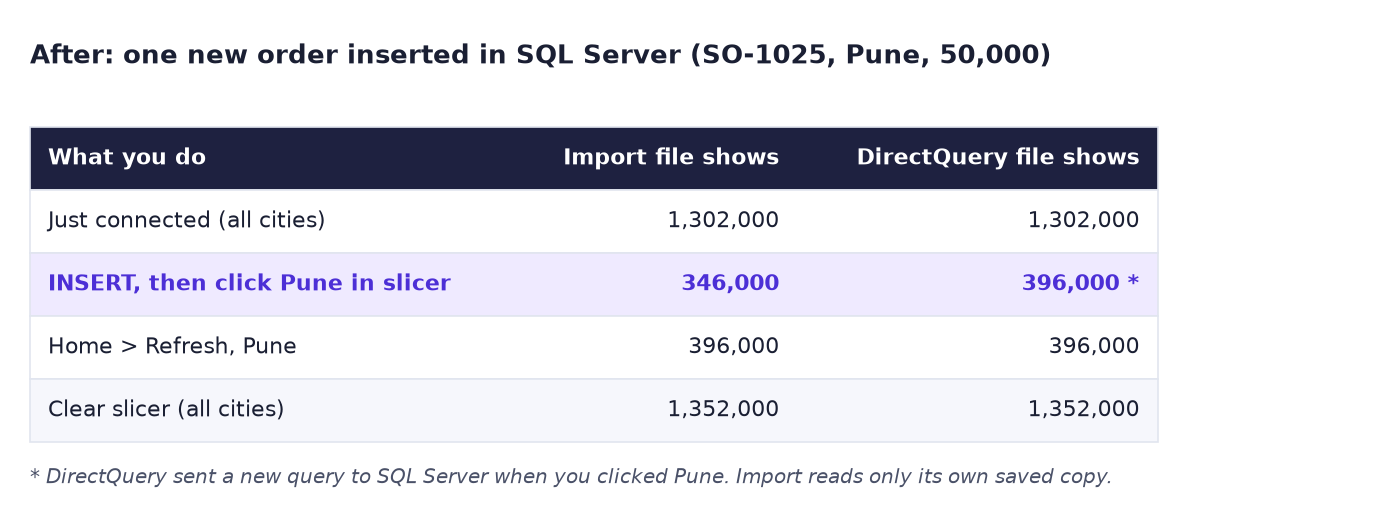
After. We insert one Pune order of 50,000. The DirectQuery report shows Pune = 396,000 straight away; the Import report still shows 346,000 until we click Refresh.
The formula
Two lines of SQL do the work. The first one adds the new order in SQL Server:
INSERT INTO dbo.Orders (OrderID, OrderDate, City, Product, Units, Sales, Cost)
VALUES ('SO-1025', '2026-06-30', 'Pune', 'Laptop', 1, 50000, 42500);
The second one you never type: in DirectQuery mode, when you click Pune in the slicer, Power BI writes and sends a query to SQL Server that means:
SELECT SUM(Sales) FROM dbo.Orders WHERE City = 'Pune';
So the DirectQuery answer is always what the database holds right now: 346,000 + 50,000 = 396,000. The Import file answers from its own copy, made at the last load or refresh, so it still says 346,000.
Steps
Part A: build ShopDB
-
Go to the official SQL Server downloads page,
https://www.microsoft.com/sql-server/sql-server-downloads, and under Express click Download now. Run the file and choose Basic. Accept the licence and wait.What you should see: "Installation has completed successfully" with INSTANCE NAME: SQLEXPRESS.
-
On the same screen click Install SSMS (or search "Download SSMS" on learn.microsoft.com) and install SQL Server Management Studio.
-
Open SSMS. In Connect to Server, type the server name
localhost\SQLEXPRESS, keep Windows Authentication, tick Trust server certificate and click Connect.What you should see: the Object Explorer on the left with
localhost\SQLEXPRESSand a Databases folder. -
Click File → Open → File, pick
shopdb_sqlserver.sqland press F5 (Execute).What you should see: a result grid with Orders = 24 and TotalSales = 1302000.
Part B: the Import report
- Open Power BI Desktop, click Blank report, then Home → Get data → SQL Server.
- Type Server
localhost\SQLEXPRESSand DatabaseShopDB. Under Data connectivity mode choose Import. Click OK. - If asked for credentials, choose Windows → Use my current credentials → Connect. If a box says it could not use an encrypted connection, click OK to continue (this is fine for a local training database only).
- In the Navigator, tick Orders and click Load.
-
Click the Card icon in Visualizations and tick Sales. Then click an empty part of the canvas, click the Slicer icon and tick City.
What you should see: the card shows 1.30M and the slicer lists Mumbai, Nagpur, Nashik and Pune.
-
Do not click any city yet. Save as
Lab-04-import.
Part C: the DirectQuery report
-
Click File → New (a second Power BI window opens). Repeat steps 5 to 9, but in step 6 choose DirectQuery.
What you should see: the same card (1.30M) and slicer, and at the bottom right of the window: Storage Mode: DirectQuery.
-
Do not click any city yet. Save as
Lab-04-directquery.
Part D: insert one order and compare
-
Go back to SSMS, click New Query, paste the INSERT from "The formula" above with
USE ShopDB;as the first line, and press F5.What you should see: (1 row affected).
-
In the DirectQuery window, click Pune in the slicer.
What you should see: the card shows 396K. The new order is already there.
-
In the Import window, click Pune in the slicer.
What you should see: the card shows 346K. The Import file does not know about SO-1025.
-
In the Import window, click Home → Refresh and wait for it to finish.
What you should see: the card changes to 396K. Clear the slicer (click Pune again): 1.35M in both windows.
-
Save both files. Write one sentence in your notes: "Import = fast copy, fresh after Refresh. DirectQuery = live questions to the database every click."
Ravindra Bagale's Tip
Interview tip: do not say "DirectQuery is always better because it is live". Say: "Import is the default because it is fastest and has all features. I choose DirectQuery only when data is too big to copy or must be up to the minute, and the database is fast enough." And mention Live connection: it connects to a model that someone already published (or to Analysis Services), so there is no Power Query at all. Answer bolta yeil!
Ravindra Bagale's Tip – मराठी
Interview tip: "DirectQuery नेहमी चांगलं कारण ते live आहे" असं म्हणू नका. असं म्हणा: "Import default आहे कारण ते सगळ्यात fast आहे आणि सगळे features मिळतात. Data copy करायला खूप मोठा असेल किंवा अगदी त्या मिनिटाचा हवा असेल, आणि database पुरेसा fast असेल, तेव्हाच मी DirectQuery निवडतो." आणि Live connection सांगा: ते आधीच publish झालेल्या model ला (किंवा Analysis Services ला) जोडतं, म्हणून Power Query नसतोच. उत्तर बोलता येईल!
Ravindra Bagale's Tip – हिंदी
Interview tip: "DirectQuery हमेशा बेहतर है क्योंकि वह live है" ऐसा मत कहो। ऐसे कहो: "Import default है क्योंकि वह सबसे fast है और सारे features मिलते हैं। Data copy करने के लिए बहुत बड़ा हो या एकदम उसी मिनट का चाहिए, और database काफी fast हो, तभी मैं DirectQuery चुनता हूँ।" और Live connection बताओ: वह पहले से publish हुए model से (या Analysis Services से) जुड़ता है, इसलिए Power Query होता ही नहीं। जवाब बोल पाओगे!
Common mistakes
| Mistake | What happens | Fix |
|---|---|---|
Server name localhost only |
"A network-related error… server was not found" | Express is a named instance: use localhost\SQLEXPRESS |
| SSMS: "The certificate chain was issued by an authority that is not trusted" | Cannot connect | Tick Trust server certificate (local training only) |
| Clicking Pune in DirectQuery before the INSERT | DirectQuery may reuse the old answer it already has | Click Home → Refresh in the DirectQuery window: it re-asks the database without copying data |
| Running the INSERT twice | "Violation of PRIMARY KEY constraint" | Fine: the order is already there. Use a new OrderID such as SO-1026 to add another |
| Choosing MySQL for the DirectQuery part | No DirectQuery option appears | The MySQL connector is Import only; use SQL Server for this comparison |
Forgetting USE ShopDB; |
"Invalid object name dbo.Orders" | Run USE ShopDB; first, or pick ShopDB in the SSMS database box |
Self-check checklist
0 of 6 done
Try-at-home challenge
Delete the extra order in SSMS with DELETE FROM dbo.Orders WHERE OrderID = 'SO-1025';. Without clicking Refresh in either window, predict what each card shows for Pune when you click it again. Then check.
Check your answer
Import still shows 396K: its copy was made at the last Refresh, when SO-1025 existed. DirectQuery should show 346K after it re-queries. If it still shows 396K, it reused the answer it already had for Pune: click Home → Refresh in that window (it sends the queries again; no data is copied). Then refresh the Import window too: both show 346K for Pune and 1.30M in total.
Samjla ka? Import = a fast copy you refresh; DirectQuery = a live question every click. Aata pudhe jaauya: load data from the web and from a Google Sheet, and refresh both.